How To Use Soundbar With PC — Best Connection Methods, Settings & HDMI Fixes
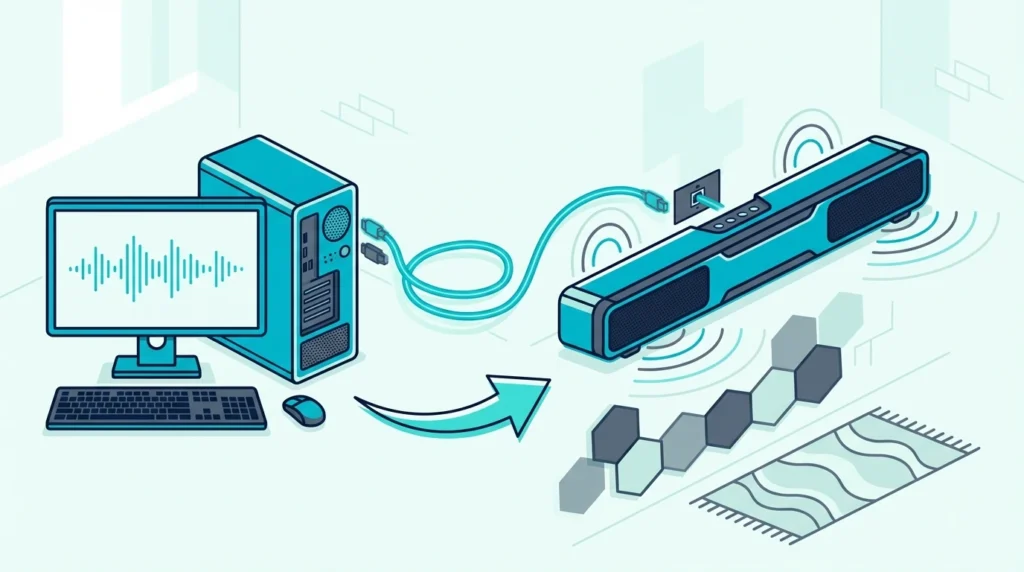
How to use soundbar with PC can be straightforward, but only if you match the soundbar to the right connection path instead of assuming a computer behaves like a TV.
The common problem is that people plug in HDMI, see a picture, and then get no sound because Windows still uses the wrong audio output, the monitor does not return audio, or the soundbar expects ARC through a TV rather than direct PC audio. That is how a simple upgrade for better audio turns into a confusing mix of silent speakers, bad handshakes, and menus that never seem to save the right device.
Get the path right and the setup is much easier: the PC sends audio through the right output, the soundbar acts like a real desktop speaker solution, and you know when HDMI, optical, Bluetooth, or TV passthrough actually makes sense.
Start by deciding whether the PC should connect to the soundbar directly, pass through a TV first, or use optical as a fallback, because that one decision shapes every setting that comes after.
Now that the PC-use path is clear, let’s walk through how to use a soundbar with a PC the right way.
To use a soundbar with a PC, choose the simplest supported path first: direct HDMI if the soundbar accepts it, TV passthrough plus ARC if the PC is feeding a TV, or optical if HDMI keeps failing. Then set the PC’s audio output to the soundbar path in Windows instead of assuming the cable alone will switch the sound automatically.
Why Is a PC Setup Different From a TV Setup?
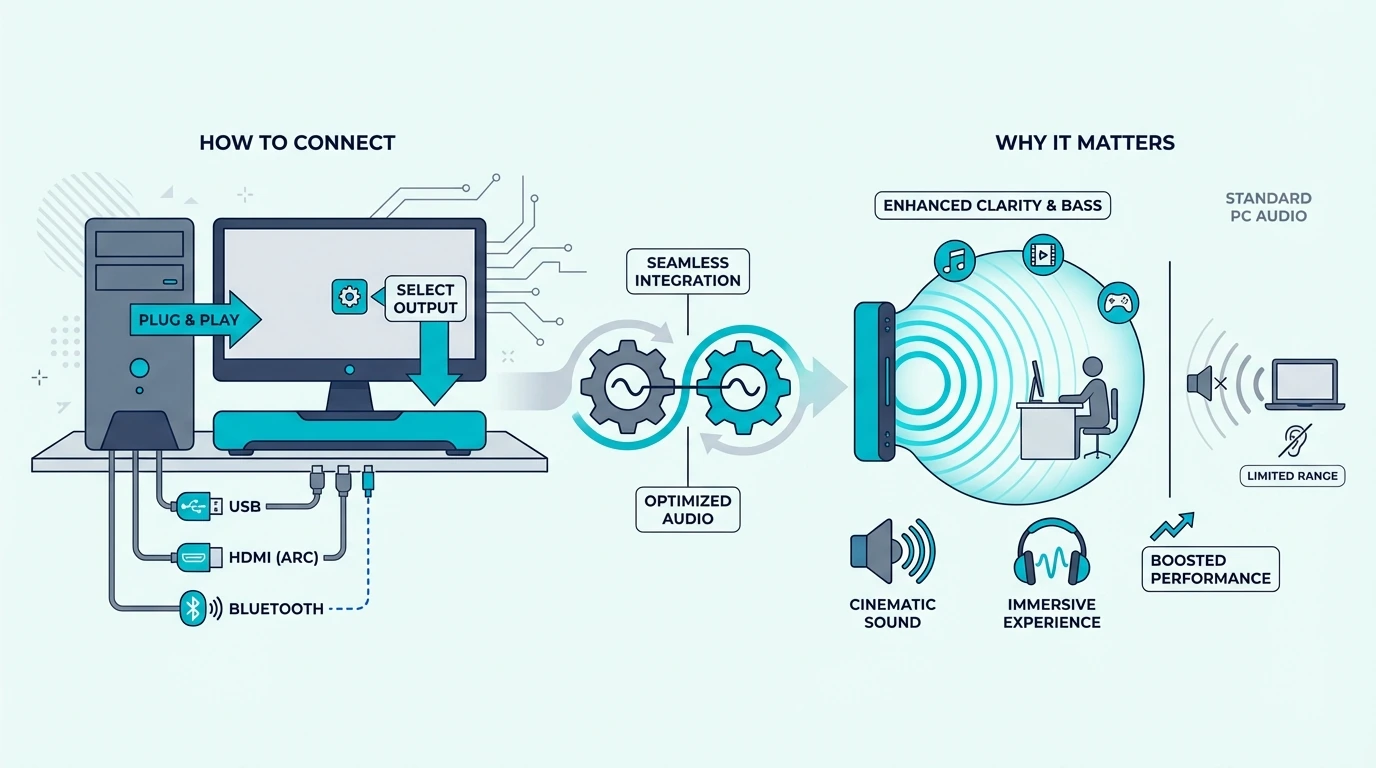
Now that the basic goal is clear, the reason this matters is that a soundbar can be a real upgrade for a desk setup when built-in monitor speakers sound thin or when the PC already feeds a larger display for gaming, movies, or music.
That said, a PC audio setup is different from a TV audio setup. PCs may output through HDMI from the graphics card, optical from the motherboard or sound card, Bluetooth from the operating system, or analog audio from a headphone jack, and not every soundbar supports every path the same way.
That difference is why this page is not the same as the broader soundbar hub or the cable-first TV-to-soundbar guide. Using a soundbar with a PC is really about choosing the cleanest audio output path and then making Windows use it consistently.
If you are still deciding which kind of bar fits a desktop or gaming setup, the best soundbars for PC guide and the best gaming soundbar roundup help. Smaller bars and simpler input layouts are usually easier to manage at a desk.
What Are the Three Main Ways to Connect a PC to a Soundbar?
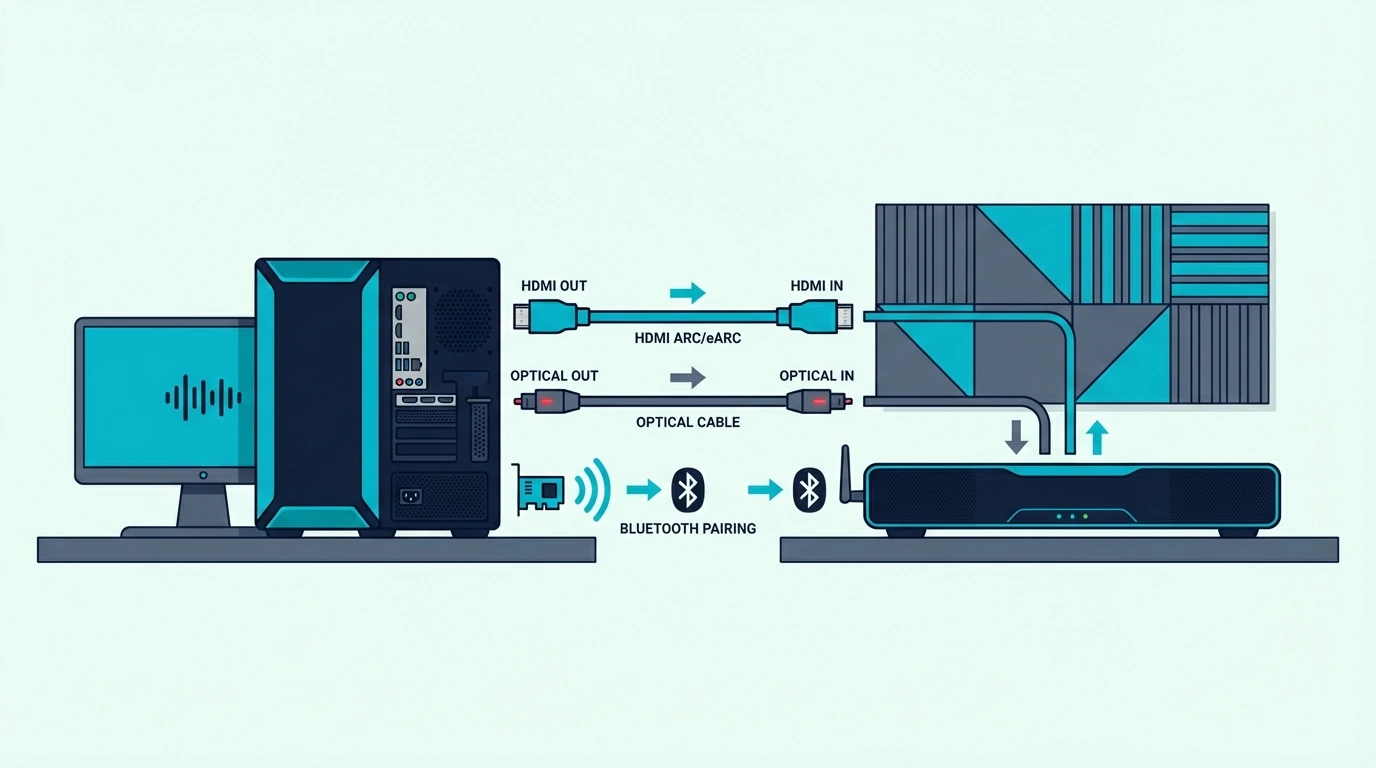
With the PC-versus-TV differences covered, the next step is choosing the actual connection. In most setups, there are three realistic paths: direct HDMI, PC to TV with ARC return, or optical from the PC or TV into the soundbar.
Direct HDMI is the cleanest when the soundbar actually has a standard HDMI input and the display chain supports it. If you are going this route, a known-good cable like the UGREEN 8K HDMI 2.1 Cable makes it easier to rule out cable problems while you configure the PC audio output.
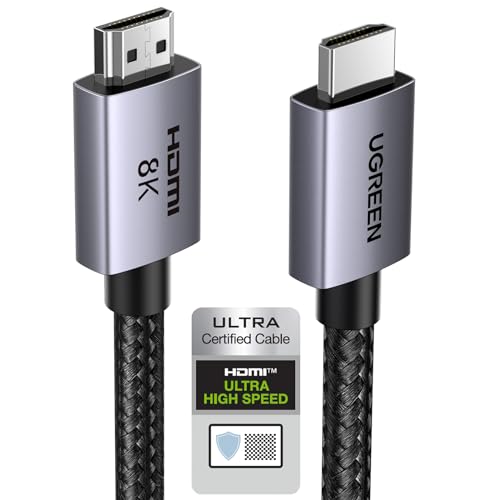
UGREEN 8K HDMI 2.1 Cable
If the PC is connected to a TV first, the setup changes. In that case, the TV often becomes the display endpoint while the soundbar receives audio from the TV rather than directly from the computer.
That is where the rest of the chain matters. A two-cable layout like the JSAUX HDMI 2.1 2-Pack is useful when you are building a PC to TV to soundbar chain and want to remove cable quality as the unknown.
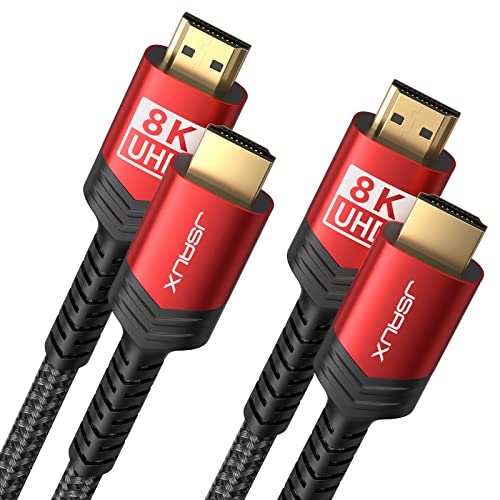
JSAUX HDMI 2.1 2-Pack
Once the cables are in place, go straight to Windows sound settings and select the real audio output device. That step is easy to miss, and it is also why the TV-to-soundbar guide and the broader soundbar hub still matter even when the hardware path is different.
Get Studio Tips Weekly
Join 5,000+ creators getting acoustic treatment advice every week.
No spam. Unsubscribe anytime.Can You Use a Soundbar as a Desktop Speaker?
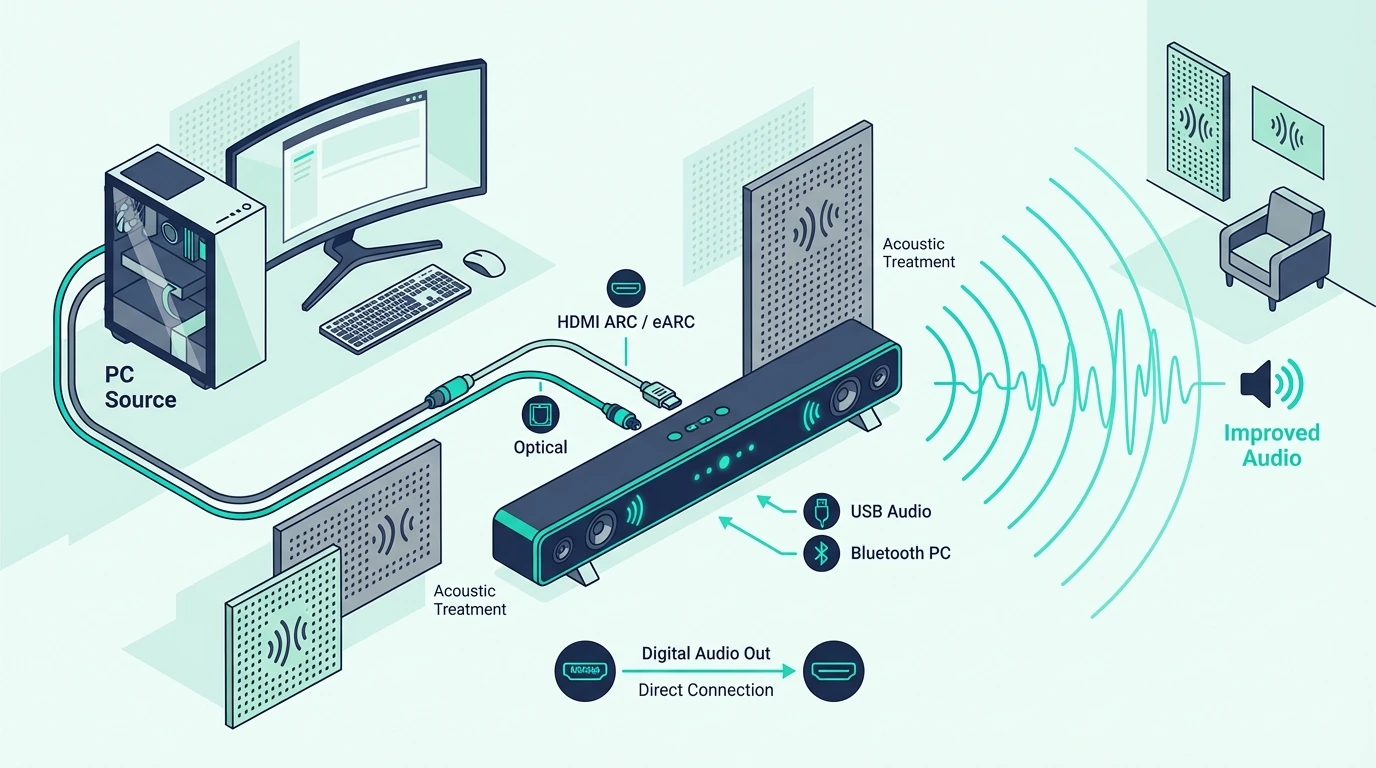
Once the connection path is sorted, the next question is whether the soundbar actually works well at desk distance. The answer depends on how close you sit, how the bar handles near-field listening, and whether the connection adds delay.
For a desk setup, a soundbar often works best when it is used as the main front speaker instead of pretending to be a full surround system. That can be great for better audio in games, YouTube, podcasts, and everyday work, especially when monitor speakers sound weak or non-existent.
The catch is that some bars are tuned for couch distance rather than near-field listening. That means the sound can feel too wide, too boomy, or a little odd on a small desk even when the connection is technically correct.
This is why the most useful buying references here are the best all-in-one soundbar roundup and the best soundbars for dialogue guide. The best PC bar is usually the one that stays simple, fits close to the display, and does not force a complicated home theater signal path onto a computer desk.
Why Is HDMI Silent Between a PC and a Soundbar?
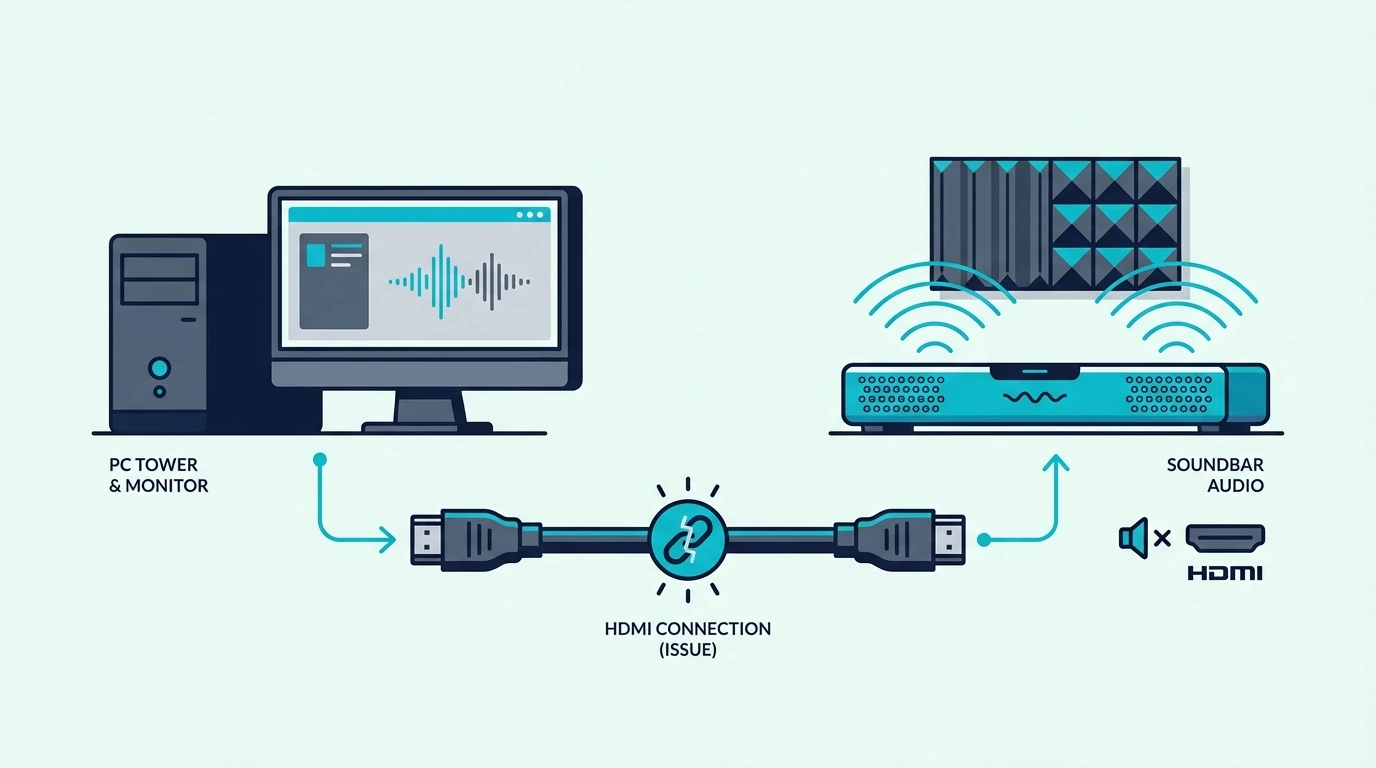
Even with the right cable and a soundbar that works at desk distance, HDMI can stay silent if Windows points audio at the wrong device. The graphics card, display order, soundbar input, and Windows output setting all have to agree.
Start with the Windows output menu. If the PC is still sending audio to built-in speakers, a monitor, or a disconnected device, the soundbar will stay silent even if the physical HDMI connection is correct.
Next, check whether the HDMI path is direct or indirect. If the PC runs into a monitor that has no audio return path, the soundbar may never receive usable audio from that chain.
If the PC runs into a TV first, the TV settings may need to pass audio onward to the soundbar.
When HDMI remains inconsistent, the simplest fallback is often optical. A dependable cable like the KabelDirekt TOSLINK Optical Audio Cable makes sense when you need a stable audio path more than you need HDMI convenience.
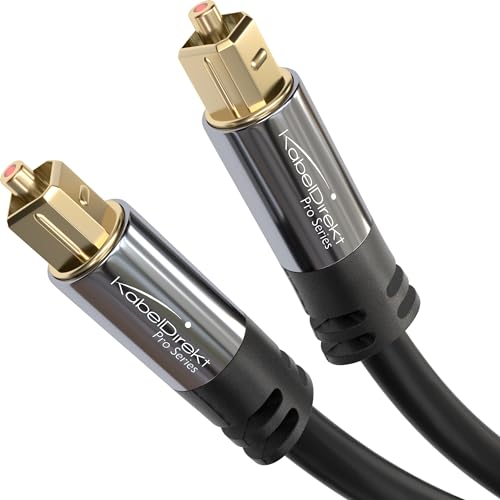
KabelDirekt TOSLINK Optical Audio Cable
That is also why this issue overlaps with the troubleshooting logic in the broader soundbar hub. A soundbar that is hard to drive cleanly from a PC is often the wrong fit, not just a bad cable.
When Does HDMI ARC Actually Help on a PC?
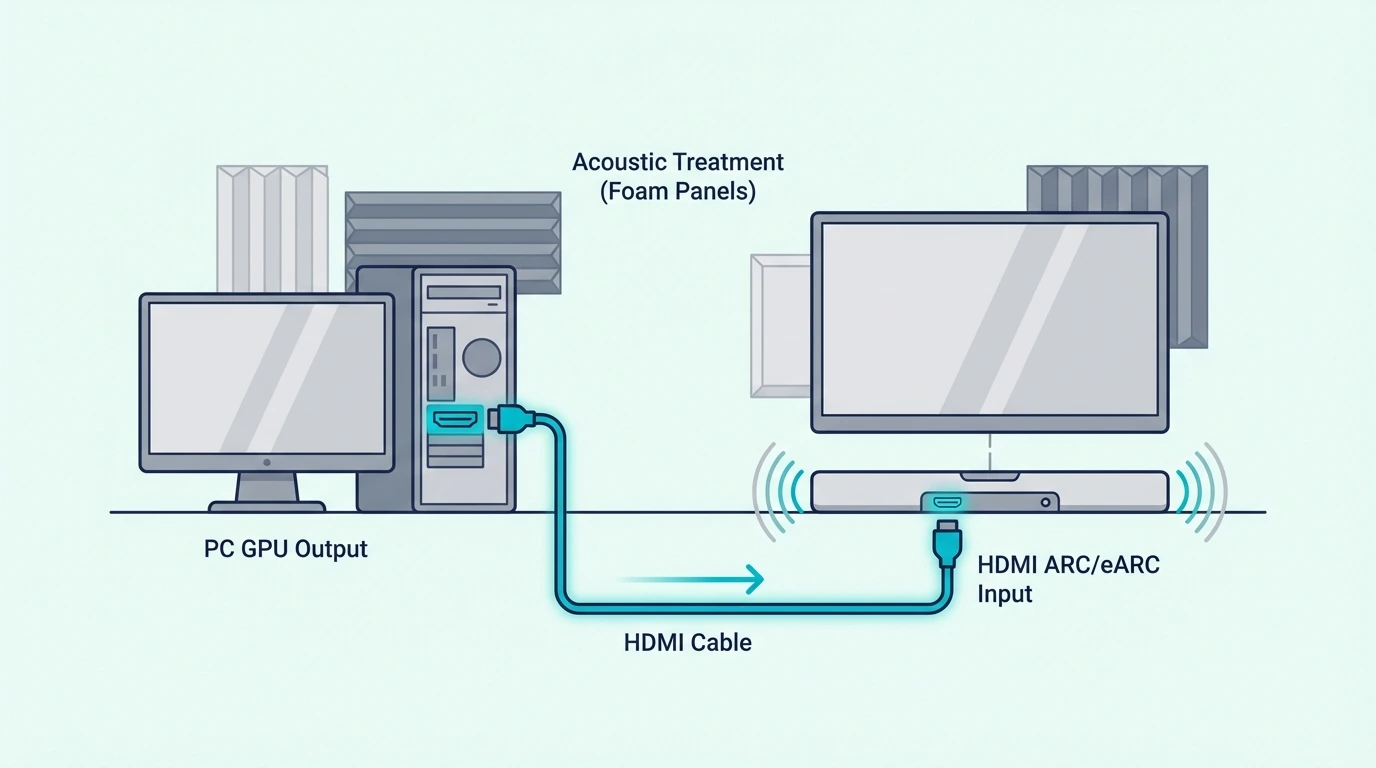
The HDMI troubleshooting above often leads people to wonder whether ARC is the missing piece. In most PC setups, it is not — ARC is mainly a TV-to-soundbar feature, not a PC-to-soundbar feature.
That distinction matters because many people see ARC on the soundbar and assume the PC should plug into it directly. In reality, ARC or eARC is most useful when the PC sends video and audio to the TV, and the TV then returns audio to the soundbar through the ARC port.
If your setup uses that PC to TV to soundbar chain, a cable like the Silkland HDMI ARC/eARC Cable is the right kind of product for the TV-to-soundbar part of the chain.
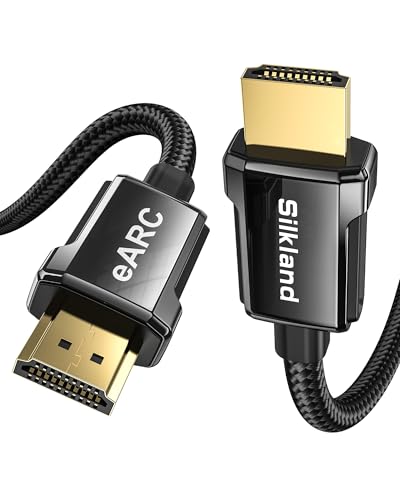
Silkland HDMI ARC/eARC Cable
If there is no TV in the setup, ARC usually is not the real question. The real question is whether the soundbar supports direct HDMI audio from a PC or whether optical, Bluetooth, AUX, or USB audio is the more reliable fit.
That is one reason this article stays different from broader TV-first pages in the soundbar hub. On PC, the output source and operating system settings matter more than TV-only features.
The Bottom Line
How to use soundbar with PC comes down to choosing the correct signal path first and then forcing the computer to use that output consistently. Direct HDMI can work well, a PC to TV to soundbar chain can work even better in the right room, and optical is often the easiest fallback when HDMI gets messy.
The mistake to avoid is treating the PC like a TV. Once you separate direct HDMI, TV passthrough, ARC, Bluetooth, and optical into distinct paths, the setup gets much easier to troubleshoot.
If you want help choosing a soundbar that will actually fit a desk or gaming setup after the connection is done, the best next pages are the best soundbars for PC guide and the broader soundbar hub.
Frequently Asked Questions
Can you use a sound bar for a PC?
Yes, you can use a sound bar for a PC if the computer and the soundbar share a workable connection like HDMI, optical, Bluetooth, or AUX. The best result usually comes from the simplest supported path plus the correct Windows audio output setting.
How To Connect Pc To Soundbar Via Bluetooth?
Put the soundbar in Bluetooth pairing mode, open the PC’s Bluetooth settings, pair the soundbar, and then choose it as the active playback device. Bluetooth is convenient, but it is usually less stable than direct HDMI or optical for daily PC audio.
How To Connect Soundbar To Pc With Aux Cable?
Use a 3.5mm-to-analog connection only if the soundbar actually has an AUX or analog input. After connecting it, switch the soundbar to the matching input and select the PC’s headphone or line-out device as the active audio output.
How To Connect Soundbar To Pc Via Usb?
Only use USB if the soundbar explicitly supports USB audio from a computer. Many bars use USB only for service, firmware, or media playback rather than acting like a true USB speaker for Windows.
How To Connect Soundbar To Pc With Optical Cable?
Connect the optical cable from the PC’s optical output or the TV’s optical out port to the soundbar, switch the soundbar to optical input, and then select the matching digital audio output in Windows or on the TV. This is often the most reliable fallback when HDMI refuses to behave.