How to Fix MIDI Keyboard Delay — Eliminate Latency So Your Playing Feels Instant
How to fix MIDI keyboard delay is the most frustrating troubleshooting search in music production, but the fix is almost never the keyboard itself — the delay is caused by your audio driver settings, buffer size configuration, or USB connection path, and each one has a specific solution that takes under two minutes to apply.
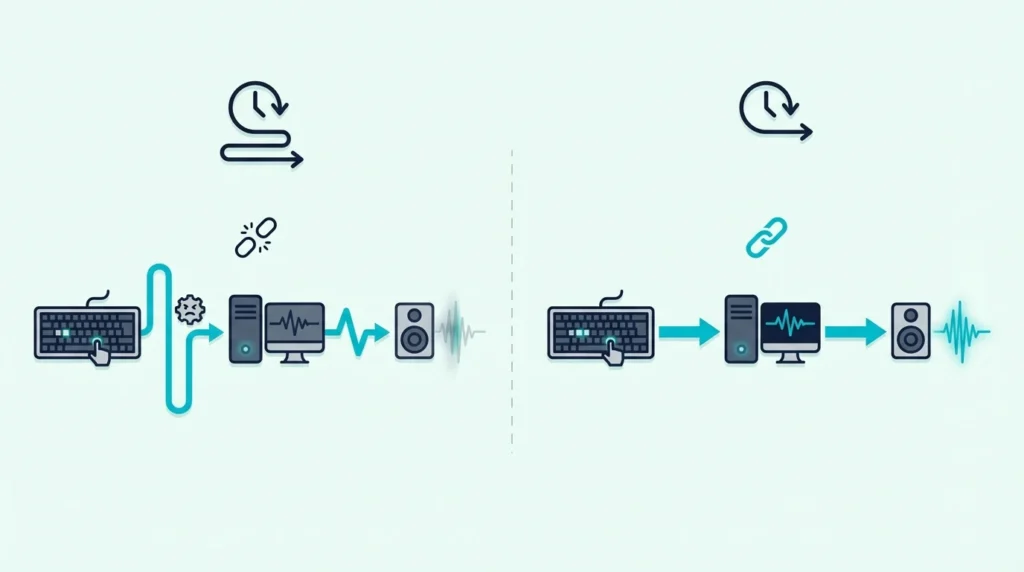
The mistake most producers make is blaming the MIDI keyboard for latency when the controller adds zero delay to the signal chain. MIDI data travels from keyboard to computer in under one millisecond. The delay you hear happens after that — when your computer processes the MIDI data through your DAW, applies it to a virtual instrument, and outputs the resulting audio through your speakers.
This guide identifies the exact cause of your MIDI delay and provides the fix for each scenario. You will learn to diagnose whether the problem is audio drivers, buffer size, CPU overload, Bluetooth latency, or USB routing — and resolve it permanently.
If you’re weighing an interface as the cure, read what an audio interface actually changes for a MIDI keyboard before you buy one.
Below you will find the fixes sorted from most common to least common, so you can work through them in order and stop at the first one that solves your problem.
MIDI keyboard delay is caused by audio processing, not the keyboard itself. The fix in order of likelihood: switch to an ASIO driver (Windows), reduce your audio buffer size to 256 or 512 samples, close CPU-heavy plugins, connect via USB instead of Bluetooth, and plug directly into the computer instead of through a USB hub. Most delay problems resolve with the first two steps.
What Actually Causes MIDI Keyboard Delay
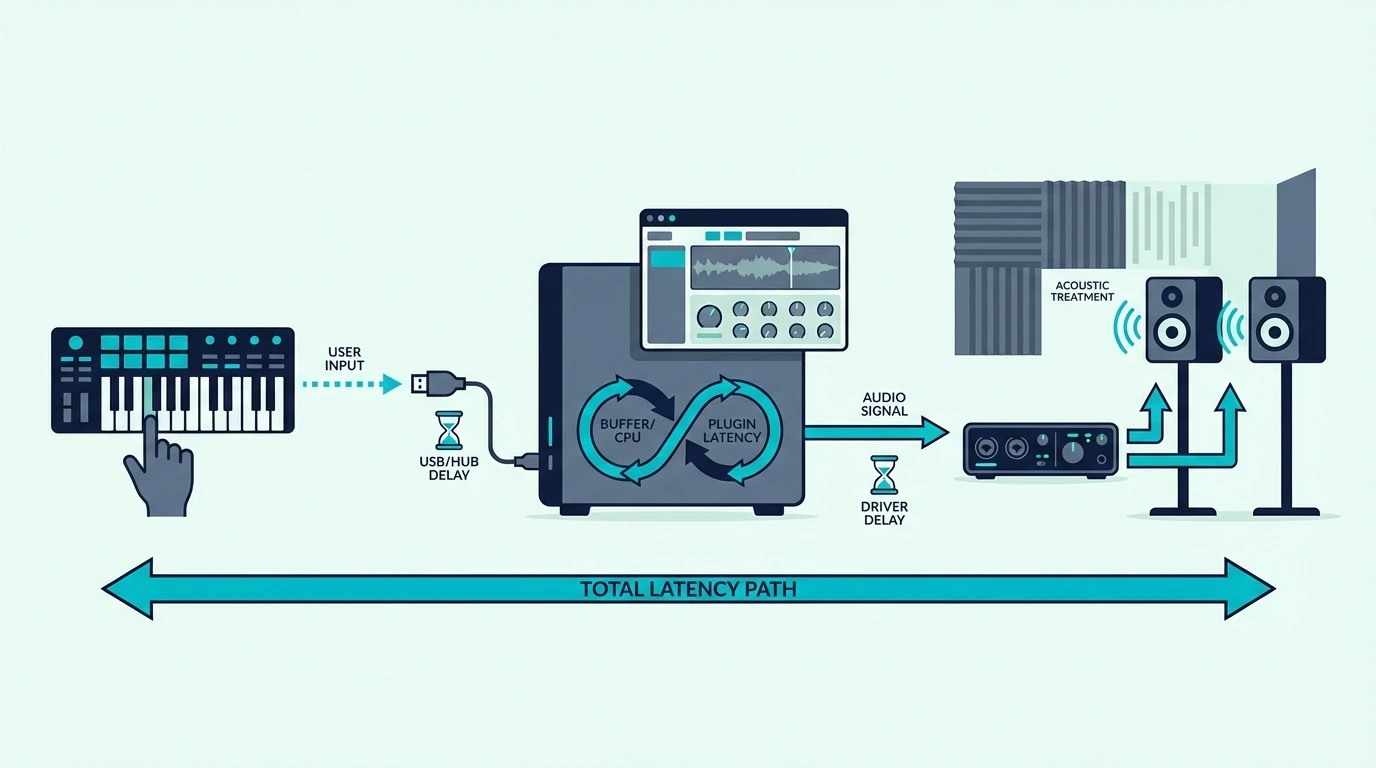
Understanding where delay actually occurs in the signal chain prevents you from wasting time on fixes that target the wrong component. The latency you feel between pressing a key and hearing sound has nothing to do with your MIDI keyboard hardware.
MIDI Data Is Essentially Instant
When you press a key, your MIDI keyboard sends a digital message over USB in under one millisecond. That message contains the note number, velocity, and channel — a few bytes of data that travels faster than you can perceive.
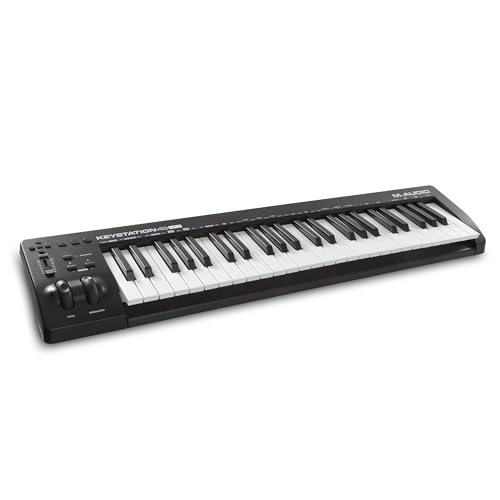
The Akai Professional MPK Mini MK3, M-AUDIO Keystation 49 MK3, and every other class-compliant USB controller add effectively zero latency to the signal chain. Replacing your keyboard will not fix a delay problem.
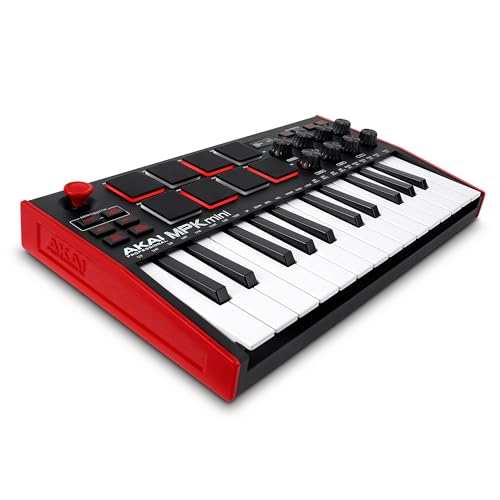
Akai Professional MPK Mini MK3
Audio Processing Creates The Delay
After your DAW receives the MIDI message, it must: route the data to the correct virtual instrument, generate audio from that instrument, mix the audio with other tracks, and send the result to your audio output device. Each step adds processing time measured in milliseconds.
The total round-trip latency — from key press to speaker output — depends on your audio driver type, buffer size setting, CPU load, and output device. Those are the four variables you need to optimize, and they all live in your computer’s software configuration, not in the MIDI keyboard.
How Does Switching to an ASIO Driver Fix MIDI Delay
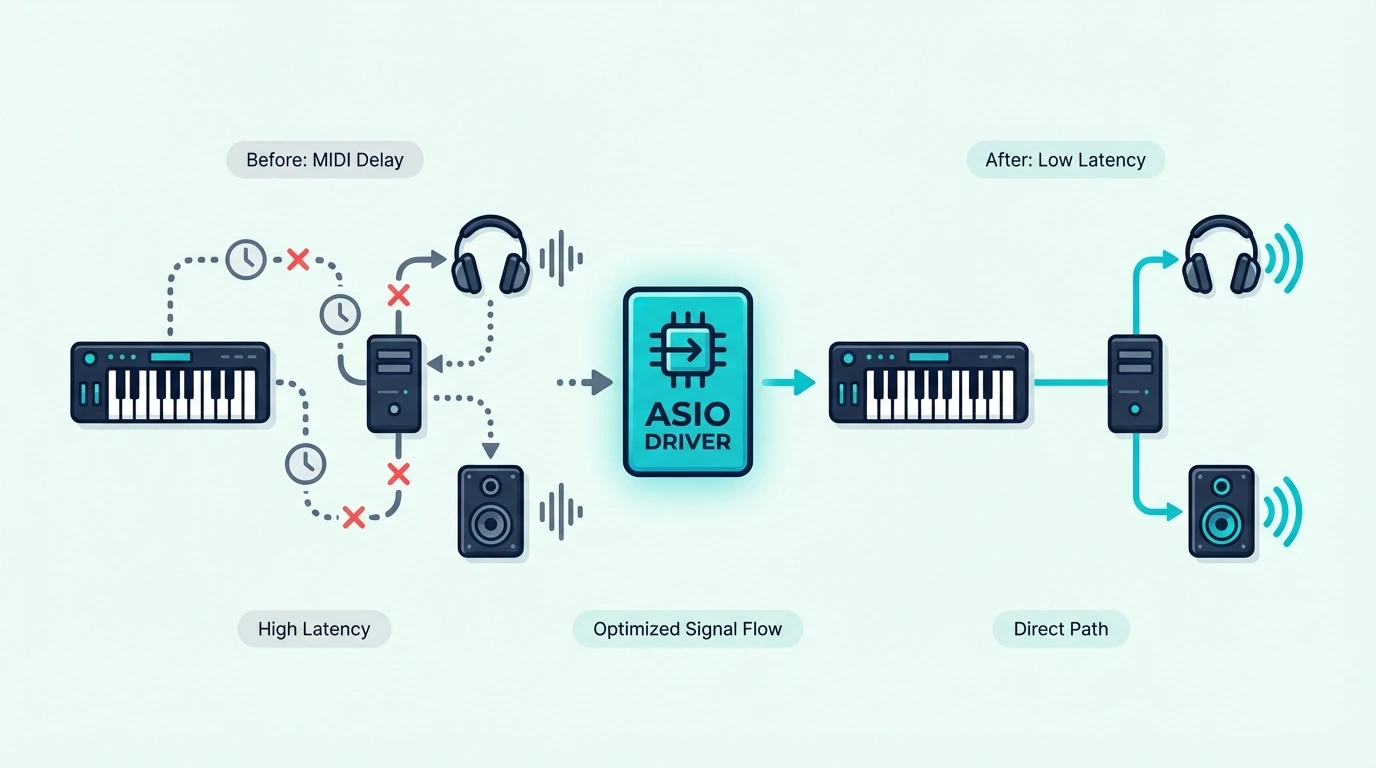
This is the single most common fix for MIDI delay on Windows and resolves the problem for roughly 70 percent of producers who experience latency.
Why Windows Default Drivers Are Slow
Windows ships with WDM and MME audio drivers that route sound through the Windows audio mixer — a system-level process that adds 50-200 milliseconds of latency. That delay makes real-time MIDI playing feel like typing into a text field that responds a half-second late.
ASIO (Audio Stream Input/Output) drivers bypass the Windows audio mixer entirely and communicate directly with your audio hardware. The result is latency under 10 milliseconds — fast enough that the delay is imperceptible during playing.
How To Install And Configure ASIO
If you own an audio interface, install the manufacturer’s ASIO driver from their website. Focusrite, PreSonus, Universal Audio, and other manufacturers provide dedicated ASIO drivers optimized for their hardware.
If you do not own an audio interface, download ASIO4ALL (free) from asio4all.org. This universal ASIO driver works with any audio output device including your laptop’s built-in speakers. FL Studio users can also use FL ASIO, which ships built-in with the software.
After installation, open your DAW’s audio settings and switch the audio driver from the Windows default to your ASIO driver. The latency improvement is immediate and dramatic.
Mac Users Do Not Need ASIO
macOS uses Core Audio, which provides low-latency audio processing by default. Mac users experiencing MIDI delay should skip this fix and proceed directly to Fix 2 (buffer size). The Mac MIDI connection handles audio routing efficiently without additional driver software.
Get Studio Tips Weekly
Join 5,000+ creators getting acoustic treatment advice every week.
No spam. Unsubscribe anytime.How Does Reducing Buffer Size Fix MIDI Latency
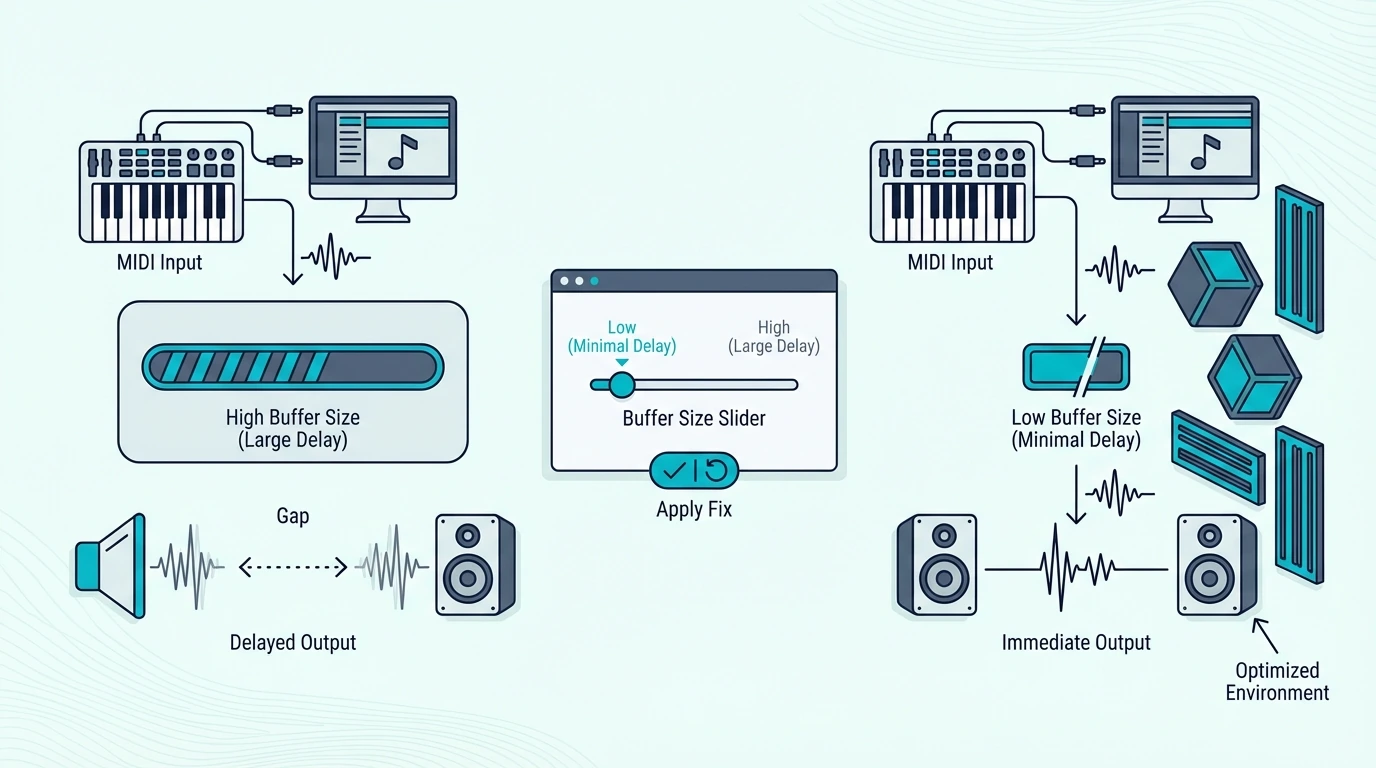
Buffer size determines how much audio data your computer processes in each cycle. Smaller buffers mean lower latency but higher CPU demand. Larger buffers mean higher latency but more stable audio.
Finding Your Buffer Size Setting
In every DAW, the buffer size lives in the audio settings or preferences panel. Look for “Buffer Size,” “Buffer Length,” or “Latency” — the setting is measured in samples (64, 128, 256, 512, 1024, 2048) or milliseconds.
Recommended Settings For Real-Time Playing
For playing virtual instruments with a MIDI keyboard, set the buffer to 256 samples as a starting point. This produces roughly 6 milliseconds of latency at a 44.1kHz sample rate — fast enough for most players to feel instant response.
If 256 samples causes audio crackling or dropouts, increase to 512 samples (roughly 12 milliseconds). Most producers cannot perceive delay below 15 milliseconds, so 512 is the practical sweet spot between latency and stability.
When To Use Larger Buffers
During mixing (when you are not playing live), increase the buffer to 1024 or 2048 samples. The added latency does not affect playback of recorded audio, and the larger buffer frees CPU resources for plugin-heavy mix sessions.
Switch back to 256 or 512 when you need to play or record MIDI parts. Some DAWs (like Ableton Live) offer separate buffer settings for recording and playback, automating this switch.
Can CPU Overload Cause MIDI Keyboard Delay
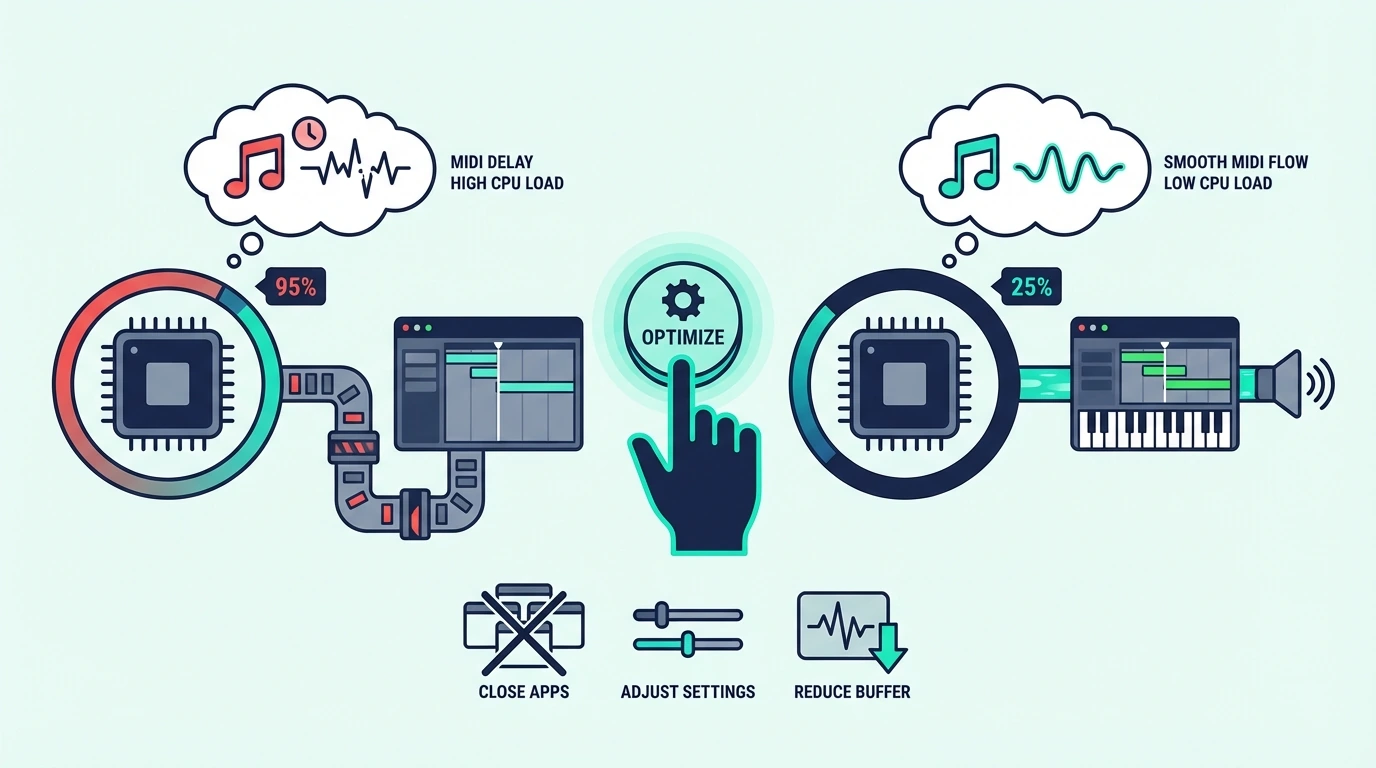
Heavy virtual instruments and effects plugins consume CPU cycles that compete with audio processing. When your CPU cannot keep up, the audio system compensates by increasing internal buffering — which adds latency you did not configure.
Identify CPU-Hungry Plugins
Most DAWs display CPU usage per track or plugin. In Logic Pro, open the CPU meter (Window, Show CPU/HD Activity). In FL Studio, check the plugin processing panel. Look for plugins consuming more than 20 percent of available CPU on a single instance.
Reverb plugins, convolution processors, and high-polyphony synths are the most common CPU offenders. A single instance of a complex orchestral plugin can consume as much CPU as 20 simpler instruments combined.
Solutions For CPU Overload
Freeze tracks that you are not actively editing. Freezing renders the track to audio, eliminating the CPU cost of the virtual instrument while preserving the MIDI data for later unfreezing.
Use plugin bypass on effects chains you do not need during recording. A reverb send that sounds great during mixing adds unnecessary CPU load during a keyboard performance where you only need to hear the dry instrument.
Reduce polyphony on synth plugins from 32 voices to 8 or 16. Most playing situations never use more than 8 simultaneous voices, and the lower polyphony count frees significant CPU resources.
Does Bluetooth Add Latency to MIDI Keyboards
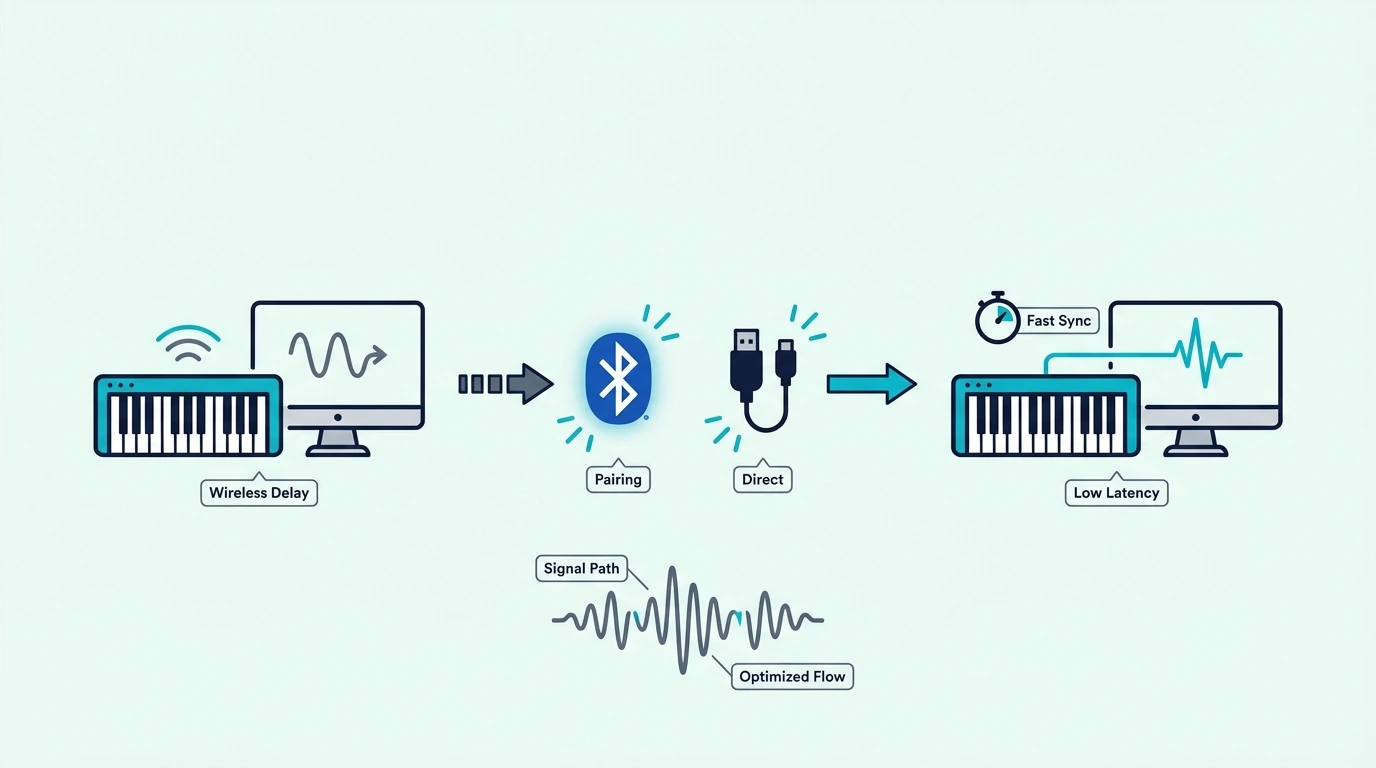
Bluetooth MIDI adds 5-15 milliseconds of inherent latency on top of your audio processing delay. That additional lag pushes the total round-trip latency from barely noticeable to clearly perceptible.
If you use a Bluetooth MIDI controller and experience delay, switch to USB connection first before adjusting any other settings. The USB connection eliminates the Bluetooth latency component entirely, and the remaining delay (if any) is addressable through the fixes above.
Controllers like the midiplus AKM320 connect via USB only, which means they never add Bluetooth latency to your signal chain. USB-only controllers provide the most predictable, lowest-latency connection for producers who need tight timing response.
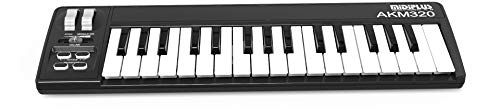
midiplus AKM320
Can Your USB Connection Cause MIDI Timing Issues
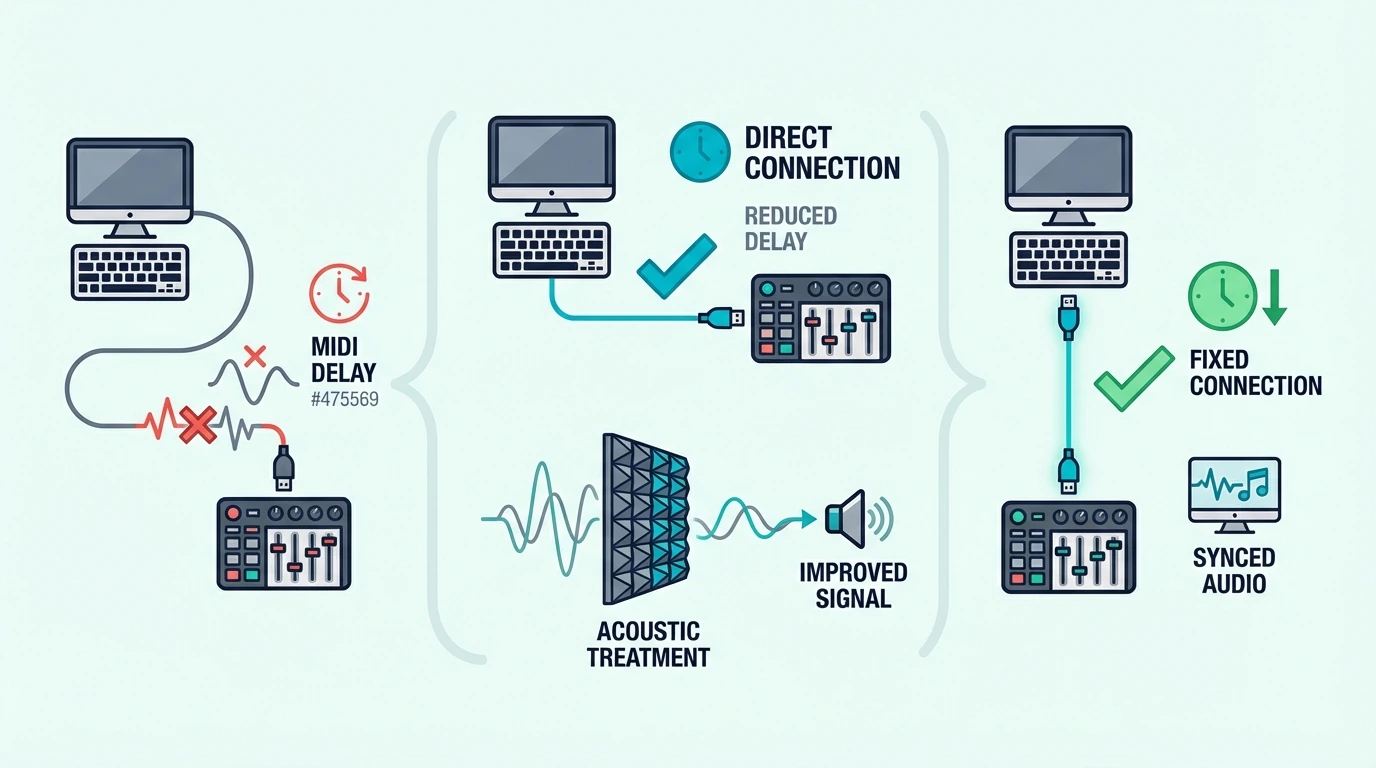
USB hubs, extension cables, and shared bus connections can introduce micro-delays and power delivery issues that affect MIDI timing reliability.
Connect Directly To The Computer
Plug your MIDI keyboard directly into a USB port on your computer — not through a hub, dock, or extension cable. Direct connection provides the cleanest data path and most reliable power delivery.
If you must use a USB hub (because your iPad or laptop has limited ports), use a powered hub that supplies its own electricity. Unpowered hubs split the computer’s USB power budget across all connected devices, which can cause intermittent disconnections on power-hungry controllers.
Try Different USB Ports
Not all USB ports on a computer perform identically. USB 2.0 ports (black inside) and USB 3.0 ports (blue inside) use different host controllers, and one may provide more stable MIDI communication than the other.
If you experience intermittent delay spikes (latency that comes and goes), switching to a different physical USB port often resolves the issue by moving your controller to a less congested USB bus.
Disable USB Power Management (Windows)
Windows power management can briefly disable USB ports to save energy, causing momentary disconnections that manifest as latency spikes during playing. Open Device Manager, expand Universal Serial Bus controllers, right-click each USB Root Hub, select Properties, and uncheck “Allow the computer to turn off this device to save power.”
This prevents Windows from interrupting your MIDI connection during production sessions, eliminating random delay spikes that occur after periods of keyboard inactivity.
The Bottom Line
MIDI keyboard delay is an audio processing problem, not a hardware problem. The fix priority for most producers: install an ASIO driver on Windows (the single biggest improvement), reduce buffer size to 256-512 samples, close CPU-heavy plugins during recording, switch from Bluetooth to USB, and connect directly to the computer without hubs.
Most delay issues resolve with the first two fixes alone. If your latency persists after optimizing drivers and buffers, the problem is CPU overload — freeze unused tracks and reduce plugin polyphony until the delay disappears. Even the midiplus AKM320 at under forty dollars performs identically to premium controllers in terms of latency — confirming that the fix is always in software, never in hardware.
Frequently Asked Questions
Why does my MIDI keyboard have a delay?
The delay is caused by audio processing in your computer, not the MIDI keyboard itself. USB MIDI controllers add under 1 millisecond of latency. The perceivable delay comes from your audio driver type (ASIO vs WDM), buffer size setting, CPU load from plugins, and connection method (USB vs Bluetooth).
What buffer size should I use for MIDI keyboard?
Set your audio buffer to 256 samples for real-time playing with minimal latency (roughly 6ms at 44.1kHz). If you hear audio crackling, increase to 512 samples (roughly 12ms). Both settings feel responsive enough for most producers. Use 1024+ samples during mixing when latency does not matter.
Does Bluetooth MIDI have more latency than USB?
Yes — Bluetooth MIDI adds 5-15 milliseconds of latency on top of your audio processing delay. For casual playing and beat sketching, Bluetooth latency is imperceptible. For recording precise performances, USB provides measurably tighter timing. Switch to USB if Bluetooth delay bothers you.
Will a better MIDI keyboard fix latency?
No — all class-compliant USB MIDI keyboards add the same sub-1ms latency regardless of price. A forty-dollar controller and a three-hundred-dollar controller produce identical MIDI timing. The delay comes from your audio configuration, not the keyboard hardware.