How to Set Up a MIDI Controller in Logic Pro, From X to 12
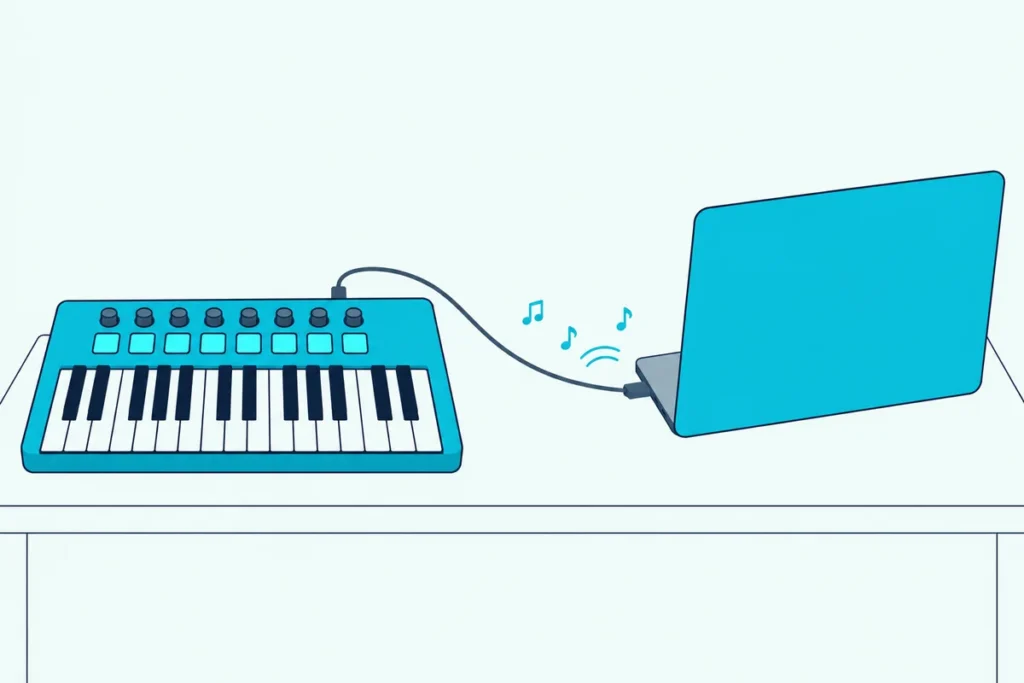
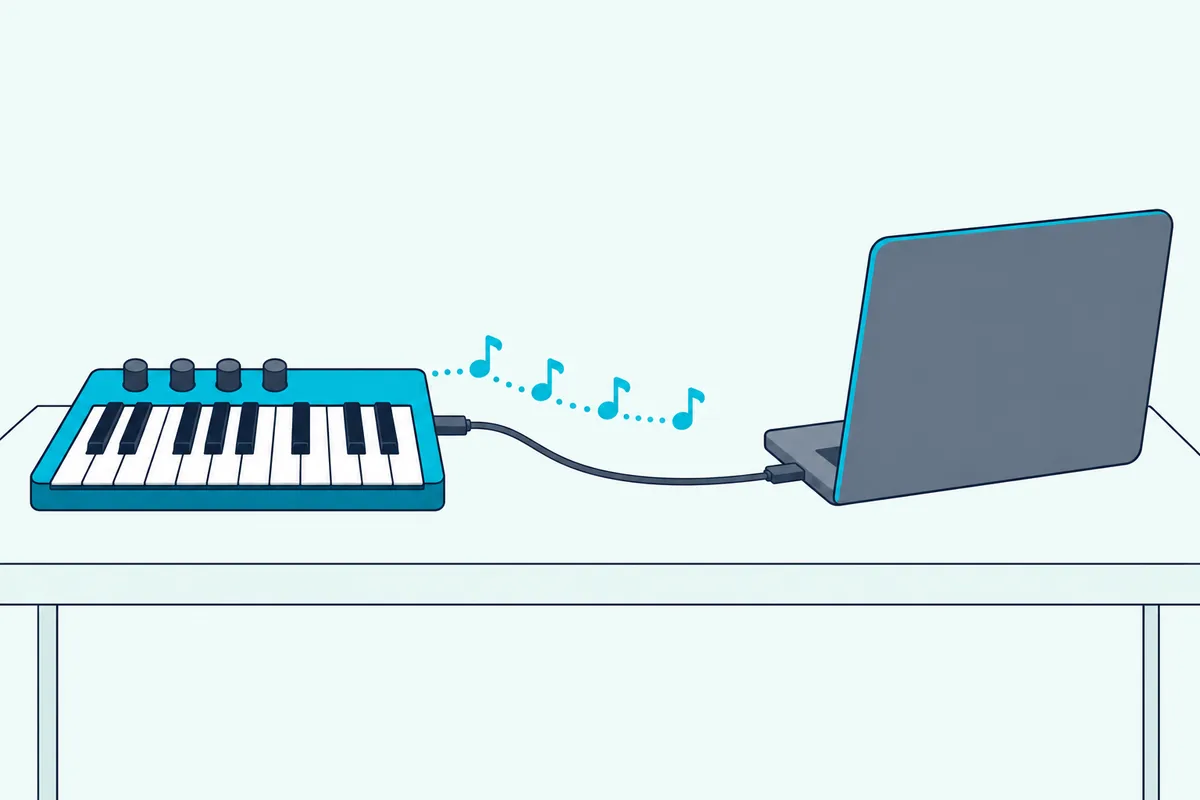
To set up a MIDI controller in Logic Pro, you connect it, answer the Auto Assign prompt if one appears, and play a software instrument track, and for plenty of keyboards that’s the whole job.
The trouble starts when it isn’t: the keys play a piano while the knobs do nothing, or the controller lights up and Logic hears no notes at all.
Each of those problems lives in a different window, and once you know which one, the fix is usually one checkbox or one Learn button.
The steps below follow Apple’s Logic Pro User Guide for version 12.3, name the older menus Logic Pro X used, and add what Novation, Arturia, Nektar and Native Instruments document for their own controllers.
Start with the five-step setup, then jump to the section that matches what your controller is or isn’t doing.
How Do You Set Up a MIDI Controller in Logic Pro?
That whole job fits in five steps, and Apple’s guide documents each one. You set up a MIDI controller in Logic Pro by connecting it, answering the Auto Assign prompt, adding a software instrument track with a patch, checking that MIDI arrives, and then mapping any knobs Logic didn’t assign (Apple).
| Step | What you do | Where it happens in Logic Pro 12 |
|---|---|---|
| 1. Connect | Plug a USB controller into the Mac, or run 5-pin MIDI through a MIDI interface | The cable, plus any driver the maker lists |
| 2. Answer the prompt | Click Auto Assign for a supported controller, or No for plain MIDI | Later: Logic Pro > Control Surfaces > Settings > MIDI Controllers |
| 3. Add an instrument | Choose Track > New Software Instrument Track, then pick a patch in the Library | The main window and the Library |
| 4. Check the input | Play a few keys and watch the MIDI Activity display | The control bar’s LCD, set to Custom |
| 5. Map the rest | Learn knobs to Smart Controls, or to one parameter with Controller Assignments | The Smart Controls inspector or the Controller Assignments window |
Those menu names are Logic Pro 12’s, and Logic Pro X used Preferences where Logic Pro 12 says Settings. If step 4 stays blank, skip ahead to the troubleshooting table near the end.
Which Logic Pro Version Are You On?
Some of those menus moved or changed names over the years, which is why a Logic Pro X tutorial can point at a window you can’t find. Your version decides the menu: Apple’s guide calls version 10.5 Logic Pro X, switches to plain Logic Pro from 10.6, says Settings instead of Preferences from 10.7.5, and covers 12.3 as its current guide (Apple).
| Version, as Apple’s guide names it | Settings window | Auto Assign list | MIDI Inputs pane |
|---|---|---|---|
| Logic Pro X 10.5 | Logic Pro > Preferences | Logic Pro X > Control Surfaces > Preferences > MIDI Controllers | Shows only with Show Advanced Tools on, in Advanced preferences |
| Logic Pro 10.6 | Logic Pro > Preferences | Logic Pro X > Control Surfaces > Preferences > MIDI Controllers | Shows only with Show Advanced Tools on |
| Logic Pro 10.7 and 10.7.3 | Logic Pro > Preferences | Logic Pro > Control Surfaces > Preferences > MIDI Controllers | Shows only with Enable Complete Features on, in Advanced preferences |
| Logic Pro 10.7.5 to 11.2 | Logic Pro > Settings | Logic Pro > Control Surfaces > Settings > MIDI Controllers | Shows only with Enable Complete Features on, in Advanced settings |
| Logic Pro 12.0 and later | Logic Pro > Settings | Logic Pro > Control Surfaces > Settings > MIDI Controllers | Always there |
Command-Comma opens that window in every one of those versions, so it’s the shortcut to remember. The last row changed with Logic Pro 12.0, when Apple made the complete feature set permanent, so there’s now no Advanced pane at all (What’s new), and Apple’s release notes list 12.4 as the newest version (release notes).
Get Studio Tips Weekly
Join 5,000+ creators getting acoustic treatment advice every week.
No spam. Unsubscribe anytime.How Should the Controller Connect to Your Mac?
Whichever row you’re on, the hardware side hasn’t changed, and Apple’s guide gives three routes into the Mac for what it calls a music keyboard. A USB controller plugs straight into the computer, a keyboard with only 5-pin MIDI ports needs a MIDI interface between it and the Mac, and a Bluetooth or Wi-Fi keyboard pairs the way its own documentation says (Apple).
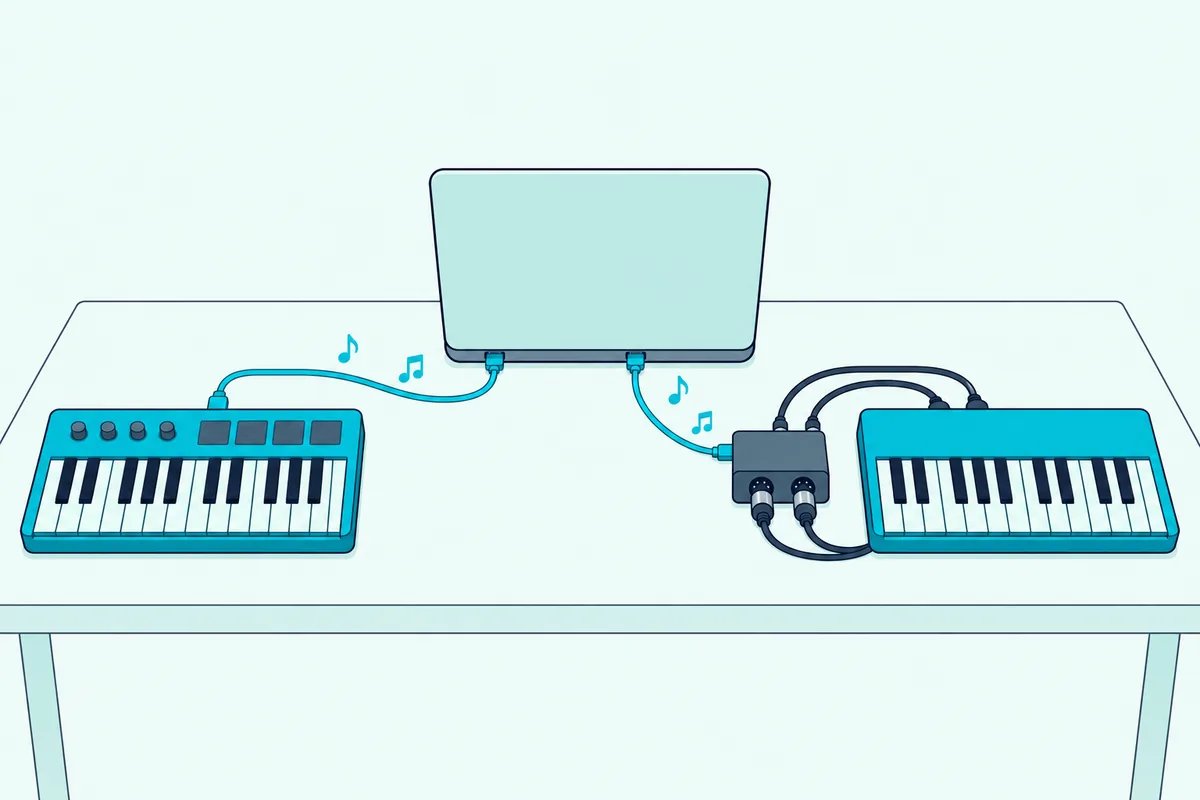
Apple’s guide also says to follow the keyboard’s own instructions, which may include installing a driver, and to check the maker’s website for the latest one (Apple). Our guide on how to connect a MIDI keyboard to a MacBook covers the adapters a USB-C-only MacBook needs for older USB cables.
On the 5-pin route, the keyboard’s MIDI Out goes to a MIDI In on the interface, and a keyboard with its own sounds also takes a cable from the interface’s MIDI Out back to its MIDI In (Apple). Some interfaces work as soon as they’re plugged in, while others need the maker’s driver first, Apple notes.
On a Mac, Apple’s own route for Bluetooth MIDI is the Audio MIDI Setup app (version 3.6 on macOS Tahoe 26), and Logic Pro recognizes every MIDI device set up there:
- In Audio MIDI Setup, choose Window > Show MIDI Studio.
- Click Configure Bluetooth in the toolbar.
- Put the keyboard in pairing mode, select it in the list and click Connect.
Apple’s Audio MIDI Setup guide lists those steps (Apple). For control surfaces, Apple also recommends a direct connection to the computer rather than a hub, because daisy-chained devices can cause errors from the amount of data they send in real time (Apple).
Is Logic Pro Actually Receiving Your Controller?
Once the cable or the pairing is done, the quickest proof sits in Logic’s control bar. Set the LCD to Custom and play a few keys: Apple says the top line of the MIDI Activity display shows the last MIDI message Logic received, which makes it the place to check a MIDI connection (Apple).
If notes show there but nothing plays, open Logic Pro > Settings > MIDI and click Inputs, where Apple lists every connected MIDI device that Core MIDI recognizes, wired or wireless. Only the ports with a selected checkbox appear in a track’s MIDI input menu and can be recorded, though the MIDI Activity display shows messages from every port either way (Apple).
The track itself has a say too, through the MIDI Input menu in its Track inspector. Apple lists the default as All, which takes any MIDI source, while Off, Musical Typing or a different port leaves your controller out (Apple).
A blank display means no MIDI is reaching Logic at all, so test outside Logic next. In Audio MIDI Setup’s MIDI Studio window, the Rescan MIDI button looks for a device that didn’t appear (Apple), and Test MIDI Setup lights a device’s In arrow when a note reaches it (Apple).
What Does Logic’s Auto Assign Prompt Do?
That MIDI Activity check proves the notes arrive, and the Auto Assign prompt decides what happens to everything else on the controller. For a USB controller that Logic supports through a Lua script, Apple says clicking Auto Assign maps its controls to Smart Controls and other functions, while clicking No keeps it as a plain MIDI controller (Apple).
The mapping follows a pattern Apple spells out. Knobs go to knob screen controls, faders go to fader screen controls, and buttons for Play, Stop, Pause, Record, Cycle and the marker functions go to the matching key commands.
Apple names one exception: a controller with a single fader labeled Volume gets that fader assigned to the selected channel strip’s volume. Logic also files the script’s assignments in their own zone, named after the device.
Clicked No by mistake? With the controller connected and turned on, open Logic Pro > Control Surfaces > Settings > MIDI Controllers and select the Auto checkbox next to it, which Apple says creates its assignments straight away (Apple).
Apple also says the Reset All Warnings button, in Logic Pro > Settings > General > Notifications, clears that list, so the Auto Assign dialog comes back for every supported device that’s connected. Apple’s automatic assignment page adds one more note: some controllers, such as Arturia’s, send MIDI Machine Control (MMC) from their transport buttons, so turn on Listen to MMC in File > Project Settings > Synchronization > MIDI.
Does Your Controller Need the Maker’s Logic Script?
Auto Assign appears only for controllers Logic has a Lua script for, and for some controllers that script comes from the maker’s installer rather than from Apple. Often yes: Arturia’s Logic guide, for one, credits its script with showing track names on the MiniLab 3’s screen and handing its knobs the focused plug-in, and the four makers below each document a Logic Pro setup.
Your Mac’s processor matters here. Apple says every Mac runs its built-in MIDI Device Plug-ins and MIDI Device Scripts, but only Macs with Intel processors load control surface plug-ins from other manufacturers, so on Apple silicon you ask the maker whether it offers a MIDI Device Script (Apple).
| Maker and controller | What the maker documents for Logic Pro | Logic version the maker names |
|---|---|---|
| Novation Launchkey MK4 | A Launchkey MK4 Logic Script Integration installer (1.1); in Plugin mode the encoders control Logic’s Smart Controls, and the pads switch to mixer and Live Loops modes | None in the user guide |
| Arturia MiniLab 3 | A Logic Pro script installer; select the DAW program with Shift + Pad 3; turn off its MCU, DIN THRU and ALV ports in Logic’s MIDI settings | None in the Logic guide |
| Nektar Impact GXP, GX Mini and LX Mini | Run Nektar’s installer, launch Logic, then click Auto Assign | Logic Pro X 10.6 or later |
| Native Instruments Komplete Kontrol | Tick Automatic Installation in the New menu of the Control Surfaces Setup window | Logic Pro 10.3.1 or later for the A-Series and M32; Logic Pro 11 or later for the S-Series MK3 |
The table draws on Novation’s Launchkey MK4 downloads page and user guide (Novation), Arturia’s MiniLab 3 Logic Pro guide (Arturia), Nektar’s Logic setup page (Nektar) and Native Instruments’ Logic article (Native Instruments). Arturia warns that leaving those three extra ports on brings pops and stray notes when you use the transport, so that step isn’t optional.
A controller with no script and no auto-detection can still be added by hand:
- Choose Logic Pro > Control Surfaces > Setup.
- In the Setup window, choose New > Install and select your device.
- Click Scan, or click Add and set its MIDI In and Out ports to match the unit.
Apple prefers Scan, since Logic gathers more information about a device that way, and Logic Pro > Control Surfaces > Rebuild Defaults reinitializes support for every connected surface (Apple). Apple adds that some surfaces, such as Mackie Control, are detected the moment Logic opens, and a mixer-style control surface is the next step up from knobs on a keyboard.
How Do You Map a Knob With Smart Controls?
Auto Assign lands a supported controller’s knobs on Smart Controls, and that’s also where Logic expects a spare knob you map yourself. You map one by opening the Smart Controls pane, clicking the Inspector button, selecting a screen control and using Learn under External Assignment, then moving the knob (Apple).
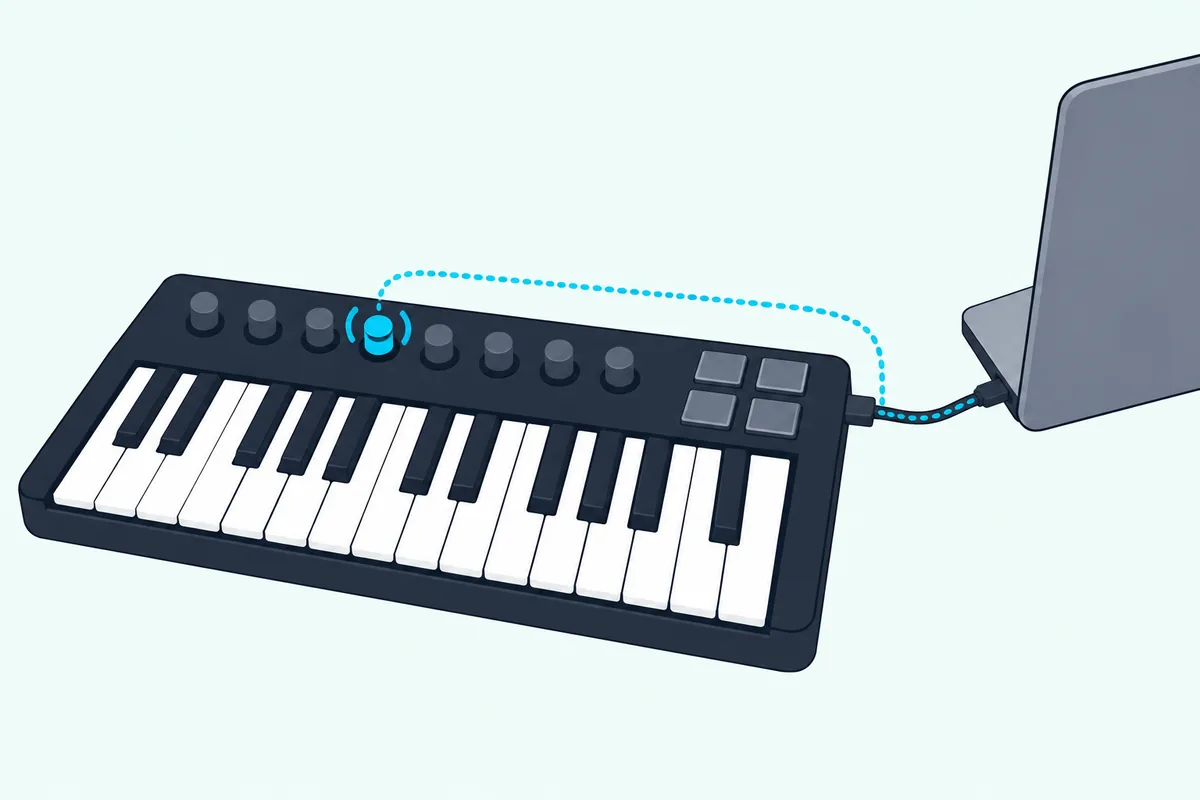
- Select the track and choose View > Show Smart Controls, or press B.
- Click the Inspector button in the Smart Controls menu bar, then select a screen control.
- Click External Assignment, then click Learn.
- Move the knob, fader or pad you want, and click Learn again to finish.
While Learn is on, you can select another screen control and move another hardware control, so a whole row of knobs takes one pass. Smart Controls reach both channel strip and plug-in parameters, including the software instrument itself, Apple says (Apple).
That’s also what the Launchkey MK4’s Plugin mode from the table above drives, so a scripted controller and a hand-mapped one end up in the same place. Either way, Smart Controls act on the selected track, which suits a filter knob better than a fader you want fixed to one channel.
When Should You Use Controller Assignments Instead?
That follow-the-selection habit is the catch with Smart Controls, and Controller Assignments is Apple’s answer for everything else. Use it when a knob, fader or button should drive one mixer or plug-in parameter, because Apple says any controller that generates a MIDI message can be assigned there (Apple).
- Select a parameter in the Mixer or in a plug-in window.
- Choose Logic Pro > Control Surfaces > Learn Assignment for [parameter name], or press Command-L.
- Move the hardware control, and its MIDI message appears in the Input message field.
- Click Learn Mode to finish, or keep it on and select the next parameter.
Those are Apple’s steps for Easy view, the compact face of the Controller Assignments window (Apple). To remove a mapping, select it in Easy view and click Delete.
Pads and buttons that send notes need one extra click, because Logic ignores note messages while learning so you can keep playing. Deselect Ignore MIDI Notes While Learning in the Actions pop-up menu, then learn the pad as usual.
For a row of faders, Apple’s shortcut saves a lot of clicks: assign the first fader to the first channel strip and the last fader to the last one, and Logic offers to fill in everything between. The counts have to match, so 16 faders cover channel strips 1 to 16.
Focus decides which track an assignment drives. By default an assignment follows whichever track has focus and is saved with the app for every project, while a pinned assignment stays with one track or plug-in and is saved only in that project (Apple).
To pin one you’ve made, choose Pinned to Track in Expert view’s Channel Strip menu, or choose New Track Assignments Are Pinned to Track in the Action menu before you start. Apple’s release notes date that default option to Logic Pro 12.0, and in 12.4 rebuilding defaults in the Controller Assignments window no longer deletes assignments pinned to a project.
Apple says you don’t need to save any of this yourself. Assignments and Control Surfaces settings live in the com.apple.logic.pro.cs file in your user Library’s Preferences folder and are stored when you quit, while pinned assignments are saved with their project.
Can Your Controller’s Buttons Run Play and Record?
Controller Assignments handles parameters, and transport buttons go through a different window, Key Commands. Yes: Apple’s Key Commands window can learn any controller button as the trigger for a command such as Play or Record (Apple).
- Choose Logic Pro > Key Commands > Edit Assignments, or press Option-K.
- Select the command you want, or type it in the Search field.
- Click Learn New Assignment, then press the button on your controller once.
- Close the window and test the button.
Apple says the Learn New Assignment button becomes unavailable once the whole message has arrived, so a second message sent when you release the button isn’t learned too (Apple). If a button triggers the wrong command, select the command and click Delete Assignment instead of stacking a second one on top.
If the buttons are on an Arturia controller and do nothing at all, the Listen to MMC setting from the Auto Assign section comes first. A supported controller that you set to Auto Assign should already have Play, Stop and Record on its buttons, so learning them by hand is mostly for controllers Logic doesn’t know.
Why Isn’t Logic Pro Hearing Your MIDI Controller?
Most failures trace back to one of those windows, so this table starts from the symptom. When the MIDI Activity display shows notes, Logic is hearing the controller, so check the track’s MIDI input, the port’s checkbox and the track’s instrument before the cable.
| What you see | Likely cause | What to do |
|---|---|---|
| Nothing in the MIDI Activity display | The Mac doesn’t see the controller | Check the cable, power and any driver; use Rescan MIDI in Audio MIDI Setup; then click Reset All MIDI Drivers in Logic Pro > Settings > MIDI > General |
| Notes show, but the track stays silent | The track’s MIDI Input isn’t All or your port, or the port is unchecked | Set the Track inspector’s MIDI Input to All; select the port in Settings > MIDI > Inputs |
| Notes show, the input is right, still silence | The track has no instrument | Choose Track > New Software Instrument Track and pick a patch in the Library |
| Notes show and a patch is loaded, but there’s no sound | Logic’s audio is going to another device | Choose your speakers or headphones in the Output Device menu, in Logic Pro > Settings > Audio > Devices |
| Keys play, knobs do nothing | Auto Assign was declined, or the controller has no script | Select Auto in Control Surfaces > Settings > MIDI Controllers, install the maker’s script, or learn the knobs in Smart Controls |
| Transport buttons do nothing on an Arturia | They send MIDI Machine Control | Turn on Listen to MMC in File > Project Settings > Synchronization > MIDI |
| Pops and stray notes from a MiniLab 3’s transport | Its extra ports are still on | Turn off the Minilab3 MCU, DIN THRU and ALV ports in Logic’s MIDI settings, as Arturia says |
| A knob changes a different track’s setting | The assignment follows focus | Choose Pinned to Track in Expert view’s Channel Strip menu |
| Notes keep ringing after you stop | Stuck notes | Click the lower part of the MIDI Activity display, or double-click it to send a Note Off for every note |
The Reset All MIDI Drivers button comes from Apple’s General MIDI settings, which says it can help with MIDI communication problems (Apple). In versions before Logic Pro 12, that pane and the Inputs pane only appear once the advanced switch from the version table is on.
If things turn strange right after a mapping session, Apple’s Logic Pro > Control Surfaces > Bypass All Control Surfaces command takes every surface out of the picture while you troubleshoot MIDI data errors (Apple). Uncheck the same menu item when you’re done.
Notes that arrive late are a different problem: Apple’s Audio Devices settings say a smaller I/O buffer size means less latency but more strain on the processor (Apple). Our guide to fix MIDI keyboard delay works through the rest.
Which Controllers Set Themselves Up in Logic Pro?
Those fixes apply to any keyboard, but a controller whose maker publishes Logic Pro support skips most of the mapping work. The three below come with a Logic installer or Logic setup steps from their makers, and each one plugs in over USB.
For mixing from the keys, the Novation Launchkey 49 MK4 also gives its encoders a page for Logic’s EQ plug-in in mixer mode, Novation’s user guide says (Novation guide).
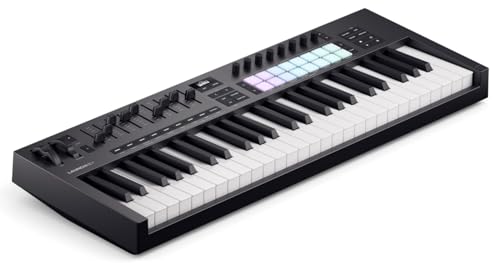
the Novation Launchkey 49 MK4
For a small desk, the Arturia MiniLab 3 packs 25 slim keys, eight pads, eight encoders and four faders, and Arturia’s Logic script turns the main encoder into a track selector (Arturia).
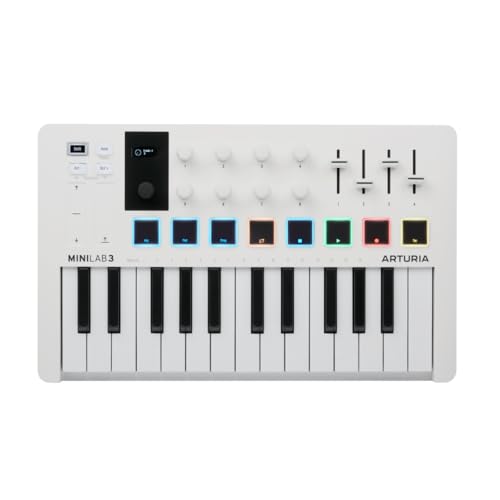
the Arturia MiniLab 3
For an Auto Assign setup, the Nektar Impact LX Mini runs Nektar’s installer and then answers the same prompt this guide started with (Nektar).
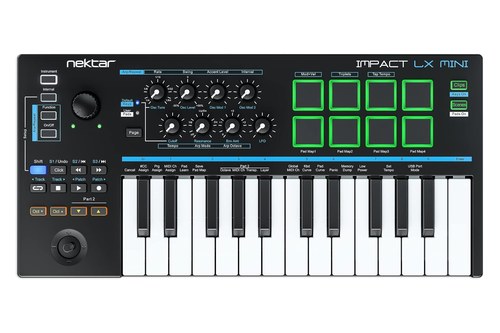
the Nektar Impact LX Mini
Other keyboards work too, once their knobs are learned by hand. Our list of the best MIDI keyboard for Logic Pro compares more of them by size and integration.
The Bottom Line
Connect the controller, answer Auto Assign, and prove the input with the MIDI Activity display before you touch any mapping. After that, Smart Controls handles knobs that should follow the selected track’s patch, Controller Assignments handles one specific parameter, pinned if it should stay put, and Key Commands handles buttons.
If your menu bar still says Logic Pro X, the steps are the same and only the window names change, so keep the version table handy.
Frequently Asked Questions
Does Logic Pro work with any MIDI controller?
Apple says Logic Pro for Mac works with many USB and MIDI keyboard controllers and recognizes every MIDI device set up in Audio MIDI Setup. Supported USB controllers also get automatic assignments, and any controller that sends MIDI messages can be mapped by hand in the Controller Assignments window (Apple).
Do I need a driver for a MIDI keyboard in Logic Pro?
Only if the maker says so. Apple’s guide tells you to follow the instructions that came with the keyboard, which may include installing a driver, and Arturia and Nektar describe the MiniLab 3 and the Impact LX Mini as class compliant, with Nektar adding that no driver is needed.
Can I use Logic Pro without a MIDI keyboard?
Yes. Choose Window > Show Musical Typing, or press Command-K, and your Mac’s keys play the selected software instrument, with Z and X changing octaves and C and V changing velocity, Apple says (Apple). Burton Acoustix’s computer-keyboard guide covers what you give up compared with real keys.
How do I connect a MIDI keyboard to Logic Pro for iPad?
Apple’s guide for Logic Pro for iPad 3.3 says a Core MIDI compliant keyboard plugged into the iPad’s Lightning or USB-C port appears on its own under MIDI Input Devices and Ports. A Bluetooth keyboard is added by hand: tap the More button, then Settings, App Settings, MIDI and In/Out, open Bluetooth MIDI Devices and tap the keyboard to connect it (Apple).
Does Logic Pro support MIDI 2.0 controllers?
Yes. Apple’s General MIDI settings include a MIDI 2.0 checkbox, listed in its guides from Logic Pro 10.7 on, that makes Logic Pro receive, record and play back MIDI using the MIDI 2.0 protocol, for MIDI 2.0 capable software instruments and external MIDI hardware.
Where does Logic Pro save my controller assignments?
Apple says controller assignments and Control Surfaces settings are kept in the com.apple.logic.pro.cs file in the Preferences folder of your user Library, and saved automatically when you quit. Pinned assignments are the exception, since they’re saved with the project they were made in.