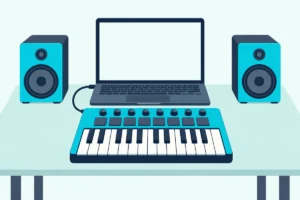
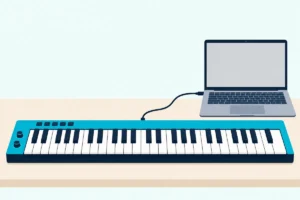
How to Connect MIDI Keyboard to MacBook — The Simplest Setup in Music Production
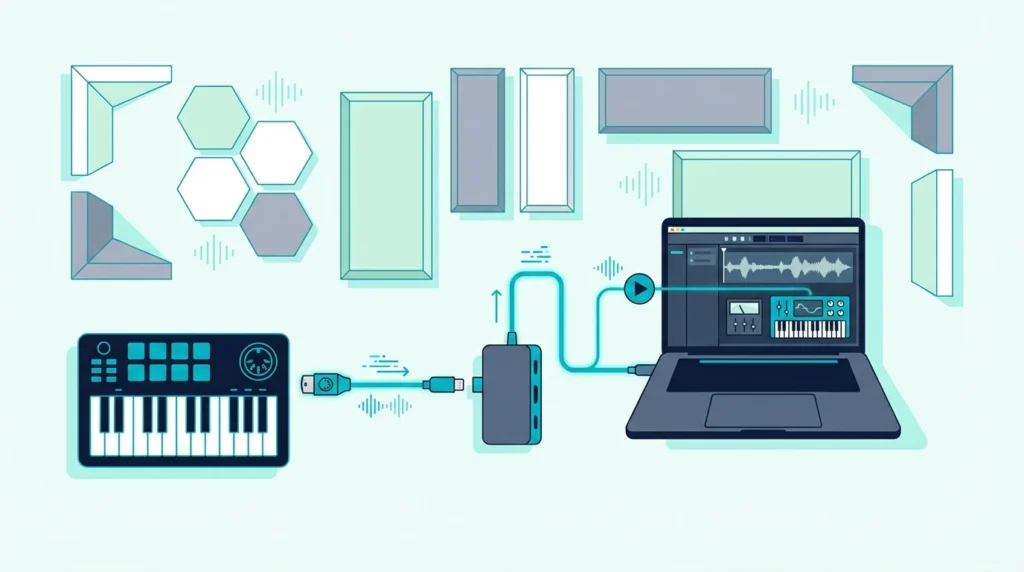
How to connect MIDI keyboard to MacBook is genuinely the easiest hardware connection in music production, but one detail trips up every new MacBook owner because modern MacBooks only have USB-C ports, and most MIDI keyboards ship with USB-A connectors.
That mismatch is not a dealbreaker — it just means you need a USB-C to USB-A adapter or a USB-C hub that you probably already own for other peripherals. Once the physical connection is made, macOS recognizes class-compliant MIDI keyboards without a driver download.
Casio says some of its USB keyboards have a driver only for Windows, and Mac owners can see what that means in using a Casio keyboard as a MIDI controller.
This guide covers both the USB-C adapter solution and the direct connection for controllers with USB-C output. You will also learn how to verify the connection in Audio MIDI Setup, configure GarageBand and Logic Pro for first use, and troubleshoot the rare cases where plug-and-play fails on Mac.
Below you will find the step-by-step process for connecting any MIDI keyboard to any MacBook model, followed by DAW-specific setup instructions and troubleshooting for edge cases.
To connect a MIDI keyboard to a MacBook: plug in via USB (using a USB-C to USB-A adapter if needed), open GarageBand or Logic Pro, create a software instrument track, and play. macOS recognizes class-compliant MIDI keyboards automatically — no drivers, no configuration, no MIDI settings to enable. If nothing happens, check Audio MIDI Setup in Utilities to verify the device is detected.
How Do You Connect a USB MIDI Keyboard to a MacBook
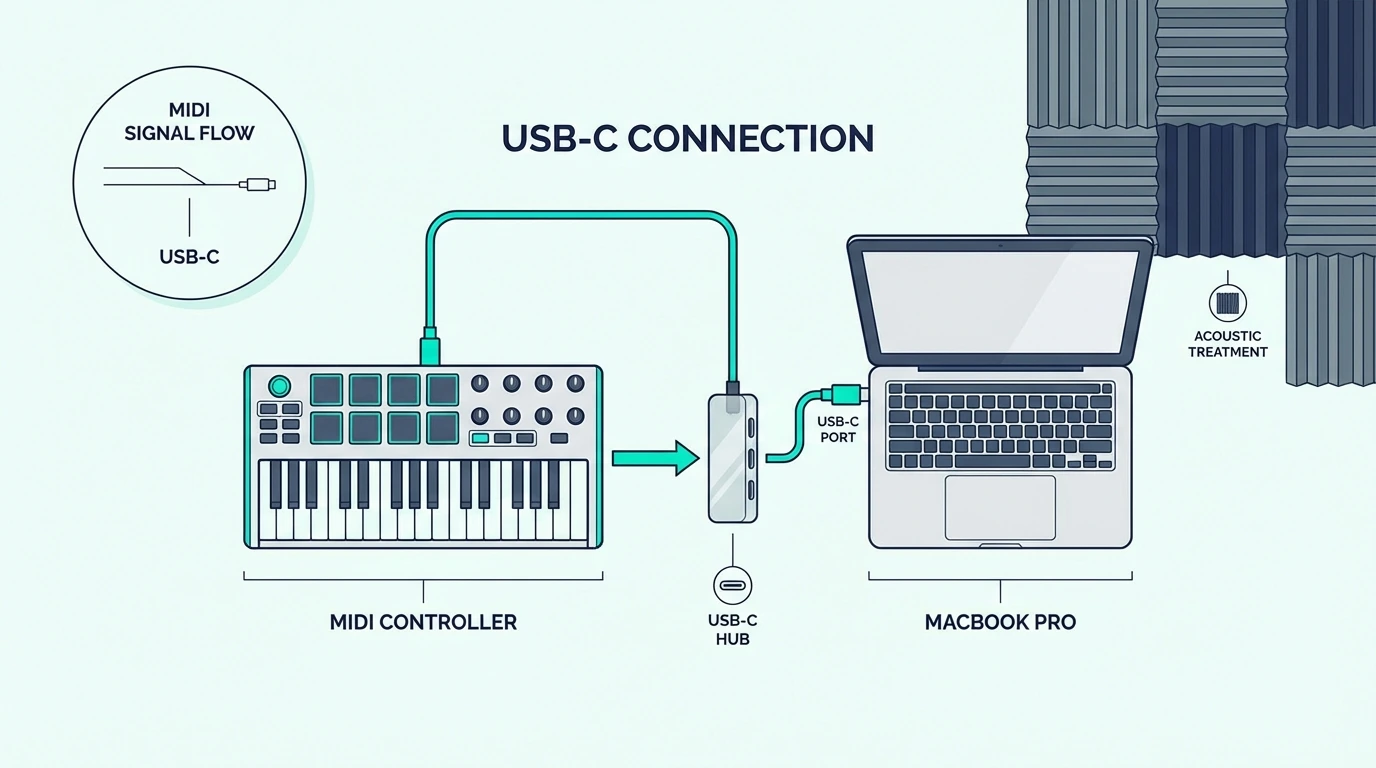
Every MacBook sold since 2016 uses USB-C ports exclusively. Most MIDI keyboards still ship with USB-A (the rectangular) connectors or USB-B (the square) connectors with a USB-A-to-USB-B cable. Bridging that gap requires one of three approaches.
USB-C to USB-A Adapter
The simplest solution is a USB-C to USB-A adapter — a small dongle that converts one of your MacBook’s USB-C ports to accept USB-A devices. Apple sells one, and other makers sell them too.
Plug the adapter into the MacBook, plug the MIDI keyboard’s USB-A cable into the adapter, and macOS handles the rest. The Akai Professional MPK Mini MK3 and most controllers connect through this adapter without any compatibility issues.
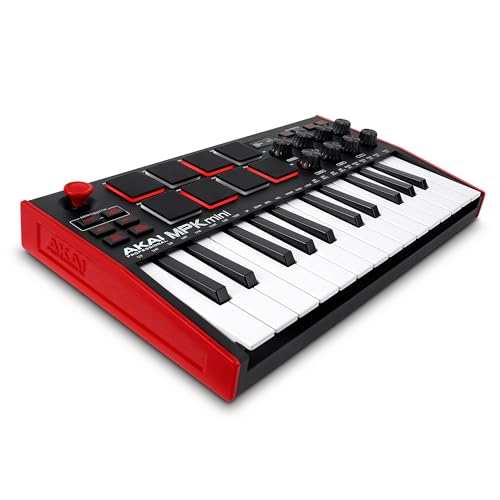
Akai Professional MPK Mini MK3
USB-C Hub (Recommended)
A USB-C hub provides multiple ports — typically USB-A, HDMI, SD card, and sometimes Ethernet — through a single USB-C connection to your MacBook. If you already own a hub for connecting external displays or hard drives, your MIDI keyboard plugs into one of the hub’s USB-A ports.
This approach keeps the adapter permanently connected to your MacBook and eliminates the loose dongle that inevitably gets lost. Most MacBook producers already own a USB-C hub, making this the zero-additional-cost solution.
Controllers With Native USB-C
A growing number of MIDI controllers ship with USB-C connectors or include USB-C cables. The Novation Launchkey MK4 series connects via USB-C natively — no adapter needed on any modern MacBook. As the industry transitions, USB-C native controllers will become the standard.
If you have not purchased a controller yet and own a USB-C MacBook, check whether the controller includes a USB-C cable or port before buying. That detail saves you the adapter hassle entirely.
How Does macOS Handle MIDI Keyboard Connections
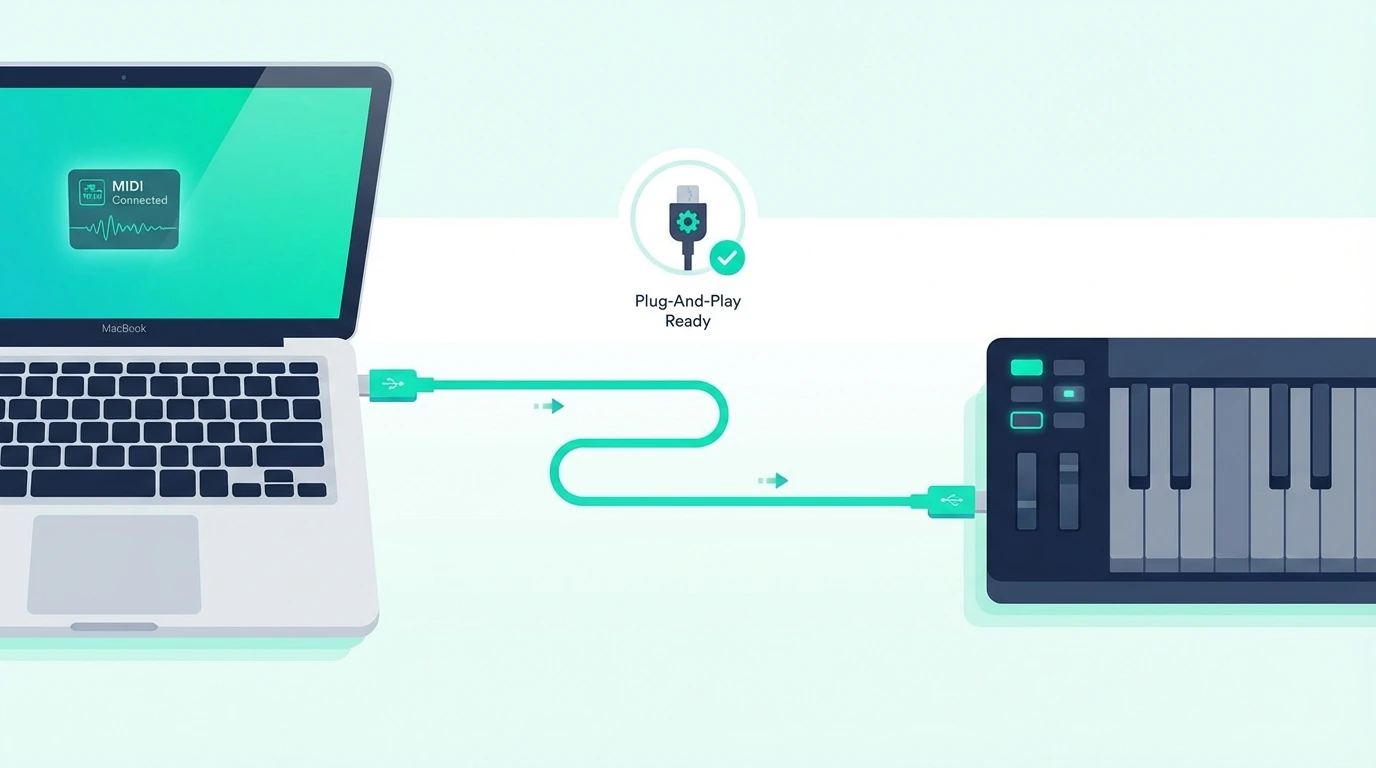
macOS builds in the drivers that class-compliant MIDI devices use. Understanding what happens behind the scenes helps you troubleshoot the rare cases where automatic detection fails.
Automatic Device Recognition
When you plug a class-compliant USB MIDI keyboard into a MacBook, macOS loads its built-in Core MIDI driver automatically. No manufacturer driver download, no installation wizard, no restart required.
M-Audio says most USB audio and MIDI peripherals are class compliant, but not every keyboard is. Apple’s guide says to follow the instructions that came with the keyboard, which may include installing the correct driver, and to check the maker’s website for the latest one.
Audio MIDI Setup Verification
If you want to confirm macOS detected your controller, open Audio MIDI Setup (Applications, Utilities, Audio MIDI Setup). Click “Show MIDI Studio” in the Window menu. Your MIDI keyboard appears as a device icon in the MIDI Studio window.
If the device icon is dimmed, Apple says the device may be turned off or disconnected, so check its power and connection, then try a different cable or adapter.
GarageBand Instant Recognition
GarageBand is the fastest path from connection to sound on a MacBook. Open GarageBand, select “Empty Project,” choose “Software Instrument,” and press a key on your MIDI keyboard. GarageBand loads a default piano patch and routes your keyboard’s MIDI data to it automatically.
If the keys stay silent anyway, our step-by-step GarageBand keyboard setup traces the problem from the cable and the Mac’s accessory prompt to the software instrument track.
GarageBand needs little setup beyond that. Its Audio/MIDI settings show the last connected controller in a MIDI Controller field, let you choose which one to use when several are connected, and have a Reset MIDI Drivers button that reloads MIDI devices if you’ve lost the connection to them.
Logic Pro Setup
Logic Pro inherits the same automatic MIDI detection from GarageBand. Create a software instrument track, load any patch from the library, and play. Logic routes MIDI from your keyboard to whichever track is selected.
Knobs, faders and transport buttons can take a few more steps, and our guide to how you set up a MIDI controller in Logic Pro covers the Auto Assign prompt, Smart Controls and the menu names Logic Pro X used.
For controllers with transport buttons (play, stop, record), the DAW has to be set up to listen for them. On the M-AUDIO Keystation 49 MK3, M-Audio’s guide has you choose MIDI, Mackie Control or HUI on the keyboard and set your software to receive the same protocol.
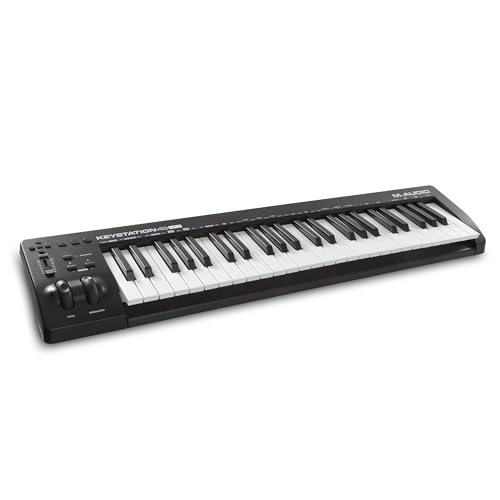
M-AUDIO Keystation 49 MK3
Ableton Live On MacBook
Ableton Live requires one manual step: open Preferences (Cmd+Comma), navigate to Link/Tempo/MIDI, and enable Track and Remote for your controller’s input port. Unlike GarageBand and Logic, Ableton does not auto-enable MIDI inputs — you must activate them in Preferences.
After enabling, Ableton routes MIDI to whichever track is selected. The configuration saves automatically so you only need to do this once per controller.
When the keyboard shows up and the program is listening, our page on what to do with a MIDI controller after it’s connected covers arming a track, mapping knobs and playing the pads.
How Do You Fix MIDI Connection Issues on MacBook
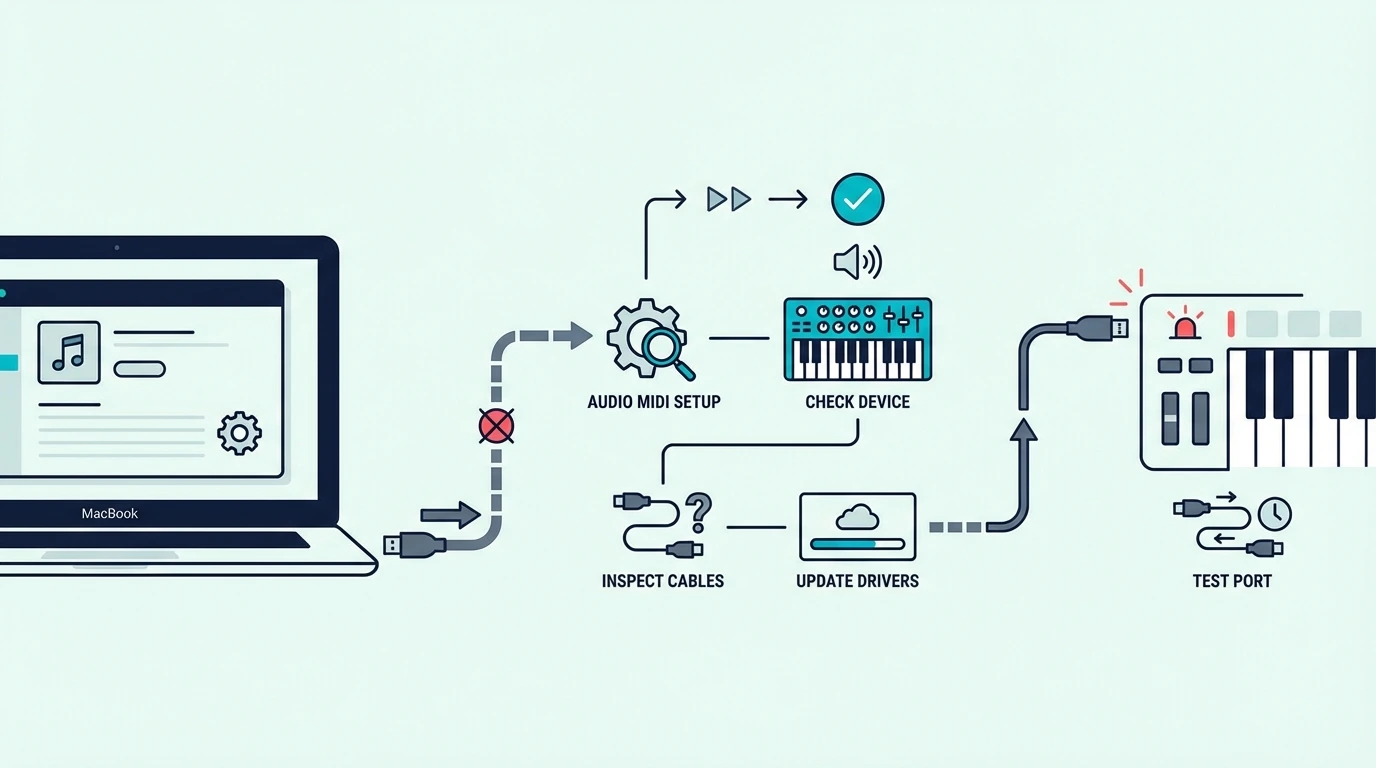
MacBook MIDI connections rarely fail, but when they do, these fixes resolve the issue in order of likelihood.
Controller Not Detected After Plugging In
Unplug the USB cable, wait five seconds, and plug it back in. If using an adapter or hub, try connecting directly to a different USB-C port on the MacBook. Some USB-C hubs do not provide enough power for controllers with LED-backlit pads.
If the controller works on a different computer but not your MacBook, run Apple’s checks: in Audio MIDI Setup’s MIDI Studio window, click the Rescan MIDI button, and if the controller still doesn’t appear, make sure it’s connected and turned on and that you’ve installed any software its maker requires (Apple). In GarageBand, the Reset MIDI Drivers button in Audio/MIDI settings reloads MIDI devices if you’ve lost the connection to them.
Sound Plays But With Wrong Instrument
If pressing keys produces sound but the wrong instrument plays, you have the wrong track selected in your DAW. Click the track with the instrument you want to hear, and the MIDI keyboard switches to controlling that track.
In GarageBand and Logic Pro, MIDI always routes to the selected track. Clicking a different track instantly changes which instrument responds to your keyboard.
Controller Works In GarageBand But Not Another DAW
Each DAW handles MIDI device activation differently. GarageBand auto-enables everything. FL Studio, Ableton, and other DAWs require manual activation in their MIDI settings. Check your DAW’s preferences panel and enable the controller’s input port.
The midiplus AKM320 and any other class-compliant controller works identically across all DAWs once the input port is enabled.
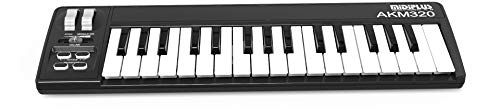
midiplus AKM320
MacBook Not Providing Enough USB Power
MacBook Air models occasionally struggle to power controllers with multiple LEDs and motorized faders through a USB-C adapter. If your controller connects intermittently or disconnects during use, try a powered USB-C hub that provides its own electricity to connected devices.
This hub comparison includes two powered hubs with USB-C cables, one of them the only pick whose maker lists the power per port.
Budget controllers like the midiplus AKM320 draw minimal power and never hit this limit. Larger controllers with LED-backlit pads and motorized controls are more susceptible on MacBook Air than MacBook Pro.
The Bottom Line
Connecting a MIDI keyboard to a MacBook is the simplest hardware setup in music production. Plug in via USB (with a USB-C adapter if needed), open GarageBand or Logic Pro, and play. macOS handles device recognition, driver loading, and MIDI routing automatically — no manual configuration required.
The only potential friction is the USB-C adapter on modern MacBooks. A USB-C to USB-A adapter or the USB-C hub you already own for other peripherals solves that. A class-compliant MIDI keyboard works on a MacBook without a manufacturer driver.
Frequently Asked Questions
Do I need drivers for a MIDI keyboard on MacBook?
Not for a class-compliant keyboard, because macOS includes the drivers those keyboards use, so your MacBook recognizes it when you plug it in. Some keyboards still need the maker’s driver, so follow the instructions that came with yours, as Apple advises.
Which USB adapter do I need for MIDI keyboard on MacBook?
A simple USB-C to USB-A adapter connects any standard MIDI keyboard to a USB-C MacBook. A USB-C hub with USB-A ports is the more practical solution if you connect multiple USB devices.
Does GarageBand work with any MIDI keyboard on MacBook?
Most do: GarageBand picks up a class-compliant USB MIDI keyboard when you plug it in, so open GarageBand, create a software instrument track, and play. With several controllers connected, choose one in the MIDI Controller field of GarageBand’s Audio/MIDI settings.
Can I connect a MIDI keyboard to MacBook via Bluetooth?
Yes. Apple’s guide connects a Bluetooth MIDI keyboard in Audio MIDI Setup: open the MIDI Studio window, click Configure Bluetooth, put the keyboard in pairing mode, select it and click Connect. Install any software its maker provides first.