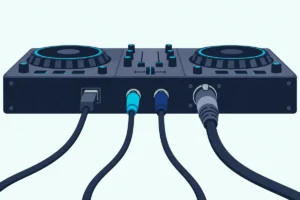
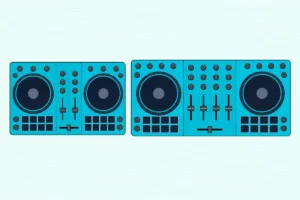
How to Connect Bluetooth to VTech DJ Mixer Toys, Step by Step
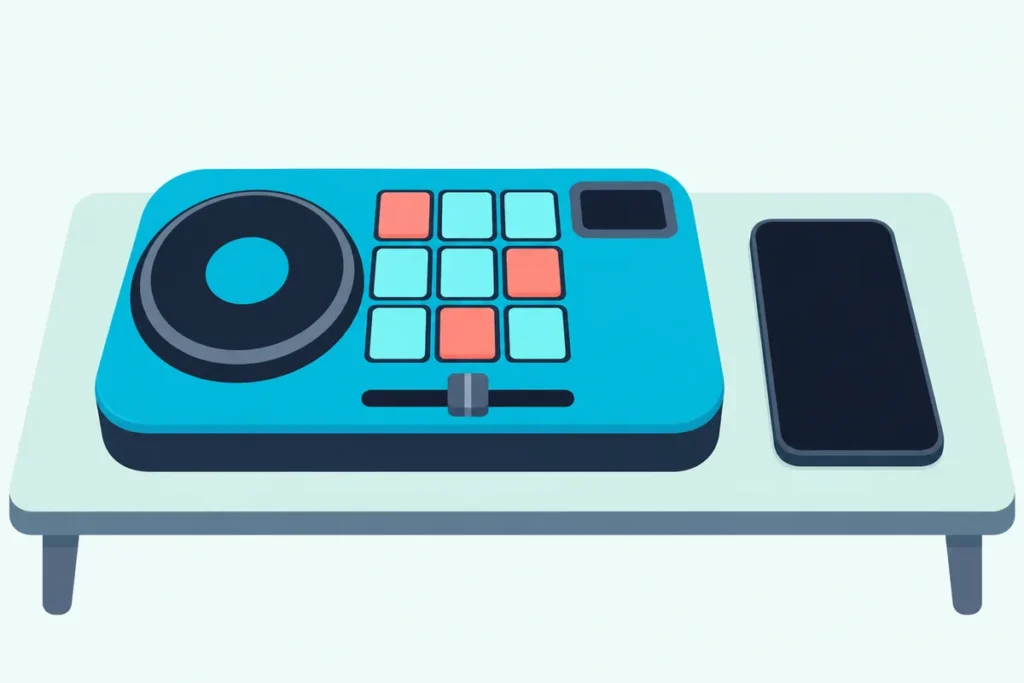
If you’re working out how to connect Bluetooth to VTech DJ mixer toys, the job is two buttons on the mixer and one tap on your phone.
The catch is that pairing alone doesn’t pick the phone as the music source, so a paired phone can still go unheard.
Press the right second button and set the volumes the way VTech suggests, and your child’s songs come through the mixer, ready to mix with the toy’s own beats.
The first thing to check is which toy you have, because the KidiStar DJ Mixer and the Kidi DJ Mix share one set of steps and the Pro has its own manual.
From there, this guide covers the pairing steps, the PIN, why it won’t pair, batteries, cables and safe volume.
How to Connect Bluetooth to a VTech DJ Mixer
That two-button pattern is the whole method. VTech’s KidiStar DJ Mixer manual says to press the Bluetooth Connect Button to connect to a nearby device, then, once the device is paired, press the Bluetooth Input Button to choose it as the audio source (VTech’s manual, as hosted by userguide.info).
Here’s the full order, with the phone side taken from Apple’s pairing steps for third-party accessories:
- Turn the mixer on with the Power Button and make sure it’s out of Try-me mode (covered below).
- Press the Bluetooth Connect Button on the mixer.
- On the tablet or phone, open Settings, then Bluetooth, turn Bluetooth on and tap the mixer’s name when it appears.
- If the phone asks for a code, enter the 4 digits shown on the mixer’s screen.
- Once the device shows it’s paired, press the Bluetooth Input Button on the mixer.
- Start a song, set the device’s volume to 100% and move the Crossfader to the middle.
Step 5 is easy to miss. The Connect button pairs the device, but only the Input button switches the mixer’s audio source to it.
Apple’s guide also says to check the accessory’s own instructions if the name doesn’t appear, since some devices have to be made discoverable first (Apple Support). On these toys, VTech’s step for that is the Bluetooth Connect Button.
VTech doesn’t say what name the toy shows in the phone’s list, so look for a new entry in the list right after you press Connect.
Are the KidiStar DJ Mixer and Kidi DJ Mix the Same Toy?
Those steps cover both names, because VTech’s two instruction booklets describe one toy. The US and Canadian KidiStar DJ Mixer booklet lists the model as 5473, and VTech’s French Kidi DJ Mix booklet calls the radio equipment “type 5473” and carries the code IM-547300-000 on its back page (VTech’s French manual, as hosted by Syndigo).
The features line up button for button. Both have 15 built-in songs, a scratch turntable, a Crossfader, a microphone for recording short sound effects, a 3.5 mm music-player input, a jack for headphones or speakers, and the same two Bluetooth buttons.
Mostly the names differ. The KidiStar’s Bluetooth Input Button is called the “Bluetooth audio output button” in French, and where the KidiStar has a Party Light, the French version has a disco ball.
So if you searched for the Kidi DJ Mix, the Kidi Star DJ Mixer or the KidiStar DJ Mixer, the steps above apply as written. VTech Australia’s instruction file carries the Kidi DJ Mix name too.
Two other VTech toys turn up in the same searches.
The KidiStar DJ Mixer Pro (80-591100) is a different model with a built-in keyboard, and the Kidi Superstar Jr DJ Mixer (80-584160) has its own instructions. Neither of those booklets could be read for this guide.
Get Studio Tips Weekly
Join 5,000+ creators getting acoustic treatment advice every week.
No spam. Unsubscribe anytime.Which Way Does the Bluetooth Connection Go?
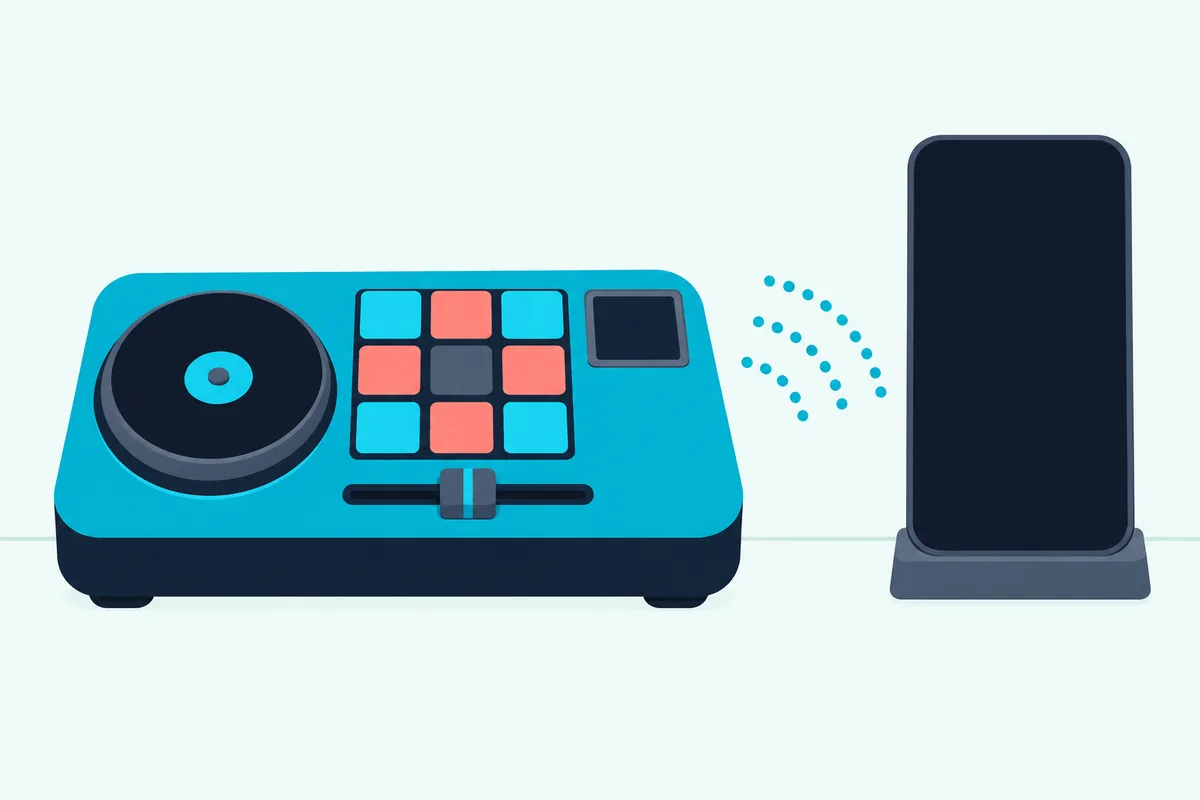
Those booklets also settle the direction. The phone sends music into the mixer, and VTech never describes the mixer sending its sound out over Bluetooth.
The KidiStar booklet describes Bluetooth only as an audio input source, blended with the toy’s own sounds by the Crossfader. The French version says the same: once your device is connected, the button turns on the sound from that device.
Think of the toy as the place the music ends up. Your child plays a song from the tablet or player, and the toy’s pads, scratch effects and recorded sounds play on top of it.
Songs are chosen on the device, and the toy’s controls mix them. Full-size gear can work differently, and how Bluetooth DJ controllers handle the wireless link covers what Bluetooth carries on real controllers.
Why Does the Phone Ask for a PIN?
That one-way link can be protected by a 4-digit code. VTech’s French booklet says that if your device asks for a security code, you enter the 4 digits shown on the Kidi DJ Mix screen.
Both booklets ask you to keep the PIN on. VTech “strongly recommends” keeping PIN security on for Bluetooth so that no unauthorized device can connect.
If a phone or tablet can’t use a PIN at all, the KidiStar booklet says you can turn the PIN off with the selection buttons (Left, Right and OK). VTech says to do that only when connecting with a PIN is impossible, and that a child should use the toy with the PIN turned off only under adult supervision.
A practical rule for parents: pair the toy yourself, with the PIN on, from the phone or tablet your child will use. That way you handle the code step, and VTech’s PIN protection stays on.
Why Won’t the VTech DJ Mixer Pair or Play?
Each fix below goes back to a step above. This table matches what you see to the fix in VTech’s and Apple’s own instructions.
| What happens | What to check | What to do |
|---|---|---|
| New toy, straight from the box | Still in Try-me mode | In DJ Party mode, hold Custom Sound Effect Button #5 for three seconds |
| Device says connected, no music from the toy | Bluetooth Input Button not pressed | Press Bluetooth Input after pairing |
| Device asks for a code | PIN security is on | Enter the 4 digits on the toy’s screen |
| Music is very quiet under the toy’s beats | Device volume and Crossfader position | Device at 100%, Crossfader in the middle |
| Toy turns off during play | Weak batteries | Fit 4 new AA batteries |
| Toy turned off after a quiet spell | Automatic shut-off after 10 minutes | Press the Power Button |
| Pairing worked before but fails now | An earlier pairing | Forget the toy in Bluetooth settings, then pair again |
The table’s top row matters on a new toy. VTech says the mixer ships in Try-me mode, and the way out is holding button #5 of the custom sound effects for three seconds while in DJ Party mode.
Apple’s troubleshooting page adds three checks for any Bluetooth accessory. Keep the toy and the device close together, turn the accessory off and on again, and make sure its batteries don’t need replacing (Apple Support).
If it still fails, Apple says to unpair the accessory, put it back in discovery mode and pair again. On the iPhone, that’s Settings, Bluetooth, the More Info button next to the toy, then Forget This Device; on the mixer, the nearest VTech step is pressing the Bluetooth Connect Button again.
One more case from Apple’s list: if the accessory pairs with some devices but not yours, unpair it from the others first. A sibling’s tablet that paired with the toy last is one example.
Why Does the VTech DJ Mixer Keep Turning Off?
That “turned off after a quiet spell” row has a simple reason. VTech says the KidiStar DJ Mixer turns itself off after 10 minutes without input to save battery life, and the Power Button turns it back on.
The French booklet says the same for the Kidi DJ Mix, which goes into standby after 10 minutes without use. VTech doesn’t say whether streamed music counts as input.
A toy that switches off in the middle of play is different. VTech’s getting-started note says that if the unit powers down during play, you should install a new set of batteries.
Which Batteries and Power Does It Need?
Since VTech ties mid-play shutdowns to batteries, and Apple lists batteries among its Bluetooth checks, the power supply is worth getting right. VTech calls for 4 AA (AM-3/LR6) batteries and recommends alkaline or fully charged Ni-MH rechargeables for best performance.
Battery fitting is an adult’s job, per VTech. The cover is on the back and held by a screw, so you’ll need a screwdriver, and VTech says to keep batteries out of reach of children.
VTech’s battery notice adds the usual rules. Don’t mix old and new batteries, don’t mix alkaline, carbon-zinc and rechargeable types, and remove batteries when the toy won’t be used for a long time.
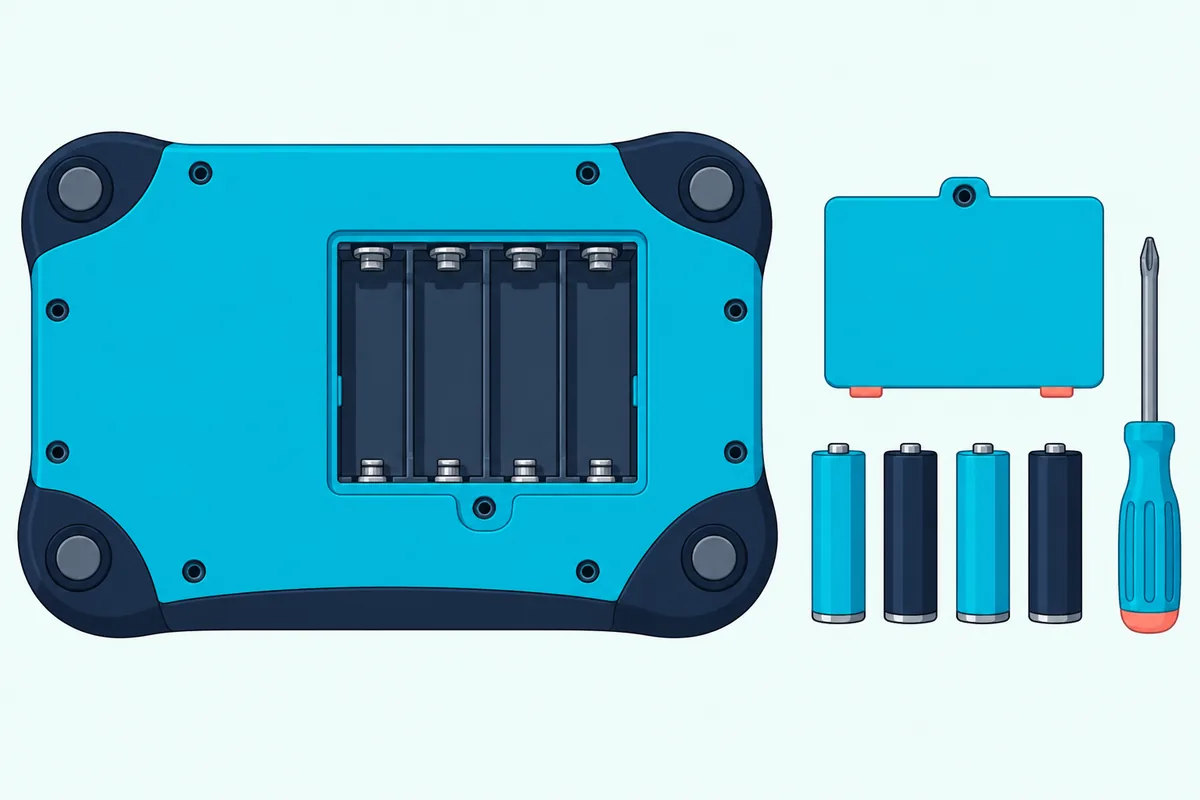
VTech’s French booklet says the batteries supplied with the toy are for testing it in the store, not long-life ones.
For a fresh set, Amazon Basics’ 20-pack of AA alkaline batteries is the alkaline type VTech recommends. Four go in at a time, so the pack covers several full changes.
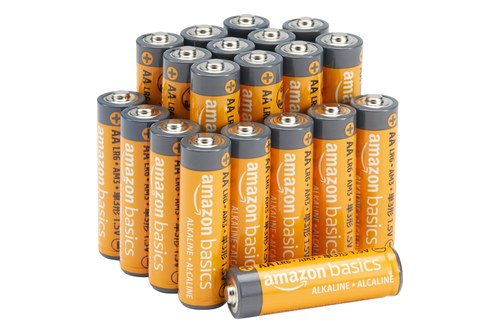
Amazon Basics’ 20-pack of AA alkaline batteries
A wall adapter is the other option. VTech’s US booklet recommends a 3.5 mm AC 6V adapter that complies with EN61558, used only with a transformer for toys, and the French booklet names VTech’s own 6 V, 800 mA adapter (80-002181), sold separately.
Is There a Way to Reset the VTech DJ Mixer?
Fresh batteries also double as the reset. Neither booklet describes a factory reset or a Bluetooth reset, so the documented fix for a toy that stops working is a power cycle.
VTech’s troubleshooting steps are short. Remove the batteries to cut the power, let the toy stand for a few minutes, put the batteries back, and if it still doesn’t work, install a new set.
After that, pair from scratch. Forget the toy in Bluetooth settings, press the Bluetooth Connect Button and go through the six steps at the top of this guide again.
If it still won’t pair, VTech lists its Consumer Services numbers: 1-800-521-2010 in the US and 1-877-352-8697 in Canada. VTech also points to the Contact Us form on vtechkids.com.
Can You Play the Mixer Through a Bluetooth Speaker?
That one-way Bluetooth from earlier answers this one too. Neither booklet describes sending the mixer’s sound to a Bluetooth speaker, so the documented way to a bigger speaker is a cable.
VTech says the Audio-Out Jack connects the mixer to external speakers or headphones, with the cable not included. The French booklet calls it a jack for headphones or a speaker.
So a wired speaker is the route VTech documents, while a speaker that only takes Bluetooth has no route in VTech’s instructions. The KidiStar booklet lists the player’s maximum output voltage as 150 mV or less.
Neither booklet gives the Audio-Out Jack’s plug size, so check it against your speaker’s cable before buying anything for that side.
What If Pairing Keeps Failing, or There’s No Bluetooth?
A cable fixes the input side the same way it fixes the output side. VTech’s KidiStar booklet says to connect an external music player to the Line-In Jack with a 3.5 mm cable, then press the Line-In Button to play it.
The French booklet describes the same jack and a 3.5 mm audio cable, with the Audio Jack button turning on the sound. In both booklets, the cable and the music player aren’t included.
That route skips pairing, PINs and stale connections entirely. It suits an old handset kept as a music player, a tablet with Bluetooth problems, or a toy that won’t pair after the reset above.
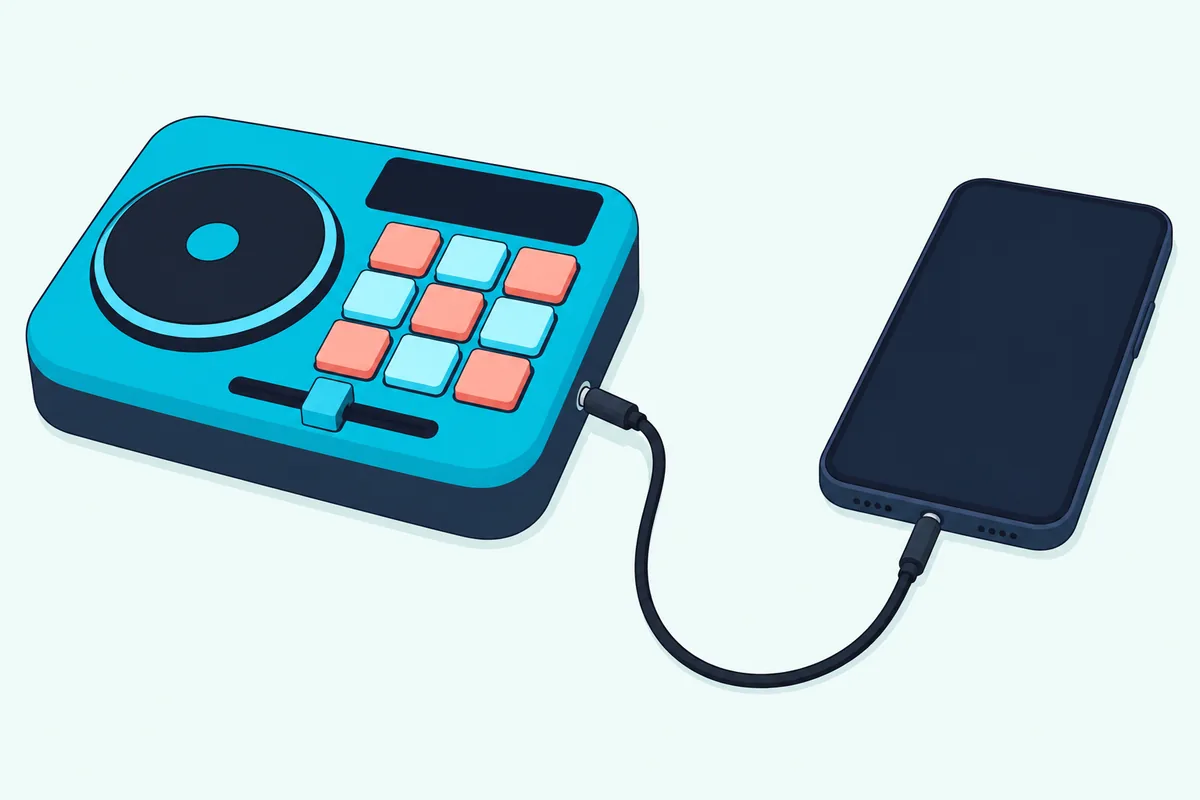
For the cable itself, UGREEN’s 6 ft 3.5 mm audio cable has a 3.5 mm plug at each end, per its listing. One end goes into the phone’s headphone jack and the other into the mixer’s Line-In Jack.
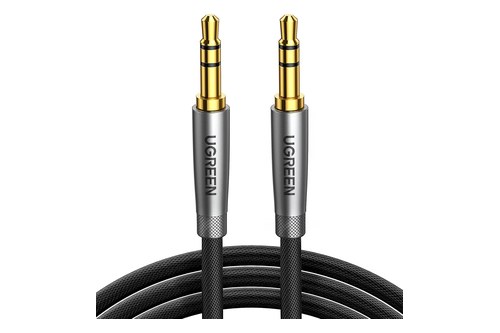
UGREEN’s 6 ft 3.5 mm audio cable
A phone with no headphone jack needs its own adapter before this cable fits.
What about a VTech DJ toy with no Bluetooth buttons at all? Then there’s nothing to pair, so check that model’s own manual for a line-in jack.
How Loud Should It Be, and Are Headphones Safe?
Whichever route the music takes, the volume settings are the same. VTech suggests setting the device’s volume to 100% with the Crossfader in the middle, then adjusting its level with the Crossfader instead.
The Crossfader balances the streamed music against the toy’s built-in sounds, and the Volume Control Slider sets the overall level. That keeps every volume control on the toy, where your child is already playing.
For headphones, VTech’s French booklet is direct. It warns that excessive exposure to high volume can damage a child’s hearing, and says to always lower the volume before connecting headphones and set the lowest level that lets your child hear the music.
VTech’s US booklet adds one radio note. It says the equipment should be operated with at least 7.8 inches between the radiator and your body, part of its FCC radiation exposure statement.
If your child moves on to headphones-only practice on real gear later, this guide to DJing with headphones only covers how loud is too loud on long sessions.
What About the KidiStar DJ Mixer Pro?
The Pro is the one model where the steps above may not match exactly. VTech’s manual for the KidiStar DJ Mixer Pro (80-591100) is on VTech’s own site, which refused our request, and no other copy could be found, so its pairing steps aren’t covered here.
Toys”R”Us’s listing describes the Pro with 15 built-in songs, a built-in keyboard, a microphone, Bluetooth to connect a music player wirelessly, and an audio-out jack for external speakers (Toys”R”Us). That’s the same direction as model 5473: phone in, wired speaker out.
So start by looking for a Bluetooth button on the Pro, then check its own instructions for the exact steps. The PIN and the phone-side steps from Apple apply to any Bluetooth accessory.
How Does the Toy Grow With a Young DJ?
Once the music is playing through it, the rest of the toy is about mixing. The KidiStar booklet lists three modes: DJ Party for mixing the 15 songs or your own music, Studio for recording mixes into three slots, and Academy, a pattern game with 11 patterns per round.
Studio records the turntable, vocal track, pad sounds, sound effects, Crossfader moves and tempo changes. The Crossfader is a real DJ idea in miniature, and how DJ mixing works on a real mixer shows the same control on full-size gear.
When the toy is outgrown, a real controller is the next step. Burton Acoustix’s beginner controller shortlist starts there.
The Bottom Line
Pair the toy with the Bluetooth Connect Button, then press the Bluetooth Input Button, and that second press is what brings the music through. Keep the PIN on, set the device to 100% and mix with the Crossfader.
When it won’t pair, leave Try-me mode, fit fresh AA batteries, forget the toy in Bluetooth settings and pair again. And when Bluetooth just won’t cooperate, a 3.5 mm cable into the Line-In Jack does the same job.
Frequently Asked Questions
These cover the follow-up questions parents search after the first pairing.
How do you get a VTech DJ mixer out of demo mode?
VTech calls it Try-me mode, and the toy ships in it. In DJ Party mode, press and hold Custom Sound Effect Button #5 for three seconds, per the KidiStar booklet; the French Kidi DJ Mix booklet gives sound effect button no. 5 and the same three seconds in DJ mode.
If the toy keeps powering down after that, VTech says to install a new set of batteries.
What is the Bluetooth PIN for the Kidi Star DJ Mixer?
VTech prints no fixed code. Its French Kidi DJ Mix booklet says to enter the 4 digits that appear on the toy’s screen when your device asks for a security code.
If your device can’t use a PIN, the KidiStar booklet says the PIN can be turned off with the selection buttons, and VTech asks that a child use the toy that way only under adult supervision.
Is there a VTech DJ mixer app?
Neither booklet mentions an app. VTech describes the phone only as a music source, over Bluetooth or with a 3.5 mm cable into the Line-In Jack.
The mixing, recording and games all happen on the toy itself, in its DJ Party, Studio and Academy modes.
How do you use the microphone on the kids DJ mix?
The microphone records short custom sound effects. Press and hold one of the five Custom Sound Effect Buttons to record, release it when you’re done, and press it again to hear the sound, per VTech’s KidiStar booklet.
Those recordings then play on top of the built-in songs or the streamed music, and Studio mode can record the whole mix into one of three slots.