How to Control a Sonos Soundbar With Your TV Remote
If you’re working out how to control a Sonos soundbar with your TV remote, the cable decides it: on HDMI eARC or ARC the remote works with no setup, and on optical you teach the bar your remote in the Sonos app.
Miss that split and the volume keys do nothing, which is what an LG Magic Remote does to an optical bar until it’s set up to send infrared.
Get it right and the remote you already own turns the bar up and down, with the Sonos app and touch controls as backups.
Start at the back of the bar, because the Arc Ultra, Arc, Beam (Gen 2) and Beam Ultra connect by HDMI and the Ray only by optical.
Below are each bar’s route, the CEC switch by TV brand, Remote Control Setup, the remotes that need extra steps and Sonos’s fixes.
Can You Control a Sonos Soundbar With a TV Remote?
That cable sets the route, but the answer is yes on every Sonos soundbar. Sonos’s soundbar page promises control from your TV remote or the Sonos app, and Sonos’s TV remote article says a bar on HDMI-ARC follows the TV remote automatically, while one on an optical cable or the Optical Audio Adapter needs the remote set up by hand.
None comes with a remote of its own: no box list in Sonos’s guides or on its shop pages for these bars includes one. The table shows what carries the remote’s commands on each model.
| Sonos soundbar | Connects to the TV by | How the TV remote reaches it | TV cable in the box |
|---|---|---|---|
| Arc Ultra | HDMI eARC or ARC; optical through the Optical Audio Adapter, sold separately | HDMI-CEC on ARC; infrared on optical | HDMI cable |
| Beam Ultra | HDMI eARC or ARC; optical through the Optical Audio Adapter, sold separately | HDMI-CEC on ARC; infrared on optical | HDMI cable |
| Arc | HDMI eARC or ARC; optical through the included adapter | HDMI-CEC on ARC; infrared on optical | HDMI cable and Optical Audio Adapter |
| Beam (Gen 2) | HDMI eARC or ARC; optical through the included adapter | HDMI-CEC on ARC; infrared on optical | HDMI cable and Optical Audio Adapter |
| Ray | Optical only | Infrared only | Optical cable |
The original Arc follows the same HDMI route as the Ultras, and its guide is still on Sonos’s site. The Ray is the odd one out: Sonos’s shop page calls it compatible with an infrared-enabled TV remote, and its remote requirements say any bar on optical answers infrared remotes only.
How to Control a Sonos Soundbar With Your TV Remote Over HDMI
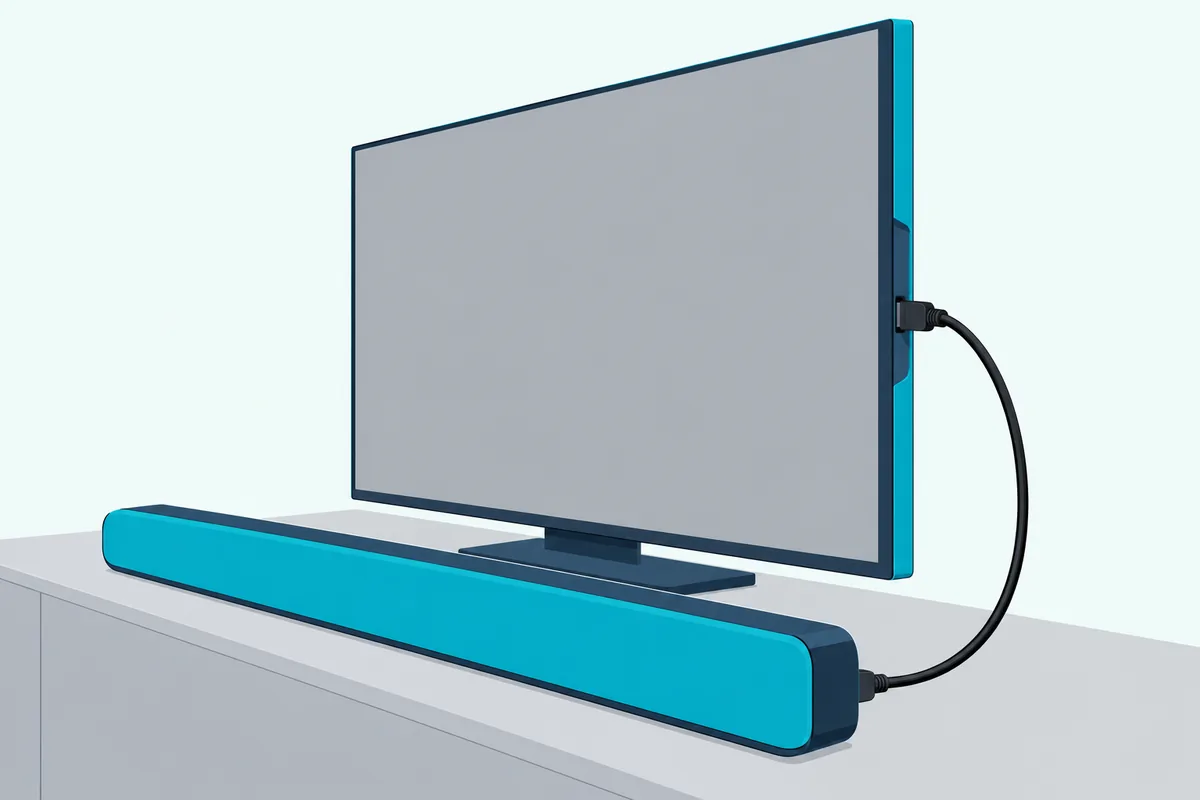
Those four HDMI bars share one route, and all of it happens on the TV side. Sonos’s TV remote requirements say a bar in the TV’s HDMI-ARC port works with infrared and radio remotes alike as long as the TV has CEC turned on, so the job is three checks and a test:
- Plug the bar’s HDMI cable into the TV port labeled ARC, eARC or ARC/eARC. Sonos’s Arc guide warns that a standard HDMI port gives you no sound at all.
- Turn on the TV’s CEC setting, which each TV maker names differently (the next section lists them).
- Finish in the Sonos app, which names the cable and port your bar needs.
- Press volume up on the TV remote and watch the bar. On the Arc Ultra and Beam Ultra, the status light gives feedback when a command arrives from a remote.
With CEC on, the TV hands its remote’s volume presses to the bar, which is why there’s nothing to pair on the Sonos side. That link also lets voice reach the TV: Sonos’s setup pages for the Arc Ultra, Arc, Beam and Beam Ultra say a voice assistant on the bar can turn the TV on and off and change its volume, but only over the TV’s HDMI-ARC input with CEC on, never through the optical adapter.
Where Is the CEC Setting on a Samsung, LG, Sony, VIZIO or Roku TV?
That second step is the one with a different name on each brand of TV. Samsung calls CEC Anynet+, LG calls it SIMPLINK and Sony calls it BRAVIA Sync, and each brand pairs it with a second setting that sends the sound to the bar:
| TV | CEC switch and where it is | Setting that sends the sound to the bar |
|---|---|---|
| Samsung (2025 models) | Anynet+ (HDMI-CEC), under Settings > All Settings > General & Privacy > External Device Manager | Sound Output, under Settings > All Settings > Sound |
| LG (webOS 2024) | SIMPLINK (HDMI-CEC), under Settings > All Settings > General > External Devices > HDMI Settings | Sound Out, set to HDMI(ARC) Device |
| Sony BRAVIA | BRAVIA Sync control, under Settings > Channels & Inputs > External inputs > BRAVIA Sync settings | Settings > Display & Sound > Audio output > Speakers > Audio system |
| VIZIO | CEC and ARC (SAC), in the System menu | System Audio Control in the CEC menu, then Device Discovery |
| Roku TV | Control other devices (CEC), under Settings > System | System audio control and ARC (or eARC), in that same menu |
The rows come from Samsung’s 2025 e-Manual, LG’s webOS 2024 user guide, Sony’s BRAVIA help guide, VIZIO’s V51x-J6 sound bar manual and Roku’s surround sound guide, and Samsung’s Anynet+ help page adds that the setting is usually on already and can only be set up with the Samsung TV remote. LG’s guide also asks for a high-speed HDMI cable with CEC, the kind with pin 13 for the two devices to exchange information.
How Do You Set Up a TV Remote for a Sonos Ray or an Optical Connection?
Unlike HDMI, optical carries no CEC, so the bar learns your remote’s infrared signal itself. Sonos runs that as Remote Control Setup, which normally comes up when you first install the bar, and you can redo it any time:
- Open the Sonos app and go to the Settings menu.
- Choose the room your soundbar is in.
- Under Home Theater, select Remote Control Setup.
- Follow the in-app instructions to configure your TV remote.
On the older S1 Controller app, the same option sits under the Settings tab, System, your room and Home Theater. Sonos keeps one programmed remote at a time, so setting up a new or replacement remote takes over from the old one.
The Ray, Arc Ultra and Beam Ultra guides also list a Use IR switch in the room’s settings, which allows or blocks infrared remotes, and the two Ultras add an IR Signal Light that shows a light on the bar’s IR receiver whenever you press a remote button. Other soundbar brands learn a remote their own way, and programming a soundbar from another brand to your TV remote covers those.
Which Remotes Need Extra Setup Before a Sonos Bar Follows Them?
That infrared requirement rules some remotes out. Sonos says a remote that uses only Bluetooth or radio frequency (RF) may need extra configuration, or may not work at all, with a bar on optical, and it gives two quick tests:
- Cover the front of the remote with your hand and press volume or channel. If the TV ignores it, the remote is infrared; if the TV still responds, it’s RF.
- Point your phone’s camera at the front of the remote and hold a button down. A faint light on the phone’s screen means infrared.
Sonos names the common remotes that don’t send infrared by default: the Apple TV remote, the Samsung One Remote, the Samsung F Series remote and the LG Magic Remote. Each gets its own steps from Sonos, and cable boxes bring a quirk of their own.
LG Magic Remote. Sonos says it reaches the TV by radio or Bluetooth, so the settings change on the LG TV. On HDMI-ARC, press Home, open Device Connector (or Universal Control Settings), choose Bluetooth/Soundbar and then HDMI-ARC, pick Sonos as the maker and choose Remote Type 1.
For an optical bar, go to Settings > General > Device Connector, pick Component or AV, then Optical for the sound output and Sonos as the maker, and finish with Remote Control Setup. If Sonos isn’t listed, Sonos suggests Philips or Bose, and if the remote still won’t work, it suggests turning SIMPLINK off for the optical connection under Settings > Sound > Sound Out.
Samsung One Remote. On optical, Sonos has you set up any cable box or Blu-ray player in the TV’s Universal Remote menu first (Home, then Connected Devices or Sources). Then add New Device > Home Theater System, search for Sonos, choose Optical as the input, run the Power Test, set your other inputs to Use with Home Theater and finish with Remote Control Setup.
Apple TV remote. Sonos says to set the bar up with the TV’s own remote, because Sonos may need to learn a mute command the Apple TV remote doesn’t have. After that it should control the bar’s volume automatically, and if it doesn’t, Sonos sends you to Apple’s checks and the TV’s HDMI-CEC setting, both walked through in our guide to controlling a soundbar with an Apple TV remote.
Cable and satellite remotes. Sonos warns that some of them pop up messages on screen when you change the volume. Its fix is to program the remote’s volume buttons to control Sonos as a separate audio device while the rest of the remote runs the TV and the box.
Streaming remotes have their own menus too, and the Fire TV side is in Burton Acoustix’s Firestick remote guide.
Why Did Your TV Remote Stop Controlling the Sonos Soundbar?
Even a remote that worked on day one can stop, and the fix depends on which route it was using. On HDMI, Sonos points to the TV’s CEC settings and other HDMI devices; on optical, to anything that weakens the infrared signal.
On HDMI-ARC, work through Sonos’s checks in order:
- Make sure the TV’s CEC switch from the table above is still on.
- Reseat the HDMI cable at both ends, confirm it’s in the port labeled ARC, and try a different HDMI cable if it still fails.
- If the Sonos app shows “CEC broadcast blocked” or says a device is interfering with the HDMI connection, unplug every other HDMI device from the TV, then reconnect them one at a time until the error returns.
- Turn off CEC in the settings of the device that brings the error back.
Where that device has no CEC switch, Sonos’s HDMI error article recommends an HDMI cable or adapter that removes CEC. BlueRigger’s HDMI CEC Less Adapter is one: it fits that device’s HDMI connection, never the soundbar’s, and has pin 13, the pin LG’s guide ties to CEC, switched off.
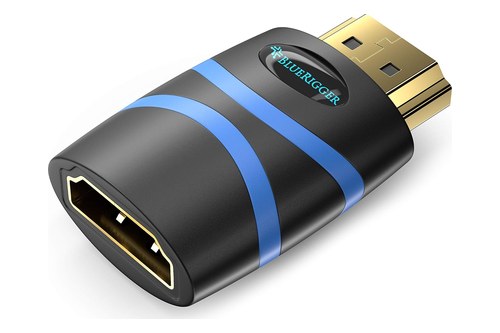
BlueRigger’s HDMI CEC Less Adapter
The adapter on this page met Burton Acoustix’s rating, review and stock checks on 31 October 2026.
For a bar on optical, Sonos’s guide to a TV remote not detected lists these checks:
- Clear the bar’s IR sensor. On the Arc, Arc SL, Arc Ultra, Beam and Ray, Sonos puts it on the front, under the Sonos logo.
- Sit within 15 to 20 feet (4.5 to 6 meters), the average IR range Sonos gives, and put fresh batteries in the remote.
- Block direct sunlight or strong fluorescent light on the bar. With a plasma TV, switch the TV off to test, and move the two apart if the remote then works.
- Turn off other infrared devices, including IR repeaters or extenders and remote-control toys, and keep them away if that fixes it.

After those checks, run Remote Control Setup again if you’re setting up a new remote, as Sonos’s page advises. On the Ray and the two Ultras, also confirm that the Use IR switch from earlier is still on.
Which Controls Still Work When the TV Remote Doesn’t?
While you work through those fixes, the bar still answers the Sonos app and its own touch controls. Sonos’s guides list both for each of these bars, plus voice on the models with microphones:
| Soundbar | Volume on the bar | Voice |
|---|---|---|
| Arc Ultra, Beam Ultra | Slide right or tap + to go up, slide left or tap – to go down | Sonos Voice Control on both, plus Amazon Alexa on the Arc Ultra |
| Arc, Beam (Gen 2) | Touch right to go up and left to go down; hold to change it quickly | Sonos Voice Control, Amazon Alexa or the Google Assistant |
| Ray | Touch right to go up and left to go down; hold to change it quickly | Not listed in Sonos’s Ray guide, which names the TV remote, the touch controls and the app |
If small hands or a pet keep nudging the volume, Sonos lets you turn the touch controls off in the room’s settings. The steps and menu names on this page come from Sonos’s support articles and user guides and the TV makers’ own manuals and help pages.
Frequently Asked Questions
Does a Sonos soundbar come with a remote?
No. None of the box lists Sonos publishes for the Arc Ultra, Beam Ultra, Arc, Beam (Gen 2) and Ray includes a remote. Sonos’s shop pages describe the bars as working with your existing TV remote instead, and the Sonos app and the touch controls cover the rest. On HDMI-ARC the TV remote needs no setup; on optical, run Remote Control Setup in the app.
Can a Roku TV remote control a Sonos soundbar?
Yes, over HDMI. Roku’s guide to connecting a surround sound system to a Roku TV says that with Control other devices (CEC) and System audio control switched on, a Roku TV’s remote changes the volume and mute of a sound system on ARC or eARC and shows the level on screen. A Roku streaming stick’s remote has its own steps, and the Roku remote settings for a soundbar cover it.
Do older Sonos soundbars like the Playbar work with a TV remote?
Yes, by infrared. Sonos’s TV requirements put the Playbar and Playbase on optical, and its remote troubleshooting page names the Playbar among the products that use IR remotes. The Playbar’s sensor moves with its position: bottom-left when it’s mounted below the TV, top-right when it’s above, and bottom-right on a tabletop, while the Playbase’s sits behind the Sonos logo. It learns a remote through the same Remote Control Setup as the Ray.