How to Record a DJ Mix: Three Methods That Work
How to record a DJ mix, in one line: use the recorder already built into your DJ software — Rekordbox, Virtual DJ and DJUCED all include one free, and it captures the master output directly with no extra hardware and no cables.
It is usually a single button, and it is usually buried somewhere nobody looks.
In Rekordbox it sits under the REC tab in Export mode. In Virtual DJ it is the Record button on the top bar. Serato has one too, but only in DJ Pro, not Lite.
That is the whole answer for most people. The reason this question gets complicated is that the right method depends on your setup: software DJs record internally, standalone controller owners record to a USB stick, and anyone mixing on hardware needs to capture the signal somewhere else entirely.
Below is each of those three routes, the level settings that stop a recording clipping, and how to tag and upload the file when it is done.
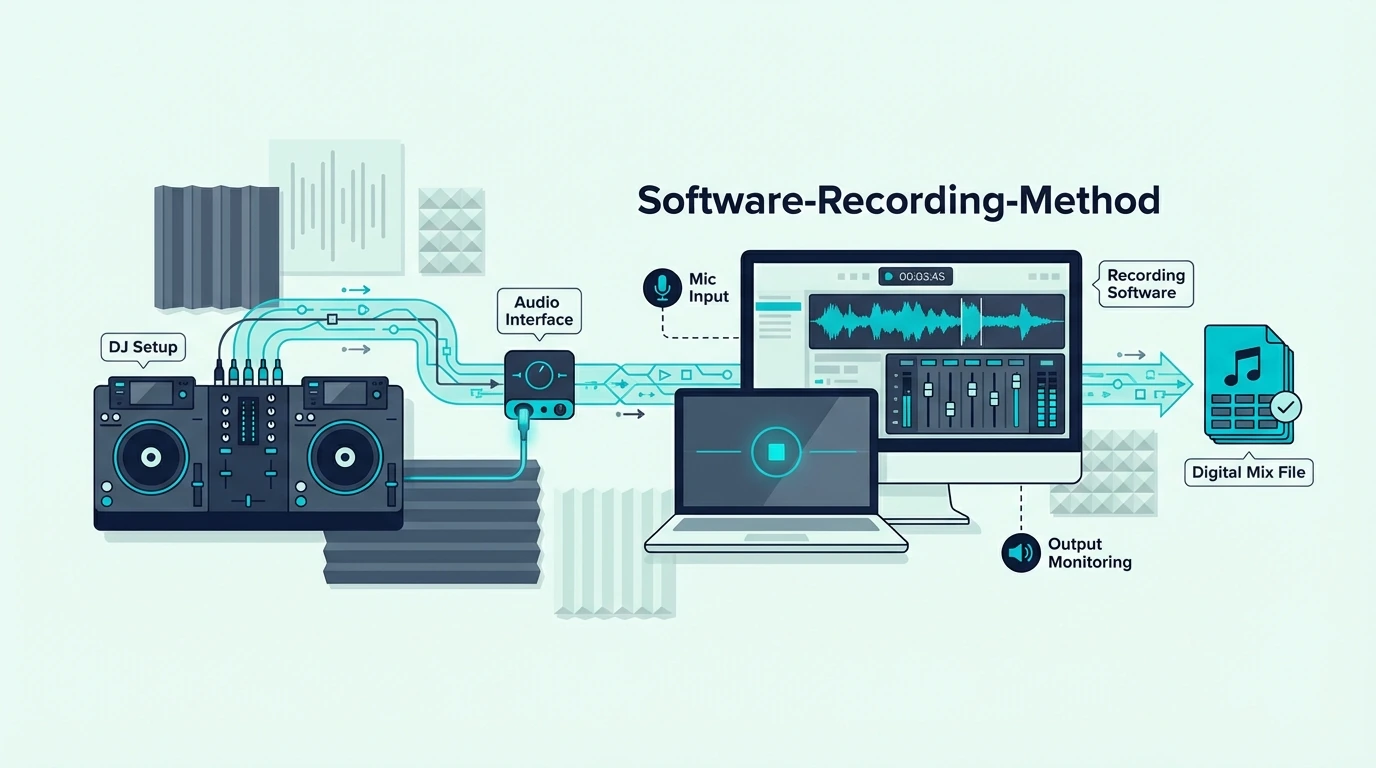
To record a DJ mix, use your DJ software’s built-in recording feature (VirtualDJ’s free version records audio, rekordbox lists recording on its Core plan and above, and Serato requires DJ Pro). Click the record button before you start mixing, and the software captures the master output as a WAV or MP3 file. No external hardware needed.
How to record a DJ mix inside your DJ software
Rekordbox Recording (Free)
Rekordbox records from the REC button in its top toolbar, but its plan table lists recording DJ mixes only for the Core plan and above, so check your plan first. Start mixing, and Rekordbox captures your master output as a WAV file.
The recording saves to your Rekordbox library under the Recordings section. From there, export it as WAV or convert to MP3 using any audio converter.
The Pioneer DJ DDJ-FLX4 is built for rekordbox, and Pioneer DJ says it can record to rekordbox over USB, though rekordbox’s plan table puts recording on the Core plan and above.
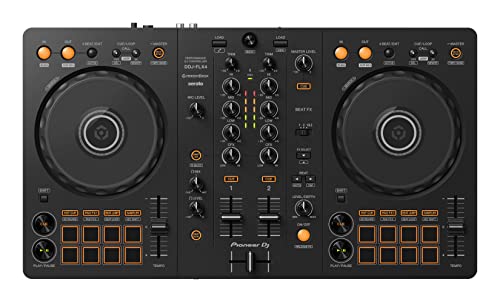
Pioneer DJ DDJ-FLX4
Virtual DJ Recording (Free Audio)
VirtualDJ’s free version records audio to a file, per VirtualDJ’s price chart. With a controller connected, the free version runs it only 10 minutes at a time, so a full set on a controller needs the Home or Pro license. Click the REC button in the interface, and the software captures your master output as a WAV or MP3 file.
Video recording adds a VDJ watermark on the free tier — Virtual DJ Pro removes the watermark for paid users. For audio-only mix recordings (the most common use case), the free tier works perfectly.
Serato Recording (Pro Only)
Serato DJ Lite does not include recording. You need Serato DJ Pro (paid subscription or controller-unlocked) to record mixes.
Serato says its Play expansion records laptop-only sets, which laptop-only DJing with Serato Play explains.
Once you have Pro, the recording function captures your master output as a WAV file.
If your controller only bundles Serato DJ Lite, you have two options: upgrade to Pro, or use an external recording method (covered below). The Hercules DJControl Inpulse 500 bundles DJUCED alongside Serato Lite — and DJUCED records for free.
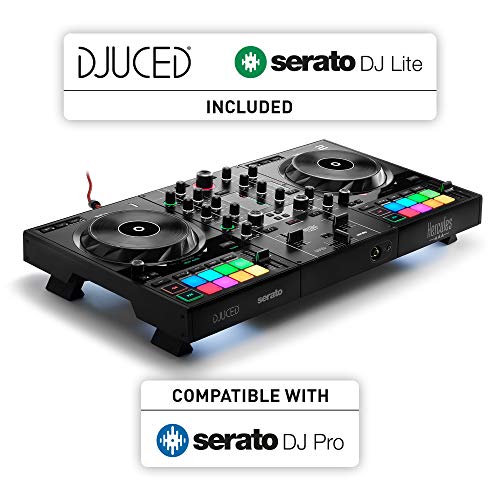
Hercules DJControl Inpulse 500
DJUCED Recording (Free)
DJUCED includes one-click recording on every Hercules controller. Click the record button, and the software captures your mix as an audio file.
No paid upgrade, no activation code.
This makes Hercules controllers the simplest path to recording for beginners who do not want to deal with software tier limitations.
Method 2 — record with external software
Using Audacity (Free)
Audacity is a free audio editor that can record any audio playing through your computer. Set Audacity’s input source to your system audio (or your controller’s sound card), click Record, and it captures everything coming through the master output.
This method works with any DJ software — even Serato DJ Lite, which does not have built-in recording. The tradeoff is that Audacity records everything your computer plays, including notification sounds and system alerts.
Turn on Do Not Disturb mode before recording.
Using OBS Studio (Free Video + Audio)
OBS Studio records your screen with audio — perfect for creating DJ mix videos for YouTube, Twitch, or SoundCloud. Set OBS to capture your DJ software window and the system audio output, then start recording.
A spare pad controller can switch scenes while you mix, and our guide to switching OBS scenes from a pad controller covers the software that maps each pad to a hotkey.
The result is a video file showing your waveforms, track transitions, and effects in real time. Many DJs use this method to build an audience by sharing recorded sets on social media.
Audio Interface Recording
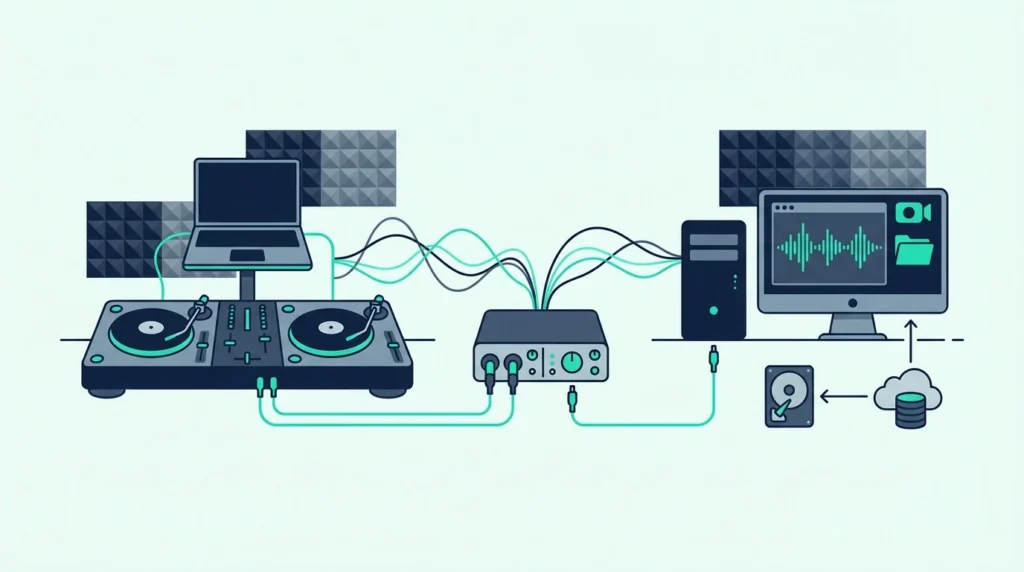
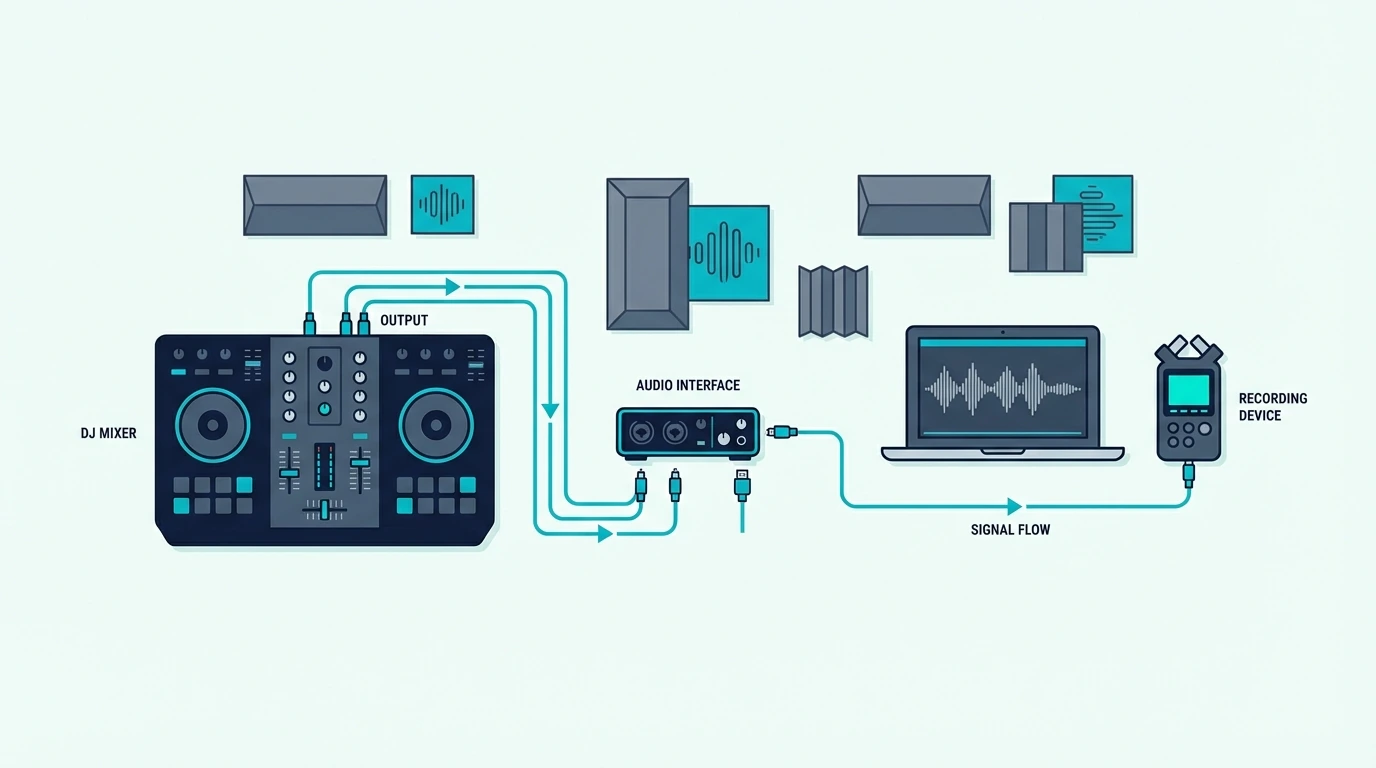
If your controller has a dedicated recording output (some pro-level units do), you can route the master audio directly into an audio interface connected to a separate computer or recording device. This captures the cleanest possible signal with zero software interference.
Any controller’s master output can feed an interface the same way, and how to connect a DJ controller to an audio interface covers the cable, the line inputs and the gain.
This method is overkill for most home DJs. Software recording produces identical audio quality for 99 percent of use cases.
Method 3 — record on a standalone controller
Engine DJ Recording
Standalone controllers running Engine DJ (Denon SC LIVE series, RANE SYSTEM ONE) record mixes directly to a USB drive. No laptop, no software — the controller handles everything internally.
Press the record button on the unit, and Engine DJ captures the master output as a WAV file on your USB drive. When the set ends, the file is ready to transfer to your computer for editing or sharing.
Phone Recording (Backup Method)
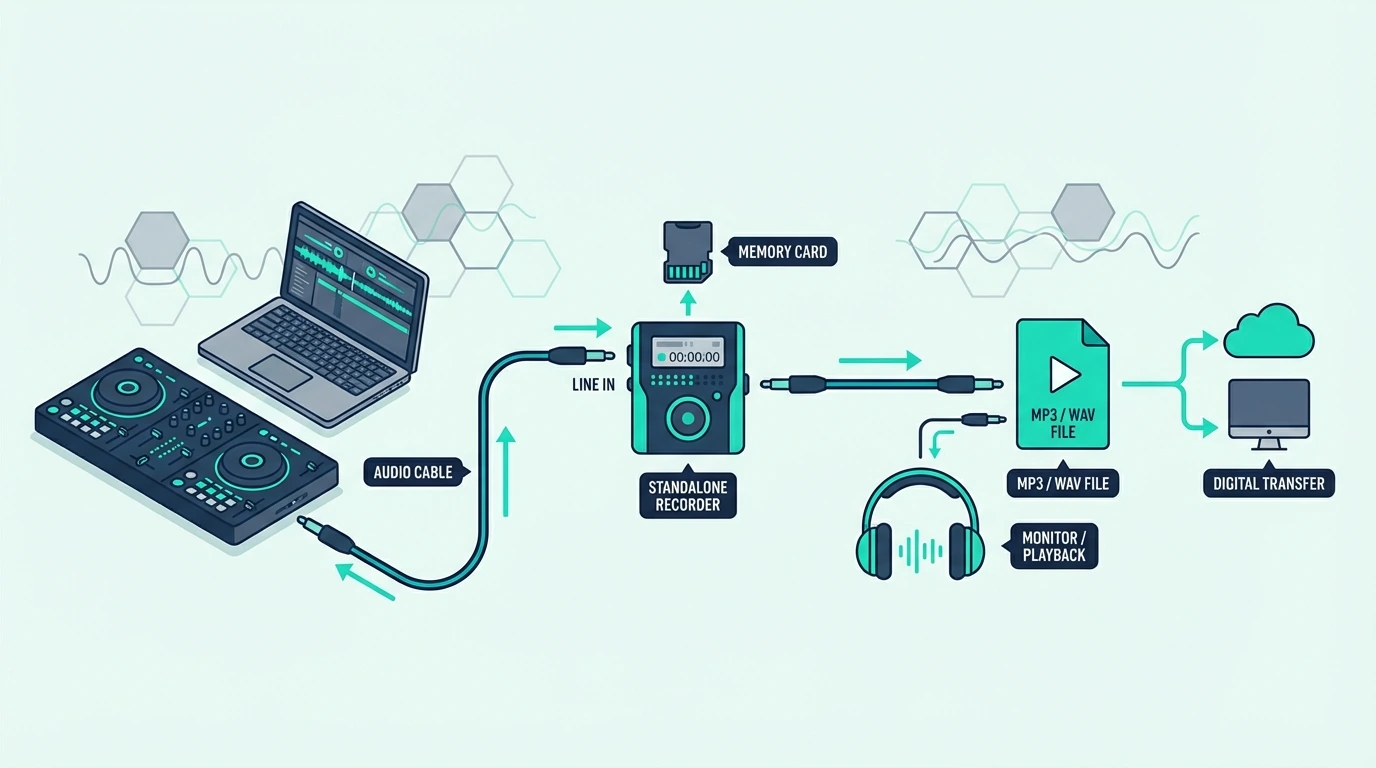
In a pinch, plug a 3.5mm cable from your controller’s headphone output into your phone’s microphone input and use any voice recording app. The audio quality is lower than software recording, but it captures your mix when no other method is available.
This works best as a backup — not a primary recording method. The headphone output may introduce volume peaks that clip on phone recordings.
The Pioneer DJ DDJ-FLX2 with Rekordbox software recording is a cleaner solution at any budget level.
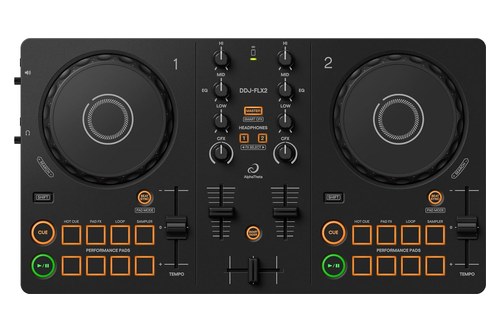
Pioneer DJ DDJ-FLX2
Getting a clean recording, not just a recording
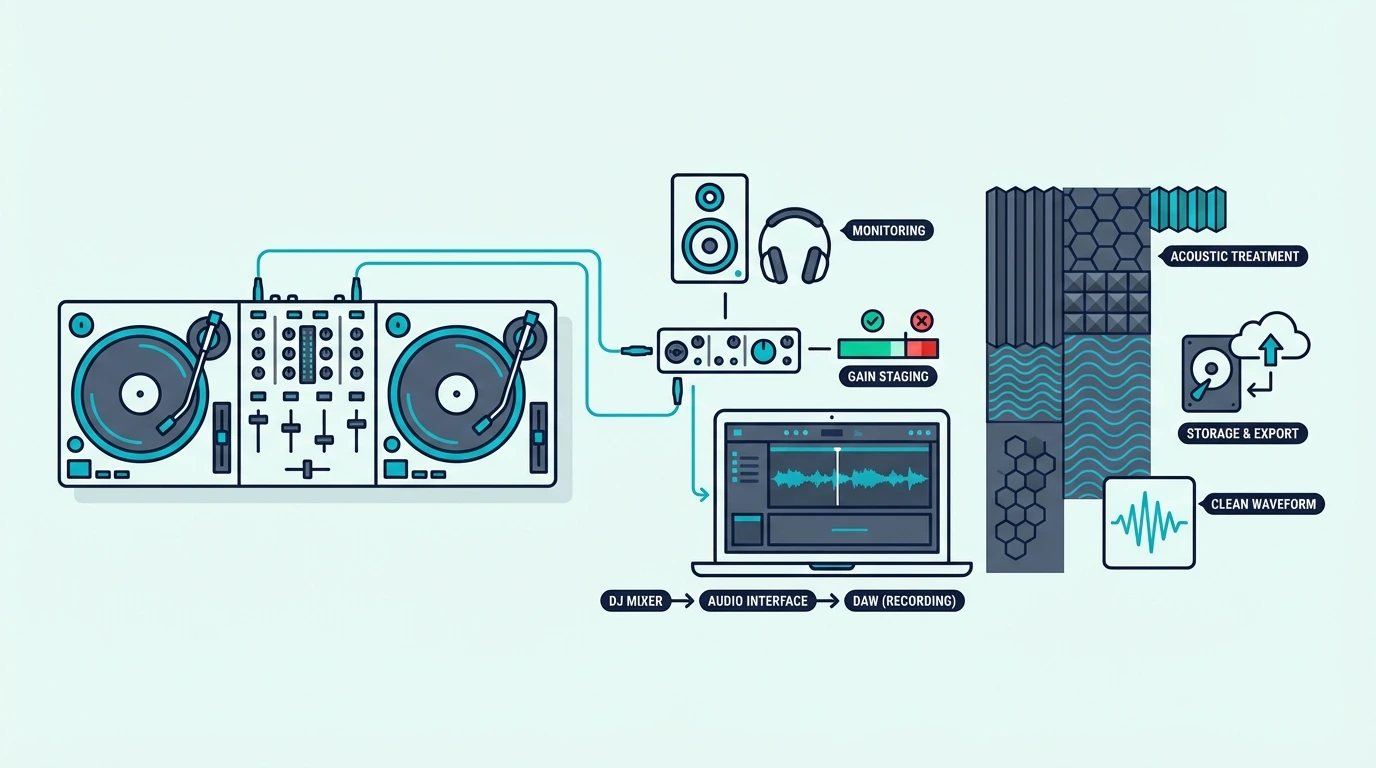
Set Levels Before Recording
Watch your master level meter in the DJ software. The meter should peak in the yellow zone — never in the red.
Red means clipping, which adds distortion to your recording that cannot be fixed in post.
Lower the master gain until your loudest moments peak just below the red zone. That headroom prevents distortion while keeping the recording loud enough to sound professional.
If you talk over your sets, where the microphone joins the signal chain decides whether your voice reaches the recording at all, since the microphone has its own level and its own route.
Record the Full Set
Start recording before your first track and stop after your last transition. Editing out silence at the beginning and end is trivial in any audio editor.
If the set itself isn’t planned yet, this mix-planning guide covers track order, cue points and practice runs before you press record.
Missing the start of your set because you forgot to hit record is not fixable.
Many DJs develop the habit of clicking Record as the very first action of every practice session. Even throwaway sessions sometimes produce transitions worth keeping.
Edit and Export
After recording, trim the silence from the beginning and end using Audacity or any audio editor. Normalize the audio level to -1 dB for consistent volume across the mix.
Export as MP3 (320 kbps) for sharing on SoundCloud, Mixcloud, or social media. Export as WAV for archival quality.
Most streaming platforms accept both formats.
Tag Your Mix
Add metadata (title, artist name, tracklist) to the exported file before uploading. Platforms like Mixcloud require a tracklist for copyright compliance, and SoundCloud displays metadata in the player.
A well-tagged mix with a tracklist looks professional and helps listeners find specific tracks they discover during your set. That discoverability drives followers and builds your audience over time.
Where to Share Your Recorded Mix
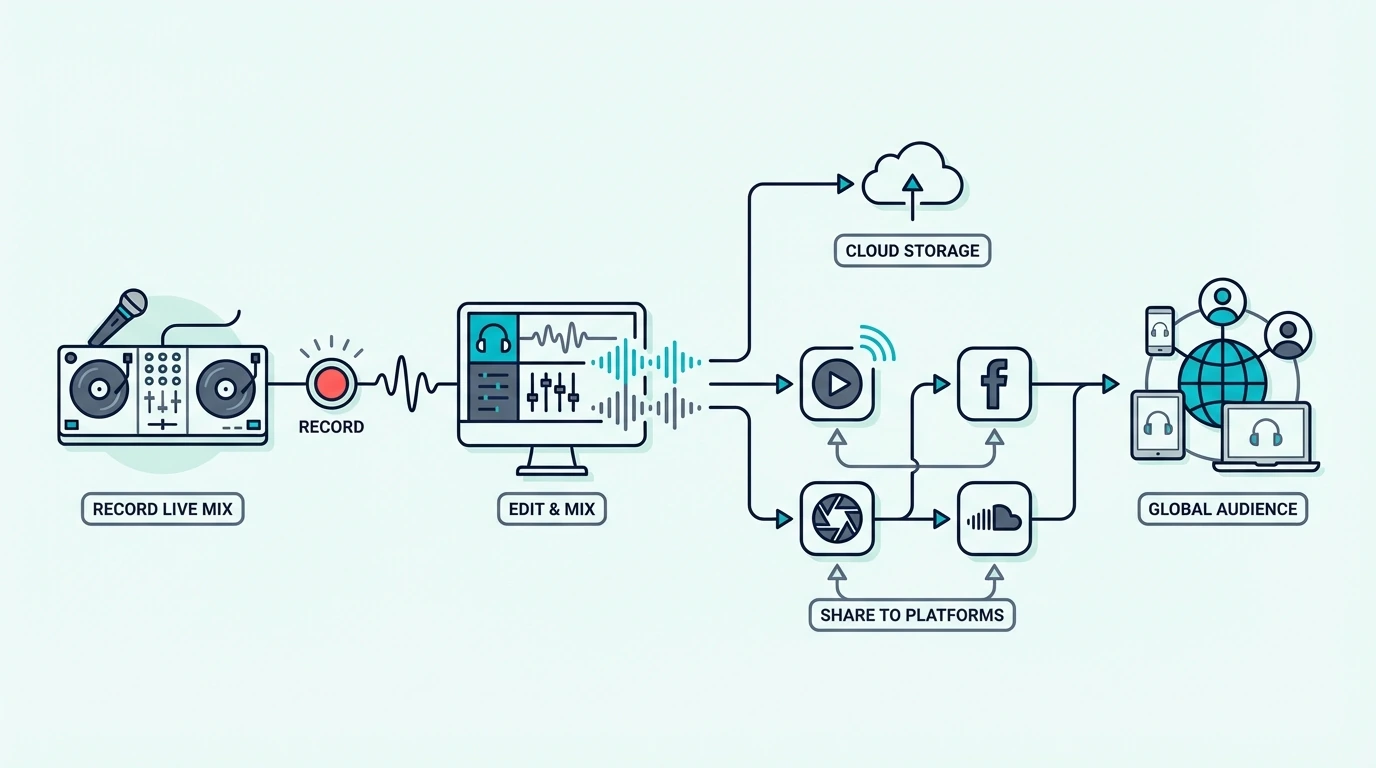
Mixcloud is built for DJ mixes, but its user agreement still sets programming limits, such as no more than four songs by one artist in an upload, and an upload that breaks them is taken off public view. SoundCloud allows DJ mixes but may flag copyrighted content.
YouTube is best for video mixes recorded with OBS.
For DJs building a following, posting a weekly or monthly mix on Mixcloud with a consistent upload schedule attracts subscribers who return for each new set. Your DJ software choice does not affect where you can share — every platform accepts standard audio and video files.
The Bottom Line
Recording a DJ mix takes one click in most DJ software. DJUCED records for free, and rekordbox lists recording on its Core plan and above.
VirtualDJ’s free version records audio. Serato requires DJ Pro.
For any software that lacks recording, Audacity captures system audio at zero cost.
Start recording every practice session. The habit costs nothing, and the recordings become a portfolio that documents your progress, captures your best transitions, and builds an audience when shared on the right platforms.
Frequently Asked Questions
How do I record a DJ mix on my computer?
Use your DJ software’s built-in recording feature (VirtualDJ’s free version and DJUCED both record, while rekordbox lists recording on its Core plan and above). Click the record button before you start mixing, and the software captures the master output as a WAV or MP3 file.
If your software does not support recording, use Audacity to capture system audio.
Can I record a DJ mix with Serato DJ Lite?
No — Serato DJ Lite does not include recording. You need Serato DJ Pro (paid) or an external recording tool like Audacity.
Alternatively, switch to VirtualDJ, whose free version records audio.
What format should I export my DJ mix in?
Export as MP3 at 320 kbps for sharing on SoundCloud, Mixcloud, or social media. Export as WAV for archival quality.
Most platforms accept both formats.
Where is the best place to upload DJ mixes?
Mixcloud is the safest platform for DJ mixes because it handles music licensing automatically. SoundCloud is popular but may flag copyrighted tracks.
YouTube works best for video mixes recorded with screen capture software.