How to Scratch on a DJ Controller in Virtual DJ
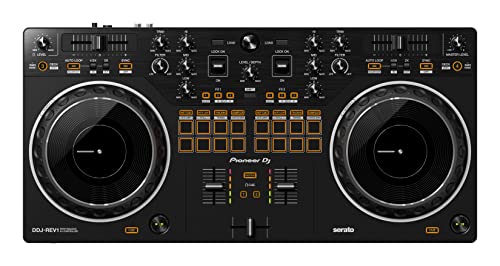
- ✓ Battle-style layout that emulates a DJM-S mixer and PLX turntable setup, per Pioneer DJ
- ✓ VirtualDJ publishes its own DDJ-REV1 operation guide
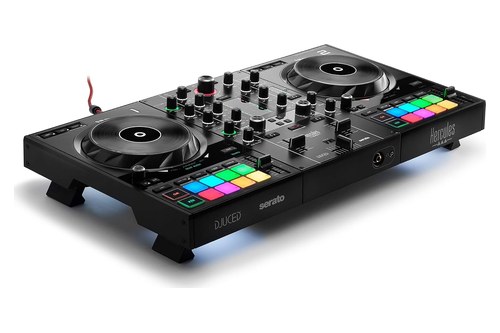
- ✓ VINYL button per deck: the top of the wheel scratches, the ring bends
- ✓ Crossfader curve switch with a Scratch position, per Hercules
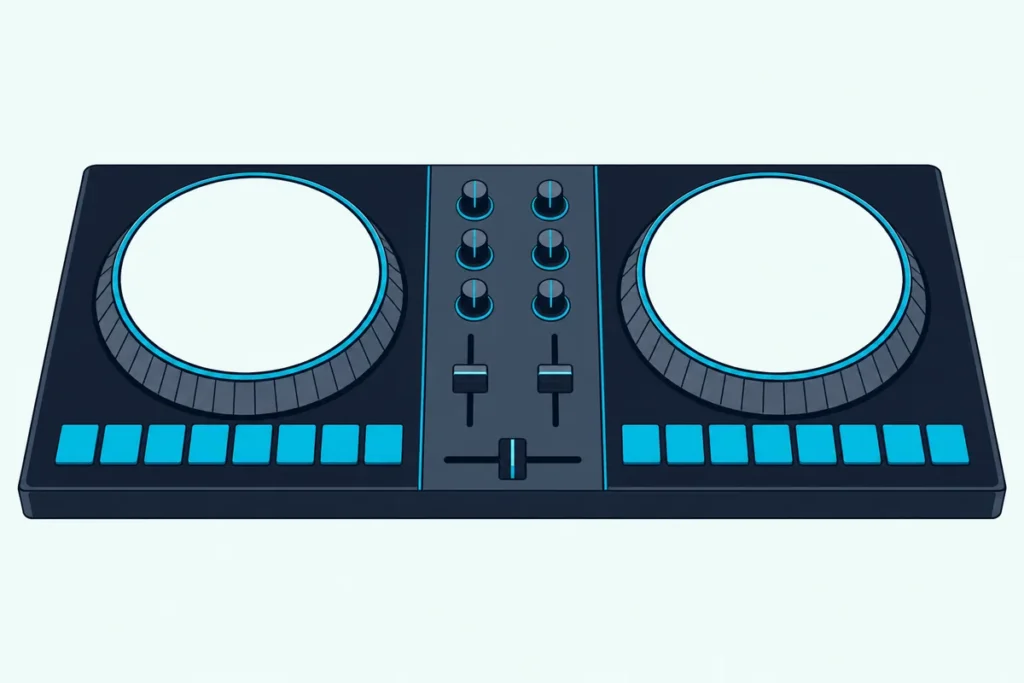
If you’re working out how to scratch on a DJ controller in Virtual DJ, the hardware is rarely the problem, because VirtualDJ scratches with a supported controller’s touch-sensitive jog wheel once the deck is in Vinyl mode.
The usual trouble is a wheel that only nudges the pitch, a crossfader that fades instead of cutting, or a runaway backspin.
Get two switches and a handful of options right and the wheel grabs the track the moment your hand lands on it, the way a record stops under a finger.
This guide covers those settings in VirtualDJ 2026 (build b9644 on 22 October 2026), where the Vinyl control sits on Pioneer, Hercules, Numark and Reloop controllers, and the first three scratches to learn.
The setup comes first, then the techniques, the practice routine and the fixes for a wheel that won’t behave.
How to Scratch on a DJ Controller in Virtual DJ, Step by Step
The short version fits in five steps, and every one of them is a setting you can find in a minute. To scratch on a DJ controller in Virtual DJ, turn on Vinyl mode for the deck, set the crossfader curve to Scratch, load a short sound with a hot cue on its start, then rock the jog wheel back and forth with the crossfader open.
1. Connect the controller and check VirtualDJ sees it. It should appear as its own tab in Settings > Controllers with a green connection icon, and if it doesn’t, our checklist for why Virtual DJ may not detect your controller covers the usual causes.
2. Switch the deck to Vinyl mode. VirtualDJ’s manual calls this the jog behavior: Vinyl mode makes the wheel scratch, while CD mode only bends the pitch.
3. Set the crossfader curve to Scratch. VirtualDJ’s default curve is Full, not Scratch, so this one usually needs changing.
4. Load something short and sharp. A vocal stab, a horn hit or a single drum works best, with a hot cue placed exactly where the sound starts.
5. Start with the baby scratch. Leave the crossfader open, push the wheel forward and pull it back in time with a beat on the other deck, then add the crossfader once your scratch hand is steady.
One licensing catch can look like a broken setup. VirtualDJ’s manual says controllers work fully only with a Pro Infinity license, a Pro monthly subscription or a license for that controller, and otherwise only for the first 10 minutes each time the software starts.
Where Are Virtual DJ’s Scratch Settings?
Steps 2 and 3 have a button on screen, but the finer scratch settings live in one place. Open Settings, choose the Options tab and type a word such as “jog” or “scratch” into the search box, and VirtualDJ lists every matching setting with a tip at the bottom explaining it.

A changed setting shows a faint X at the end of its field, and clicking it puts the factory default back. That makes it safe to experiment, since you can always return to where you started.
These are the options that change how a scratch feels, with what VirtualDJ’s own list of options says each one does.
| Option | What VirtualDJ says it does | When to touch it |
|---|---|---|
| vinylMode | Touching the jog wheel stops the song and scratches; CD mode speeds it up or slows it a little | Always on for scratching |
| jogSensitivityScratch | Sets how sensitive a controller’s jog wheels are when scratching | When a full push moves the sound too far or not far enough |
| crossfaderCurve | Defines how the crossfader behaves | Set to Scratch |
| smartScratch | Mutes the volume automatically when scratching backward | Leave off while learning, so you hear both strokes |
| quantizeScratch | Quantizes after you release the wheel to keep the song in sync | Turn on if the track lands off the beat after a scratch |
| rampScratchTime | Simulates how a turntable needs time to react when the disc is touched | Keep it low for an instant grab |
| touchWheelBackspin | A backward spin released while moving keeps going until the wheel stops | Turn off if backspins run on by accident |
| jogVibrationProtection | Stops a paused track moving on its own; VirtualDJ says leave it at 0 unless that happens | Raise it only for that problem |
The list doesn’t publish default values or recommended numbers for sensitivity, so treat jogSensitivityScratch as a feel setting: change it in small steps and keep whatever lets one full push play the whole sound. VirtualDJ keeps separate jogSensitivityCue and jogSensitivityBend settings, so scratch feel can change without upsetting your pitch bends.
Which Crossfader Curve Should You Use for Scratching?
That crossfaderCurve row deserves its own section, because the crossfader does half the work in every scratch beyond the first. VirtualDJ offers four curves, Smooth, Full (the default), Cut and Scratch, and Scratch is the one built for quick cuts, set from the crossfader options button on the mixer or the crossfaderCurve option.
VirtualDJ’s wiki explains what the curve does in numbers. A value of 0.3 keeps the left deck at full volume from the far left of the fader to 30% of its travel, and only then starts fading it toward silence at the far right.
Read from the other end, that deck reaches full volume once the fader is back at 30%, so the higher the value, the shorter the distance your fader hand travels from silence to full sound. Crossfader, an online DJ school, calls this the cut-in, and its beginner scratching guide says a short travel to full volume gives a “tighter” cut, which most techniques need.
Two more options sit beside it. Hamster reverses the fader so the left side plays the right deck, which VirtualDJ’s own keyboard-scratch tip pairs with the Scratch curve, and a custom curve can be drawn point by point in the crossfaderCustom setting.
Watch for one override. VirtualDJ’s wiki notes that controllers with a hardware curve switch or knob send their own value when the unit starts or the switch moves, so a curve chosen on screen can be replaced by the controller’s position.
The Hercules DJControl Inpulse 500 is one example. Hercules’ manual labels its curve switch Mix, Scratch and Off, and VirtualDJ’s guide for the controller lists it as Smooth, Scratch and Disabled.
Where Is the Vinyl Button on Your Controller?
The crossfader settings work the same on every unit, but the switch for step 2 moves around from one controller to the next. Some controllers have a dedicated Vinyl or Scratch button, some use a Shift combination, and some leave it to the VINYL button on VirtualDJ’s deck.
VirtualDJ publishes an operation guide for each controller it supports, and these are what they say for some popular models.
| Controller | How Vinyl mode is switched in VirtualDJ | Where the scratch surface is |
|---|---|---|
| Pioneer DJ DDJ-FLX4 | From the VirtualDJ interface (no button on the unit for it) | The touch-sensitive jog wheel |
| Pioneer DJ DDJ-REV1 | SHIFT + DECK SELECT toggles Scratch and Bend | The touch-sensitive platter |
| Hercules DJControl Inpulse 500 | VINYL button on each deck | The top of the wheel scratches, the outer ring bends |
| Numark Mixtrack Pro FX and Platinum FX | SCRATCH button (lit means Scratch mode) | The top of the wheel scratches, the outer side bends |
| Reloop Ready | VINYL button | The upper part scratches, the outer part nudges |
| Reloop Buddy | From the VirtualDJ interface | The touch-sensitive jog wheel |
The split between top and edge matters more than it looks. On the Hercules, Numark and Reloop Ready, a hand resting on the rim only bends the pitch, so keep your palm on the top plate when you want the track to stop under it.
If your model isn’t listed, open its tab in Settings > Controllers and click Setup & Drivers, which takes you to VirtualDJ’s manual page for that device. The gear icon on the same tab opens the options that VirtualDJ keeps for that one controller.
Can You Scratch on Any DJ Controller?
That table runs from beginner controllers to a battle-style unit, and the short answer is yes for any controller with touch-sensitive jog wheels. Steve Canueto, a senior tutor at Digital DJ Tips who created its scratching course, puts it bluntly in his scratching myths article: “If you’ve got a controller with jogwheels, you can scratch with it – period.”
The touch sensor is the part that matters. Every guide in the table above describes the wheel as touch-sensitive and ties scratching to Vinyl mode, while VirtualDJ’s manual doesn’t document scratching on a wheel without touch detection, so check that line in your controller’s guide.
Size changes the feel, not whether it works. Numark lists 6-inch capacitive-touch jog wheels on both Mixtrack FX models, and Canueto names the Mixtrack Pro 3 and the small-wheeled Denon DJ MC2000 among the inexpensive controllers he’s found best for scratching.
No controller at all still works for basic cuts. VirtualDJ’s wiki shows a keyboard mapping with one key set to “scratch -120ms” and another to “scratch +120ms,” and our guide on how to control VirtualDJ from a laptop keyboard covers the rest of a keyboard setup.
Which Scratch Should You Learn First?
Once the wheel grabs and the curve cuts, the techniques are the same on a Numark, a Pioneer or a turntable. Learn the baby scratch first: Crossfader’s guide calls it the foundation of scratching and the easiest technique to start with, a steady forward-and-back movement of the wheel with the crossfader left open.
The Baby Scratch
Place your hand on the left side of the wheel, push it forward and pull it back, and you hear the sound play fast forward and then rewind. Keep it in time with a beat or a metronome, then try half and double speed so you can scratch over any tempo, as Crossfader suggests.
Keep both strokes the same length, because that’s what makes the rhythm audible. The DNA editor described below shows the same idea in letters: VirtualDJ’s built-in “BABY SCR 1” pattern is short, medium and long forward-and-back pairs, all with the crossfader open.
The Transformer Scratch
The transformer adds the fader hand. Crossfader describes it as a baby scratch where you open and close the crossfader quickly with each movement of the wheel, chopping the sound into rhythmic bursts of audio and silence.
This is where the Scratch curve from earlier earns its place. A slow, smooth curve fades the sound in and out instead of cutting it, so the chops blur together.
The Crab Scratch
The crab is the advanced end of the same idea. Crossfader’s guide describes tapping the crossfader open with each finger in turn while the thumb pushes it closed, and notes that many DJs use two or three fingers instead of all four.
Leave it until the baby and the transformer feel automatic. The coordination it needs is all in the fader hand, so a shaky deck hand will undo it.
What Do Scratch DNA Pads and the Scratchbank Do?
Those three techniques are all played by hand, but VirtualDJ also has two pad pages built around scratching. The Scratch pad page triggers a pre-defined scratch in a single press, each pad a different variation that plays without disrupting the track’s beat grid.
The pad menu has two switches worth knowing. Over lets the scratch play on top of the track instead of cutting it, and Quantized keeps the scratch in time with the track’s position.
Each pattern is written in what VirtualDJ calls Scratch DNA, which you can edit in the DNA Scratch Editor. Upper-case letters are audible movements (crossfader open), lower-case letters are muted (crossfader closed), each letter further along the alphabet is a longer movement, and a period marks the end of a beat.
That makes the editor a handy way to see a pattern before you play it. VirtualDJ’s manual shows “BABY SCR 1” as CADA.EAEA and then turns it into CaDA.EaEA, where the two lower-case letters mute two backward strokes, the same cut a transformer makes by hand.
The Scratchbank page solves the sample problem from step 4. It holds your favorite scratch sounds on 8 pads, a press loads one to the deck, and right-click or Shift-click puts back the song that was there.
You fill the pads in the Scratch Bank Editor, where each pad can start from a cue point or loop you set in the file. Numark’s Mixtrack Pro FX goes a step further in hardware, with a Fader Cuts pad mode that, per Numark’s user guide, mutes and unmutes the deck in a way that emulates crossfader moves.
How Should You Practice Scratching on a Controller?
Pads are fun, but your hands only learn from repetition. Practice the baby scratch against a steady beat before adding the crossfader, since getting the deck hand consistent first means you’re only fixing one hand at a time.
Crossfader’s guide recommends practicing with a metronome or alongside tracks with a consistent beat. Using the same beat at the same tempo each session gives you a fair comparison from one day to the next.
Record your sessions and listen back, which Crossfader also suggests, because a scratch that feels clean can sound uneven. VirtualDJ records the master output by default from Settings > Record with the START/STOP RECORD button, and our recording guide covers getting the file out.
Switch on Slip mode when you practice over a playing track. VirtualDJ’s manual says that with Slip enabled, scratches, hot cues and loops are temporary and the track carries on from where it would have been.
The crossfader takes the most wear, since every cut moves it. If yours starts to crackle or stick, our guide to cleaning a worn crossfader explains why it needs different care from the channel faders.
Why Does Scratching Feel Wrong in Virtual DJ?
Most complaints after a week of practice trace back to one of the settings above. Here are the common ones and the setting each points to.
The wheel only speeds the track up or slows it down. The deck is in CD mode, so press VINYL on the deck or use your controller’s Vinyl or Scratch button from the table.
Pulling back makes no sound. Check smartScratch in the options and Mute Reverse on the scratch mixer layout, since both silence backward movement.
The crossfader fades instead of cutting. The curve is still on Full or Smooth, or your controller’s curve switch is overriding the on-screen choice.
The track drifts off the beat after a scratch. Turn on quantizeScratch, or use Slip mode so the track keeps its place underneath.
A paused track creeps on its own. That’s what jogVibrationProtection is for, though VirtualDJ says to leave it at 0 unless you see the problem.
The controller stops responding after a while. Ten minutes is the giveaway, and it points to the license rule from the steps above rather than a fault.
VirtualDJ’s scratch mixer layout can help with all of these. It swaps the usual mixer for vertical scrolling waveforms, so you can watch exactly where the sound starts and how far each stroke travels.
What Controller Should You Get for Scratching in Virtual DJ?
If that checklist shows your controller has no touch-sensitive wheels, a new controller is the one purchase that changes things. Buy one that VirtualDJ supports natively, with a touch-sensitive jog wheel and an easy way into Vinyl mode, and remember that VirtualDJ’s controller license applies to whichever one you choose.
Every pick met Burton Acoustix’s rating, review and stock checks on 26 October 2026. For more choices, our picks for the DDJ-REV1 or Inpulse 500 and other scratch controllers go deeper, and the guide to Virtual DJ mapping covers controllers chosen for VirtualDJ itself.
For a Battle-Style Layout
For the turntable-and-mixer feel, Pioneer DJ’s DDJ-REV1 puts the decks where a scratch DJ expects them.
Pioneer DJ’s DDJ-REV1
Pioneer DJ says the layout emulates a DJM-S mixer and PLX turntable setup, with features for open-format and scratch DJs. VirtualDJ’s guide maps its touch-sensitive platters for scratching in Vinyl mode, so the Serato DJ Lite label on the box doesn’t limit it.
For Mixing and Scratching on One Unit
VirtualDJ’s guide lists its jog as touch-sensitive for scratching with Vinyl mode on, with the mode switched from the VirtualDJ interface. It connects over USB-C, and VirtualDJ’s guide says its Smart Fader button matches the other deck’s BPM to the playing one as you crossfade.
For a Vinyl Button and a Curve Switch
For hardware switches on every deck, Hercules’ DJControl Inpulse 500 keeps the two scratch settings on the controller itself.
Hercules’ DJControl Inpulse 500
Hercules lists capacitive touch detection on both jog wheels and Vinyl, Slip and Quantize mode buttons. VirtualDJ’s guide maps the VINYL button and the CF CURVE switch, so you can flip into scratch mode without touching the laptop.
The Bottom Line
Every pick above still needs the same two settings from the top of this guide. Scratching in Virtual DJ comes down to Vinyl mode on the deck and the Scratch crossfader curve, with jogSensitivityScratch, smartScratch and quantizeScratch in Settings > Options to fine-tune the feel.
Start with the baby scratch over a steady beat, add the transformer once your deck hand is steady, and record your practice. The hardware decides how roomy the wheel feels, but the technique transfers to any of the best DJ controllers with touch-sensitive jogs.
Frequently Asked Questions
How do you scratch on VirtualDJ?
Put the deck in Vinyl mode with the VINYL button on screen or your controller’s Vinyl or Scratch button, then set the crossfader curve to Scratch from the mixer’s crossfader options or the crossfaderCurve option. Load a short sound with a hot cue on its start, and move the jog wheel back and forth with the crossfader open.
That’s the baby scratch, and every other technique adds crossfader cuts to it.
Can you scratch on a DJ controller?
Yes, on any controller with touch-sensitive jog wheels. In VirtualDJ, Vinyl mode makes touching the wheel stop the track and scratch it, while CD mode only bends the pitch.
Wheel size changes how much room your hand has, not whether scratching works.
How do DJs scratch?
DJs move the sound back and forth by hand, on a record, a jog wheel or a timecode vinyl, while the other hand opens and closes the crossfader in rhythm. The baby scratch uses the deck hand alone, and techniques such as the transformer and the crab add faster fader cuts.
How do you scratch on the disc in VirtualDJ?
The disc is the jog wheel drawn on each deck of VirtualDJ’s screen. VirtualDJ’s wiki says you can scratch by dragging it, or the scratch waveform, with the mouse, and that the mouse can feel more live than keys alone.
Use the crossfader, or keys mapped to it, to cut the sound.
Do I need Vinyl Mode to scratch in VirtualDJ?
Yes. VirtualDJ’s manual says that in Vinyl mode, touching the disc on screen or the jog wheel on a controller stops the song and scratches, while in CD mode the wheel only speeds the song up or slows it a little.
Do you need a license to scratch with a controller in VirtualDJ?
VirtualDJ’s Controllers manual says a controller works fully only with a Pro Infinity license, a Pro monthly subscription or a license for that controller. Without one, it works only for the first 10 minutes after VirtualDJ starts.