How To Connect To iLive Sound Bar Bluetooth — Pairing Mode, Device Setup & Fixes
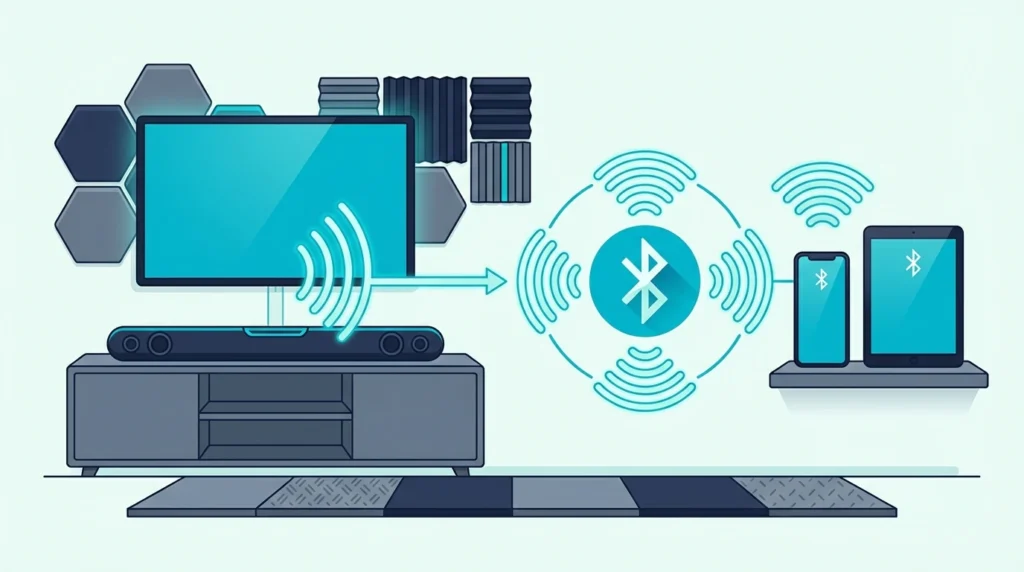
How to connect to iLive sound bar Bluetooth sounds simple, but most pairing failures happen because the soundbar is not actually in Bluetooth mode, the phone or laptop is reconnecting to stale device data, or the user is following TV-audio advice for a problem that is really source-device pairing.
The usual frustration is that the soundbar powers on, says Bluetooth, or shows a blue light, but the phone never sees it, the old device keeps stealing the connection, or the model name appears differently than expected in the Bluetooth menu.
Once you know how iLive pairing mode actually works, what a successful connection looks like, and when to forget the device and start over, the process gets much cleaner. You can also tell when Bluetooth is the wrong path and a wired fallback will save more time.
Start by treating this as device-to-soundbar pairing, not as TV-to-soundbar Bluetooth output, because that one distinction prevents a lot of wasted troubleshooting.
Now that the pairing path is clear, let us walk through how to connect to iLive sound bar Bluetooth the smart way.
To connect to an iLive soundbar over Bluetooth, switch the bar into Bluetooth input, put it into pairing mode, and then select its model name from your phone, tablet, or laptop Bluetooth menu. If it will not reconnect cleanly, forget the old pairing, enter pairing mode again, and stop forcing Bluetooth when optical or HDMI is the more stable long-term path.
Why Does the iLive Sound Bar Bluetooth Pairing Path Matter?
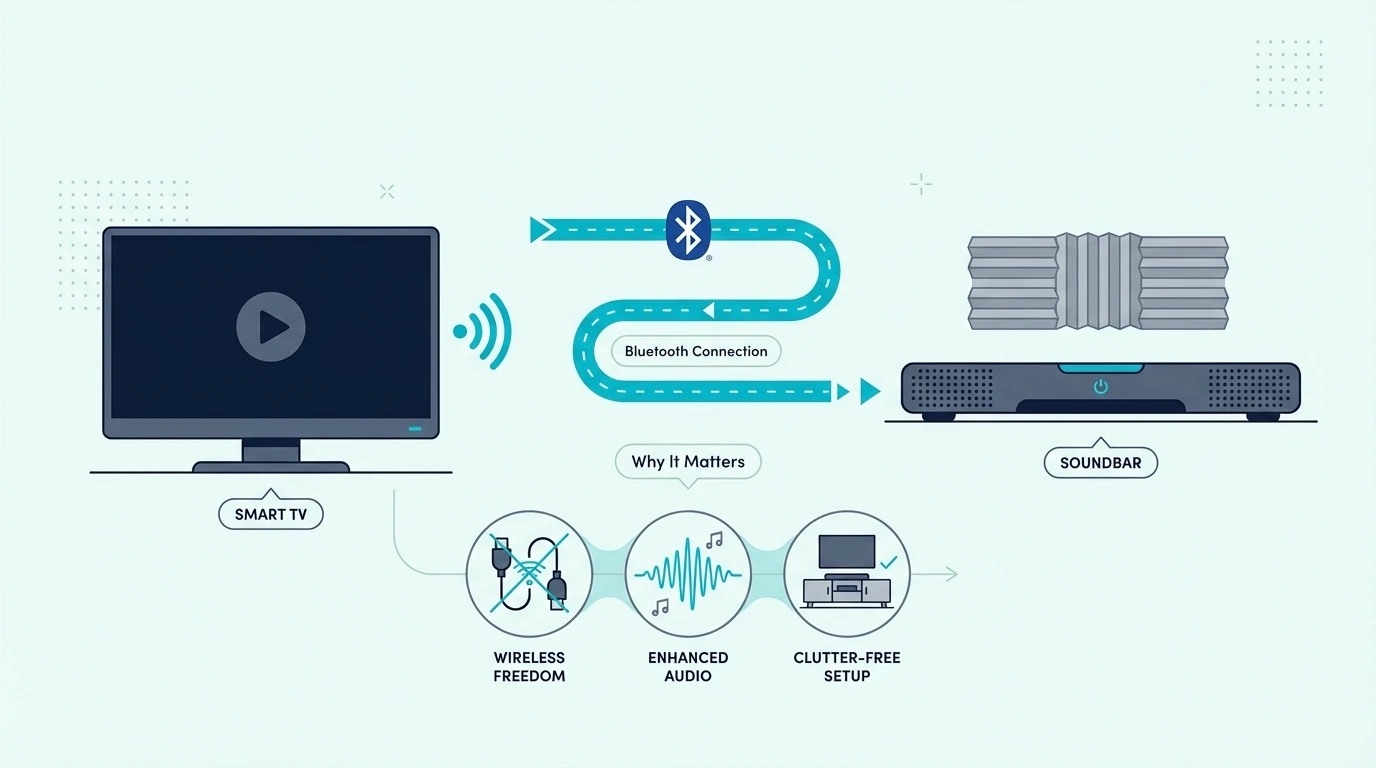
The first thing to clear up is the connection type. This topic is about pairing a phone, tablet, or laptop directly to the iLive soundbar as a Bluetooth audio receiver.
That is different from the TV-specific workflow in the how to connect TV to soundbar via Bluetooth guide. If your real goal is sending TV audio wirelessly to the soundbar, that is a different setup path with different failure points.
Many iLive bars support Bluetooth as a listening input, so the bar has to be in Bluetooth mode and close to the source device before pairing will work. iLive support materials describe the same basic pattern across models: power on, switch to Bluetooth source, enter pairing mode, and then select the soundbar from the device menu.
The model name can vary by unit, so your soundbar may appear as a device code like IT382B or ITB259 rather than under a generic label like iLive Soundbar.
Bluetooth pairing also works best from close range with only one likely source device trying to connect. If an old phone, tablet, or laptop is still nearby, the soundbar can look broken when it is really reconnecting to the wrong device first.
If the soundbar is newly installed, still not connected to the TV correctly, or is failing across every input, the how to set up a sound bar guide, the how to connect soundbar to TV guide, the how to fix no sound from soundbar using HDMI ARC guide, and the how to reset soundbar guide will usually solve the real problem faster than more Bluetooth troubleshooting.
How Do You Pair, Reconnect, Or Fix Bluetooth on an iLive Soundbar?
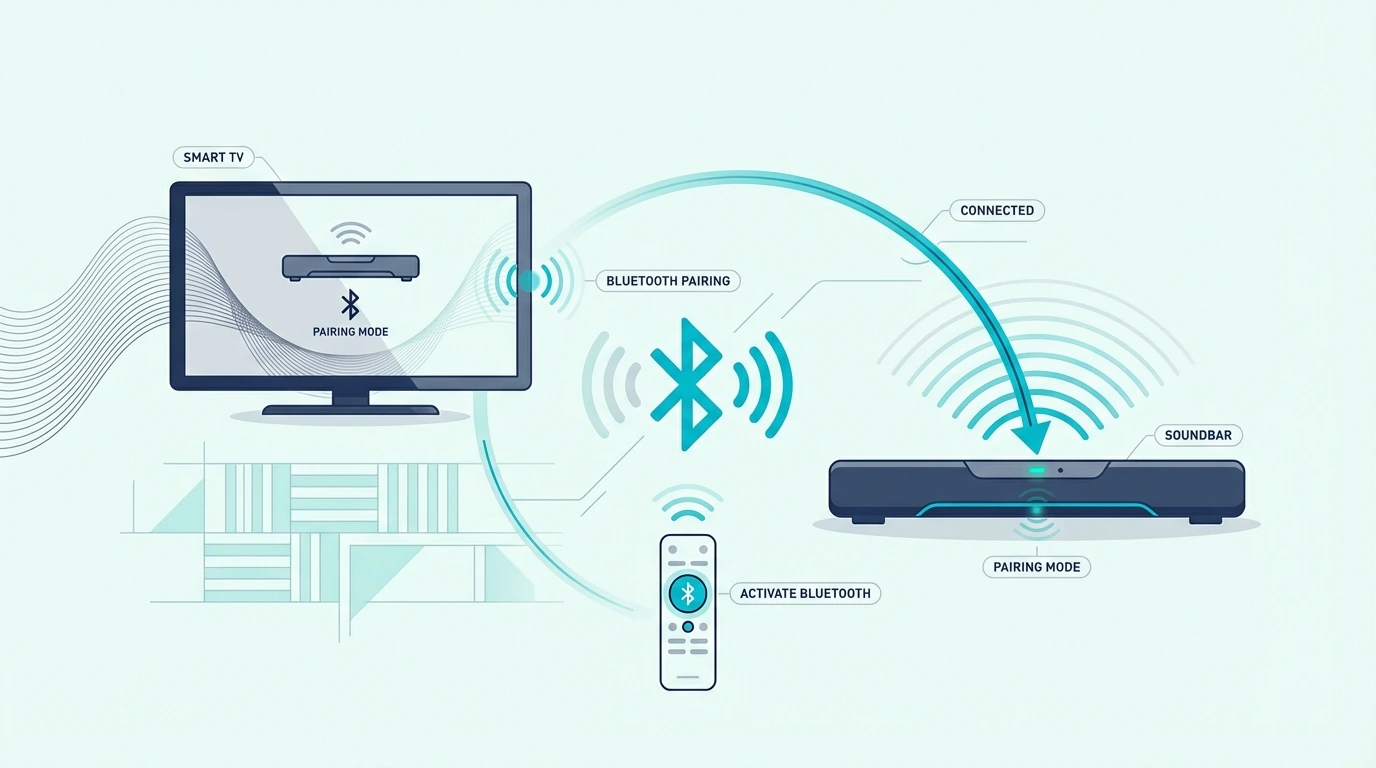
The cleanest way to pair an iLive soundbar is to start fresh and make the bar discoverable before you open the Bluetooth menu on the source device. That order matters because many failed pairings happen when the phone is searching before the soundbar is really ready.
Pair a phone, tablet, or laptop the first time
Power on the soundbar first. Then switch it to Bluetooth source with the remote or the bar controls, because iLive models usually need to be in Bluetooth mode before they can appear in the device list.
On some iLive units, the remote has a dedicated Bluetooth or Blue BT button. On others, use the side Bluetooth or pairing control until the front light begins flashing blue or the voice prompt confirms that Bluetooth is active.
If the bar does not appear right away, explicitly trigger pairing mode instead of assuming Bluetooth mode and pairing mode are always the same thing.
If the bar says Bluetooth but the light is solid instead of flashing, treat that as a clue that it may already be connected rather than discoverable. Disconnect the previous device or force pairing mode again before you keep refreshing the Bluetooth menu on the new one.
Once the indicator is flashing, open Bluetooth settings on the phone, tablet, or laptop and look for the soundbar by its device name, even if it appears as a model identifier rather than a plain-language product title.
When the pairing succeeds, you will usually get a beep or voice prompt, and the light changes from flashing blue to solid blue. Then play audio from the connected device and make sure the source app is using the soundbar as the active Bluetooth output instead of the device speakers.
What if the soundbar was paired before but will not reconnect?
This is one of the most common iLive Bluetooth problems. The bar may still remember an older phone or tablet, and the new device keeps failing because the soundbar auto-connects to the last known source whenever that old device is nearby.
Start by turning Bluetooth off on the old phone, tablet, or laptop if it is still in the room. Then go into the current device’s Bluetooth menu, choose Forget This Device or the equivalent option, turn Bluetooth off and back on, and start the pairing process again from scratch.
If the pairing still feels stuck, reboot the soundbar and your source device before you retry. If the bar keeps holding onto bad settings or old connection behavior, the how to reset soundbar guide is the better next step than endlessly forcing the same pairing attempt.
A source-side accessory can also help when the original device is the weak point rather than the soundbar. If you need a cleaner Bluetooth source path from older hardware, an option like the Avantree Oasis Plus 2 Bluetooth TV Transmitter can make the source side more predictable when the original device is not giving you a clean wireless output path.
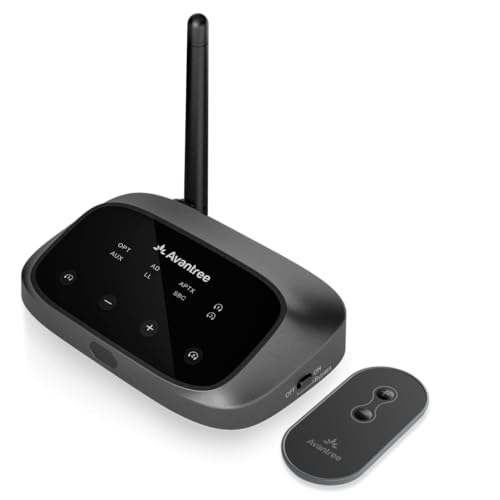
Avantree Oasis Plus 2 Bluetooth TV Transmitter
If you want a cheaper version of the same idea, the 1Mii B06TX Bluetooth transmitter is a simpler budget bridge for older TVs or source devices that need a basic Bluetooth output path without jumping straight to a more expensive transmitter.
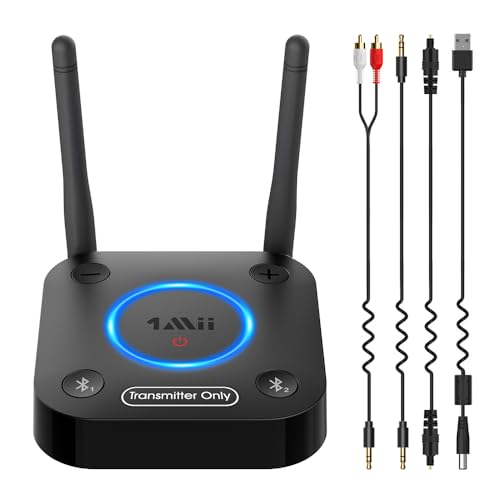
1Mii B06TX Bluetooth transmitter
Can you pair an iLive soundbar without the remote?
Sometimes, yes, but it depends on whether your specific iLive model exposes Bluetooth or pairing controls on the bar itself. If the unit has a side Pairing, Bluetooth, Source, or Input button, use that first instead of assuming the remote is mandatory.
Watch for the real pairing indicators. If the light never starts flashing blue and the soundbar never announces Bluetooth mode, the bar is probably not discoverable yet even if it is powered on.
If the front or side controls are unclear, use the exact manual flow for your model instead of guessing at button combinations.
When should you stop fighting Bluetooth and use a wired fallback?
Bluetooth is convenient, but it is not always the best daily-use path. If the sound keeps dropping, the bar reconnects to the wrong device, or the main job is stable TV audio rather than casual music playback, the better answer is usually a wired connection.
If you just need a simple fallback that removes wireless variables, a cable like the KabelDirekt TOSLINK Optical Audio Cable is a cleaner move than repeating the same broken pairing process over and over.
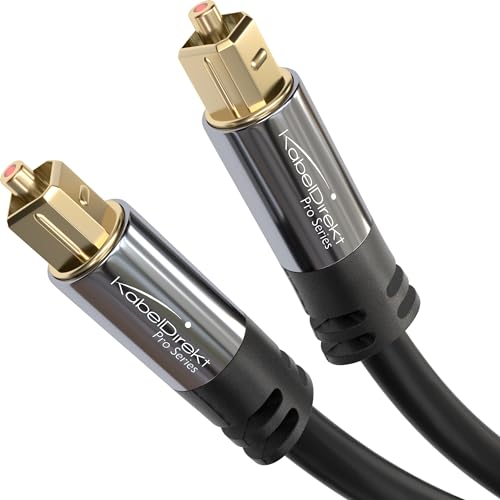
KabelDirekt TOSLINK Optical Audio Cable
If the real goal is everyday TV playback, HDMI ARC or eARC is usually the stronger long-term path than Bluetooth. A dependable option like the Silkland 8K HDMI ARC/eARC Cable makes more sense when you are trying to build a stable TV setup rather than a casual wireless music link.
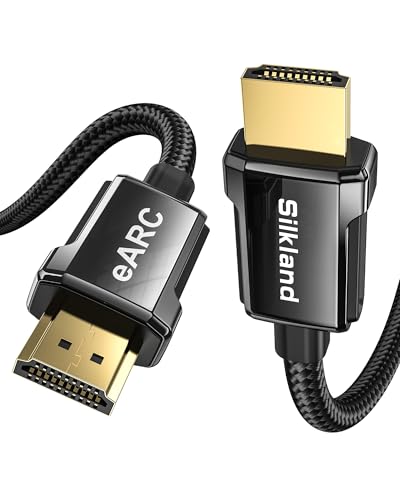
Silkland 8K HDMI ARC/eARC Cable
If you are really troubleshooting TV audio, go back to the TV-to-soundbar Bluetooth guide or the broader soundbar hub instead of forcing this iLive pairing guide to solve a different problem.
Get Studio Tips Weekly
Join 5,000+ creators getting acoustic treatment advice every week.
No spam. Unsubscribe anytime.The Bottom Line
How to connect to iLive sound bar Bluetooth gets much easier when you separate source-device pairing from TV audio setup, put the soundbar into real pairing mode, and clear stale Bluetooth relationships before retrying. Most iLive Bluetooth failures are order-of-operations problems, not proof that the soundbar is dead.
If the bar enters Bluetooth mode, shows the right indicator, and still will not connect after you forget the device and retry from close range, the next decision is simple. Either reset the Bluetooth relationship properly, or stop forcing wireless and move to the more stable wired path that actually fits your setup.
Frequently Asked Questions
How do I put my iLive soundbar in Bluetooth pairing mode?
Power on the bar, switch it to Bluetooth source, and then press the model’s pairing or Bluetooth button until the light flashes blue or the voice prompt confirms pairing mode. On some iLive models, the remote has a dedicated Bluetooth button, while others rely on a side control on the bar.
Why won’t my iLive Bluetooth connect?
The most common reasons are that the soundbar is not truly in pairing mode, an older phone or tablet is still auto-connecting first, or the current device is holding stale Bluetooth data. Forget the soundbar from the device, toggle Bluetooth off and on, and then repeat the initial pairing steps from close range.
Can I connect to an iLive soundbar without the remote?
Sometimes, yes, if the model has physical Bluetooth, pairing, source, or input controls on the soundbar itself. If it does not, you need the exact manual method for that unit rather than guessing at button combinations.
Can I use Bluetooth for TV audio on an iLive soundbar?
Sometimes, but that depends more on the TV’s Bluetooth audio output support than on the soundbar alone. If your goal is TV sound rather than phone or laptop audio, the better guide is the TV-focused Bluetooth connection workflow, and wired HDMI or optical is often more stable anyway.