How to Use a Phone as a MIDI Controller (Android or iPhone)
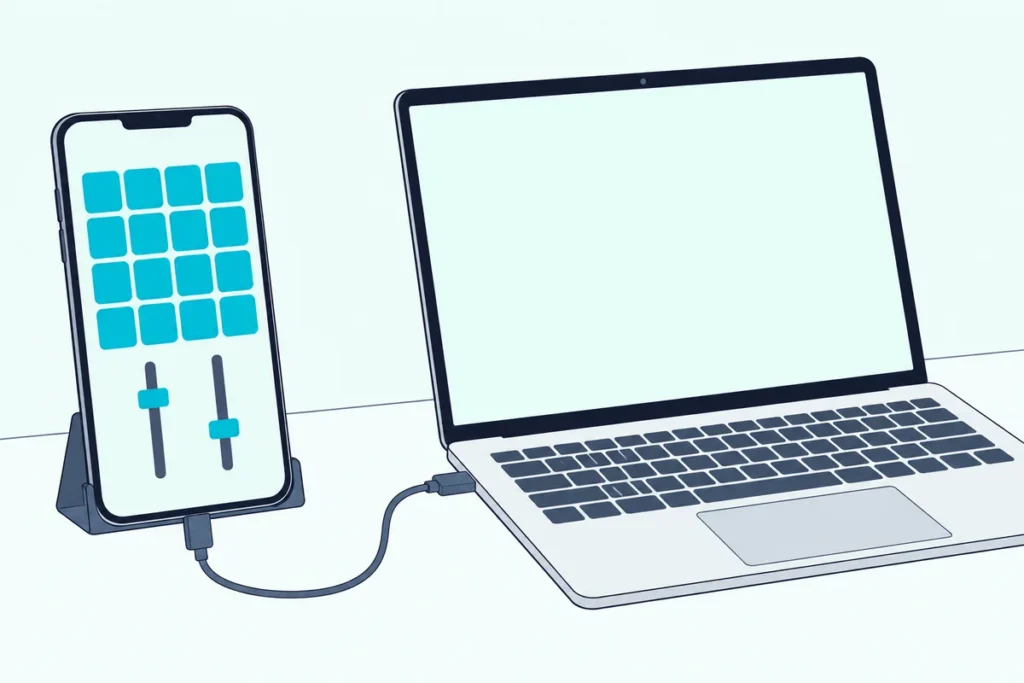
To use a phone as a MIDI controller, install a control-surface app such as TouchOSC, connect the phone to your computer, and point the app’s MIDI at a port your music software is listening to.
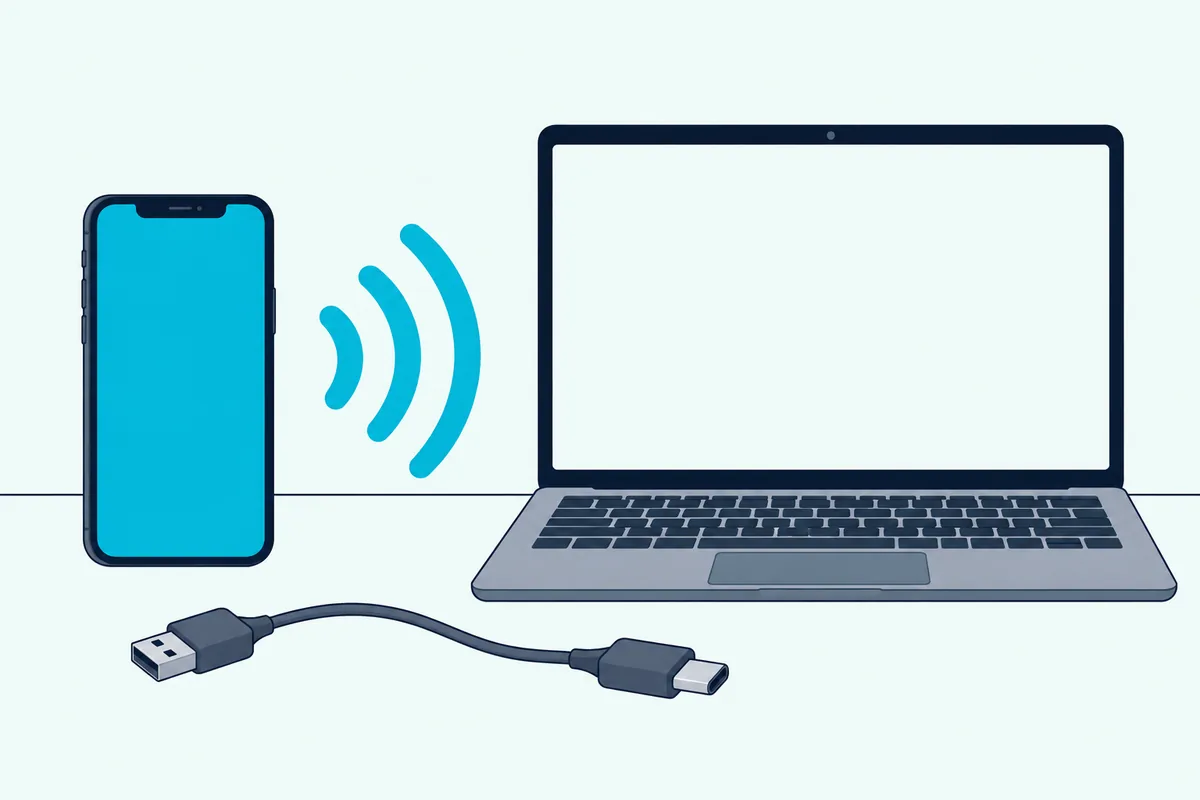
Android adds one shortcut, because many phones can appear as a USB MIDI device on their own, while an iPhone reaches the computer through the app’s Bridge program, Wi-Fi or Bluetooth.
A phone makes a good surface for pads and faders and a poor piano, and knowing that up front saves a wasted evening.
If pads and faders are what you want, dedicated hardware for the same jobs is covered in our guide on what to play instead of keys, along with wind controllers and drum pads.
Below are the steps for Android and iPhone, what to check when the computer can’t see the phone, and where a real keyboard beats a phone.
Start with the general recipe.
How Do You Use a Phone as a MIDI Controller?
Every phone setup has the same three parts: an app that creates the MIDI, a connection that carries it to the computer, and a MIDI input switched on in your music software. Miss any one and the phone looks dead.
TouchOSC, from Hexler, is a control-surface app that runs on iOS, Android and desktop, and its manual walks through each connection type (Hexler). Its layouts can hold faders, buttons and other controls that send MIDI messages.
Which connection you use depends on the phone, and the next two sections cover both. If the messages themselves are new to you, our guide to what MIDI messages are is a short read.
What Is the Android Route for a MIDI Controller?
Android’s shortcut is USB MIDI, and it depends on the phone. Beginning with Android 6.0, device makers can add optional MIDI support, and Hexler says that on a supporting phone you enable it like this (Hexler):
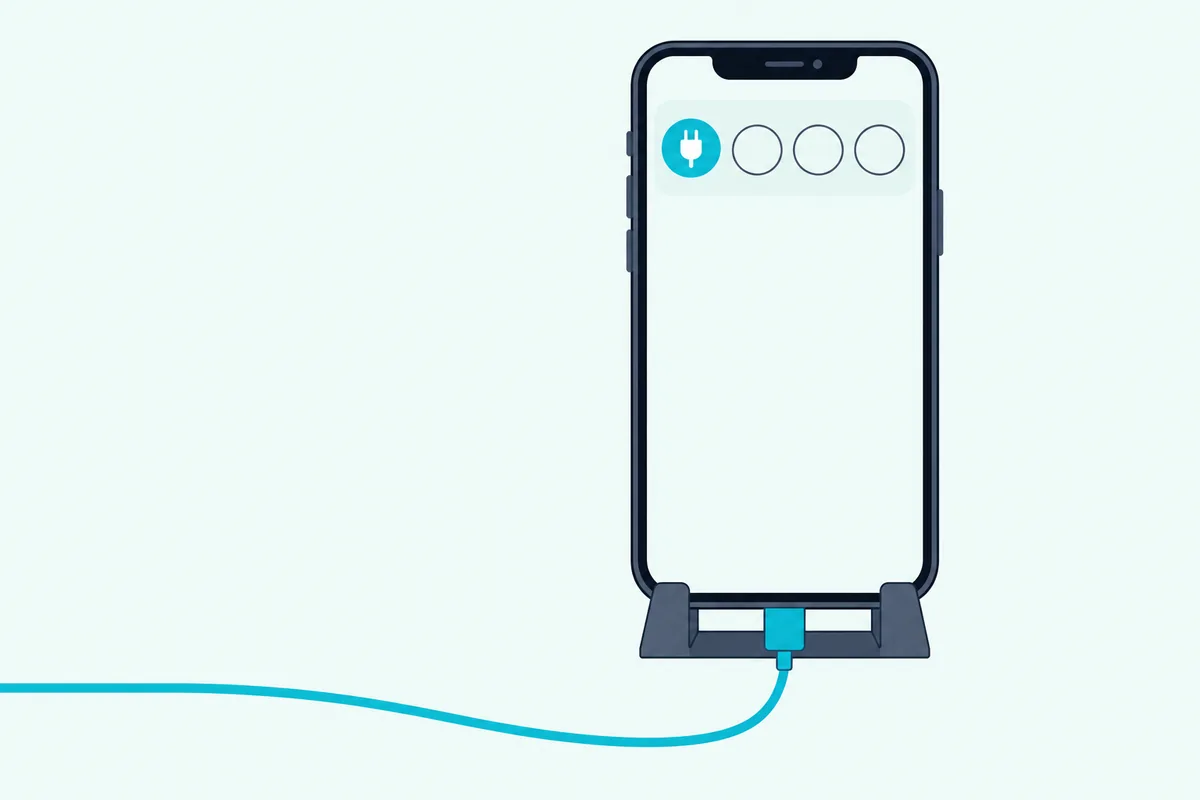
- Plug the phone into the computer with a USB cable.
- Pull down from the top of the screen and tap the entry that reads USB for, or similar.
- Choose MIDI from the list of options.
- In TouchOSC’s MIDI connections, pick the new Android USB Peripheral Port, or similar, for both Send Port and Receive Port.
The same setting can also be found in Developer options under Networking, then Select USB Configuration. The Android Open Source Project documents the same route (Android).
Port names vary by manufacturer, so yours may read a little differently. Hexler’s free Protokol tool can confirm the computer sees the phone’s MIDI port and receives what TouchOSC sends.
Get Studio Tips Weekly
Join 5,000+ creators getting acoustic treatment advice every week.
No spam. Unsubscribe anytime.What Is the iPhone Route for a MIDI Controller?
For an iPhone, Hexler’s manual routes MIDI through TouchOSC Bridge instead of a USB MIDI mode. Bridge is a small program on the computer that acts as a virtual MIDI interface, carrying MIDI between the phone and the computer over the network or a USB cable (Hexler).
The steps are the same as for an iPad, and our guide to using an iPad as a MIDI controller walks through them with Hexler’s tutorial. Logic Pro and GarageBand users have a shortcut: Apple says Logic Remote runs on an iPhone or iPad and controls those apps on a Mac.
Reaper has a similar shortcut, because its built-in web browser interface turns a phone or tablet into a control surface for play, record, track arm and volume, and controlling Reaper from a phone without extra hardware covers the steps.
How Can You Check That MIDI Is Actually Arriving?
Test before you blame your music software. Hexler’s Protokol is a free tool for testing OSC and MIDI connections, and its tutorial has you launch it, open the MIDI tab and tick Enabled (Hexler).
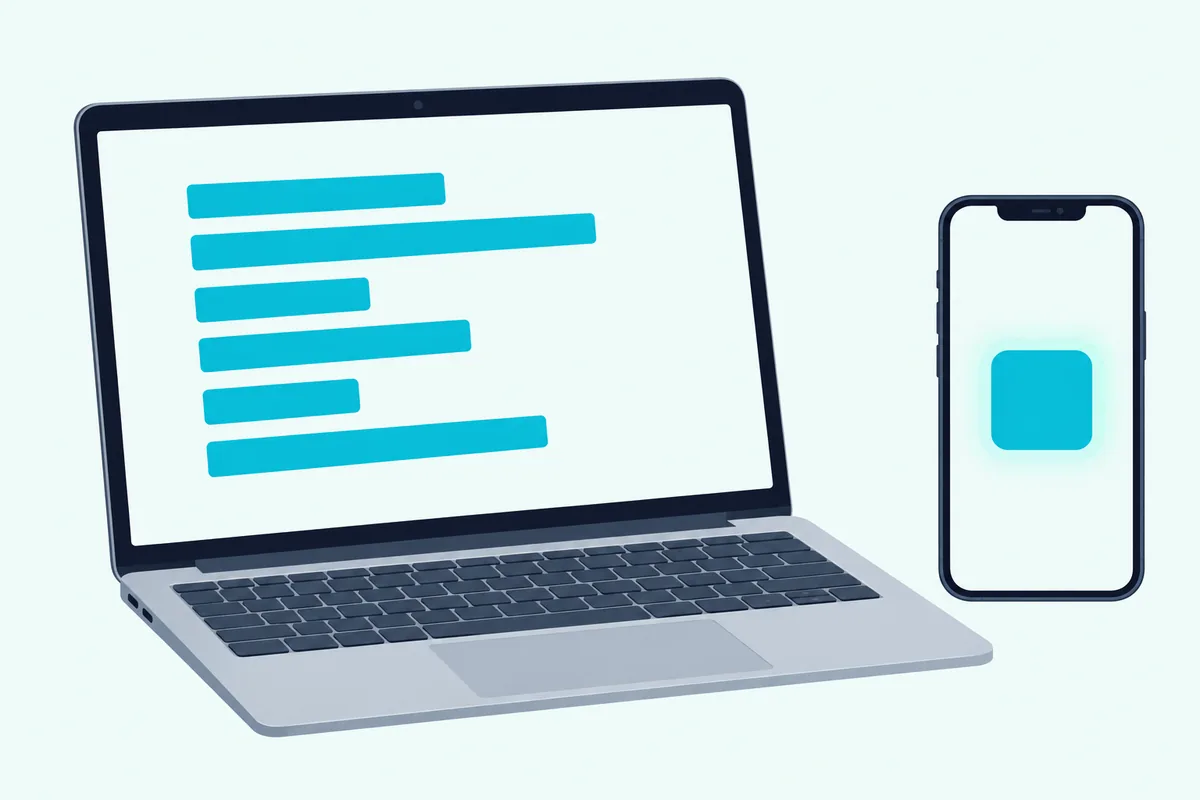
Then move a fader or press a button in TouchOSC, and the messages should print in Protokol. If they do, the phone and connection are fine, and the fault is in the music software’s settings.
What Should You Do If the Computer Can’t See the Phone?
Work down this list in order:
- The phone’s USB mode. On Android, MIDI has to be selected in the USB options, and Hexler says support depends on the device maker.
- The app’s ports. Both Send Port and Receive Port must point at the phone’s MIDI port or the Bridge port.
- The music software’s input. In Ableton Live, that means turning on Track for the port in Link, Tempo & MIDI (Ableton).
- The track’s monitoring. Ableton says the track’s monitor must be In, or Auto with the track armed.
On Windows, a network setup can also be blocked by the firewall, which Hexler suggests switching off briefly to test.
Can a Phone Replace a MIDI Keyboard?
For pads, faders and triggering clips, yes, and the same steps work for an Android tablet. For playing piano parts, no, because the screen has no key travel and the keys are small.
If you want real keys, our list of compact 25-key MIDI keyboards has options that connect by USB, and the MIDI keyboard without an audio interface guide explains what else you need to hear them.
Frequently Asked Questions
Can you use any Android phone as a MIDI controller?
Not every one. Hexler says USB MIDI support is optional and depends on the device maker, so check for the MIDI option under the phone’s USB settings.
Do you need an app to use a phone as a MIDI controller?
Yes. Enabling USB MIDI only makes the phone appear as a MIDI device, and an app such as TouchOSC has to create the messages.
Can you use a phone as a MIDI keyboard with FL Studio or Ableton?
Yes, through a control-surface app. The DAW only needs the phone’s MIDI port or the Bridge port switched on as a MIDI input.