How to Connect a Samsung Soundbar to a Roku TV
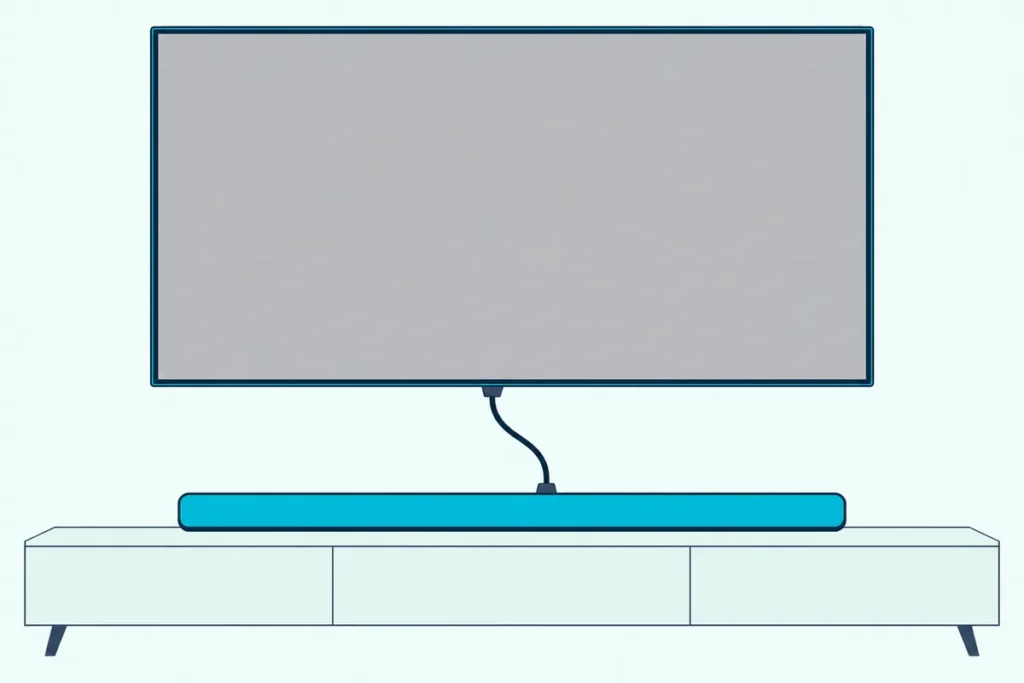
Here’s how to connect a Samsung soundbar to a Roku TV: run an HDMI cable from the TV’s HDMI ARC port to the bar’s ARC or eARC port, then tick ARC under Settings > System > Control other devices (CEC).
Two small misses, a cable in an ordinary HDMI port or an ARC box left unticked, can leave the bar sitting silent while the TV speakers keep playing.
Get both right and the Roku remote runs the Samsung bar’s volume, the TV speakers switch off, and Dolby Digital Plus reaches the bar over the same cable.
Start at the back of the bar, because Samsung labels the TV port differently on Q-series, S-series and B-series models.
After that come the Roku menus, what the bar’s display should show, the optical fallback, the Bluetooth question and the fixes for silence, lag and dropouts.
How to Connect a Samsung Soundbar to a Roku TV
The whole job is one HDMI cable and three ticked boxes. Roku says every Roku TV model has a type of HDMI ARC connection and a digital audio output, so the HDMI route below is open on any of them (Roku).
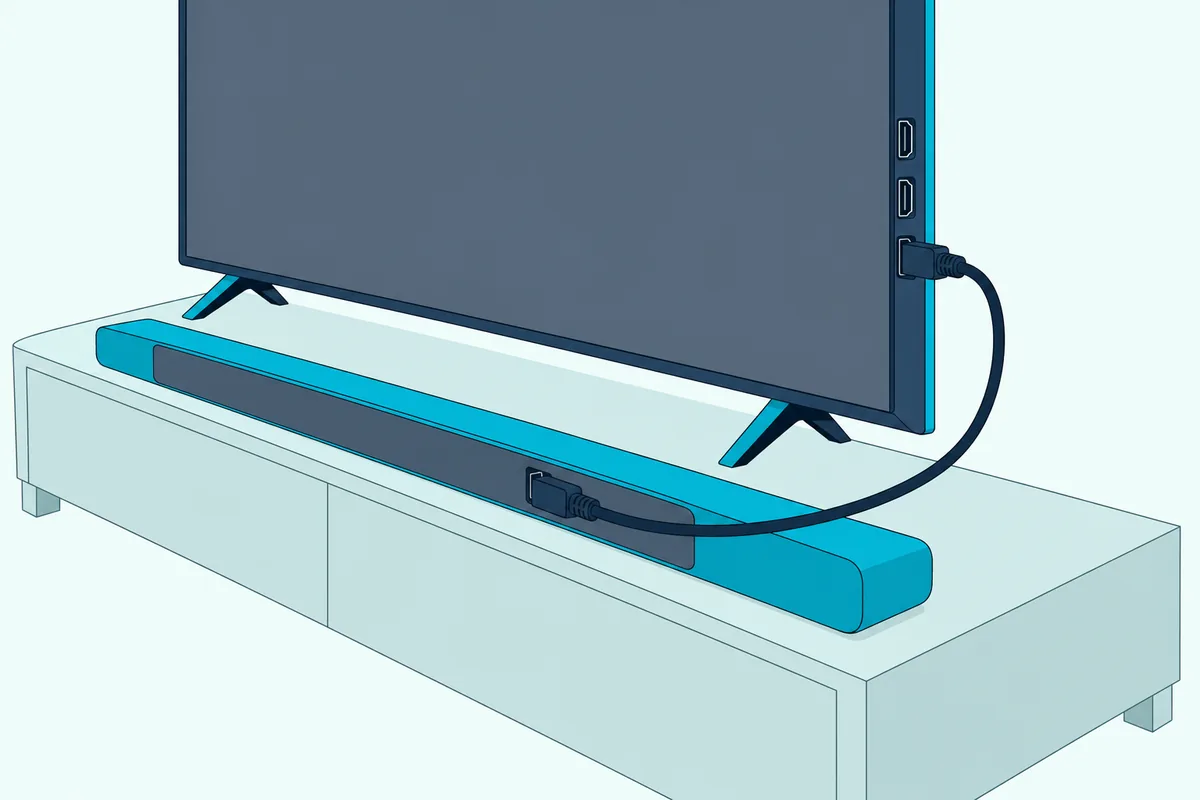
- With the TV and the soundbar off, plug one end of an HDMI cable into the TV port labeled HDMI ARC or ARC (HDMI eARC on select Roku TV models).
- Plug the other end into the Samsung bar’s TV port: HDMI TO TV (eARC/ARC) on Q-series bars, HDMI (eARC) on the S60D, HDMI (ARC) on the B400F.
- Turn both on, then on the TV press Home and open Settings > System > Control other devices (CEC).
- Tick ARC (or eARC), then tick System audio control and 1-touch play.
Samsung’s manuals warn that the TV sound may not come out unless both ends of the cable sit in ports marked ARC. Think of ARC as the one HDMI lane that runs backward, from the TV to the bar, and only the marked ports have it.
The HW-Q990D, HW-S60D and HW-B400F manuals mark the HDMI cable as not supplied. Samsung recommends one certified by HDMI.org for the Q990D and S60D, and a High Speed HDMI Cable with Ethernet for the B400F.
For eARC, Roku asks for a High Speed HDMI Cable with Ethernet or an Ultra High Speed cable, which covers both makers’ asks. UGREEN’s 6.6 ft certified HDMI cable is sold as Certified Ultra High Speed, and HDMI.org says genuine certified cables carry a label you can scan to check them.
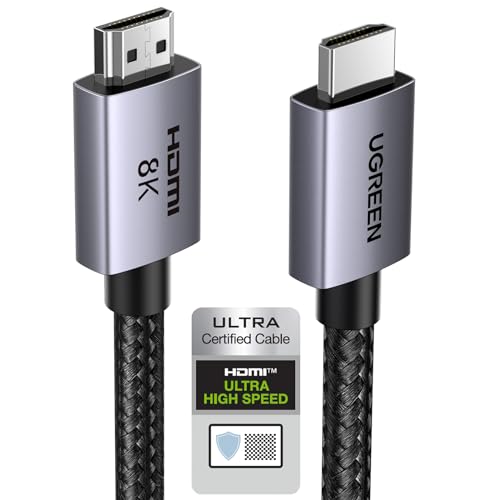
UGREEN’s 6.6 ft certified HDMI cable
Those steps match Roku’s advice for any brand of bar, which the brand-neutral Roku TV soundbar walkthrough covers. With a Samsung bar, the port name, the display and the remote are what change.
Which Samsung Soundbar Port Goes to the Roku TV?
That port name from step 2 depends on the series. Use the port Samsung marks for the TV, which is HDMI TO TV (eARC/ARC) on the Q-series bars and HDMI (eARC) or HDMI (ARC) on the S60D and B400F.
| Samsung model (manual) | TV port on the bar | Status shown | Optical input |
|---|---|---|---|
| HW-Q990D, HW-Q930D, HW-Q800D, HW-Q700D | HDMI TO TV (eARC/ARC) | “TV ARC” or “TV eARC” in the display | D.IN |
| HW-Q990F, HW-Q930F, HW-Q800F (2025) | HDMI TO TV (eARC/ARC) | “TV ARC” in the display | D.IN |
| HW-S60D, HW-S61D | HDMI (eARC) | LED indicator, “TV ARC” or “eARC” mode | Digital Audio In |
| HW-B400F | HDMI (ARC) | LED indicator, “TV ARC” mode | Digital Audio In |
| HW-B550 | HDMI TO TV (ARC), plus an HDMI IN | “TV ARC” | D.IN |
| HW-C450 | No HDMI | D.IN | D.IN |
The B550’s HDMI IN is for a source device, not the TV, so don’t let the matching plug fool you. The C450 has no HDMI port at all, which sends it straight to the optical section.
Get Studio Tips Weekly
Join 5,000+ creators getting acoustic treatment advice every week.
No spam. Unsubscribe anytime.Which Roku TV Settings Send Sound to the Samsung Bar?
Those ports only work once the TV is told to use them, and Roku spreads that across three menus. Control other devices (CEC) switches on ARC and remote volume, Audio output chooses where the sound goes, and S/PDIF and ARC sets the format.
The first menu is the one from the steps above. TCL’s Roku TV article adds that HDMI ARC is off by default there, and that ticking it also turns on System audio control (TCL).
Roku’s HDMI article, updated on 12 Oct 2026, gives a second place for the same switch: after CEC is on, go to Settings > Audio > Audio Output and select the eARC option (Roku). If your menus look different from step 3, check both.
Audio output also decides whether the TV speakers keep playing: Roku says ARC or Optical turns them off, while TV speakers plays them along with the outputs.
The format menu sits at Settings > System > Audio > S/PDIF and ARC. Leave it on Auto detect, Roku’s default, which reads what the bar supports over HDMI; Auto passthrough sends unmodified Dolby Digital, Dolby Digital Plus or DTS when the bar supports it.
Samsung’s manuals add one tip: if the TV’s digital output is set to PCM, switch it to Dolby Digital for better sound with Dolby Digital broadcasts.
What Should the Samsung Soundbar Show Once It’s Connected?
With those settings in place, the bar itself tells you whether the link worked. A Q990D or Q800D shows “TV ARC” in its display window, or “TV eARC” on a TV that supports eARC, and starts playing the TV’s sound.
If it doesn’t switch on its own, press Multi Function on top of the bar or Source on its remote. The HW-Q990D manual says that if “TV ARC” never appears, check that the HDMI cable is in the correct port.
The S60D and B400F have no text display, so they report through an LED indicator instead. On those bars, TV sound should play once both are on, and the S60D’s manual says to select “TV ARC” or “eARC” mode with the Source button if it doesn’t.
Here’s a quick test of the whole chain: press volume up on the Roku remote and watch the bar. If the bar’s level changes and Roku shows it on screen, ARC and CEC are both working.
Will the Roku Remote Control the Samsung Soundbar’s Volume?
That volume test is the answer in practice. Yes, over HDMI ARC with CEC on, Roku says its TV remote adjusts the bar’s volume and mute and shows the level on the TV screen, and Samsung’s manuals tell you to use the TV remote’s volume buttons on an ARC connection.
System audio control, ticked in step 4, makes it work, so check that box first if the remote moves the TV’s own volume instead.
Optical is different. Roku lists remote volume among HDMI ARC’s benefits over the digital audio output, and Samsung’s infrared TV-remote mode names its supported TV makers in the Q990D, Q800D, Q990F, S60D, S800D, B400F and B550 manuals: Samsung, VIZIO, LG, Sony, Sharp, Philips, Panasonic, Toshiba, Hisense and RCA.
Roku and TCL aren’t on that list, and Samsung says remotes that need pairing aren’t supported at all. So on an optical hookup, plan on the Samsung remote for volume; the Roku remote volume setup for soundbars covers what each Roku remote model can do.
Can an Optical Cable Replace HDMI ARC?
That remote trade-off is the main cost of the fallback. Yes, an optical cable works on any Roku TV, since Roku says every model has a digital audio output, and it’s the only wired route for an HDMI-less bar like the HW-C450.
- With both off, connect the TV’s jack labeled Digital audio out or Digital output to the bar’s DIGITAL AUDIO IN (OPTICAL) port.
- Pull the protective caps off both plugs first; Roku warns that leaving them on can cause a faulty connection or damage the cable or port.
- Turn both on and press Source until the bar selects D.IN (Q-series, B550, C450) or Digital Audio In mode (S60D, B400F).
- On the TV, set Settings > Audio > Audio output to ARC or Optical so the TV speakers go quiet.
Optical carries less. Roku says S/PDIF is limited to 2-channel PCM or 5.1 compressed Dolby Digital or DTS, while ARC adds Dolby Digital Plus and compressed Dolby Atmos and eARC adds uncompressed formats such as Dolby TrueHD.
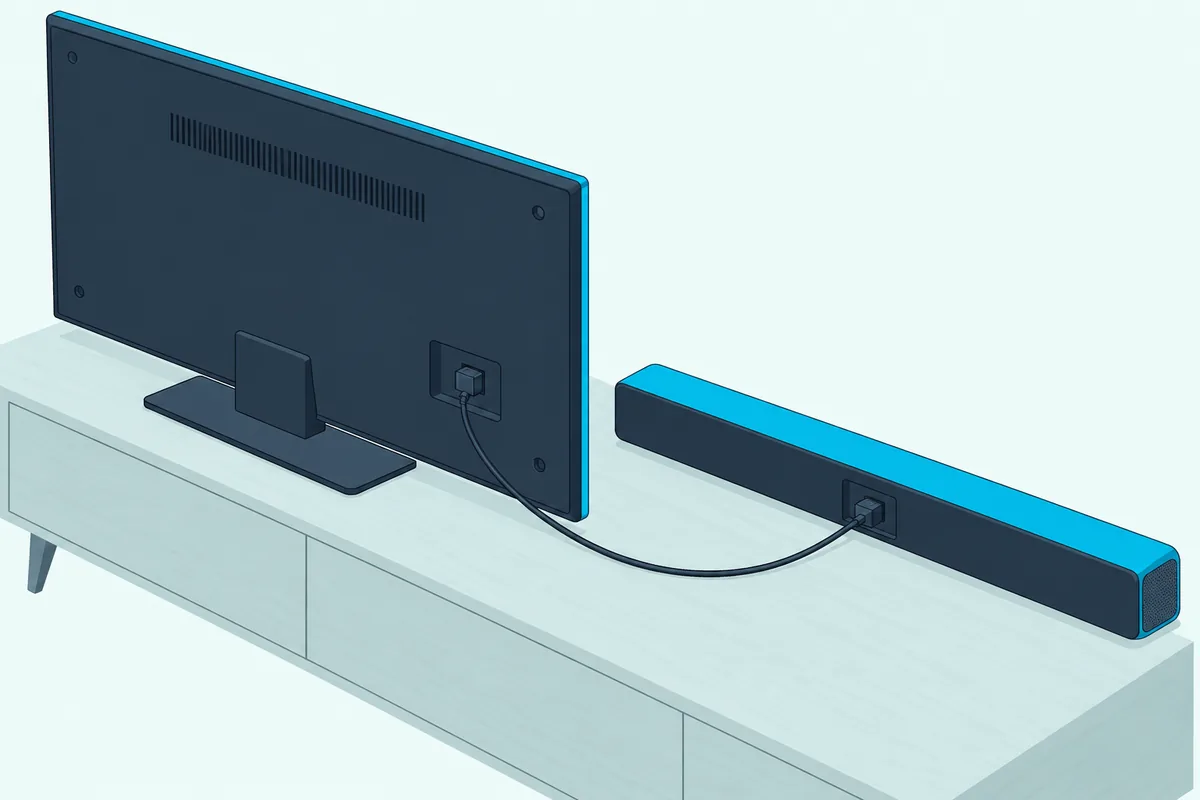
Unplug the HDMI cable while you test optical, since Samsung says the bar takes the HDMI signal first when both are connected.
The C450’s manual lists an optical cable in its box, but the Q990D, S60D and B400F manuals mark it as not supplied. Amazon Basics’ 6-foot Toslink cable covers a bar sitting just under the TV.
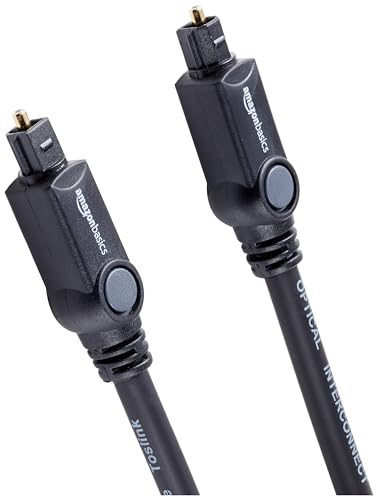
Amazon Basics’ 6-foot Toslink cable
Can You Pair a Samsung Soundbar to a Roku TV Over Bluetooth?
A wireless link sounds like an easy way around both cables. Not by any steps Roku documents: its Bluetooth pages read here pair phones, tablets and headphones, not soundbars, and Samsung’s newer manuals pair TVs only if they’re Samsung’s.
The Q990D, Q800D, S60D and B400F manuals say “Only one Samsung TV can be connected at a time,” and the TV must be a Samsung that supports Bluetooth. The HW-B550’s 2022 manual is the exception, since it pairs with any TV that offers a Bluetooth mode.
That still leaves the TV’s side, and the only Bluetooth audio output Roku describes for its TVs is Headphone Mode, which pairs headphones (Bluetooth 4.2 or later) with Select Series 4K (2025), Plus Series and Pro Series TVs under Settings > Remotes & devices > Wireless headphones (Roku). Roku doesn’t say whether a soundbar will pair there.
So for a Samsung bar on a Roku TV, HDMI ARC is the documented route, and optical is the backup.
Why Is There No Sound From the Samsung Soundbar?
A silent bar sends you back through that HDMI chain, one link at a time. Samsung’s B400F troubleshooting for an HDMI link that won’t connect names three causes: the cable isn’t in the ARC port, a connected device such as a set-top box or game machine is getting in the way, or CEC is off on the TV.
| Check | What to do |
|---|---|
| Port | Both ends in ports marked ARC or eARC, never an ordinary HDMI input |
| CEC and ARC | Tick ARC, System audio control and 1-touch play under Control other devices (CEC) |
| Audio output | Choose ARC or Optical under Settings > Audio > Audio output |
| Bar source | Press Source until “TV ARC” (or D.IN for optical) shows |
| Format | If ARC connects but stays silent, try a specific format under S/PDIF and ARC; Samsung’s Q990D fix is PCM or Dolby Digital output |
| Restart order | Unplug the TV and every HDMI device for about a minute, then plug in the TV, then the bar, then the rest |
That restart order comes from Roku’s HDMI article, which also suggests a TV firmware update. TCL adds a test: Search for CEC devices, in the CEC menu, lists what the TV finds on each HDMI input.
Samsung’s fix for that middle cause is to connect the bar directly to the TV’s ARC port, with other devices on the TV’s other inputs. That’s the layout the Roku Ultra hookup with a Samsung bar uses for a Roku player.
Why Does the Sound Lag or Drop Out?
Once the sound plays, timing is the next fix. Samsung’s Q990D, S60D and B400F have a Sync setting under Sound Control that delays the bar’s audio by 0 to 300 milliseconds, set with the Up and Down buttons on its remote.
Sync can only hold the sound back, so it fixes audio that arrives early. The B400F’s manual says it isn’t available in USB or Bluetooth mode.
Roku’s A/V sync article, written for its Streambars, adds TV-side checks. If the sound comes after the picture, set the TV’s digital audio output to PCM and try turning off Game Mode; if it comes first, turn off motion smoothing and noise reduction (Roku).
eARC helps too. Roku says eARC has built-in lip-sync, optional in the original ARC spec, when both the TV and the bar have eARC.
Sound that cuts out completely after a quiet stretch can be Samsung’s Auto Power Down. The Q990D, Q800D, S60D and B400F turn off on their own after 18 minutes without an audio signal in TV ARC, Bluetooth or optical mode.
Frequently Asked Questions
Is a Samsung soundbar compatible with a Roku TV?
Yes, any Samsung bar with an HDMI ARC or eARC port, or an optical input, connects to a Roku TV, because Roku says every Roku TV has HDMI ARC and a digital audio output. Samsung’s Wi-Fi TV link works only with Samsung TVs, per the Q800D, Q990F and S800D manuals, so plan on a cable.
Do I need to turn on Anynet+ for a Roku TV?
No, Anynet+ is Samsung’s name for HDMI-CEC on its own TVs, and Roku’s HDMI article lists it that way. On a Roku TV, the same feature lives under Settings > System > Control other devices (CEC). In the Samsung soundbar manuals read for this guide, Anynet+ appears only in the menu path for a Samsung TV, and the Samsung soundbar setup for any TV brand covers that Samsung TV side.
Do these steps work on a TCL, Hisense or onn Roku TV?
Yes, the menus come from Roku, which says every Roku TV model has HDMI ARC and a digital audio output. TCL’s own Roku TV article gives the same Control other devices (CEC) path, with HDMI ARC switched off by default. Whatever the brand, look for the HDMI port labeled ARC or eARC.
Why does my Samsung soundbar turn off by itself?
Samsung’s Auto Power Down switches the bar off after 18 minutes with no audio signal, in TV ARC and optical modes among others, per the Q990D, Q800D, S60D and B400F manuals. If the bar also stops waking with the TV, turn both off with the Roku remote rather than the bar’s power button, which Samsung says breaks the power sync.