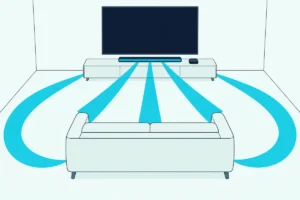
How to Connect Apple TV to a Soundbar and Keep Dolby Atmos
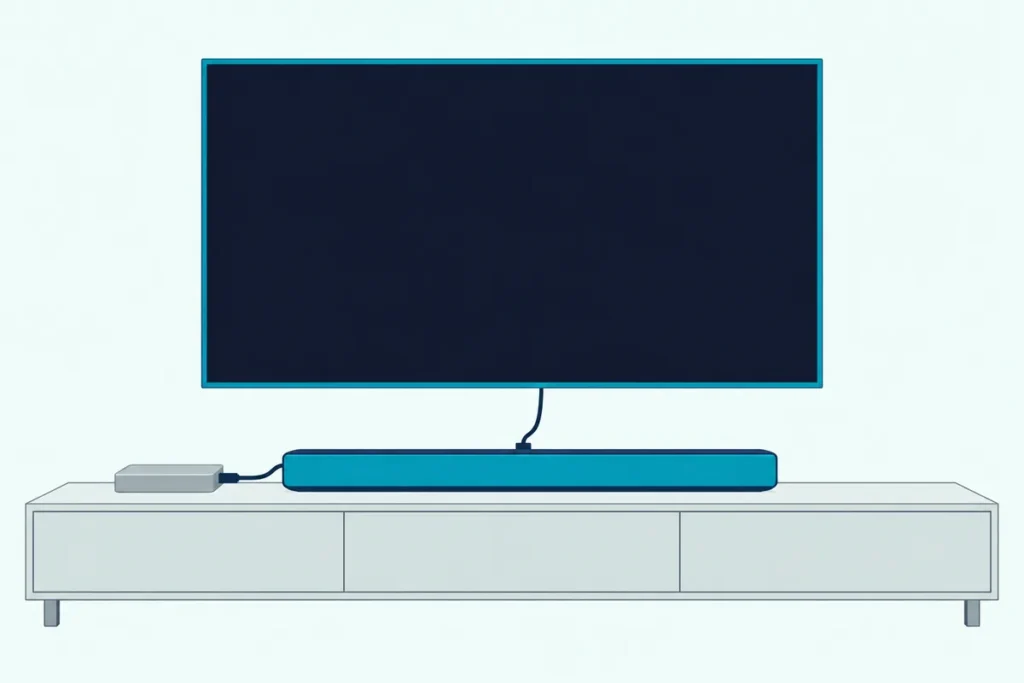
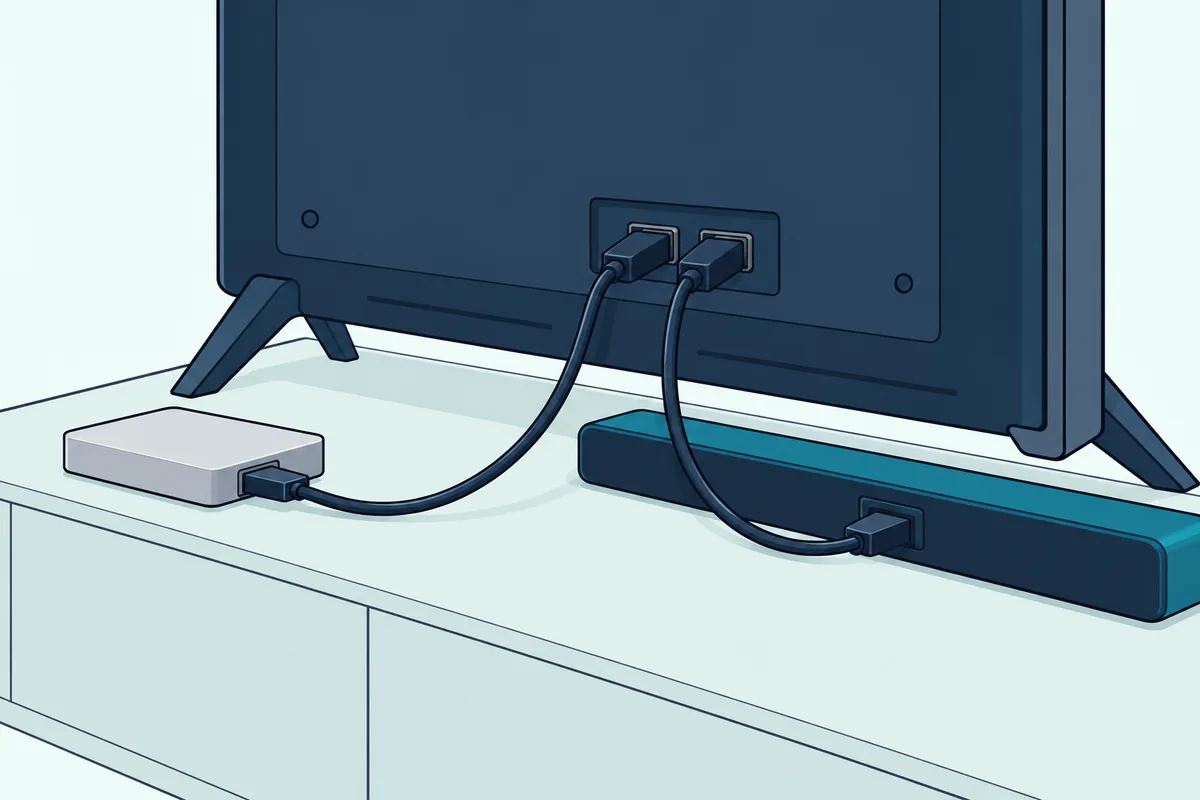
Here’s how to connect Apple TV to a soundbar the way Apple’s own Dolby Atmos article sets it up: the Apple TV 4K’s HDMI cable goes into the bar’s HDMI input, and the bar’s HDMI output goes to the TV.
Plug the box into the TV and send the sound back over ARC instead, and Atmos can quietly drop out, because Apple says its high-bandwidth Atmos doesn’t work over ARC.
Get the order right and the Atmos signal reaches the bar directly, while the Siri Remote can still run the bar’s volume.
Below are both cable layouts, what each one keeps, and the Video and Audio settings Apple lists for the Apple TV 4K.
You’ll also find the Siri Remote’s volume options, routes for optical-only and AirPlay 2 bars, and the makers’ fixes for no sound, missing Atmos and lip-sync delay.
How to Connect Apple TV to a Soundbar in Two Layouts
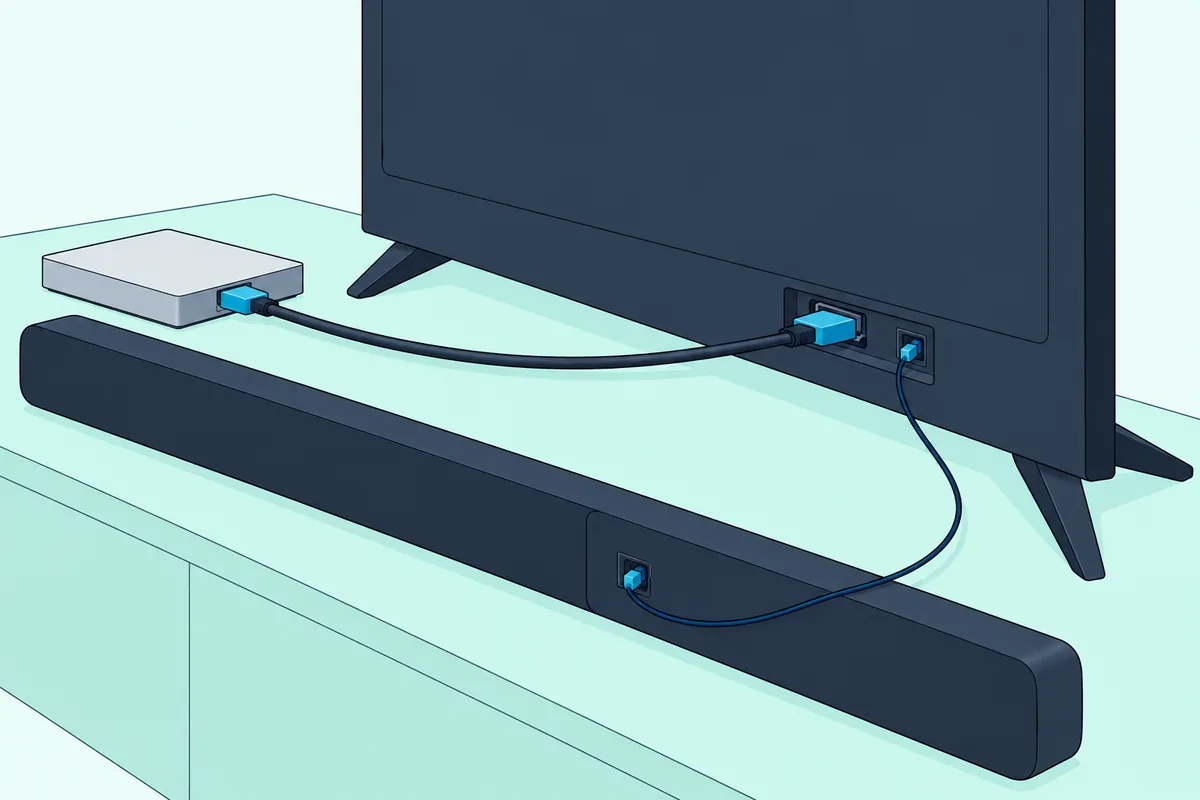
Those two cables are the first of two layouts, and LG’s S90TR manual draws both side by side. In one, the box plugs into the bar’s HDMI input; in the other, it plugs into the TV and the bar sits on the TV’s ARC port.
LG recommends the first, because with the second there may be no sound depending on the TV’s specifications. A third route, through the TV’s optical output, covers a bar with no HDMI at all.
| Layout | Cables | What it keeps | Watch for |
|---|---|---|---|
| 1. Apple TV into the bar’s HDMI input, bar’s HDMI output to the TV | Two HDMI | Dolby Atmos reaches the bar without crossing the TV | The picture passes through the bar, so its video support matters |
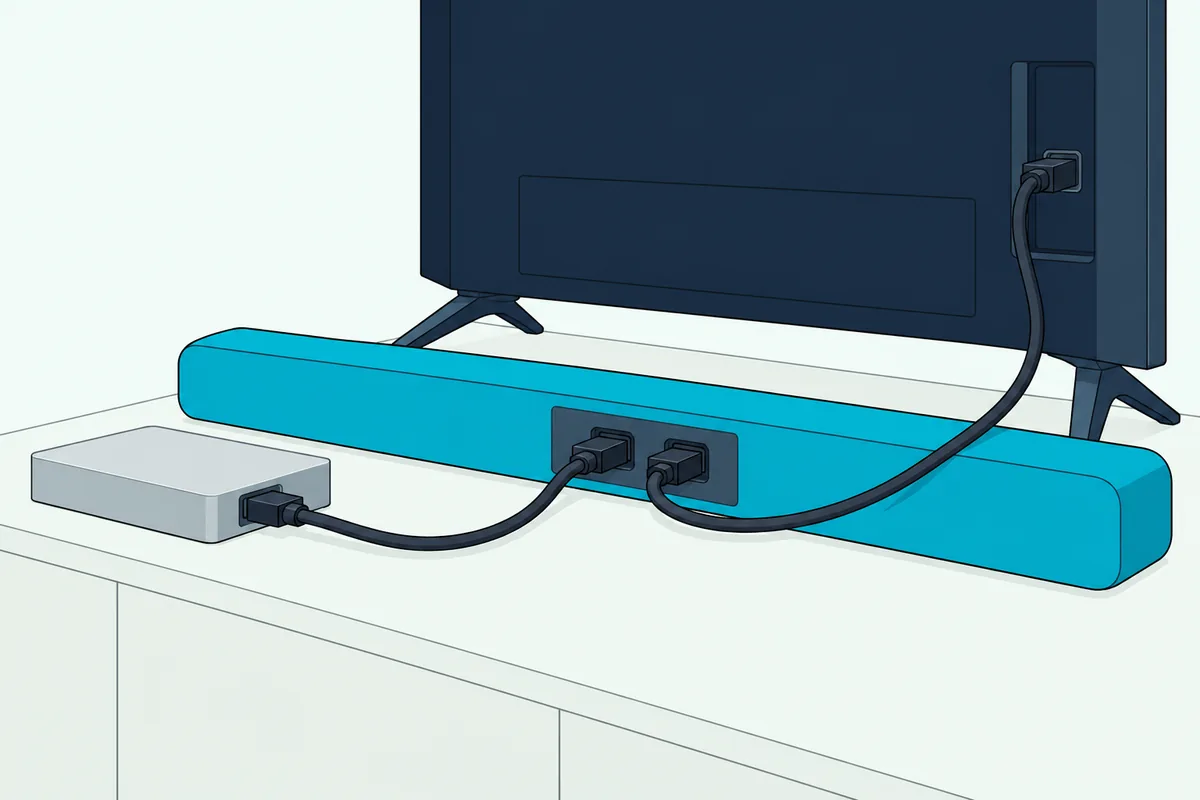
| 2. Apple TV into the TV, TV’s eARC or ARC port to the bar | Two HDMI | The picture goes straight to the TV | The TV has to pass the sound on, and Apple’s Atmos doesn’t work over ARC |
| Optical fallback: Apple TV into the TV, TV’s optical output to the bar | HDMI plus optical | Works with a bar that has no HDMI | No CEC volume over optical, and no Atmos |
The optical fallback exists because the box has one way out for sound. Apple’s spec sheet for the Apple TV 4K lists HDMI 2.1, Wi-Fi, Bluetooth and an IR receiver among its connections, and no optical port appears in that list.
The same spec sheet says the HDMI cable is sold separately. Apple’s setup article starts the Apple TV 4K and the Apple TV HD the same way, with one HDMI cable from the box, though its Atmos articles are written for the 4K.
Which Layout Keeps Dolby Atmos and Dolby Vision?
That first table row is Apple’s own advice, and the reasoning fits in two sentences. Layout 1 keeps Dolby Atmos, because Apple’s Atmos setup article says to connect the Apple TV 4K directly to the sound bar’s HDMI input: most televisions don’t support Atmos pass-through to sound bars.
The same article adds that the Apple TV 4K uses a high-bandwidth form of Dolby Atmos that doesn’t work over ARC connections. So on a TV with only ARC, layout 2 can’t carry the Apple TV’s Atmos, whatever the bar decodes.
Think of layout 2 as a relay. The Apple TV hands the sound to the TV, the TV hands it to the bar, and any handoff the TV can’t make simply doesn’t happen.
Dolby Vision is the catch in layout 1. Apple’s footnote says some bars support Dolby Atmos but not video formats like HDR10 and Dolby Vision, so you’d plug the box into the bar for Atmos or into the TV for HDR, unless the bar or a receiver handles both.
That makes the bar’s spec sheet the thing to read before you pick layout 1. Polk’s MagniFi Max AX SR page lists three 4K HDMI inputs and video pass-through for 4K HDR and Dolby Vision, while the LG S90TR manual pages cited here list 4K at 120 Hz on its input but name no HDR format.
The TV route isn’t a dead end, though. Apple’s audio formats article lists a Dolby Atmos compatible sound bar with a television that supports Dolby Atmos audio as one of its setups, so layout 2 can work when the TV passes Atmos on, and the Immersive Audio check later in this guide shows whether yours does.
If your bar has no HDMI input yet, the best Apple TV soundbar picks are sorted by whether the box can plug straight in. Every other step below works with the bar you already own.
How Do You Run the Apple TV Through the Soundbar’s HDMI Input?
Layout 1 takes four steps, and Samsung’s HW-Q990F guide spells them out for any external device. You plug the Apple TV into the bar’s HDMI input, run the bar’s TV connector to the TV, then switch the bar to that input.
- Plug the Apple TV’s HDMI cable into the bar’s HDMI input, which Samsung labels HDMI or HDMI 1 and HDMI 2 and LG labels HDMI IN.
- Run a second HDMI cable from the bar’s TV connector, HDMI TO TV (eARC/ARC) on the Samsung, to the TV; LG’s manual uses the TV’s HDMI IN (ARC) port.
- Turn on the bar, TV and Apple TV, then switch the bar to its HDMI input: the Multi or Source button on the Samsung, or the Function button until LED1 lights golden yellow on the LG.
- On the TV, select the HDMI input the bar’s cable uses, and the Apple TV’s picture appears while the sound plays from the bar.
That ARC port in step 2 does double duty. LG’s TV connection page says the HDMI cable to the TV’s ARC terminal carries TV audio to the bar, so the TV’s own sound still plays through it.
LG adds a check on the source’s side. Its manual says the external device’s audio output should be set to No encoding, Bitstream, Auto or Pass through, and the Apple TV’s Audio Format has an Auto setting, which Apple recommends.
Cables come next, and Apple and Samsung both name the kind. Apple’s setup article asks for an HDMI 2.0 or later cable for 4K HDR and an HDMI 2.1 cable to reach every feature, and Samsung’s guide asks for an Ultra High Speed HDMI cable on the HW-Q990F to receive UHD signals.
The bar’s own cable may cover the TV run, but check the box. Samsung includes an HDMI cable with the HW-Q990F, while its HW-S60D guide marks the cable as not supplied, and the Apple TV needs one of its own either way.
If you still need one, UGREEN’s certified 48Gbps HDMI 2.1 cable is listed as Certified Ultra High Speed. That covers both Apple’s HDMI 2.1 advice and Samsung’s Ultra High Speed note.
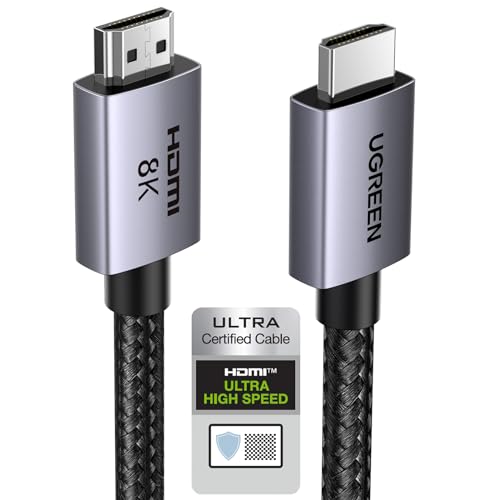
UGREEN’s certified 48Gbps HDMI 2.1 cable
What Changes When the Soundbar Hangs Off the TV’s eARC Port?
Layout 2 flips that chain, and it’s the only HDMI choice for a bar without an input, such as Sonos’s Arc Ultra or Samsung’s HW-S60D. The Apple TV goes into a free HDMI input on the TV, and the bar goes into the one TV port labeled eARC or ARC.
- Plug the Apple TV into a spare HDMI input on the TV, the way Apple’s setup article connects it.
- Plug the bar’s HDMI cable into the TV port labeled ARC or eARC. Polk’s manual warns that only one port carries that label, and you won’t hear TV audio from any other.
- Turn on the TV’s HDMI-CEC and its eARC or ARC setting; Apple’s ARC article says you might have to switch these on in the TV’s settings, and Samsung says the TV’s eARC function has to be on for an eARC link.
- Switch the bar to its TV input. Samsung’s bars show TV ARC or TV eARC on the display once the link is up.
The TV now carries the Apple TV’s sound, so its port decides what arrives. HDMI Licensing Administrator says eARC carries uncompressed 5.1 and 7.1, 32-channel uncompressed audio, Dolby TrueHD, Dolby Atmos and DTS:X.
Plain ARC carries less: Roku’s surround guide says it supports the optical formats plus Dolby Digital Plus and Dolby Atmos. Sonos’s TV requirements page fits that picture, saying the Arc Ultra and Beam (Gen 2) play Atmos via Dolby Digital Plus or Dolby TrueHD and must sit on HDMI ARC or eARC to play any Atmos.
Apple’s high-bandwidth Atmos is the part ARC can’t carry, so an ARC-only TV is exactly where Apple’s warning from the last section bites. Bose’s Smart Ultra guide puts the bar’s side simply: HDMI eARC or ARC is option 1, the connection for the Dolby Atmos experience, with optical as the fallback.
Every TV maker names its CEC switch differently, and Burton Acoustix’s brand-by-brand TV eARC menus show where Samsung, LG, Sony and Roku TVs keep it. Apple’s support article gives the short list: LG SimpLink, Philips EasyLink, Samsung Anynet+, Sharp Aquos Link and Sony BRAVIA Sync.
One Apple setting is easy to mistake for a soundbar switch. Apple’s ARC article describes Audio Return Channel under Audio Output, where Play Television Audio turns on ARC or eARC, as the way to send TV sound to HomePod speakers.
Can an Apple TV Connect to a Soundbar Without HDMI?
That labeled port isn’t on every TV, and the Apple TV can’t fill the gap itself, since no optical port appears in its spec list. Yes, it connects through the TV: the Apple TV goes into the TV by HDMI, and an optical cable runs from the TV’s digital audio output to the bar.
Bar makers document that fallback. Bose’s Smart Ultra guide lists optical as option 2 for a TV without eARC or ARC, Polk’s manual says to use an optical cable and turn off the TV’s internal speakers, and Sonos connects the Arc Ultra to an optical port through its Optical Audio Adapter.
The cost is formats. Roku’s guide says S/PDIF is limited to 2 channels of uncompressed stereo (PCM) or 5.1 channels of compressed surround (Dolby Digital or DTS), so Atmos stays on the HDMI side.
Volume changes too. Apple’s volume-button article says CEC volume control is an HDMI feature that isn’t supported with optical setups, which matters for the Siri Remote section below.
Bluetooth is the route Apple doesn’t document for a soundbar. Apple’s Bluetooth page lists game controllers, headphones, wireless keyboards and “another accessory,” pairing the non-controllers under Settings > Remotes and Devices > Bluetooth, and none of the Apple Bluetooth pages cited here names a speaker or soundbar.
If you try it, Apple’s Bluetooth article says to put the accessory in pairing mode first, then choose it on the Apple TV and enter a four-digit code if asked. HDMI and optical stay the connections Apple and the bar makers actually write up.
Which Apple TV Audio Settings Should You Check?
Whichever cable route you picked above, the Apple TV decides what travels down it. Apple’s audio settings page puts everything under Settings > Video and Audio, and by default the Apple TV 4K uses the best audio format available, including Dolby Atmos if your equipment supports it.
These are the entries that matter for a soundbar, with Apple’s own descriptions.
| Setting | What Apple says it does | When to change it |
|---|---|---|
| Audio Output | Plays audio through the TV speakers or other headphones or speakers | Apple’s no-sound article says to set it to Apple TV when a soundbar plays the sound |
| Audio Format: Auto | Decodes the best format for your equipment and sends uncompressed audio | Leave it on; Apple recommends it |
| Convert to Dolby Digital 5.1 | Re-encodes audio as compressed Dolby Digital 5.1 | Only if the bar supports neither Atmos nor multichannel PCM |
| Stereo Only | Sends uncompressed two-channel PCM | Only for a stereo setup |
| Dolby Atmos | Turns Atmos on or off | On, for an Atmos bar |
| Continuous Audio Connection | Holds a Dolby MAT connection for seamless format changes | Off, if a receiver should upmix stereo or the bar goes silent |
| Reduce Loud Sounds | Lowers the overall level by reducing dynamic range | Late-night viewing |
| Audio Mode | Auto, or 16-bit if your TV requires 16-bit audio | Apple’s no-sound fix |
The format choices hide behind a switch on some screens. Apple’s Atmos and no-sound articles both say to select Audio Format and turn on Change Format before you pick one.
Apple also notes that some options appear only if your TV or receiver supports them. If Dolby Atmos is missing from the list, the cable layout is the first suspect, not the setting.
Enhance Dialogue sits in the same menu and is worth a look if voices get buried. Apple says Enhance makes dialogue more prominent with minimal impact on the mix, while Enhance More may alter the original audio mix.
Reduce Loud Sounds is the late-night setting. Picture a movie with the kids asleep upstairs: Apple says it lowers the overall level so loud music and sound effects aren’t as loud as other sounds.
Can the Siri Remote Control the Soundbar?
Those settings stay put, but you’ll touch the volume every evening, so the remote is the next thing to set up. Yes, the Siri Remote can control a soundbar: Apple’s spec sheet says it controls a TV or receiver over IR or CEC, covering power, switching input to the Apple TV, volume and mute.
The power link comes first. Apple’s TV and receiver guide has you go to Settings > Remotes and Devices, then the Home Cinema Control section, and choose Control TVs and Receivers if you have a receiver or Turn On Your TV with Your Remote if you don’t.
From then on, turning the Apple TV on or off turns the TV or receiver on or off too. Volume has its own setting in the same section, Volume Control, with six options.
| Volume Control option | Use it when (Apple) |
|---|---|
| Auto | In most cases; it picks the most compatible method for your devices |
| HDMI | Your TV or receiver supports HDMI-CEC and volume control over CEC |
| Receiver via IR | Your receiver uses an infrared remote but doesn’t support HDMI-CEC |
| TV via IR | Your TV uses an infrared remote but doesn’t support HDMI-CEC |
| Off | You don’t want the remote changing other devices’ volume |
| Learn New Device | The options above aren’t working; the remote learns your TV, sound bar or receiver’s volume |
The HDMI option depends on CEC, and Apple’s support article lists the checks. Your TV or receiver has to support HDMI-CEC, the Apple TV has to sit in a CEC-capable port, and CEC has to be on in the TV’s menu, usually under a name ending in “Link” or “Sync.”
Learn New Device is the infrared fallback. Apple says to clear the path to the IR sensor on the front of your TV or receiver, though some receivers take volume over HDMI-CEC instead and need no clear line.
The optical fallback from earlier changes the answer. Apple’s volume-button article says to switch Volume Control to TV via IR when the bar is on an optical cable, because CEC volume doesn’t travel over optical.
If the volume buttons stop working, Apple’s first fix is a remote restart. Hold the TV/Control Center button and Volume Down together for about 5 seconds, until the Apple TV’s status light turns off and on, wait 10 to 15 seconds for Remote Disconnected, then press any button and wait for Remote Connected.
Its second fix is to pick a different Volume Control setting, for example TV via IR instead of Auto. Sonos owners get one more tip: Sonos says to set the bar up with the TV’s own remote, because Sonos may need to learn a mute command, and after that the Apple TV remote should control the volume automatically.
The bar’s side of remote learning is its own job, and how to program a soundbar to your TV remote covers it for Vizio, Polk, JBL, Bose and Sonos bars. With power and volume sorted, AirPlay is the last way to get sound out of the box.
Can the Apple TV Play Through an AirPlay 2 Soundbar?
AirPlay takes the cable out of the picture, because the sound travels over your network instead. Yes: Apple’s home cinema guide lets you pick an AirPlay-enabled speaker as the Apple TV 4K’s Default Audio Output under Settings > Video and Audio > Audio Output.
Apple’s conditions are short. The Apple TV and the speaker have to be assigned to the same room in the Home app and connected to the same network.
One limit matters for movie nights. With an AirPlay speaker other than HomePod as the default, Apple says the Apple TV plays audio through it except system alerts and game sounds, which stay on the TV speakers.
Apple’s whole-home audio page adds a tip for gear that connects both ways. Some receivers and smart TVs that support AirPlay appear twice in the audio list, as Receiver Speakers over HDMI and as AirPlay speakers, and Apple says Receiver Speakers gives the best audio quality.
If you hear an echo or a delay with an AirPlay speaker, Apple points to its Wireless Audio Sync calibration, which the lip-sync section below walks through. AirPlay also works without the Apple TV: from an iPhone, Apple’s AirPlay article sends music to an AirPlay speaker from Control Center.
Bars that list AirPlay 2 still take the TV’s sound by HDMI or optical in their own guides, as Polk’s, Bose’s and Sonos’s do, so AirPlay adds a route rather than replacing the cable. The AirPlay 2 soundbar shortlist compares eight bars that list it, if you’re choosing one.
Why Is There No Sound From the Apple TV Through the Soundbar?
A silent bar sends you back through those links, and Apple’s no-sound article runs through them in order. Start with the cable: unplug both ends of the HDMI cable and plug them back in firmly, then try a different cable, Ultra High Speed for HDMI 2.1 or Premium High Speed for HDMI 2.0.
Apple’s next four checks, one at a time:
- Turn off the TV and unplug the Apple TV, plug it back in, then turn the TV on again; unplug a receiver too if you use one.
- If an HDMI switch or receiver sits in the chain, connect the Apple TV directly to the TV to see whether the problem follows.
- In Settings > Video and Audio > Audio Format, turn on Change Format and pick a different format, or turn off Continuous Audio.
- Set Audio Mode to 16 bit, and with a soundbar, receiver or TV speakers playing the sound, set Audio Output to Apple TV.
Apple’s last step is to turn off volume leveling or other audio processing on the TV or receiver. If only the clicks are missing while you move around the menus, Apple says to turn on Sound Effects and Music.
The bar has its own short list. Polk’s manual says to check that the bar is powered on, that all cables are connected correctly and that the volume is up on the bar’s top panel.
Samsung’s HW-Q990F guide adds two fixes for layout 2. Press the Multi or Source button to switch the bar to TV ARC mode if no TV sound comes out, and if the bar can’t reproduce the signal, change the TV’s digital audio output to PCM or Dolby Digital.
Why Doesn’t Dolby Atmos Show Up on the Soundbar?
Sound that plays but never turns into Atmos is a different fault, and Apple’s Atmos article gives the test. Go to Settings > Video and Audio > Audio Format and check that Dolby Atmos is on under Immersive Audio; if neither appears, Apple says you might need to change how your home entertainment system is set up.
That usually points back to the layouts. On an ARC-only TV, Apple’s high-bandwidth Atmos can’t cross, and most TVs don’t pass Atmos through, which is why layout 1 exists.
Apple names one software trap too. Atmos won’t play if Quick Start is off, under Settings > Apps > iTunes Movies and TV Shows > Quick Start.
Content matters as much as cables. Bose’s guide says both your TV and your content must support Dolby Atmos, and Apple says some Atmos titles show a Dolby Atmos icon in their audio info.
Don’t trust a receiver’s Atmos light on its own, either. Apple says that with Continuous Audio Connection on, older receivers might indicate an Atmos signal while the audio plays in its original format, and Sonos’s app shows what the bar is actually decoding on its Now Playing screen.
What Fixes Lip-Sync Delay With an Apple TV and Soundbar?
Once the format is right, timing is the last thing to check, and the fix depends on how the bar is connected. On an HDMI or optical bar, use the bar’s own audio delay setting; for an echo between an AirPlay speaker and wired speakers, use the Apple TV’s Wireless Audio Sync.
Samsung’s HW-Q990F guide puts its control under Sound Control > Sync, where the Up and Down buttons set the audio delay between 0 and 300 milliseconds, in the functions that support it. Sonos calls it TV Dialogue Sync and keeps it in the room’s settings.
Apple’s tool is built for the echo between wired and wireless speakers. Under Settings > Video and Audio > Calibration, Wireless Audio Sync has you hold an iPhone close to the TV or receiver speakers while the Apple TV plays tones through them to measure the delay, then matches the wireless speakers to it.
If the picture still leads the sound, the TV and the bar both have delay menus of their own, and how to fix soundbar delay in each menu walks through them. Change one setting at a time, so you know which one did the job.
Frequently Asked Questions
Does the Apple TV 4K come with an HDMI cable?
No. Apple’s In the Box list for the Apple TV 4K (4th generation) names the box, the Siri Remote, a power cord and documentation, and its system requirements say the HDMI cable is sold separately. Apple’s setup article asks for an HDMI 2.0 or later cable for 4K HDR and an HDMI 2.1 cable to reach every feature, so layout 1 needs that cable plus the bar’s own TV cable, which Samsung includes with the HW-Q990F.
Does an Apple TV HD connect to a soundbar the same way?
The cabling starts the same way: Apple’s setup article covers the Apple TV 4K and the Apple TV HD with one HDMI cable from the box, so both layouts begin with that cable. Apple’s Atmos and HomePod eARC pages are written for the Apple TV 4K, though, with eARC for HomePod needing an Apple TV 4K (2nd generation) or later, so the Atmos steps in this guide are documented for the 4K only.
Which HDMI port on the TV should the Apple TV use?
In layout 2, any free HDMI input carries the picture, but Apple says to check that the Apple TV is connected to a port that supports HDMI-CEC, which the TV manual confirms. The bar takes the one port labeled ARC or eARC. In layout 1, the TV’s HDMI IN (ARC) port takes the bar’s cable instead, as LG’s manual shows, and the Apple TV plugs into the bar.
Why does the TV still play sound with the soundbar connected?
The TV’s own speakers are still on. Samsung’s HW-Q990F guide says that if audio plays from both, open the TV’s Audio Settings menu and select External Speaker instead of TV Speaker. Polk’s manual says to check that the TV’s internal speakers are disabled when you hear an echo, and on an HDMI ARC link that HDMI CEC/ARC is enabled in the TV’s settings. If the echo comes from an AirPlay speaker playing alongside wired speakers, Apple’s Wireless Audio Sync is the tool instead.