Can a Keyboard Be Used as a MIDI Controller? Yes, Even Your Laptop’s
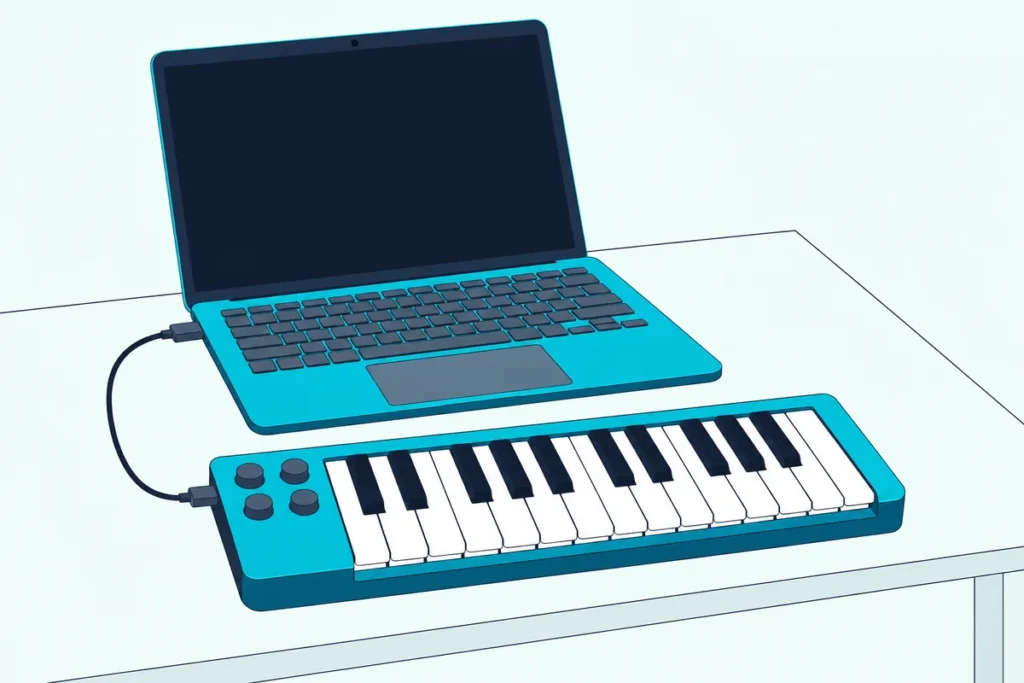
Can a keyboard be used as a MIDI controller? Yes: your computer’s typing keyboard plays notes in each of the eight DAWs below, and a musical keyboard works too if it sends MIDI over USB or a MIDI OUT port.
The catch is loudness, because a MIDI keyboard sends how hard you pressed each key, while typing keys send whatever velocity the music software is set to.
Set up well, those letter keys still switch octaves and step the velocity, and in Logic Pro and GarageBand they bend pitch and hold a sustain.
Below are the keys for Ableton Live, Logic Pro, GarageBand, FL Studio, Cubase, REAPER, Bitwig Studio and Fender Studio Pro, each from the maker’s own manual.
Find your DAW in the first table, then decide whether a keyboard you already own or a small controller is the better next step.
How Do You Use a Computer Keyboard as a MIDI Controller in Each DAW?
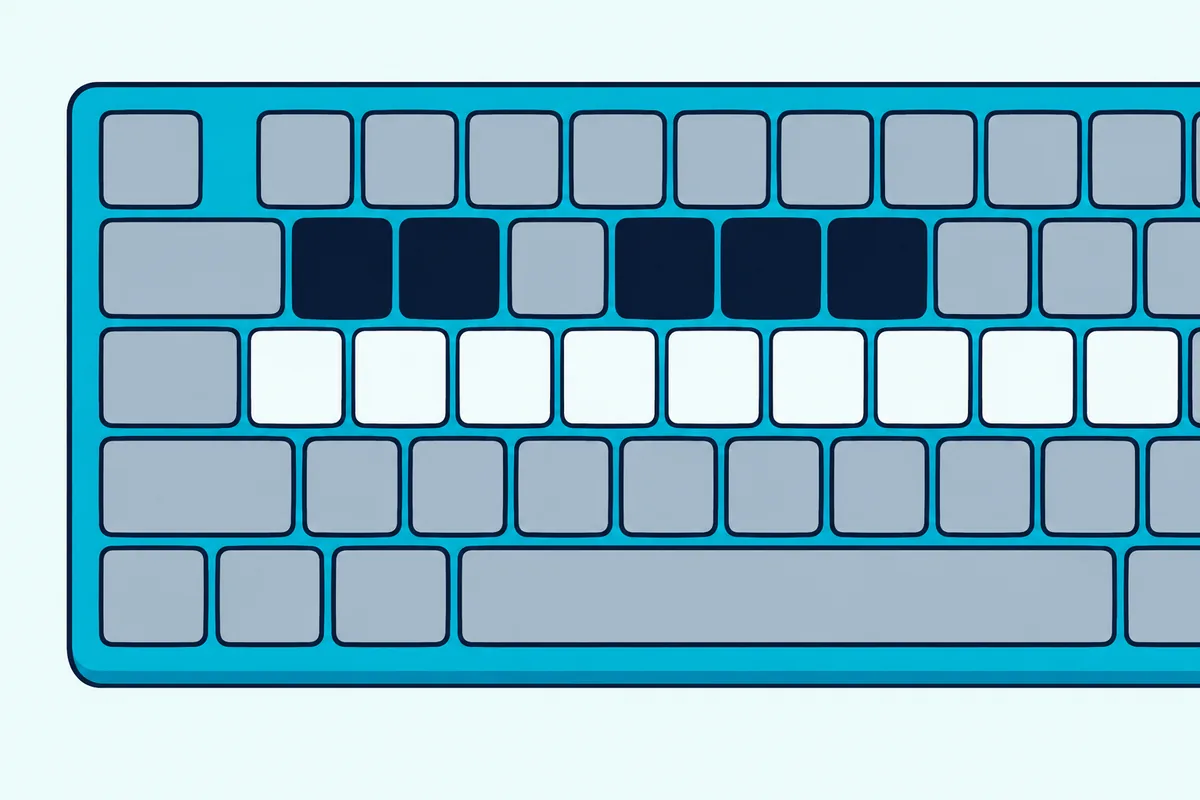
That table comes first because every program hides the switch in a different place. To use a computer keyboard as a MIDI controller, select or arm an instrument track and turn on the DAW’s typing mode: M in Ableton Live, Command-K in Logic Pro and GarageBand, Ctrl or Cmd+T in FL Studio.
| DAW and manual | Turn it on | Notes and octaves | Velocity and extras |
|---|---|---|---|
| Ableton Live 12 | M, or the Computer MIDI Keyboard button | Middle letter row plays white keys from C3, upper row the black keys; Z and X shift octaves | C and V change velocity in steps of 20 |
| Logic Pro 12.3 | Window > Show Musical Typing, or Command-K | Z and X shift octaves | C and V set velocity; 1 and 2 bend pitch; 4 to 8 set the mod wheel; Tab toggles sustain |
| GarageBand 10.4.14 | Window > Show Musical Typing, or Command-K | Z and X shift octaves | The same velocity, pitch, mod wheel and sustain keys as Logic Pro |
| FL Studio, current online manual | Typing keyboard to piano keyboard, Ctrl or Cmd+T | Alt or Option plus number pad 2 to 6 shifts octaves | Root note, layout and snap-to-scale options; single-key shortcuts work only while it’s off |
| Cubase Pro 15 | On-Screen Keyboard, Alt or Option+K | Left and Right arrows shift octaves, per the Cubase AI 10 manual | Up and Down arrows set velocity, per the Cubase AI 10 manual |
| REAPER 7.81 | View > Virtual MIDI Keyboard, or Alt+B, then pick it as the track’s MIDI input | Its guide plays half a scale with Z X C V B V C X Z | Not listed in the guide |
| Bitwig Studio | Caps Lock | Not listed in the guide | Many key commands stop while Caps Lock is on |
| Fender Studio Pro 8.1 | Add the QWERTY Keyboard device, then open its window | Plays any record-enabled instrument track | Works only while that window is open |
Ableton’s middle row starts on the A key at C3, and between C3 and C4 those keys line up with its Impulse drum sampler’s slots, so you can tap out a beat. Its Live 12 manual warns that the mode takes over single-letter shortcuts; add Shift, as in Shift-S to solo a track.
When you plug in a real keyboard instead, the switches Live needs for a USB keyboard all sit on one Settings tab.
Apple’s Musical Typing window shows the key layout and lights up each note as you play, which helps while the letters are new. When you move up to a real controller, this Logic Pro MIDI setup walkthrough picks up from the moment you plug it in.
Cubase blocks most other key commands while its On-Screen Keyboard is open, and Steinberg says it’s useful when no external MIDI instrument is at hand. Studio One’s old manual address now opens Fender’s Studio Pro 8.1 manual, where the QWERTY Keyboard device sits in the Fender folder under External Devices.
Each DAW supports it without extra software, as the table shows. FL Studio’s typing keyboard also feeds step entry, and its options cover the root note, the octave, standard keyboard layouts and snap to scale.
Does a Computer Keyboard Send Velocity, Pitch Bend and Sustain?
Those velocity cells matter more than they look. Yes, a computer keyboard sends velocity, and in Logic Pro and GarageBand it also sends pitch bend on 1 and 2, the mod wheel on 4 to 8 and sustain on Tab.
The difference is where the number comes from. A MIDI keyboard’s Note On message carries how hard each key was pressed, the MIDI Association explains, while typing keys send the level you last set, such as Ableton’s steps of 20, 40 and 60.
Apple says the pitch keys bend only while held, which suits a quick scoop more than a slow, shaped bend. If you need a real stick, a game controller beside the laptop can fill that gap, as our guide to how a gamepad’s sticks become pitch bend explains.
A mouse trick helps too: on the onscreen keyboard in Logic Pro and GarageBand, clicking lower on a key plays it louder and clicking higher plays it softer.
Flat parts can also be fixed after recording. Ableton’s Velocity Editor can randomize or ramp the levels, and a Velocity Deviation of +20 on a note at 60 picks a fresh value between 60 and 80 each time it plays.
None of the eight manuals’ typing-keyboard pages mentions aftertouch. The MIDI Association describes it as pressure sent by pressing down on a key after it bottoms out, so it takes keys that sense pressure, like the MIDI keyboards sorted by how they sense pressure.
Can a Keyboard Be Used as a MIDI Controller If It’s a Piano or Synth?
Everything so far assumes the letters on your laptop, but the question covers musical keyboards too. Yes, a digital piano, weighted or not, an arranger keyboard or a synth works as a MIDI controller if it has MIDI output over a USB port or a 5-pin MIDI OUT, because that’s where it sends each key’s note and velocity.
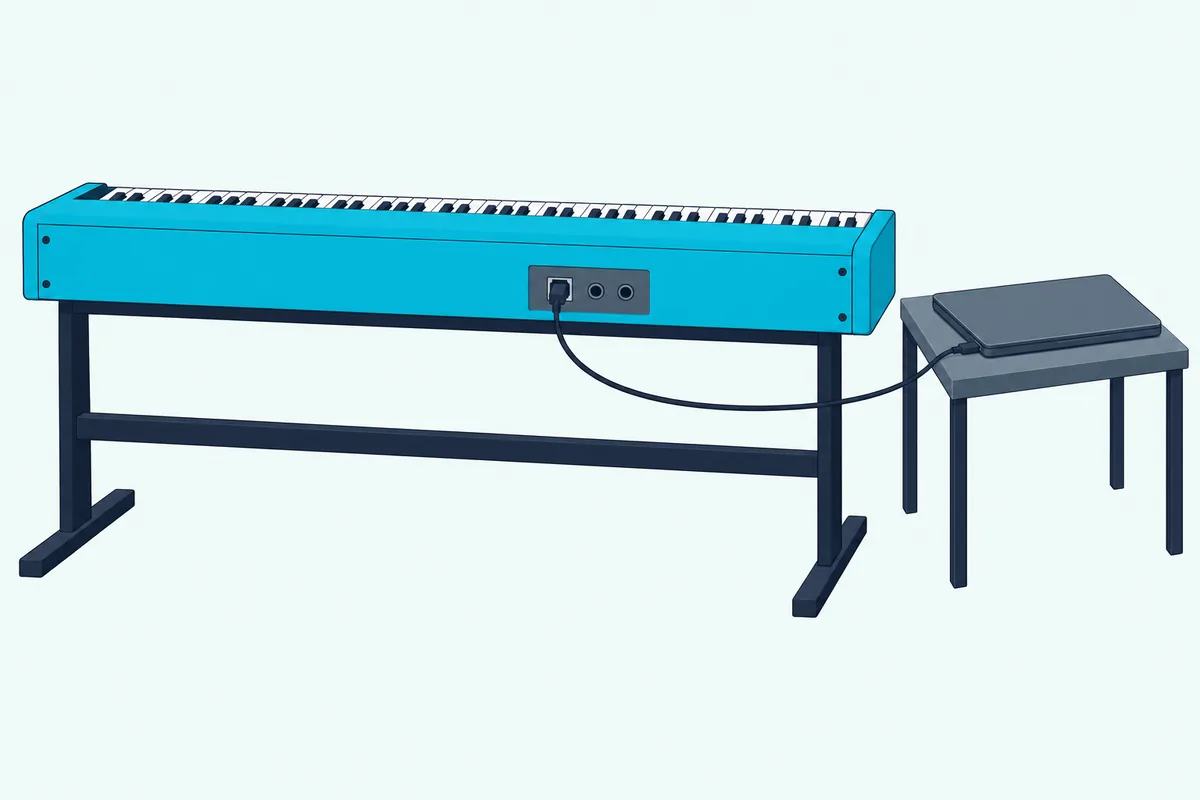
The MIDI Association says the USB port labeled To Host is usually the one that sends MIDI to a computer, phone or tablet. Some makers add a USB driver for extras, and its example is Yamaha’s, which carries eight MIDI ports over one cable.
An older keyboard with only 5-pin sockets needs a USB MIDI interface instead.
Roland’s UM-ONE mk2 is a one-in, one-out interface that its listing says works with Mac, PC and iPad through Apple’s Camera Connection Kit.
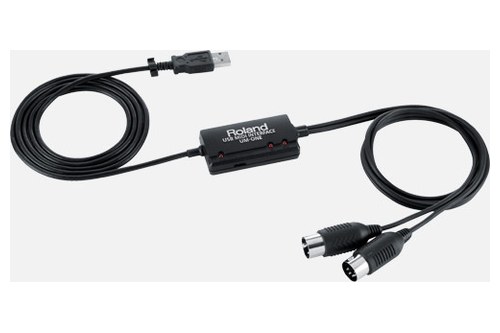
Roland’s UM-ONE mk2
If your piano plays each note twice once the software answers, the setting that stops a digital piano sounding twice has its own walkthrough. For synths, what a synth’s MIDI OUT and USB ports decide comes first.
If you’re still choosing between the two kinds of instrument, the MIDI controller vs keyboard comparison weighs built-in sounds against a silent controller.
Can You Use a Computer Keyboard as a MIDI Controller Without a DAW?
Those DAW modes only play the program they live in. Yes, a standalone open-source app such as VMPK makes the computer keyboard a MIDI source of its own: its author’s VMPK project page calls it a MIDI events generator that makes no sound by itself and drives a hardware or software synth, tested on Linux, Windows and Mac.
For another app to receive those notes, you need a virtual MIDI port. On a Mac, Apple’s IAC Driver provides one: in Audio MIDI Setup, choose Window > Show MIDI Studio, double-click IAC Driver and select Device is online.
On Windows, loopMIDI creates virtual loopback ports, though its maker lists Windows 7 up to Windows 10. REAPER’s guide names it as one way to add virtual ports.
A phone you already own is another way to try MIDI before buying a keyboard, and our guide on how to use a phone as a MIDI controller covers the apps and connections.
What Can’t a Computer Keyboard Do That a MIDI Keyboard Can?
Even with the right app, three limits stay. Where the manuals cover velocity, it’s a level you set, not one you play; aftertouch is missing from every typing-keyboard page above; and Steinberg’s Cubase AI 10 manual says the number of keys that sound at once varies between operating systems and hardware.
That last limit shows up in chords, so a big chord may not sound in full. Shortcuts are the other cost: Ableton’s mode takes over single-letter keys, Cubase blocks most key commands, Bitwig’s Caps Lock disables many and FL Studio’s single-key shortcuts work only with typing turned off.
A small MIDI keyboard moves velocity, bends and sustain onto keys and controls built for them, which is the whole case for buying one.
When Is It Worth Buying a MIDI Keyboard Instead?
That case only matters once the limits slow you down. Buy a MIDI keyboard when you spend longer fixing velocities than playing, or when you want a wheel, pads or a sustain pedal under your hands.
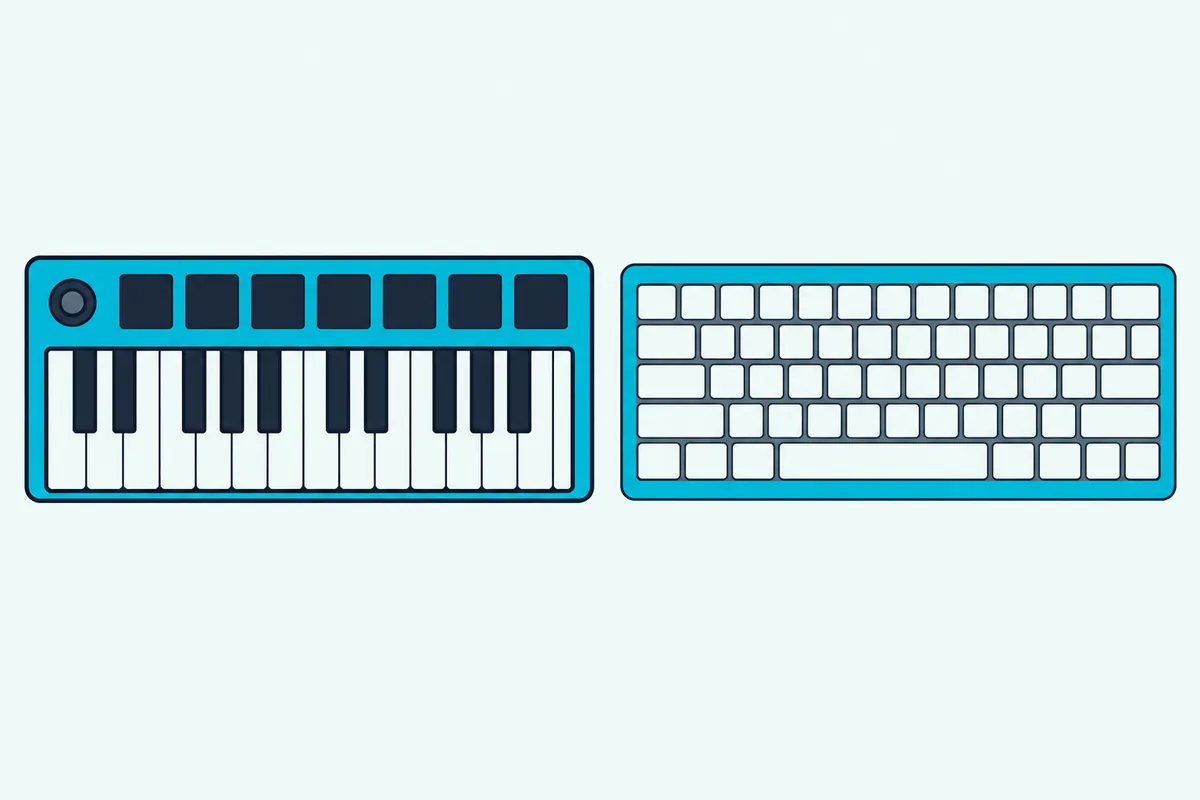
Every pick met Burton Acoustix’s rating, review and stock checks on 14 October 2026, and no prices appear because they change.
midiplus’s AKM320 moves the bends Musical Typing does on 1 and 2 onto a wheel, and its listing adds a sustain pedal input.
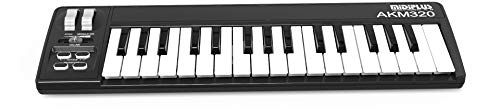
midiplus’s AKM320
Akai’s MPK Mini MK3 puts eight pads and a joystick beside 25 mini keys on what Akai calls a dynamic keybed, and it comes with bundled software.
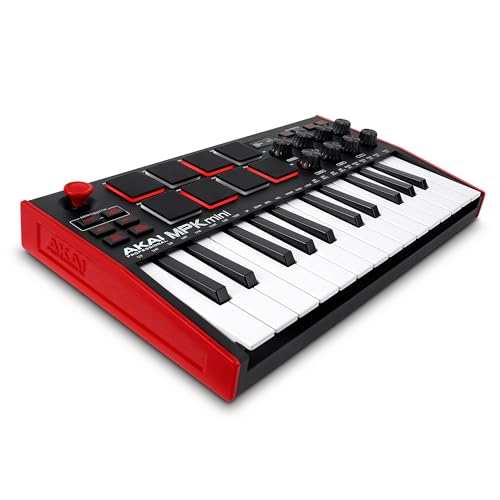
Akai’s MPK Mini MK3
For wider choices, our budget roundup compares seven picks, each a dedicated MIDI controller, and our list of first MIDI keyboards for beginners keeps the controls simple.
The Bottom Line
So yes, your computer’s keyboard can stand in for a MIDI controller today, through a built-in mode in each of the eight DAWs above, as long as you accept velocity set by key rather than touch.
A piano or synth with USB or MIDI OUT does the same job from real keys, and when typing starts to feel like a chore, a small controller is the upgrade.
Frequently Asked Questions
Can you use a normal keyboard as a MIDI controller?
Yes. A normal computer keyboard plays notes through your DAW’s typing mode, such as the M key in Ableton Live or Command-K in Logic Pro and GarageBand. A normal musical keyboard works if it sends MIDI over USB or a 5-pin MIDI OUT, and an older 5-pin model reaches a computer through a USB MIDI interface.
Is a keyboard a MIDI controller?
Not by itself. A computer keyboard acts as one only while a program turns its keys into notes, and a musical keyboard counts only if it sends MIDI over USB or MIDI OUT. Either way it sends instructions, not sound; the MIDI Association puts it plainly: MIDI is not audio.
How do I turn my keyboard into a controller?
For a computer keyboard, switch on your DAW’s typing mode, or run VMPK and send its notes through Apple’s IAC Driver or loopMIDI. For a musical keyboard, connect its USB port to the computer, or its MIDI OUT through a USB MIDI interface. Building one from scratch is an electronics project, and our guide to an Arduino controller you wire yourself has a section on keyboards.
How do I stop the computer keyboard from triggering notes by accident?
Turn the mode off when you’re done: the Computer MIDI Keyboard button in Ableton Live, the Musical Typing window in Logic Pro or GarageBand, Ctrl or Cmd+T in FL Studio, Alt or Option+K in Cubase, Caps Lock in Bitwig Studio and the QWERTY Keyboard window in Fender Studio Pro. Ableton’s, FL Studio’s, Cubase’s and Bitwig’s manuals all warn that the typing mode takes keys away from shortcuts while it’s on.