Connect Soundbar To Hisense TV With Optical Cable — Settings That Actually Work

Connect soundbar to Hisense TV with optical cable is one of the cleanest ways to get TV sound into a bar when HDMI ARC is missing, unstable, or more trouble than it is worth.
The cable part is easy, but the settings part is where most Hisense setups fail.
You need the optical cable seated in the TV’s digital audio output, the soundbar set to optical, and the Hisense sound menu set to external audio or optical output with a sound format the bar can decode.
If one of those steps is wrong, the soundbar can power on, show the right light, and still play nothing.
Start by setting up the connection in order: cable first, soundbar input second, Hisense audio output third, then PCM or passthrough settings only after sound appears.
If you are still mapping how a soundbar fits with a Hisense TV in general, a soundbar replaces TV speakers with a single front-stage box that connects via HDMI, optical, or Bluetooth covers the baseline before you commit to optical.
To connect a soundbar to a Hisense TV with optical, plug the optical cable into the TV’s Digital Audio Out or Optical Out port and the soundbar’s Optical In port.
Then set the soundbar input to Optical, D.IN, or Digital In, and change the Hisense TV sound output away from TV speakers toward optical, external speaker, or audio system.
If you get no sound, set the digital audio format to PCM first.
After basic sound works, try Auto or Dolby Digital only if your soundbar supports passthrough.
Optical will not let the Hisense remote control soundbar volume unless your soundbar has a separate IR learning feature.
What Do You Need Before Connecting Optical On A Hisense TV?
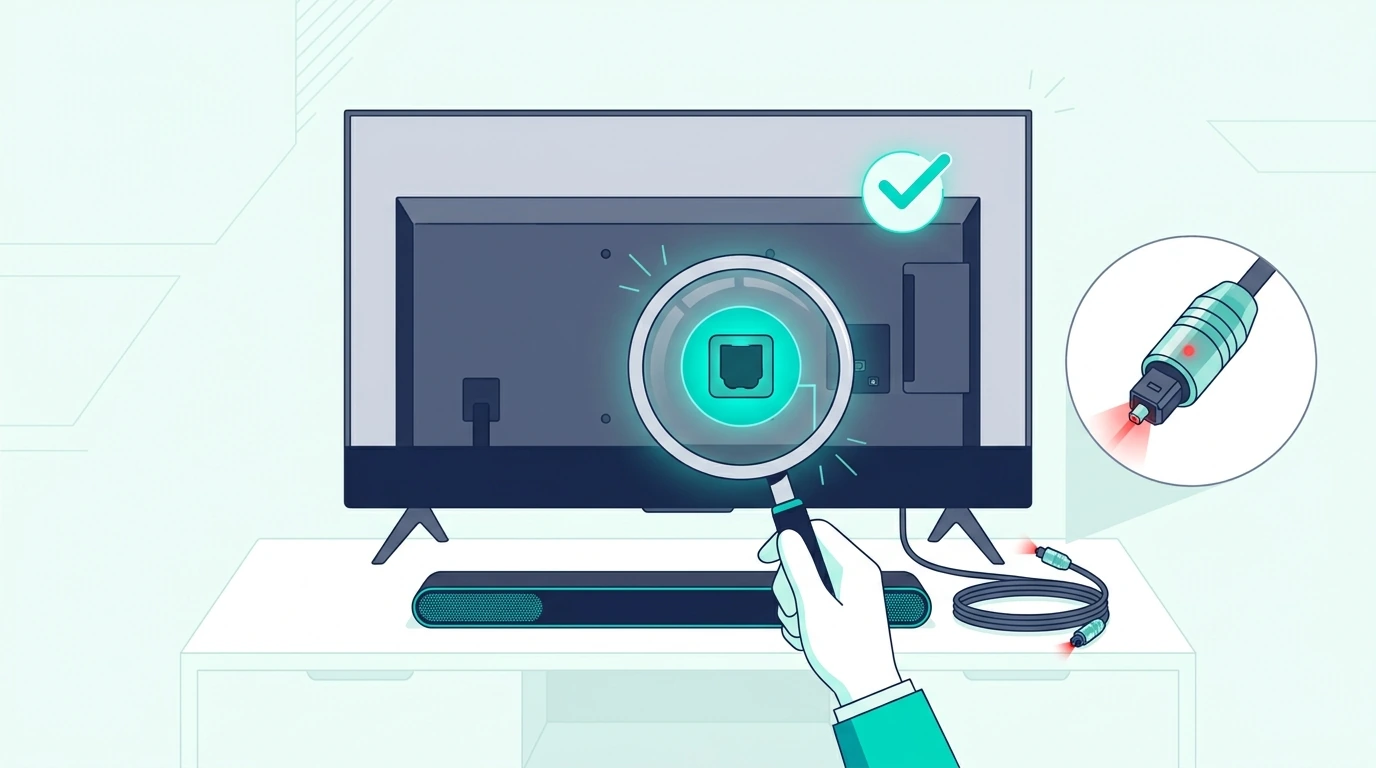
Start by checking the labels on the TV and soundbar.
On the Hisense TV, look for Digital Audio Out, Optical, or TOSLINK.
It is usually a small square port with a flap or red light inside when the TV is on.
On the soundbar, look for Optical In, Digital In, D.IN, or TOSLINK.
If you are setting up the soundbar for the first time, the standard power-on, input-select, TV Sound Out, source-device verification sequence once confirms the bar itself is awake before you troubleshoot Hisense specifically.
The cable must connect output on the TV to input on the soundbar.
Optical is one-direction audio, so plugging into the wrong side of another device will not work.
Remove the tiny plastic caps from both ends of the optical cable before you plug it in.
This mistake is common because the caps can look like part of the connector.
The cable should click or sit firmly without being forced.
If the connector will not fit, rotate it and try again because TOSLINK plugs have a specific shape.
Any reliable TOSLINK optical cable is enough for this connection.
You do not need a premium optical cable to unlock better audio.
You need a working cable, the right ports, and the right Hisense sound settings.
If your Hisense TV and soundbar both have HDMI ARC, optical is still valid, but HDMI may be more convenient for TV-remote volume control.
HDMI ARC carries Dolby Atmos, lossless audio, and HDMI-CEC remote control; optical carries Dolby Digital and stereo but drops Atmos and CEC entirely — that tradeoff matters before you commit to optical on a Hisense.
This page stays focused on optical because that is the most stable fallback when ARC is unavailable or behaving badly.
How Do You Connect The Optical Cable To A Hisense TV?
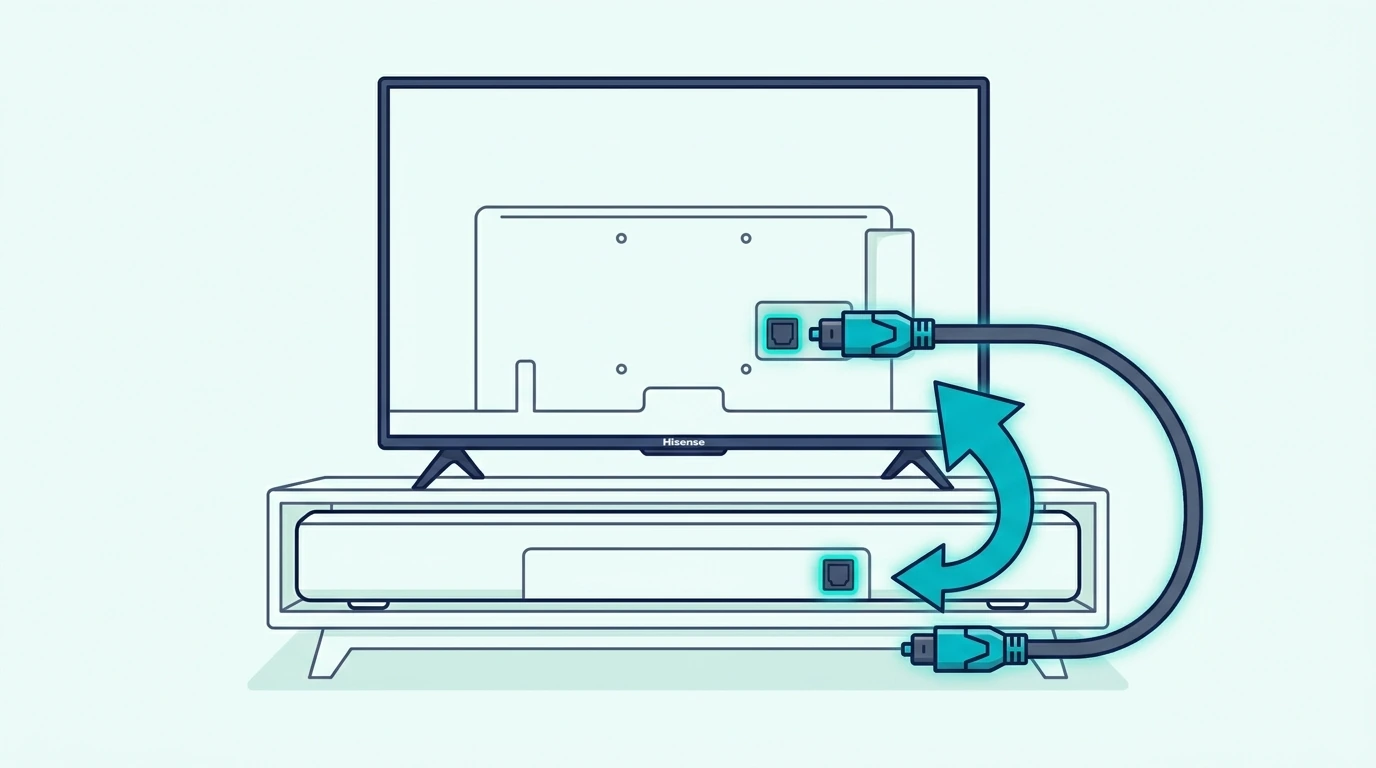
Turn off the TV and soundbar before you make the first connection.
Plug one end of the optical cable into the Hisense TV port labeled Digital Audio Out or Optical Out.
Plug the other end into the soundbar port labeled Optical In, Digital In, or D.IN.
Turn the TV on first, then turn the soundbar on.
Use the soundbar remote or top-panel source button to choose Optical, Digital In, or D.IN.
Do not leave the soundbar on HDMI, Bluetooth, USB, or AUX and expect optical audio to play.
The input label varies by brand.
Samsung bars often show D.IN.
Vizio and many budget bars may show Optical or OPT.
Bose and Sony bars may use a source light or app label instead of a big front display.
After the soundbar is on the right input, play a normal TV source.
Use a built-in streaming app, live TV channel, or another source already known to make sound from the TV speakers.
Do not test with a silent menu screen.
If the soundbar plays audio right away, lower the TV speaker volume or turn TV speakers off in the Hisense menu so you do not hear both sets of speakers at once.
If the soundbar is silent, do not replace the cable yet.
Most optical failures on Hisense TVs are menu-output failures, not cable failures.
Move to the TV settings before you buy anything else.
Get Studio Tips Weekly
Join 5,000+ creators getting acoustic treatment advice every week.
No spam. Unsubscribe anytime.Which Hisense TV Sound Settings Should You Change?
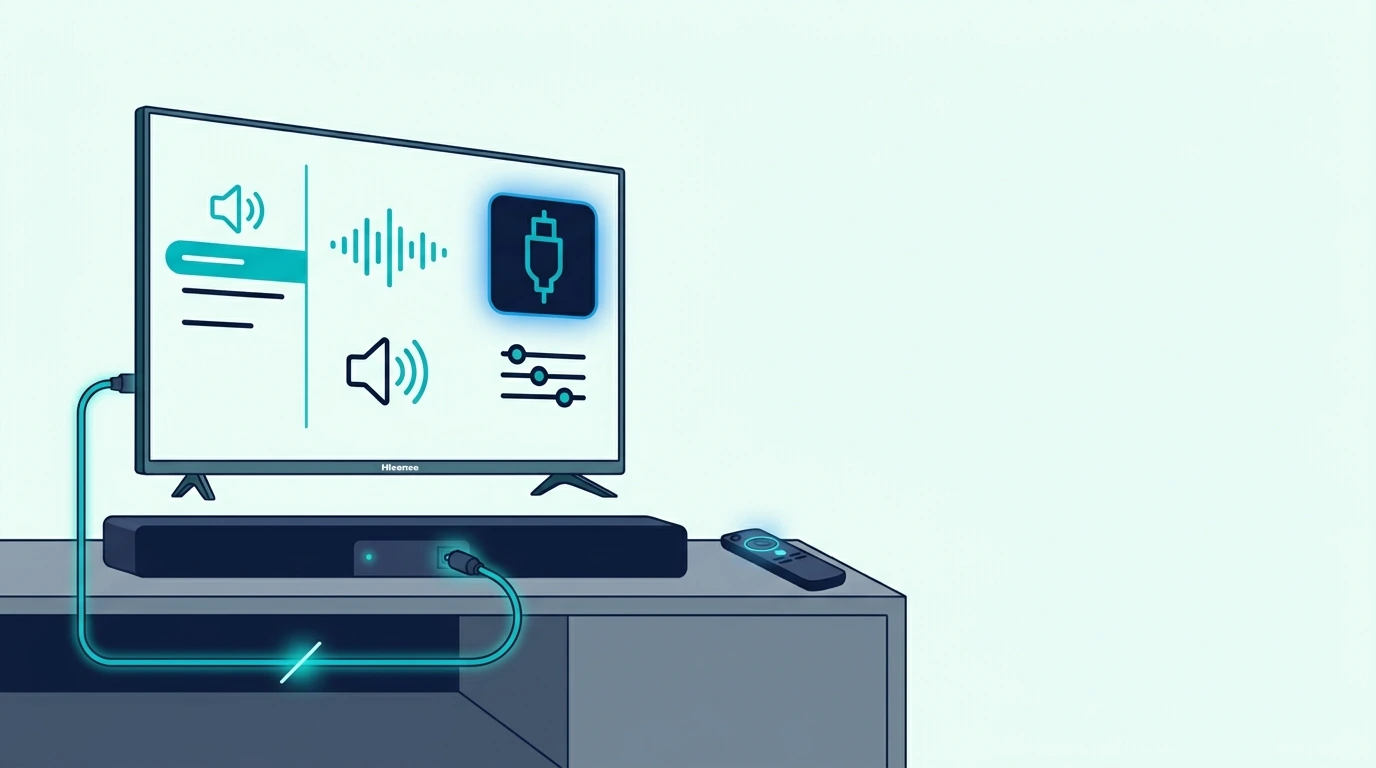
Open the Hisense TV settings and go to the sound or audio menu.
The exact label depends on whether the TV uses Google TV, Android TV, Roku TV, VIDAA, or another Hisense interface.
Look for settings named Audio Output, Speakers, Digital Audio Out, Advanced Audio, or Sound Output.
Set the output away from internal TV speakers and toward optical, external speaker, audio system, receiver, SPDIF, or digital audio out.
If your menu has a TV Speaker toggle, turn it off after the soundbar works.
If the menu offers ARC, Bluetooth, and TV Speaker but not a clear optical option, check the advanced audio menu for digital output settings.
Some Hisense menus keep optical under a separate digital audio label rather than the speaker picker.
After output is selected, find the digital audio format.
Set it to PCM for the first test.
PCM is the safest format because nearly every optical soundbar can decode it.
Once audio works on PCM, you can try Auto, Dolby Digital, bitstream, or passthrough if your bar supports surround over optical.
Do not start with the most advanced option.
If the TV sends a format the soundbar cannot decode, the optical cable can be perfect and you will still get silence.
This is why a setup can work in one app and fail in another.
One app may send stereo PCM while another sends a surround format the bar does not understand.
If that happens, return to PCM to prove the connection, then decide whether the soundbar should receive a surround format.
PCM hands the bar pre-decoded audio while bitstream sends the raw codec for the bar to decode — the Hisense Digital Audio Out setting only works when both ends understand the chosen format.
Why Is There Still No Sound From The Hisense Optical Output?
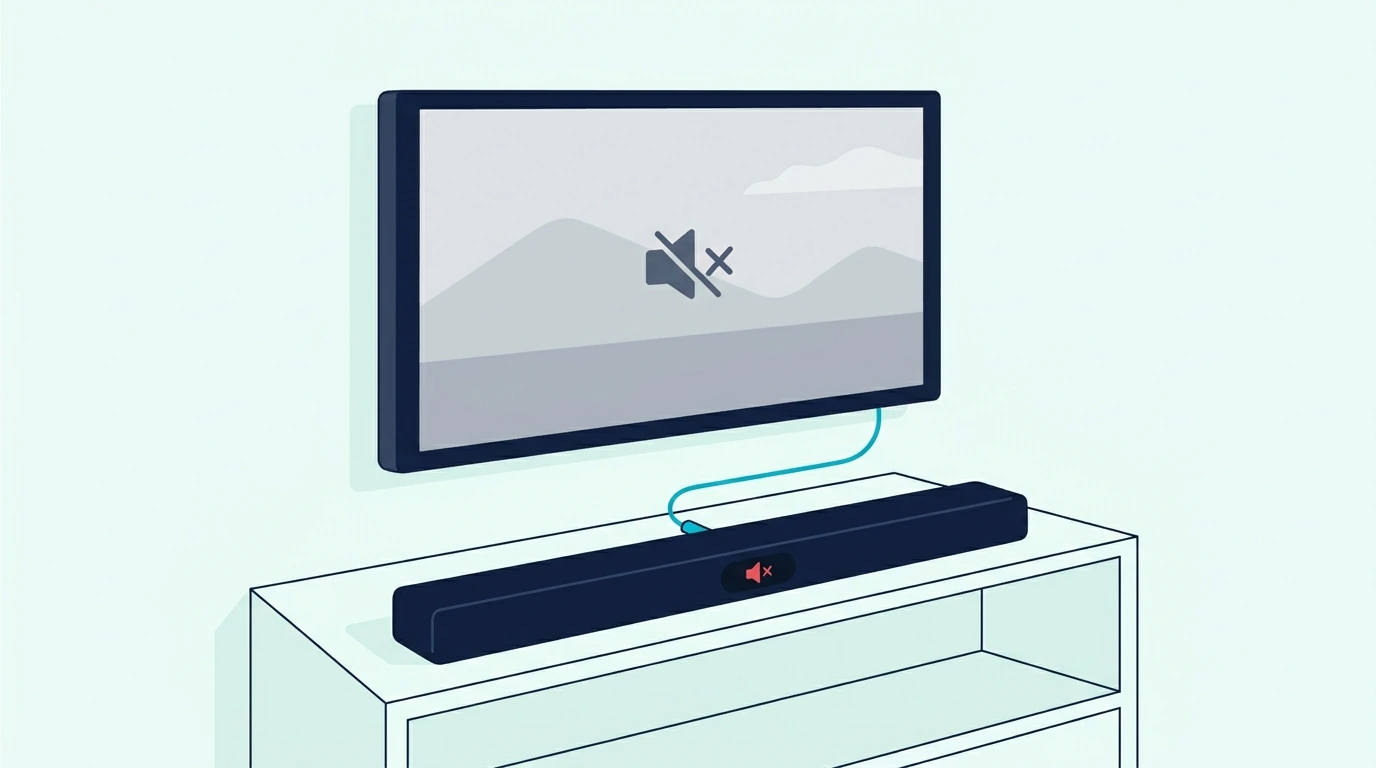
No sound means you should isolate one part of the setup at a time.
First, confirm the soundbar input is optical.
This sounds obvious, but it is the most common soundbar-side mistake.
Second, confirm the Hisense TV is not still set to internal speakers only.
Some TVs keep the speakers active even with an optical cable connected.
Third, set digital audio output to PCM and test again.
If PCM works but Auto or Dolby Digital does not, the issue is format support, not the cable.
Fourth, try a different TV source.
Use the built-in YouTube, Netflix, or live TV app if available, then test the HDMI source later.
A cable box, game console, or streaming device can have its own audio setting that confuses the first test.
Fifth, power-cycle both devices.
Unplug the Hisense TV and soundbar from power for one minute, reconnect the TV first, then reconnect the soundbar.
This clears stuck output states without wiping every setting.
If optical still fails, reseat the cable and inspect both ends.
Optical cables can pass light even when the connector is not seated well enough for stable audio.
If nothing changes after every check above, a soundbar power reset can clear a stuck input state, and the soft-reset-first, factory-reset-last escalation covers the safe sequence so you do not lose pairings before you have to.
If you have another optical source or another optical cable, test one variable at a time.
Do not change the cable, soundbar input, Hisense output, and audio format all at once.
If the soundbar works from another optical source, the TV setting is still the likely problem.
If the soundbar fails from every optical source, the soundbar optical input may be the issue.
The input-swap test — change source device, swap to a known-good TV, try a different cable is the better next step once you know the failure is not only Hisense optical setup.
Why Does Optical Work But The Hisense Remote Will Not Control Volume?
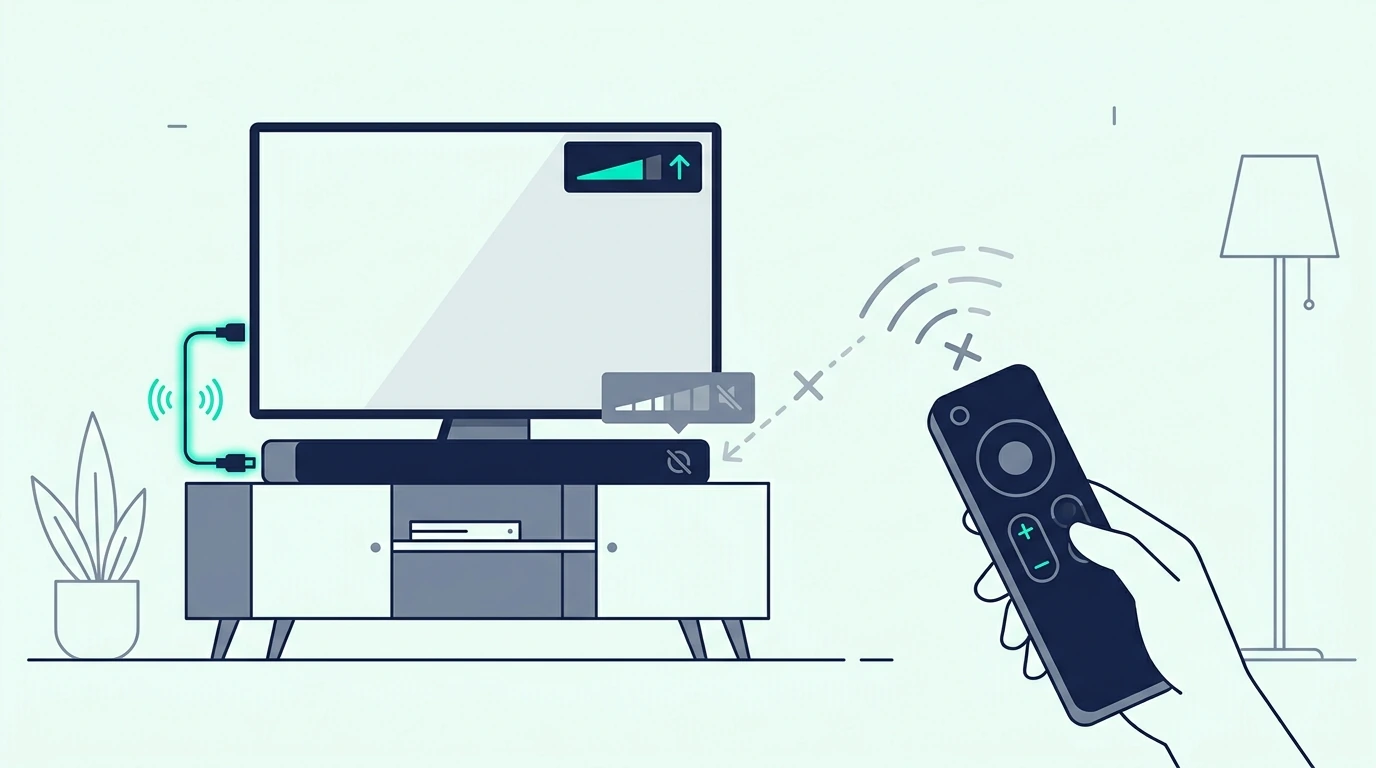
Optical carries audio only.
It does not carry TV remote volume commands the way HDMI ARC can.
That means many Hisense optical setups require the soundbar remote for volume.
This is normal, not a setup failure.
Some soundbars can learn IR commands from the Hisense remote.
If your soundbar has IR learning, follow the soundbar manual to teach it volume up, volume down, and mute.
Some universal remotes can also control both devices.
If you mostly use the TV to play music and only need volume control from a phone, switching the music to a Bluetooth soundbar connection sidesteps the optical remote limitation for streaming.
But the optical cable itself will not add that control layer.
If one-remote control matters more than optical stability, use HDMI ARC when both devices support it.
Connect the HDMI cable to the Hisense port labeled ARC or eARC and the soundbar’s ARC or eARC port.
An eARC-rated HDMI cable fits that alternative setup, and turning on HDMI-CEC, confirming the ARC-labeled port, and setting TV Sound Out to external is the enable sequence on both ends.
If ARC creates dropouts, power issues, or input confusion, optical may still be the better daily choice even with a second remote.
That is the practical tradeoff.
Optical gives stable audio with simpler behavior.
HDMI ARC gives easier control when the TV and soundbar cooperate.
Why Is Hisense Optical Audio Out Of Sync Or Only Stereo?
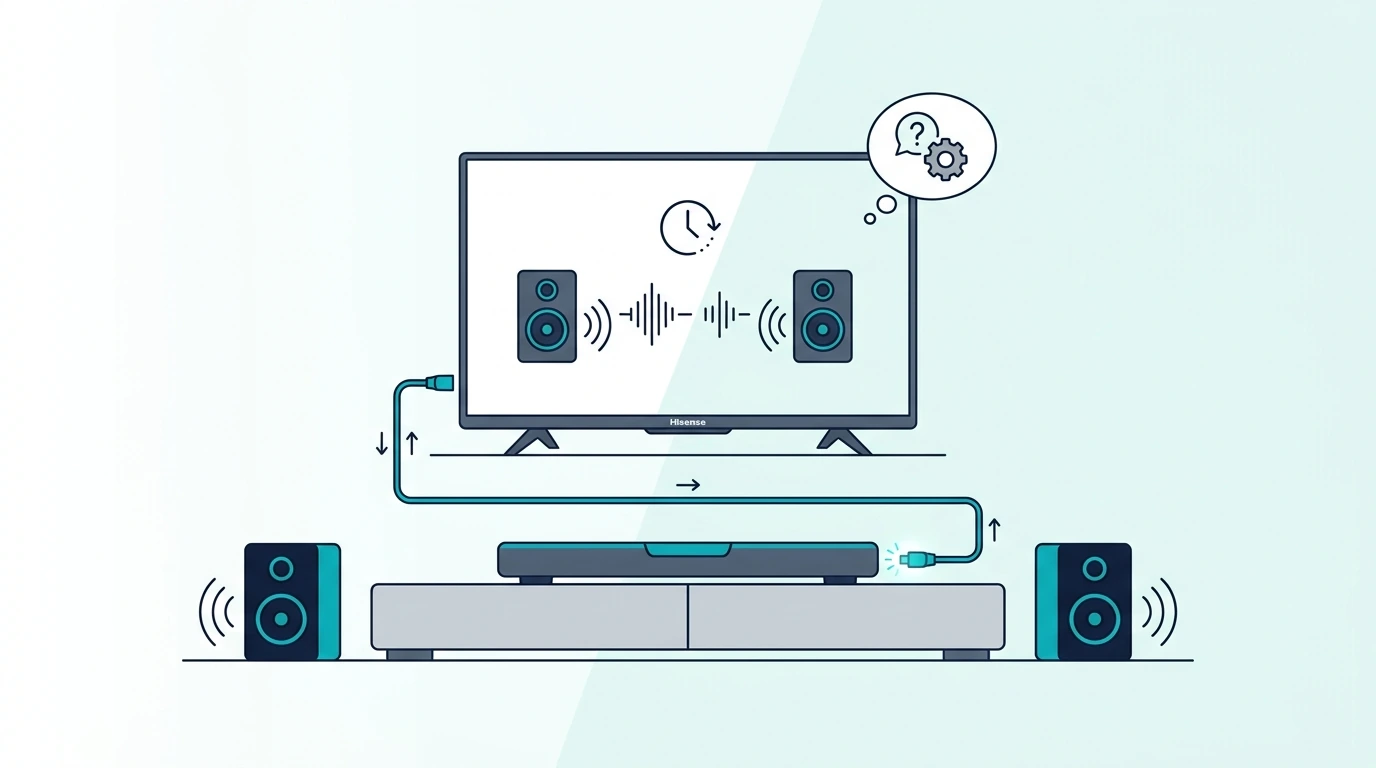
Optical should usually have better sync than Bluetooth, but settings can still create delay.
Start by turning off extra TV sound processing.
Disable virtual surround, volume leveling, dialogue enhancement, and heavy audio processing during the first test.
Then check whether the soundbar has its own audio delay or lip-sync setting.
Set delay to zero, test a familiar dialogue scene, then adjust slowly if needed.
If the soundbar receives only stereo, check the Hisense digital audio format.
PCM over optical is often stereo.
That is why PCM is best for proving the connection but not always the final choice for surround.
If your soundbar supports Dolby Digital over optical, try Auto, Dolby Digital, bitstream, or passthrough after stereo PCM works.
If the bar still reports stereo, the source app, HDMI device, or TV may be outputting stereo before the optical stage.
Optical can carry Dolby Digital 5.1, but it cannot carry the newest high-bandwidth formats.
It will not carry full Dolby Atmos, Dolby TrueHD, or other modern high-data TV audio formats.
If your goal is Atmos or higher-end surround from a newer Hisense TV, HDMI eARC is the better target.
For a basic 2.0, 2.1, or 3.1 soundbar, optical is usually enough.
A second known-good HDMI lead can help only if you decide to compare ARC against optical.
For that kind of test, a two-pack of fresh HDMI 2.1 cables is more useful than swapping random old cables.
Use it only after optical is already proven or after you choose ARC instead.
Should You Use Optical Or HDMI ARC On A Hisense TV?
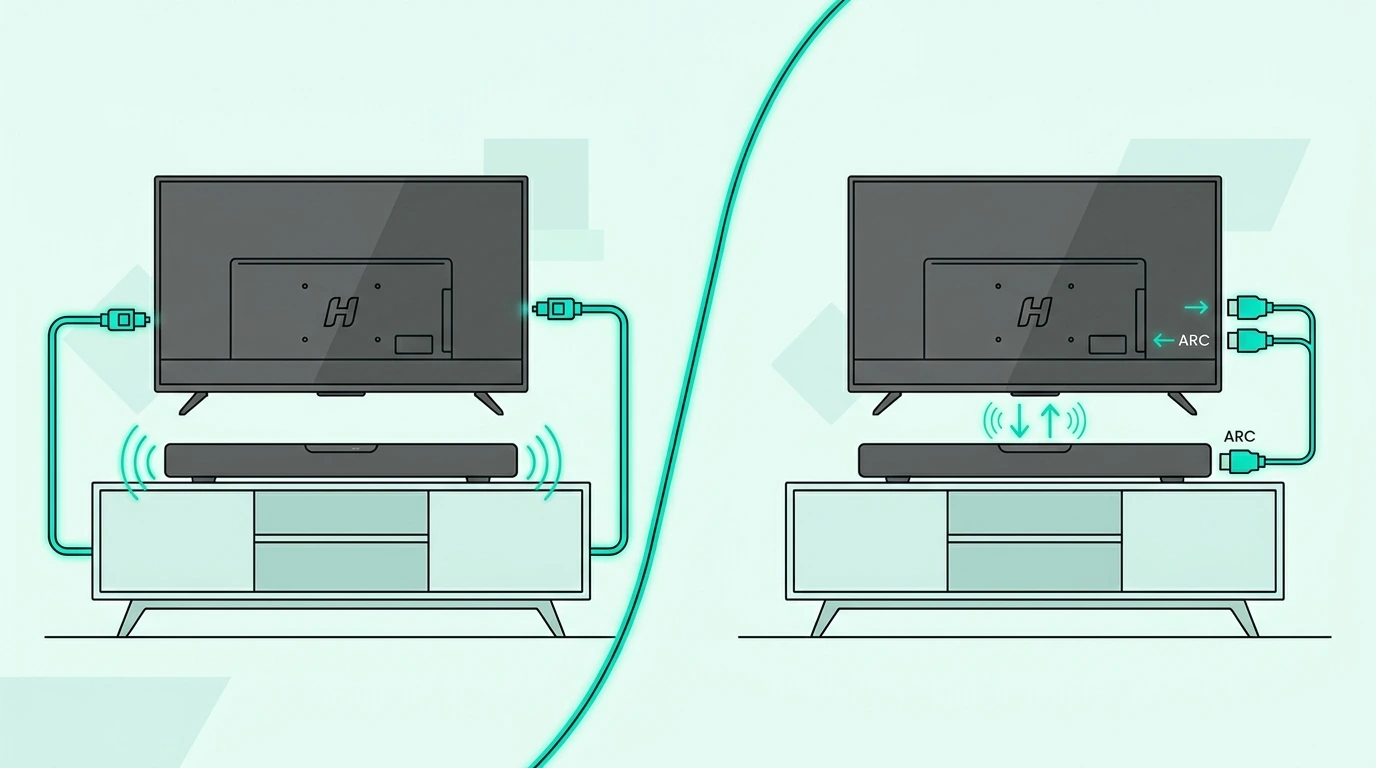
Use optical when you want the most predictable wired fallback.
It is especially useful on older Hisense TVs, simple soundbars, bedrooms, rentals, and setups where ARC keeps losing the soundbar after the TV wakes up.
Use HDMI ARC when you want TV-remote volume control, automatic power behavior, and a cleaner one-cable setup.
Use HDMI eARC when the TV and soundbar both support newer surround formats that optical cannot carry.
The right answer depends on what problem you are solving.
If the problem is no sound and you just need the soundbar working today, optical is often the fastest clean fix.
If the problem is daily convenience after the audio already works, ARC may be worth setting up.
Do not connect optical and HDMI ARC at the same time during troubleshooting.
Many soundbars will switch inputs or choose the wrong source, which makes the problem harder to read.
Pick one connection, make it work, then decide whether to compare the other.
The brand-neutral HDMI ARC, optical, and Bluetooth setup paths cover every connection type if your TV brand changes or you are advising a non-Hisense setup.
This Hisense page is for the specific optical setup where the old redirect currently misses the user’s real task.
If You Want A Soundbar With Both Optical And HDMI ARC
If the optical path keeps fighting the Hisense menus and you still want TV-remote volume control later, the cleanest fix is a soundbar that gives you both options on one bar.
The most popular pick on this list is the Polk Audio Signa S2 Sound Bar with Wireless Subwoofer because it includes both optical and HDMI ARC plus a long history of positive reviews on Hisense pairings.
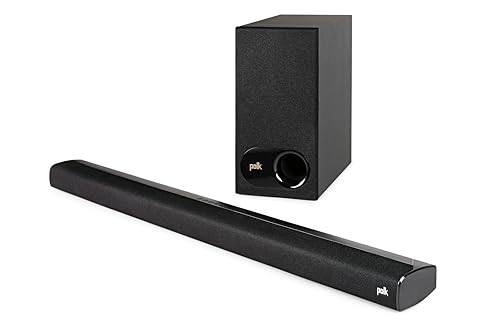
Polk Audio Signa S2 Sound Bar with Wireless Subwoofer
For a 5.1-channel Dolby Atmos pick at a moderate price, the ULTIMEA 5.1CH Surround Sound Bar with Subwoofer upgrades the surround coverage when you watch more movies than live TV.
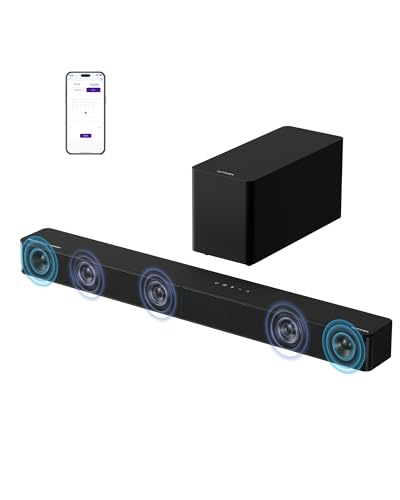
ULTIMEA 5.1CH Surround Sound Bar with Subwoofer
If you want a compact 3.1-channel all-in-one that handles Dolby Atmos without a separate subwoofer, the Amazon Fire TV Soundbar Plus with built-in subwoofer fits Fire TV-friendly Hisense setups.
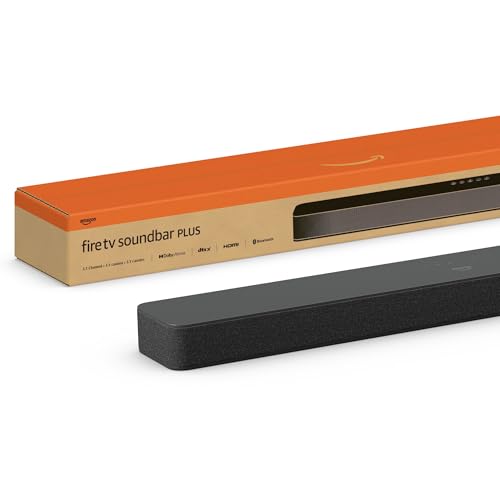
Amazon Fire TV Soundbar Plus with built-in subwoofer
A budget 2.1 pick is the ULTIMEA 2.1 Sound Bar with Wireless Subwoofer, 240W when the priority is keeping the Hisense setup simple at a lower cost.
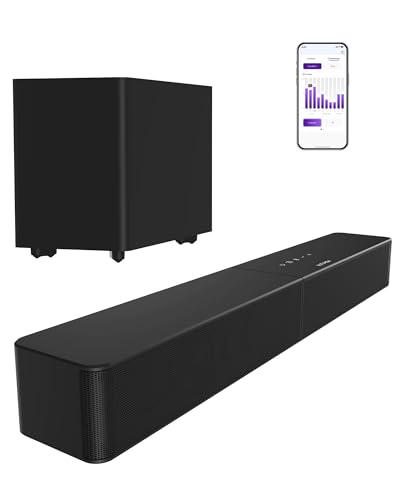
ULTIMEA 2.1 Sound Bar with Wireless Subwoofer, 240W
The Bottom Line
Connect a soundbar to a Hisense TV with optical by doing the job in the right order.
Plug the optical cable from Hisense Digital Audio Out to the soundbar Optical In.
Set the soundbar to Optical, D.IN, or Digital In.
Then change the Hisense audio output to external, optical, SPDIF, receiver, or digital audio out.
If there is no sound, set digital audio format to PCM first.
After sound works, try Auto, Dolby Digital, or passthrough only if the soundbar supports those formats.
Optical is stable and simple, but it does not give Hisense remote volume control or the newest high-bandwidth surround formats.
If you need those features, compare HDMI ARC or eARC after the optical setup is proven.
If you need the broader soundbar setup map, start from the soundbar hub and choose the connection that matches your actual ports.
Frequently Asked Questions
How do I get my Hisense TV to play through my soundbar with optical?
Connect the optical cable from the Hisense Digital Audio Out port to the soundbar Optical In port, set the soundbar input to Optical or D.IN, then change the TV sound output to optical, external speaker, audio system, or digital audio out.
If there is no sound, set digital audio format to PCM first.
Why is my Hisense TV optical output not working?
The usual causes are the TV still using internal speakers, the soundbar on the wrong input, the digital audio format set to something the bar cannot decode, or an optical cable that is not fully seated.
Start with PCM and one known-good TV source.
Should Hisense digital audio output be PCM or Auto?
Use PCM first when troubleshooting because almost every soundbar can decode it.
After basic sound works, try Auto, Dolby Digital, bitstream, or passthrough if your soundbar supports surround over optical.
Can I control soundbar volume with a Hisense remote over optical?
Usually no.
Optical carries audio only, not volume-control commands.
Use the soundbar remote, IR learning if the soundbar supports it, or HDMI ARC if one-remote control matters.
Is optical better than HDMI ARC on a Hisense TV?
Optical is often more stable and simpler when ARC causes dropouts or setup problems.
HDMI ARC is more convenient when it works because it can add TV-remote volume control and automatic power behavior.