Using Maschine as a MIDI Controller: Models, Modes and DAWs
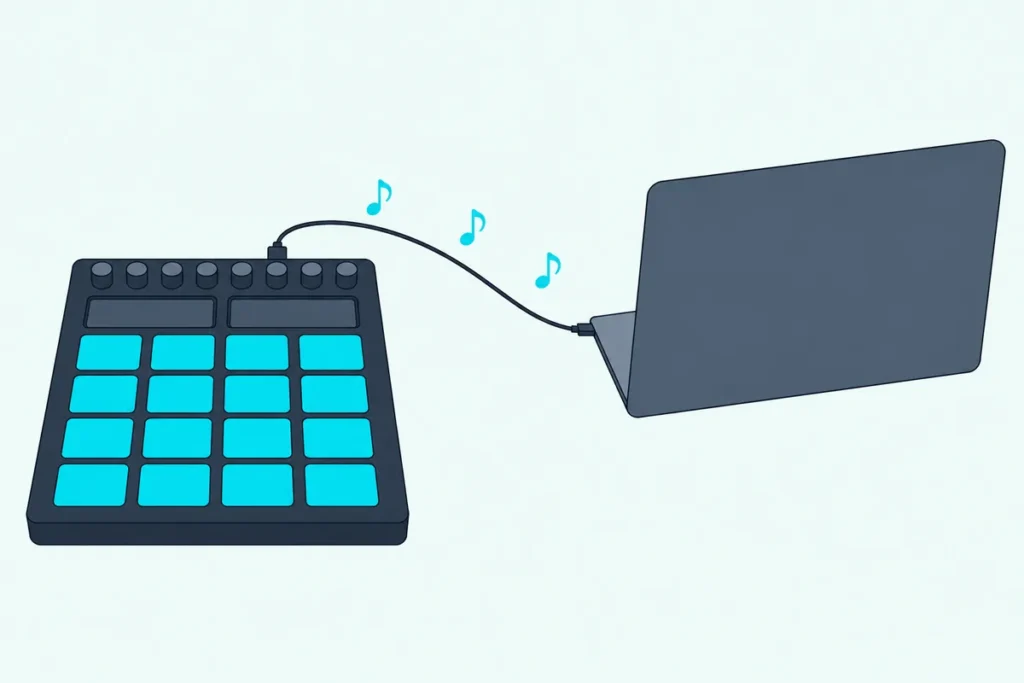
You can use Maschine as a MIDI controller on every model from the first MK1 to the Maschine+, but until you switch modes it only talks to Native Instruments’ own software.
So you plug it into Ableton Live or FL Studio, hit a pad, and the DAW’s MIDI light stays dark, because the controller is still speaking NI’s native protocol instead of MIDI.
One button combination switches it to MIDI mode, and from there the same pads can play your DAW’s instruments, run its transport or drive a hardware synth.
This guide follows Native Instruments’ own manuals and support articles, plus Ableton’s, Apple’s and Image-Line’s documentation, and names the model and software version behind each step.
Start with the four steps below, then find your model’s button combination in the table that follows them.
How to Use Maschine as a MIDI Controller in Four Steps
These four steps hold for every Maschine with a MIDI mode, which NI’s Controller Editor manual describes as the mode where the controller “can control any MIDI target(s) available (software or hardware)” (Native Instruments). You use Maschine as a MIDI controller by switching it to MIDI mode, choosing what its controls send and turning on its virtual MIDI port in your DAW.
| Step | What you do | How you know it worked |
|---|---|---|
| 1. Install | Install the Maschine software and Controller Editor | Controller Editor appears under Applications > Native Instruments (Mac) or Program Files > Native Instruments (Windows) |
| 2. Switch | Press your model’s MIDI mode combination | Specific LEDs dim; on the MK3 the SHIFT button glows dimly |
| 3. Map | Pick a template in Controller Editor, or keep the default map | Controller Editor’s Connect button lights up |
| 4. Enable | Turn on the Maschine’s virtual input in your DAW | The DAW’s MIDI indicator flashes when you hit a pad |
The DAW side is the same routine as how to use a MIDI controller in any DAW, with NI’s virtual port in place of a USB device name.
Can Every Maschine Switch to MIDI Mode?
That second step is the one that changes by model, and NI’s MIDI mode article lists a combination for nine Maschine models. Yes, every Maschine on that list can switch, and NI says a controller missing from it can’t be switched to MIDI mode at all (Native Instruments).
| Model | MIDI mode combination | 5-pin MIDI ports | Works with Maschine 3 |
|---|---|---|---|
| Maschine MK1 | SHIFT + CONTROL | Yes | No, Maschine 2 only |
| Maschine MK2 | SHIFT + CONTROL | Yes | No, Maschine 2 only |
| Maschine MK3 | SHIFT + CHANNEL (MIDI) | Yes | Yes |
| Maschine Mikro (first model) | SHIFT + F1 | No | No |
| Maschine Mikro MK2 | SHIFT + F1 | No | No |
| Maschine Mikro MK3 | SHIFT + Project button (the Maschine logo) | No | Yes |
| Maschine Studio | SHIFT + CHANNEL | Yes | Yes |
| Maschine Jam | SHIFT + headphones button (MIDI) | No | Yes |
| Maschine+ | SHIFT + CHANNEL (MIDI), in Controller mode | Yes | Yes |
The ports column comes from NI’s MIDI routing article, which says the three Mikros and the Jam have no 5-pin ports, and the last column from NI’s Maschine 3 FAQ (Native Instruments).
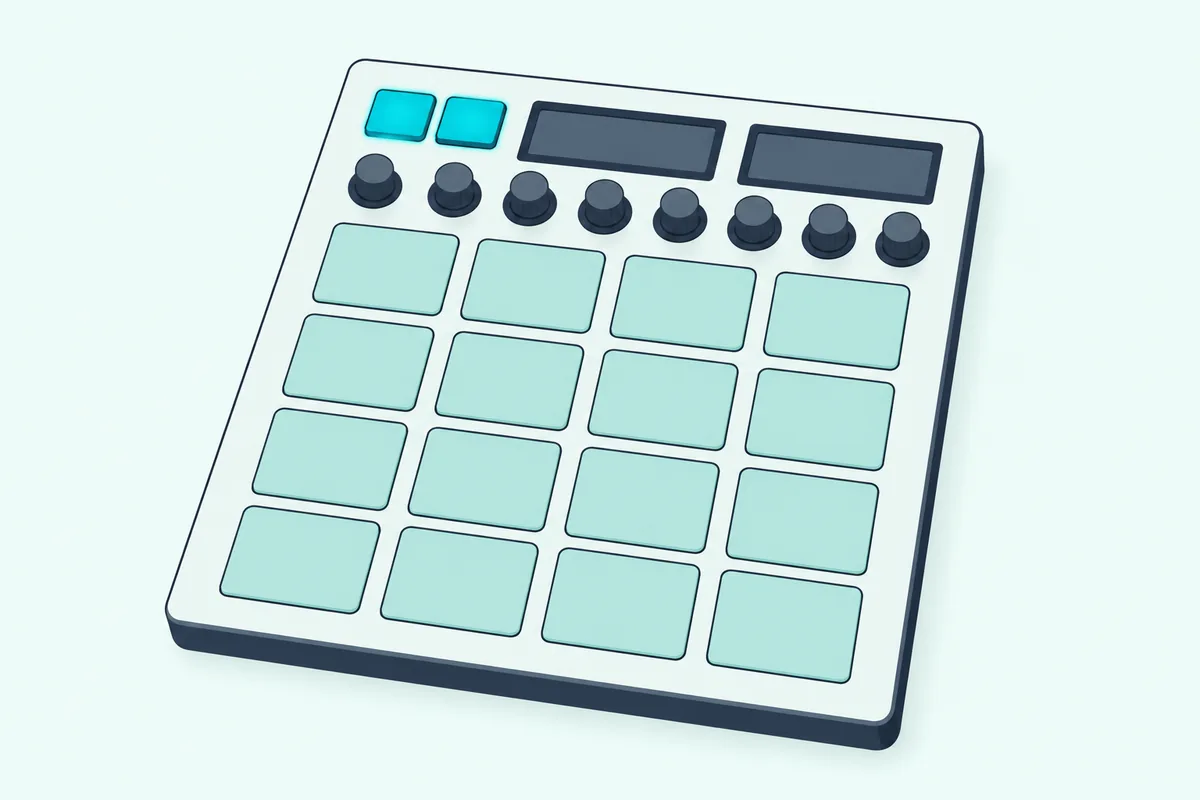
NI says MIDI mode dims specific LEDs, and models with displays, such as the Mikro, show MIDI messages like CC48. Launching Controller Editor also switches a connected controller to MIDI mode, but only while the Maschine software is closed; otherwise it stays in native mode until you click Connect.
The Maschine+ needs one extra step, because NI says it must be in Controller mode first. Switch it on, connect it by USB, press SETTINGS, open the System tab and press Button 4 (CONTROLLER), then use the combination (Native Instruments).
Get Studio Tips Weekly
Join 5,000+ creators getting acoustic treatment advice every week.
No spam. Unsubscribe anytime.What Decides What Each Pad and Knob Sends?
Once those LEDs dim, the controller sends whatever its template says. On the MK3, NI’s manual says the controls are mapped according to “the MIDI template selected in the Controller Editor software,” while the Mikro MK3’s manual describes “a fixed implementation of MIDI Control Change messages” (MK3 manual, Mikro MK3 manual).
Controller Editor is NI’s free app for custom MIDI assignments and templates (Native Instruments). Its manual, version 2.2.0, says every MK3 control is assignable except SHIFT, the Page buttons and, with pad pages on, the Group buttons, and each of the eight knobs takes two assignments, one for turning and one for touching.
On the MK3, SHIFT + the Page buttons changes templates, the Page buttons alone change knob pages and the Group buttons change pad pages. An MCU Mode setting also lets the MK3’s displays show Mackie Control feedback from your DAW.
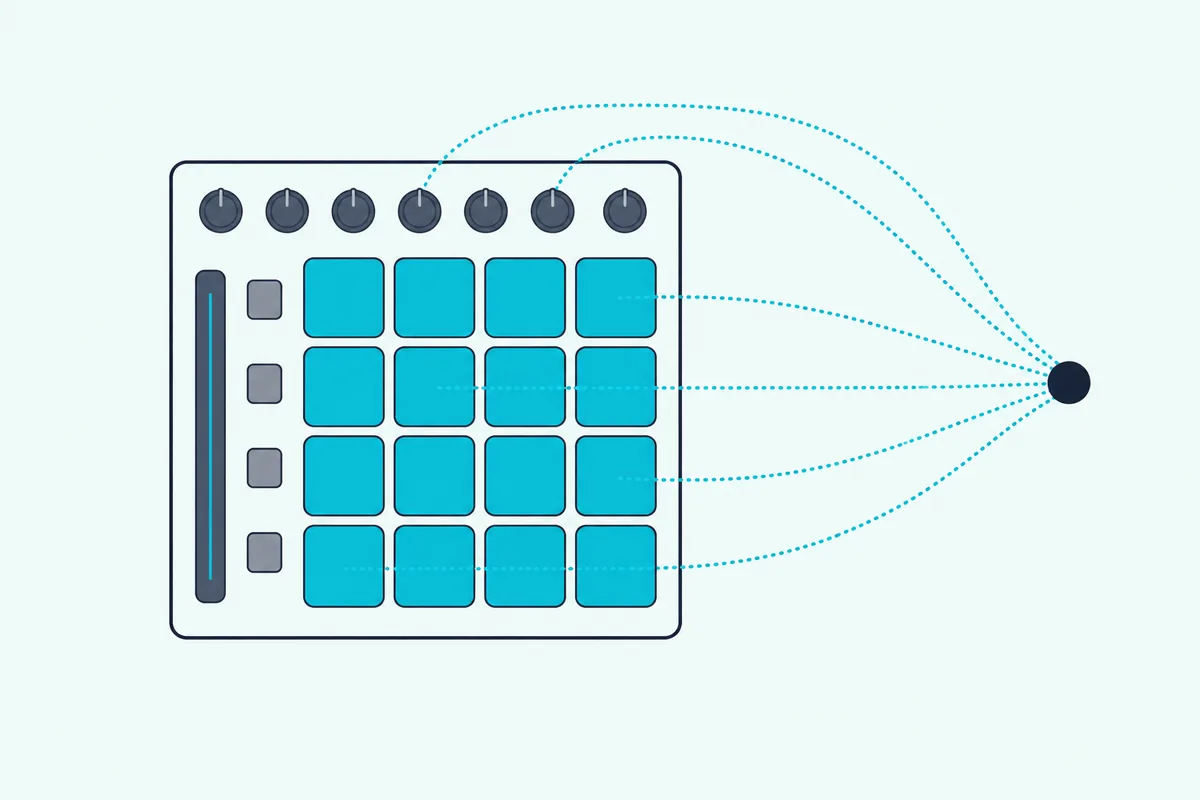
| Control on the Mikro MK3 | What it sends in MIDI mode, per NI’s manual |
|---|---|
| Pads 1 to 16 | Notes C1 (pad 1, bottom left) to D#2 (pad 16, top right) |
| Smart Strip | Control Change 1 |
| Play, Rec and Stop | Control Change 57, 58 and 59 |
| Encoder | Control Change 7 and 8 |
| Other buttons | Control Change 34 to 92 |
That fixed map isn’t the whole story, because NI’s own Logic Pro article edits a Mackie Control template for the Mikro MK3 in Controller Editor. One limit covers the family, though: the Controller Editor manual says Maschine controllers send MIDI-mode messages only through their internal, virtual port.
How Do You Set Up Maschine in Ableton Live?
Ableton Live is where those templates matter most, and NI’s instructions for Live 12.1 and later split by model. The MK3 becomes a Live control surface through NI’s MIDI Remote Script with no MIDI mode involved, while the MK2, Mikro MK2, Studio and Jam use a Live 12 template in MIDI mode (Native Instruments).
For the MK3, quit Live and copy the _NativeInstruments and Maschine_Mk3 folders from NI’s “Maschine MK3 – Live 12” download into Live’s MIDI Remote Scripts folder. On a Mac that’s inside the app (Show Package Contents, then Contents > App-Resources > MIDI Remote Scripts), and on Windows it’s C:\ProgramData\Ableton\Live 12\Resources\MIDI Remote Scripts.
Then open Live’s Settings (Ctrl+, or Cmd+,), pick Maschine MK3 from the drop-down in a free Control Surface slot on the Link, Tempo & MIDI tab and leave its Input and Output on None. NI says the MK3 switches to Live by itself when no other Maschine instance is open; otherwise press SHIFT + PLUG-IN and choose Ableton Live as the instance.
The other four models copy their own script folder, load a .ncmst template in Controller Editor with File > Open Template and use their virtual ports in Live’s Control Surface row, then switch to MIDI mode and pick the Live 12 template on the controller. NI says there’s no official template for the Mikro MK3, though user-made ones exist online.
Without any template, a Maschine in MIDI mode still plays notes into Live once Track is on for its input port, which Ableton’s manual says lets Live receive notes and CC messages (Ableton). Ableton also warns that pads mapped to Live controls stop playing notes, which matters if you follow our walkthrough for pairing two controllers in Live (Ableton).
Does Logic Pro Need Any Setup for Maschine?
Logic is simpler than Live for the MK3, though older models take more steps. Not for the MK3: NI says Logic Pro configures itself once the Maschine software is installed and the controller is connected and switched on before Logic launches (Native Instruments).
The MK3 manual adds that Logic asks whether the “OSC app Maschine” may connect, and you click OK. On Apple Silicon, NI says that integration needs Logic Pro 10.6 or newer, and its fix for a lost connection swaps the Maschine MK3.bundle file for NI’s MIDI Device Scripts (Native Instruments).
NI’s Logic article sets up the Mikro MK3, Mikro MK2, MK2 and Studio as Mackie Control devices instead. Load the Mackie Control template in Controller Editor and enable Host Transport Control, which the Controller Editor manual says works only while Maschine runs as a plug-in.
In Logic, choose Logic Pro > Control Surfaces > Setup, then New > Install, pick Mackie Designs and Mackie Control, click Add and set the Input Port to your Maschine’s virtual input. Apple’s guide uses the same Setup and New > Install steps for its HUI setup (Apple) and says its Mackie Control pages also cover devices with a Mackie Control emulation mode (Apple).
NI warns that the pads don’t trigger notes in Mackie Control mode by default, so it suggests a pad page that assigns them from C1 to D#2. On the Mikro MK3 the Rec button also starts unassigned until you set it to MCU Button with Parameter ID 95.
Which Port Does Your DAW Show for Maschine?
That Input Port menu is where most people first meet NI’s port names, and every DAW asks for the same choice. Your DAW lists a port named after your model, and NI’s Studio One article gives each one for both systems (Native Instruments).
| Model | Port name on a Mac | Port name on Windows |
|---|---|---|
| Maschine MK3 | Maschine MK3 Virtual Input | Maschine MK3 Ctrl MIDI |
| Maschine MK2 | Maschine MK2 Virtual Input | Maschine MK2 In |
| Maschine MK1 | Maschine Controller Virtual Input | Maschine Controller In |
| Maschine Mikro MK3 | Maschine Mikro MK3 | Maschine Mikro MK3 |
| Maschine Mikro MK2 | Maschine Mikro MK2 Input | Maschine Mikro MK2 In |
| Maschine Studio | Maschine Studio Virtual Input | Maschine Studio In |
| Maschine Jam | Maschine Jam – 1 Input | Maschine Jam – 1 Input |
| Maschine+ | Maschine Plus Virtual | Maschine Plus Virtual |
Each DAW turns that port on in its own settings, and NI’s articles give the path for each one.
| DAW | Where NI says to turn the Maschine on |
|---|---|
| Ableton Live | Settings, Link, Tempo & MIDI: a Control Surface slot, or Track on for the input port |
| Logic Pro | Automatic for the MK3; Control Surfaces > Setup with Mackie Control for the other models NI covers |
| FL Studio | Options > MIDI settings: select the Maschine, set the Controller type to “(generic controller)”, press Enable |
| Cubase | Studio > Studio Setup > MIDI Port Setup (under Devices > MIDI): tick “In ‘All MIDI Inputs'” for the Maschine |
| Pro Tools | Setup > MIDI > MIDI Input Devices: make sure the Maschine is enabled |
| Studio One | Preferences > External Devices > Add > Mackie > Control, with the Maschine in Receive From and Send To |
In FL Studio, Image-Line’s manual says the MIDI activity light blinks with each note once the device is enabled (Image-Line), and our page on how to assign MIDI controls in FL Studio covers linking the knobs. For FL’s transport, NI sets the Controller type to Mackie Control Universal, except on the MK1, the first Mikro and the Jam, which use an FL Studio template (Native Instruments).
How Do You Record Maschine Pads as MIDI Notes?
Those ports also carry a workflow NI documents for Pro Tools, FL Studio, Cubase and Ableton Live: getting pad hits into the DAW’s own sequencer. NI’s answer is to load Maschine as a plug-in on a record-enabled track, set the Group’s MIDI input (Channel icon, Group > Input) to Key Mode “Manual” and Source “Host,” switch the controller to MIDI mode and play (Native Instruments).
On the MK3 and Mikro MK3, NI says the pads already sit in the right octave; on other models, press Group button C so the pads play C1 to D#2, or hold GROUP and press pad 15 on the first two Mikros. The MK3 manual adds a route that skips MIDI mode: set a Sound’s MIDI output destination to Host, and the Maschine plug-in forwards that Sound’s MIDI, pad hits included, to the DAW.
Can Maschine Play a Hardware Synth?
That host route stays inside the computer, and so does MIDI mode, which is the catch with outboard gear. Yes, but not straight from MIDI mode, because the Controller Editor manual says Maschine controllers send those messages only through their internal, virtual port.
NI’s own workaround routes the virtual port back out of the controller’s 5-pin MIDI OUT with MidiPipe on a Mac or MIDI-OX on Windows, two third-party apps NI says it has tested but can’t fully guarantee (Native Instruments). You need the computer running, a USB connection and a 5-pin cable, and NI says the setup doesn’t apply to the three Mikros or the Jam, which have no 5-pin ports.
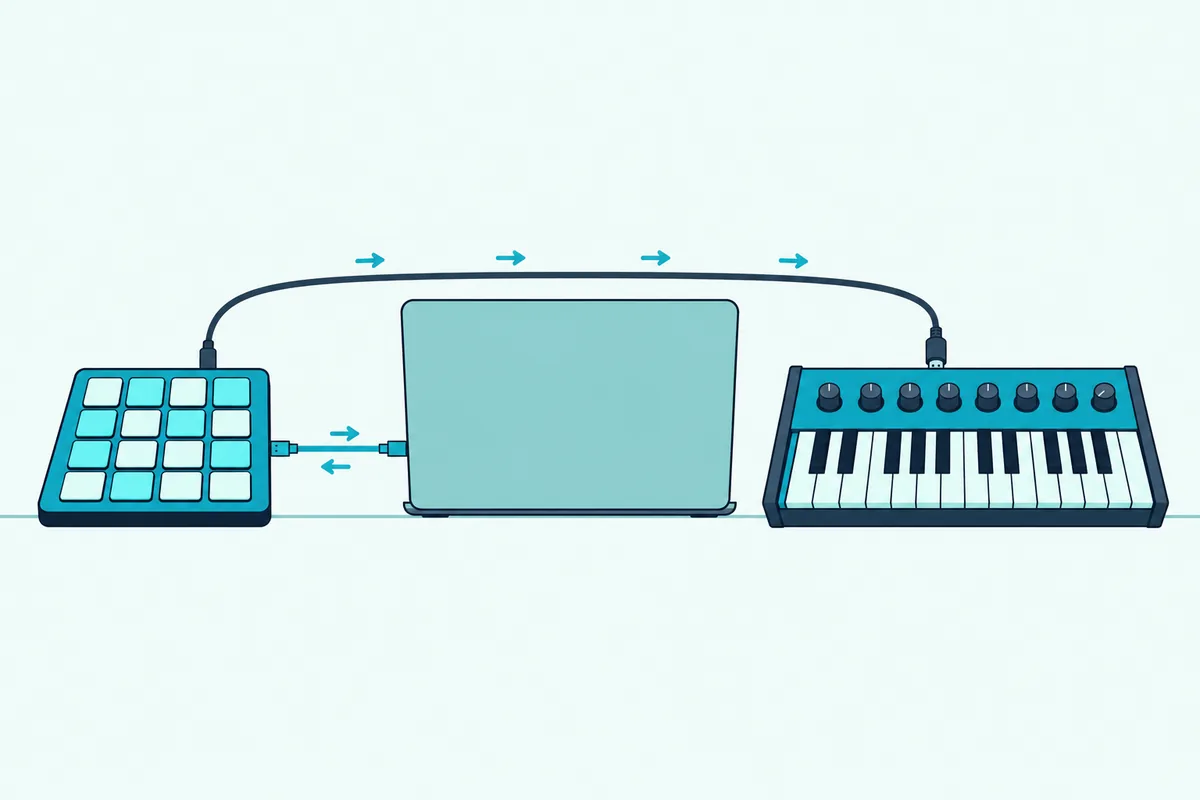
The Maschine software can also send MIDI itself, since the MK3 manual says a Sound with a MIDI output plays its pattern notes and your pad hits to an active MIDI output port. NI’s MIDI presets for external synths and drum machines need Maschine 2.6.0 or later.
The Maschine+ does it without a computer: NI lists MIDI In and Out and two USB ports for MIDI controllers, and its support article routes a Sound to “Maschine Plus MIDI 1 (Output)” to play an external synth from the Maschine+ itself (Native Instruments).
Why Won’t Maschine Send MIDI?
Those setups fail in a handful of predictable places, and NI’s articles name a fix for each one. Check the controller’s mode first and the DAW’s port second, because nothing else works until both are right.
| What you see | Likely cause | What to do |
|---|---|---|
| Pads still drive the Maschine software | The controller is in native mode | Press your model’s combination and check that the LEDs dim |
| Controller Editor opens, but nothing changes | The Maschine software is running | Close it, or click Connect in Controller Editor |
| “Hardware Controller Support is not running” | Controller Editor’s install is damaged | Disconnect the controller, restart, quit audio apps, reinstall Controller Editor, restart, reconnect |
| The DAW receives nothing | The Maschine’s port is off | Turn it on with the DAW table above |
| Pads trigger the wrong Maschine sounds | The pads are in the wrong octave | Press Group button C on models other than the MK3 and Mikro MK3 |
| Pads are silent in Logic’s Mackie mode | The template turned them into commands | Add a notes pad page in Controller Editor |
| A hardware synth stays silent | MIDI mode uses only the virtual port | Route it with MidiPipe or MIDI-OX, on a model with 5-pin ports |
Start at the top, because the first two rows decide whether the controller is in MIDI mode at all (Native Instruments).
Which Maschine Works Best as a MIDI Controller?
Those fixes also show where the three models in NI’s current lineup differ: the Maschine (MK3), the Maschine Mikro (MK3) and the Maschine+. The MK3 does the most, with Controller Editor templates, MIDI In and Out and NI’s host integration for Live and Logic.
For the most control in a DAW, the Native Instruments Maschine MK3 gives you the template system, the 5-pin ports and the remote script for Live 12.
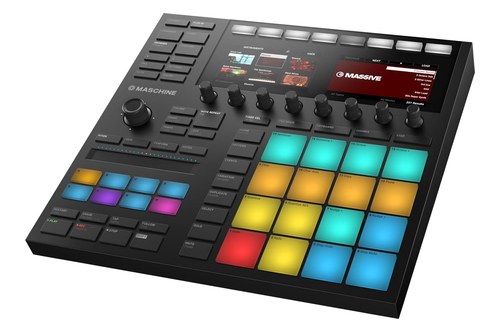
the Native Instruments Maschine MK3
For the smallest setup, the Native Instruments Maschine Mikro MK3 plays notes into your DAW in MIDI mode, and Burton Acoustix’s drum pad MIDI controller picks cover plain pad controllers if you’ll never open Maschine at all.
the Native Instruments Maschine Mikro MK3
For hardware without a computer, the Native Instruments Maschine+ sequences outboard gear on its own and still works as a classic controller when you plug it into a computer.
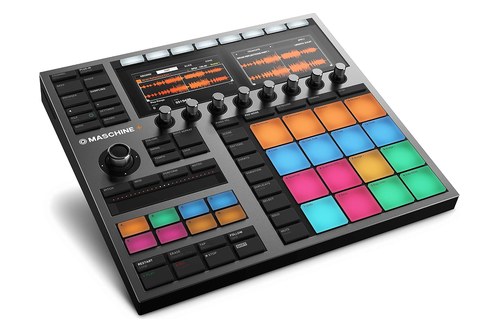
the Native Instruments Maschine+
The Bottom Line
Every Maschine can act as a MIDI controller: press your model’s combination, pick a template in Controller Editor and turn on its virtual port in your DAW.
For hardware synths, remember that MIDI mode stays inside the computer, so use NI’s routing apps, the Maschine software’s MIDI output or a Maschine+.
Frequently Asked Questions
Can the Maschine Mikro MK3 be used as a MIDI controller?
Yes. Press SHIFT and the Project button, the one with the Maschine logo, and NI’s manual says the Mikro MK3 sends a fixed map of notes and Control Change messages, with the pads playing C1 to D#2. It has no 5-pin MIDI port, so it only reaches software on the computer.
How do you turn on MIDI mode on the Maschine MK3?
Press SHIFT + CHANNEL (MIDI). The SHIFT button glows dimly, and the controls follow the template selected in Controller Editor; SHIFT + the Page buttons switches templates from the hardware.
Does the Maschine+ have a MIDI mode?
Yes, in Controller mode. Connect it by USB, press SETTINGS, open the System tab and press Button 4 (CONTROLLER), then press SHIFT + CHANNEL (MIDI). To return to standalone mode, press Button 4 (STANDALONE) on the same tab, or hold FILE (Save) for 10 seconds if no computer is around.
Do you need the Maschine software to use MIDI mode?
It doesn’t have to run. The MK3 manual says MIDI mode controls other MIDI devices independently of the Maschine software, and Controller Editor only switches a controller automatically while that software is closed. The Controller Editor manual does assume the controller’s drivers and Controller Editor are installed.
Does Maschine 3 work with the MK1 or MK2?
No. NI says Maschine 3, launched on November 6, 2024, doesn’t support the MK1, MK2 or the first two Mikros, and it stopped maintaining them that day. They still work with Maschine 2, which NI updated for Apple Silicon, VST3 and macOS Sonoma, and their MIDI mode combinations are still on NI’s list.
Does Maschine work without a computer?
Only the Maschine+. NI’s product page calls it a standalone instrument with no computer necessary, though setup needs Wi-Fi and your Native ID. NI lists the MK3 and Mikro MK3 as USB-powered controllers.