How to Connect a DJ Controller to an Audio Interface and Keep Cueing
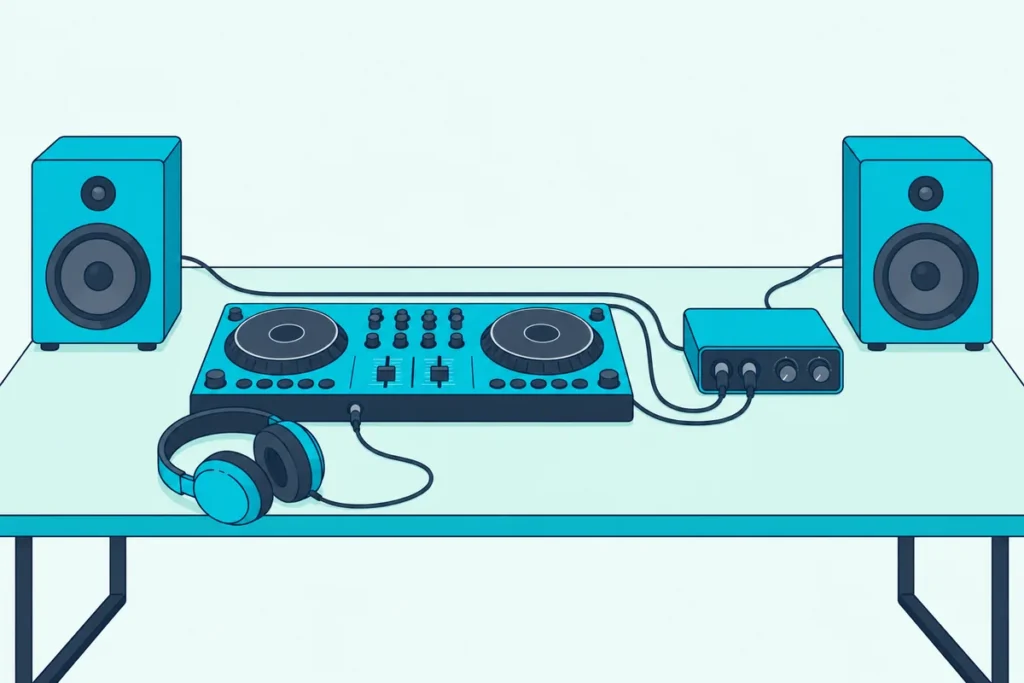
Here’s how to connect a DJ controller to an audio interface: run the controller’s master output into the interface’s line inputs, or choose the interface as your DJ software’s sound card.
Pick the wrong setup and you hear every track twice, a split second apart, or your headphones play the speaker mix and cueing stops working.
Get it right and the interface records, streams or drives your studio monitors while your headphone cue works the way it does on the controller alone.
Start with the back panel, since a DDJ-FLX4 has its own sound card and RCA master jacks while a DDJ-200 or Traktor X1 MK3 has no audio outputs at all.
The sections below match your gear to a route, then cover the cables, the rekordbox, Serato, Traktor and VirtualDJ settings, and the fixes for echo, hum and lag.
How to Connect a DJ Controller to an Audio Interface: Two Routes
Those two routes differ in one thing that matters all night: which device handles your headphone cue, the controller or the interface.
| Route | Use it when | How it’s wired | Where you cue |
|---|---|---|---|
| 1. Controller into the interface | The controller has its own sound card (DDJ-FLX4) and you want to record, stream or use monitors already on the interface | The controller’s master output into the interface’s line inputs | The controller’s own headphone jack |
| 2. Interface as the sound card | The controller has no audio outputs (DDJ-200, Traktor X1 MK3), or you want the interface’s outputs instead | Both on USB to the computer, speakers on the interface, the DJ software set to the interface | Headphones on the interface, which needs four outputs to cue |
Mixlr’s guide to broadcasting a set from a DJ controller uses the first route, with an RCA-to-1/4-inch cable from the controller’s main output into the interface. The Mixxx manual’s example setups show the second, for controllers without a built-in interface, with the master on the interface’s first pair of channels.
If all you need is sound from speakers, you need neither, and the cabling to connect a DJ controller to powered speakers is simpler. The rest of this guide takes each route in turn, starting with what’s already inside your controller.
Does Your DJ Controller Already Have an Audio Interface?
That first choice depends on the controller, and many have one built in. The Mixxx manual’s hardware chapter explains that controllers mostly send MIDI or HID data to the computer rather than processing audio, and that many include an audio interface with two separate stereo outputs.
AlphaTheta’s DDJ-FLX4 manual shows the usual layout: one pair of unbalanced RCA master jacks rated at 2.1 Vrms, a 3.5 mm headphone jack and 16/24-bit converters at 44.1 or 48 kHz. On a Mac it appears in Audio MIDI Setup as DDJ-FLX4 Audio Out, which tells you the computer sees it as a sound device.
A DDJ-400 follows the same pattern. Its manual lists unbalanced RCA master jacks, a 3.5 mm headphone jack and the same MASTER and PHONES outputs in rekordbox, so every step below works on it too.
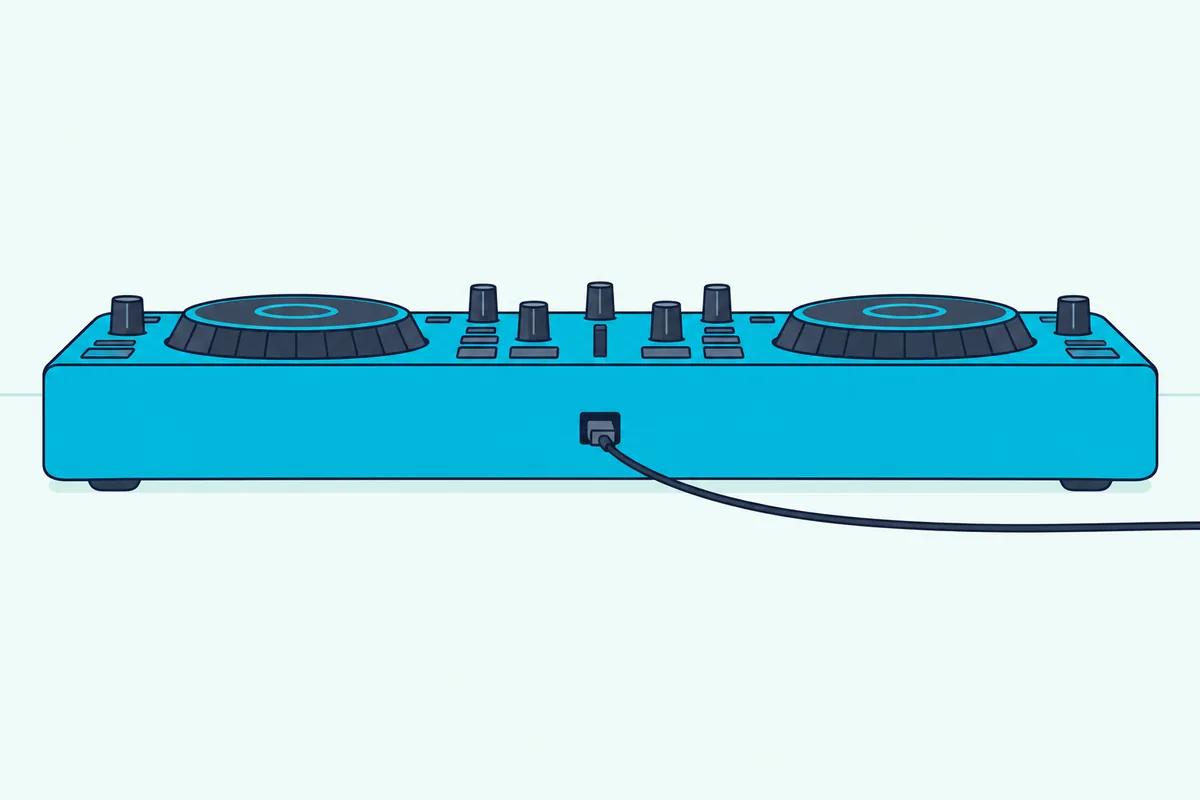
Some controllers have no audio outputs at all. The DDJ-200 manual shows a single USB port on the rear panel, so the speakers and headphones plug into the computer or phone, and its split cable plays the master and the cue in mono.
Native Instruments’ Traktor X1 MK3 is the same story. Its rear panel holds a USB connector, a powered USB hub and a power input, and nothing for speakers.
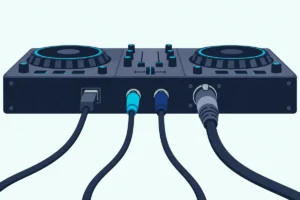
Try this on your own unit: look at the back panel. RCA, XLR or 1/4-inch output jacks mean there’s an audio interface inside; a lone USB port means the sound has to come from somewhere else.
Get Studio Tips Weekly
Join 5,000+ creators getting acoustic treatment advice every week.
No spam. Unsubscribe anytime.Do You Need an Audio Interface for a DJ Controller?
Those output jacks already do the basic job, so you need an interface only for what a controller can’t do on its own. An FLX4 handles the master and the headphone cue by itself, while a DDJ-200 or X1 MK3 needs an interface to cue in stereo, since a splitter cable only manages mono.
An interface also earns its place when you want to record or stream on a separate path, or when your studio monitors are already plugged into one. The Mixxx manual adds that you may choose a different interface for higher quality audio even when the controller has its own, and that Mixxx can use more than one interface at once.
Outputs are the other reason. The FLX4’s master jacks are unbalanced RCA, while a Scarlett 4i4’s line outputs are balanced 1/4-inch TRS jacks, and the Mixxx manual says balanced signals reject interference and are less prone to ground loop hum, especially on long runs to amplifiers or powered speakers.
Picture a bedroom with two studio monitors already wired to a Scarlett and an FLX4 on the desk. Route 1 below gets the controller into those monitors without moving a single speaker cable.
How Do You Run the Controller’s Master Into the Interface?
That bedroom setup is a typical reason for route 1, and the wiring takes one cable. Run an RCA-to-1/4-inch cable from the controller’s master output to two line inputs on the interface, with the RCA plugs at the controller and the jacks at the interface, as Mixlr’s guide does.
Put the left channel into input 1 and the right into input 2, which matches the way a Scarlett pans its inputs for stereo monitoring.
- Connect the controller to the computer by USB as usual, and the interface by its own USB cable.
- Plug the RCA ends into the controller’s master jacks and the 1/4-inch ends into the interface’s line inputs.
- On a Scarlett 2i2, use the front 1/4-inch jacks with Inst off (its light white), which puts them at line level; the rear XLR inputs are for microphones.
- Hold the Select button for one second to link the two preamps, so one gain knob sets both sides of the stereo feed.
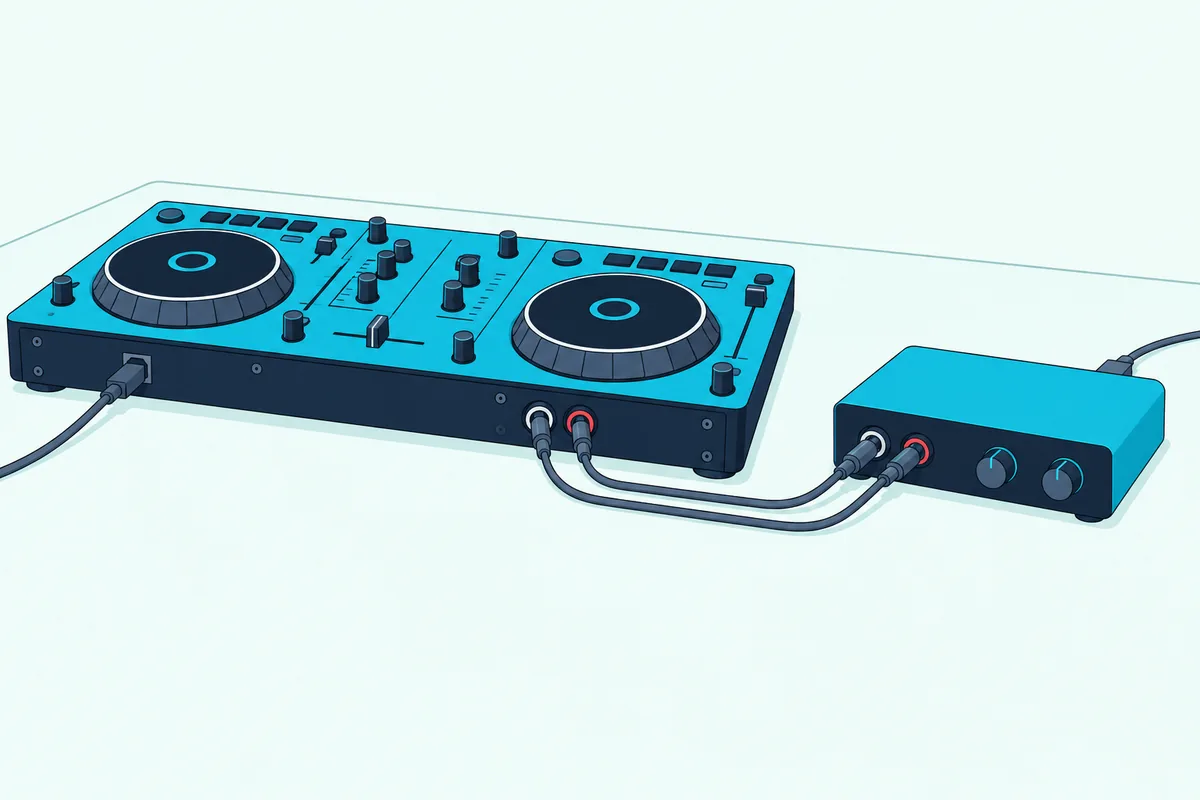
Adjust the gain while your loudest track plays. Focusrite’s gain halo lights green for a good level, amber just below clipping and red once the input has clipped, so back the gain off at the first red.
There’s plenty of headroom. The FLX4’s rated 2.1 Vrms master output works out to about +8.7 dBu, and the 2i2’s line inputs accept up to +22 dBu at minimum gain, so start with the gain at its minimum and raise it only until the loud parts sit in the green.
Can the Interface Play the Controller Through Your Monitors?
Once the signal reaches the inputs, direct monitoring sends it on to the speakers. On a Scarlett 2i2, the Direct Monitor button routes the inputs to the monitor outputs without a trip through the computer, so you hear them without latency.
Press it twice, not once. The first press gives mono direct monitoring with both inputs in the center, and the second gives stereo, with input 1 panned left and input 2 right, which keeps the controller’s stereo mix intact.
The 2i2’s Output knob then sets the monitor volume on outputs 1 and 2. Keep cueing on the controller’s headphone jack, because Focusrite’s guide says outputs 1 and 2 share the same feed as the headphone output, so its headphones hear exactly what the monitors play.
A Scarlett 4i4 does the same job in software. In Focusrite Control 2’s Mixer tab you build a mix that includes the inputs and route it to the outputs feeding your monitors.
Mixlr’s guide adds a trick for controllers with a booth output. With one stereo output, the speakers move onto the interface; with a second output, the interface takes the main output and the speakers go on the booth output, so the room volume changes without changing what listeners hear.
How Do You Record or Stream the Mix Through the Interface?
With the mix now arriving at the interface, recording it is just a software setting. Pick the interface as the input in your recording or streaming app, the way Mixlr’s guide selects the audio interface from its input list and checks for a signal before going live.
If you hear the mix twice, slightly out of time, Focusrite says Direct Monitor is probably on while the software plays the input back as well. Its fix is to mute the recording track, or to switch Direct Monitor off and listen only to the software.
When the DJ software already plays through the interface (route 2), the Scarlett 2i2 and 4i4 have a Loopback feature that brings the computer’s playback back in as an input, on channels 3 and 4 of a 2i2 and 5 and 6 of a 4i4. Focusrite says to mute that channel in the recording software, or it causes a feedback loop.
You may not need the interface to record at all. rekordbox’s REC panel records the master inside the software, and VirtualDJ’s manual says a setup with a master output records internally with no special connection; how to record DJ mixes covers those methods.
The interface matters when the recording happens somewhere else, such as a second computer or an outside mixer. The rekordbox FAQ says Performance mode records the master or input from Pioneer DJ products, and that input from other equipment is recorded in Export mode instead.
How Does the Interface Replace the Controller’s Sound Card?
That recording job suits route 1, while route 2 hands the whole sound job to the interface. Connect both the controller and the interface to the computer by USB, plug powered speakers (or an amplifier for passive speakers) into the interface’s outputs, then choose the interface as the audio device in your DJ software and assign its outputs to the master and the headphones.
The controller keeps working as a control surface, because its knobs and jog wheels send MIDI or HID data rather than audio, as the Mixxx manual explains. AlphaTheta’s FLX4 manual likewise says the unit outputs its button and knob data in MIDI format for other DJ applications.
Mixxx’s example setups put the master on the interface’s channels 1-2 and the headphones on channels 3-4, or on the computer’s built-in output when the interface has only two. That output count matters more than the brand, as the next section explains.
On Windows, install the interface maker’s software first. Focusrite says installing Focusrite Control 2 also installs the Scarlett driver on Windows while a Mac needs none, and the Mixxx manual recommends the maker’s driver even for class-compliant interfaces so you can use the ASIO sound system.
Why Does Cueing Need an Interface With Four Outputs?
That output count decides whether you can still cue. The headphone cue is a second stereo signal, so the Mixxx manual recommends an interface with at least four output channels, two separate stereo pairs: one for the master and one for your headphones.
A two-output interface can’t split them. Focusrite’s Scarlett 2i2 guide says outputs 1 and 2 share the same feed as the headphone output, so whatever plays on the speakers plays in your headphones too.
The laptop’s headphone jack doesn’t help either. Mixxx points out that plugging headphones in only redirects the laptop’s single stereo output, which is why DJ splitter cables exist and why they play both signals in mono.
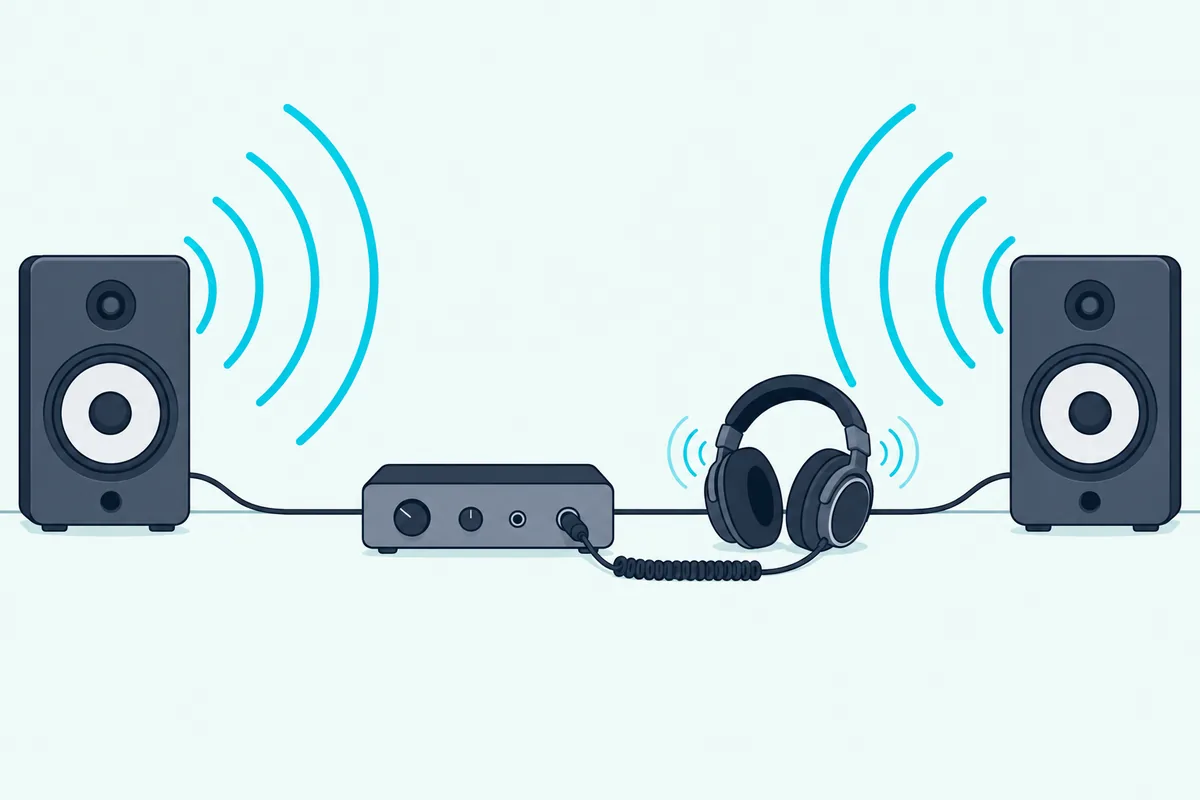
Four outputs fix it. Focusrite’s DJ setup guide for the Scarlett 2i4 sends the master to outputs 1/2 and switches the headphone source to outputs 3/4, which the DJ software’s cue button then feeds.
On a Scarlett 4i4, outputs 3-4 are electrically identical to 1-2, and the headphone output is independent of both. Send the DJ software’s cue to playback channels 3-4, then choose those channels as the headphones’ source in Focusrite Control 2’s Routing tab.
Count channels, not jacks. Mixxx notes that a DJ interface with four mono output jacks and a headphone jack still sends only four signals, because the headphones share one pair, and that many controllers’ booth outputs play the same signal as the master.
Stuck with two outputs? Serato can keep the cue on the controller, VirtualDJ can send the master to one sound card and the headphones to another, and Mixxx can put the headphones on the computer’s built-in output.
Sending each deck to its own output pair for an outside mixer is a different setup, covered in Burton Acoustix’s external mixer walkthrough.
Which Settings Do rekordbox, Serato, Traktor and VirtualDJ Need?
Those output pairs only work once the DJ software knows about them, and each app keeps the setting in a different place. In every case you choose the audio device, then tell the software which outputs carry the master and the cue.
rekordbox
rekordbox keeps both in Preferences > Audio. The rekordbox manual says [Audio] sets the audio device that outputs sound, and in Performance mode with [Mixer Mode] on Internal, [Output channels] sets the Master Output, Headphones Output and Booth Output.
With an FLX4 connected to a Mac, AlphaTheta’s manual shows [Audio] on DDJ-FLX4, the master on DDJ-FLX4 : MASTER and the headphones on DDJ-FLX4 : PHONES. Pick your interface in [Audio] instead and map its pairs the same way, the master on 1-2 and the headphones on 3-4.
The FLX4 manual also lists PC MASTER OUT, on by default, which plays the master through the computer’s own speakers as well. The rekordbox FAQ notes that its volume follows the computer’s volume setting, not the controller’s MASTER LEVEL knob.
In the same Audio tab, [Buffer size] trades stability for delay. The manual says a larger buffer reduces audio skipping but increases latency, so scratching lags behind your hand.
Serato DJ Pro and Serato DJ Lite
Serato’s version is a setting called Use Laptop Speakers. In Serato DJ Pro 2.4 and later, and Serato DJ Lite 1.4 and later, set the computer’s sound output to the external sound card, then turn on Use Laptop Speakers under Audio Output in the Audio tab of Setup, and Serato also plays through that device.
Your cue stays on the controller’s headphone output, which makes this the easy answer for a two-output interface. Serato says the option appears only when compatible hardware is connected, and that if you change the computer’s sound output while it’s on, you have to switch it off and on again.
Traktor Pro
Traktor splits the job across two Preferences pages. Audio Setup picks the interface under Audio Device, with the built-in sound card always available, and Output Routing in Internal mixing mode assigns an Output Master pair, an Output Monitor pair for the cue and an Output Record pair for a separate recorder.
Native Instruments recommends a buffer size between 256 and 512, suggests starting near 15 ms of latency and calls 5 to 10 ms adequate. That matters for an X1 MK3, which works with Traktor Pro out of the box but has no audio outputs of its own.
VirtualDJ
VirtualDJ sets everything in its Audio settings. For a controller with a built-in sound card, the VirtualDJ manual says to click the controller’s button under HARDWARE for a pre-defined setup, then APPLY.
For an interface, choose SPEAKER + HEADPHONE and pick the multichannel card under HARDWARE, and VirtualDJ puts the master on its first stereo pair and the headphones on the second. If the card isn’t listed, choose COMPUTER AUDIO and select the card in the SoundCard field, and with two cards, USB SOUNDCARD sends the master and headphones to different devices.
Why Is There Echo, Hum or Lag After Adding the Interface?
Even with the settings right, three problems turn up often, and each has a maker’s fix. Echo, or a doubled, phased sound, usually means you’re hearing the mix twice, through direct monitoring and back from the software, so mute the software’s monitoring or switch Direct Monitor off.
Lag between the jog wheel and the sound points to the buffer. The rekordbox manual ties a larger buffer to more latency and delayed scratching, and Native Instruments’ numbers above give a starting range.
Crackles and dropouts are the other side of that trade-off. AlphaTheta’s FLX4 manual says to change the DJ software’s buffer size if the sound is distorted, and the rekordbox manual says a larger buffer reduces skipping.
Hum or static usually comes from the cables. Focusrite warns that unbalanced connections can let interference into your monitors and recommends balanced TRS cables wherever you can use them, and since the FLX4’s RCA master is unbalanced, keep that run short.
No sound at all? AlphaTheta’s FLX4 manual starts with the TRIM knobs, channel faders, crossfader and MASTER LEVEL knob, and the rekordbox FAQ adds the audio device in Preferences > Audio, then the Mixer Mode and Output channels.
A Scarlett whose USB icon flashes red isn’t getting enough power, and Focusrite’s fixes are a different USB port straight on the computer, not a hub, or its 5V DC power input.
If the controller is silent through everything, even without the interface, start with the no-sound checklist for DJ controllers instead.
Which Audio Interface Suits a DJ Controller?
Those fixes assume an interface that fits the route you picked, and the output count decides it. For route 2 with a headphone cue, you need four outputs, like the Focusrite Scarlett 4i4 4th Gen, whose outputs 3-4 and independent headphone mix can carry the cue.
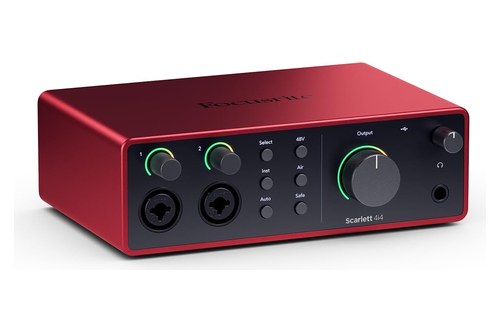
the Focusrite Scarlett 4i4 4th Gen
For route 1, two line inputs are enough, so the Focusrite Scarlett 2i2 4th Gen suits recording, streaming or playing an FLX4 through monitors. Its stereo Direct Monitor and linked preamps handle the controller’s stereo master, but its shared headphone feed means you keep cueing on the controller.
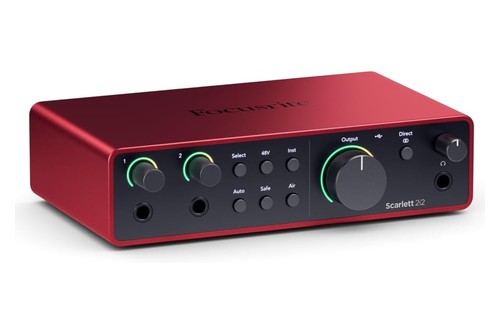
the Focusrite Scarlett 2i2 4th Gen
Either way, a Hosa CPR-201 dual 1/4-inch TS to dual RCA cable joins an RCA master to an interface’s 1/4-inch inputs.
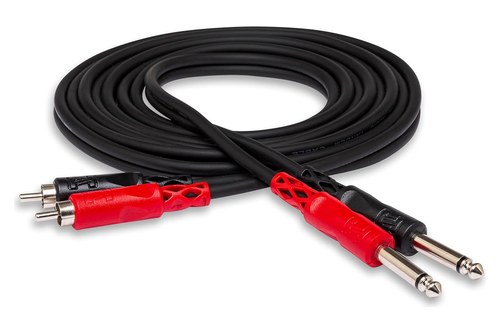
a Hosa CPR-201 dual 1/4-inch TS to dual RCA cable
The Bottom Line
Both routes come down to one choice: run the controller’s master into an interface’s line inputs to record, stream or play through monitors, and keep cueing on the controller.
Make the interface the sound card only when the controller has no outputs or you want the interface’s own, and pick one with four outputs so the cue has somewhere to go.
Frequently Asked Questions
Can you use a DJ controller as an audio interface?
For playback, often yes: the FLX4 shows up as an audio device (DDJ-FLX4 Audio Out in macOS’s Audio MIDI Setup), and the rekordbox FAQ notes that when connected DJ equipment is the Windows default playback device, normal playback such as YouTube can misbehave. As a recording interface it’s limited, since the FLX4’s only audio input is a 1/4-inch microphone jack, and AlphaTheta’s manual doesn’t describe recording through it into other software.
Can you connect a DJ mixer to an audio interface the same way?
Yes. VirtualDJ’s record loopback page connects a mixer’s Record Out or Booth Out jacks to a line input or a multichannel sound card to bring the mix back into the computer, and the rekordbox manual describes recording a DJ performance through an audio interface such as a DJ mixer in Export mode.
Which cable connects a DJ controller to an audio interface?
Usually a dual RCA to dual 1/4-inch cable, the kind Mixlr’s guide uses, because controllers such as the FLX4 have RCA master jacks while interfaces such as the Scarlett 2i2 and 4i4 take 1/4-inch jacks on their line inputs. Use the interface’s line inputs, not its XLR microphone inputs: on a Scarlett 2i2 the line inputs accept up to +22 dBu at minimum gain against +16 dBu for the mic inputs.
Will an audio interface make a DJ controller sound better?
Not automatically. The Mixxx manual says higher dynamic range and signal-to-noise ratio and lower distortion are better, and that you may pick a separate interface for higher quality audio, but AlphaTheta already lists a 103 dB signal-to-noise ratio and 0.005% distortion for the FLX4 over USB. The clearer gains are balanced outputs and extra output pairs.
Do you need an audio interface to record a DJ mix?
Not on a single computer. rekordbox’s REC panel records the master inside the software, and VirtualDJ records internally whenever its audio setup has a master output. You need the interface when the recording happens on another device, or when the mix comes from an external mixer.