How to Enable Smart Sound on a JBL 5.0 Soundbar
If you’re looking up how to enable smart sound on a JBL 5.0 soundbar, the setting JBL calls Smart mode is already on out of the box, and you change it by holding Mute on the remote for three seconds and then pressing plus.
The catch is that the first try only shows which setting you’re on, and the bar quietly turns it back on every time it’s switched on again.
Once you can read what the display is telling you, picking the fuller surround tuning for films or the plainer standard setting for the news takes a few seconds.
The exact steps come first, then what the setting changes and how it sits next to the ATMOS button, MultiBeam calibration and the bass setting.
After that come the other questions JBL’s manual answers for this bar: apps, Wi-Fi, streaming, resets and updates.
How to Enable Smart Sound on a JBL 5.0 Soundbar, Step by Step
Those three seconds on the Mute button are the whole trick. JBL’s Bar 5.0 MultiBeam owner’s manual never uses the words “smart sound”; the feature is called Smart mode, it’s on by default, and its opposite is called standard mode.
Here’s the sequence from the Sound Settings chapter of the manual:
- On the remote, press and hold the Mute button (the speaker icon at the bottom) for more than three seconds.
- Press the + button once. The bar’s display shows where it stands now: ON SMART MODE means the feature is on.
- Repeat the same hold-and-press to switch. OFF SMART MODE means you’re in standard mode.
- Repeat it once more whenever you want it back, or simply switch the bar off and on.
So “enabling” it usually means doing nothing at all. If the display already reads ON SMART MODE after step 2, stop there, because a second round would turn it off.
Think of the first round as asking the bar a question and the second as giving it an order. That’s why the sequence can seem broken: one round changes nothing you can hear.
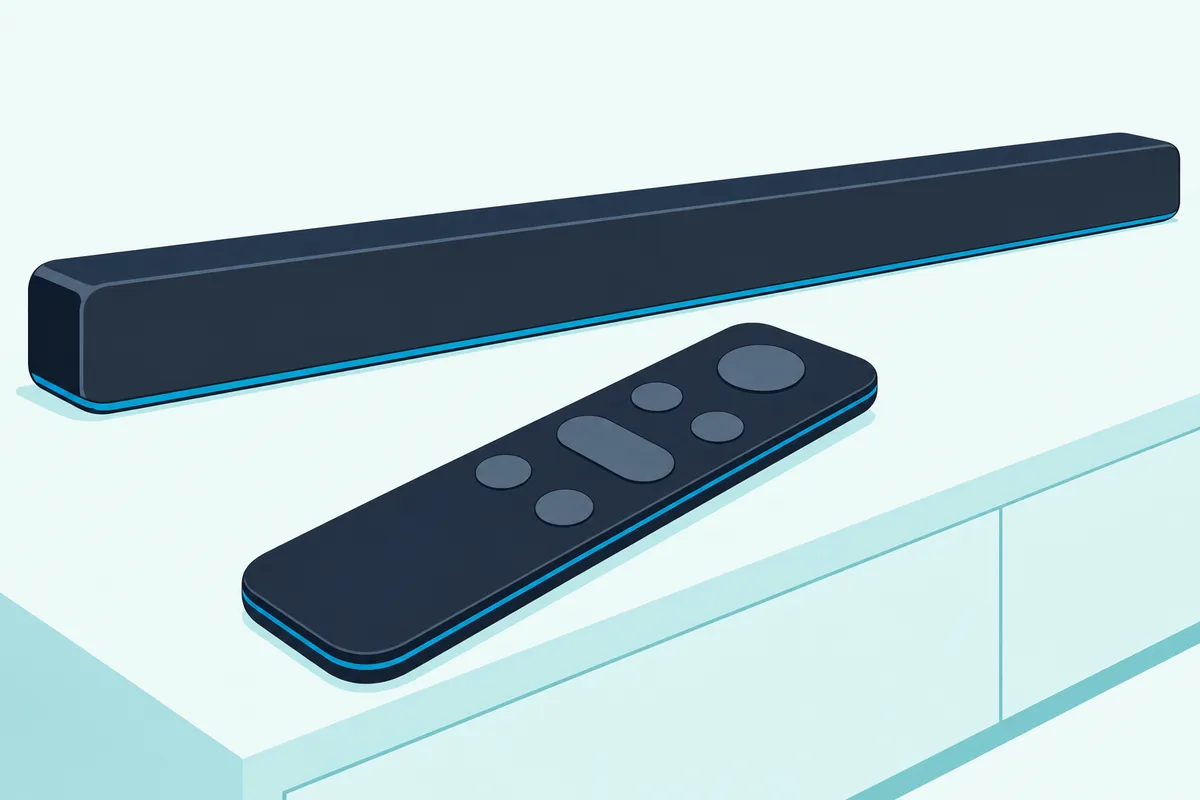
The remote itself is small, with seven controls from top to bottom: power, TV, Bluetooth, ATMOS, HDMI, the volume rocker and Mute. JBL’s manual lists Mute only as mute and unmute in the remote’s overview, so the shortcut is easy to miss unless you read the Sound Settings chapter.
What Does Smart Mode Actually Change on the Bar 5.0?
That ON or OFF on the display decides how the bar processes TV sound. JBL’s manual says Smart mode applies EQ settings and JBL Surround Sound “for rich sound effects”, while standard mode applies only the preset EQ settings for standard sound effects.
In plain terms, it’s the processed, surround-flavored version of the bar’s sound, and standard is the flatter one. JBL frames the difference around TV programs: the smart setting is the one for enjoying shows “with rich sound effects”.
The hardware it works with is the MultiBeam part of the name. The manual lists five 48 x 80 mm racetrack drivers, three facing forward and two firing sideways, plus four 75 mm passive radiators, with 5 x 50 W of output.
What the manual doesn’t spell out is how JBL Surround Sound uses those side-firing drivers, or whether standard stops using them. It doesn’t publish the EQ curves for either mode either, so treat the difference as JBL describes it: richer effects on, standard effects off.
If you’ve used a sound-preset button on another bar, the idea is similar, just with two choices instead of a menu. For the wider picture of which settings are worth touching, see this rundown of soundbar settings for TV, films and late nights.
Get Studio Tips Weekly
Join 5,000+ creators getting acoustic treatment advice every week.
No spam. Unsubscribe anytime.Why Does the Bar 5.0 Keep Going Back to Smart Mode?
The ON SMART MODE message you saw in the steps has a reason to keep coming back. JBL’s manual says that the next time you switch on the soundbar, the smart setting is enabled again automatically.
So standard is a per-session choice, not a saved setting. Turn the bar off at night in standard and it comes back up with the smart setting on the next day.
The bar also switches itself to standby after more than 10 minutes without activity, showing STDBY. The manual doesn’t say whether waking from that auto standby counts as switching on, so that stays an open question.
Here’s a quick test if it matters to you: after the bar wakes, do one hold-and-press round and read the display. If it says ON SMART MODE, the bar has reset itself, and a second round puts you back in standard.
Waking on its own is common, too. The manual lists four triggers, including the TV switching on over HDMI ARC or eARC and audio arriving on the optical input.
When Is Standard Mode the Better Choice?
That reset-at-power-on behavior makes standard a quick switch for particular programs. JBL’s own example is TV programs such as news and weather forecasts, where you can reduce the sound effects by turning the smart setting off.
That’s our reading of JBL’s example rather than a JBL claim. A newsreader in a studio has little that surround processing can add.
Here’s a real scenario: you watch the evening news, then a film. Run the sequence twice for the news to get OFF SMART MODE, then twice again before the film, or switch the bar off and on between them.
Try this to hear the difference for yourself: pick a scene with one person talking over background music, play it in each setting at the same volume, and listen to where the voice sits. If you can’t tell them apart, the default is fine, since the bar will go back to it at the next power-on anyway.
If a film’s height effects aren’t to your taste, the ATMOS button is the other switch to know. JBL’s manual suggests turning the ATMOS effects off if you’d rather have no height sound effects while watching or listening.
How Do Smart Mode, the ATMOS Button and MultiBeam Calibration Fit Together?
That ATMOS button sits right above the volume rocker, and it’s one of four sound controls the manual gives this bar. The smart setting is one; the virtual Dolby Atmos switch, Automatic MultiBeam Calibration and the bass level are the other three, and each has its own button or sequence.
| Setting | How to change it (from JBL’s manual) | Default |
|---|---|---|
| Smart mode | Hold Mute 3+ seconds, then press + (once to see, again to switch) | On, restored at every power-on |
| Virtual Dolby Atmos | Press ATMOS (shows ON ATMOS or OFF ATMOS) | On |
| Automatic MultiBeam Calibration | Hold HDMI until CALIBRATION appears (more than 5 seconds) | Not run until you start it |
| Bass level | Hold TV 3+ seconds, press -, then + or – within five seconds | LVL 3 of LVL 1 to LVL 5 |
The table reads like four separate switches, and the manual treats them that way. It never says that the smart setting overrides the ATMOS switch or the calibration, so nothing in JBL’s text suggests one undoes another.
Virtual Atmos works on films played from the TV or HDMI IN source. The manual notes that it isn’t supported for Bluetooth streaming or for casting through Chromecast built-in, AirPlay or Alexa.
Automatic MultiBeam Calibration tunes the surround effect to your favorite seat, using a microphone on the bar. Hold HDMI, a countdown runs from 5 to 1, a test tone plays, and the display shows CALIBRATING and then DONE, or RETRY if it failed.
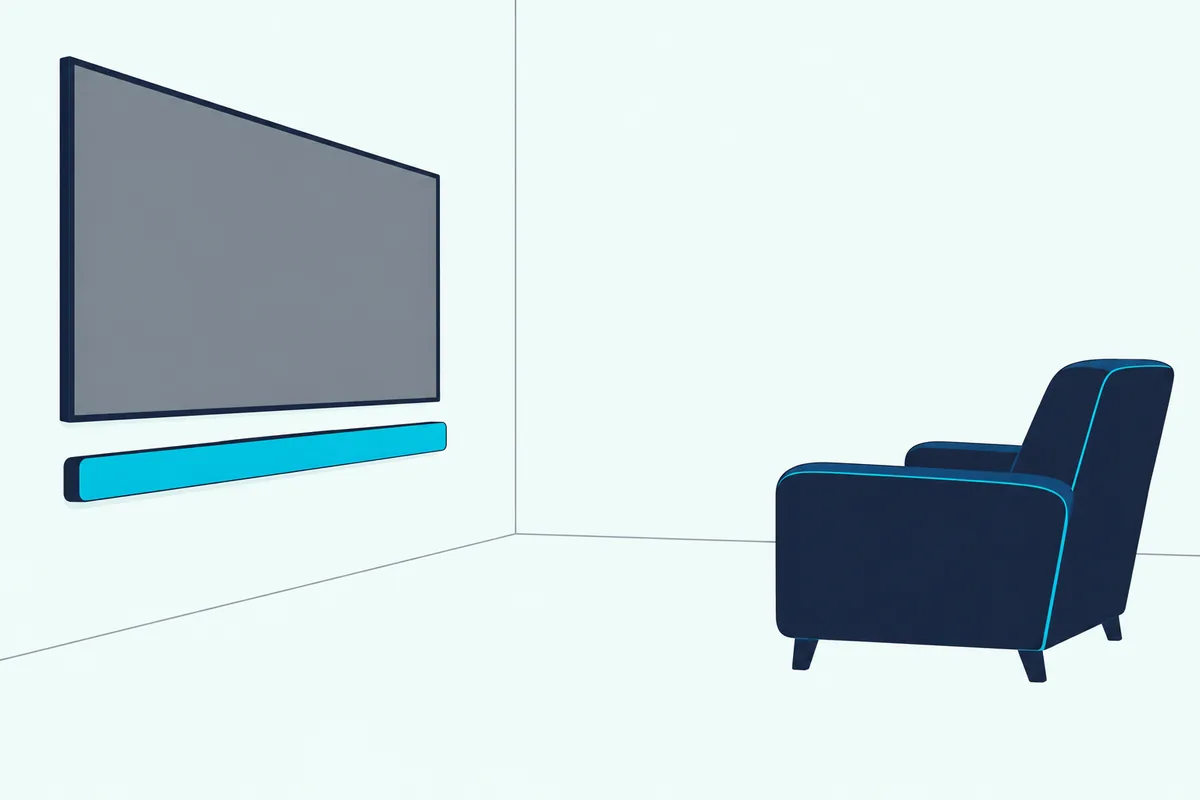
During calibration every remote button except power and HDMI is disabled, so don’t worry if Mute or + stops answering for a moment. Sit where you normally watch, since that’s the position the calibration is for.
The bass level runs from LVL 1 to LVL 5 and starts at LVL 3. The Sound Settings chapter also has an audio sync control that begins with holding TV, for when voices and lips drift apart; fixing soundbar audio delay covers that problem across brands.
Can You Switch Smart Mode Without the Remote or From an App?
Those remote sequences are the only route JBL’s manual describes. It gives no button combination on the bar itself and no app setting for it.
The bar’s own buttons are power, the volume pair (both together mute it) and Source. None of them appears in the smart-setting steps, so the manual offers no way to change it from the bar.
A TV remote can stand in for some of the JBL remote’s jobs. Through IR learning, an infrared TV remote can learn the bar’s +, – and mute functions and power, which programming a soundbar to a TV remote walks through for several brands.
Whether a learned mute button held for three seconds does the same isn’t something the manual says, so don’t count on it. The safe answer is to keep the JBL remote, and replace its two AAA batteries first if it stops responding, which is the manual’s first remote fix.
Is There an App for the JBL 5.0 Soundbar?
The missing app setting raises the bigger question of which app this bar uses at all. JBL’s Bar 5.0 manual names no JBL app; Wi-Fi setup goes through Google Home, Apple’s AirPlay speaker setup or Amazon Alexa.
That can be confusing, because JBL does have soundbar apps. The JBL One app on the App Store describes itself as the official app for setting up and controlling JBL Wi-Fi and Bluetooth speakers and soundbars, but its listing only says “compatible device” and names no models.
The other one, JBL BAR Setup on Google Play, says it works with the JBL Bar 5.1 Surround, for Alexa multi-room Wi-Fi setup. Neither listing mentions the Bar 5.0 MultiBeam.
So the apps that the manual actually covers for this bar are these three:
- Google Home for Wi-Fi setup, Chromecast built-in and AirPlay together, plus naming the bar and placing it in a room.
- Apple’s AirPlay speaker setup (in iOS Settings) for AirPlay only, and the Apple Home app to manage it with other AirPlay 2 speakers.
- Amazon Alexa for Amazon Music and Alexa Multi-Room Music.
None of them has a smart-setting switch in JBL’s instructions, which is the same gap as the section before. The app’s job on this bar is the network, not the sound settings.
How Do You Connect a JBL 5.0 Soundbar to Wi-Fi?
Those three apps are also the three Wi-Fi routes. The short version: switch the bar on, wait for SETUP WIFI on the display, then finish in Google Home, Apple’s AirPlay speaker setup or the Alexa app on a phone that’s already on your home Wi-Fi.
Here’s the Google Home route, the one that gives you both Chromecast built-in and AirPlay:
- Press power on the bar. If it has never been on a network, the display shows HELLO and then SETUP WIFI.
- Connect your Android or iOS phone to your home Wi-Fi network and download the Google Home app (here on Google Play).
- Sign in with your Google account, or create one.
- Follow the app’s instructions to finish setup; you can name the bar and assign it to a room along the way.
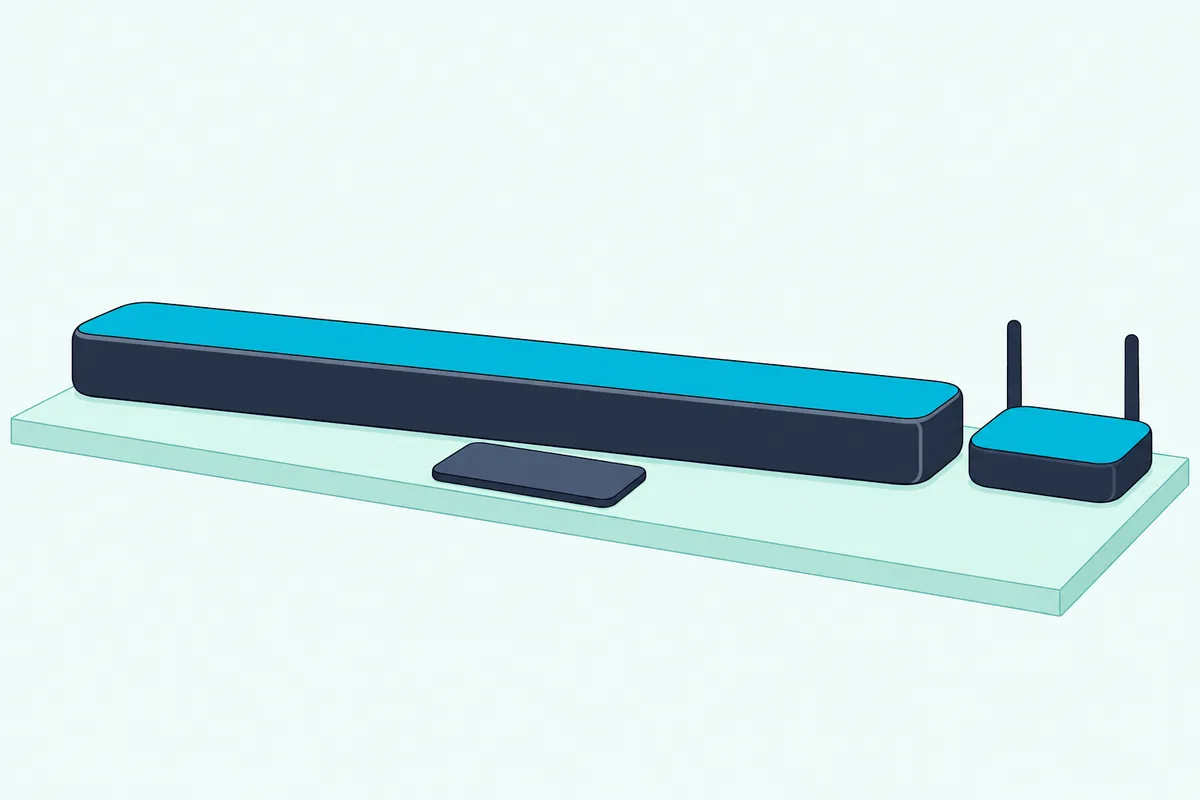
For AirPlay only, an iPhone does it without an app. Go to Settings, then Wi-Fi, choose “JBL Bar 5.0_xxxx” under SET UP NEW AIRPLAY SPEAKER and follow the onscreen steps.
If you bought the bar from Amazon with your own account, an Echo can add it for you. The Echo has to be on your Wi-Fi with the password saved to Amazon, Bluetooth on, and the bar within 10 m (33 ft).
Bought elsewhere or received it as a gift? The Amazon Alexa app can discover it, or you can use guided setup, which has you hold TV for more than 3 seconds and then press the Bluetooth button, or scan the barcode on the back of the bar.
A wired connection is an option too, but only afterwards. The manual says to plug in an Ethernet cable after Wi-Fi setup is complete, on the same network you used during setup.
When setup fails, the manual’s checklist is short and practical:
- Check the network name and password, and that the router is on and within range.
- Set the router’s security type to WPA2 or auto.
- Keep the bar and the phone on the same wireless network.
- Hold power on the bar until RESET WIFI appears, then start the setup again.
The bar handles 2.4 GHz and 5 GHz Wi-Fi (802.11 a/b/g/n/ac). If Google Home can’t find it, JBL’s checks are that the bar is on, the network is working, and the router is powered and in range.
Can You Cast or AirPlay Music to the Bar 5.0 Once It’s on Wi-Fi?
Once Google Home or the AirPlay setup has the bar on your network, streaming works from the phone’s own apps. JBL’s manual describes Chromecast built-in from any Chromecast-enabled app and AirPlay from an iPhone or iPad, with the phone on the same network as the bar.
For Chromecast, play music in a Chromecast-enabled app, tap the cast icon and pick the bar. For AirPlay, open Control Center, tap the AirPlay icon, choose the bar, then start the music in an app.
Multi-room is the bigger payoff. In Google Home you can group the bar with other Chromecast-enabled speakers, and the manual says that depending on your network’s bandwidth you can stream to up to 6 of them; on an iPhone you simply select several AirPlay speakers in Control Center.
A few limits are worth knowing before you rely on it:
- The bar streams audio only, never video.
- Start music on a second phone and playback on the first one pauses.
- AirPlay control needs iOS 11.4 or later.
- Switching between Wi-Fi and the Ethernet cable mid-stream pauses AirPlay for a few minutes.
To stop casting, the manual’s answer is just to switch the bar to another source, such as TV or HDMI IN. That also returns the bar to a source the virtual Atmos effect works on.
What Does a Factory Reset Do to the JBL 5.0 Soundbar?
If streaming or setup keeps failing, the RESET WIFI hold from the Wi-Fi checklist clears only the network, which makes it the gentler first step. A full factory reset removes all your personalized settings: on the bar, press and hold power and Source together for more than 10 seconds.
The display shows RESET, then LOAD and STDBY, and the bar goes to standby. Switch it back on with power and you’ll see HELLO.
The smart setting doesn’t need a reset, since it already returns at every power-on. The manual reserves the factory reset for a bar that doesn’t respond to button presses, and lists it among the fixes for no sound.
Expect to repeat the Wi-Fi setup afterwards to be safe; the manual says only that all personalized settings go. Your Bluetooth pairing is a separate matter: holding Bluetooth on the remote, or Source on the bar in the Bluetooth source, clears the last paired device and starts pairing.
If you own other brands too, a general walk-through of soft reboots and factory resets covers the difference between the two.
How Does the Bar 5.0 Get Firmware Updates?
A reset clears settings but leaves the software alone, which is the job of an update. JBL’s manual says updates happen automatically online once the bar is on your home network, with UPDATE FOUND, UPDATING and DONE on the display.
There’s a USB route as well:
- Save the update file to the root folder of a USB drive.
- Plug the drive into the bar’s USB port.
- Hold power and – on the bar for more than 10 seconds until UPDATE MODE appears.
- Wait for UPDATING and DONE; the bar then shows LOAD and STDBY and goes to standby.
Keep the bar powered and the drive plugged in until it finishes, and expect “Error” on the display if it fails. The manual sends you to JBL’s website or call center for the files themselves.
The manual doesn’t describe any firmware change to this feature, and this guide doesn’t draw on JBL’s separate release notes. So the steps here are the ones in the manual JBL published with the bar in 2020.
Frequently Asked Questions
What does LOAD mean on the JBL 5.0 soundbar display?
LOAD is what the bar shows when you connect it to power, before STDBY; it also appears after a factory reset and after a USB update. JBL’s manual doesn’t describe a bar stuck on LOAD. Its fix for a bar that won’t respond to its buttons is the factory reset: hold power and Source on the bar for more than 10 seconds.
Can Alexa control the JBL Bar 5.0 MultiBeam?
The manual covers Alexa for music: once the bar is set up in the Amazon Alexa app, it plays Amazon Music and joins Alexa Multi-Room Music groups. It doesn’t describe changing Smart mode or any other sound setting by voice. During Alexa multi-room streaming, holding Mute stops the music.
Does the JBL 5.0 soundbar work without Wi-Fi?
Yes. TV sound over HDMI ARC, eARC or optical, the HDMI IN source and Bluetooth all work without a network, and so do the remote’s sound controls. JBL’s manual ties Wi-Fi to Chromecast built-in, AirPlay, Alexa and online updates, and offers the USB route for updates instead. A bar that has never joined a network shows HELLO and then SETUP WIFI when you switch it on, which is the Wi-Fi setup mode, not an error.
How do you connect the JBL 5.0 soundbar to a TV?
Use the supplied HDMI cable from the bar’s HDMI OUT (TV ARC/TV eARC) to the TV’s ARC or eARC input, and turn on HDMI-CEC and ARC on the TV. An optical cable works too, sold separately. If both are connected, the HDMI ARC connection takes priority for TV sound.
How do you adjust the bass on the JBL 5.0 soundbar?
JBL’s manual calls it bass adjustment: hold TV on the remote for more than three seconds, then press -. The display shows the current level, LVL 3 by default; within five seconds press + or – to move between LVL 1 and LVL 5. The bar has no separate subwoofer, so this is its only bass control in the manual.
For a bigger JBL bar with a real subwoofer or detachable surrounds, Burton Acoustix’s best JBL soundbar guide compares the current range, and JBL’s Bar 5.0 MultiBeam owner’s manual (Flixmedia’s copy of JBL’s English PDF) has every step on this page.