How to Connect a Soundbar to a Monitor, Jack by Jack
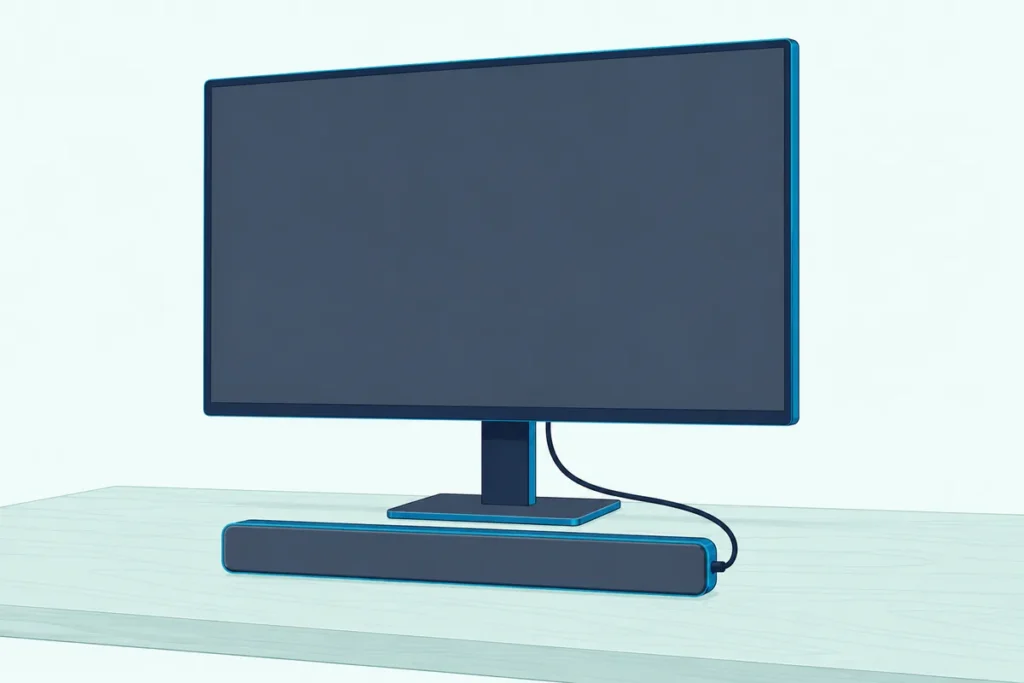
Figuring out how to connect soundbar to monitor setups starts with the back panel, because the monitor manuals read for this guide list a headphone jack, not the ARC or optical ports a TV hookup relies on.
That’s why a bar cabled to a monitor the way you’d cable it to a TV can stay silent while the sound keeps coming from tiny built-in speakers.
Pick the route that matches your ports and set one output menu on the computer, and the bar plays everything at your desk.
The first move is checking whether the monitor has an audio output, since that single jack decides whether the monitor or the PC feeds the bar.
From there, this guide covers each route, console setups, Windows and Mac settings, and the fixes when the bar won’t make a sound.
How to Connect a Soundbar to a Monitor, Route by Route
The route depends on which device has a usable audio output: the monitor’s headphone jack, the computer itself, or a console feeding the bar directly. Yamaha notes that computers typically don’t have ARC built in, so the TV habit of one HDMI cable to the bar rarely carries over (Yamaha).
Here’s the whole map before the details.
| Your setup | Cable | What you get |
|---|---|---|
| Monitor has a headphone jack | 3.5 mm stereo cable to the bar’s AUX in | Stereo |
| PC has a 3.5 mm out | 3.5 mm cable, PC to bar | Stereo, monitor left out |
| USB soundbar | One USB cable to the PC or the monitor’s USB hub | Power and sound in one cable (Dell’s USB bars) |
| PC or extractor has optical out | Toslink cable | Stereo or Dolby Digital |
| Bar has an HDMI input | Source to bar, bar to monitor | Whatever the source and bar support |
| Bluetooth bar | None | Convenience, no cable |
Think of it like plumbing: sound has to leave through a pipe that exists, and without ARC a monitor’s video ports only take sound in. If you only need the basics of using a soundbar with a PC, the computer rows above are the short version.
Does Your Monitor Have an Audio Output?
That first table row only works if the jack is really there. On the models read here, the output is a 3.5 mm headphone jack fed by the sound arriving with the picture, and neither ASUS’s nor BenQ’s documents list an ARC or optical output.
ASUS’s spec sheet for the TUF Gaming VG27AQ3A, for example, lists two HDMI 2.0 inputs, one DisplayPort 1.4, 2 W x 2 speakers and an earphone jack. BenQ’s EX2710Q manual shows the same pattern: two HDMI sockets, a DisplayPort socket and a headphone jack on the back panel.
Watch the color, too. ASUS explains that a green audio-in port takes sound from the PC for VGA or DVI setups, while the black earphone jack is the one that sends audio out to your equipment (ASUS FAQ).
LG and Samsung monitor manuals weren’t read for this guide, so check your own model’s port list before buying anything.
Get Studio Tips Weekly
Join 5,000+ creators getting acoustic treatment advice every week.
No spam. Unsubscribe anytime.What’s the Right Way to Use the Monitor’s Headphone Jack?
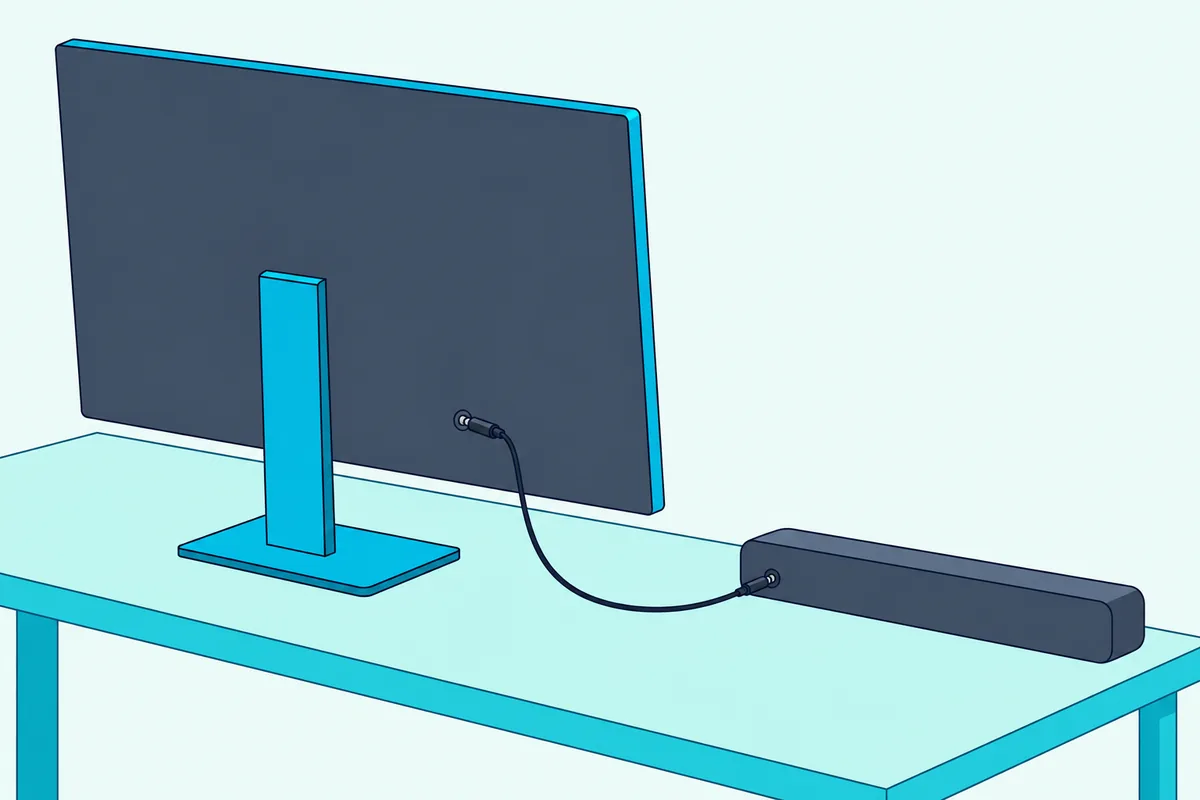
Once you’ve found that black jack, the job takes one cable. Run a 3.5 mm stereo cable from the monitor’s headphone jack to the bar’s AUX or analog input.
ASUS recommends a TRS cable (two rings on the plug), since a TRRS headset cable can add white noise through its microphone contact.
- Connect the PC to the monitor with the same plug at both ends (HDMI or DisplayPort), so audio travels with the picture.
- Plug the 3.5 mm cable into the monitor’s headphone jack and the bar’s AUX input, then set the bar to AUX.
- In the monitor’s menu, make sure sound isn’t muted and the source matches your cable (ASUS lists Sound > Source; BenQ lists Menu > Audio).
- On the PC, pick the monitor as the output device.
BenQ’s manual adds one quirk worth knowing: the built-in speakers mute automatically when something is plugged into the headphone jack.
If your bar didn’t ship with an AUX cable, CableCreation’s 6-foot stereo aux cable covers the short hop from the back of a monitor to a bar below it.
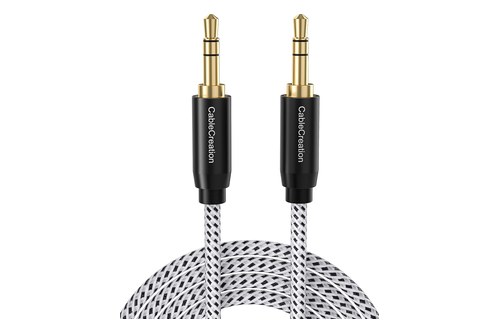
CableCreation’s 6-foot stereo aux cable
Why Plug the Soundbar Into the PC Instead?
The headphone-jack route leaves the monitor in the middle, and some setups work better with the computer feeding the bar directly. Yamaha’s computer guide wires a 3.5 mm stereo cable from the computer’s AUX out to the bar’s analog input.
Both are analog stereo jacks, so choose by convenience. The PC jack skips the monitor’s menus, while the monitor jack keeps the bar’s cable at the screen.
USB is the other direct route. Dell’s support article explains that its USB soundbars, such as the SB521A, take power and audio over one USB cable to the monitor or the computer, but a bar on the monitor’s hub works only if the USB upstream cable runs from the computer to the monitor.
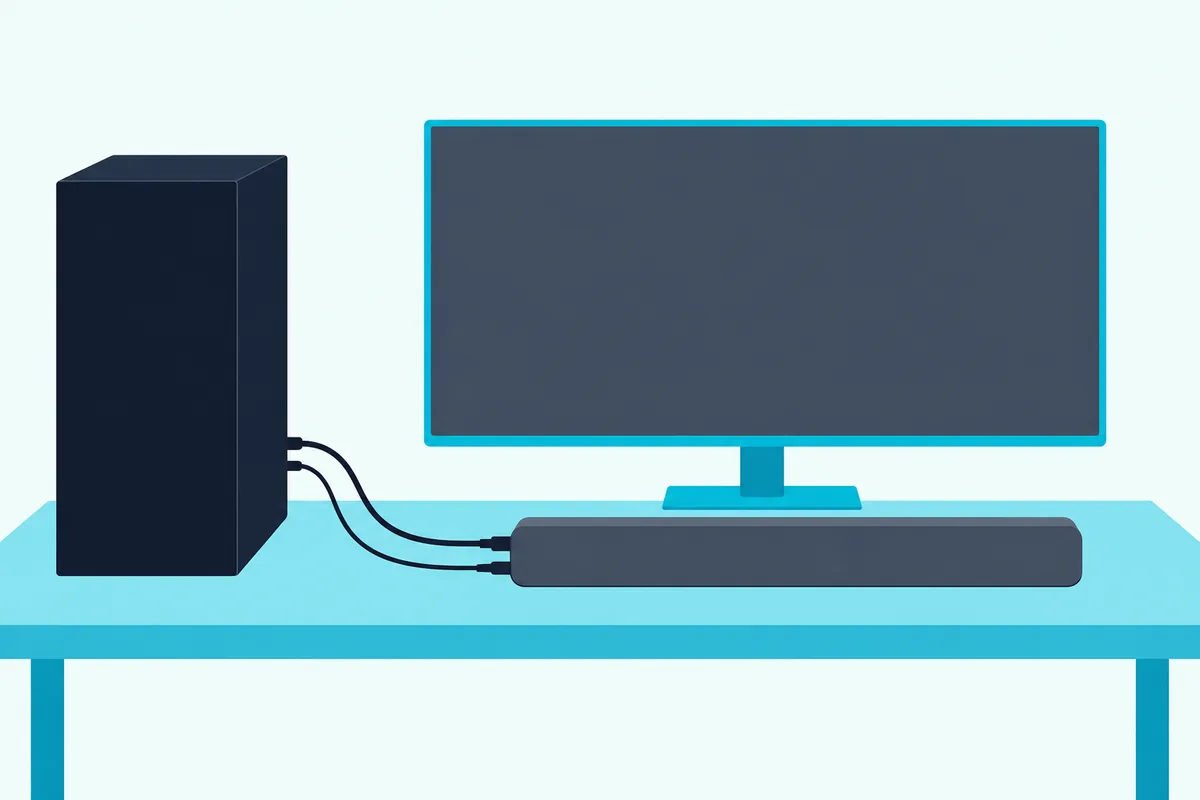
Creative’s page for its Stage SE describes the same idea, with a USB-C to USB-A cable and automatic detection on a PC.
Optical is rarer. Yamaha points out that most computers don’t offer an optical output, but where one exists, it carries Dolby Digital as well as stereo, a step up from analog.
Can HDMI Carry Sound From a PC to the Soundbar?
That optical gap is where the bar’s own video input comes in, though not through the monitor. A bar with an HDMI input can sit between the source and the screen: Sony’s HT-A7000 guide runs the device’s output into the bar’s input 1 or 2, and the picture appears on the TV while the bar plays the sound; at a desk, the monitor takes the TV’s place.
Then pick the bar in the PC’s sound settings, since Microsoft notes you might need to set a USB or HDMI device as the default.
No such input on the bar? An audio extractor splits the sound off instead.
Monoprice’s 24278 manual shows the layout: source into the box, its video output to the display, and audio leaving through a 3.5 mm stereo jack or an optical jack that carries multichannel sound (Monoprice).
For a monitor with no audio output and a bar with only optical or AUX, OREI’s HDA-912 extractor is sold with SPDIF and 3.5 mm outputs and 4K 60 Hz support.
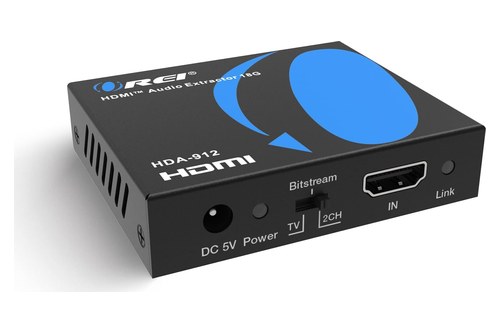
OREI’s HDA-912 extractor
Its optical jack needs a Toslink lead, and Amazon Basics’ 6-foot Toslink cable covers a desk-length run. The same extractor wiring is laid out for TVs in connecting a soundbar to a TV that has no ARC.
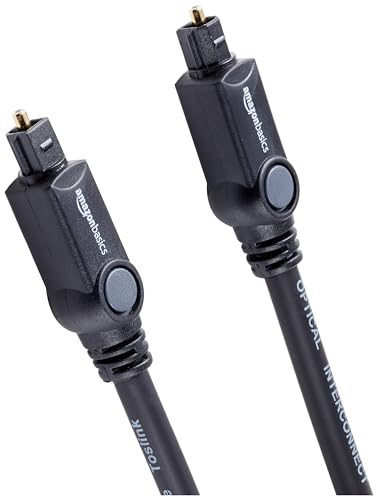
Amazon Basics’ 6-foot Toslink cable
What About a Console, a Monitor and a Soundbar?
Consoles follow that pattern too. Run one cable from the console into the bar’s HDMI input and a second from the bar’s output to the monitor, the same chain Sony’s guide shows for a gaming console.
On a PS5, PlayStation’s guide says to go to Settings > Sound > Audio Output to pick the output device and the HDMI device type.
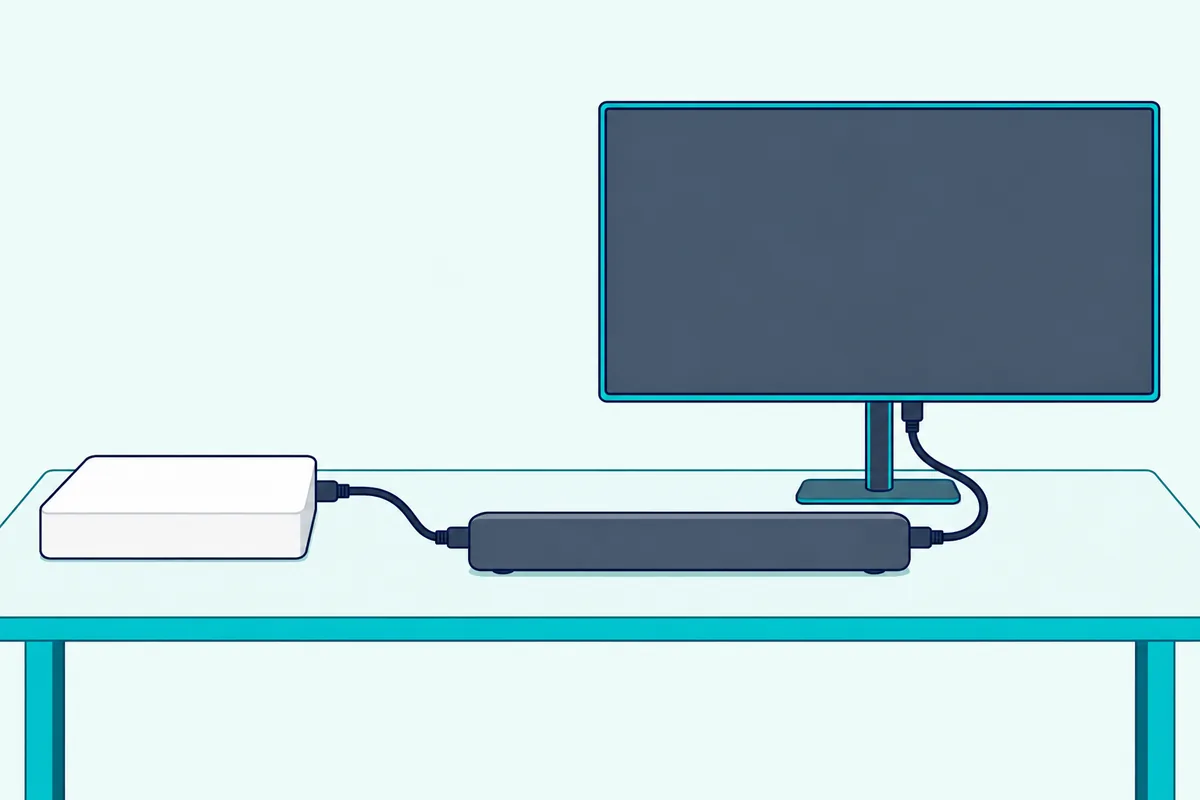
If the bar has no such input, the extractor from the last section sits between the console and the monitor instead. Projectors share this no-audio-out problem, and Burton Acoustix’s projector soundbar walkthrough covers the same source-first layout for a big screen.
Is Bluetooth From the PC Good Enough?
Bluetooth skips every cable covered so far. Yamaha lists a range of up to 33 feet from the computer and says to set the bar as the default playback device after pairing.
Not every desk bar has it. Dell states that its monitor soundbars don’t include Bluetooth, while Creative’s Stage SE pairs over Bluetooth 5.3.
If the bar pairs but stays quiet, Microsoft suggests checking that the Bluetooth device is the selected output and that it supports the A2DP profile for higher-quality streaming.
Which Windows and Mac Settings Send Sound to the Soundbar?
Every route above ends at the same menu, so set it once and test. In Windows, go to Start > Settings > System > Sound and pick the device under Output, which also makes it the default (Microsoft).
For a quick switch, Microsoft points to the arrow beside the volume slider on the taskbar’s speaker icon. Choose the monitor for the headphone-jack route, and the bar itself for USB, HDMI or Bluetooth.
On a Mac, choose Apple menu > System Settings > Sound, click Output, then pick the device (Apple). Apple says to choose Headphones for anything plugged into the Mac’s own sound port, and a display’s speakers are listed when the display has them.
Why Is the Soundbar Silent With Your Monitor?
When the settings look right and the bar still says nothing, check each link in the chain from that route table, in this order:
- Adapter in the path: ASUS warns that a VGA or DVI adapter strips the audio from a digital video signal, so use the same plug type at both ends.
- High refresh over DisplayPort: ZOWIE says its XL2730 and XL2735 drop DisplayPort audio at 2560×1440 and 144 Hz with some older graphics cards; use HDMI, the PC’s 3.5 mm jack or 120 Hz or lower.
- Wrong default device: Microsoft notes a monitor without speakers can’t play sound if it’s still the default output.
- Muted monitor or no USB upstream: check the monitor’s audio menu, and for a USB bar on the monitor’s hub, the upstream cable.
If nothing helps, Microsoft suggests turning Audio enhancements off under the device’s Advanced settings. For picking a bar that suits a desk in the first place, these soundbar picks for a computer desk are a good next stop.
Frequently Asked Questions
Can I connect a sound bar to a monitor?
Yes, if the monitor has a 3.5 mm headphone jack: run a stereo cable from it to the bar’s AUX input and pick the monitor as the PC’s output. A monitor without an audio output can’t feed the bar, so connect the bar to the PC, or put the bar or an HDMI audio extractor between the source and the monitor.
Is it better to connect the soundbar to the PC or the monitor?
Both are analog stereo jacks, so the choice is about convenience. The PC jack avoids the monitor’s audio menus, while a USB bar on the monitor’s hub needs the upstream cable connected, as Dell’s guide explains.
How do you connect a soundbar to a monitor without HDMI ARC?
The monitor manuals read here list no ARC, so plan around it. Use the headphone jack, a 3.5 mm, USB or Bluetooth link from the PC, or the bar’s video input with the picture passed on; an audio extractor covers bars with only optical or AUX.
How do you get sound to play through a monitor?
Connect the PC with HDMI or DisplayPort, because BenQ notes the audio travels in the same cable as the picture. Then choose the monitor under Output in the Windows or Mac sound settings, and check that the monitor’s own audio menu isn’t muted.