How to Connect a Yamaha Soundbar to a TV
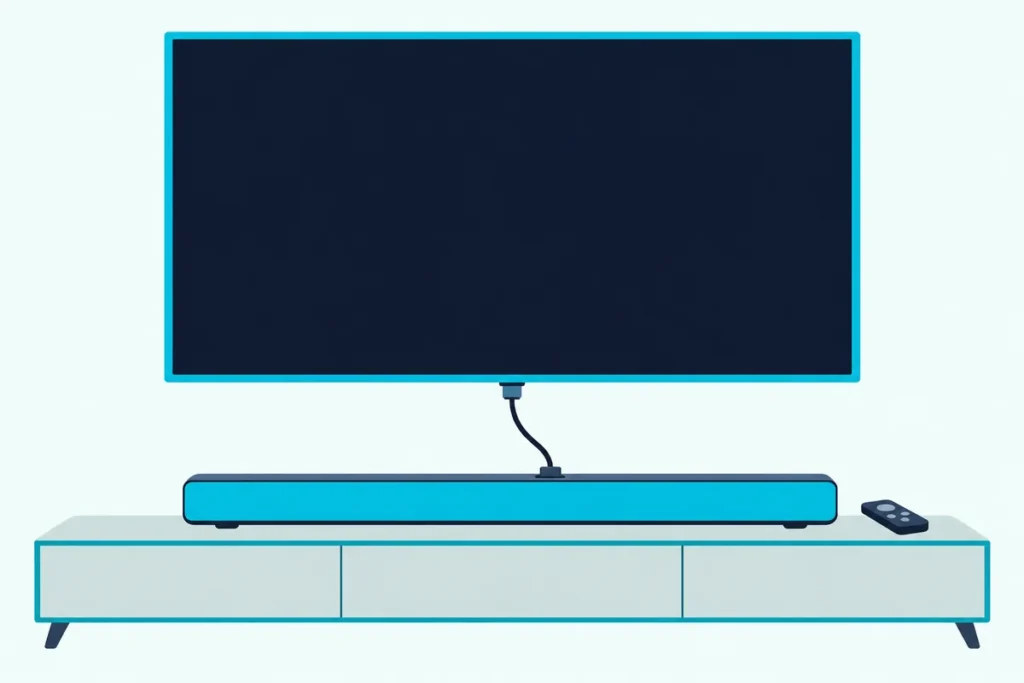
Here’s how to connect a Yamaha soundbar to a TV: run an HDMI cable from the bar’s HDMI OUT/TV (ARC) jack to the TV’s ARC port, then make sure HDMI Control is on at both ends.
Yamaha’s no-sound checklists name three settings that keep a bar quiet: HDMI Control switched off, the TV still sending sound to its own speakers, or a format the bar can’t play.
Fix those and the TV remote runs the bar’s power and volume, while the TV light on the bar confirms the sound is arriving.
Below are the ports on eleven Yamaha bars, the cable most boxes leave out, the button that toggles HDMI Control, and the TV menus from Samsung to Roku.
After that come the optical, AUX and Bluetooth routes, the apps, what the lights mean, and the checks that bring a quiet bar back.
How to Connect a Yamaha Soundbar to a TV
That ARC jack is the route Yamaha’s guides pair with the TV remote. The SR-B20A user guide says an Audio Return Channel (ARC) compatible TV can be connected to the bar with a single HDMI cable, and an HDMI Control compatible TV can then run the bar’s basic functions from the TV’s remote.
Here’s the order, from the SR-B20A user guide and its troubleshooting pages; the SR-C20A, SR-C30A and YAS-209 manuals connect the same way:
- Connect the HDMI cable to the TV’s HDMI input labeled “ARC” (or “eARC”) and to the bar’s HDMI OUT/TV (ARC) jack.
- Then plug the bar into the wall, as the guides’ next step.
- Turn on HDMI-CEC in the TV’s settings; the sections below give each brand’s name for it.
- Select TV as the bar’s input, set the TV to the program you want, and play something with sound.
Think of the ARC cable as a two-way street: control signals run both ways between the TV and the bar, and the TV’s own sound travels back down the same cable to the bar. Yamaha’s HDMI ARC article adds that the control feature “isn’t necessarily plug and play,” since you typically have to go into the TV’s settings to switch it on.
On bars without an HDMI IN jack, players, set-top boxes and game consoles plug into the TV’s other HDMI inputs, and the bar plays whatever the TV is showing. Yamaha’s guides put it this way: the bar’s input stays on TV, and the TV’s input picks the device playing the content.
If your TV is a brand this page doesn’t list, soundbar hookup menus for every TV brand puts the CEC names side by side.
Which Ports Does Each Yamaha Soundbar Have?
Those steps assume an HDMI ARC jack, and every Yamaha bar here has one. The newer Atmos bars label it eARC, while the YAS and True X models add an HDMI IN jack for a player, as Yamaha’s manuals and spec pages show:
| Model | HDMI to the TV | HDMI IN for a player | Optical inputs | 3.5 mm analog in | Cable in the box |
|---|---|---|---|---|---|
| SR-C20A | ARC | No | 2 | Yes | Optical |
| SR-C30A | ARC | No | 2 | Yes | Optical |
| SR-B20A | ARC | No | 2 | No | Optical |
| SR-B30A | eARC/ARC | No | 1 | No | HDMI, 1.5 m |
| SR-B40A | eARC/ARC | No | 1 | No | HDMI, 1.5 m |
| SR-X40A (True X Bar 40A) | eARC | Yes | 1 | No | Optical |
| SR-X50A (True X Bar 50A) | eARC | Yes | 1 | No | Optical |
| YAS-109 | ARC | Yes | 1 | No | Optical |
| YAS-209 | ARC | Yes | 1 | No | Optical |
| B200A | eARC/ARC | No | 1 | Yes | Not checked |
| True X Bar 90A | eARC | Yes | Yes | No | Not checked |
The last two rows come from Yamaha’s US spec pages alone, because no English B200A guide turned up and the True X Bar 90A’s online guide opened only to its section menus. So check the B200A and 90A boxes yourself before you buy a cable.
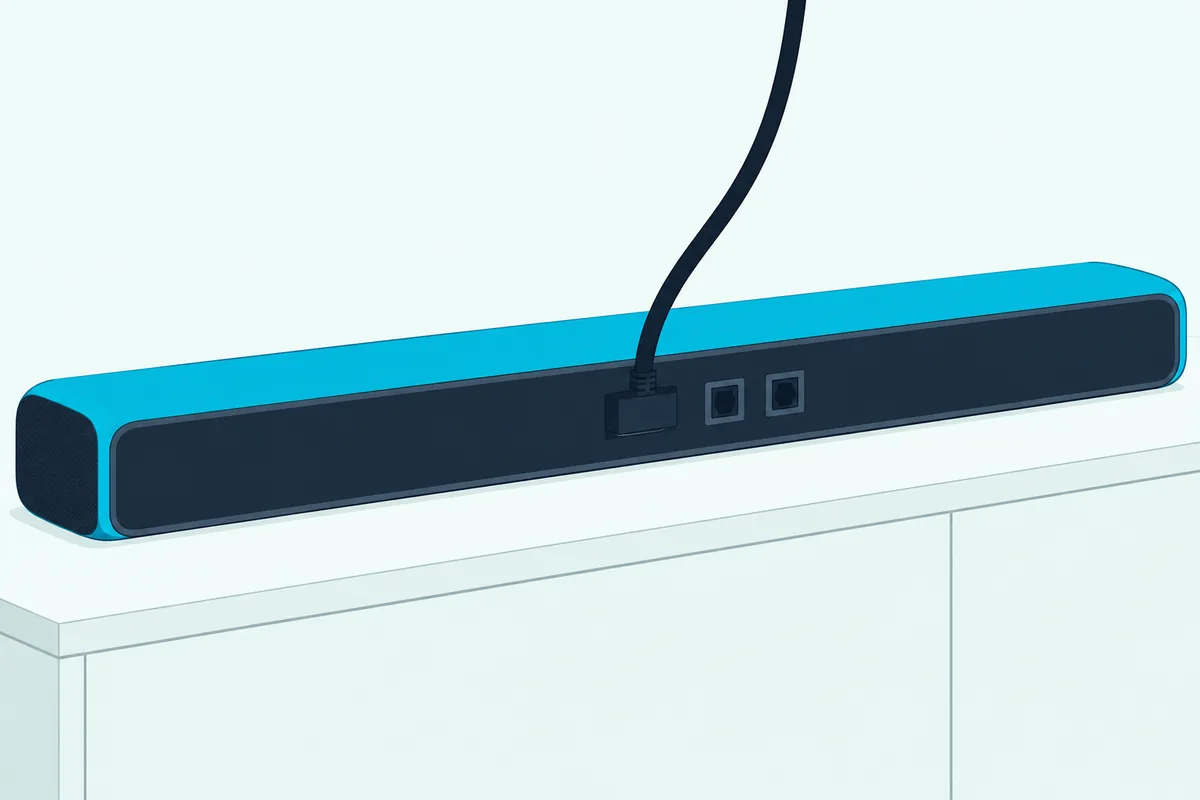
Two optical inputs on the SR-C20A, SR-C30A and SR-B20A aren’t twins. The one marked TV is for the television when it has no ARC, while OPTICAL takes a second audio device with an optical output, and the remote has a separate button for each.
The older YAS-207 follows the YAS pattern, with HDMI IN, HDMI OUT (ARC), a TV optical input and an ANALOG 3.5 mm jack. The SR-B20A, SR-B30A and YAS-109 also carry a SUBWOOFER OUT jack for an external subwoofer on an RCA mono cable.
Get Studio Tips Weekly
Join 5,000+ creators getting acoustic treatment advice every week.
No spam. Unsubscribe anytime.Do You Need to Buy an HDMI Cable for a Yamaha Soundbar?
That box column answers it for most of the range. Yes, unless you own an SR-B30A or SR-B40A, the only two whose guides list an HDMI cable (1.5 m) in the box; the SR-C20A, SR-C30A, SR-B20A, SR-X40A, SR-X50A, YAS-109 and YAS-209 guides have you supply your own.
Yamaha’s manuals ask for a 19-pin HDMI cable with the HDMI logo printed on it, kept as short as possible so the signal doesn’t degrade. The YAS manuals add a premium high-speed cable for 3D and 4K video through the bar, and the SR-X50A guide asks for an Ethernet-supporting HDMI cable to bring Dolby Atmos from an eARC TV.
Yamaha’s ARC article also warns that cable runs of over 15 feet may have signal loss problems with HDMI. If you’re buying one, Highwings’ 6.6 ft Certified Ultra High Speed HDMI cable is sold as that certified type and stays well inside that limit.

Highwings’ 6.6 ft Certified Ultra High Speed HDMI cable
Measure from the TV’s ARC port to the bar’s HDMI jack first. A 6.6 ft cable that reaches with slack beats a longer one coiled behind the console.
Where Is HDMI Control on a Yamaha Soundbar?
That new cable only carries the TV’s sound once HDMI Control is on. On most Yamaha bars you toggle it with the bar off by holding one remote button for at least five seconds: TV on the SR-B20A, SR-C20A, SR-C30A, SR-B30A and SR-B40A, and HDMI on the YAS-109, YAS-209, SR-X40A and SR-X50A.
HDMI Control is on by default on every one of those guides, and each says it has to be on for ARC to work. The bar turns on after the five seconds, and the indicator shows the new setting: glowing means enabled and off means disabled.
On the older YAS-207 the same switch is the HDMI key held for more than 3 seconds. Yamaha’s guides add that HDMI Control raises standby power, and the SR-B40A guide says that if you switch it off to save power, you’ll run the bar from its own remote.
On the YAS and True X bars, a second hold sets where audio from the bar’s HDMI IN jack plays when HDMI Control is off. On the YAS-209 that’s 3D SURROUND for five seconds, on the SR-X50A it’s TV for five seconds, and on both the default is the bar itself.
Which TV Setting Sends Sound to a Yamaha Soundbar?
That bar-side switch has a twin on the TV, and Yamaha’s guides ask for both. On the TV, turn on HDMI-CEC (Anynet+ on Samsung, SIMPLINK on LG, BRAVIA Sync on Sony) and set the sound output to anything other than the TV’s built-in speakers, usually HDMI ARC or eARC.
Here are the paths, from Roku’s HDMI-CEC and ARC guide unless the row names another maker’s guide:
| TV | Name for HDMI-CEC | Where to turn it on | Where to send the sound |
|---|---|---|---|
| Samsung | Anynet+ (HDMI-CEC) | Settings > All Settings > Connections > External Device Manager | Not given in Roku’s guide |
| LG (webOS 24, LG’s guide) | SIMPLINK (HDMI-CEC) | Settings > All Settings > General > External Devices > HDMI Settings | Sound > Sound Out > HDMI(ARC) Device |
| Sony BRAVIA | BRAVIA Sync | Settings > Watching TV > External Inputs > BRAVIA Sync settings | Set Audio Output > eARC mode to Auto if available |
| Vizio | CEC | Settings > All Settings > System > CEC | Not given in Roku’s guide |
| Roku TV | Control other devices (CEC) | Settings > System > Control other devices (CEC) > 1-touch play | Settings > Audio > Audio Output > eARC |
| Fire TV, any brand | HDMI-CEC Devices | Settings > Display & Sound > HDMI-CEC Devices | Settings > Display & Sound > ARC > Enable HDMI ARC |
| Google TV or Android TV | Control Other Devices (CEC) | Settings > Inputs or External devices control | Settings > Sound/Audio > Audio Output > HDMI ARC / eARC |
LG’s guide has a shortcut: choosing HDMI(ARC) Device under Sound Out turns SIMPLINK on by itself. The same guide says SIMPLINK needs a high-speed HDMI cable with the CEC function, which uses pin 13.
Sony’s 2024 BRAVIA Help Guide sets the sound side under Settings > Display & Sound > Audio output, with Speakers on Audio system and eARC setting on Auto. It also notes that some sound bars don’t print “eARC” or “ARC” on the jack, so on a Yamaha bar look for the one marked HDMI OUT/TV.
On a Roku TV, the Roku TV’s audio output menu gets its own walkthrough, including the S/PDIF and ARC format choices.
Can the TV Remote Control a Yamaha Soundbar?
That CEC switch is what gives you one remote. Yes, over HDMI with HDMI Control on, Yamaha’s guides list three things the TV remote does: turn the TV and bar on and off together, switch the sound between the TV and the bar, and adjust the bar’s volume once the TV’s audio output is set to the bar.
On the YAS-109 and YAS-209 the link goes one step further. When you pick a Blu-ray player on the bar’s HDMI IN jack with the TV remote, the bar’s input switches to HDMI on its own, and HDMI signal pass-through keeps the picture coming even when the bar is off.
Yamaha’s guides also warn that a TV may not support every function, even with HDMI Control on. None of this works over AUX or Bluetooth, and the SR-B40A guide says HDMI Control can’t be used when the TV is connected with a digital optical cable either.
For everything else there’s the bar’s own remote. Yamaha’s guides give it a range of 6 m (20 ft) and say to keep the bar’s sensor out of direct sunlight or strong lighting, which can stop it responding.
How Do You Connect a Yamaha Soundbar With an Optical Cable?
That remote trade-off is the main cost of the TOSLINK route, and on some TVs it’s the only way in. Run the cable from the TV’s digital optical output to the bar’s TV jack (OPTICAL on the SR-B30A and SR-B40A), take the caps off both plugs, and check the plug’s orientation before you push it in.
Then pick the matching input on the bar’s remote. The SR-B40A guide says to set the bar’s input to OPTICAL when the TV comes in that way, while the SR-B20A and its siblings take the TV on the TV input.
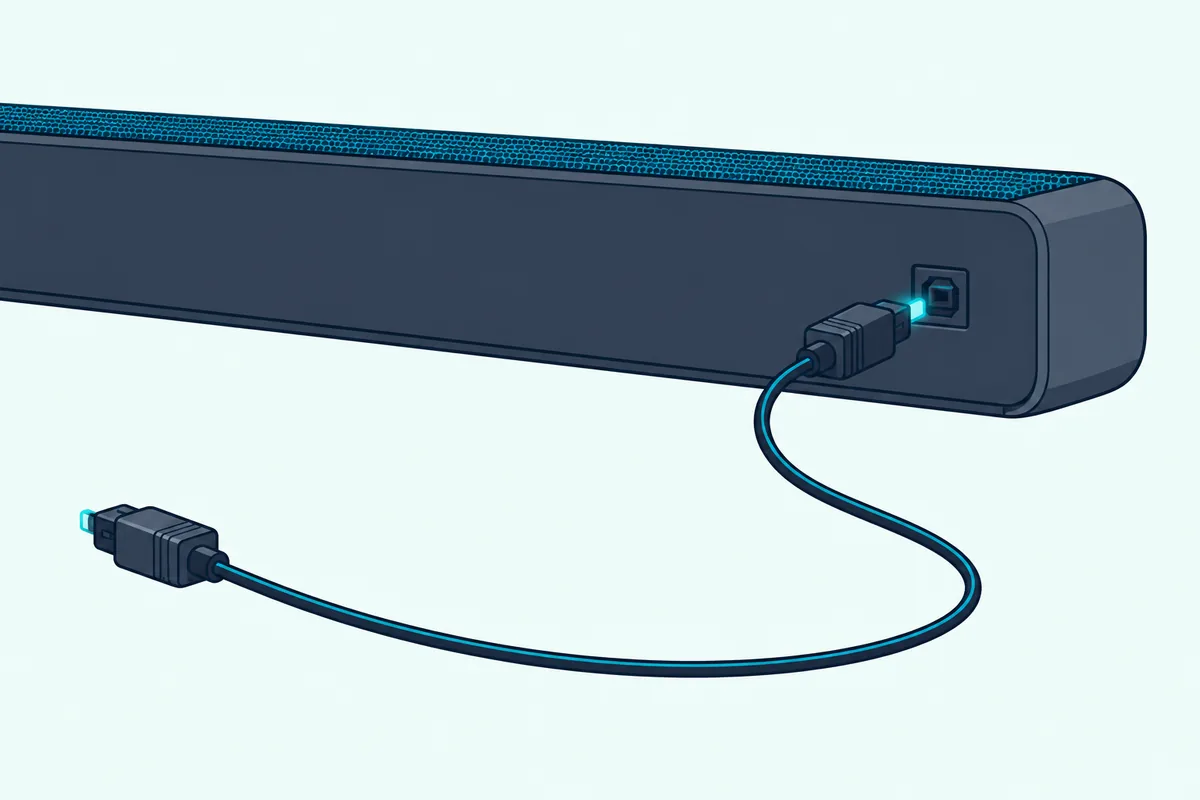
A TV without ARC but with optical gets both cables on most Yamaha bars. The SR-B20A, SR-C20A, SR-C30A, YAS-209 and SR-X50A guides run HDMI for control and optical for the sound, while the SR-B30A and SR-B40A use optical alone.
The thinner cable also carries less. The SR-B40A plays Dolby Atmos, Dolby Digital Plus and Dolby TrueHD over eARC, but over optical it’s 2-channel PCM and Dolby Digital, and its guide says Dolby Atmos can’t play over an optical cable.
The SR-B30A and SR-B40A are the two current bars with no TOSLINK cable in the box. If you need one, Amazon Basics’ 6 ft TOSLINK optical cable is sold for sound bars, and why optical stops short of Dolby Atmos explains the format limits.
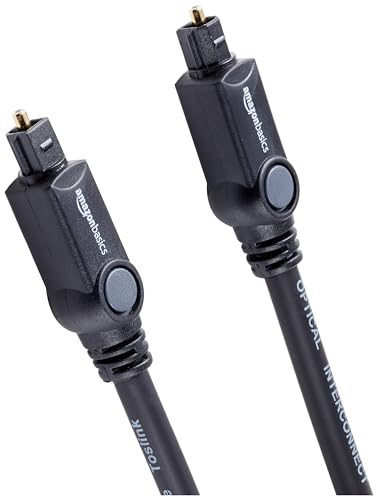
Amazon Basics’ 6 ft TOSLINK optical cable
Can You Use AUX or Bluetooth Instead?
That TOSLINK jack isn’t on every TV, and AUX and Bluetooth fill the gap. Yes, AUX works on the bars with a 3.5 mm analog input (the SR-C20A, SR-C30A, B200A and YAS-207), and Bluetooth on all of them, though both give up the TV-remote control from earlier.
For AUX, the SR-C30A guide uses a 3.5 mm stereo mini plug cable, sold separately, from the TV’s analog audio output or headphones jack to the bar’s ANALOG jack. The SR-C20A guide also asks you to set the device’s volume about the same as the TV’s, so the bar doesn’t jump in loudness when you switch inputs.
Bluetooth takes four steps in the SR-B20A, SR-B40A and YAS-209 guides:
- Press BLUETOOTH on the bar’s remote; the BLUETOOTH indicator flashes while the bar waits.
- Turn on Bluetooth on the other device.
- Pick the bar from the list, shown as a name such as Yamaha SR-B20A, Yamaha SR-B40A or Yamaha YAS-209.
- Start playback; on the SR-B20A and SR-B40A the indicator stops flashing and glows blue.
Stay within 10 m (33 ft), and if an adapter asks for a passkey, the guides say the bar expects 0000. The SR-B20A and SR-B40A hold two Bluetooth devices at once, and holding BLUETOOTH for five seconds ends the connection.
Yamaha’s examples are phones, tablets, laptops and music players, and it gives no steps for a TV. So check your TV’s manual for a Bluetooth audio output, and keep the bar away from microwave ovens and other wireless devices, which the guides list among the causes of Bluetooth sound cutting out.
What App Works With Your Yamaha Soundbar?
That Bluetooth link is also how the SR-C and SR-B bars talk to their app. The SR-B20A, SR-C20A, SR-C30A, SR-B30A and SR-B40A use Sound Bar Remote over Bluetooth, while the YAS-109, YAS-209, SR-X40A and SR-X50A use Sound Bar Controller over Wi-Fi.
The Sound Bar Remote guides say their bar works with that app only. The SR-B40A’s troubleshooting page says Sound Bar Controller, Home Theater Controller and MusicCast Controller can’t be used, and Yamaha’s Sound Bar Remote page lists volume, input and sound mode control.
On Android, the SR-B40A guide asks for location permission on Android 11 or earlier and nearby-devices permission on Android 12 or later, which the app uses only to find the bar. Yamaha’s app page lists the SR-C20A and SR-B20A among its models but not the SR-C30A, SR-B30A or SR-B40A, whose guides name it anyway.
Sound Bar Controller needs the phone and the bar on the same router, and the YAS-209 manual says the bar updates its firmware the first time it joins a network. The True X Bar 90A’s spec page names MusicCast Controller instead, and the YAS-207 used Home Theater Controller over Bluetooth.
What Do the Lights on a Yamaha Soundbar Mean?
Those apps show settings on a screen, but the bar itself talks through a few small lights. On the SR-B20A and SR-B40A in normal playback, TV glows when sound comes from the TV, OPTICAL when it comes from the OPTICAL jack, and BLUETOOTH glows blue when a device is connected and flashes white while it waits.
Press INFO on the remote and the same lights describe the incoming signal for three seconds. The SR-B20A and SR-B40A guides read them like this:
| Light after INFO | SR-B20A | SR-B40A |
|---|---|---|
| TV glows white | Dolby Digital | Dolby Audio (Dolby Digital, Dolby Digital Plus, Dolby TrueHD) |
| TV glows red | DTS | Dolby Atmos |
| OPTICAL glows white | AAC | AAC |
| TV and OPTICAL off | PCM or no input signal | PCM, other signal, or no input signal |
So if INFO lights neither TV nor OPTICAL while the TV plays, the bar is getting PCM, another signal or nothing at all, and the format and source checks below come next. The SR-B40A also has a DOLBY ATMOS light that glows green when Atmos audio plays in surround.
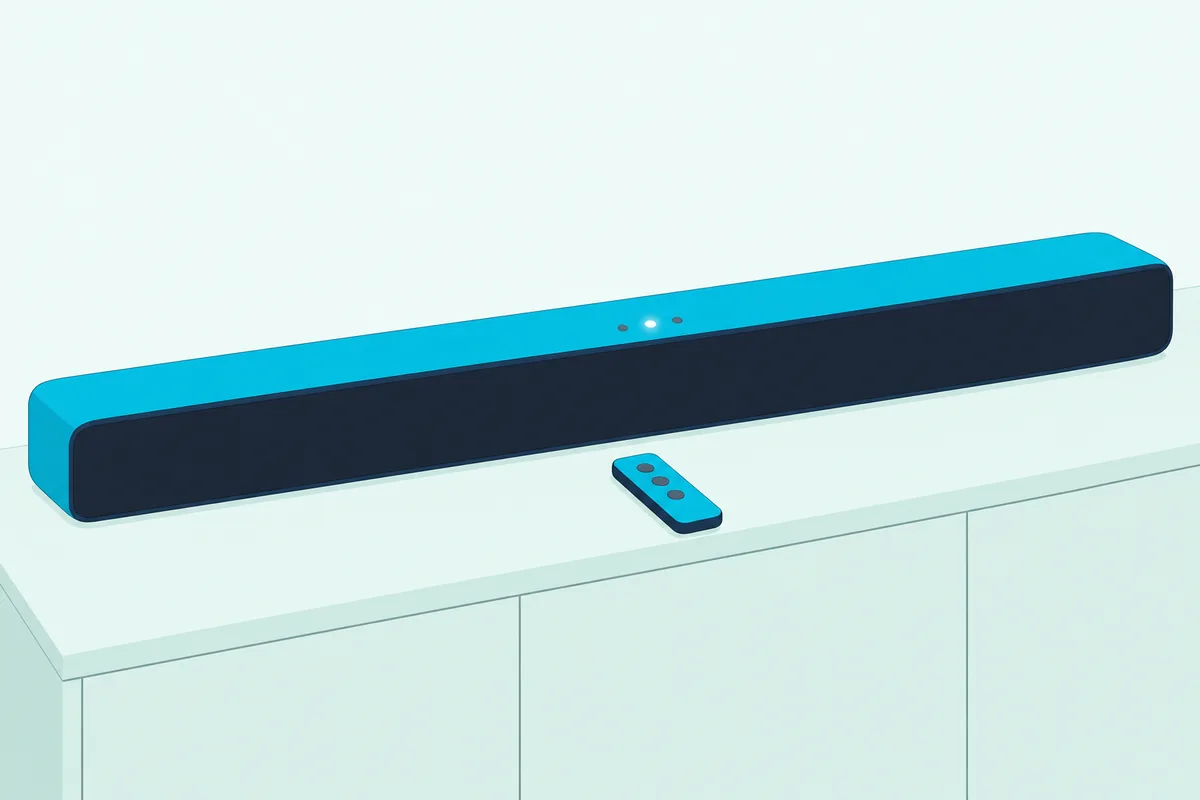
A light flashing red means an error. On the SR-B20A and SR-B40A, a TV light flashing red means the protection circuit has tripped, and if the power keeps cutting out after you check the connections, the guides say to unplug the bar and contact an authorized Yamaha dealer or service center.
Why Is a Yamaha Soundbar Not Playing Sound From the TV?
That INFO check is the first of several. Yamaha’s guides trace a silent bar to the wrong input, HDMI Control switched off, the TV still set to its built-in speakers, or a signal the bar can’t play.
Work down this table, built from the SR-B20A, SR-C20A, SR-B40A and YAS-209 guides:
| What you notice | What to check | Source |
|---|---|---|
| No sound over HDMI | Bar on the TV input; HDMI Control on at the bar and the TV; TV audio output not on its built-in speakers | SR-B20A, SR-B40A, YAS-209 guides |
| No sound with some programs | Set the TV’s digital output to a format the bar plays; the SR-C20A and SR-C30A take PCM and Dolby Digital only, and the SR-B20A and YAS-209 add DTS | Each guide’s format page |
| TV remote won’t control the bar | Turn both off and on; if that fails, unplug the bar and its HDMI devices for about 30 seconds | SR-B20A, SR-B40A, YAS-209 guides |
| The bar switches itself off | Auto Power Standby, after 8 hours with no operation or 20 minutes with no audio and no operation (10 minutes on the YAS-209) | SR-B20A, SR-B40A, YAS-209 guides |
| Sound from the TV speakers too | Turn the TV’s volume all the way down | SR-B20A, SR-B40A guides |
| No bass from a wireless subwoofer | Subwoofer plugged in; if its light flashes, move it closer and away from metal furniture or a microwave | SR-B40A, YAS-209 guides |
| Bar frozen | SR-B20A: hold the rear Reset button 10 seconds; SR-B40A: hold power 15 seconds and unplug the subwoofer; YAS-209: unplug and replug | Each guide |
The Auto Power Standby default varies by region, and the SR-B20A guide lists it as disabled on models for the USA. Roku’s guide adds a reset order for stubborn HDMI links: unplug every HDMI device and the TV for about a minute, plug in and turn on the TV first, then plug in the soundbar, then the other HDMI devices.
A wireless subwoofer that won’t come back can be paired by hand. On the SR-C30A, turn the bar off, hold SUBWOOFER (-) for five seconds until OPTICAL flashes, then within 30 seconds hold PAIRING on the subwoofer’s back for five seconds, and re-pairing a wireless subwoofer to its soundbar explains auto pairing and the status lights on other bars.
If nothing on the list helps, a factory reset returns the bar to Yamaha’s default settings. On the SR-B20A, turn the bar off, then hold volume + on the bar while holding power until all the indicators flash.
Frequently Asked Questions
How do I get my Yamaha soundbar to pair to my TV?
Pair it over HDMI rather than Bluetooth when the TV has an ARC or eARC port: connect the bar’s HDMI OUT/TV jack to it, keep HDMI Control on, and turn on the TV’s HDMI-CEC setting. Bluetooth pairing works too, but Yamaha’s guides write it for phones, tablets and laptops, so check that your TV can send audio over Bluetooth first.
Why won’t my soundbar connect to my TV through HDMI?
On a Yamaha bar, start with three checks from its guide: HDMI Control enabled on the bar (hold TV or HDMI for five seconds with the bar off), HDMI-CEC enabled on the TV, and the TV’s audio output set to something other than its speakers. Then confirm the cable sits in the TV’s ARC or eARC port, not a plain HDMI input.
How do I get my TV to play sound through my Yamaha sound bar?
Set the TV’s audio output to the bar. Over HDMI that’s HDMI ARC or eARC in the TV’s sound menu with HDMI-CEC on; over a TOSLINK cable, select the bar’s TV or OPTICAL input and turn the TV’s own speakers down.
Does it matter which HDMI port you use for a soundbar?
Yes, on the TV’s side. Yamaha’s guides say to use the TV input labeled ARC (or eARC), and Sony’s Help Guide says the same, while the bar’s own jack is the one marked HDMI OUT/TV; on the YAS and True X bars, HDMI IN is for a player, not the TV.