How to Connect a Samsung Soundbar to Bluetooth Without Its Remote
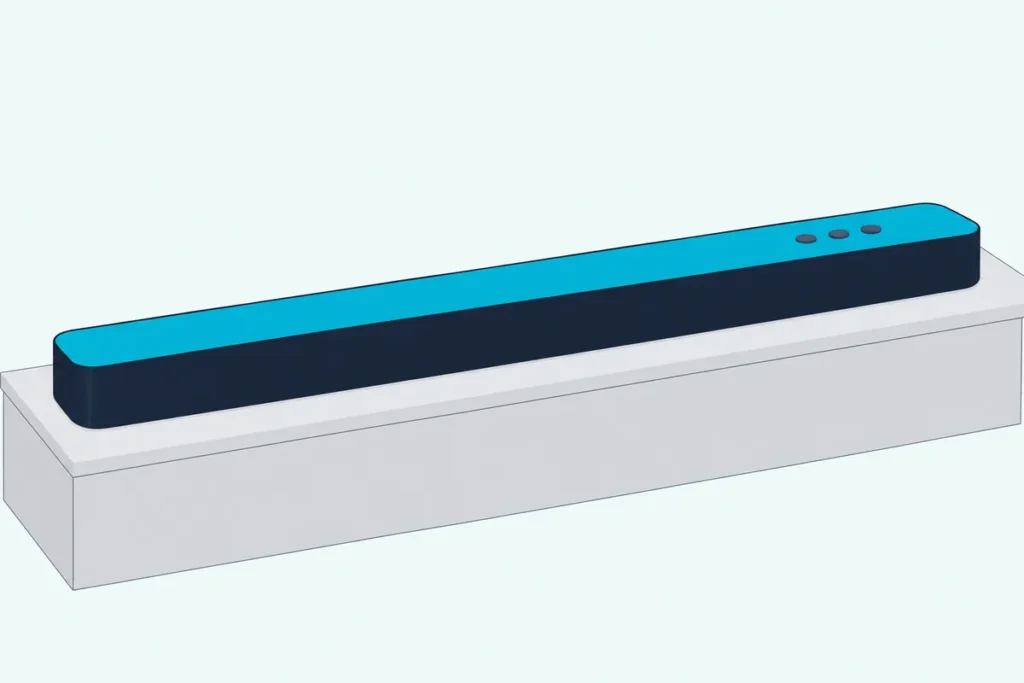
Here’s how to connect a Samsung soundbar to Bluetooth without the remote: press the Source button on the bar until the display reads BT, and if it settles on BT READY instead of BT PAIRING, hold that same button for more than 5 seconds.
Most failed attempts stop there, because BT READY only reconnects a device the bar already knows, so a new phone finds nothing.
Once BT PAIRING is on the display, the bar appears in your phone’s or TV’s Bluetooth list and you pick it like any other speaker.
The button to hold changes with the model, Source on the Q6 and B-series bars but Mic On/Off on the Q990C and Q990D, so find your bar in the table below first.
Then come the display words, the phone, the TV route, the SmartThings app, the bars with no display and the jobs that still need a remote.
How to Connect a Samsung Soundbar to Bluetooth Without the Remote in Four Steps
Those four steps come from Samsung’s own manuals, and the HW-Q600B manual puts them in one line: to turn on BT PAIRING mode, change the source to BT mode, then press and hold the Source button for more than 5 seconds.
- Switch the bar to Bluetooth. Press the Source button on the top panel (or the Multi Function button on the Q990 bars) until the display reads BT.
- Read the display. The HW-Q600B manual says BT changes to BT PAIRING by itself in a few seconds, or to BT READY if the bar has a connection record.
- Force pairing mode if you see BT READY. Hold the Source button for more than 5 seconds until the display reads BT PAIRING; on the Q990C and Q990D, the button is Mic On/Off.
- Pick the bar on your device. Keep a new device within 1 m, select the bar’s name in its Bluetooth list, and enter 0000 if it asks for a PIN.
When the link is made, Samsung’s manuals say the display shows the device’s name and then BT. Bluetooth pairing on a Samsung soundbar with the remote covers the same route with the Pair button.
Which Button Do You Hold on Your Samsung Soundbar?
Step 3 is where the models part ways, and the right button depends on the year and the series. Samsung’s manuals name three different buttons and two holds, so this table matches each bar to its own instruction:
| Soundbar | Button that changes the source | Button to hold for BT PAIRING | Hold | Manual’s wording |
|---|---|---|---|---|
| HW-Q600B, Q600C, Q600F, Q60C, Q60T | Source, top panel | Source | More than 5 seconds, in BT mode | BT becomes BT PAIRING, or BT READY if a connection record exists |
| HW-B550, B650, B750F | Source, top panel | Source | More than 5 seconds, in BT mode | Same as the Q6 bars |
| HW-A450, C450 | Source, top panel | Source | More than 5 seconds; the C450 manual says in the BT READY state | A450 sources are D.IN, BT and USB |
| HW-Q70R | Source, right side panel | Source | More than 5 seconds | BT becomes BT READY in a few seconds if no device is connected |
| HW-Q990C, Q990D | Multi Function, top panel | Mic On/Off | More than 5 seconds | Mic On/Off doubles as the pairing hold |
| HW-Q990F, Q930F, Q800F (2025) | Multi button, top panel | Microphone | 3 seconds or longer | Hold until BT PAIRING is displayed |
| HW-S60D, S61D | Multi Function, top panel | The top-panel button the manual pictures beside PAIR | 5 seconds, in Bluetooth mode | No display; the LED and a voice line confirm it |
The hold is the same length on every bar but the 2025 Q-series, where Samsung’s web user guide for the HW-Q990F, Q930F and Q800F says to press the Microphone button on the top panel for 3 seconds or longer until BT PAIRING is displayed. The HW-Q990D manual‘s troubleshooting page repeats its own: press the Mic On/Off button on the body for at least 5 seconds.

Samsung’s UAE help page on connecting a soundbar to a Samsung TV sums the two families up: if BT READY appears, the soundbar is already paired with another device, so press the Mic On/Off or Source button to reset pairing. For a bar that isn’t in the table, check its own manual.
What Do BT, BT READY and BT PAIRING Mean on the Display?
Those three words are the whole conversation between you and the bar, and the HW-Q600B manual defines the two that matter. BT READY is the mode for reconnecting a TV or mobile device that was connected before, while BT PAIRING is the mode for connecting a new device to the soundbar.
Plain BT is the source name, and what follows it depends on the bar’s memory. A bar with no connection record moves to BT PAIRING by itself, while a bar that has ever paired with anything parks at BT READY and waits.
That waiting has a limit: the Q600B manual says the soundbar turns off by itself after 18 minutes in the Ready state.
The Source button also decides what you cycle through to reach BT. The HW-Q600B, B650, Q60T and B550 manuals list D.IN, HDMI, BT and USB, the 2025 HW-Q600F and B750F manuals start at TV ARC and run HDMI, BT, USB and then D.IN, and the HW-Q990D’s Multi Function button runs TV ARC or eARC, HDMI 1, HDMI 2, Wi-Fi, BT and D.IN.
How Does Your Phone or Tablet Find the Soundbar?
With BT PAIRING on the display, the rest happens on the phone, and Samsung’s manuals give the name to look for. The HW-Q600B appears as [AV] Samsung Soundbar Q6B-Series, the HW-A450 as [AV] Samsung Soundbar A4-Series, the HW-Q70R as [AV] Samsung Soundbar Q70R, the HW-Q990D as Soundbar Q-Series and the HW-S60D as S-Series Soundbar.
Distance matters at both ends of the job. The Q600B manual asks for a new device within 1 m and says the connection is lost once the two are more than 10 m apart.
A few of the manual’s notes explain the dead ends. The Q600B connects one TV or two Bluetooth devices at a time, it pairs only with a device that supports the A2DP audio profile, and selecting the bar from an already paired phone’s list switches the bar to BT by itself.
The phone side of a soundbar pairing covers the Android and iPhone menus. Once it’s paired, the Q600B manual says, use BT READY to reconnect next time rather than pairing again.
How Do You Connect a Samsung Soundbar to a TV Over Bluetooth Without the Remote?
The TV route starts with the same hold, and then the TV’s own menu does the remote’s job. Samsung’s US set-up page spells it out: if you don’t have the soundbar remote, press the Source button on the soundbar until the display says BT, wait a few seconds for BT Pairing, then pair from the TV.
- Put the bar in BT PAIRING with the Source or Mic On/Off hold from the table.
- Open the TV’s Bluetooth speaker list. On a Samsung TV, the HW-Q990D manual and Samsung’s 2025 TV e-Manual give Home, Menu, Settings, All Settings, Sound, Sound Output, Bluetooth Speaker List.
- Select the soundbar. Samsung’s manuals say the TV’s list marks the bar Need Pairing or Paired; select it to connect, and the bar’s display shows the TV’s name and then BT.
- Delete and retry if it fails. The Q600B and Q990D manuals both say to remove an older listing of the same soundbar from the TV’s speaker list, then repeat the steps.
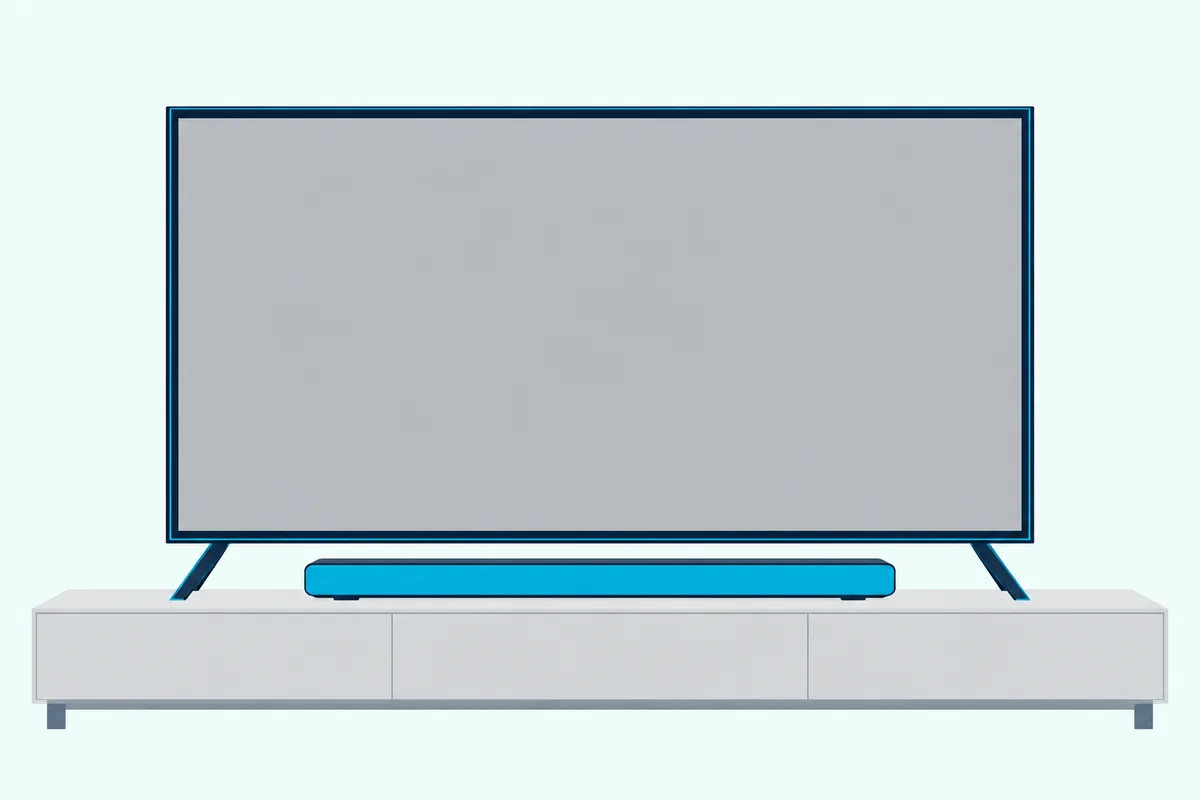
Samsung’s TV e-Manual adds two things the bar’s manual leaves out. If the TV fails to find a Bluetooth audio device, place it closer to the TV and select Scan, and when a paired audio device is turned on later, the TV detects it and shows a pop-up to activate it.
After the first time, the Q600B manual has the bar reconnect from BT READY, and the TV e-Manual’s Auto-Con. Bluetooth setting, under Settings, All Settings, Connections on supported models, connects to the last Bluetooth audio device used.
Reconnecting is also the remote-free route’s one soft spot: the bar-side TV connect toggle is a 5-second hold of the Left button on the remote in both the Q600B manual and the 2025 web user guide.
For a TV of another brand, Samsung’s manuals only say to select Bluetooth mode on the TV and see its manual. The Q990D and S60D manuals add that only one Samsung TV can be connected at a time.
Can the SmartThings App Stand In for the Remote?
That TV connect toggle is the first thing people hope the app will reach, and the documents give the app a narrower job than that. Samsung’s Latin America page on adding a soundbar to SmartThings needs the phone and the bar on the same Wi-Fi network and signed into the same Samsung Account, and the HW-Q990D manual files SmartThings under its Wi-Fi connection method, not its Bluetooth one.
The app does reach the bar’s Bluetooth on one route. The Q990D manual’s Tap Sound function connects a Samsung phone to the bar over Bluetooth when you tap the phone on the bar’s top, with Tap View, Tap Sound switched on in SmartThings; the manual limits it to Samsung mobile devices on Android 8.1 or later and warns against tapping a sharp corner.
So the app is a Wi-Fi bar’s settings panel and a Galaxy phone’s shortcut, not a replacement Pair button. The bars that run on Bluetooth and optical alone, such as the HW-A450 and C450, have manuals that never mention SmartThings.
What If Your Samsung Soundbar Has No Display?
The Tap Sound shortcut aside, the S-series bars need their own reading of the steps above, because the HW-S60D and S61D have no display window, so a light and a voice line take over the BT READY and BT PAIRING roles. Samsung’s manual gives them a Multi Function button that changes the mode through TV ARC or eARC, Wi-Fi, Bluetooth and Digital Audio In, with the LED lighting white and then turning off at each change.
To add a new device, the manual’s picture shows the Mic On/Off button on the top panel held for 5 seconds while the bar is in Bluetooth mode. The multicolor LED then changes through red, green and blue in turn until the link is made, the bar says “Ready to connect via Bluetooth,” and the LED blinks cyan three times once a device connects.
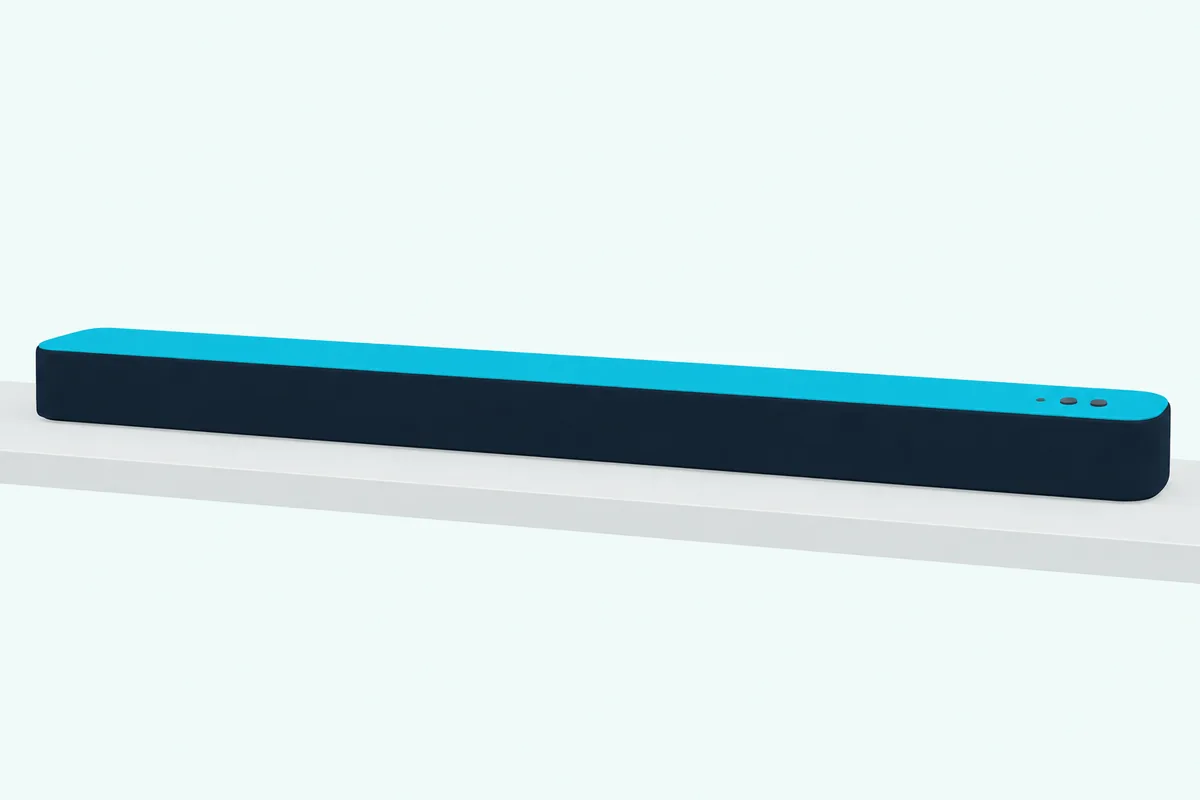
If the bar loses the device, the manual says the LED blinks red three times, and switching the Multi Function button to any mode other than Bluetooth disconnects it.
Why Won’t the Soundbar Go Into Pairing Mode?
If the display won’t move past BT READY, Samsung’s manuals list the causes in order. The HW-Q990D manual says that when the soundbar is connected to another device, you disconnect that device first before switching, and that a device which already lists the bar should delete it from its Bluetooth list before reconnecting.
Check the mode too. The Q600B manual’s hold only works while the bar is in BT mode, and the C450 manual says to be in the BT READY state first, so a bar sitting on D.IN or HDMI ignores the hold.
Interference comes next. The Q600B manual says Bluetooth search or connection may fail with a strong electrical field around the bar, with several Bluetooth devices paired at once, or with the other device off, out of place or faulty.
When nothing on the panel responds, resetting a Samsung soundbar without the remote lists the button holds by model.
Which Jobs Still Need the Samsung Remote?
Bluetooth isn’t one of them, but a few neighbors are, and it’s worth knowing which before you buy anything. The Q600B manual’s hidden-button table puts TV Auto connect on a 5-second hold of the remote’s Left button, ID SET for the subwoofer on the Up button, the 7-band EQ on Sound Control and the TV remote function on WOOFER.
Samsung’s US TV-remote page offers the cheapest workaround for daily use: with the bar on HDMI ARC or optical and the TV’s Sound Output set to the soundbar, the Samsung TV remote adjusts the bar’s volume and mute, and the bar turns on and off with the TV.
Settings are the real gap. Changing Samsung soundbar settings without the remote explains what the SmartThings app covers on Wi-Fi bars and what stays locked, and which replacement remote fits a Samsung soundbar matches the part numbers to the bars that need one for ID SET.
If you do want the original, Samsung’s US TV-remote page says a lost soundbar remote can be replaced through Samsung Parts by entering the soundbar’s model number. For the Bluetooth job on this page, the button on the bar does the same work.
Frequently Asked Questions
How do I put my Samsung soundbar in pairing mode without the remote?
Press the Source button on the bar until the display reads BT, then wait a few seconds. If it shows BT PAIRING you’re done; if it shows BT READY, hold Source for more than 5 seconds, or Mic On/Off on the HW-Q990C and Q990D, or the Microphone button for 3 seconds or longer on the 2025 HW-Q990F, Q930F and Q800F, until BT PAIRING appears.
Why does my Samsung soundbar say BT READY instead of BT PAIRING?
The HW-Q600B manual says BT becomes BT READY when the bar has a connection record, because BT READY is the mode for reconnecting a device it already knows. A new phone or TV needs BT PAIRING, which the same manual reaches by holding the Source button on the top panel for more than 5 seconds while the bar is in BT mode.
Can I connect my phone to a Samsung soundbar without the remote?
Yes. Put the bar into BT PAIRING with the button from the table, keep the phone within 1 m, and pick the bar’s name, such as [AV] Samsung Soundbar Q6B-Series or Soundbar Q-Series, in the phone’s Bluetooth list; the Q600B manual says to enter 0000 if a PIN is requested.
How do I connect a Samsung soundbar to the TV without the remote if Bluetooth isn’t an option?
Samsung’s US set-up and TV-remote pages say to press Source on the soundbar itself to reach D.IN for an optical cable, and that on an HDMI ARC connection the source changes to TV ARC by itself about 2 seconds after you select D.IN. Then set the TV’s Sound Output to the soundbar.
Can I use a Samsung soundbar without the remote at all?
For power, source and volume, yes, since every manual here puts those buttons on the bar, and a Samsung TV remote adds volume and mute over HDMI ARC or optical once Sound Output points at the bar. Sound modes, EQ, the subwoofer’s ID SET and the TV connect toggle sit on the remote or, on Wi-Fi bars, in the SmartThings app.