How to Update a Samsung Soundbar (App, USB or Automatic)
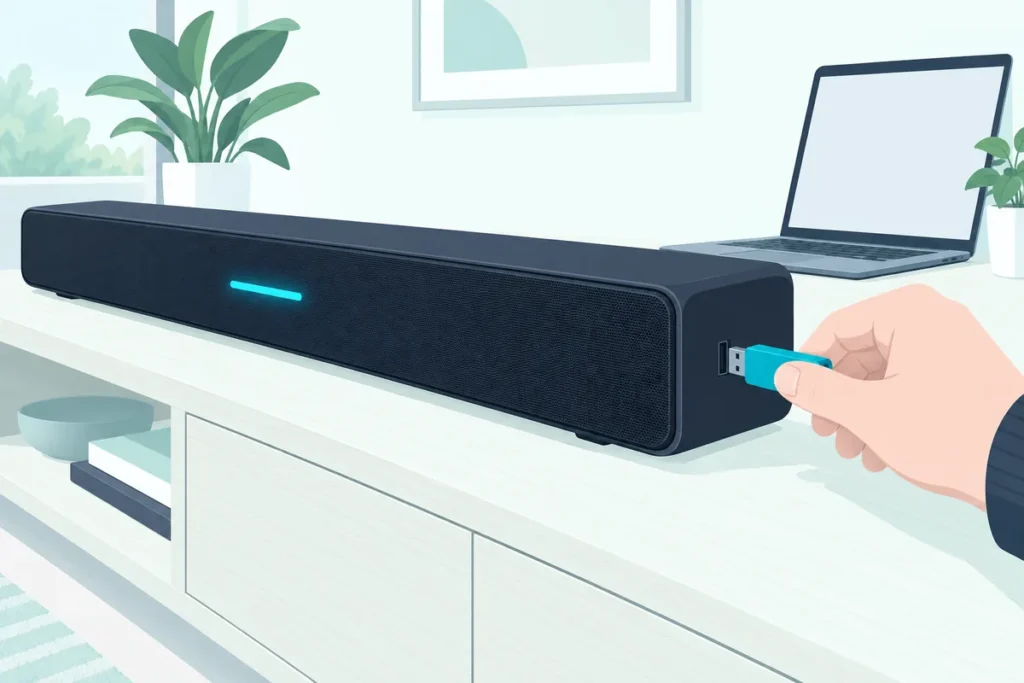
How to update a Samsung soundbar: open the SmartThings app, select the soundbar, tap the three dots, then Information, Firmware Update and Update Now; for a bar without Wi-Fi, copy the firmware from Samsung’s Download Center to a USB stick instead.
Samsung also lets its Wi-Fi models update themselves automatically while they’re switched off.
Below are Samsung’s steps for all three methods, how to check which version you have now, and the fix Samsung gives if an update leaves the soundbar unresponsive. If the trouble started before any update, our checklist of common Samsung soundbar faults comes first.
How Do You Check Your Samsung Soundbar’s Firmware Version?
All three methods start from the same question: which version is on the bar now? Samsung’s method is to press and hold the Sound Control button, the one with the gear icon, for 6 seconds until the soundbar turns off (Samsung).
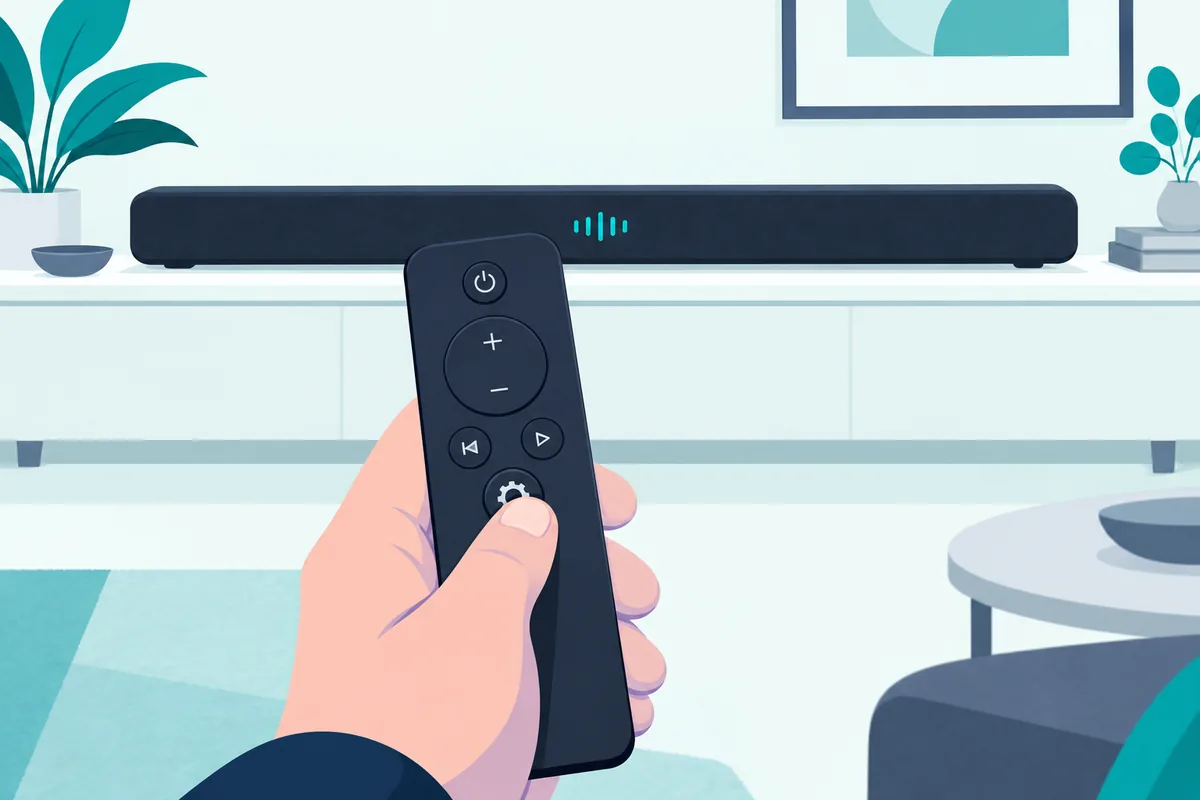
The firmware version then shows on the soundbar’s display. Samsung says to note the numbers after the letter B, and compare them with the newest version listed for your model on Samsung’s support site.
If the numbers already match the newest version, there’s nothing to install. If they’re lower, pick one of the methods below.
To find that listing, you’ll need the soundbar’s model number. It’s the same number you’ll enter in Samsung’s Download Center for the USB method below.
How to Update a Samsung Soundbar With the SmartThings App
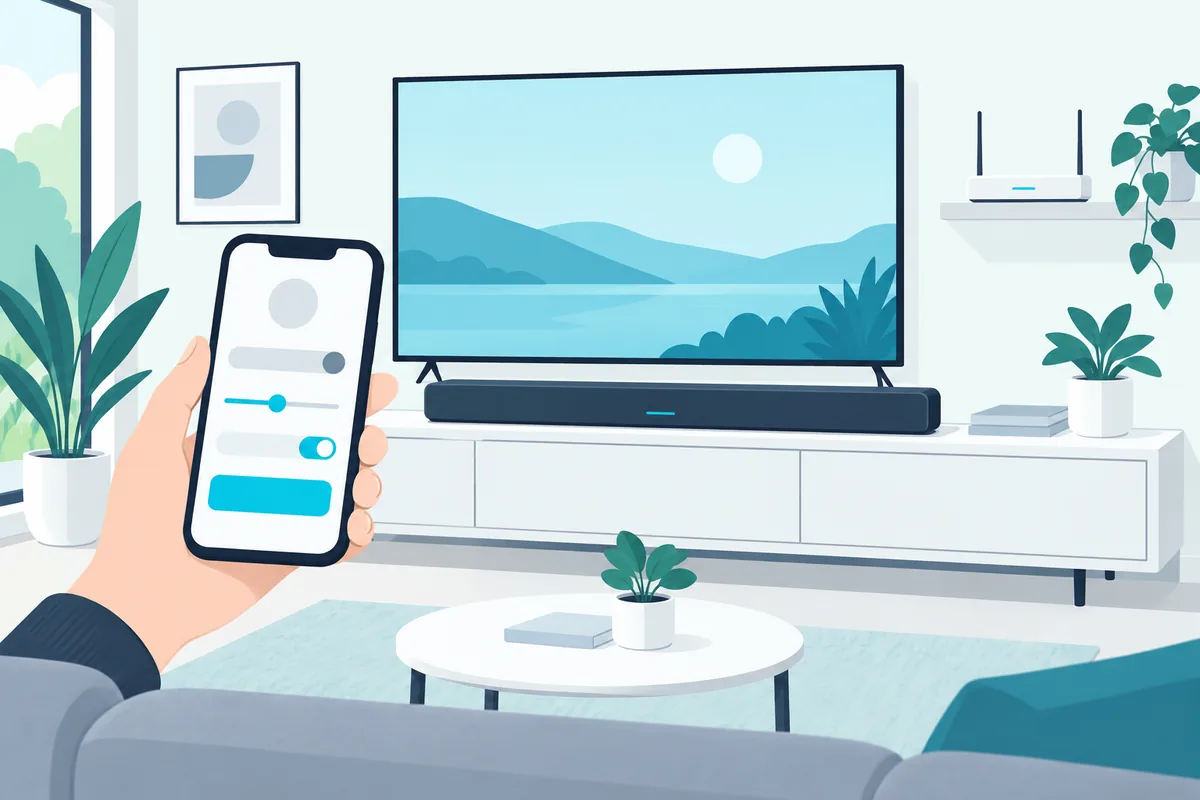
For a soundbar on Wi-Fi, the app is the quickest route, though Samsung’s US page suggests it mainly for times when the USB method doesn’t work. Samsung’s steps are:
- Make sure the soundbar is connected to your Wi-Fi network through SmartThings.
- Unplug the soundbar, the subwoofer and any rear speakers for 30 seconds, then plug them back in.
- Open the SmartThings app on your phone and select the soundbar to open its controls.
- Tap the three vertical dots in the top-right corner.
- Go to Information, then Firmware Update, and select Update Now.
Not every Samsung soundbar can do this. Samsung notes that some models don’t support Wi-Fi, and those can’t update automatically or through the SmartThings app (Samsung).
How Do You Update a Samsung Soundbar With a USB Stick?
That’s where the USB method comes in, and it works on bars with or without Wi-Fi. Samsung’s steps, in order:
- Go to the Samsung Download Center and find your soundbar, either by product type or by entering the model number.
- On the support page, find the firmware under Downloads. If there’s more than one version, pick the newest, and download the compressed file.
- Unzip the file on your computer.
- Copy the update files onto the USB drive, making sure it has room for them. Samsung says not to put them in a folder, since that makes it harder for the soundbar to find them.
- With the soundbar switched off, plug the USB drive into its USB port.
- Turn the soundbar on with the remote or its Power button, then switch the source to USB.
- Within 3 minutes the display shows UPDATE, or UPGR on the HW-Q600F, and the update begins.
- When it finishes, the soundbar turns off (the HW-B550, HW-B650 and HW-Q600F then turn back on by themselves). Hold the button your manual names for 5 seconds: Play/Pause on the remote for the HW-T450 and HW-Q60T, or the Volume button on the top panel for the HW-B550, HW-B650 and HW-Q600F. INIT appears and the soundbar turns off again, which means the update is complete. On the HW-C450 you turn the bar on first, then hold Volume until the display reads INIT OK.
Any USB drive with room for the files will do, and a basic one like the SanDisk Cruzer Blade 32GB is plenty. Keep it for updates only, so there are no other files for the soundbar to sort through.
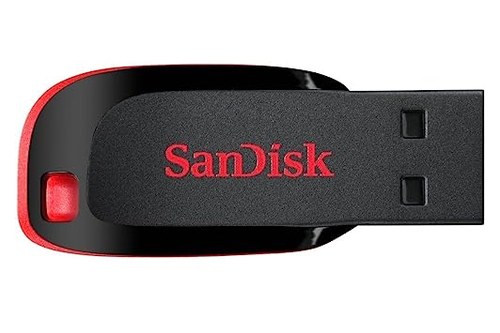
SanDisk Cruzer Blade 32GB
The HW-A450 ends the update its own way. Samsung’s manual for the HW-A450 says to use a USB stick with no music files on it, and that UPDATE appears within about 3 minutes, after which the bar turns itself off; with the bar back on, hold the Sound Control button on the remote for 10 seconds until INIT and OK appear and the bar restarts (Samsung).
That manual adds two useful warnings. Updating erases the bar’s settings and resets its link to the subwoofer, so note your settings first, and if an update fails, the HW-A450’s dual boot function lets you simply run it again.
If the subwoofer doesn’t relink by itself afterwards and the remote is missing, here’s how to connect a Samsung subwoofer to the soundbar without the remote, bar by bar.
Can a Samsung Soundbar Update Itself Automatically?
Those manual routes aren’t the only one, because a soundbar on Wi-Fi can update itself. Samsung says a soundbar connected to the internet can update automatically while it’s turned off, as long as it stays connected to your Wi-Fi network through the SmartThings app.
The catch is power. Samsung notes the soundbar’s Wi-Fi connection drops if the power cord is unplugged or the power goes out, and you’ll need to reconnect it to your network once power is back.
So if you rely on automatic updates, check the soundbar is still in the SmartThings app after a power cut. Otherwise it may sit on old firmware without you knowing.
If the app never found the bar in the first place, whether the SmartThings app works with your Samsung soundbar comes down to Wi-Fi, and Bluetooth-only bars like the Q600B update by USB instead, and its sound settings sit on the remote, as the best settings for a Samsung HW-Q600B shows.
What If a Samsung Soundbar Stops Working After an Update?
Automatic updates can go wrong, and Samsung has flagged one case. It says some Samsung soundbars, including 2023 Q-Series models, may stop working because of an automatic firmware update issue.
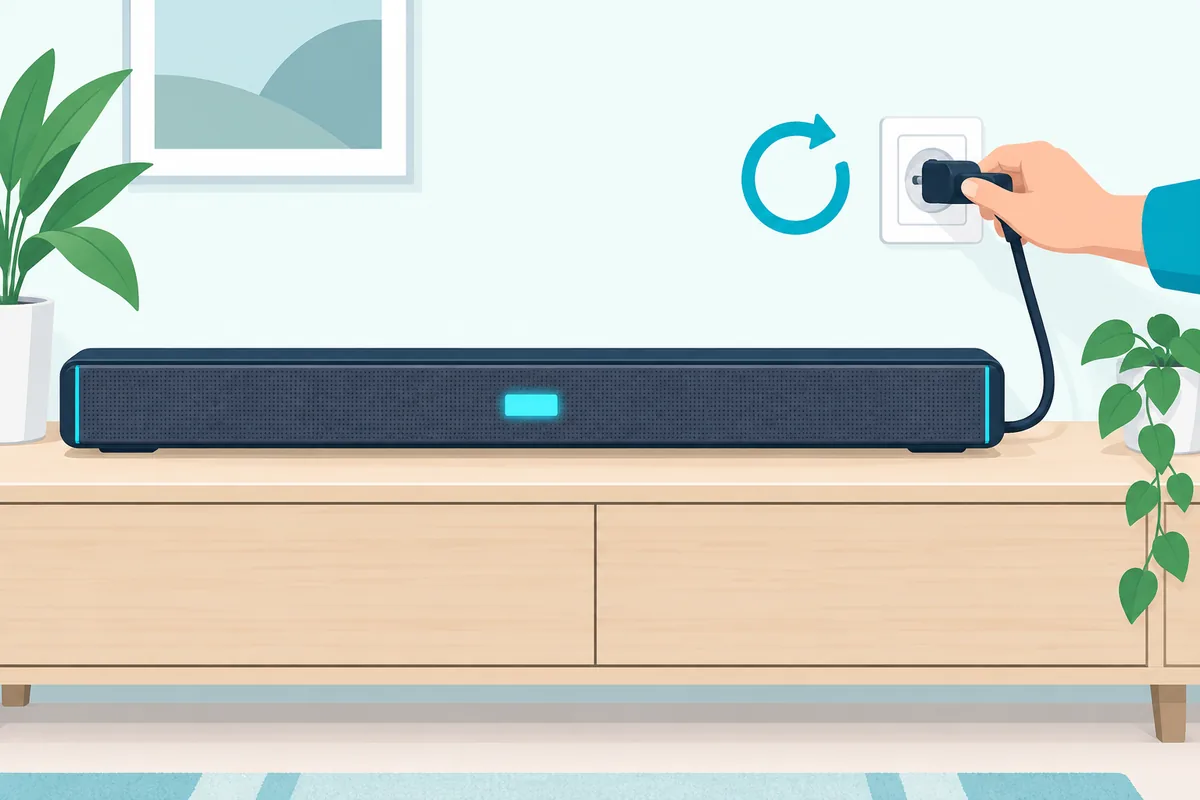
Samsung’s fix is simple: unplug the soundbar, plug it back in, then update the firmware through the SmartThings app or a USB drive. It says an improved version, v1004.0 or later, is available on Samsung.com.
If a USB update doesn’t start, check the two things Samsung’s steps stress. The files must sit on the USB drive itself, not inside a folder, and the soundbar should be off when you plug the drive in.
If the soundbar still misbehaves after updating, a reset may clear it. Our guide to the reset buttons for each Samsung model covers the combinations to try.
Why Should You Update a Samsung Soundbar?
Samsung’s own reason is that updates give you the latest improvements, and it releases them occasionally for its soundbars. In practice, an update is also one of the first things Samsung suggests when something isn’t working.
Its guide to Bluetooth problems, for example, lists a firmware update among the steps to try when a soundbar won’t pair (Samsung).
Software support also shapes how long a smart soundbar stays useful. Our guide to what makes a soundbar wear out explains why updates matter as much as the speakers.
Frequently Asked Questions
How do I know if my Samsung soundbar needs an update?
Check the version by holding the gear-icon Sound Control button for 6 seconds, then compare the numbers after the B with the newest firmware for your model on Samsung’s support page.
Can I update a Samsung soundbar without Wi-Fi?
Yes. Download the firmware from Samsung’s Download Center, copy the files to a USB drive without a folder, and plug it into the soundbar while it’s off.
Does updating a Samsung soundbar erase its settings?
It can. Samsung’s HW-A450 manual says an update erases the settings and resets the subwoofer link, so note your settings before you start.
Why won’t my Samsung soundbar find the update on the USB drive?
The most common reason is a folder. Samsung says the update files shouldn’t be inside a folder on the USB drive, since that makes them harder for the soundbar to find.
Should I unplug the subwoofer before updating?
For the app method, yes, briefly. Samsung’s SmartThings steps start by unplugging the soundbar, the subwoofer and any rear speakers for 30 seconds, then plugging them back in.
What does INIT mean after a Samsung soundbar update?
It’s the last step. Samsung’s manuals say to hold Play/Pause on the remote (HW-T450, HW-Q60T) or the top-panel Volume button (HW-B550, HW-B650, HW-Q600F) for 5 seconds after the update, and when INIT appears and the soundbar turns off, the update is complete.