How to Connect a Soundbar to a Projector, Port by Port
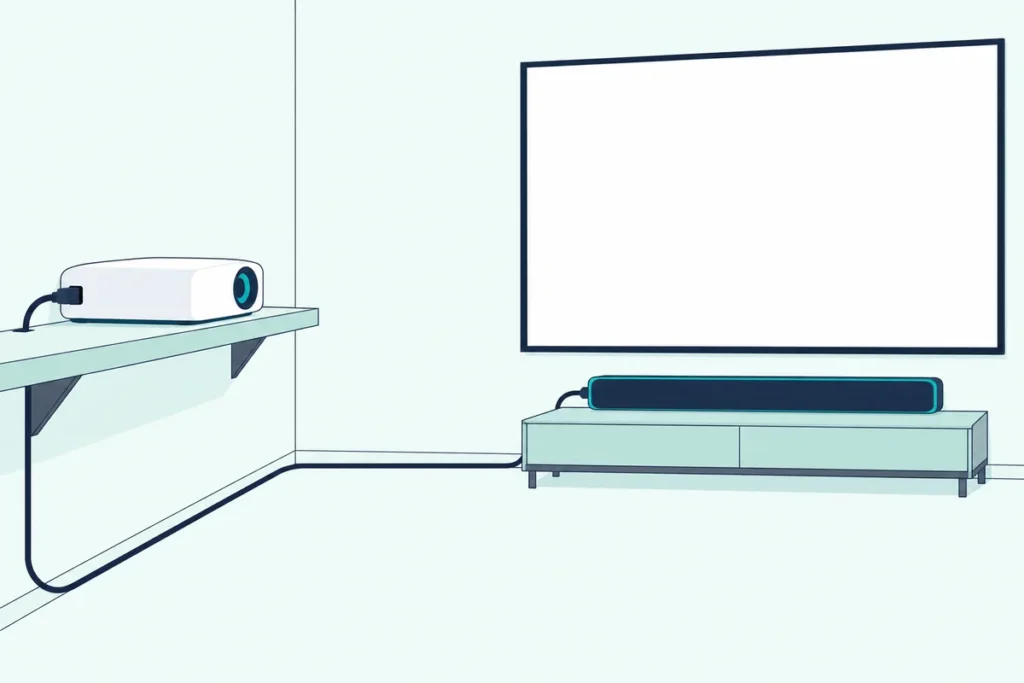
Learning how to connect soundbar to projector setups starts with one question: does the projector have an HDMI ARC or eARC port, an optical jack, a 3.5 mm audio out, or nothing useful at all?
Most people plug in a cable, hear nothing, and assume the bar is faulty, when the projector is still sending sound to its own small speaker.
Pick the right route and set one audio menu, and the bar plays every movie in sync with the big picture on your screen.
The first step is reading the projector’s back panel, because the port you find decides every move after it.
From there, this guide walks through each route, the settings by brand, long cable runs to a ceiling mount, and the fixes for silence and lip-sync drift.
How to Connect a Soundbar to a Projector, Port by Port
The short answer depends on the best audio port the projector and the soundbar share, so match them in this order. BenQ’s own guidance ranks HDMI ARC or eARC first, optical second and the 3.5 mm analog jack last, since the analog jack carries stereo only (BenQ).
Think of it like a ladder: start at the top rung your gear supports and step down only when a port is missing. Here’s the whole ladder in one place.
| Projector has | Soundbar needs | Cable | What you keep |
|---|---|---|---|
| HDMI eARC | HDMI eARC | Ultra High Speed HDMI | Higher-quality surround formats both ends support |
| HDMI ARC | HDMI ARC or eARC | High Speed HDMI | Dolby Digital Plus and Atmos, one remote |
| Optical (S/PDIF) out | Optical in | Toslink | Stereo PCM or compressed 5.1 |
| 3.5 mm audio out | AUX or analog in | 3.5 mm cable | Stereo only |
| No audio out | HDMI input with passthrough | Two HDMI cables | Whatever the source and bar support |
| Bluetooth out | Bluetooth | None | Convenience, with possible delay |
The table follows the makers’ own documents, and each row gets its own section below. If your projector sits on a shelf behind the couch, the bottom rows matter more than you’d expect, since cable length and port count limit what’s practical.
A projector-first layout keeps every source on one screen input. A source-first layout, where the streaming box feeds the bar and the bar feeds the projector, works when the projector has no usable audio output at all.
Which Audio Ports Does Your Projector Actually Have?
That ladder only helps once you know which rungs exist, so start at the projector’s back panel. Look for an outputs line on the spec sheet or the rear panel, and the labels that matter are HDMI ARC or eARC, S/PDIF or Optical, and Audio Out or 3.5 mm.
Here’s how a few current models print it. Optoma’s UHZ50 page lists one HDMI 2.0 (eARC) input, one 3.5 mm audio out and one S/PDIF out among its connections.
Epson’s LS500 laser projector puts ARC on a named port, HDMI2 (ARC), on the rear panel. soundcore’s Nebula X1S guide says one of its two HDMI 2.1 ports supports eARC for external audio, while the other is for video devices.
Hisense’s Laser TV console has an HDMI (ARC/eARC) port and a DIGITAL AUDIO OUT optical jack, per its E-Manual. XGIMI’s external-devices guide sets the output with an option labeled Internal Speaker/SPDIF/ARC.
Still choosing a bar? Check its ports against yours, and see soundbar picks that suit a projector room for models.
Try this quick test before buying anything: photograph the back panel and zoom in on every HDMI label. On the Epson, Optoma, Nebula and Hisense models above, only one HDMI port carries the ARC or eARC tag, and a bar plugged into a plain HDMI input gets no sound from the projector.
Get Studio Tips Weekly
Join 5,000+ creators getting acoustic treatment advice every week.
No spam. Unsubscribe anytime.What Order Should You Set Things Up In?
That back-panel photo tells you which route you’re on, and the order you power and test things in decides how fast you find a fault. soundcore’s Nebula X1S guide says to get the projector working on its own first, with picture, app and built-in sound confirmed, and only then add a soundbar, receiver or wireless speaker.
The reasoning is simple troubleshooting. If the projector plays sound through its own speaker and the bar stays silent, the problem sits in the cable, the port or the audio menu, not in the source or the app.
Hisense’s Laser TV manual adds a power order. It says to switch on the connected audio device before switching on the Laser Console, and its ARC steps start with powering on the sound system.
Here’s the sequence that follows from those two documents:
- Set up the projector alone and play something with sound through its speaker.
- Connect the soundbar with the cable your ports allow, and power the bar on first.
- Turn the projector on, then switch its audio output to the external route.
A real scenario shows why this matters. Swap the order on a first night and a silent bar could be the app, the HDMI port, the output menu or the bar’s input, and you’d have no way to tell which.
Why Is HDMI ARC or eARC the First Choice?
Once the projector plays on its own, the ARC port you found is the first route to try, because one cable does the whole job. ARC and eARC send sound from the projector back down the same HDMI cable to the soundbar, and BenQ calls this the most recommended method because it carries high-quality digital audio and surround formats when both ends support them.
HDMI Licensing describes eARC as the way audio that reaches a display from a cable box, streamer or other source gets sent on to a sound bar over a single HDMI cable. On a projector, that means the streaming stick plugged into the projector can play through the bar.
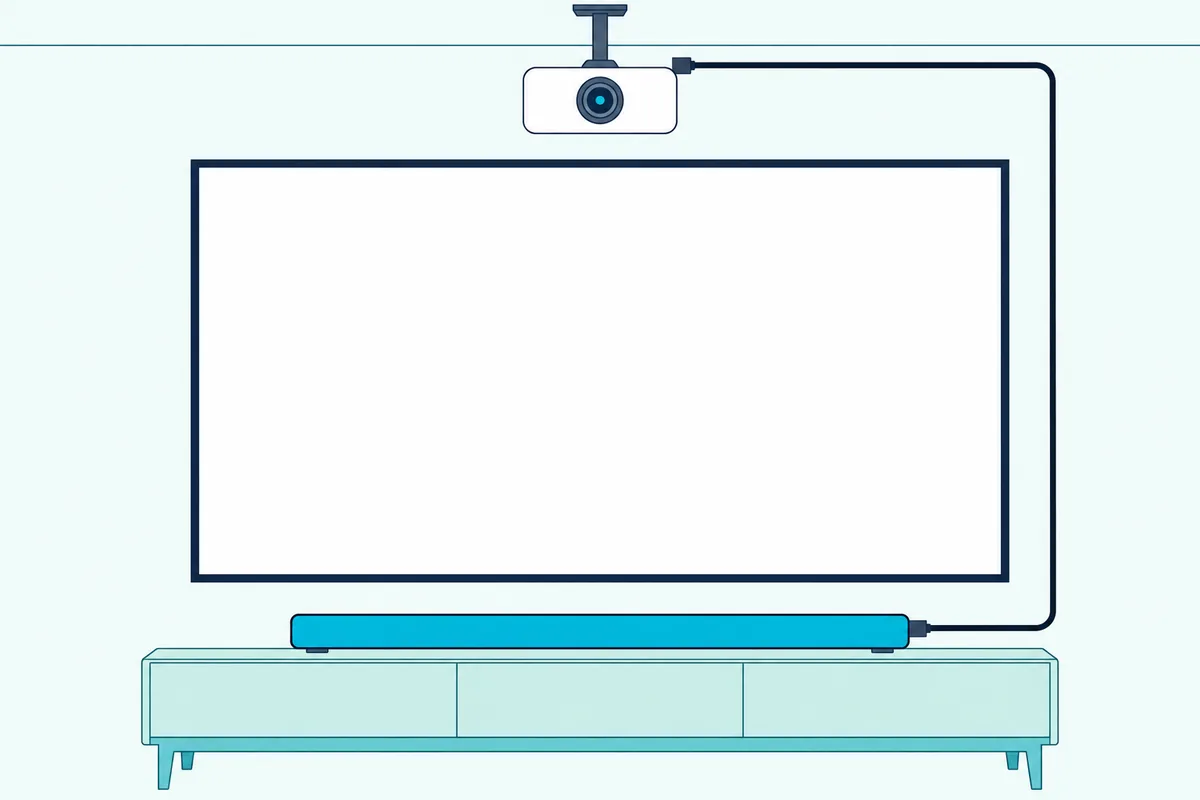
The difference between the two shows up in bandwidth. Optoma’s UHZ50 page puts eARC at up to 37 Mbps of audio against about 1 Mbps for ARC, and says it passes uncompressed 5.1 and 7.1.
Roku’s surround guide, written for its TVs, explains the same split in formats: ARC carries what optical carries plus Dolby Digital Plus and Dolby Atmos. eARC adds the higher-quality formats on top, so a projector with eARC and a bar with eARC is the best pairing on paper.
Here’s the hookup Epson documents for its LS500 (Epson):
- Connect an HDMI cable to the ARC-compatible HDMI port on the soundbar or receiver.
- Connect the other end to the projector’s HDMI2 (ARC) port.
- Turn on the projector’s HDMI Link setting and choose AV System as the Audio Out Device.
- Set any HDMI control settings the soundbar’s manual asks for.
That third step is easy to miss. Without it, the cable is connected but the projector keeps its own speaker on.
BenQ’s ARC FAQ, written for its LH830ST, LK830ST and LK936ST, asks for a High Speed cable (HDMI 1.4) for ARC and an Ultra High Speed cable (HDMI 2.1) for eARC (BenQ FAQ). It also has you switch on SPDIF, Audio Return (or Audio Return+) and Electronic Control (or HDMI Device Control) on the projector.
Same principle as the ladder: the weakest link sets the limit. An eARC projector plus an ARC-only bar behaves like ARC.
More sources than inputs is the other snag, since BenQ notes a projector’s HDMI inputs are usually too few for every box. BenQ’s answer is an HDMI switch: every source goes into the switch, the switch’s output goes to the projector, and the projector’s ARC port still feeds the bar.
That keeps one cable to the soundbar no matter how many boxes you add. Each source’s sound reaches the bar through the projector, so the audio output menu from the next section still decides whether anything plays.
Where Is the Audio Output Setting on Each Projector Brand?
Epson’s Audio Out Device step shows the pattern every brand follows: the cable alone isn’t enough. Each projector has one menu that picks between its own speaker and the external output, and it’s usually under Sound, Audio Output or Settings.
| Projector maker | Where the switch lives (per the maker) |
|---|---|
| Epson LS500 | HDMI Link on, Audio Out Device set to AV System |
| BenQ LH830ST, LK830ST, LK936ST | SPDIF, Audio Return and Electronic Control turned on |
| XGIMI | Shortcut button, Settings – Sound, then Sound Output set to Internal Speaker/SPDIF/ARC |
| Hisense Laser TV | Settings > Display & Sound > Audio Output > Audio Output > ARC, or Audio Output > eARC |
| Nebula X1S | Selected audio output, then the on-screen setup for the chosen connection |
The table covers the brands whose documents could be read for this guide. Optoma’s product page lists the ports but not the menu path, so check your model’s manual for the exact name.
Hisense adds two useful notes in its E-Manual. With an ARC or eARC bar, the console’s remote can control the sound system, and the soundbar must support ARC or eARC itself.
If the bar has an input selector, Hisense says to set it to the Laser Console. A Hisense Laser TV with a 5.1 bar can send Dolby Digital Plus by setting Digital Audio Out to Dolby Audio – Dolby Digital Plus.
A real scenario helps here. Say you’ve got an Epson LS500 on a media stand and a Sony bar below it: HDMI2 (ARC) to the bar’s ARC port, HDMI Link on, AV System selected, and the bar’s own HDMI control switched on.
What If the Projector Only Has Optical or a 3.5 mm Jack?
Those menus apply to optical and analog outputs too, so the same switch still matters when ARC is missing. Optical is the next rung down, and BenQ describes it as digital audio with more limited surround support than HDMI.
Roku’s surround guide gives the numbers behind “more limited.” Its S/PDIF connection is limited to two channels of uncompressed PCM or 5.1 channels of compressed Dolby Digital or DTS.
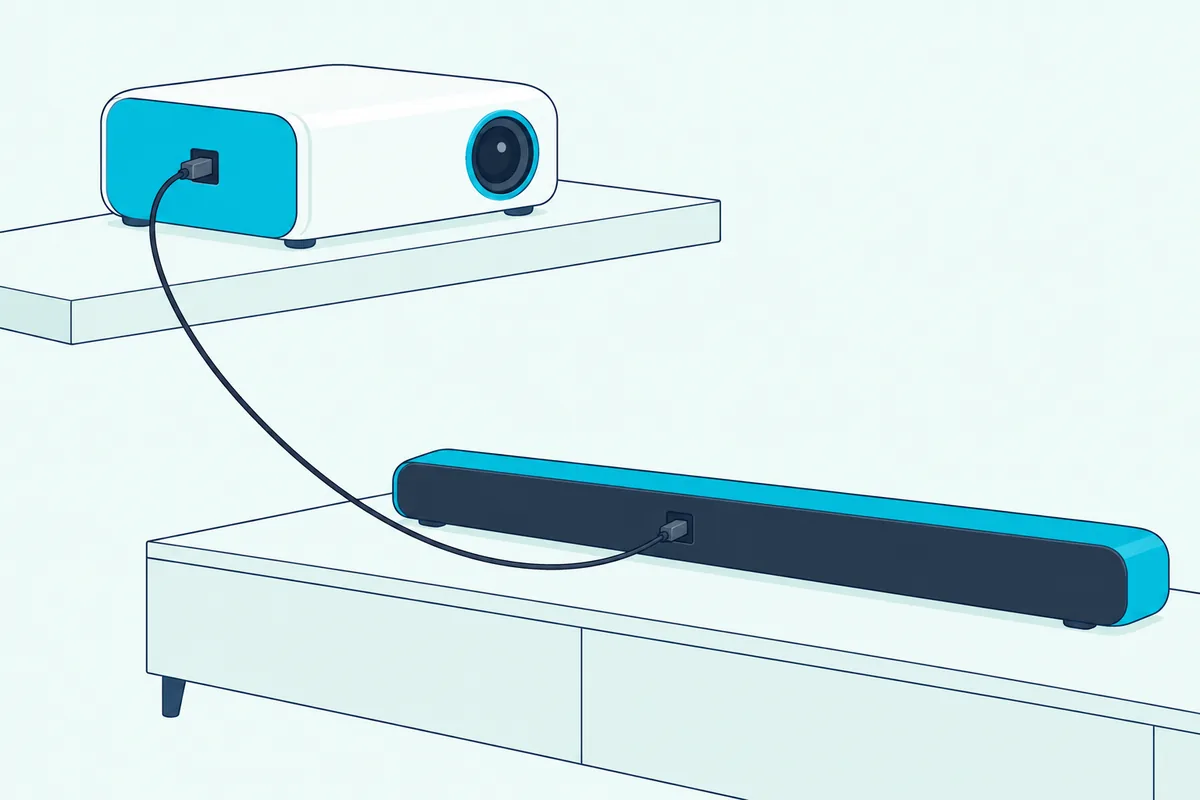
Hisense’s Laser TV manual shows the setup side. Connect the DIGITAL AUDIO OUT port to the optical port on the amplifier or bar, then choose the format under Settings > Display & Sound > Audio Output > Digital Audio Out.
Hisense suggests PCM or Dolby Digital for an optical connection, and PCM when the external device doesn’t support Dolby or DTS. It also says to turn the console’s volume down and control volume from the sound system instead.
If your bar doesn’t have an optical cable in the box, Amazon Basics’ 6-foot Toslink cable covers the short run from a projector on a stand to a bar beneath the screen.
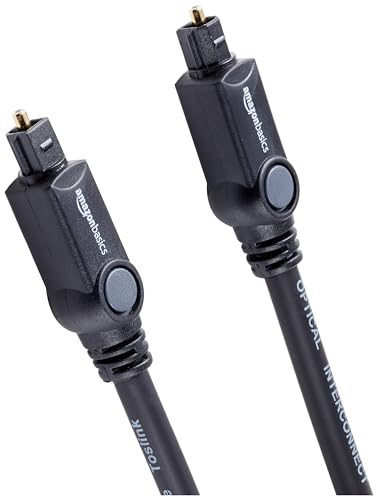
Amazon Basics’ 6-foot Toslink cable
The 3.5 mm jack is the last wired rung. BenQ says it carries stereo only with lower fidelity, so the bar’s virtual surround modes are working from two channels.
BenQ’s scenarios add one twist worth knowing: with a single source, you can take the optical or 3.5 mm output from the source device itself instead of the projector. That’s handy when the projector’s own audio out is missing but your player has one.
Can the Streaming Box Plug Into the Soundbar Instead?
Those analog and optical limits are why a second layout exists. Yes, if the soundbar has an HDMI input with video passthrough, the source plugs into the bar and the bar’s HDMI output feeds the projector, so the bar hears the full signal before the projector ever sees it.
BenQ lists this as a scenario for a source with two HDMI outputs: one goes to the projector for video and the other to the soundbar’s HDMI input. Sony’s HT-A7000 guide shows the single-cable version, a Blu-ray player, set-top box or console into HDMI IN 1 or HDMI IN 2 on the bar, for sound such as Dolby Atmos, Dolby TrueHD and DTS:X.
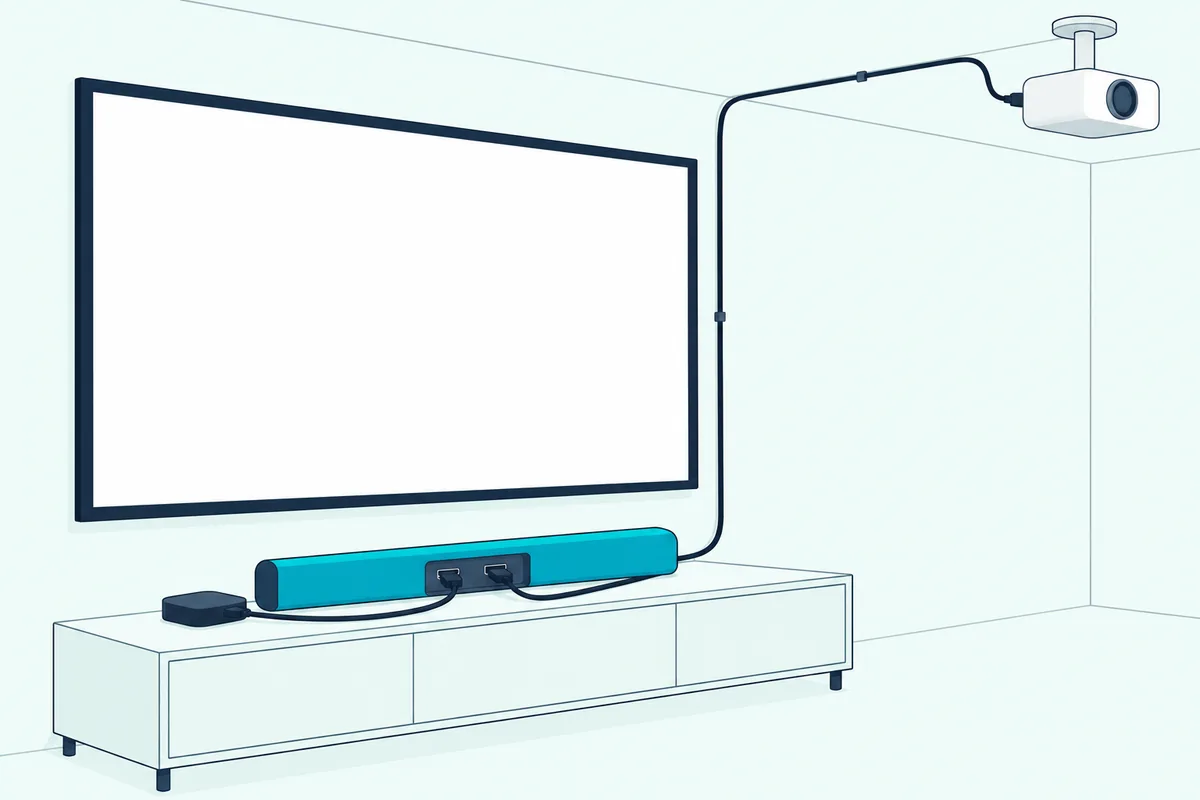
The catch is the picture. Sony’s HT-A7000 passes every video format it supports only with a 48 Gbps Ultra High Speed cable and HDMI Signal Format set to Enhanced format (4K120, 8K), while an 18 Gbps cable caps it at 4K 60 Hz.
So check two things in the bar’s manual before you commit: which video formats it passes through, and which cable it needs for them. A bar without HDMI inputs can’t do this at all.
To watch, you pick the source on the bar, not the projector. On the HT-A7000, that’s Watch, then HDMI1 or HDMI2 on the home menu, or the HDMI1 and HDMI2 buttons on its remote.
This route also sidesteps a quirk on some projectors. soundcore says the Nebula X1 Pro’s HDMI input takes only two channels of LPCM, so a PS5 or Blu-ray player left on LPCM sounds thin through it (soundcore).
soundcore’s fix on the projector-first layout is to set the source to Bitstream (Dolby or DTS) instead of Linear PCM. For Fire TV, Apple TV and Chromecast, it suggests changing Auto or LPCM to Dolby Digital Plus or Dolby Digital if you hear stereo only.
The trade-off works like a toll booth on the road: the bar collects the sound first, then waves the picture through. BenQ notes the cost, since any other source plugged straight into the projector won’t reach the bar.
When Does an HDMI Audio Extractor Make Sense?
The source-first layout needs a bar with HDMI inputs, and an extractor stands in when the bar doesn’t have one. An HDMI audio extractor sits between the source and the projector, passes the video on, and pulls the sound out to an optical or 3.5 mm output for the soundbar.
Monoprice’s manual for its 24278 extractor shows the wiring. The source goes into HDMI In, HDMI Out goes to the display, and the Optical Out or L/R Out goes to the amplifier or bar.
The same manual lists what that model handles: 4K at 60 Hz 4:4:4 video, HDR passthrough, multichannel audio over optical and stereo over the analog jack, with up to 18 Gbps of video bandwidth. It also needs its AC adapter plugged in, so plan for an outlet near the source.
That 18 Gbps figure matters on a projector setup. It’s the same 4K 60 Hz ceiling Sony gives for an 18 Gbps cable, so an extractor like this won’t pass 4K 120 Hz.
For a projector with no audio output and a bar with only optical or AUX, OREI’s HDA-912 extractor is sold with SPDIF and 3.5 mm outputs and 4K 60 Hz support.
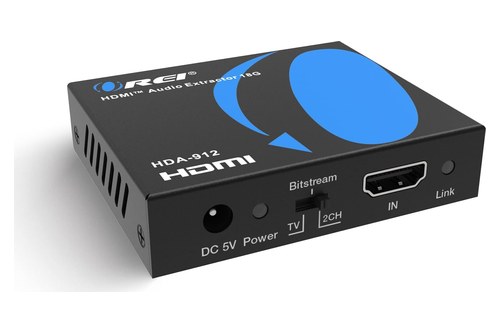
OREI’s HDA-912 extractor
The TV version of this setup is in the HDMI audio extractor walkthrough for screens without ARC. The wiring there is the same for a projector, since the extractor doesn’t care what kind of display sits at the end of its HDMI Out.
Which Cable Reaches a Ceiling-Mounted Projector?
The source-first layout and an extractor can both add a long HDMI run to the projector, and that run is where ceiling setups get fussy. The cable from the bar or the extractor up to the projector has to carry the full video signal, so pick one rated for the resolution and refresh rate you plan to watch.
Epson’s LS500 guide sets the floor for 4K. To display signals in the 18 Gbps band, such as 4K at 60 frames per second, it asks for a cable rated for HDMI 2.0 or higher and suggests setting EDID to Normal if 18 Gbps images give trouble.
For eARC, BenQ asks for an Ultra High Speed cable. HDMI Licensing says every Ultra High Speed cable must pass certification at an HDMI Forum Authorized Testing Center and carry a certification label on its package (HDMI.org).
Scanning that label shows the brand, model number and length, so you can confirm a long cable is certified before you run it through a wall. HDMI.org also warns that some sellers don’t use the official cable names and that counterfeits exist.
Say the bar sits under the screen and the projector hangs behind the couch: the cable climbs the wall, crosses the ceiling and drops to the mount. Measure that path with a tape before you order, then add slack for the mount.
If the run is long, Monoprice’s 24-foot certified fiber HDMI cable is sold as Certified Ultra High Speed at 48 Gbps.
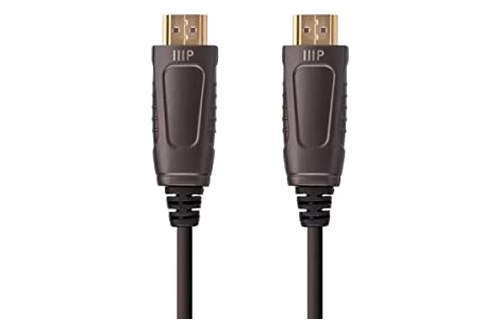
Monoprice’s 24-foot certified fiber HDMI cable
Shorter runs leave more choice, and Burton Acoustix’s HDMI cable shortlist covers them. The same certification label applies at any length.
Does Bluetooth Work Between a Projector and a Soundbar?
A long cable is the fussy route, and Bluetooth is the opposite extreme. Some projectors can send audio to a Bluetooth soundbar, but BenQ says not every model offers Bluetooth audio output and that Bluetooth may add slight delay compared with a wired connection.
Check the spec sheet for the words Bluetooth audio out or Bluetooth speaker output. A projector that lists Bluetooth only for its remote or a keyboard may not send movie sound that way.
soundcore’s Nebula X1S guide says wireless speaker playback is supported alongside its HDMI and optical routes. Hisense’s Laser TV manual covers pairing Bluetooth headphones and speakers under Settings > Remotes & Accessories, with a Bluetooth Visibility switch.
Bluetooth makes sense for an outdoor movie night or a portable projector on a bedside table, where running cables isn’t practical. For a fixed room, any wired rung from the ladder beats it.
The delay BenQ mentions is the same lip-sync drift the next section fixes. A wired connection doesn’t always avoid it either.
How Do You Fix Lip-Sync Delay With a Projector?
That Bluetooth delay is the obvious case, but wired setups drift too, because the projector and the bar each process the signal at their own speed. The fix is a delay setting, on the projector, the soundbar or both, that holds the sound back until mouths and voices line up.
Hisense’s Laser TV has two. Digital Audio Delay under Settings > Display & Sound > Audio Output adjusts the output delay for an external speaker, and Hisense says it only applies with ARC or the DIGITAL AUDIO OUT jack.
Hisense also lists a Lip Sync setting under Sound > Advanced Settings. soundcore’s X1S guide tells you to adjust the available sound-delay setting if audio arrives early or late.
On the bar side, Sony’s HT-A3000 has a SYNC option in its OPTIONS menu. It adjusts from 0 to 300 ms in 25 ms steps.
Here’s a practical test. Play a scene with a clear clap, a door slam or a close-up of someone talking, then nudge the delay one step at a time until the sound lands on the picture.
A useful rule of thumb from how the settings work: if sound arrives before the picture, add delay on the audio side. If sound arrives after the picture, the audio delay can’t pull it earlier, so reduce any delay already set or switch to a wired route.
For brand-by-brand menus beyond projectors, see step-by-step soundbar delay fixes. The same 25 ms nudge approach works there.
Why Is the Soundbar Silent or Stuck in Stereo?
Lip-sync is a timing problem, but silence and thin sound usually come from a setting or a cable. BenQ’s FAQ gives a six-point checklist, and it’s the quickest way through a silent bar:
- Use the right cable: High Speed (HDMI 1.4) for ARC, Ultra High Speed (HDMI 2.1) for eARC.
- Make sure the projector, soundbar and any AV receiver all support ARC or eARC.
- Turn on SPDIF, Audio Return and Electronic Control on the projector.
- Turn on CEC and Audio Return on the source device.
The last two checks finish the list. Confirm the source supports the audio format you’re trying to play, and confirm every cable is in the correct port.
The port check catches the soundbar’s input selector too. Hisense’s note about setting a bar’s input selector to the Laser Console is the same idea, since a bar listening to its optical input won’t hear the HDMI one.
Stereo-only sound has a different cause. soundcore’s X1 Pro article traces it to sources left on LPCM, and its fix is the Bitstream switch from the source-first section.
BenQ’s knowledge-center FAQ lists the usual suspects for no sound at all: wrong audio output settings, unsupported formats and the wrong cable type. Checking the projector’s audio output menu first fixes most cases, which is why the brand table above comes before everything else.
A quick isolation test helps when nothing works. Play the projector’s own speaker first; if that’s silent too, the problem is the source or the app, not the bar.
Frequently Asked Questions
These cover the questions people ask once the main hookup is done.
Can you use a soundbar with any projector?
Most projectors can feed a soundbar, but the route depends on the ports. BenQ says a soundbar can connect directly if the projector has an HDMI ARC or audio output port.
A projector with none of those can still work through the source-first layout, where the streaming box or player plugs into a soundbar with an HDMI input. An HDMI audio extractor does the same job when the bar only has optical or AUX.
Which HDMI port on the projector goes to the soundbar?
Use the one marked ARC or eARC. On Epson’s LS500 that’s HDMI2 (ARC), on Optoma’s UHZ50 it’s the HDMI 2.0 (eARC) input, and on the Nebula X1S it’s the HDMI 2.1 port that supports eARC.
The other HDMI ports are inputs for video sources. A soundbar plugged into one of those won’t receive the projector’s sound.
Do you need eARC for Dolby Atmos from a projector?
Not always, but eARC gives the most room. Roku’s guide says ARC supports Dolby Digital Plus and Dolby Atmos, while eARC adds higher-quality formats, and Optoma says its eARC port passes uncompressed 5.1 and 7.1.
The bar has to support the same format, and the source has to send it. If either end is ARC-only, the connection behaves like ARC.
Can you connect a sound system instead of a soundbar?
Yes, the same ports feed an AV receiver and speakers. BenQ’s guide shows the projector’s SPDIF output going to the receiver’s SPDIF input, or a source with two HDMI outputs sending one to the projector and the other to an HDMI receiver.
The receiver then drives the speakers over speaker cable. Every rung of the ladder at the top of this guide applies, since the receiver plays the role the soundbar plays here.