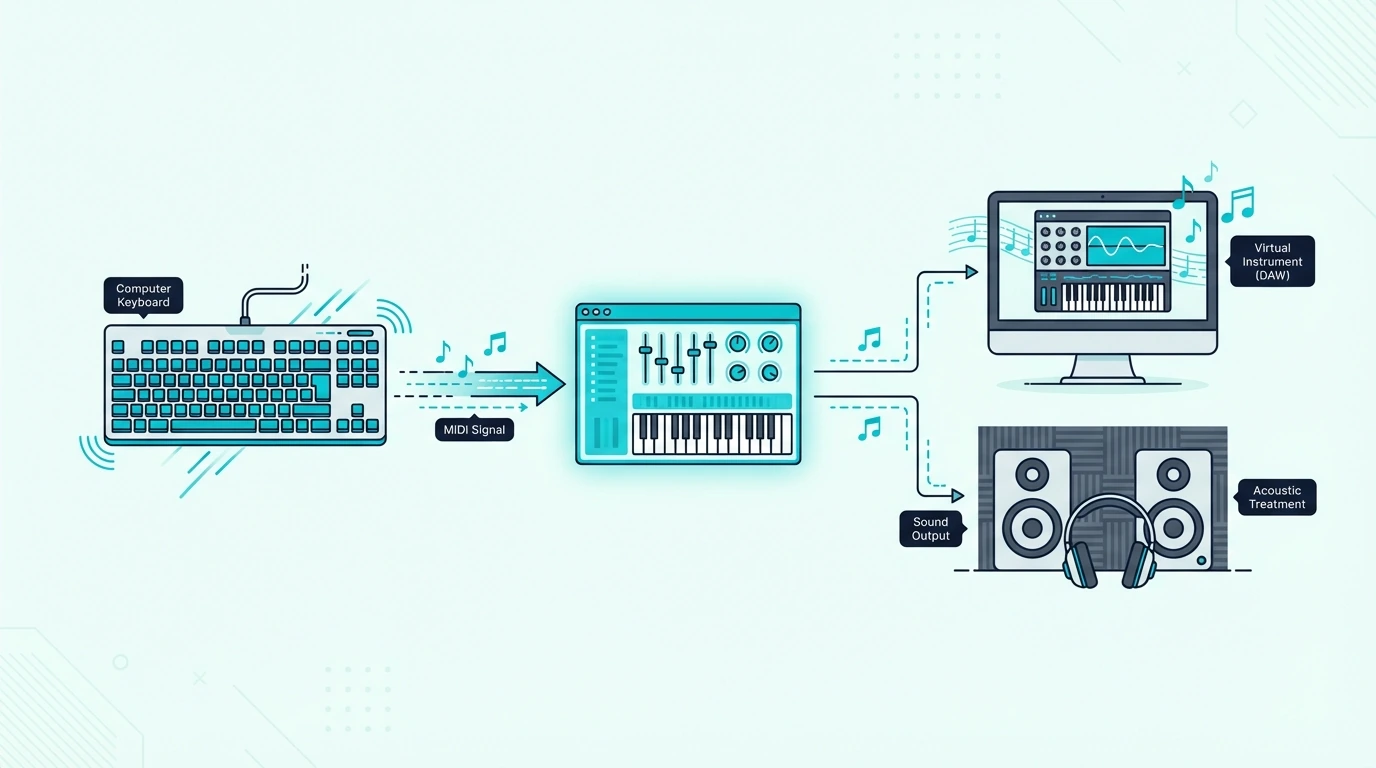
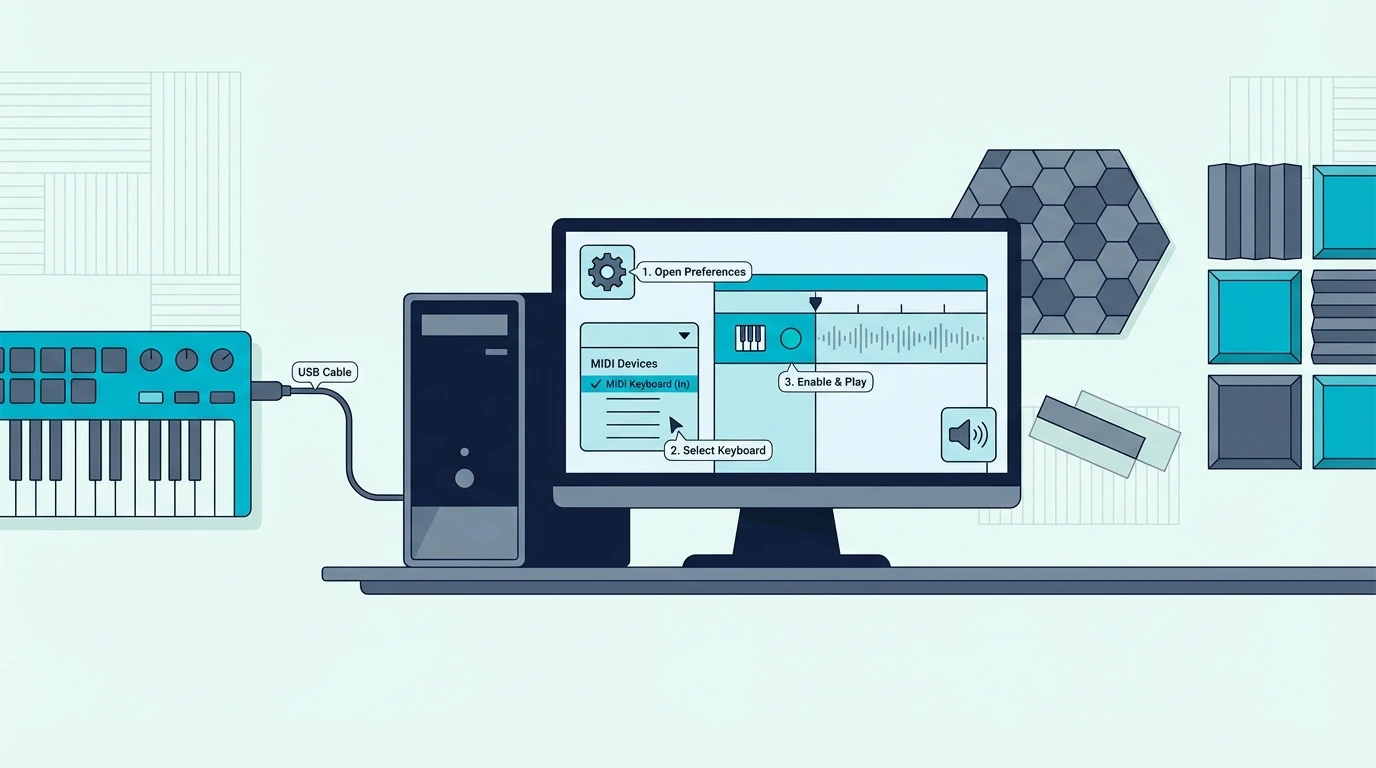
How to Write Music With a MIDI Keyboard – From First Note to Finished Song [2026]

How to write music with a MIDI keyboard is a question that sounds intimidating until you realize the process is simpler than most tutorials make it seem, but the real challenge is not technical setup — it is developing a workflow that turns random key presses into actual songs.

The mistake most beginners make is treating a MIDI keyboard like a piano they need to master before writing anything. You do not need piano skills to write music with a MIDI controller.

Beat makers write hit records with three-finger chords. Electronic producers write entire albums using single-note melodies and pad-triggered samples.

This guide walks through the complete music writing process using a MIDI keyboard — from connecting hardware and choosing sounds through recording your first ideas, building arrangements, and turning rough sketches into finished compositions. Every step assumes zero piano experience because the keyboard is just one part of the creative chain.

Below you will find the practical workflow for writing music with a MIDI keyboard, sorted from initial setup through arrangement techniques that transform simple ideas into complete songs.

Quick Takeaway

To write music with a MIDI keyboard: connect to your DAW, load a virtual instrument, and start playing — even single notes count. Record short phrases (4-8 bars), layer them into sections (verse, chorus, bridge), and arrange sections into a complete song structure. You do not need piano skills. Velocity sensitivity captures musical expression automatically, and your DAW handles editing, quantization, and arrangement after recording.

How Do You Set Up a MIDI Keyboard for Songwriting
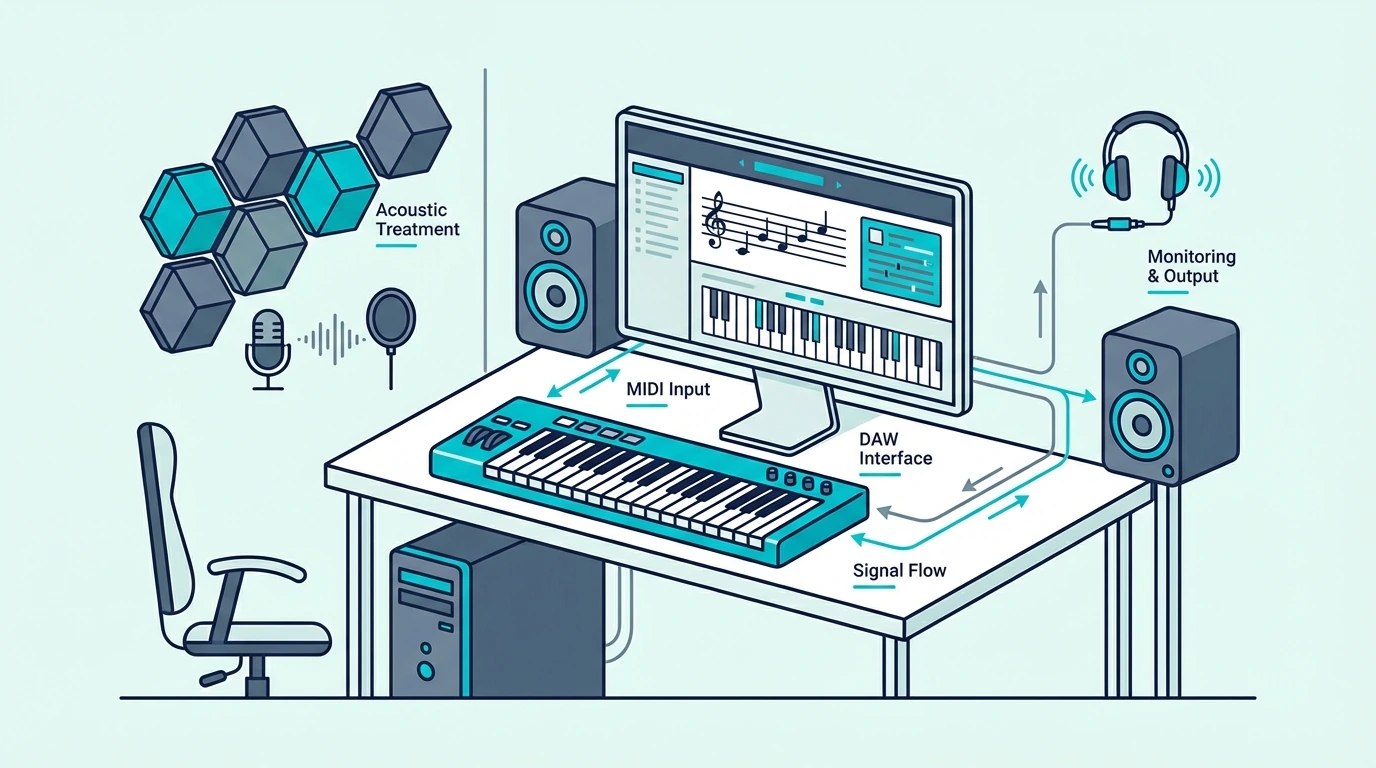
Writing environment for composing music with a MIDI keyboard

The writing environment determines how quickly ideas flow from your head through your fingers into the DAW. A well-configured setup eliminates friction so you can focus on creating rather than troubleshooting.

Connect Your MIDI Keyboard

Plug your MIDI keyboard into your computer via USB. If you use a Mac, the keyboard works immediately with GarageBand or Logic Pro.

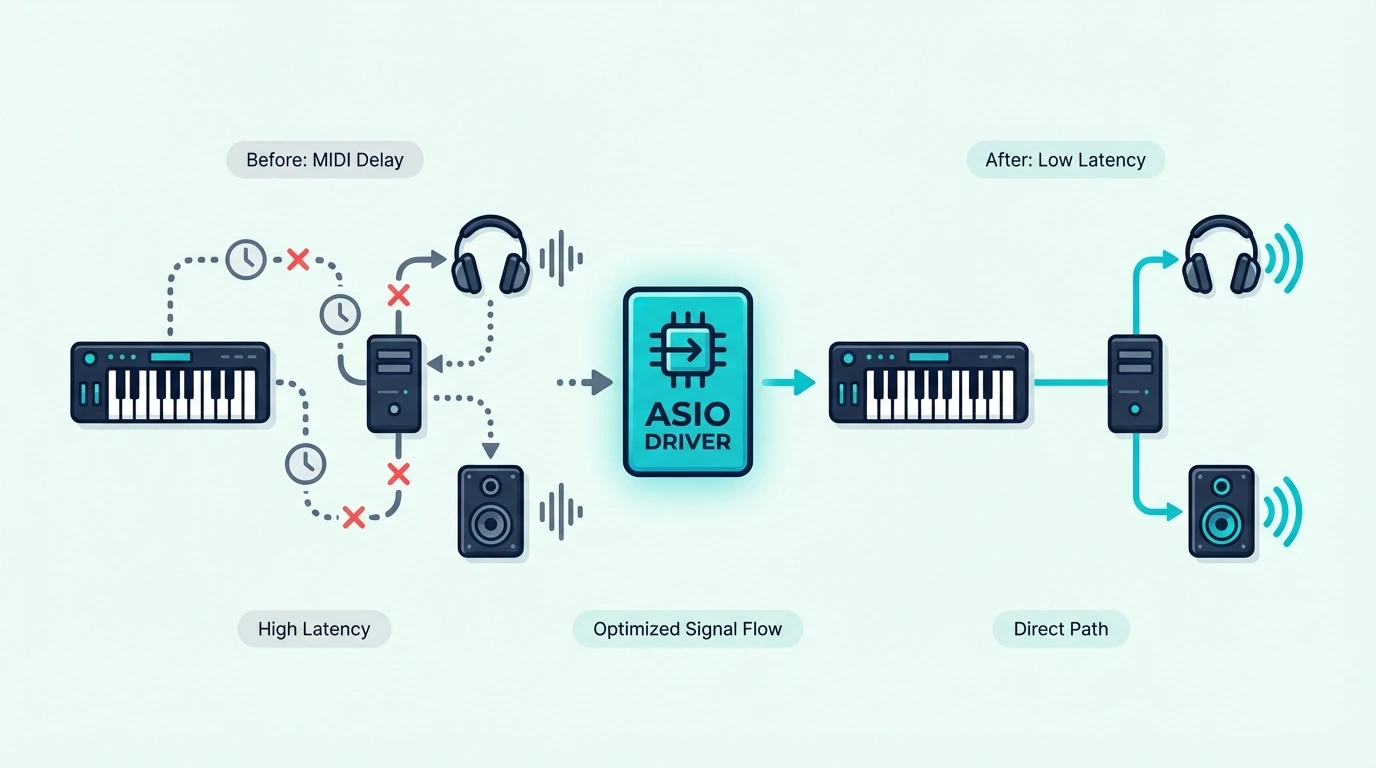
On Windows, ensure you have an ASIO driver installed for low-latency response — follow our Windows connection guide if you experience delay.

The Akai Professional MPK Mini MK3 connects via USB and includes MPC Beats software — a complete writing environment out of the box. The built-in arpeggiator generates melodic patterns from single key presses, which is especially useful for writers who are still developing keyboard skills.

Choose Your Starting Sound

The instrument sound you write with shapes the music you create. A piano patch encourages chord-based writing, a synth pad encourages atmospheric textures, and a bass sound encourages groove-focused compositions.

Start with a sound that matches the genre you want to write. Pop and R&B writers typically start with piano, electronic producers start with synth pads, and hip-hop producers start with drum kits.

Do not spend more than two minutes choosing a starting sound. The sound can change later — the important thing is to start playing immediately while the creative impulse is fresh.

Create A Template With Pre-Loaded Tracks

Set up a DAW template with four to six tracks pre-loaded with instruments: a piano or keys track, a bass track, a pad or strings track, a drum track, and an empty track for experimentation. Save this template so every new session starts with sounds ready to play.

That template eliminates the five-minute plugin-loading ritual that kills creative momentum. Open the template, press a key, and start writing.

The M-AUDIO Keystation 49 MK3 transport controls let you start recording from the keyboard without reaching for the mouse — keeping your hands in playing position throughout the writing session.

How Do You Write Your First Musical Ideas With a MIDI Keyboard
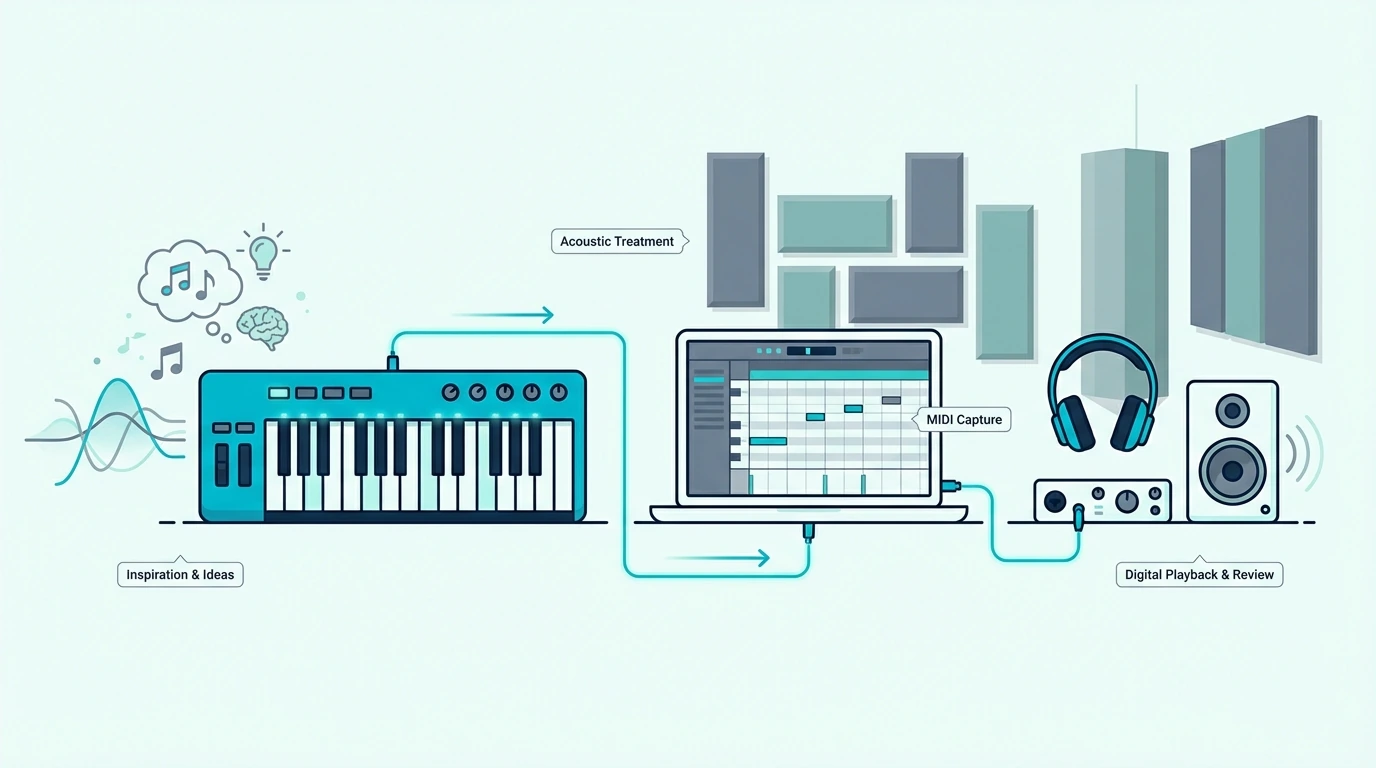
Capturing first musical ideas with a MIDI keyboard

The hardest part of writing music is not the technical process — it is overcoming the blank-canvas paralysis that stops most beginners from recording anything. These techniques bypass that paralysis by giving you a starting point.

Start With A Chord Progression (Even Simple Ones)

Three chords create a complete song — thousands of hit records use only three or four chords throughout. Press any three notes together on your MIDI keyboard and that is a chord.

Move your hand to a different position and press three notes — that is another chord. Alternate between two or three of these positions and you have a progression.

Your DAW records the exact notes, timing, and velocity of everything you play. If the chords sound wrong, move one note up or down and try again.

Start With A Melody (Even One Note At A Time)

If chords feel overwhelming, start with a single-note melody. Hum or sing a phrase, then find those notes on your keyboard one at a time.

Record yourself playing the melody into your DAW. Listen back, adjust notes that sound off, and re-record until the melody matches what you hear in your head.

Start With A Beat (If You Have Pads)

Beat-first writing works naturally for hip-hop, electronic, and dance music. Tap out a kick-snare pattern on your MIDI keyboard’s pads, record a four-bar loop, and build everything else on top of that rhythmic foundation.

The pads on controllers like the MPK Mini MK3 respond to velocity — tap softly for ghost notes, hit hard for accented beats. That dynamic range creates groove that quantized, mouse-programmed drums lack.

Use The Arpeggiator As A Writing Tool

Controllers with built-in arpeggiators (like the MPK Mini MK3) generate repeating melodic patterns from any key or chord you hold. Press one key and the arpeggiator plays ascending or descending note sequences automatically.

Arpeggiator patterns often spark song ideas that you would never discover through deliberate playing. Record the arpeggiator output, keep the patterns that inspire you, and build songs around them.

How Do You Record and Build Song Sections With MIDI
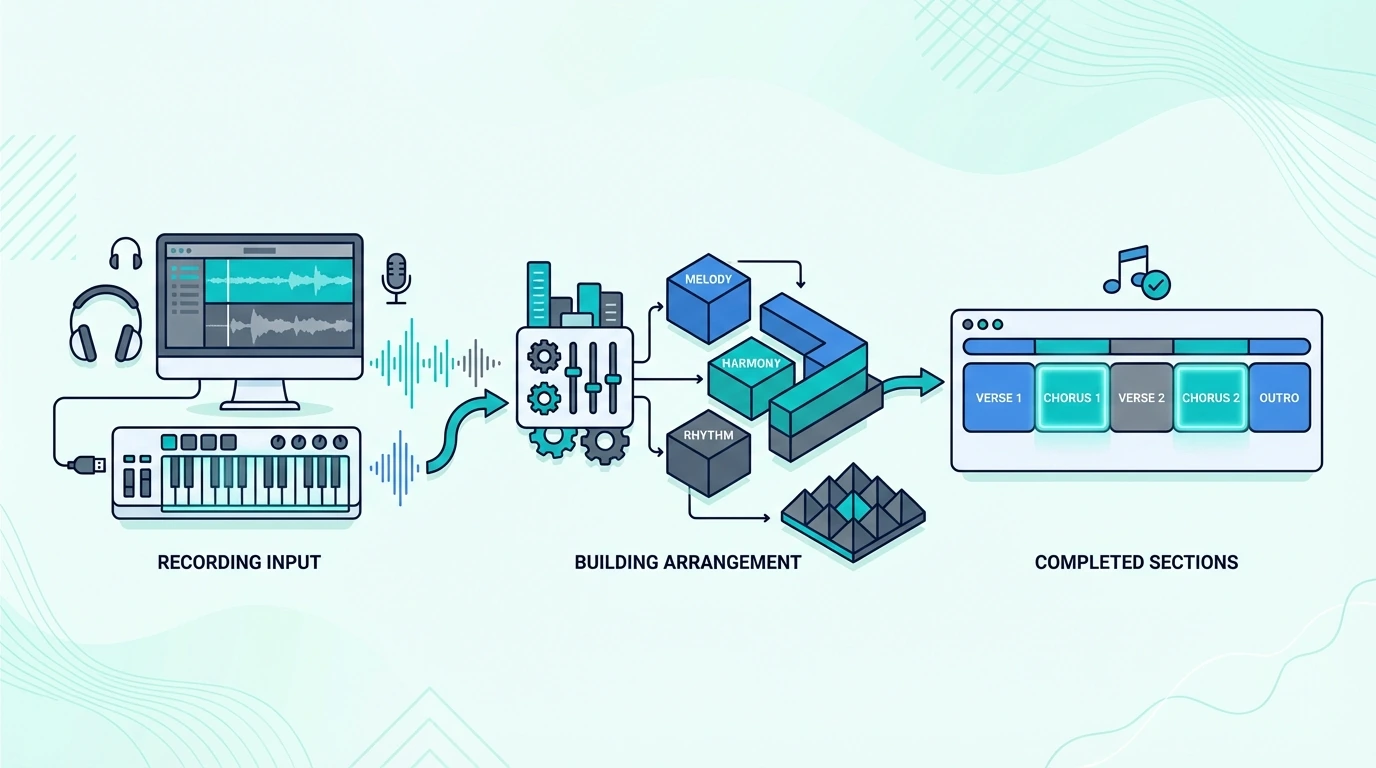
Recording and building song sections with MIDI

Once you have a musical idea — a chord progression, a melody, a beat, or an arpeggiator pattern — the next step is recording it and building it into song sections.

Record In Loops

Set your DAW to loop a 4 or 8-bar section and press record. Play your idea repeatedly as the loop cycles.

Each pass lets you refine the performance — adjusting timing, adding notes, or changing dynamics. When you capture a take you like, stop recording.

Loop recording removes the pressure of nailing a perfect take on the first try. The repetition naturally improves your performance because each pass through the loop gives you another chance to get it right.

Layer Parts To Build Sections

A verse section might contain bass, chords, and a melody. Record each part on a separate track, one at a time.

Play the bass line first, then add chords on top, then add the melody. Each new layer builds the arrangement without requiring you to play everything simultaneously.

This layer-by-layer approach is how most professional producers work — even those with advanced piano skills rarely record all parts at once. The DAW lets you build complexity gradually.

Use Quantization To Fix Timing

After recording, select the MIDI region and apply quantization — your DAW snaps each note to the nearest beat subdivision. If your timing was slightly off during recording, quantization corrects it without you re-recording.

Set quantization strength to 50-75 percent rather than 100 percent. Full quantization removes all timing variation and sounds robotic.

Partial quantization tightens the timing while preserving the human feel that makes your performance sound alive.

Copy And Modify For New Sections

Once you have a verse section, duplicate it and modify the copy to create a chorus. Change a chord, add a higher melody note, or increase the energy with louder velocity.

Small changes between sections create the contrast that keeps listeners engaged.

The verse-chorus-verse-chorus-bridge-chorus structure works for most genres. Build each section from the same core elements (chords, bass, melody) with variations that distinguish one section from another.

How Do You Turn MIDI Ideas Into Finished Songs
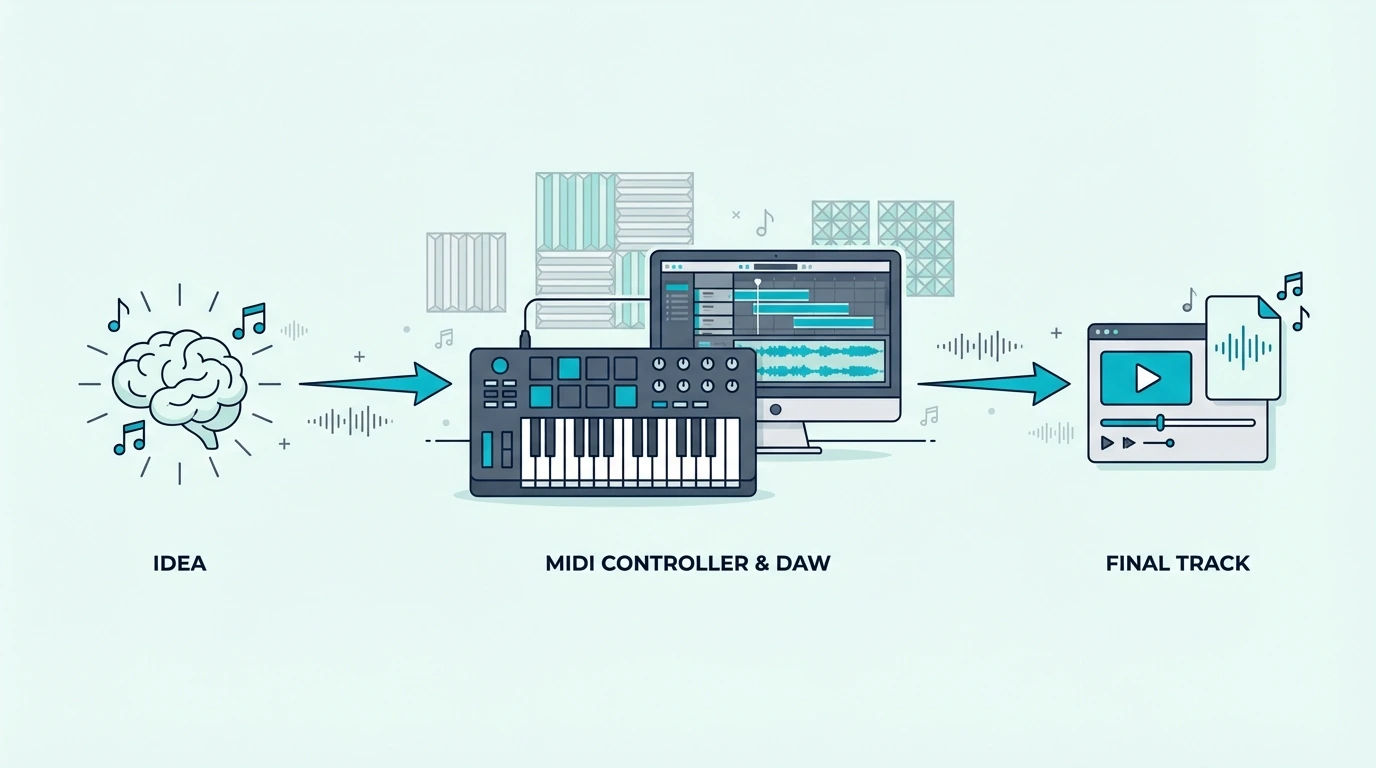
Turning MIDI keyboard ideas into full songs

The gap between a musical idea and a finished song is arrangement — deciding which elements play when, for how long, and in what order. Your MIDI keyboard handles the input while your DAW handles the arrangement.

Arrange In Your DAW Timeline

Drag your recorded sections (verse, chorus, bridge) onto the DAW timeline in song order. Most songs follow intro-verse-chorus-verse-chorus-bridge-chorus-outro.

Arrange your sections in this order and you have a complete song structure.

The intro usually features one or two elements from the verse (bass alone, or chords alone) to ease the listener in. The outro typically strips elements away gradually, reversing the intro process.

Add Variation Within Sections

Identical repeating sections bore listeners. Add small MIDI variations each time a section repeats: a different fill going into the chorus, an extra note in the melody the second time through, a velocity change that makes the third chorus hit harder than the first.

Your MIDI keyboard makes these variations easy to record. Play the same part slightly differently each time, and the velocity sensitivity captures those natural performance differences that keep the arrangement interesting.

Export And Share

When the arrangement feels complete, export the song as an audio file (WAV or MP3) from your DAW’s file menu. Share the export with collaborators, upload to streaming platforms, or save it as a reference for mixing and mastering later.

The entire process — from first note to exported song — happens through your MIDI keyboard and DAW working together. The keyboard captures your musical ideas with velocity and timing while the DAW records, edits, arranges, and exports those ideas into finished music.

The Bottom Line

Writing music with a MIDI keyboard requires zero piano skills and minimal technical knowledge. Connect your controller, load a sound, press record, and start playing — even single notes and simple chords count as songwriting.

The best approach for beginners is to write imperfectly and fix later rather than waiting until you can play perfectly before recording anything. Every professional songwriter started with rough ideas that became great songs through iteration, not through perfect first takes.

Frequently Asked Questions

Do I need to know piano to write music with a MIDI keyboard?

No. Many successful producers write entire albums using single-note melodies, three-finger chords, and pad-triggered samples. Your DAW handles quantization, transposition, and editing that compensates for limited keyboard skills.

What is the fastest way to start writing songs with a MIDI keyboard?

Create a DAW template with pre-loaded instruments, set a 4-bar loop, and record whatever comes out of your fingers. Do not judge the first take — record multiple passes and keep the best one.

Which DAW is best for writing music with a MIDI keyboard?

GarageBand (free on Mac) is the simplest starting point. FL Studio has the best piano roll, Ableton Live excels at loop-based writing, and Logic Pro offers the deepest instrument library.

How do I make MIDI keyboard recordings sound professional?

Record with velocity sensitivity enabled (all modern controllers have this), apply light quantization (50-75 percent) to tighten timing without removing human feel, and use high-quality virtual instrument plugins rather than basic preset sounds. A controller with full-size keys like the Nektar SE49 also helps because full-size keys capture more natural velocity variation than mini keys. The combination of expressive performance capture and quality sounds produces professional-sounding recordings from any MIDI keyboard.
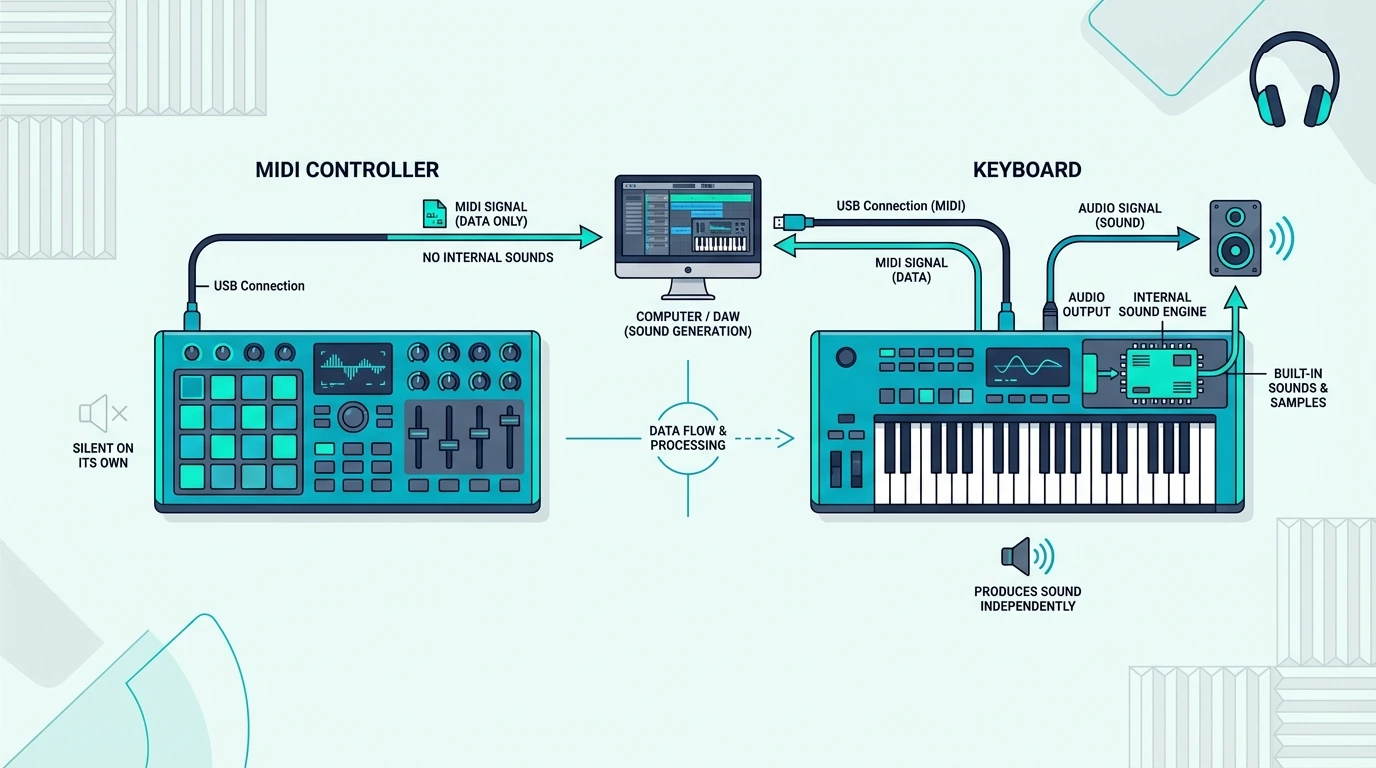
MIDI Controller vs Keyboard – One Makes Sound and One Does Not

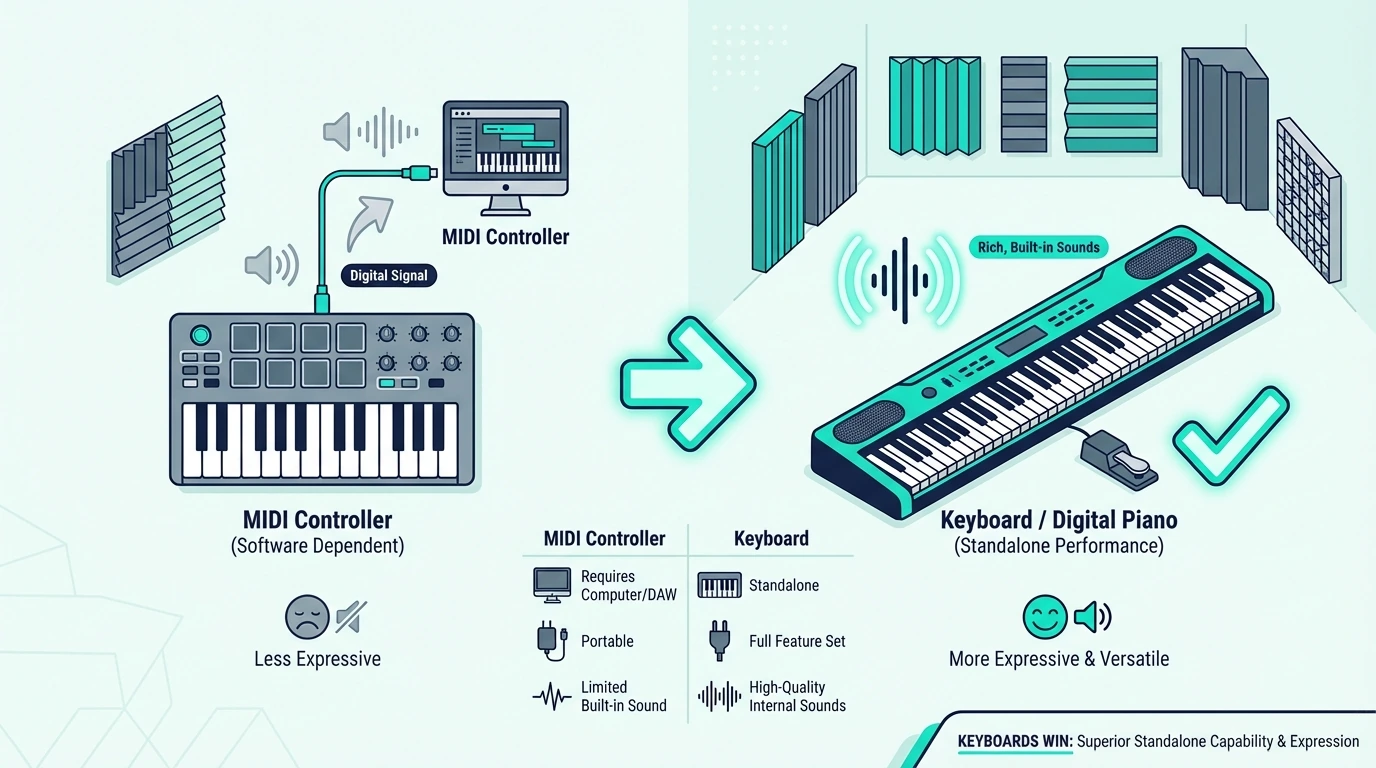
MIDI controller vs keyboard is confusing because the word controller covers a broad category, while keyboard usually means an instrument with its own sound engine. Some MIDI controllers use piano keys, but others use pads, knobs, faders, or foot switches. The deciding question is still simple: does the device generate sound on its own? A keyboard does. A MIDI controller does not.

The buying mistake happens when people treat a MIDI keyboard controller and a standalone keyboard as if they were interchangeable. They are not. A controller is an input device for software or external hardware. A keyboard is an instrument with its own built-in sounds, speakers, or audio outputs.

This guide breaks down that distinction so you can match the right tool to how you actually make music. You will also see where dedicated controllers win, where keyboards win, and how MIDI keyboards fit inside the broader controller category.

Below you will find the core differences explained without jargon, followed by a decision framework for choosing between them based on your specific workflow.

Quick Takeaway

A MIDI controller sends performance data only; it can be a MIDI keyboard, pad controller, grid controller, or foot controller. A keyboard (digital piano or synthesizer) generates its own sound through built-in speakers or audio outputs. Choose a MIDI controller if you produce music on a computer with virtual instruments. Choose a keyboard if you need standalone playing capability without a laptop.

What Is the Core Difference Between a MIDI Controller and a Keyboard

Core difference between a MIDI controller and keyboard

The entire MIDI controller vs keyboard debate reduces to one technical fact that most comparison articles bury under paragraphs of feature lists. Sound generation is the dividing line, and understanding it makes every other difference obvious.

MIDI Controllers Send Data, Not Audio

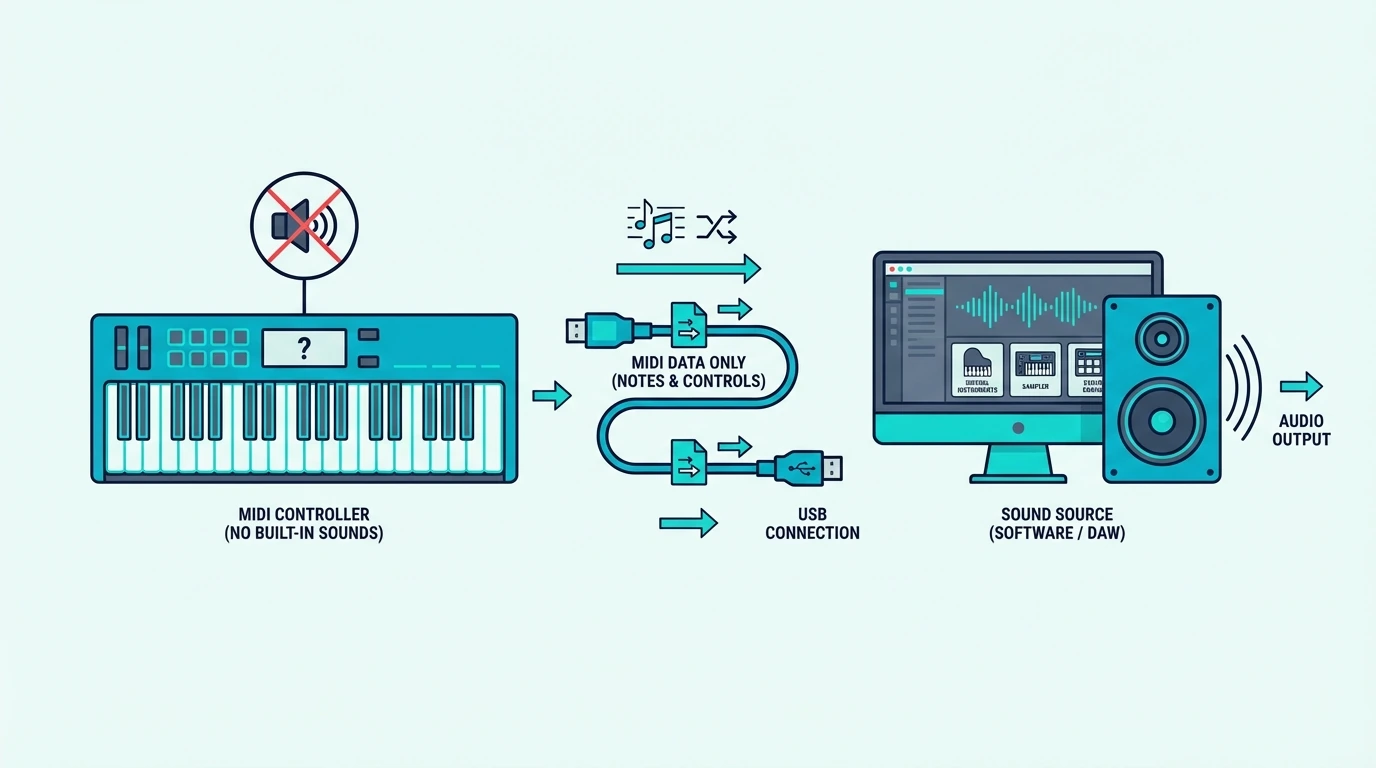
A MIDI controller translates physical input — key presses, pad hits, knob turns, or foot taps — into digital messages and sends those messages to an external device that generates the actual sound. The controller itself contains no sound engine, no speakers, and no audio output.

Hit a pad, press a foot switch, or play a key on a MIDI controller with nothing connected and you hear silence. The device only reports what you did and when you did it. A DAW, app, hardware synth, or sound module has to turn that MIDI data into audio.

The Akai Professional MPD218 proves that a MIDI controller does not need piano keys at all, and the Behringer FCB1010 shows the same rule on the floor. Both are real MIDI controllers, but neither makes sound until other gear responds.

Keyboards Generate Their Own Sound

A digital piano, synthesizer, or workstation keyboard contains a sound engine that converts your key presses into audio signals. Press a key and you hear sound immediately — no computer, no software, no external hardware required.

The Yamaha P71 88-Key Weighted Digital Piano includes 10 built-in sounds (grand piano, electric piano, organ, strings) that play through its speakers or headphone output. Plug in power, press a key, hear music — the complete experience in one self-contained unit.

That self-contained design costs more (four hundred thirty dollars vs roughly one hundred to one hundred forty dollars for many dedicated controllers) because the keyboard must include the sound engine hardware, amplifier, speakers, and audio processing circuits that a MIDI controller intentionally skips.

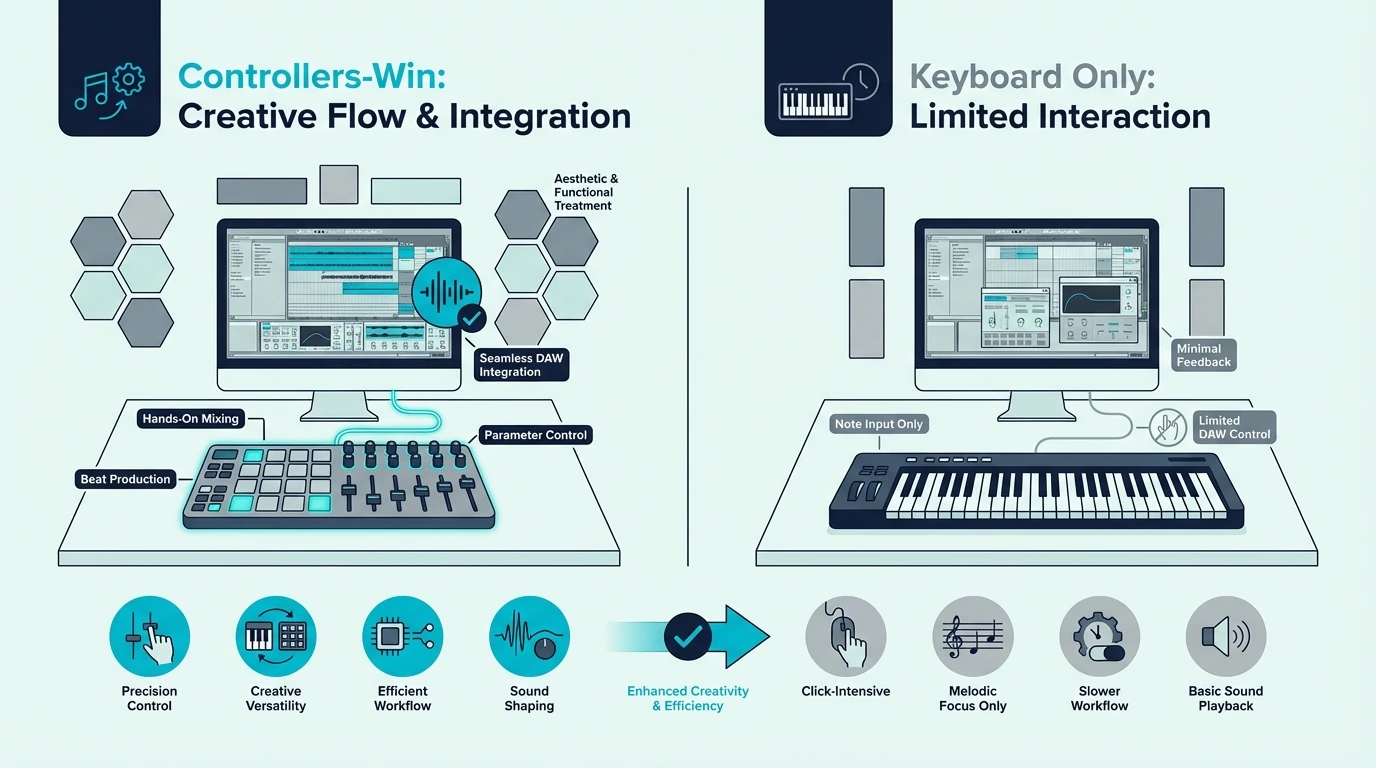
Where MIDI Controllers Win

Situations where MIDI controllers are the better choice

MIDI controllers dominate music production setups for practical reasons that overcome the no-sound limitation. Understanding these advantages explains why most professional studios use controllers rather than standalone keyboards.

Unlimited Sound Variety

A single MIDI controller plays every virtual instrument you install on your computer — thousands of pianos, synths, strings, brass, drums, and experimental sounds. Change which plugin responds to the controller and you have a completely different instrument in seconds.

A keyboard limits you to whatever sounds the manufacturer loaded at the factory. Those 10 to 500 preset sounds never change, never update, and never expand. The moment a new virtual instrument releases, MIDI controller users can play it immediately while keyboard users are stuck with their existing presets.

Lower Cost And Weight

MIDI controllers cost a fraction of standalone keyboards because they skip sound-engine hardware. A dedicated pad controller like the Akai Professional MPD218 sits a little above one hundred dollars, and even a large foot controller like the Behringer FCB1010 stays far below the cost of most digital pianos with built-in sounds.

The portability advantage depends on controller type, but the money always goes into control rather than speakers. A pad controller fits on a desk, a foot controller lives under it, and neither forces you to pay for amplification or factory presets if your laptop, tablet, or rack gear already handles sound.

Modern Production Workflow

DAW-based production centers on software instruments, virtual effects, and digital mixing. MIDI controllers fit directly into that workflow because they are built as control surfaces first. Keyboard controllers handle melodic input, pad controllers handle finger drumming, and foot controllers can trigger transport or scene changes while tools like FLkey for FL Studio or Launchkey for Ableton show how deep the software tie-in can go.

Standalone keyboards exist outside the DAW workflow. They produce their own sound independently, which is an advantage for practice but a limitation when you want tight integration with your production software.

Where Keyboards Win

Situations where keyboards are the better choice

Standalone keyboards solve problems that MIDI controllers cannot address, and those problems matter to specific musician types.

Practice Without a Computer

Pianists who practice daily need an instrument that works the moment they sit down — no booting a computer, no launching a DAW, no waiting for plugins to load. A digital piano with built-in sounds provides that instant access. Sit down, press power, play.

That immediacy matters for building practice habits. Adding computer startup time to every practice session creates friction that discourages daily playing. A standalone keyboard eliminates that barrier.

Authentic Piano Feel

Fully weighted hammer-action keys simulate the feel of an acoustic piano — heavier in the bass, lighter in the treble, with the physical resistance that develops proper finger technique. Most MIDI controllers use synth-action or semi-weighted keys that feel nothing like a real piano.

Pianists who split time between a MIDI controller and an acoustic piano find that unweighted controller keys build muscle memory that does not transfer. Weighted keyboards maintain the physical connection between practice and performance.

Live Performance Without a Laptop

Performers who play keyboards on stage need reliable sound that does not depend on a computer. Laptop crashes, software glitches, and USB disconnections can end a live performance. A standalone keyboard produces sound through its own hardware — no software failure can silence it.

That reliability is why many live keyboardists use standalone instruments on stage even when they produce with MIDI controllers in the studio. The studio demands flexibility. The stage demands reliability.

Why Do Many Producers Own Both a MIDI Controller and a Keyboard

Hybrid approach using a keyboard with MIDI controller features

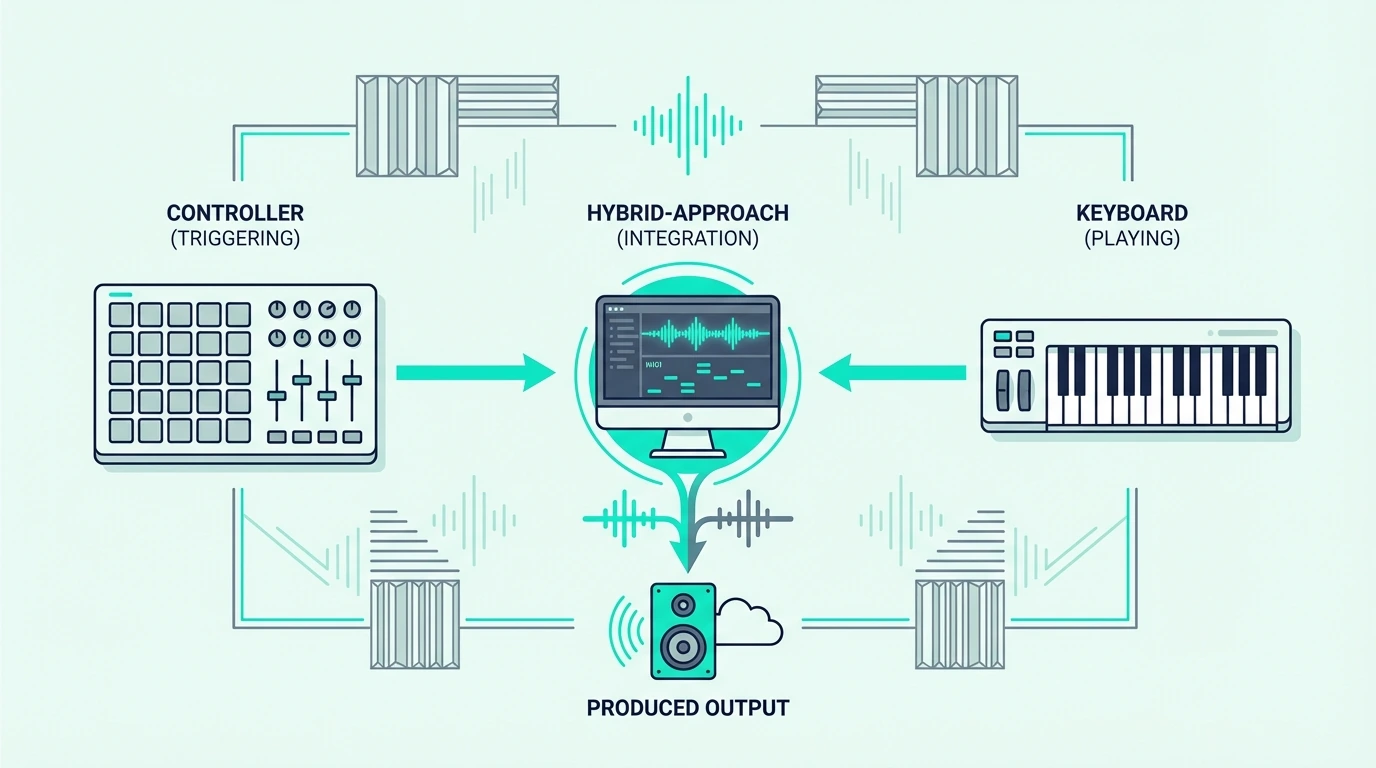
The MIDI controller vs keyboard debate often ends with “both” because the two devices serve different functions in a complete music setup.

Home Studio Plus Practice Setup

Keep a MIDI controller on your production desk for DAW-based work — beat making, synth programming, recording virtual instruments. Keep a digital piano in another room (or on a stand nearby) for practice — scales, repertoire, technique development.

The MIDI controller handles production. The keyboard handles playing. Neither device compromises on its primary function because it does not need to serve double duty.

Keyboard With MIDI Output

Many digital pianos include MIDI output (USB or 5-pin DIN) alongside their built-in sounds. The Yamaha P71 works as both a standalone piano AND a MIDI controller simultaneously — practice on the built-in piano sounds, then connect to your DAW and use it to play virtual instruments.

This hybrid approach eliminates the need for two separate devices if your primary keyboard playing is piano-style. The tradeoff is cost (four hundred thirty dollars vs roughly one hundred to one hundred forty dollars for many dedicated controllers) and weight (twenty-five pounds versus the lighter gear most controller setups use).

Budget-Conscious Approach

If you can only afford one device, choose based on your primary activity. Primarily produce on a computer — get a MIDI controller that matches your input style. Beat makers can start with the Akai Professional MPD218, performers needing hands-free control can start with the Behringer FCB1010, and key-first producers should shop dedicated MIDI keyboard controllers rather than standalone keyboards with built-in sounds. Primarily practice piano without a computer — get a digital piano with MIDI output. The one you use more often should be the one optimized for that use case.

The Bottom Line

MIDI controllers and keyboards solve different problems. A controller gives you unlimited software instrument access at low cost with zero standalone capability. A keyboard gives you immediate standalone playing at higher cost with limited sound variety.

A MIDI keyboard is one subtype of MIDI controller, but pad and foot controllers make the category much broader than piano-style keys alone.

Choose a MIDI controller if you produce music on a computer and want maximum sound variety at minimum cost. Choose a keyboard if you need standalone practice capability or authentic piano feel. Many serious musicians own both because no single device serves both purposes optimally.

Frequently Asked Questions

Is a MIDI controller better than a keyboard?

Neither is universally better — they serve different purposes. A MIDI controller is better for computer-based music production (more sounds, lower cost, lighter weight). A keyboard is better for standalone practice and live performance (no computer needed, built-in sounds, authentic piano feel).

Can a MIDI controller replace a keyboard?

For music production, yes — a MIDI controller connected to a computer with virtual instrument software provides more sound variety than any standalone keyboard. For piano practice without a computer, no — a MIDI controller produces no sound on its own and cannot replace a standalone instrument.

Do I need both a MIDI controller and a keyboard?

Only if your workflow includes both computer-based production AND standalone piano practice. Most beginners should start with one device based on their primary activity and add the second device later if the need arises.

Can a keyboard work as a MIDI controller?

Yes — any keyboard with USB MIDI or 5-pin DIN MIDI output can send performance data to a computer while simultaneously producing its own built-in sounds. The keyboard functions as both a standalone instrument and a MIDI controller, though it may lack the pads, knobs, and DAW integration features that dedicated controllers provide.

Can a MIDI Keyboard Be Used Without a Computer – The Honest Answer Most Guides Skip [2026]

Can a MIDI keyboard be used without a computer is a question with a short answer that disappoints most beginners: a standard MIDI controller produces no sound on its own, but there are workarounds and alternative products that let you play without a laptop in the loop.

The confusion is caused by MIDI keyboards looking identical to digital pianos that do make sound. You see keys, you expect piano sounds, but a MIDI controller contains no sound engine, no speakers, and no audio output. It sends performance data to an external device that generates audio — and without that external device connected, pressing the keys produces silence.

This guide explains exactly what works without a computer, what does not work, and which products to consider if you need standalone sound capability alongside MIDI controller functionality. You will also learn about hardware sound modules, iPad-based setups, and hybrid keyboards that bridge both worlds.

Below you will find the honest breakdown of computerless MIDI options, sorted from the cheapest workaround to the most capable standalone solution.

Quick Takeaway

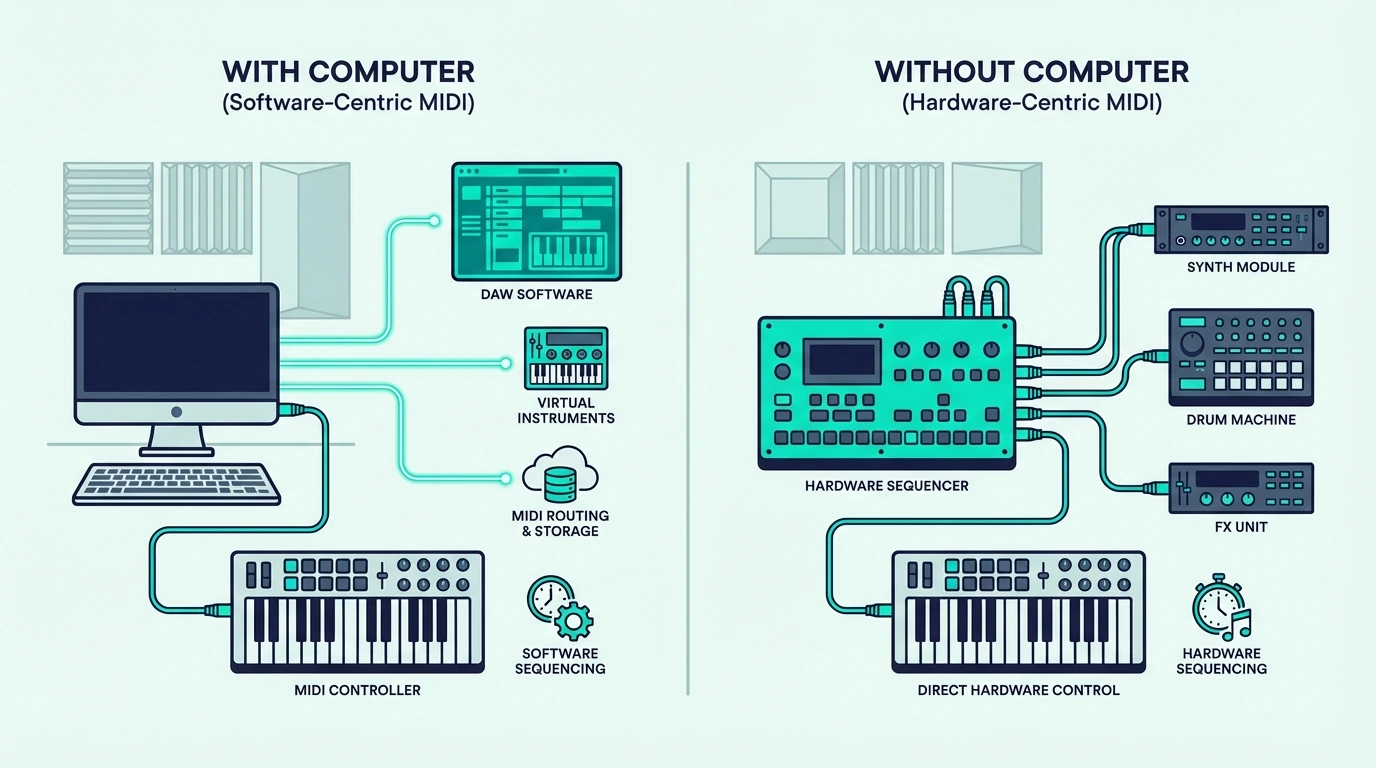
A standard MIDI controller cannot produce sound without a computer or external sound source. To play without a computer, you need either a digital piano with built-in sounds and MIDI output, a hardware sound module connected via MIDI cable, or an iPad running a music app via USB or Bluetooth. The cheapest path to computerless playing is a digital piano like the Yamaha P71 that works standalone and doubles as a MIDI controller when connected to a computer.

Why Standard MIDI Controllers Need a Computer

Why MIDI keyboards usually need a computer or sound source

A MIDI controller is an input device — not an instrument. Understanding this distinction explains why silence greets you when you press a key without a computer connected.

MIDI Data Is Not Audio

When you press a key on a MIDI controller, the keyboard generates a digital message: “Note C4, velocity 87, channel 1.” That message contains zero audio information. No waveform, no sample, no oscillator output — just instructions that tell another device what to play.

Your computer running a DAW receives that message, routes it to a virtual instrument plugin, and the plugin generates the audio you hear through your speakers. Remove the computer from that chain and the message has nowhere to go. The controller keeps sending data into the USB cable, but nothing is listening on the other end.

The Controller Contains No Sound Engine

Digital pianos and synthesizers contain sound engines — circuits or processors that convert key presses into audio signals. MIDI controllers intentionally omit this hardware to reduce cost, weight, and complexity. The Akai Professional MPK Mini MK3 weighs under two pounds and costs ninety-nine dollars precisely because it skips the sound engine that would add weight and cost.

That design tradeoff gives you access to unlimited sounds through software (every virtual instrument ever made) at the expense of standalone capability. Most producers consider this a worthwhile exchange because the sound variety through software far exceeds what any built-in engine could provide.

How Can You Use a MIDI Keyboard Without a Computer

Options for using MIDI without a computer

If you need to play without a computer, several options exist — each with different cost, portability, and sound quality tradeoffs.

Option 1 – Digital Piano With MIDI Output (Best Standalone Solution)

A digital piano or synthesizer with built-in sounds AND MIDI output gives you the best of both worlds. Play standalone using the built-in sounds when you want to practice or perform without a computer. Connect to a computer via USB MIDI when you want to use virtual instruments in your DAW.

The Yamaha P71 88-Key Weighted Digital Piano includes 10 built-in sounds (pianos, electric pianos, organs, strings) that play through built-in speakers or headphones — no computer needed. When you want DAW access, the USB MIDI output sends your performance to any software.

This hybrid approach costs more than a standalone MIDI controller (four hundred thirty dollars vs ninety-nine dollars for an MPK Mini), but it eliminates the computer dependency entirely for practice and casual playing.

Option 2 – Hardware Sound Module

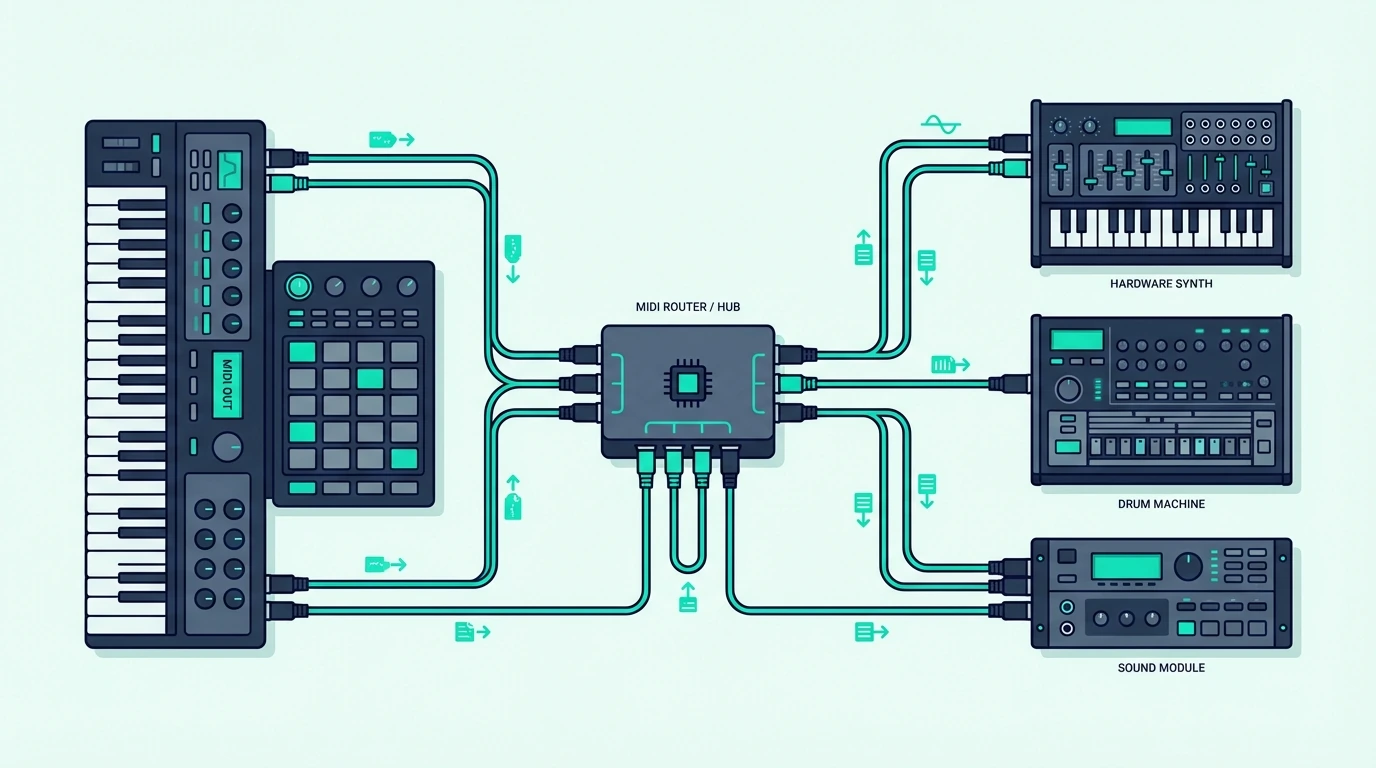
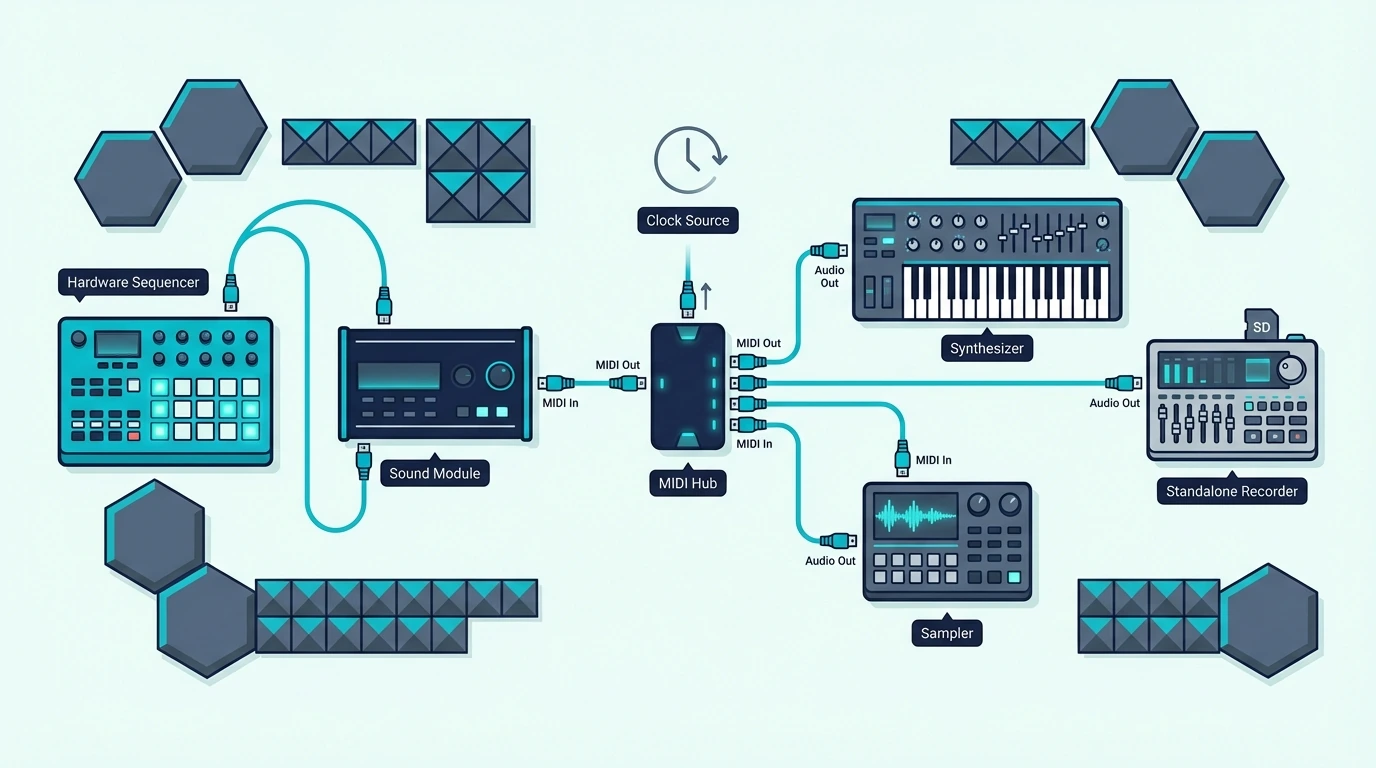
A hardware sound module is a standalone box that receives MIDI data and generates audio — essentially replacing the computer in the signal chain. Connect your MIDI controller to the sound module via 5-pin MIDI cable or USB, and the module produces sound through its audio outputs.

Sound modules range from simple GM (General MIDI) units with basic piano and drum sounds to professional rack-mounted synthesizers with studio-quality presets. The cost ranges from fifty dollars for basic modules to thousands for professional units.

This option makes most sense for live performers who need reliable, computer-free sound generation on stage. Studio producers rarely use hardware sound modules because software virtual instruments offer more variety at lower cost.

Option 3 – iPad or Tablet as Sound Source

An iPad running GarageBand, Cubasis, or any MIDI-compatible music app functions as a portable sound source for your MIDI controller. Connect via USB (with Camera Connection Kit) or Bluetooth, and the iPad generates audio from its built-in speakers or through headphones.

This option costs whatever you already paid for the iPad plus zero additional dollars for GarageBand (free on every iPad). The setup is more portable than a laptop and provides touch-based controls alongside your MIDI keyboard.
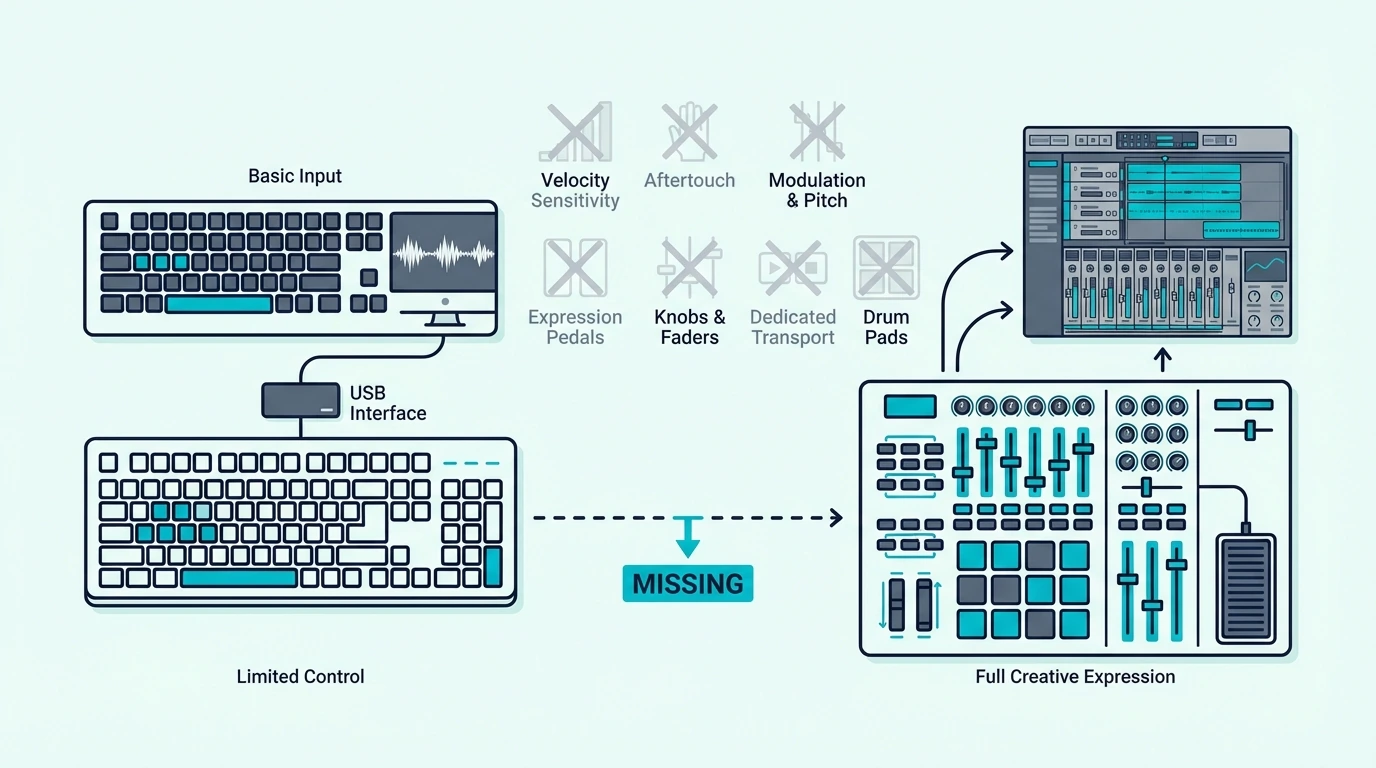
For iPad-based production, Bluetooth MIDI controllers eliminate cables entirely — pair wirelessly and play through the iPad with no adapters needed.

Option 4 – Smartphone MIDI Apps

Android and iOS music apps accept MIDI input from Bluetooth controllers and USB controllers (with adapters). Load a piano app, connect your MIDI keyboard, and the phone generates sound.

The audio quality through phone speakers is limited, but headphone output sounds surprisingly usable for practice and idea capture. This is the most portable computerless MIDI option — your phone is always with you, and a compact Bluetooth MIDI controller fits in a backpack.

Which Products Work Without a Computer

Products that let MIDI keyboards work without a computer

Not all keyboard-shaped instruments are MIDI-only controllers. Here is how to identify which products work standalone and which require a computer.

Products That Work Without a Computer

Digital pianos (Yamaha P-series, Casio Privia, Roland FP-series) contain built-in sounds and speakers. They work independently AND send MIDI data to a computer when connected. Look for “digital piano” or “portable piano” in the product name — these always include standalone sound capability.

Synthesizers (Korg Minilogue, Arturia MicroFreak, Roland JUNO) generate their own sounds through built-in oscillators and sound engines. They function as standalone instruments and also send MIDI to computers for recording and layering.

Workstation keyboards (Yamaha MONTAGE, Korg Kronos, Roland FANTOM) combine built-in sounds, recording capability, and MIDI controller functionality in a single unit. These are complete music production systems that work without any external hardware.

Products That Require a Computer

MIDI controllers (Akai MPK Mini, M-AUDIO Keystation, Nektar SE49, Novation Launchkey) contain no sound engine. The product name includes “MIDI controller,” “MIDI keyboard,” or “controller keyboard” — these always require an external sound source.

Pad controllers (Akai MPC pads, Novation Launchpad) send MIDI note data from pads rather than keys. They require a computer, sound module, or tablet to generate audio.

How to Check Before Buying

Look for “built-in sounds,” “onboard speakers,” or “headphone output” in the product specifications. If the listing mentions these features, the product works standalone. If the listing only mentions “USB MIDI” and “MIDI controller,” the product requires a computer.

Check whether the product includes audio outputs (headphone jack, line out, speaker out). Audio outputs mean the product generates its own sound. Products with only USB or MIDI OUT jacks are controllers that depend on external sound sources.

When You Should Choose a MIDI Controller Despite the Limitation

When to choose a MIDI controller anyway

The computer dependency sounds like a dealbreaker, but for most music production workflows, a MIDI controller paired with a computer actually outperforms a standalone instrument.

Unlimited Sound Variety

A ninety-nine-dollar MIDI controller connected to a laptop gives you access to every virtual instrument ever made — thousands of pianos, synths, drums, orchestral patches, and experimental sounds. A four-hundred-dollar digital piano limits you to 10-20 built-in sounds that never change.

The software advantage is why professional studios use MIDI controllers rather than standalone keyboards for production. The controller is cheap and simple. The sounds come from software that updates, expands, and improves continuously.

Lower Cost For Better Sound Quality

A forty-dollar MIDI controller playing a free piano plugin (Piano One, Spitfire LABS Piano) produces more realistic piano sound than a two-hundred-dollar digital piano with built-in sounds. The software piano was recorded from a concert grand with dozens of velocity layers. The cheap digital piano uses compressed samples with limited dynamic range.

That cost-to-quality ratio only works when you have a computer in the chain. Remove the computer and you need the built-in sounds, which means spending more on the keyboard hardware itself.

Portability And Simplicity

MIDI controllers weigh one to five pounds. Digital pianos with built-in sounds weigh fifteen to thirty pounds. For producers who travel between locations, the MIDI controller plus laptop combo is dramatically more portable than any standalone keyboard.

The setup time is identical — plug in USB, open DAW, play. No advantage to standalone unless you specifically need to play without any screen in front of you.

The Bottom Line

A standard MIDI controller cannot produce sound without a computer, tablet, or hardware sound module — it sends data, not audio. If you need standalone playing capability, choose a digital piano with MIDI output (like the Yamaha P71) that works independently and doubles as a MIDI controller when connected to a computer.

For most producers, the computer dependency is a feature rather than a limitation. The sound variety, quality, and flexibility of software instruments through a MIDI controller far exceeds what any standalone keyboard provides at the same price point.

Frequently Asked Questions

Can I use a MIDI keyboard just to practice piano without a computer?

Not with a standard MIDI controller — it produces no sound standalone. You need either a digital piano with built-in sounds, a tablet running a piano app, or a hardware sound module. The cheapest practice-capable option is a phone with a free piano app and a Bluetooth MIDI controller.

What is the cheapest way to play MIDI without a computer?

Connect a Bluetooth MIDI controller to your smartphone and use a free piano app (GarageBand on iPhone, Piano apps on Android). The controller pairs wirelessly, the phone generates sound through headphones, and the total additional cost beyond the controller is zero.

Should I buy a MIDI controller or a digital piano?

If you always produce with a computer, buy a MIDI controller — better value, more sound variety, lighter and cheaper. If you need standalone practice capability without any screen, buy a digital piano with MIDI output so you get both worlds.

Do any MIDI controllers have built-in speakers?

A few niche products include small built-in speakers and sound engines. The RockJam 25-Key Rechargeable MIDI Keyboard is one example — it includes built-in sounds and speakers plus a rechargeable battery for fully wireless practice. The speaker quality is limited, but it provides basic standalone sound without any external device. Most MIDI controllers in the standard lineup do not include speakers.

How to Choose a MIDI Controller – The Decision Framework That Prevents Buyer Regret

How to choose a MIDI controller comes down to matching three variables to your workflow: key count, control type (keys vs pads vs knobs), and your primary DAW — but most buyers fixate on specs instead of asking how they actually make music, which leads to controllers that sit unused after the first week.

The mistake is caused by treating MIDI controller shopping like a specs comparison when it should be a workflow audit. A producer who makes beats on a laptop needs a completely different controller than a pianist who records classical repertoire, and no single “best” controller serves both.

This guide replaces the typical feature comparison with a decision framework based on how you create. Answer four questions about your workflow, and the right controller category becomes obvious — then you pick the specific model that fits your budget.

Below you will find the four decision questions that narrow your options, followed by specific controller recommendations for each workflow type and a breakdown of which features matter and which are marketing fluff.

Quick Takeaway

Choose a MIDI controller by answering four questions: Do you need keys, pads, or both? How many keys fit your playing style (25, 49, 61, or 88)? Which DAW do you use? What is your budget? Beat makers should prioritize pads alongside keys. Pianists should prioritize key count and action quality. Budget producers should start with an all-in-one under a hundred dollars.

Do You Need Keys, Pads, or Both on Your MIDI Controller

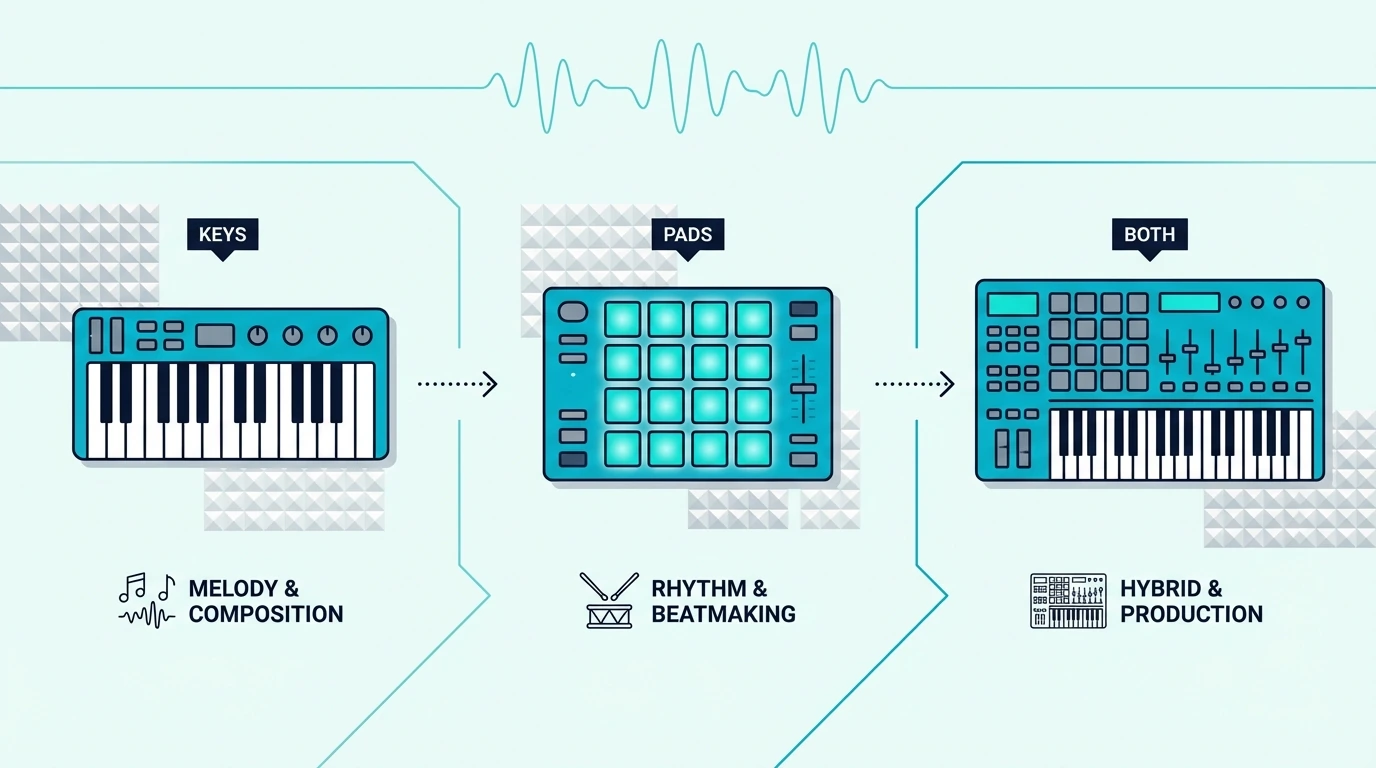
Choosing MIDI controller keys, pads, or both

The first decision eliminates entire product categories from your search. Controllers come in three formats, and each serves a fundamentally different production style.

Keys-Only Controllers

Keys-only controllers provide piano-style input with pitch bend, modulation wheels, and sometimes transport controls. No pads, no knobs, no faders. The focus is entirely on playing notes with the best possible key feel.

Choose keys-only if you primarily play melodies, chord progressions, and piano parts. The M-AUDIO Keystation 49 MK3 represents this category — 49 full-size keys with transport controls at a hundred nine dollars.

All-In-One Controllers (Keys + Pads + Knobs)

All-in-one controllers pack keys, drum pads, assignable knobs, and sometimes arpeggiators into a single compact unit. The key count is usually 25 (mini size), and the emphasis is on versatility rather than key feel.

Choose all-in-one if you make beats, program synths, AND play melodies — all within the same production session. The Akai Professional MPK Mini MK3 is the benchmark all-in-one — keys, pads, knobs, and software for ninety-nine dollars.

Pad-Only Controllers

Pad-only controllers (Akai MPC, Novation Launchpad) provide velocity-sensitive pads for finger drumming, clip launching, and sample triggering with zero keyboard keys. These serve beat makers and live performers who input notes through pads exclusively.

Choose pad-only if your production centers on beats, samples, and clip-based arrangement rather than played melodies. Most pad-only producers pair a dedicated pad unit with a budget keyboard for the occasional melody.

How Many Keys Do You Need on a MIDI Controller

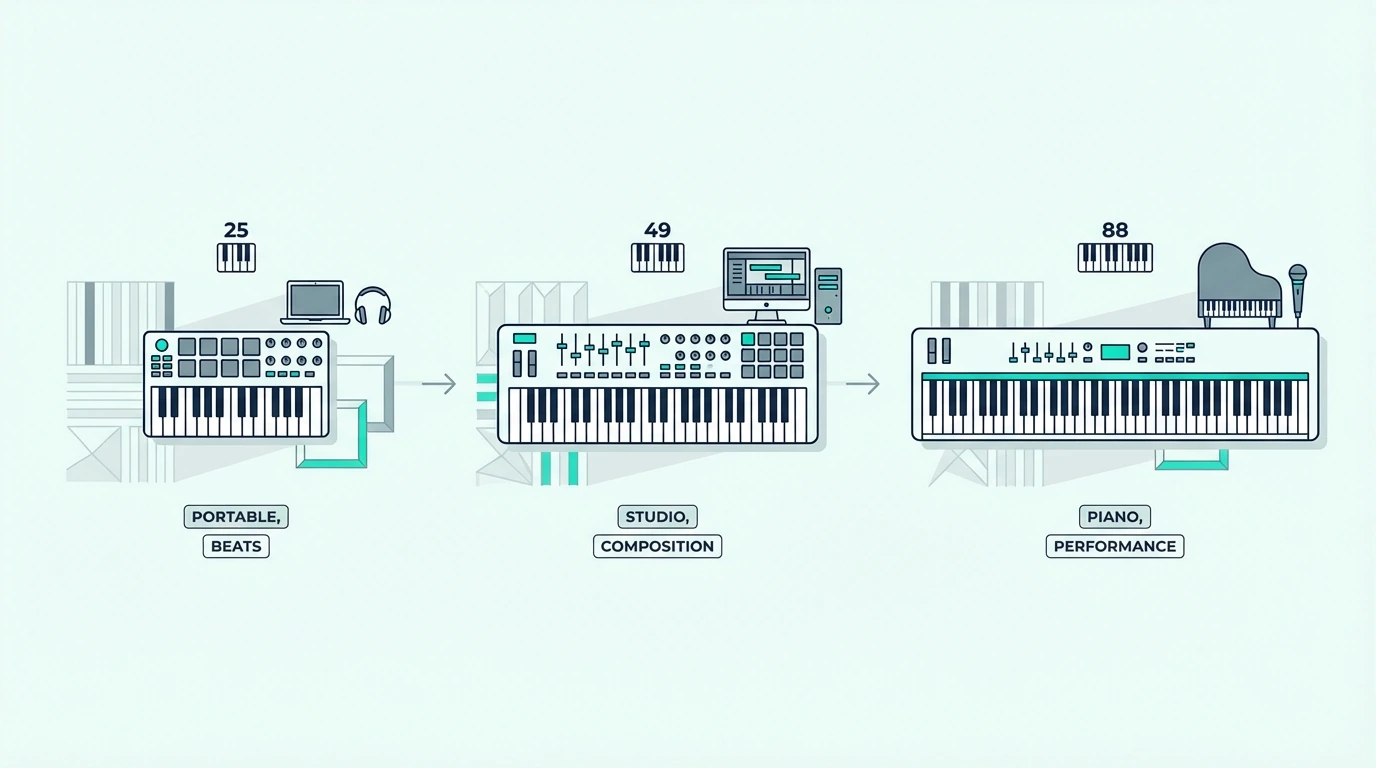
Choosing the right number of MIDI controller keys

If you decided you need keys (either keys-only or all-in-one), the next question is range. Key count determines what you can play comfortably without reaching for octave buttons.

25 Keys (Two Octaves)

Twenty-five keys handle one-handed melodies, bass lines, synth leads, and basic chord stabs. Beat makers and electronic producers who primarily use pads for rhythmic input rarely need more. The compact size fits beside a laptop without dominating desk space.

25-key controllers range from forty to one hundred twenty dollars, with the most popular options (MPK Mini MK3, Novation FLkey Mini) falling around a hundred dollars.

49 Keys (Four Octaves)

Forty-nine keys let you play two-handed chord progressions, bass-with-melody combinations, and most piano literature without octave shifting. This is the sweet spot for producers who play keys as their primary input method.

49-key controllers range from eighty to one hundred fifty dollars, with the M-AUDIO Keystation 49 MK3 and Nektar SE49 representing the best value options.

61 Keys (Five Octaves)

Sixty-one keys add an extra octave for wide voicings, split keyboard zones, and orchestral keyswitch layouts alongside playable range. Serious keyboardists and composers who need more range than 49 keys but less footprint than 88 choose this size.

61-key controllers start around two hundred dollars, with the Novation Launchkey 61 MK4 being the standout option at three hundred thirty dollars with pads and faders included.

88 Keys (Full Range)

Eighty-eight keys cover the complete piano range — essential for classical repertoire, film scoring with orchestral Expression Maps, and any playing that requires simultaneous access to both extremes of the keyboard.

88-key controllers range from three hundred to five hundred dollars. Measure your desk before committing — the four-foot footprint demands dedicated space.

Does Your DAW Affect Which MIDI Controller to Buy

Choosing a MIDI controller based on your DAW

Your DAW determines which controllers offer native integration that saves setup time. Generic controllers work with every DAW through MIDI learn, but native integration auto-maps pads, knobs, and faders without configuration.

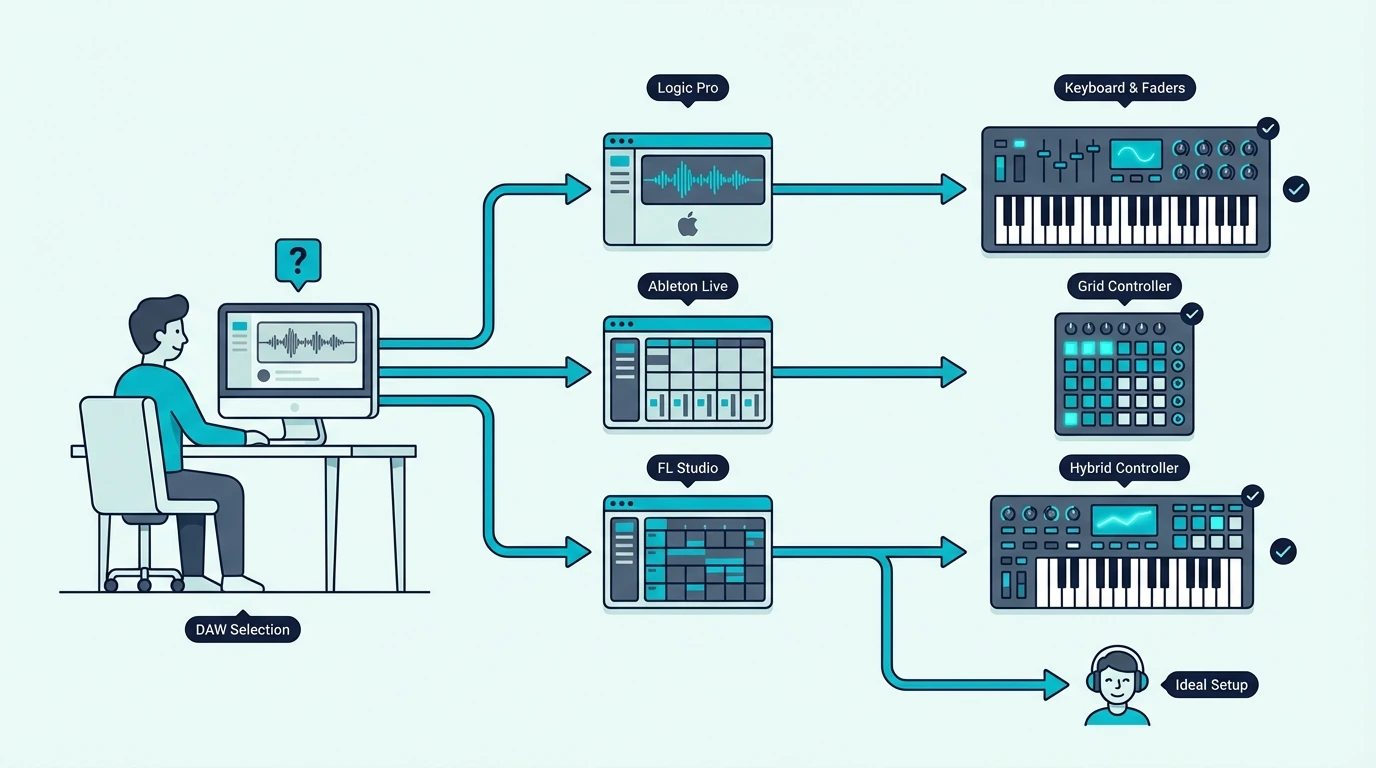
The matching is straightforward. FL Studio users get native integration from the Novation FLkey series. Ableton users get it from the Novation Launchkey series. Logic Pro users get it from the Launchkey series and Apple’s own integration. GarageBand users get plug-and-play with every controller.

If you switch between DAWs or use Cubase, Cakewalk, or another platform, choose a controller with open MIDI mapping (like the Akai MPK series) rather than one locked to a specific DAW’s integration protocol.

How Much Should You Spend on a MIDI Controller

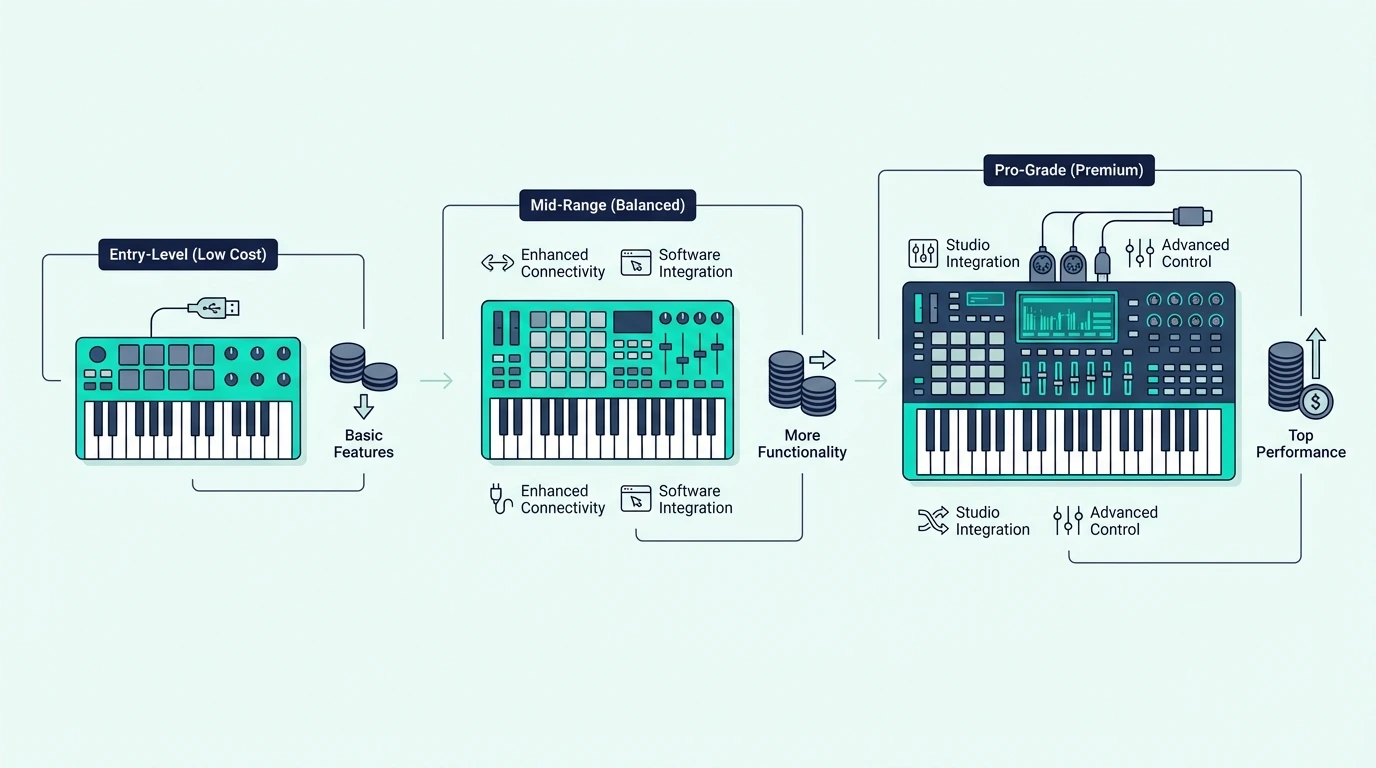
MIDI controller budget tiers compared

MIDI controllers cluster into clear price tiers, and understanding what each tier delivers prevents overspending on features you will not use.

Under 50 Dollars

Keys-only controllers with 25-32 mini keys and velocity sensitivity. No pads, no knobs, no bundled software in most cases. The midiplus AKM320 and Nektar SE25 represent this tier. Ideal for testing whether MIDI production fits your creative goals before investing more.

80 to 120 Dollars

The most competitive bracket. All-in-one controllers with pads, knobs, and bundled software (MPK Mini MK3 at ninety-nine dollars) alongside 49-key keyboards with transport controls (Keystation 49 MK3 at a hundred nine dollars). This tier covers everything most producers need.

200 to 350 Dollars

Premium controllers with semi-weighted keys, aftertouch, faders, and deep DAW integration. The Novation Launchkey 61 MK4 at three hundred thirty dollars and M-AUDIO Keystation 88 MK3 at three hundred dollars define this tier. These controllers serve serious producers and performing musicians.

400 Dollars And Above

Fully weighted hammer-action controllers (Yamaha P71 at four hundred thirty dollars) and premium production keyboards. This tier targets pianists who need authentic piano feel alongside MIDI functionality. Most producers never need to spend this much.

Which MIDI Controller Is Right for Your Workflow

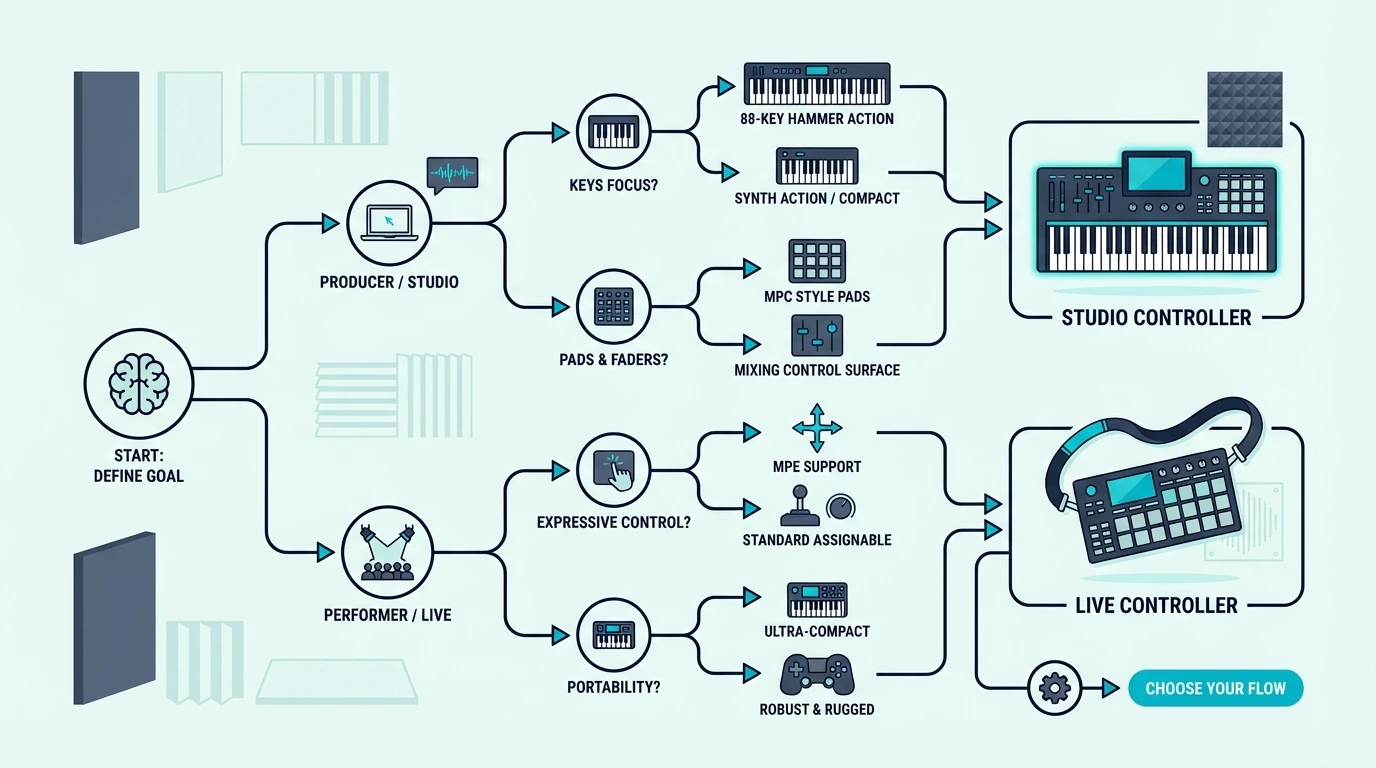
Decision flowchart for choosing a MIDI controller

Here is the simplified decision path based on the four questions above.

Beat maker who needs portability25-key all-in-one with pads (MPK Mini MK3, ninety-nine dollars). This covers keys, beats, and knob control in one compact package.

Producer who plays two-handed parts49-key keyboard (Keystation 49 MK3, a hundred nine dollars). Full-size keys with enough range for chord progressions and melodies.

Pianist who practices AND producesWeighted 88-key controller (Yamaha P71, four hundred thirty dollars) for practice, plus an MPK Mini for production. Two controllers beats one compromise.

Complete beginner unsure what they needMPK Mini MK3 at ninety-nine dollars. It covers every workflow type and the bundled software gets you producing immediately. Upgrade to a specialized controller only after you discover which production style you gravitate toward.

Budget-constrained beginnermidiplus AKM320 at under forty dollars. Test whether MIDI production fits your creative goals with minimal financial risk. Upgrade when the limitations motivate you.

The Bottom Line

Choosing a MIDI controller is a workflow decision, not a specs decision. Answer the four questions — keys vs pads, key count, DAW, and budget — and the right controller category becomes obvious. Then pick the specific model within that category that fits your price range.

Most producers end up with the Akai MPK Mini MK3 (all-in-one at ninety-nine dollars) or the M-AUDIO Keystation 49 MK3 (keys-only at a hundred nine dollars). Those two controllers cover the vast majority of production workflows at accessible price points.

Frequently Asked Questions

What is the most important feature in a MIDI controller?

Key count and control type (keys, pads, knobs) matter most because they determine what you can physically do with the controller. Velocity sensitivity is non-negotiable — never buy a controller without it. Everything else (aftertouch, transport controls, DAW integration) is useful but secondary.

Should I buy a cheap controller to start?

Yes — a forty-dollar controller lets you test whether MIDI production fits your creative process with minimal financial risk. If the limitations frustrate you after a few months, that frustration tells you exactly what to prioritize in your upgrade. Starting expensive risks buying features you never use.

Do I need a controller that matches my DAW?

No — every MIDI controller works with every DAW at a basic level. DAW-specific controllers (FLkey for FL Studio, Launchkey for Ableton) add convenience through native integration, but generic controllers work perfectly through MIDI learn. Choose DAW-specific only if the time savings justify the price premium.

How do I know when to upgrade my MIDI controller?

Upgrade when a specific limitation consistently interrupts your workflow. Constantly shifting octaves means you need more keys. Missing velocity dynamics means you need a real controller instead of a computer keyboard. Needing pads for beats means you need an all-in-one or a dedicated pad unit. Never upgrade based on features — upgrade based on friction you actually experience.

How to Fix MIDI Keyboard Delay — Eliminate Latency So Your Playing Feels Instant

How to fix MIDI keyboard delay is the most frustrating troubleshooting search in music production, but the fix is almost never the keyboard itself — the delay is caused by your audio driver settings, buffer size configuration, or USB connection path, and each one has a specific solution that takes under two minutes to apply.

The mistake most producers make is blaming the MIDI keyboard for latency when the controller adds zero delay to the signal chain. MIDI data travels from keyboard to computer in under one millisecond. The delay you hear happens after that — when your computer processes the MIDI data through your DAW, applies it to a virtual instrument, and outputs the resulting audio through your speakers.

This guide identifies the exact cause of your MIDI delay and provides the fix for each scenario. You will learn to diagnose whether the problem is audio drivers, buffer size, CPU overload, Bluetooth latency, or USB routing — and resolve it permanently.

Below you will find the fixes sorted from most common to least common, so you can work through them in order and stop at the first one that solves your problem.

Quick Takeaway

MIDI keyboard delay is caused by audio processing, not the keyboard itself. The fix in order of likelihood: switch to an ASIO driver (Windows), reduce your audio buffer size to 256 or 512 samples, close CPU-heavy plugins, connect via USB instead of Bluetooth, and plug directly into the computer instead of through a USB hub. Most delay problems resolve with the first two steps.

What Actually Causes MIDI Keyboard Delay

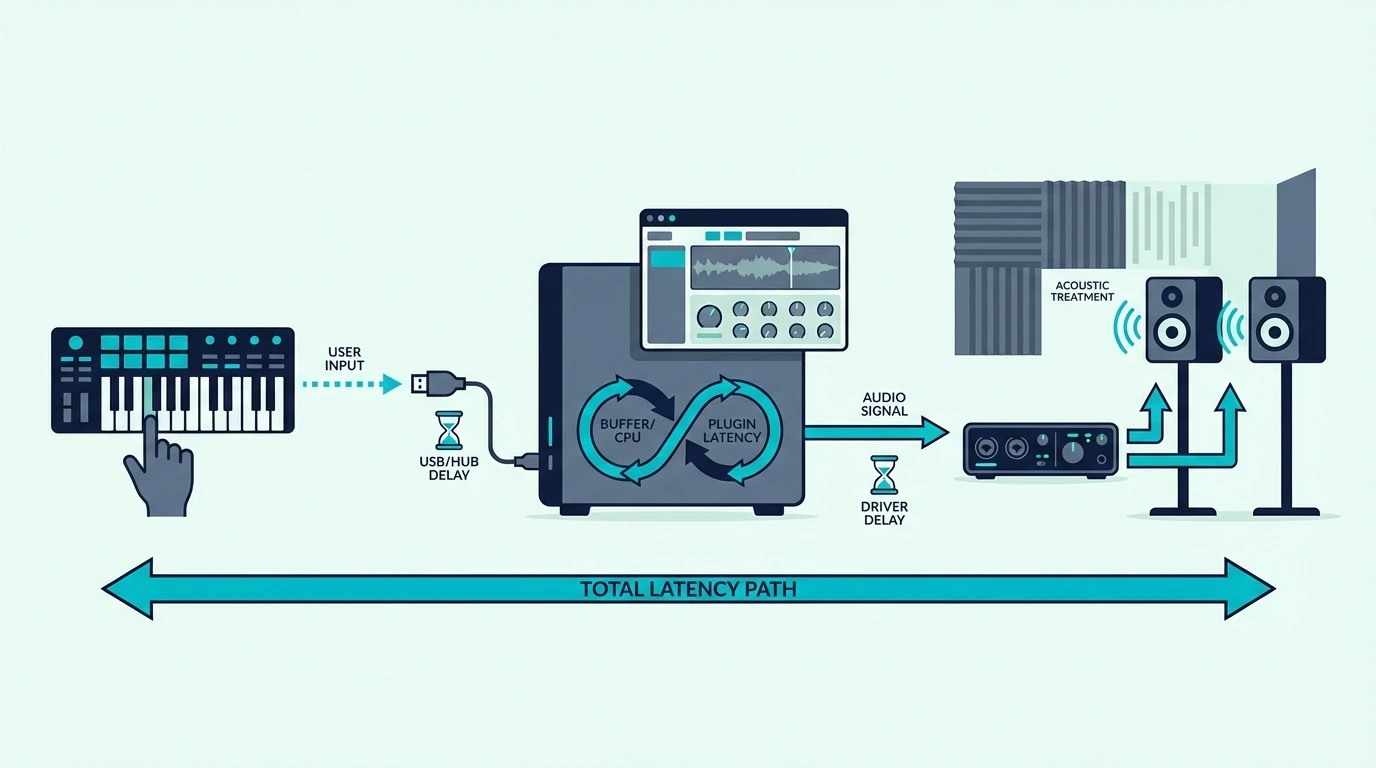
Real cause of MIDI keyboard delay in a recording setup

Understanding where delay actually occurs in the signal chain prevents you from wasting time on fixes that target the wrong component. The latency you feel between pressing a key and hearing sound has nothing to do with your MIDI keyboard hardware.

MIDI Data Is Essentially Instant

When you press a key, your MIDI keyboard sends a digital message over USB in under one millisecond. That message contains the note number, velocity, and channel — a few bytes of data that travels faster than you can perceive.

The Akai Professional MPK Mini MK3, M-AUDIO Keystation 49 MK3, and every other class-compliant USB controller add effectively zero latency to the signal chain. Replacing your keyboard will not fix a delay problem.

Audio Processing Creates The Delay

After your DAW receives the MIDI message, it must: route the data to the correct virtual instrument, generate audio from that instrument, mix the audio with other tracks, and send the result to your audio output device. Each step adds processing time measured in milliseconds.

The total round-trip latency — from key press to speaker output — depends on your audio driver type, buffer size setting, CPU load, and output device. Those are the four variables you need to optimize, and they all live in your computer’s software configuration, not in the MIDI keyboard.
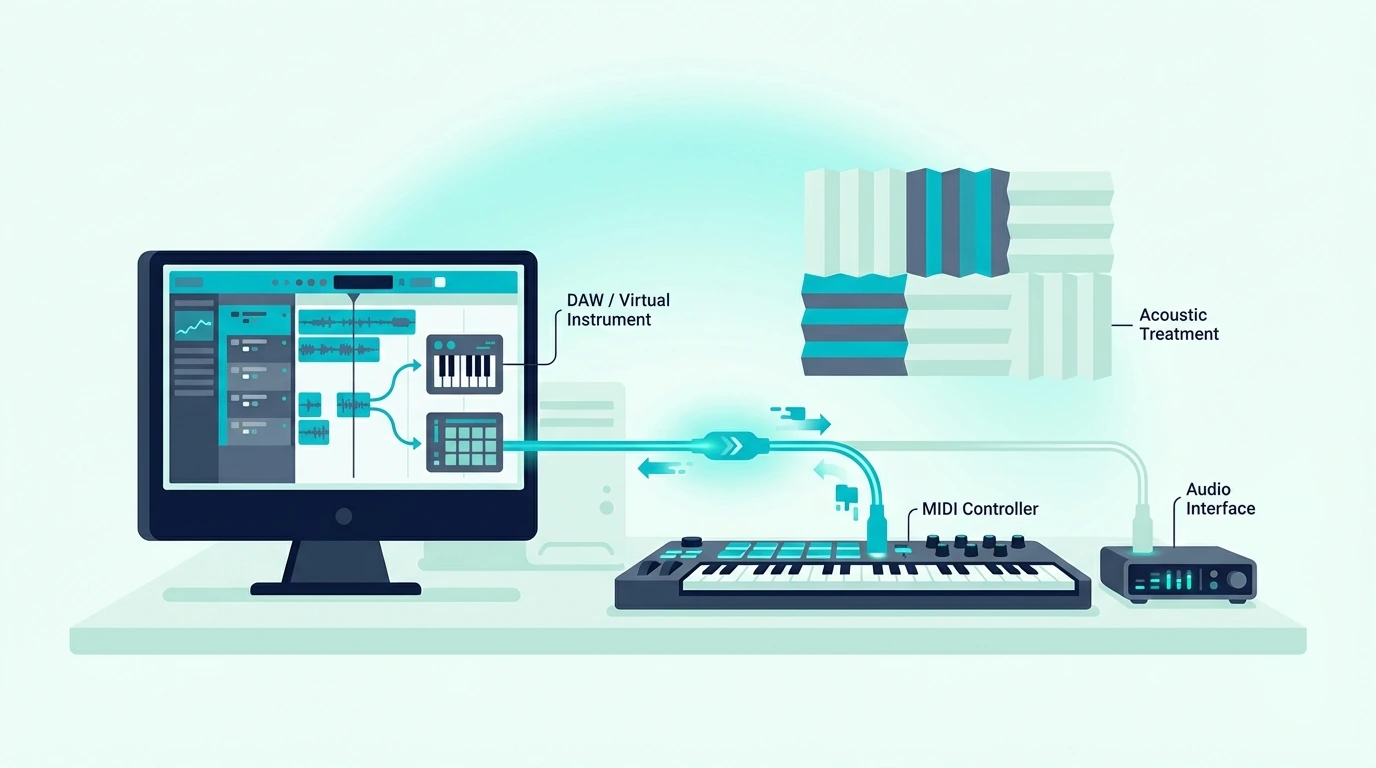
How Does Switching to an ASIO Driver Fix MIDI Delay

Fixing MIDI delay with an ASIO driver

This is the single most common fix for MIDI delay on Windows and resolves the problem for roughly 70 percent of producers who experience latency.

Why Windows Default Drivers Are Slow

Windows ships with WDM and MME audio drivers that route sound through the Windows audio mixer — a system-level process that adds 50-200 milliseconds of latency. That delay makes real-time MIDI playing feel like typing into a text field that responds a half-second late.

ASIO (Audio Stream Input/Output) drivers bypass the Windows audio mixer entirely and communicate directly with your audio hardware. The result is latency under 10 milliseconds — fast enough that the delay is imperceptible during playing.

How To Install And Configure ASIO

If you own an audio interface, install the manufacturer’s ASIO driver from their website. Focusrite, PreSonus, Universal Audio, and other manufacturers provide dedicated ASIO drivers optimized for their hardware.

If you do not own an audio interface, download ASIO4ALL (free) from asio4all.org. This universal ASIO driver works with any audio output device including your laptop’s built-in speakers. FL Studio users can also use FL ASIO, which ships built-in with the software.

After installation, open your DAW’s audio settings and switch the audio driver from the Windows default to your ASIO driver. The latency improvement is immediate and dramatic.

Mac Users Do Not Need ASIO

macOS uses Core Audio, which provides low-latency audio processing by default. Mac users experiencing MIDI delay should skip this fix and proceed directly to Fix 2 (buffer size). The Mac MIDI connection handles audio routing efficiently without additional driver software.

How Does Reducing Buffer Size Fix MIDI Latency

Adjusting buffer size to reduce MIDI latency

Buffer size determines how much audio data your computer processes in each cycle. Smaller buffers mean lower latency but higher CPU demand. Larger buffers mean higher latency but more stable audio.

Finding Your Buffer Size Setting

In every DAW, the buffer size lives in the audio settings or preferences panel. Look for “Buffer Size,” “Buffer Length,” or “Latency” — the setting is measured in samples (64, 128, 256, 512, 1024, 2048) or milliseconds.

For playing virtual instruments with a MIDI keyboard, set the buffer to 256 samples as a starting point. This produces roughly 6 milliseconds of latency at a 44.1kHz sample rate — fast enough for most players to feel instant response.

If 256 samples causes audio crackling or dropouts, increase to 512 samples (roughly 12 milliseconds). Most producers cannot perceive delay below 15 milliseconds, so 512 is the practical sweet spot between latency and stability.

When To Use Larger Buffers

During mixing (when you are not playing live), increase the buffer to 1024 or 2048 samples. The added latency does not affect playback of recorded audio, and the larger buffer frees CPU resources for plugin-heavy mix sessions.

Switch back to 256 or 512 when you need to play or record MIDI parts. Some DAWs (like Ableton Live) offer separate buffer settings for recording and playback, automating this switch.

Can CPU Overload Cause MIDI Keyboard Delay

Reducing CPU load to fix MIDI keyboard delay

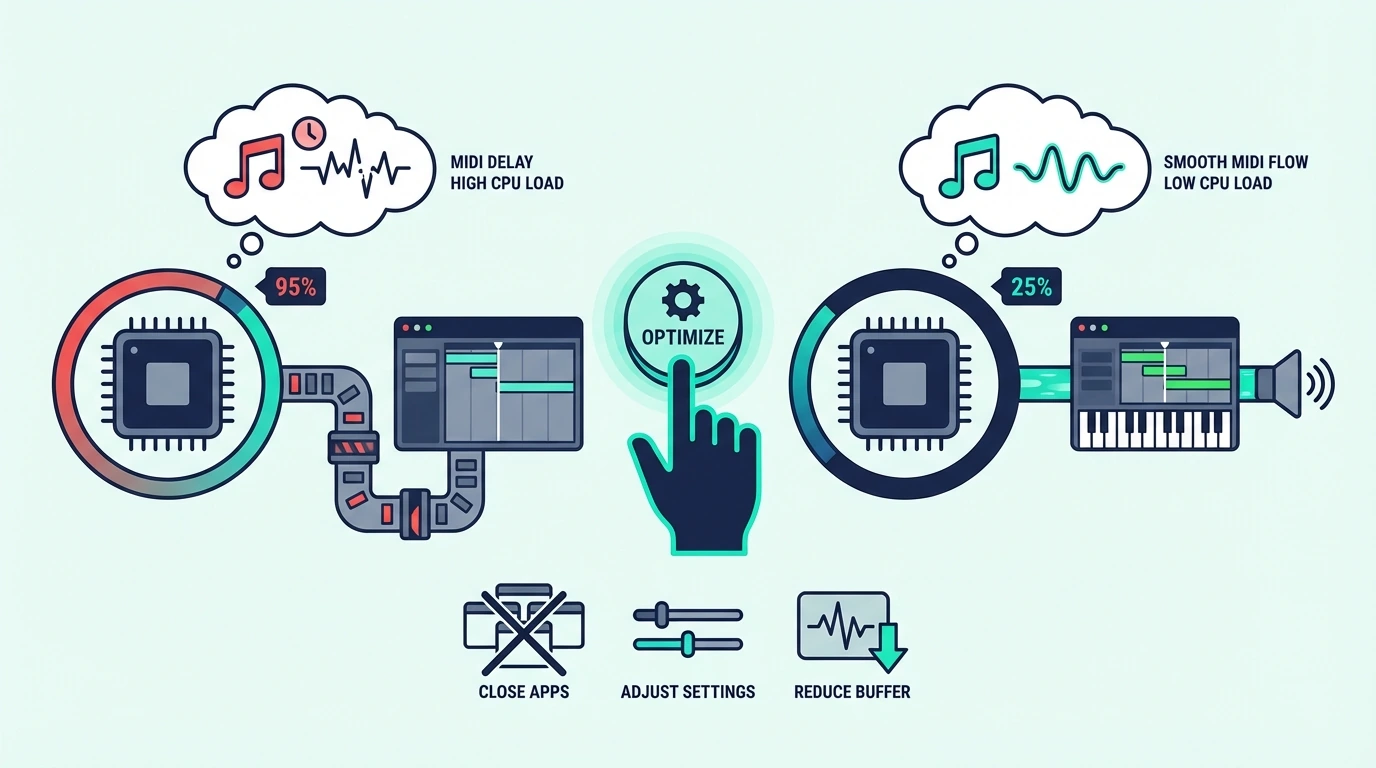
Heavy virtual instruments and effects plugins consume CPU cycles that compete with audio processing. When your CPU cannot keep up, the audio system compensates by increasing internal buffering — which adds latency you did not configure.

Identify CPU-Hungry Plugins

Most DAWs display CPU usage per track or plugin. In Logic Pro, open the CPU meter (Window, Show CPU/HD Activity). In FL Studio, check the plugin processing panel. Look for plugins consuming more than 20 percent of available CPU on a single instance.

Reverb plugins, convolution processors, and high-polyphony synths are the most common CPU offenders. A single instance of a complex orchestral plugin can consume as much CPU as 20 simpler instruments combined.

Solutions For CPU Overload

Freeze tracks that you are not actively editing. Freezing renders the track to audio, eliminating the CPU cost of the virtual instrument while preserving the MIDI data for later unfreezing.

Use plugin bypass on effects chains you do not need during recording. A reverb send that sounds great during mixing adds unnecessary CPU load during a keyboard performance where you only need to hear the dry instrument.

Reduce polyphony on synth plugins from 32 voices to 8 or 16. Most playing situations never use more than 8 simultaneous voices, and the lower polyphony count frees significant CPU resources.

Does Bluetooth Add Latency to MIDI Keyboards

Bluetooth and USB connection issues that cause MIDI delay

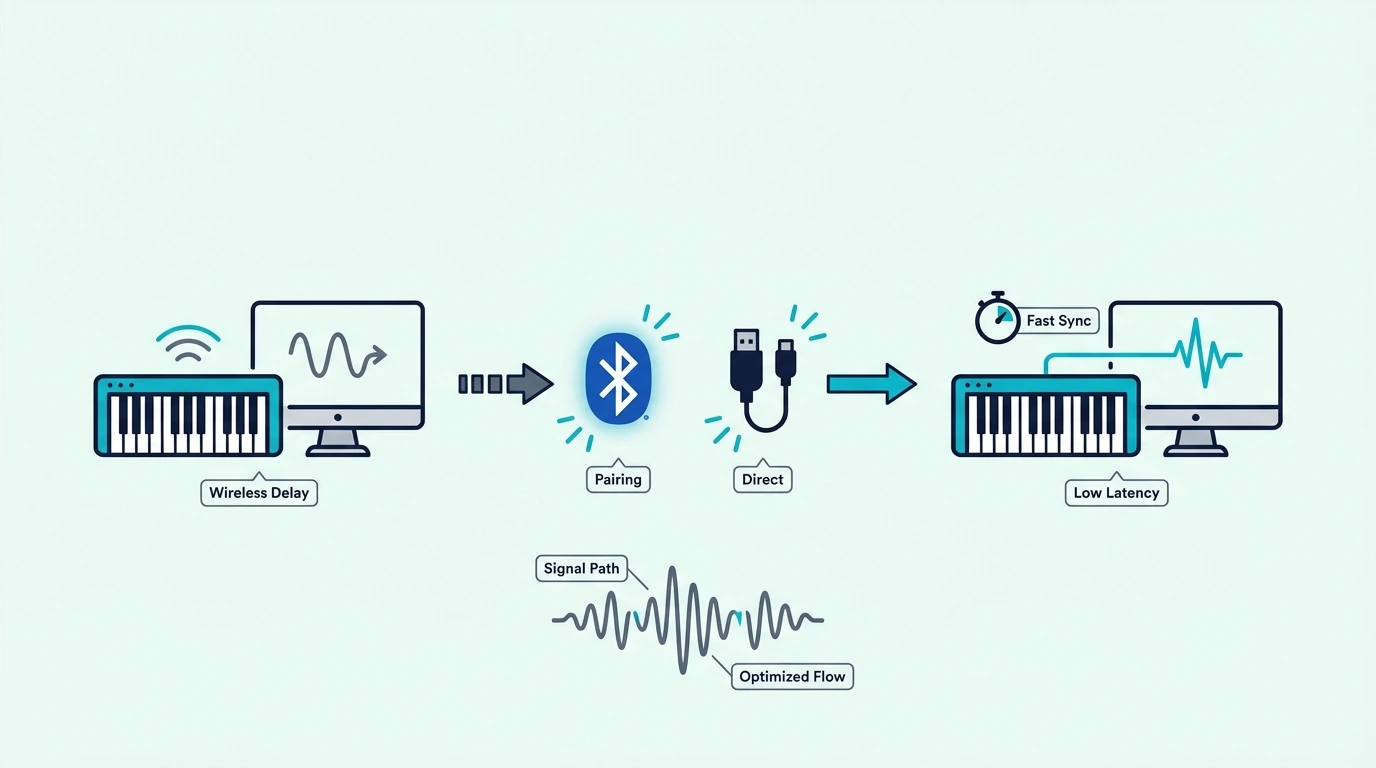
Bluetooth MIDI adds 5-15 milliseconds of inherent latency on top of your audio processing delay. That additional lag pushes the total round-trip latency from barely noticeable to clearly perceptible.

If you use a Bluetooth MIDI controller and experience delay, switch to USB connection first before adjusting any other settings. The USB connection eliminates the Bluetooth latency component entirely, and the remaining delay (if any) is addressable through the fixes above.

Controllers like the midiplus AKM320 connect via USB only, which means they never add Bluetooth latency to your signal chain. USB-only controllers provide the most predictable, lowest-latency connection for producers who need tight timing response.

Can Your USB Connection Cause MIDI Timing Issues

Fixing MIDI delay with a better USB connection

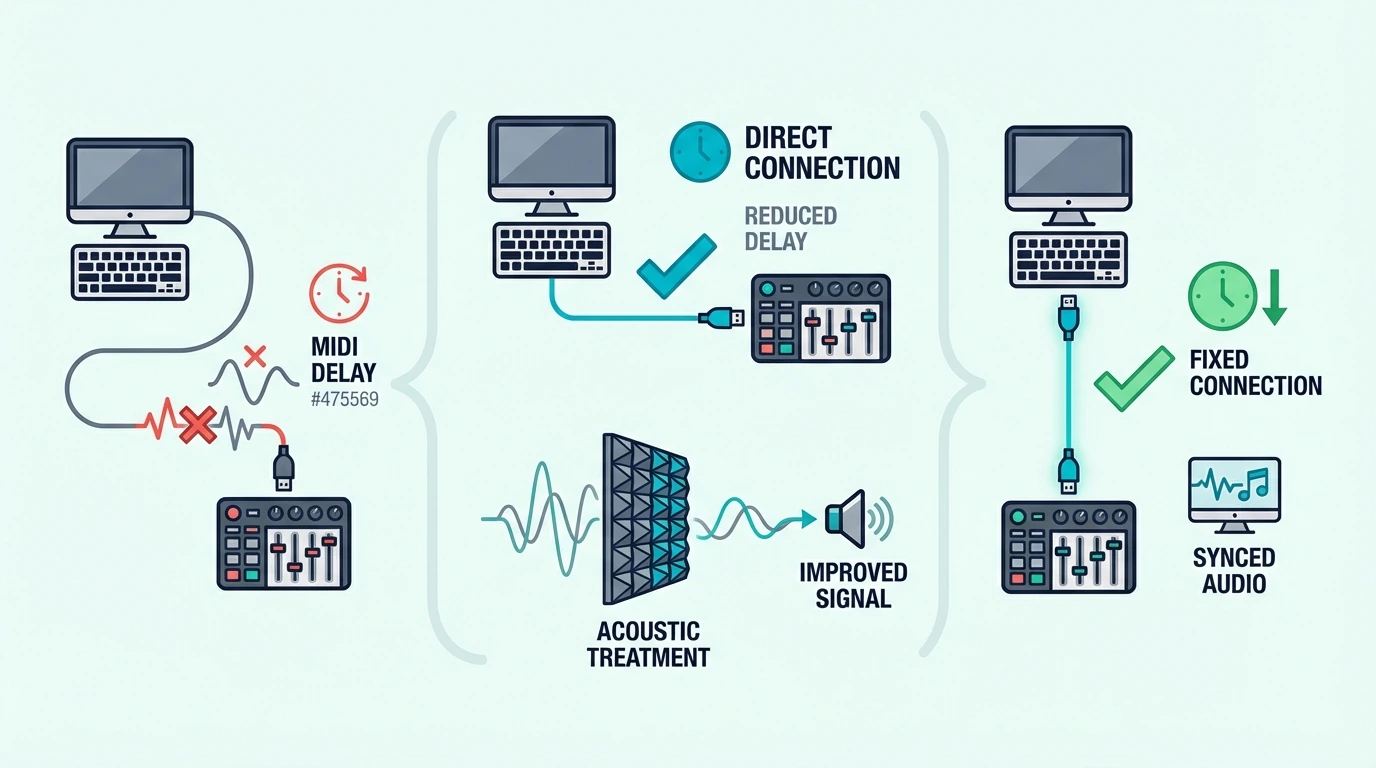
USB hubs, extension cables, and shared bus connections can introduce micro-delays and power delivery issues that affect MIDI timing reliability.

Connect Directly To The Computer

Plug your MIDI keyboard directly into a USB port on your computer — not through a hub, dock, or extension cable. Direct connection provides the cleanest data path and most reliable power delivery.

If you must use a USB hub (because your iPad or laptop has limited ports), use a powered hub that supplies its own electricity. Unpowered hubs split the computer’s USB power budget across all connected devices, which can cause intermittent disconnections on power-hungry controllers.

Try Different USB Ports

Not all USB ports on a computer perform identically. USB 2.0 ports (black inside) and USB 3.0 ports (blue inside) use different host controllers, and one may provide more stable MIDI communication than the other.

If you experience intermittent delay spikes (latency that comes and goes), switching to a different physical USB port often resolves the issue by moving your controller to a less congested USB bus.

Disable USB Power Management (Windows)

Windows power management can briefly disable USB ports to save energy, causing momentary disconnections that manifest as latency spikes during playing. Open Device Manager, expand Universal Serial Bus controllers, right-click each USB Root Hub, select Properties, and uncheck “Allow the computer to turn off this device to save power.”

This prevents Windows from interrupting your MIDI connection during production sessions, eliminating random delay spikes that occur after periods of keyboard inactivity.

The Bottom Line

MIDI keyboard delay is an audio processing problem, not a hardware problem. The fix priority for most producers: install an ASIO driver on Windows (the single biggest improvement), reduce buffer size to 256-512 samples, close CPU-heavy plugins during recording, switch from Bluetooth to USB, and connect directly to the computer without hubs.

Most delay issues resolve with the first two fixes alone. If your latency persists after optimizing drivers and buffers, the problem is CPU overload — freeze unused tracks and reduce plugin polyphony until the delay disappears. Even the midiplus AKM320 at under forty dollars performs identically to premium controllers in terms of latency — confirming that the fix is always in software, never in hardware.

Frequently Asked Questions

Why does my MIDI keyboard have a delay?

The delay is caused by audio processing in your computer, not the MIDI keyboard itself. USB MIDI controllers add under 1 millisecond of latency. The perceivable delay comes from your audio driver type (ASIO vs WDM), buffer size setting, CPU load from plugins, and connection method (USB vs Bluetooth).

What buffer size should I use for MIDI keyboard?

Set your audio buffer to 256 samples for real-time playing with minimal latency (roughly 6ms at 44.1kHz). If you hear audio crackling, increase to 512 samples (roughly 12ms). Both settings feel responsive enough for most producers. Use 1024+ samples during mixing when latency does not matter.

Does Bluetooth MIDI have more latency than USB?

Yes — Bluetooth MIDI adds 5-15 milliseconds of latency on top of your audio processing delay. For casual playing and beat sketching, Bluetooth latency is imperceptible. For recording precise performances, USB provides measurably tighter timing. Switch to USB if Bluetooth delay bothers you.

Will a better MIDI keyboard fix latency?

No — all class-compliant USB MIDI keyboards add the same sub-1ms latency regardless of price. A forty-dollar controller and a three-hundred-dollar controller produce identical MIDI timing. The delay comes from your audio configuration, not the keyboard hardware.

How to Add Sounds to a MIDI Keyboard — Get Your Controller Playing Every Instrument Imaginable

How to add sounds to a MIDI keyboard is the question that confuses every beginner who just unboxed their first controller, but the answer is simpler than most guides make it seem: your MIDI keyboard does not store sounds — your computer does, and the keyboard just tells the computer which notes to play.

That confusion is caused by the fundamental nature of MIDI controllers. Unlike a digital piano with built-in speakers and preset sounds, a MIDI keyboard sends performance data (which key, how hard, when released) to software on your computer that generates the actual audio. Adding sounds means installing virtual instrument plugins that respond to your keyboard input.

This guide walks through every method of adding sounds to your MIDI keyboard setup — from free plugins that cost nothing to premium libraries that rival professional studio recordings. You will also learn how to load sounds in your DAW, organize a growing collection, and find the best free instruments to start with.

Below you will find the complete process for getting sounds from your MIDI keyboard, sorted from zero-cost options to premium investments worth considering as your production grows.

Quick Takeaway

To add sounds to a MIDI keyboard, install virtual instrument plugins (VSTs or AUs) in your DAW. Free options include the instruments bundled with your DAW (GarageBand, Ableton Live Lite, MPC Beats) and third-party free plugins like Vital, Spitfire LABS, and Dexed. Load a plugin on a software instrument track in your DAW, and your MIDI keyboard plays that sound instantly.

Why Your MIDI Keyboard Has No Sounds (And Why That Is Actually Better)

Why MIDI keyboards usually have no built-in sounds

A MIDI controller produces no audio on its own by design. That design choice gives you unlimited sound options instead of locking you into whatever a manufacturer loaded at the factory.

The Sound Lives In Software, Not Hardware

When you press a key on your MIDI keyboard, it sends a digital message to your computer: “Note C4 was pressed at velocity 95.” Your DAW receives that message and routes it to whatever virtual instrument plugin is loaded on the active track. The plugin generates the audio — a grand piano, a synthesizer, a string section, a drum kit — and sends it to your speakers.

Changing which plugin responds to your keyboard changes the sound instantly. Load a piano plugin and your keyboard sounds like a Steinway. Load a synth plugin and the same keyboard produces sweeping electronic textures. That flexibility is why producers choose MIDI controllers over keyboards with built-in sounds.

Bundled Software Gets You Started Immediately

Most MIDI keyboards ship with free software that includes virtual instruments. The Akai Professional MPK Mini MK3 includes MPC Beats with a plugin suite. The M-AUDIO Keystation 49 MK3 includes Ableton Live Lite with AIR virtual instruments.

These bundled packages give you pianos, synths, drums, and orchestral sounds on day one — no additional purchases needed. Install the bundled software, open your DAW, load a virtual instrument, and your MIDI keyboard plays sounds immediately.

What Are the Best Free Virtual Instruments for a MIDI Keyboard

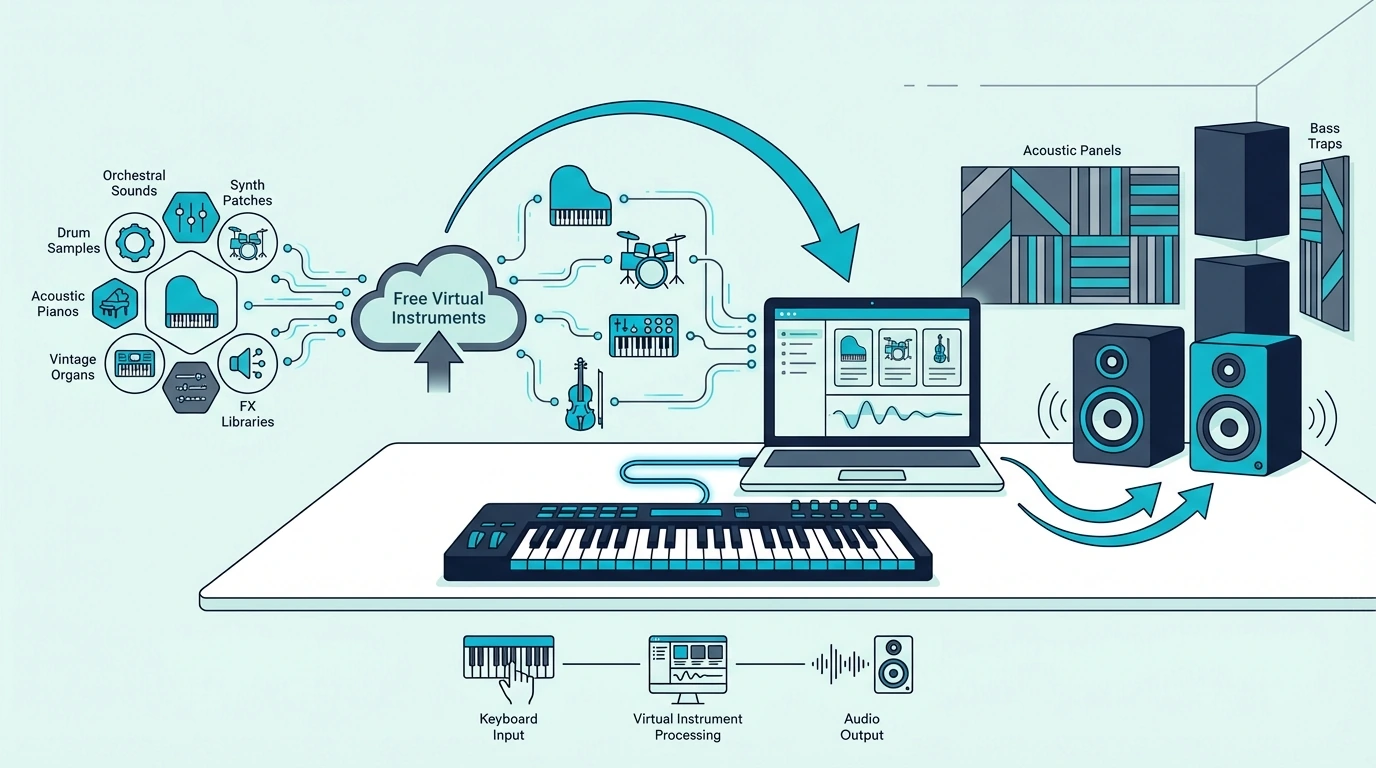
Free virtual instruments for adding sounds to a MIDI keyboard

The free plugin ecosystem is surprisingly deep. These instruments cost nothing and rival paid alternatives in specific categories.

DAW Built-In Instruments

Every major DAW ships with virtual instruments that respond to MIDI keyboard input. GarageBand includes pianos, synths, drums, and orchestral patches — the deepest free instrument library of any starter DAW. Ableton Live includes Drift, Wavetable, and Simpler. FL Studio includes Flex, Sytrus, and Harmor.

These built-in instruments are production-ready out of the box. Many professional releases use stock DAW instruments exclusively, which proves that expensive third-party plugins are not required to make quality music.

Spitfire LABS (Free Orchestral And Texture Sounds)

Spitfire Audio’s LABS collection offers professionally recorded instruments — strings, pianos, choirs, textural pads, and experimental sounds — completely free. Each LABS instrument is a focused sample library that installs through the Spitfire app and loads as a plugin in any DAW.

The quality rivals instruments that cost hundreds of dollars. LABS Soft Piano, LABS Strings, and LABS Choir are particularly useful for producers who want cinematic textures without the cinematic price tag.

Vital (Free Wavetable Synthesizer)

Vital is a wavetable synthesizer that matches the feature depth of paid synths like Serum and Phase Plant. The free version includes the full synthesis engine with unlimited polyphony, three oscillators, and a visual modulation system.

Wavetable synthesis means Vital produces sounds that traditional subtractive synths cannot — evolving textures, complex pads, aggressive basses, and atmospheric leads that respond to every velocity nuance your MIDI keyboard sends.

Dexed (Free FM Synthesizer)

Dexed recreates the Yamaha DX7 — the synthesizer that defined the sound of the 1980s. Electric pianos, metallic bells, glassy pads, and punchy basses from the DX7 era are all available for free through this plugin.

Dexed loads thousands of DX7 preset patches from the internet, giving your MIDI keyboard access to one of the most iconic sound libraries in synthesizer history without spending a dollar.

Piano One And Other Free Pianos

Piano One by Sound Magic provides a free sampled concert grand piano that responds to MIDI velocity with realistic dynamic range. For producers who primarily need a good piano sound, this single free plugin eliminates the need for expensive piano libraries.

Other free piano options include the Salamander Grand Piano (for the sforzando sampler) and the Iowa Piano (bundled with several DAWs). Each captures a different piano character — bright concert grand, warm upright, or intimate studio piano.

How To Load Sounds In Your DAW

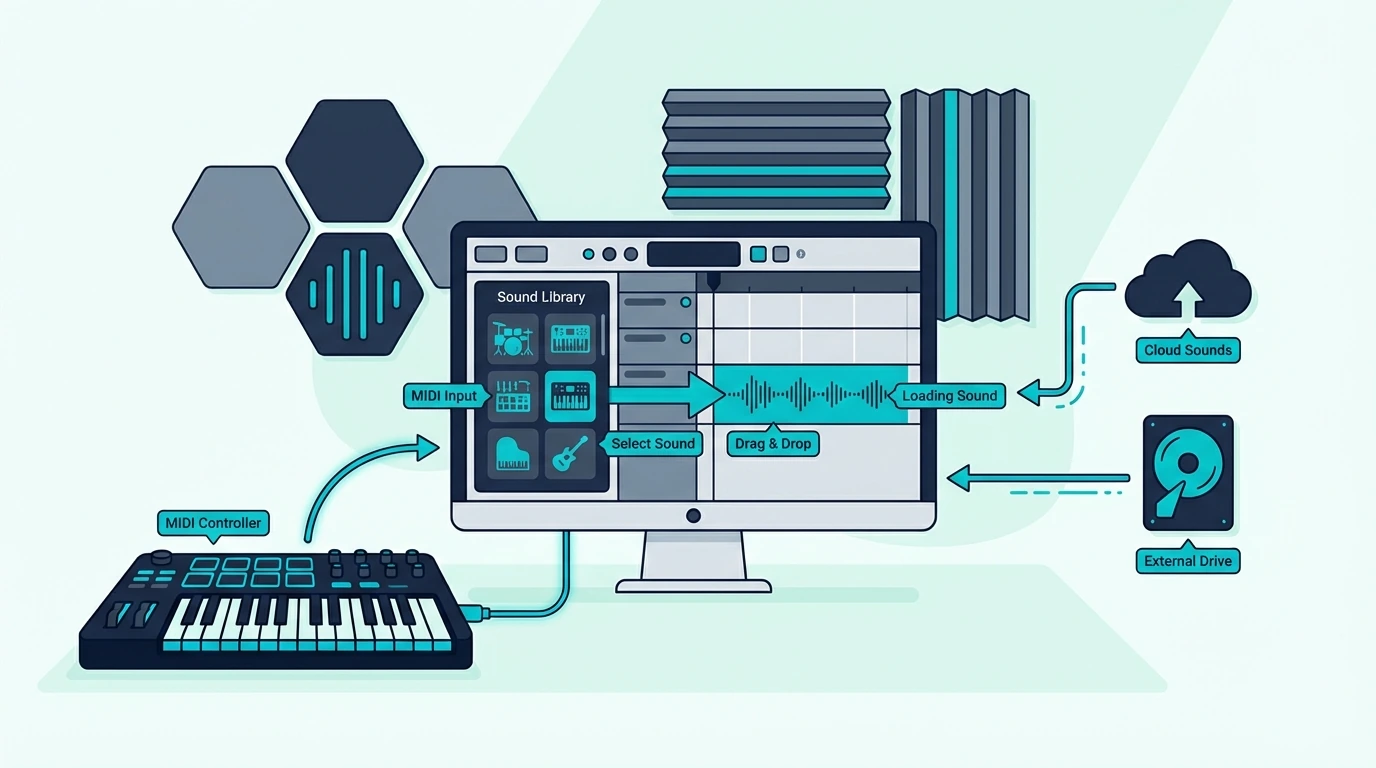
Loading MIDI keyboard sounds inside a DAW

Once you have installed virtual instruments, loading them in your DAW follows the same basic pattern regardless of which software you use.

Create A Software Instrument Track

In your DAW, create a new track and select “Software Instrument” (Logic/GarageBand), “MIDI Track” (Ableton), or “Channel” (FL Studio) as the track type. This tells the DAW to route MIDI input from your keyboard to a virtual instrument on that track.

Load A Virtual Instrument Plugin

Click the instrument slot on the new track and browse the available plugins. Your DAW shows both built-in instruments and any third-party plugins you have installed. Select the instrument you want and the plugin interface opens.

Select A Preset And Play

Most virtual instruments include preset sounds organized by category — pianos, strings, pads, leads, basses, drums. Browse the presets, click one that interests you, and press a key on your MIDI keyboard. The sound plays through your speakers immediately.
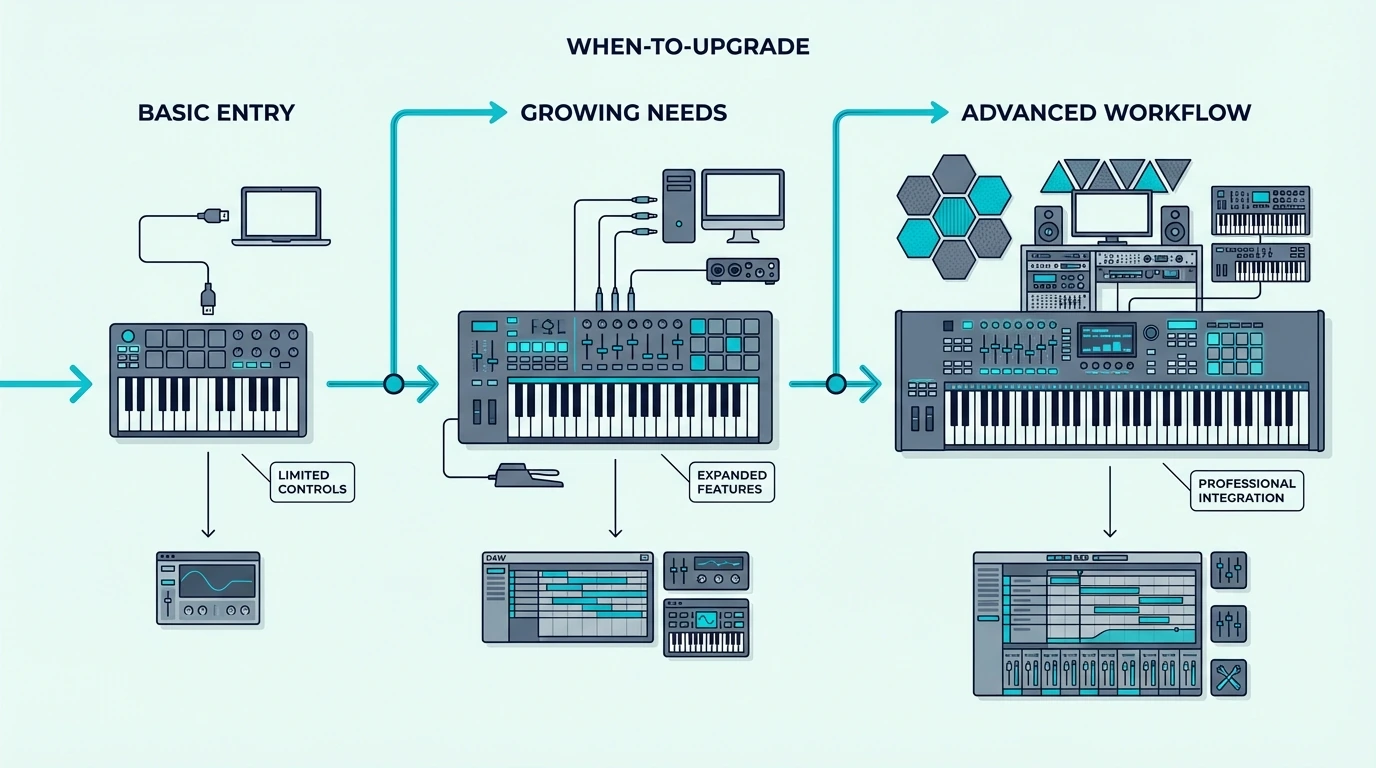
If no sound plays, verify that the track is selected (highlighted) in your DAW. MIDI input routes to whichever track is active. Also check that your DAW’s MIDI input is enabled for your controller in the preferences or settings panel.

Saving Favorite Sounds

Create a favorites list or template in your DAW that pre-loads your most-used instruments on separate tracks. A typical template might include a piano track, a synth pad track, a bass track, and a drum track — all loaded and ready to play the moment you open a new project.

That template approach means your MIDI keyboard produces sound within seconds of opening your DAW instead of requiring plugin loading every session. Even the midiplus AKM320 at under forty dollars plays thousands of virtual instruments through this workflow — the sound options are limited only by what you install, not by what the keyboard itself contains.

Are Premium Sound Libraries Worth Buying for a MIDI Keyboard

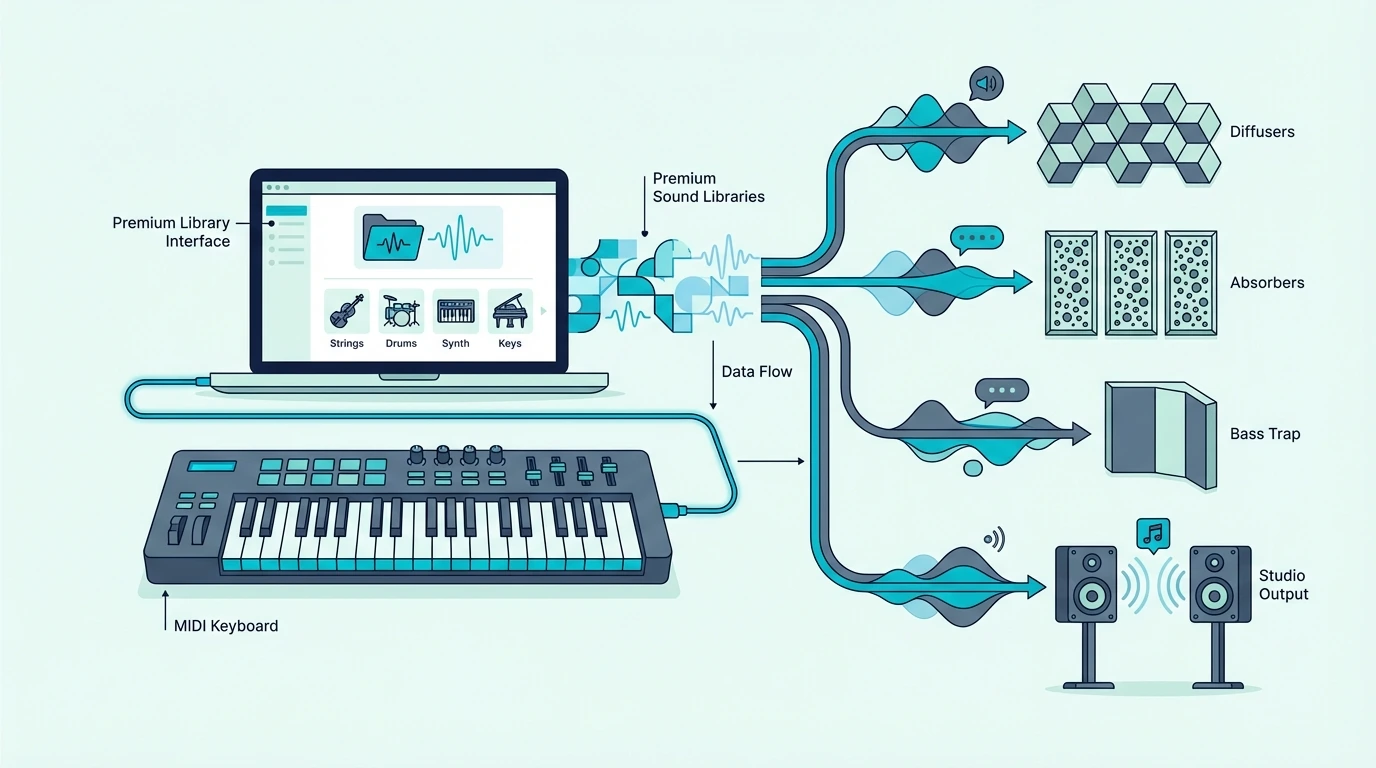
Premium sound libraries for MIDI keyboards

Free instruments cover most production needs, but premium libraries offer recording quality, articulation depth, and sound variety that free options cannot match.

When Free Is Not Enough

Free piano plugins sound good in a mix, but they lack the multi-velocity sampling layers that make a premium piano library sound indistinguishable from a real recording. The difference shows up in solo piano parts where every velocity nuance is exposed.

Similarly, free orchestral samples work for background textures, but scoring a film cue with realistic string articulations (legato, spiccato, tremolo, pizzicato) requires dedicated orchestral libraries that sample each articulation separately.

Native Instruments Komplete

Komplete is the most comprehensive sound library in the plugin market — thousands of instruments, effects, and samples across every genre. The Komplete Start version is free and includes a solid starter set. The full Komplete suite costs several hundred dollars but provides sounds that last an entire career.

Arturia V Collection

Arturia’s V Collection recreates classic analog synthesizers in software — Minimoog, Prophet-5, Jupiter-8, CS-80, and dozens more. Each plugin models the original hardware circuitry, producing sounds that vintage gear collectors pay thousands of dollars to access from actual hardware.

Kontakt Libraries

Native Instruments’ Kontakt platform hosts thousands of third-party sample libraries — pianos, orchestras, ethnic instruments, sound effects, and experimental textures. Kontakt Player (free) runs many libraries without the full Kontakt purchase, making it the standard sampler platform for premium sound content.

The Bottom Line

Adding sounds to a MIDI keyboard means installing virtual instrument plugins in your DAW and loading them on software instrument tracks. Start with the free instruments bundled with your controller and DAW — GarageBand’s library, MPC Beats plugins, and Ableton Live Lite instruments cover most production needs at zero additional cost.

Expand with free third-party plugins (Vital, Spitfire LABS, Dexed, Piano One) when you want specific sounds the bundled instruments do not cover. The M-AUDIO Keystation 49 MK3 bundles Ableton Live Lite with AIR virtual instruments — a complete sound library included with the hardware purchase.

Invest in premium libraries only when free options genuinely limit your creative output — which for most beginners, takes a year or more of active production to reach.

Frequently Asked Questions

Why does my MIDI keyboard not make any sound?

A MIDI keyboard does not contain sounds — it sends control data to software on your computer. You need a DAW (digital audio workstation) with virtual instrument plugins loaded on a software instrument track. Open the DAW, load an instrument, select the track, and the keyboard plays that instrument.

What free software gives sounds to a MIDI keyboard?

GarageBand (free on Mac), Cakewalk (free on Windows), and the DAW lite versions bundled with most MIDI keyboards all include virtual instruments. Third-party free plugins like Vital, Spitfire LABS, and Dexed add thousands more sounds at no cost.

Can I add sounds directly to a MIDI keyboard?

No — MIDI keyboards do not store sounds internally. All sounds come from software on your connected computer. The keyboard sends performance data, and the software generates audio. This design gives you unlimited sound options through plugin installation rather than limiting you to built-in factory presets.

How many virtual instruments can I install?

There is no practical limit. Your computer can run dozens of virtual instruments simultaneously, limited only by CPU power and RAM. Most producers install 10-30 plugins and use 3-5 regularly. Free instruments take up minimal disk space, so install everything that interests you and keep what you actually use.

How to Use Computer Keyboard as MIDI Controller — What Works and What You Lose

How to use computer keyboard as MIDI controller is the first workaround every new producer tries when they do not own dedicated hardware yet, but the limitations hit fast — no velocity sensitivity, no pitch bend, no modulation control, and an input experience that feels nothing like playing a real instrument.

The problem is caused by computer keyboards being binary input devices. Each key is either pressed or not pressed, with zero information about how hard you struck it. A MIDI controller sends 128 different velocity levels per keystroke, and that dynamic range is what makes digital instruments sound musical rather than mechanical.

This guide shows you exactly how to enable computer keyboard MIDI input in every major DAW, explains what you sacrifice compared to a real MIDI controller, and helps you decide when the free workaround is good enough versus when spending forty dollars on a dedicated controller transforms your workflow.

Below you will find DAW-specific setup instructions, a realistic assessment of what computer keyboard MIDI input can and cannot do, and affordable upgrade recommendations for when you are ready to move beyond the workaround.

Quick Takeaway

Every major DAW lets you play virtual instruments from your computer keyboard — Ableton (press M), FL Studio (typing keys trigger notes), Logic Pro (Cmd+K for Musical Typing), GarageBand (same shortcut). The limitation is zero velocity sensitivity — every note plays at the same volume. A forty-dollar MIDI keyboard removes that ceiling instantly and adds dynamics that computer keyboards cannot replicate.

How To Enable Computer Keyboard MIDI In Your DAW

Enabling a computer keyboard as a MIDI controller

Each DAW implements computer keyboard MIDI differently, but the core concept is the same: your QWERTY keys map to musical notes, and pressing them sends MIDI data to whichever virtual instrument is loaded.

Ableton Live

Press the M key on your computer keyboard to toggle Ableton’s virtual MIDI keyboard. The middle row of keys (A through semicolon) maps to one octave of notes. The top row (Q through bracket) maps to the next octave up. Z and X shift octaves down and up. C and V adjust velocity in fixed increments.
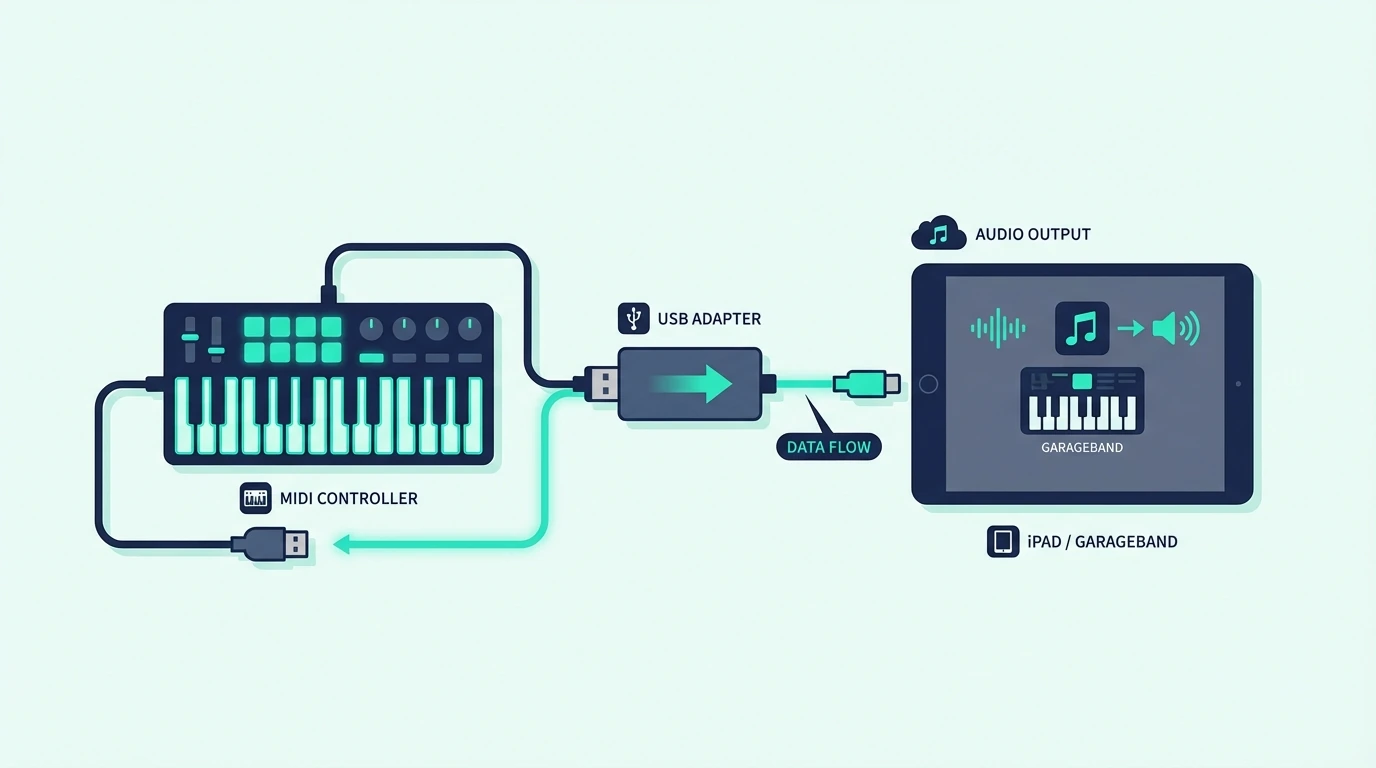
The velocity adjustment (C and V keys) is Ableton’s attempt to compensate for the lack of real velocity sensitivity. You can set a fixed velocity level before playing, but every note you play hits at that exact level until you manually change it. Real playing dynamics are impossible.

FL Studio

FL Studio maps your typing keyboard to notes automatically when a channel is selected in the channel rack. Press keys on the middle row to play notes in the current octave. The number keys above shift octaves.

FL Studio also offers a dedicated typing keyboard piano (Ctrl+T) that provides a visual reference showing which keys map to which notes. This visual mode helps beginners who are not yet familiar with the keyboard-to-note mapping, which follows a standard piano layout with the bottom row as white keys and the top row as black keys.

Logic Pro And GarageBand

Press Cmd+K (Command+K) to open Musical Typing in both Logic Pro and GarageBand. A virtual keyboard appears on screen showing which computer keys map to which notes. The middle row plays notes, Tab and the key above it change velocity between preset levels, and Z and X shift octaves.

Musical Typing in Logic and GarageBand offers the most visual feedback of any DAW’s computer keyboard MIDI implementation. The on-screen keyboard highlights each note as you press it, which helps beginners learn the note mapping faster.

Other DAWs (Cubase, Cakewalk, Reaper)

Cubase includes a virtual keyboard (Alt+K) that maps computer keys to notes. Cakewalk and Reaper support third-party virtual MIDI keyboard applications that create a system-wide MIDI device from your computer keyboard.

The setup process varies by DAW, but the core experience is identical: binary key input with no velocity sensitivity, no aftertouch, no pitch bend, and no modulation control.

What You Lose Without A Real MIDI Controller

What you lose when using a computer keyboard for MIDI

Computer keyboard MIDI input works for basic note entry, but the gaps between it and a real MIDI controller affect the quality of every performance you record.

Zero Velocity Sensitivity

Velocity sensitivity is the single biggest difference. A real MIDI keyboard detects how hard you press each key and sends that force as a 0-127 velocity value. Soft touches produce quiet, gentle notes. Hard strikes produce loud, aggressive notes. That dynamic variation is what makes a piano recording sound like a human played it.

Computer keyboards send the same velocity for every note regardless of how you type. The result sounds flat, mechanical, and lifeless — especially noticeable on piano, drums, and any instrument where dynamics define the character of the performance.

No Pitch Bend Or Modulation

Real MIDI controllers include pitch bend wheels that smoothly slide notes up or down, and modulation wheels that add vibrato, filter sweeps, or any parameter you assign. These controls are essential for expressive synth leads, realistic brass and string parts, and guitar-style bends.

Computer keyboards have no equivalent. You can automate pitch bend and modulation in your DAW’s piano roll after recording, but the real-time performance feel is lost. Drawing a pitch bend curve with a mouse takes thirty seconds for what a pitch wheel does in one gesture.

No Aftertouch Or Expression

Aftertouch measures the pressure you apply to a key after the initial strike. Expression messages control volume dynamics in real time. Both add musical nuance that separates a performed part from a programmed one.

Computer keyboards transmit none of this data. The notes you enter are starting points that require extensive post-recording editing to sound musical. A real MIDI controller captures that expression during the performance, eliminating most of the editing.

Awkward Physical Layout

Piano notes follow a specific physical pattern — white and black keys in groups of two and three. A computer keyboard maps notes to a QWERTY layout that bears no relationship to musical intervals. Playing a chord on a computer keyboard requires memorizing arbitrary key combinations rather than using the muscle memory that a piano layout provides.

The midiplus AKM320 at under forty dollars gives you 32 keys in the standard piano layout with real velocity sensitivity — removing every limitation listed above for less than the cost of a nice dinner.

When Computer Keyboard MIDI Actually Works

When a computer keyboard works for MIDI input

Despite the limitations, computer keyboard MIDI input serves legitimate purposes in specific situations.

Quick Idea Capture

When a melody idea hits you at a coffee shop and your MIDI keyboard is at home, your laptop keyboard captures the notes. The velocity will be flat and the performance will need editing, but the idea is preserved before you forget it.

That capture-now-refine-later workflow is the strongest use case for computer keyboard MIDI. Treat it as a notepad for musical ideas, not a performance tool.

Simple Note Entry For Electronic Music

Electronic genres with repetitive, quantized patterns (techno, house, minimal) often use identical velocity on every note by design. In these styles, the lack of velocity sensitivity is not a limitation — it is actually the intended sound.

Entering a four-note bass sequence or a repeating synth arp from your computer keyboard works fine when every note is supposed to hit at the same level. The result requires no velocity editing because flat dynamics are correct for the genre.

Learning DAW Navigation

New producers learning their DAW benefit from computer keyboard MIDI because it eliminates hardware setup as a barrier to first making sound. Open the DAW, enable keyboard MIDI, and start exploring virtual instruments immediately.

That zero-barrier entry point matters for deciding whether music production is something you want to invest in before spending money on hardware. Try the free workaround first, and if you find yourself frustrated by the velocity limitations, that frustration is your signal to invest in a real controller.

When To Upgrade To A Dedicated MIDI Controller

When to upgrade from a computer keyboard to a MIDI controller

The moment you notice any of these patterns, a dedicated MIDI controller will transform your workflow.

Your Recordings Sound Flat

If every piano, drum, or synth part you record sounds lifeless despite using good virtual instruments, the problem is almost certainly velocity. A forty-dollar MIDI keyboard with velocity sensitivity changes the sound of every instrument you play because the dynamics come through naturally.

The Nektar SE25 at under fifty dollars adds velocity sensitivity that makes every virtual instrument respond to your playing force. That single upgrade eliminates the biggest quality gap between computer keyboard and real MIDI input.

You Spend More Time Editing Than Playing

If recording a simple melody takes twenty seconds but editing the velocities, timing, and expression takes twenty minutes afterward, a real MIDI controller captures most of that detail during the performance. The editing time drops from minutes to seconds because the raw recording already contains the musical information.

You Want To Play, Not Program

Production and performance are different creative modes. Programming notes into a piano roll with a mouse is production. Playing notes on a keyboard in real time is performance. If your creative process leans toward performance, a real controller unlocks that mode in a way computer keyboard input never can.

The Akai Professional MPK Mini MK3 at ninety-nine dollars adds keys, pads, knobs, and bundled software — transforming a computer-only setup into a complete production workstation.

The Bottom Line

Your computer keyboard works as a free MIDI input device for quick idea capture, simple note entry, and learning your DAW. Every major DAW supports it natively with a single shortcut key.

The ceiling is velocity sensitivity. The moment you want dynamics, expression, or anything resembling a musical performance, a dedicated MIDI controller starting at under forty dollars removes that limitation permanently. Start with the free workaround, upgrade when the limitations frustrate you.

Frequently Asked Questions

Can I use my computer keyboard as a MIDI controller permanently?

You can, but every recording will lack velocity dynamics that make instruments sound musical. For serious production, even a forty-dollar MIDI keyboard with velocity sensitivity produces noticeably better results than computer keyboard input.

Which DAW has the best computer keyboard MIDI input?

Logic Pro and GarageBand’s Musical Typing provides the best visual feedback with an on-screen keyboard that highlights notes. Ableton’s M-key toggle is the fastest to enable. FL Studio’s typing keyboard works without any shortcut. All produce the same quality of MIDI data — the differences are in the user interface.

Is there software that adds velocity sensitivity to a computer keyboard?

Some third-party applications claim to add velocity sensitivity by measuring how long you hold a key, but the results are unreliable and feel nothing like real velocity detection. No software can make a binary mechanical switch behave like a continuous velocity sensor. A real MIDI keyboard is the only reliable solution.

How do I stop computer keyboard from triggering MIDI notes accidentally?

In Ableton, press M to toggle the virtual keyboard off. In Logic/GarageBand, press Cmd+K to close Musical Typing. In FL Studio, click away from the channel rack. Most accidental triggering happens when the virtual keyboard is active and you type in a text field — the DAW intercepts the keypress as a note instead of text.

How to Connect MIDI Keyboard to GarageBand iPad — USB and Bluetooth Setup Guide

How to connect MIDI keyboard to GarageBand iPad is straightforward once you understand the two connection paths available, but most beginners get stuck because they do not realize iPad GarageBand requires either a USB adapter or a Bluetooth MIDI controller — you cannot just plug a standard USB cable directly into most iPads.

The problem is caused by iPad’s port situation. Lightning iPads need Apple’s Camera Connection Kit adapter to accept USB devices. USB-C iPads accept USB controllers directly or through a hub. Bluetooth MIDI controllers skip both adapters entirely but add a small amount of latency that matters during precise recording.

This guide walks through both USB and Bluetooth connection methods for GarageBand on iPad, with specific steps for Lightning and USB-C models. You will also learn how to troubleshoot the most common connection failures and get the best performance from your controller in GarageBand’s touch-optimized interface.

Below you will find step-by-step instructions for each connection type, followed by tips for maximizing your MIDI keyboard experience in GarageBand on iPad.

Quick Takeaway

To connect a MIDI keyboard to GarageBand on iPad: use a USB connection via Camera Connection Kit (Lightning) or direct USB-C, or pair a Bluetooth MIDI controller wirelessly. GarageBand detects the keyboard automatically — no settings configuration needed. Open any instrument in GarageBand and the keyboard plays it immediately.

How Do You Connect a MIDI Keyboard to iPad via USB

USB connection from MIDI keyboard to iPad GarageBand

USB provides the most reliable, lowest-latency connection between a MIDI keyboard and GarageBand on iPad. The exact setup depends on which iPad model you own.

Lightning iPads (Older Models)

iPads with Lightning ports (iPad 9th gen and earlier, iPad Mini 5th gen and earlier) need Apple’s Lightning to USB Camera Adapter to accept USB MIDI keyboards. The adapter plugs into the iPad’s Lightning port and provides a USB-A jack for your controller’s cable.

Plug the adapter into the iPad first, then connect your MIDI keyboard. GarageBand recognizes the controller within seconds — no app restart needed. The Akai Professional MPK Mini MK3 draws minimal power through the adapter and works reliably on all Lightning iPad models.
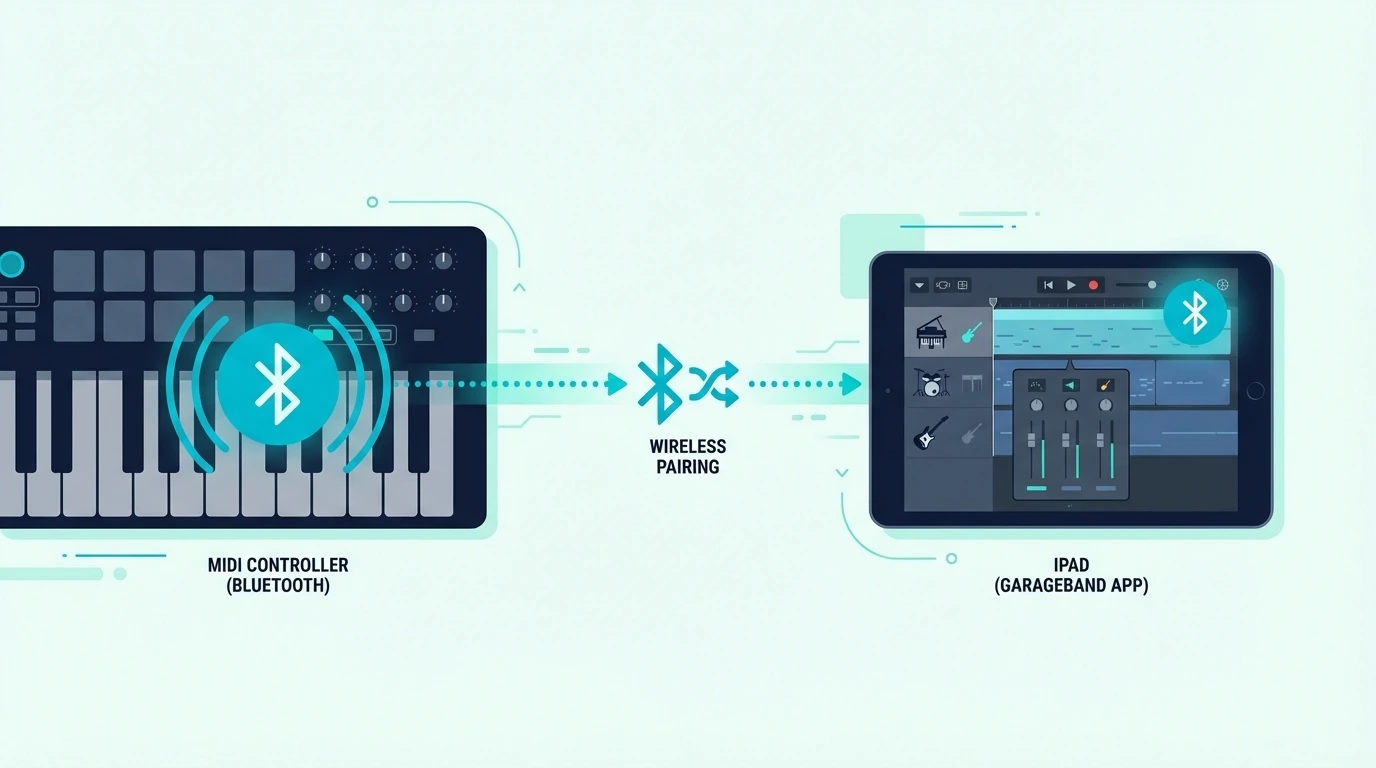
The Camera Connection Kit adapter costs around thirty dollars from Apple. Third-party Lightning to USB adapters exist at lower prices but occasionally cause power delivery issues with controllers that have LED-backlit pads.

USB-C iPads (Newer Models)

iPads with USB-C ports (iPad Pro all generations, iPad Air M1+, iPad Mini 6th gen+, iPad 10th gen) accept USB MIDI keyboards directly. Use a USB-C to USB-A cable or plug your controller into a USB-C hub.

No adapter purchase needed — just a cable type that matches your controller’s USB output to the iPad’s USB-C input. GarageBand detection is instant, identical to the Lightning adapter experience but without the extra hardware.

Power Considerations

USB bus-powered MIDI keyboards draw electricity from the iPad through the USB connection. Compact controllers (25-32 keys) draw minimal current and work on all iPad models without issues.

Larger controllers with multiple LEDs, motorized faders, or backlit pads may trigger iPad’s “device uses too much power” warning on some models. If this happens, connect through a powered USB-C hub that supplies its own electricity. The midiplus AKM320 draws so little power that it never triggers this warning on any iPad model.

How Do You Connect a Bluetooth MIDI Keyboard to iPad

Bluetooth MIDI connection for iPad GarageBand

Bluetooth MIDI eliminates cables and adapters entirely. The controller pairs with iPad wirelessly, and GarageBand detects it as a MIDI input device automatically.

Pairing Process

Put your Bluetooth MIDI controller into pairing mode (check the manufacturer’s instructions — usually a button hold). On iPad, open Settings, Bluetooth, and find the controller in the list of available devices. Tap to pair.

Once paired, open GarageBand and the controller works immediately. No additional configuration in GarageBand settings needed. The M-VAVE 25 Key MIDI Controller pairs with iPad in under 10 seconds and maintains a stable connection throughout production sessions.

Bluetooth Latency Reality

Bluetooth MIDI adds 5-15 milliseconds of latency between pressing a key and hearing sound. For casual playing, beat sketching, and sound exploration, that delay is imperceptible — you will not notice it during normal use.

For recording precise performances where timing accuracy matters, USB provides measurably tighter response. Most iPad GarageBand users fall into the casual category where Bluetooth latency is a non-issue, but serious recording sessions benefit from USB connection.

Bluetooth Range And Stability

Bluetooth MIDI works reliably within 10-15 feet of the iPad. Beyond that range, connection drops and note loss become noticeable. Keep the controller within arm’s reach of the iPad for the most stable experience.

Walls and other Bluetooth devices (headphones, speakers) can interfere with the MIDI signal. If you experience dropped notes or intermittent connections, move other Bluetooth devices further from the iPad or switch to USB.

How Do You Use a MIDI Keyboard in GarageBand on iPad

GarageBand iPad tips for MIDI keyboard setup

GarageBand on iPad is designed for touch input, but connecting a MIDI keyboard transforms it into a serious production tool. Here is how to get the most from the combination.

Instrument Selection And Playing

Open GarageBand and select any instrument — Keyboard, Drums, Strings, Guitar, or any Audio Unit plugin. Your MIDI keyboard automatically controls whichever instrument is active. Switch instruments by tapping a different one in the instrument browser, and the keyboard responds instantly.

Velocity sensitivity works across all GarageBand instruments. Play softly for quiet notes, play hard for loud notes. That dynamic control adds expression that the touchscreen keyboard cannot match because glass has no velocity detection.

Recording MIDI Performances

Tap the red record button in GarageBand’s transport bar, then play your MIDI keyboard. GarageBand captures your performance as a MIDI region on the current track. The recording includes note timing, velocity, and any sustain pedal data your controller sends.
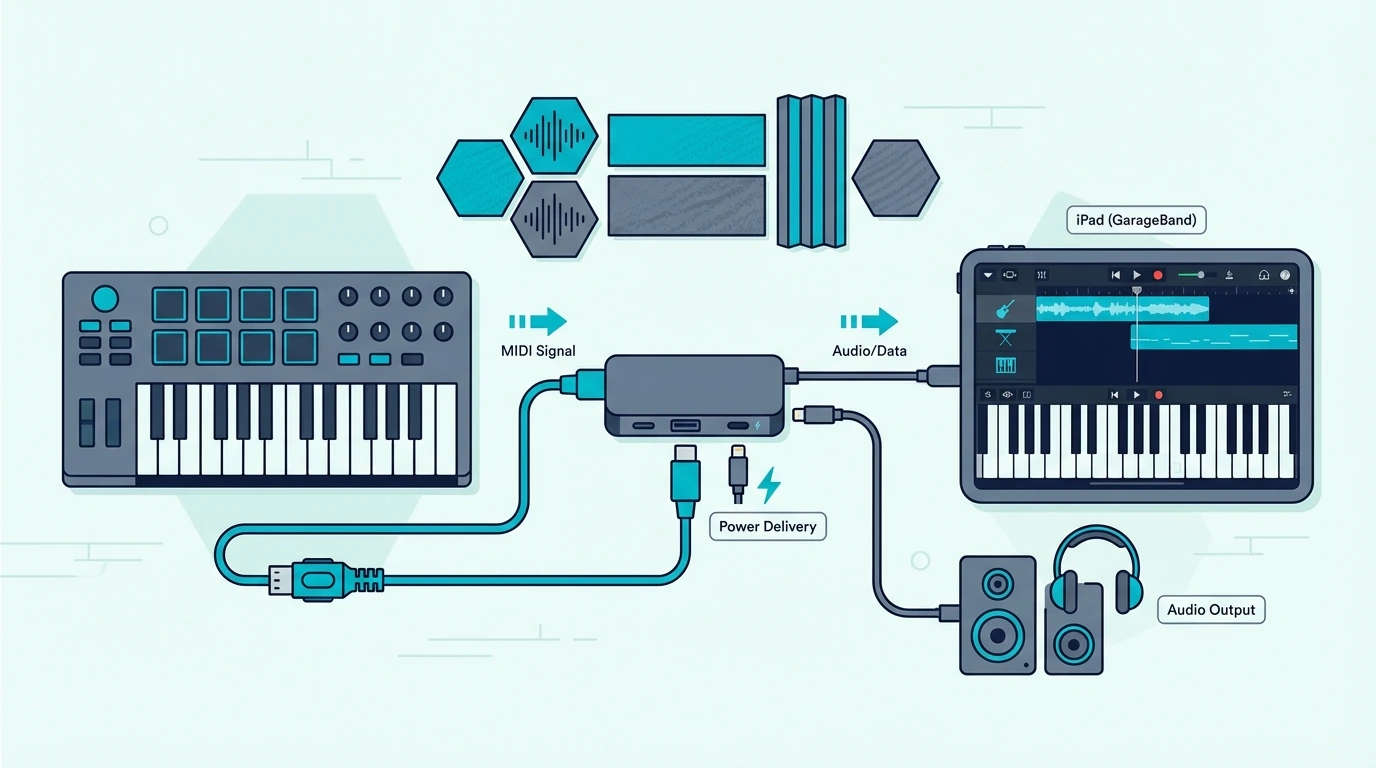
After recording, tap the MIDI region to edit individual notes, adjust timing, and change velocities. GarageBand’s piano roll editor on iPad is more capable than most people expect — pinch to zoom, drag notes to change pitch or timing, and use the velocity slider to adjust dynamics per note.

Drummer Integration

GarageBand’s Drummer on iPad generates AI-driven drum patterns that complement your playing. A MIDI keyboard with pads (like the MPK Mini MK3) lets you override Drummer on specific hits — adding manual snare fills, cymbal crashes, or hi-hat variations that the AI would not generate.

That hybrid approach (AI drums plus manual accents from your MIDI pads) produces more natural-sounding rhythms than either method alone.

Smart Instruments With MIDI

GarageBand’s Smart Instruments (Smart Guitar, Smart Bass, Smart Strings) respond to MIDI keyboard input alongside touch input. Play chords on the Smart Guitar section while adding bass notes from your MIDI keyboard for layered arrangements.

The MIDI keyboard gives you chromatic note access that Smart Instruments restrict by default. Combine both input methods for arrangements that would not be possible with either one alone.

Audio Unit Plugins With MIDI

GarageBand on iPad supports Audio Unit (AU) plugins from third-party developers. Install synth plugins like Moog Model D or Korg Module from the App Store, and your MIDI keyboard controls them inside GarageBand with full velocity sensitivity and CC data.

The combination of a quality MIDI keyboard with premium AU plugins transforms iPad GarageBand from a sketch tool into a genuine production environment that rivals entry-level desktop DAWs.

Upgrading To Logic Pro For iPad

Every GarageBand project opens directly in Logic Pro for iPad without conversion. Your MIDI keyboard works identically in Logic — same plug-and-play connection, same instrument control, same recording workflow. When GarageBand’s track limits or plugin restrictions become a barrier, the upgrade is seamless.

Your MIDI controller investment carries forward to Logic Pro without any hardware changes. The same USB or Bluetooth connection works in both apps.

The Bottom Line

Connecting a MIDI keyboard to GarageBand on iPad requires either a USB adapter (Camera Connection Kit for Lightning, direct USB-C for newer iPads) or a Bluetooth MIDI controller. GarageBand detects connected controllers automatically with zero configuration — open any instrument and play.

Bluetooth eliminates cables and adapters but adds slight latency. USB provides the tightest response for recording. For most iPad GarageBand users, the convenience of Bluetooth outweighs the minimal latency difference.

Frequently Asked Questions

Does GarageBand on iPad work with any MIDI keyboard?

Yes — GarageBand on iPad supports every class-compliant USB MIDI keyboard (through Camera Connection Kit or USB-C) and every Bluetooth MIDI controller. No specific brand or model is required.

Do I need an adapter for MIDI keyboard on iPad?

Lightning iPads need Apple’s Camera Connection Kit adapter for USB connection. USB-C iPads connect USB controllers directly. Bluetooth MIDI controllers need no adapter on any iPad model.

Why is there a delay when playing MIDI keyboard in GarageBand iPad?

If using Bluetooth, the 5-15ms latency is inherent to the wireless protocol. If using USB and experiencing delay, close other audio apps running in the background — they can increase audio processing latency. Restarting GarageBand also resets the audio engine.

Can I record MIDI in GarageBand on iPad?

Yes — tap the red record button and play your MIDI keyboard. GarageBand captures timing, velocity, and sustain data. Edit the recording by tapping the MIDI region and opening the piano roll editor to adjust notes, timing, and dynamics.
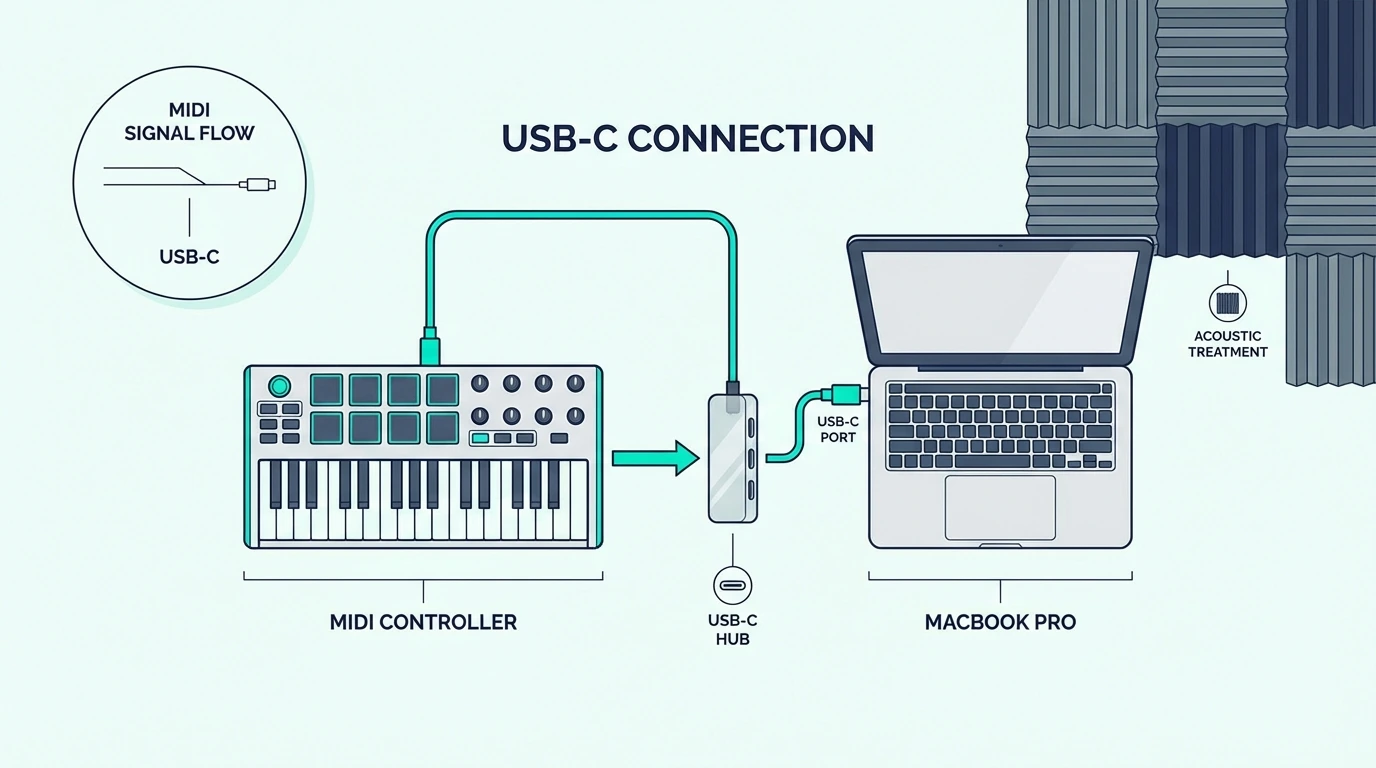
How to Connect MIDI Keyboard to MacBook — The Simplest Setup in Music Production

How to connect MIDI keyboard to MacBook is genuinely the easiest hardware connection in music production, but one detail trips up every new MacBook owner because modern MacBooks only have USB-C ports, and most MIDI keyboards ship with USB-A connectors.

That mismatch is not a dealbreaker — it just means you need a five-dollar adapter or a USB-C hub that you probably already own for other peripherals. Once the physical connection is made, macOS recognizes class-compliant MIDI keyboards instantly without drivers, configuration, or restarts.

This guide covers both the USB-C adapter solution and the direct connection for controllers with USB-C output. You will also learn how to verify the connection in Audio MIDI Setup, configure GarageBand and Logic Pro for first use, and troubleshoot the rare cases where plug-and-play fails on Mac.

Below you will find the step-by-step process for connecting any MIDI keyboard to any MacBook model, followed by DAW-specific setup instructions and troubleshooting for edge cases.

Quick Takeaway

To connect a MIDI keyboard to a MacBook: plug in via USB (using a USB-C to USB-A adapter if needed), open GarageBand or Logic Pro, create a software instrument track, and play. macOS recognizes class-compliant MIDI keyboards automatically — no drivers, no configuration, no MIDI settings to enable. If nothing happens, check Audio MIDI Setup in Utilities to verify the device is detected.

How Do You Connect a USB MIDI Keyboard to a MacBook

USB-C MIDI keyboard connection to a MacBook

Every MacBook sold since 2016 uses USB-C ports exclusively. Most MIDI keyboards still ship with USB-A (the rectangular) connectors or USB-B (the square) connectors with a USB-A-to-USB-B cable. Bridging that gap requires one of three approaches.

USB-C to USB-A Adapter

The simplest solution is a USB-C to USB-A adapter — a small dongle that converts one of your MacBook’s USB-C ports to accept USB-A devices. Apple sells one, but generic adapters from any electronics store work identically for under five dollars.

Plug the adapter into the MacBook, plug the MIDI keyboard’s USB-A cable into the adapter, and macOS handles the rest. The Akai Professional MPK Mini MK3 and most controllers connect through this adapter without any compatibility issues.

A USB-C hub provides multiple ports — typically USB-A, HDMI, SD card, and sometimes Ethernet — through a single USB-C connection to your MacBook. If you already own a hub for connecting external displays or hard drives, your MIDI keyboard plugs into one of the hub’s USB-A ports.

This approach keeps the adapter permanently connected to your MacBook and eliminates the loose dongle that inevitably gets lost. Most MacBook producers already own a USB-C hub, making this the zero-additional-cost solution.

Controllers With Native USB-C

A growing number of MIDI controllers ship with USB-C connectors or include USB-C cables. The Novation Launchkey MK4 series connects via USB-C natively — no adapter needed on any modern MacBook. As the industry transitions, USB-C native controllers will become the standard.

If you have not purchased a controller yet and own a USB-C MacBook, check whether the controller includes a USB-C cable or port before buying. That detail saves you the adapter hassle entirely.

How Does macOS Handle MIDI Keyboard Connections

macOS plug-and-play setup for MIDI keyboards

macOS handles MIDI devices more smoothly than any other operating system. Understanding what happens behind the scenes helps you troubleshoot the rare cases where automatic detection fails.

Automatic Device Recognition

When you plug a class-compliant USB MIDI keyboard into a MacBook, macOS loads its built-in Core MIDI driver automatically. No manufacturer driver download, no installation wizard, no restart required. The process takes 2-3 seconds and happens silently in the background.

Every modern MIDI keyboard (manufactured after 2010) is class-compliant. The only controllers that require manufacturer drivers are vintage hardware or units with proprietary features that extend beyond standard MIDI.

Audio MIDI Setup Verification

If you want to confirm macOS detected your controller, open Audio MIDI Setup (Applications, Utilities, Audio MIDI Setup). Click “Show MIDI Studio” in the Window menu. Your MIDI keyboard appears as a device icon in the MIDI Studio window.

If the device icon is grayed out, macOS detected the hardware but cannot communicate with it — usually caused by a faulty USB cable or adapter. Try a different cable first.

GarageBand Instant Recognition

GarageBand is the fastest path from connection to sound on a MacBook. Open GarageBand, select “Empty Project,” choose “Software Instrument,” and press a key on your MIDI keyboard. GarageBand loads a default piano patch and routes your keyboard’s MIDI data to it automatically.
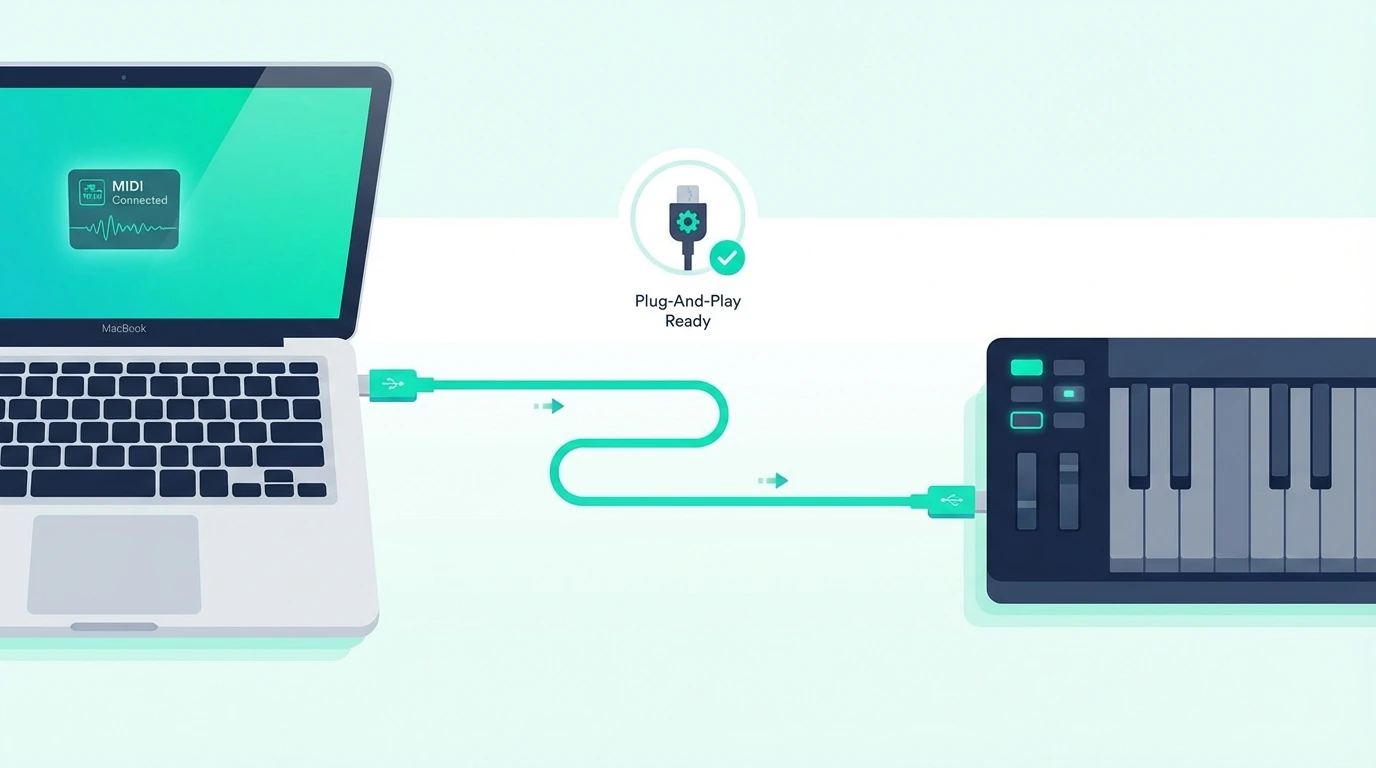
No MIDI settings panel. No device selection. No port configuration. GarageBand uses every connected MIDI device as input by default — the most beginner-friendly approach of any DAW.

Logic Pro Setup

Logic Pro inherits the same automatic MIDI detection from GarageBand. Create a software instrument track, load any patch from the library, and play. Logic routes MIDI from your keyboard to whichever track is selected.

For controllers with transport buttons (play, stop, record), Logic Pro recognizes standard transport MIDI messages automatically. The M-AUDIO Keystation 49 MK3 transport controls work in Logic Pro the moment you plug in.

Ableton Live On MacBook

Ableton Live requires one manual step: open Preferences (Cmd+Comma), navigate to Link/Tempo/MIDI, and enable Track and Remote for your controller’s input port. Unlike GarageBand and Logic, Ableton does not auto-enable MIDI inputs — you must activate them in Preferences.

After enabling, Ableton routes MIDI to whichever track is selected. The configuration saves automatically so you only need to do this once per controller.

How Do You Fix MIDI Connection Issues on MacBook

Troubleshooting MIDI keyboard issues on a MacBook

MacBook MIDI connections rarely fail, but when they do, these fixes resolve the issue in order of likelihood.

Controller Not Detected After Plugging In

Unplug the USB cable, wait five seconds, and plug it back in. If using an adapter or hub, try connecting directly to a different USB-C port on the MacBook. Some USB-C hubs do not provide enough power for controllers with LED-backlit pads.

If the controller works on a different computer but not your MacBook, reset the Core MIDI configuration: open Audio MIDI Setup, click “Configuration” in the MIDI Studio window, and select “Reset MIDI Configuration.” This clears cached device data that occasionally corrupts after macOS updates or when switching between multiple controllers.

Sound Plays But With Wrong Instrument

If pressing keys produces sound but the wrong instrument plays, you have the wrong track selected in your DAW. Click the track with the instrument you want to hear, and the MIDI keyboard switches to controlling that track.

In GarageBand and Logic Pro, MIDI always routes to the selected track. Clicking a different track instantly changes which instrument responds to your keyboard.
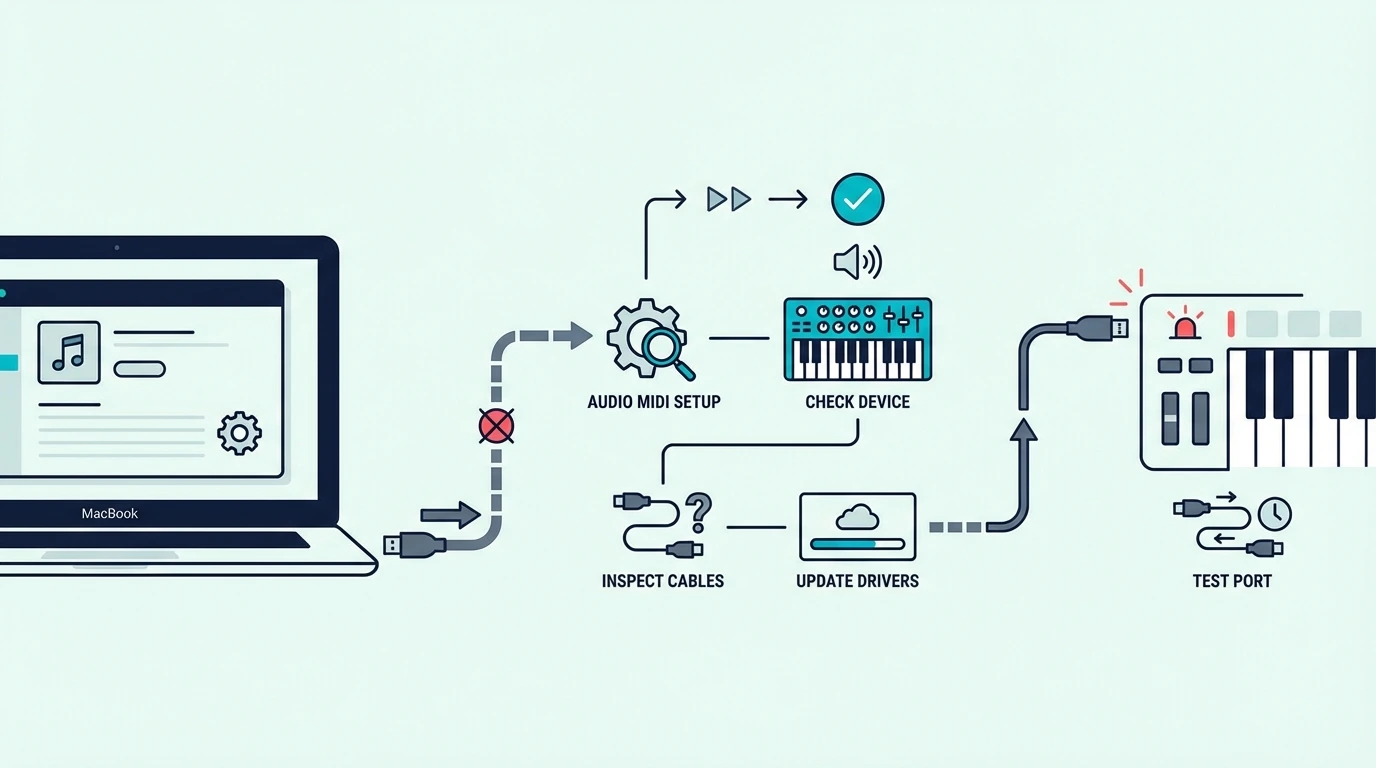
Controller Works In GarageBand But Not Another DAW

Each DAW handles MIDI device activation differently. GarageBand auto-enables everything. FL Studio, Ableton, and other DAWs require manual activation in their MIDI settings. Check your DAW’s preferences panel and enable the controller’s input port.

The midiplus AKM320 and any other class-compliant controller works identically across all DAWs once the input port is enabled.

MacBook Not Providing Enough USB Power

MacBook Air models occasionally struggle to power controllers with multiple LEDs and motorized faders through a USB-C adapter. If your controller connects intermittently or disconnects during use, try a powered USB-C hub that provides its own electricity to connected devices.

Budget controllers like the midiplus AKM320 draw minimal power and never hit this limit. Larger controllers with LED-backlit pads and motorized controls are more susceptible on MacBook Air than MacBook Pro.

The Bottom Line

Connecting a MIDI keyboard to a MacBook is the simplest hardware setup in music production. Plug in via USB (with a USB-C adapter if needed), open GarageBand or Logic Pro, and play. macOS handles device recognition, driver loading, and MIDI routing automatically — no manual configuration required.

The only potential friction is the USB-C adapter on modern MacBooks. A five-dollar adapter or the USB-C hub you already own for other peripherals solves that permanently. Every class-compliant MIDI keyboard works on every MacBook without manufacturer drivers.

Frequently Asked Questions

Do I need drivers for a MIDI keyboard on MacBook?

No — macOS includes built-in Core MIDI drivers that support every class-compliant USB MIDI keyboard. Plug in and your MacBook recognizes the controller automatically. Only vintage or proprietary hardware requires manufacturer drivers.
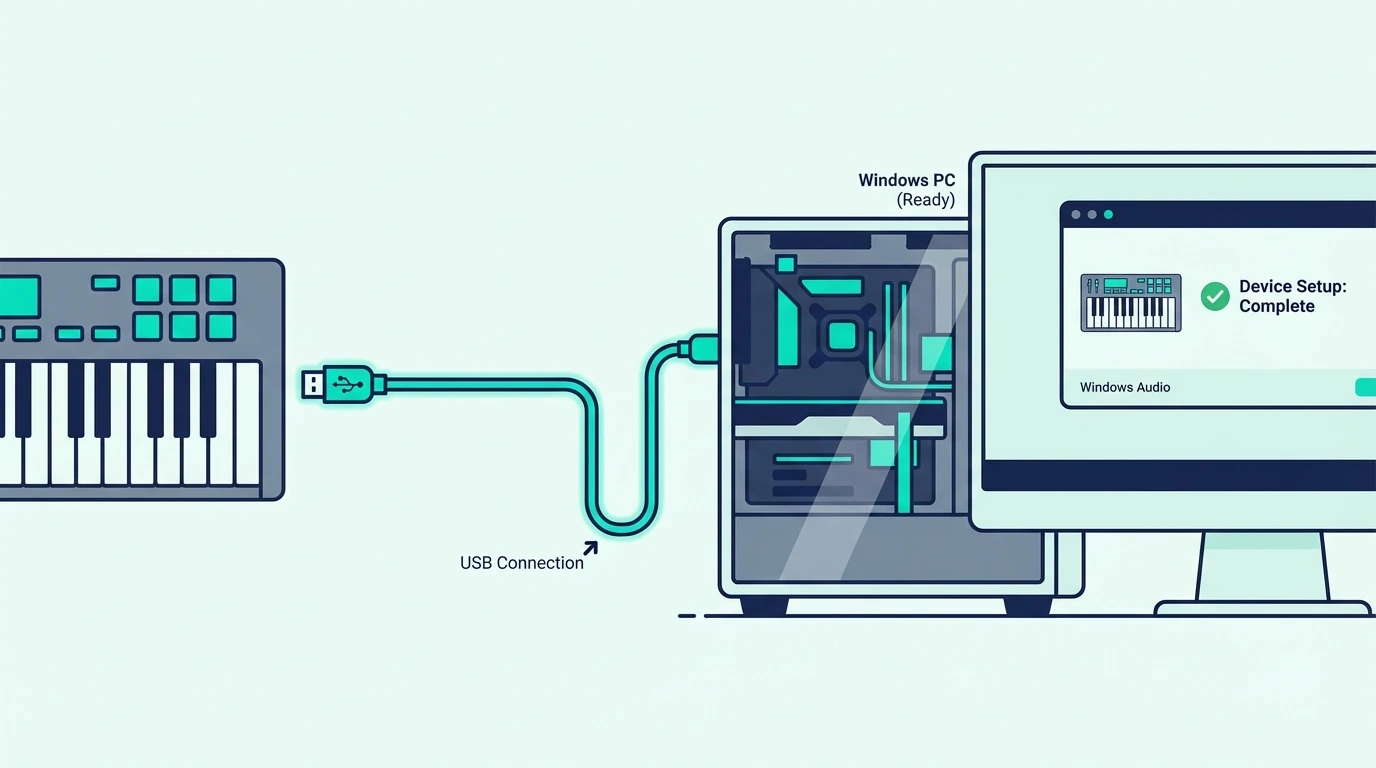
Which USB adapter do I need for MIDI keyboard on MacBook?

A simple USB-C to USB-A adapter connects any standard MIDI keyboard to a USB-C MacBook. Apple and generic adapters both work identically. A USB-C hub with USB-A ports is the more practical solution if you connect multiple USB devices.

Does GarageBand work with any MIDI keyboard on MacBook?

Yes — GarageBand auto-detects every class-compliant USB MIDI keyboard without any settings configuration. Plug in, open GarageBand, create a software instrument track, and play.

Can I connect a MIDI keyboard to MacBook via Bluetooth?

Yes — Bluetooth MIDI controllers pair with MacBook through System Settings, Bluetooth. The controller appears as a Bluetooth device and connects like AirPods. Bluetooth MIDI adds 5-15ms of latency compared to USB, which is imperceptible for casual playing but noticeable during precision recording.

How to Connect MIDI Keyboard to PC — USB Setup for Windows That Works First Try

How to connect MIDI keyboard to PC is the first hurdle every Windows-based producer faces, but the process fails more often than it should because Windows handles USB MIDI devices differently than Mac — and most guides skip the Windows-specific driver and ASIO steps that actually matter.

The mistake beginners make is assuming plug-and-play works identically on Windows as it does on Mac. Most USB MIDI keyboards are class-compliant and technically work without drivers, but Windows audio latency defaults are unusable for real-time playing unless you install an ASIO driver — a step Mac users never need to think about.

This guide covers the complete Windows PC connection process from USB plug-in through ASIO configuration, DAW recognition, and first-note verification. Every step accounts for the Windows-specific quirks that cause problems on PC setups.

Below you will find the step-by-step connection process for Windows 10 and Windows 11, followed by troubleshooting for the most common PC-specific failures and ASIO driver setup for low-latency playing.

Quick Takeaway

To connect a MIDI keyboard to a Windows PC: plug in via USB (the keyboard appears as a USB audio device automatically), install an ASIO driver for low latency (FL ASIO, ASIO4ALL, or your audio interface driver), open your DAW, enable the MIDI input in settings, and play. Most connection failures on PC are caused by missing ASIO drivers or the controller not being enabled in the DAW MIDI settings.

How Do You Connect a MIDI Keyboard to a Windows PC

USB connection from MIDI keyboard to Windows PC

Windows 10 and Windows 11 both support class-compliant USB MIDI devices natively. The operating system installs a generic MIDI driver automatically when you plug in the controller — no manufacturer driver needed in most cases.

Step 1 — Plug In Before Opening Your DAW

Connect your MIDI keyboard to a USB port on your PC. Avoid USB hubs for the initial connection — plug directly into a port on the computer itself to eliminate power delivery issues that hubs sometimes cause.

Windows displays a brief notification that it is installing device drivers. Wait for that notification to complete before proceeding. The process takes 5-15 seconds on first connection.

Step 2 — Verify Windows Recognizes The Device

Open Device Manager (right-click the Start button, select Device Manager) and expand “Sound, video and game controllers.” Your MIDI keyboard should appear in this list, often as “USB Audio Device” or by the manufacturer’s name.

If the controller does not appear, try a different USB port. USB 2.0 ports (usually black inside) are more reliable for MIDI devices than USB 3.0 ports (blue inside) on some motherboards. The Akai Professional MPK Mini MK3 and most modern controllers work on both port types, but older hardware sometimes has compatibility issues with USB 3.0.

Step 3 — Install An ASIO Driver

This is the step most Windows guides skip, and it is the single biggest cause of latency problems on PC. Windows default audio drivers (WDM/MME) add 50-200 milliseconds of delay between pressing a key and hearing sound — enough to make real-time playing impossible.

ASIO (Audio Stream Input/Output) drivers bypass the Windows audio stack and communicate directly with your audio hardware. The result is latency under 10 milliseconds — fast enough that the delay is imperceptible.

If you own an audio interface, install the manufacturer’s ASIO driver. If you do not own an interface, download ASIO4ALL (free) from asio4all.org. FL Studio users can use FL ASIO, which ships built-in with the software.

Step 4 — Open Your DAW And Enable MIDI Input

Launch your DAW and navigate to the MIDI or controller settings. The exact location varies by software.

In FL Studio: Options, MIDI Settings, find your controller in the Input list, click Enable. In Ableton Live: Preferences, Link/Tempo/MIDI, enable Track and Remote for your controller. In Cakewalk: Preferences, MIDI, Devices, check the box next to your controller.

Step 5 — Select ASIO As Your Audio Driver

In your DAW’s audio settings, switch the audio driver from the Windows default to the ASIO driver you installed in Step 3. Set the buffer size to 256 or 512 samples for a balance between low latency and stable audio.

Lower buffer sizes reduce latency but increase CPU load. If you hear audio crackling or dropouts, increase the buffer size until the audio is clean.

Step 6 — Test And Play

Create a software instrument track in your DAW, load any virtual instrument (piano, synth, drums), and press a key on your MIDI keyboard. You should hear sound with minimal delay.
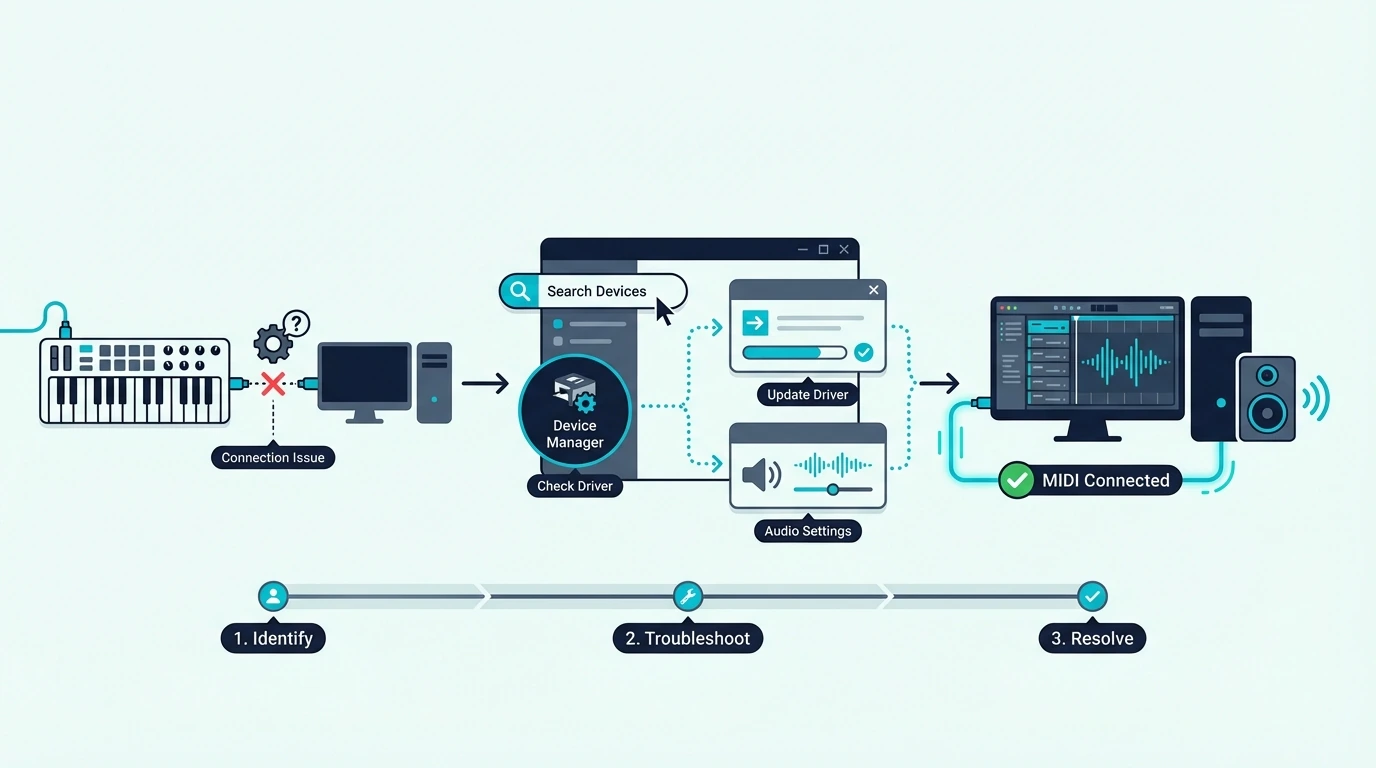
The M-AUDIO Keystation 49 MK3 and similar class-compliant controllers work immediately after ASIO configuration — no additional setup needed beyond enabling the MIDI input.

How Do You Fix MIDI Keyboard Issues on Windows

Troubleshooting MIDI keyboard issues on Windows

Windows PCs introduce connection issues that Mac users never encounter. Here are the fixes for the most common problems.

Driver Conflicts With Multiple USB Devices

Windows sometimes assigns the wrong driver to a USB MIDI keyboard when multiple audio devices are connected. If your controller stopped working after connecting a new USB device, open Device Manager, find the MIDI keyboard, right-click it, and select “Update driver.” Choose “Search automatically” and Windows reinstalls the correct driver.

Alternatively, unplug all other USB audio devices, reconnect just the MIDI keyboard, and verify it works alone before adding other devices back one at a time.

Windows Audio Exclusive Mode Blocking MIDI

Some Windows audio settings prevent MIDI devices from functioning alongside your audio output. Right-click the speaker icon in the system tray, select “Sound settings,” click your output device, and under Advanced settings, uncheck “Allow applications to take exclusive control of this device.”

This setting often causes DAWs to fail to initialize the audio driver when a MIDI keyboard is connected. Disabling exclusive mode resolves the conflict.

USB Power Management Disconnecting Controllers

Windows power management can disable USB ports to save energy, disconnecting your MIDI keyboard mid-session. Open Device Manager, expand “Universal Serial Bus controllers,” right-click each USB Root Hub entry, select Properties, and under the Power Management tab, uncheck “Allow the computer to turn off this device to save power.”

This prevents Windows from unexpectedly killing the USB connection during long production sessions. A budget controller like the midiplus AKM320 draws minimal power, so this setting rarely affects it, but controllers with LED-backlit pads and multiple knobs are more susceptible to power management disconnects.

5-Pin MIDI Keyboards On PC

Older keyboards with 5-pin DIN MIDI connections (no USB) require a USB-to-MIDI interface to connect to a PC. These interfaces plug into a USB port and provide MIDI IN and MIDI OUT jacks for your 5-pin cable.

The interface appears as a MIDI device in your DAW, and the setup process from Step 4 onward is identical to USB controllers. Quality USB-to-MIDI interfaces cost under twenty dollars and add negligible latency.

Which DAW Setup Works Best for MIDI on Windows PC

DAW setup for a MIDI keyboard on Windows

Different DAWs handle MIDI setup slightly differently on Windows. Here is the quick configuration for the most popular platforms.

FL Studio On Windows

FL Studio is the most popular DAW for Windows producers. Open Options, MIDI Settings, enable your controller in the Input list, and the keys play whichever channel rack channel is selected. For FL Studio-specific controller setup, check whether your controller has a dedicated FL Studio script in the Controller Type dropdown.

Ableton Live On Windows

Open Preferences (Ctrl+Comma), navigate to Link/Tempo/MIDI, and enable both Track and Remote for your MIDI controller’s input port. Close Preferences and Ableton routes MIDI to whichever track is selected. For Ableton-specific integration, select your controller type from the Control Surface dropdown if available.

Cakewalk On Windows (Free)

Cakewalk by BandLab is the most capable free DAW on Windows. Open Preferences, MIDI, Devices, and check the box next to your controller in the Input list. Cakewalk detects class-compliant controllers automatically, and the MIDI setup mirrors most professional DAWs.

GarageBand Alternative For Windows

GarageBand does not exist on Windows. The closest free alternatives are Cakewalk (full-featured DAW), BandLab online (browser-based), or the lite DAW versions bundled with MIDI keyboards — Ableton Live Lite (bundled with M-AUDIO and Novation controllers) and MPC Beats (bundled with Akai controllers).

The Bottom Line

Connecting a MIDI keyboard to a Windows PC requires one extra step compared to Mac: installing an ASIO driver for low-latency audio. Without ASIO, the 50-200 millisecond delay makes real-time playing unusable. With ASIO configured, the experience matches Mac-level responsiveness.

USB class-compliant controllers like the Akai MPK Mini MK3 and M-AUDIO Keystation 49 MK3 work on any Windows 10 or 11 PC without manufacturer drivers. Plug in, enable in your DAW, configure ASIO, and play.

Frequently Asked Questions

Why does my MIDI keyboard have latency on PC?

The default Windows audio drivers (WDM/MME) add significant latency. Install an ASIO driver (ASIO4ALL for free, or your audio interface manufacturer’s ASIO driver) and select it in your DAW’s audio settings. Set the buffer to 256-512 samples for sub-10ms latency.

Do I need drivers for a USB MIDI keyboard on Windows?

Most modern USB MIDI keyboards are class-compliant and work without manufacturer drivers on Windows 10 and 11. Windows installs a generic USB MIDI driver automatically. Only older controllers (pre-2015) or those with proprietary features may require manufacturer-specific drivers.

Can I use a MIDI keyboard without a DAW on PC?

You need software to generate sound from MIDI input. Free options include Cakewalk by BandLab (full DAW), virtual piano applications, and the lite DAW versions bundled with most MIDI keyboards. Without software, the MIDI keyboard sends data but nothing produces audio.

What is the best free DAW for MIDI keyboard on Windows?

Cakewalk by BandLab is the most capable free DAW on Windows — unlimited tracks, professional mixing, and full MIDI support. Ableton Live Lite (bundled with many controllers) is another strong option. Both handle MIDI input from any USB controller without additional configuration.