How to Scratch on a DJ Controller Virtual DJ — Complete Tutorial

How to scratch on a DJ controller with Virtual DJ is one of the most searched DJ tutorials online — but most guides assume you already own a battle-style controller with large jog wheels. The reality is that scratching works on almost any controller running Virtual DJ, even budget units with small platters.

The difference is how tight the scratch response feels, and that depends on your controller’s jog wheel resolution and Virtual DJ’s scratch algorithm settings.

The problem is that Virtual DJ’s default scratch settings are tuned for smooth mixing, not turntablism. Out of the box, the jog wheel response feels sluggish for scratching because the software prioritizes avoiding accidental track nudges over tight scratch tracking.

That default behavior is caused by Virtual DJ’s “touch” sensitivity settings, which dampen jog wheel input to prevent beginners from accidentally moving tracks when they brush the platter. For scratching, you need the opposite — maximum sensitivity with zero dampening, so every finger movement translates instantly to audio.

Below, you will find a step-by-step guide to configuring Virtual DJ for scratching, plus the fundamental scratch techniques you can practice on any controller with jog wheels.

Quick Takeaway

To scratch on a DJ controller with Virtual DJ, enable Vinyl Mode in VDJ settings, set the crossfader curve to sharp (scratch), and load a track with a clear vocal or horn sample. Practice the baby scratch first (forward-backward jog wheel movement with the crossfader open), then add crossfader cuts for chirps and transforms.

Setting Up Virtual DJ for Scratching
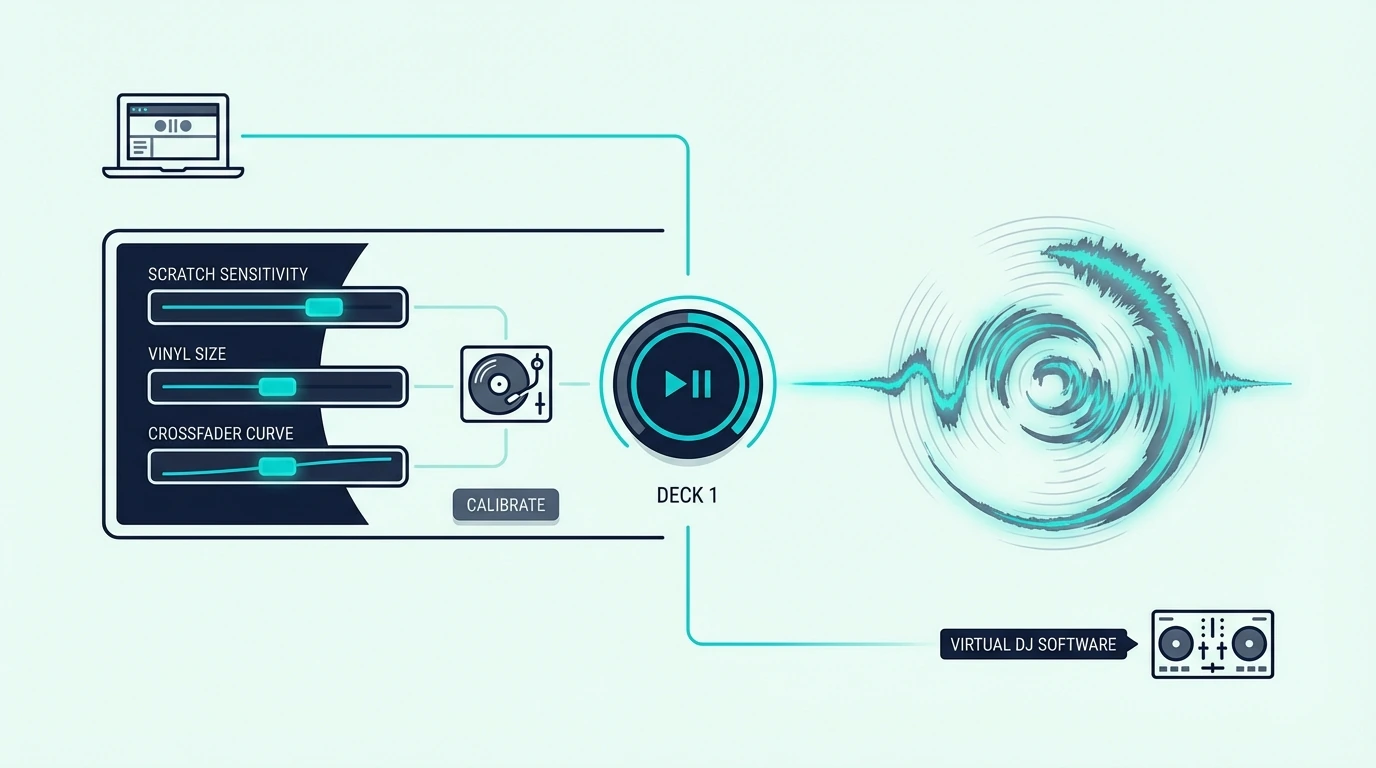
Scratch settings in VirtualDJ

Enable Vinyl Mode

Open Virtual DJ and navigate to Settings > Options. Search for “vinyl” and enable Vinyl Mode for both decks.

This setting changes how the jog wheel interacts with the track — instead of nudging the track forward or backward (pitch bend), the jog wheel now directly controls the playback position, like a vinyl record under your finger.

Without Vinyl Mode, your jog wheel only speeds up or slows down the track. With Vinyl Mode on, touching the platter stops playback and lets you manually scrub through the audio — which is exactly what scratching requires.

Set the Crossfader Curve to Sharp

Navigate to Settings > Crossfader and change the curve from “smooth” to “sharp” (also called “scratch” or “cut”). A sharp crossfader curve means audio cuts instantly when the fader reaches either end.

That instant cut is what makes transform scratches and chirps possible. A smooth curve blends audio gradually, which sounds great for mixing but destroys the percussive precision that scratching demands.

Adjust Jog Wheel Sensitivity

Under Settings > Controllers, find the jog wheel sensitivity or “scratch sensitivity” slider. Increase it to 75-100 percent for tight scratch response.

Lower values introduce a delay between your finger movement and the audio response.

The Pioneer DJ DDJ-FLX4 responds well at 80-90 percent sensitivity in Virtual DJ. Budget controllers with smaller jog wheels may need 100 percent to compensate for lower hardware resolution.

Load a Scratch Sample

Load a track with a clear, recognizable sound at a specific point — vocal stabs (“aaah”), horn hits, or drum breaks work best. Set a hot cue at the exact start of the sound.

When you scratch, the jog wheel scrubs through this sample, and the hot cue lets you reset to the starting position instantly.

Virtual DJ’s sampler also lets you load dedicated scratch samples that play independently from the main decks. Drag a sample into the sampler slot and trigger it with a performance pad while scratching on the jog wheel.

Basic Scratch Techniques on Virtual DJ
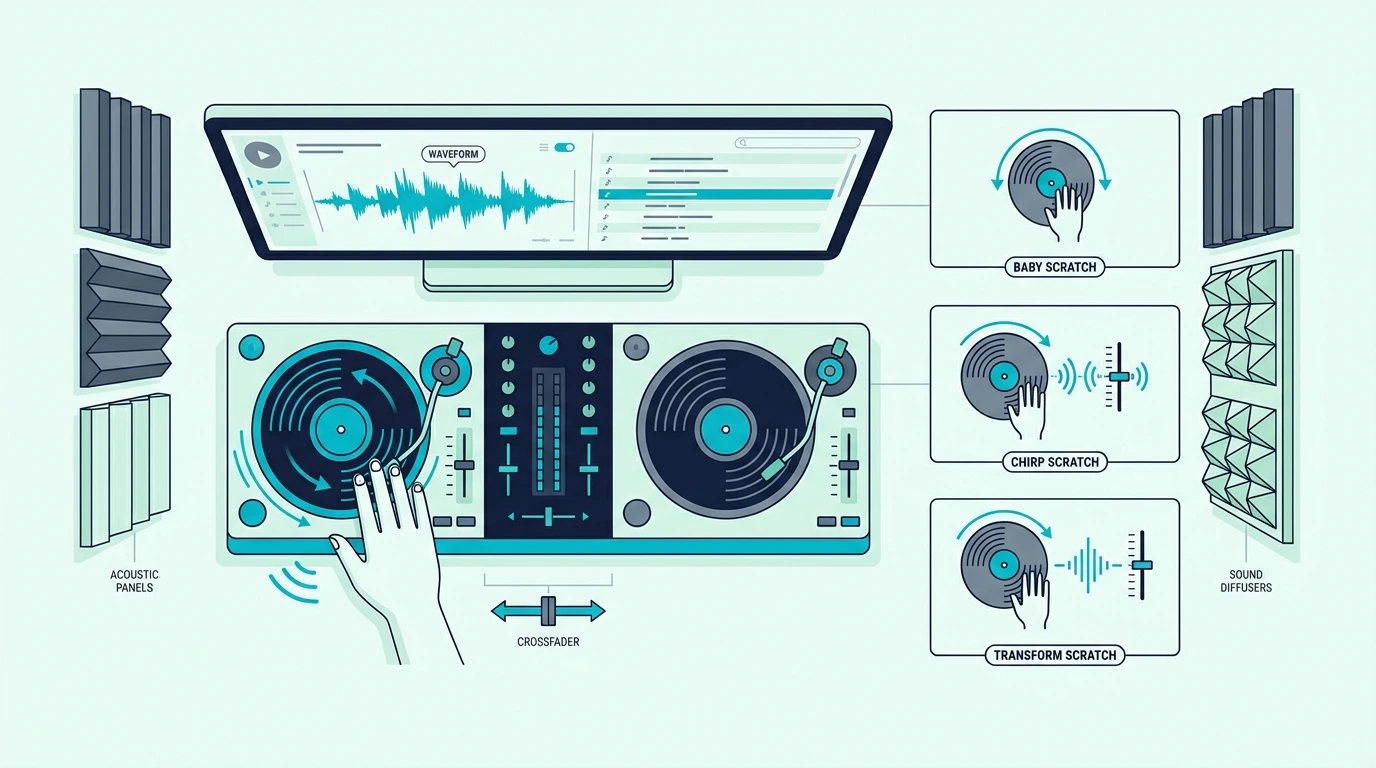
Scratching techniques for VirtualDJ controllers

Baby Scratch

The baby scratch is the foundation of every scratch technique. With the crossfader open (centered), move the jog wheel forward and backward in a steady rhythm.

The audio plays forward when you push, and plays backward when you pull.

Keep the forward and backward movements equal in speed and distance. Uneven scratches sound sloppy.

Even, rhythmic scratches create a percussive pattern that locks into the beat of the track playing on the other deck.

Practice at a slow, steady tempo until the motion becomes automatic. Speed comes naturally once the muscle memory is solid.

Chirp Scratch

The chirp adds crossfader movement to the baby scratch. Close the crossfader as the jog wheel changes direction — the brief silence between forward and backward movements creates a sharp “chirp” sound.

The timing is the challenge: the crossfader must close at the exact moment the jog wheel reverses direction. Start slowly.

A clean chirp at 90 BPM is more impressive than a sloppy chirp at 140.

The Hercules DJControl Inpulse 200 MK2 works well for chirp practice because its native Virtual DJ mapping means the crossfader response is instant with zero configuration.

Transform Scratch

The transform keeps the jog wheel moving in one direction while you rapidly open and close the crossfader. The result is a stuttering, machine-gun-like pattern that chops a single scratch movement into multiple rhythmic hits.

This technique lives entirely in the crossfader hand. Your scratch hand maintains a smooth, constant motion while your fader hand does all the rhythmic work.

Virtual DJ’s sharp crossfader curve is essential for transforms. If the curve is set to smooth, the audio fades instead of cutting — which destroys the percussive effect.

Flare Scratch

The flare is an advanced technique where you start with the crossfader open, click it closed briefly (creating a gap in the audio), and open it again — all while the jog wheel moves. The brief silence creates a rhythmic accent within the scratch.

Single flares (one click per scratch stroke) are the entry point. Double and triple flares (two or three clicks per stroke) require faster crossfader speed and precise timing that takes months to develop.

Flares sound best on controllers with low-latency crossfaders. The Pioneer DJ DDJ-REV1 has the sharpest crossfader cut on any controller at this price, though it runs Serato rather than Virtual DJ.

Practice Tips for Controller Scratching
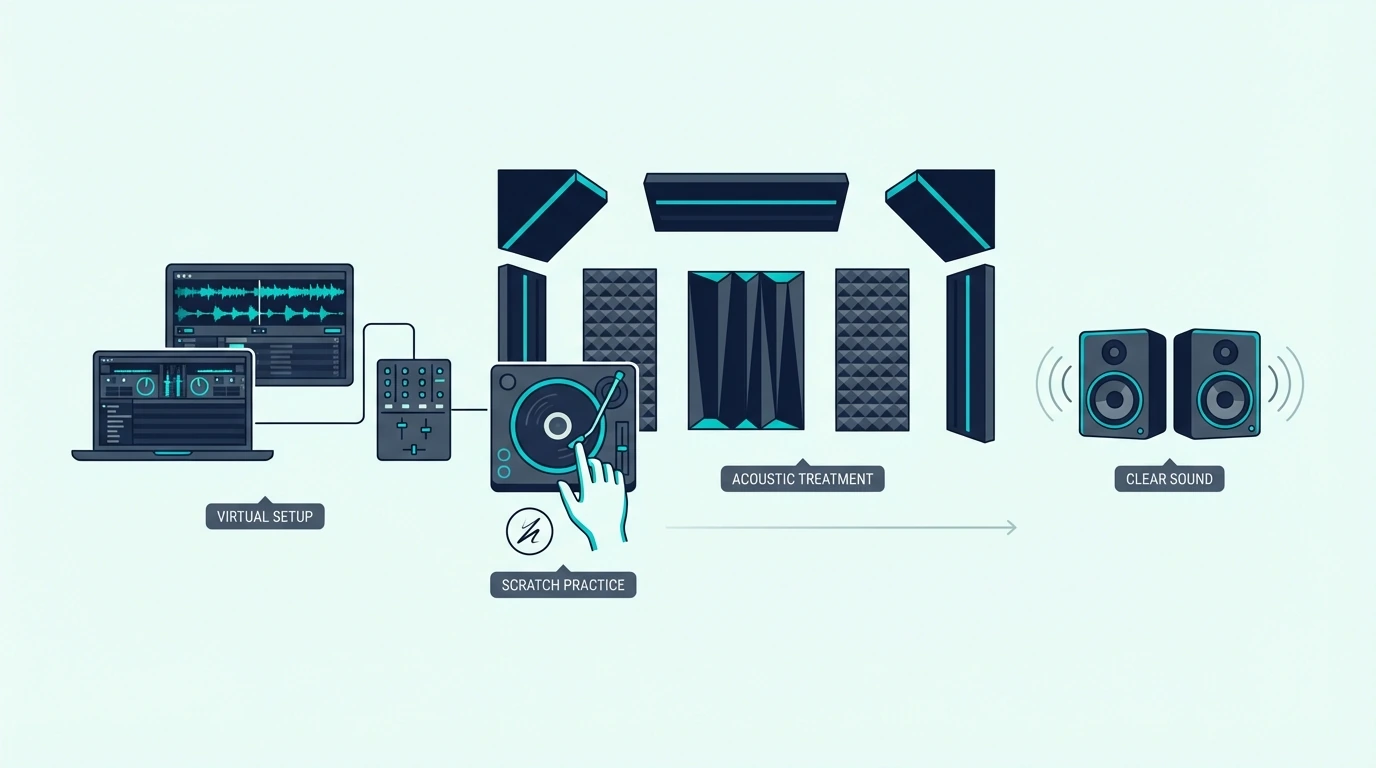
Practice tips for scratching in VirtualDJ

Start Without the Crossfader

Spend your first week practicing baby scratches with the crossfader locked open. Focus entirely on jog wheel control — even forward-backward motion, consistent speed, and rhythmic timing.

Adding the crossfader before your scratch hand is steady creates two problems to solve simultaneously. Master one hand at a time.

Use a Metronome

Open a metronome app on your phone and set it to 90 BPM. Scratch in time with the metronome — one forward stroke per beat, one backward stroke per beat.

This develops the rhythmic precision that separates musical scratching from random noise.

Increase the tempo by 5 BPM once you can stay locked for 30 seconds without drifting. Most scratch routines happen between 90 and 110 BPM.

Record and Listen Back

Use Virtual DJ’s built-in recording to capture your scratch practice sessions. Listen back and identify where your timing drifts, where the crossfader clicks are late, and where the audio sounds uneven.

Recording is the fastest feedback loop for improving your scratch technique. What feels smooth under your fingers often sounds rougher than expected on playback — and that gap is where focused practice lives.

For details on recording, see our recording guide.

Jog Wheel Size Matters

Larger jog wheels give your fingers more surface area for scratch movements. An 8-inch wheel lets you execute full baby scratches without running out of platter space.

Budget controllers with 4-inch wheels limit the range of motion, which caps how expressive your scratches can be.

If scratching becomes your primary focus, upgrade to a controller with larger jog wheels — the DDJ-REV1 or Inpulse 500 deliver the best scratch response in the mid-range tier.

The Bottom Line

Scratching on a DJ controller with Virtual DJ requires three settings changes: enable Vinyl Mode, set the crossfader to sharp, and increase jog wheel sensitivity. Once configured, start with baby scratches (no crossfader), add chirps (crossfader timing), then progress to transforms and flares as your hands develop independence.

Virtual DJ’s scratch algorithm responds well on any controller with capacitive-touch jog wheels. The hardware determines how tight the response feels, but the technique transfers to any setup — and our best DJ controllers guide covers the top options across every price tier.

Frequently Asked Questions

Can you scratch on Virtual DJ with a controller?

Yes — Virtual DJ supports scratching on any controller with jog wheels. Enable Vinyl Mode in settings, set the crossfader to sharp, and increase jog wheel sensitivity.

The scratch quality depends on your controller’s jog wheel size and resolution.

What is the best Virtual DJ controller for scratching?

Controllers with large jog wheels and native Virtual DJ mapping deliver the best scratch experience. The Hercules DJControl Inpulse 200 MK2 offers native VDJ mapping at a budget price.

For serious scratching, pair VDJ with a controller that has 8-inch or larger platters.

Do I need Vinyl Mode to scratch in Virtual DJ?

Yes — without Vinyl Mode, the jog wheel only pitch-bends (speeds up or slows down the track). Vinyl Mode changes the jog wheel behavior to direct audio control, where touching the platter stops playback and lets you scrub through the track manually.

How long does it take to learn scratching?

Baby scratches take one to two weeks of daily practice to sound consistent. Chirps take one to two months.

Transforms and flares take three to six months. Developing a personal scratch style with musical phrasing takes a year or more of dedicated practice.
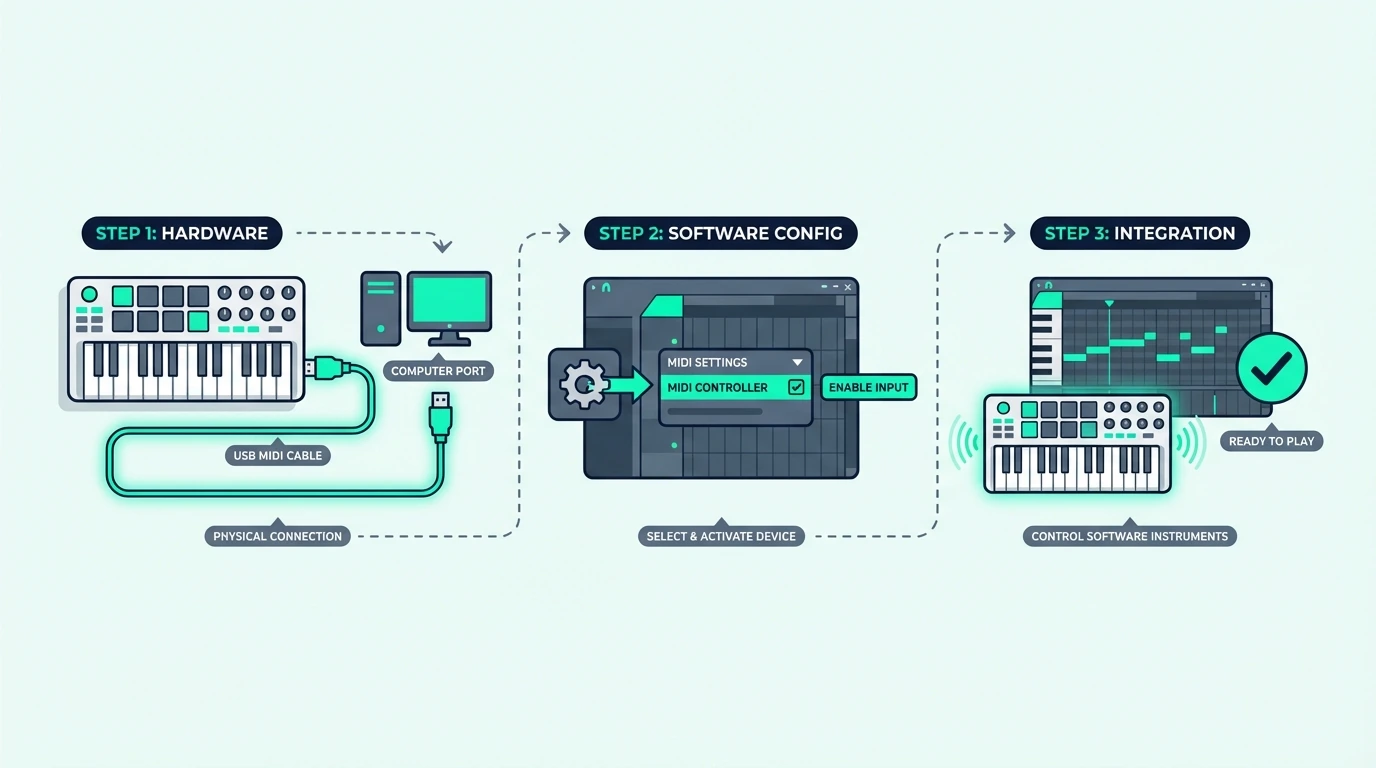
How to Connect MIDI Keyboard to FL Studio — Step-by-Step Setup That Works Every Time

How to connect MIDI keyboard to FL Studio is one of the first things every new FL Studio producer needs to figure out, but the process trips people up because FL Studio handles MIDI input differently than most DAWs — and the default settings won’t detect your controller automatically.

The mistake most beginners make is plugging in their keyboard and expecting FL Studio to work like GarageBand where everything auto-connects. FL Studio requires you to manually enable your MIDI device in the settings before it responds to any input, and skipping that step leads to the frustrating silence that makes people think their controller is broken.

This guide walks through the exact connection process for USB MIDI keyboards in FL Studio, from first plug-in to playing your first note. You will also learn how to set up MIDI learn for knobs and faders, fix common connection problems, and configure controllers with native FL Studio integration.

Below you will find the step-by-step setup process, followed by troubleshooting for the most common connection failures and a guide to getting the most out of your specific controller type in FL Studio.

Quick Takeaway

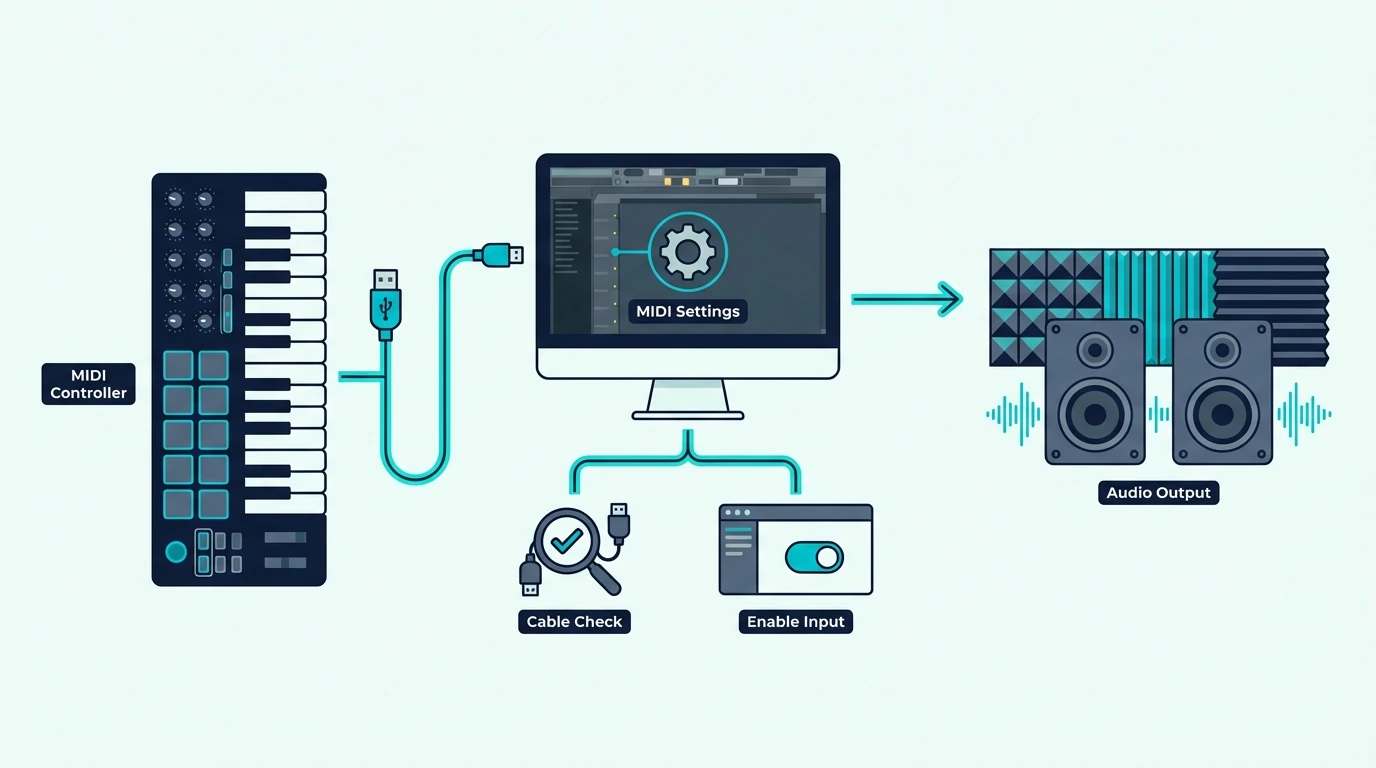
To connect a MIDI keyboard to FL Studio: plug in via USB, open Options then MIDI Settings, find your controller in the input list, click Enable, and close settings. Select any channel in the channel rack and press a key — you should hear sound immediately. If not, check that the controller is powered and the correct MIDI port is enabled.

How Do You Connect a MIDI Keyboard to FL Studio Step by Step

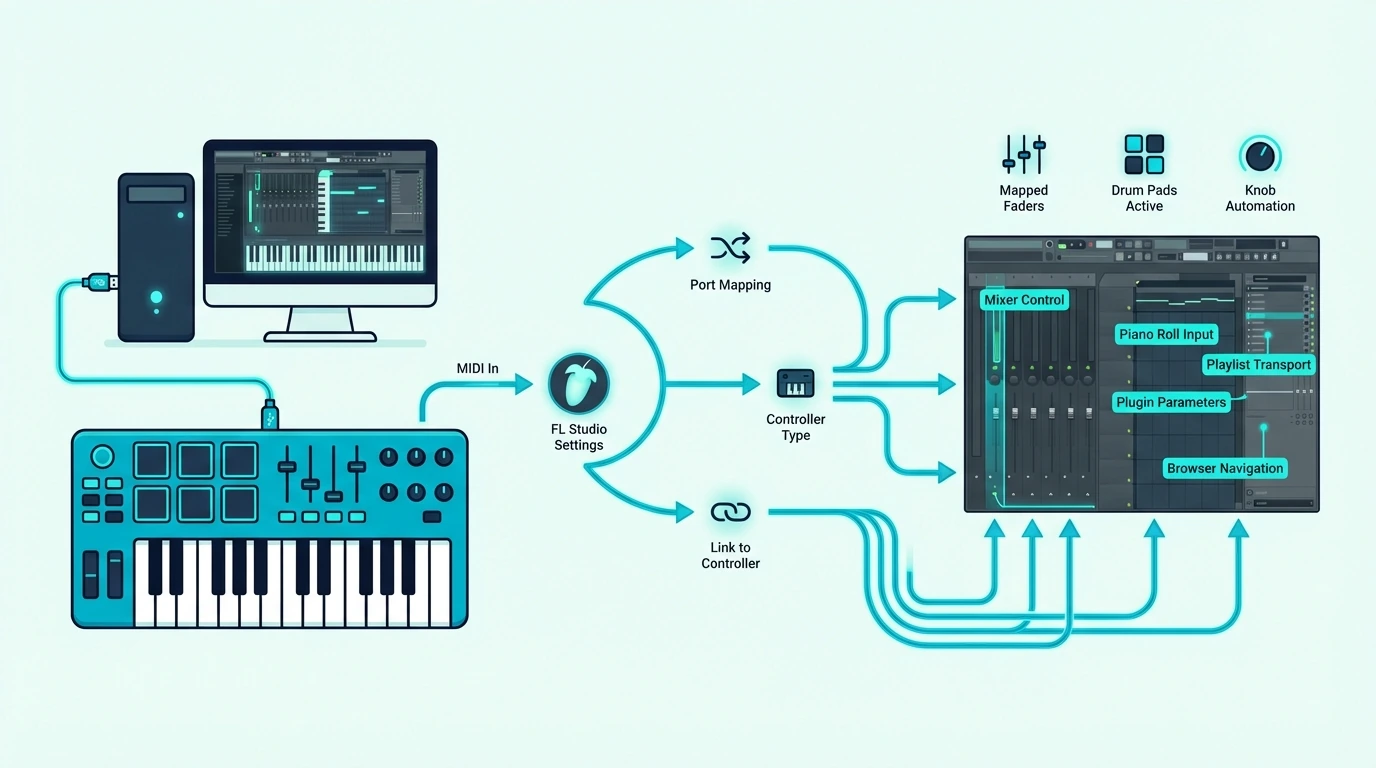
Step-by-step MIDI keyboard connection in FL Studio

The connection process takes under two minutes when you follow the correct sequence. Here is the exact order that works with every USB MIDI keyboard on both Windows and Mac versions of FL Studio.

Step 1 — Plug In Your MIDI Keyboard

Connect your MIDI keyboard to your computer via USB before opening FL Studio. Most modern controllers are class-compliant, meaning they require no driver installation — the operating system recognizes them automatically as MIDI devices.

If your controller shipped before 2015 or uses a proprietary connection, check the manufacturer’s website for updated drivers. Install them before proceeding.

Step 2 — Open FL Studio MIDI Settings

Launch FL Studio and navigate to Options in the top menu bar, then click MIDI Settings. The MIDI Settings panel shows two sections: Input and Output.

Your MIDI keyboard should appear in the Input section. If you see multiple entries (some controllers create both a MIDI port and a DAW control port), you may need to enable both.

Step 3 — Enable Your Controller

Click on your controller’s name in the Input list. The Enable switch activates that MIDI port for input. Some controllers show a green indicator when active.

For controllers with native FL Studio support like the Novation FLkey Mini, select the controller script from the dropdown menu next to the port entry. This loads the native mapping that connects pads to the channel rack and knobs to the mixer automatically.

Step 4 — Test The Connection

Close the MIDI Settings window. Click on any channel in the channel rack (a default kick, snare, or synth channel) to select it. Press a key on your MIDI keyboard.

If you hear sound, the connection is complete. FL Studio routes MIDI input to whichever channel is currently selected in the channel rack. Clicking a different channel switches which instrument your keyboard controls.

Step 5 — Configure Additional Controls

If your controller has knobs, faders, or pads beyond the keys, those need separate configuration through MIDI learn. Right-click any knob or fader in FL Studio, select “Link to controller,” then move the corresponding control on your hardware. FL Studio captures the MIDI CC assignment and saves it.

The Akai Professional MPK Mini MK3 has 8 knobs that map to FL Studio parameters through this MIDI learn process. Each knob takes about 30 seconds to configure, and the mappings save with your FL Studio template.

How Do You Fix MIDI Connection Problems in FL Studio

Troubleshooting MIDI connection issues in FL Studio

When the basic setup does not work, one of these four issues is almost always the cause. Work through them in order before assuming your hardware is defective.

Controller Not Appearing In MIDI Settings

If your MIDI keyboard does not show up in the FL Studio MIDI Settings input list, the operating system has not recognized the device. Close FL Studio, unplug the USB cable, wait five seconds, plug it back in, and reopen FL Studio.

On Windows, check Device Manager (right-click Start, Device Manager) and look for your controller under “Sound, video and game controllers” or “USB controllers.” If it shows an error icon, reinstall the driver from the manufacturer’s website.

On Mac, open Audio MIDI Setup (Applications, Utilities) and verify the controller appears in the MIDI Studio window. If it does not appear there, FL Studio cannot see it either.

Keys Play But No Sound

If your keyboard sends MIDI data (you can see the MIDI activity indicator flash in FL Studio’s toolbar) but no sound comes out, check that a channel is selected in the channel rack. FL Studio requires an active channel selection — if nothing is highlighted, MIDI input has nowhere to go.

Also verify that the channel contains a sound-generating plugin. Empty channels or audio-only channels do not respond to MIDI keyboard input.

Latency And Delayed Response

If there is a noticeable delay between pressing a key and hearing sound, the issue is audio buffer size, not MIDI connection. Go to Options, Audio Settings, and reduce the buffer length. A setting of 256 or 512 samples works for most systems.

ASIO drivers provide the lowest latency on Windows. FL Studio includes FL ASIO as a default, but third-party ASIO drivers (like ASIO4ALL for systems without a dedicated audio interface) often perform better. The M-AUDIO Keystation 49 MK3 and similar controllers do not add latency — the delay comes entirely from your audio driver configuration.

Multiple Controllers Or Ports Conflicting

If you have multiple MIDI devices connected, FL Studio may route input from the wrong port. In MIDI Settings, assign each controller to a specific MIDI port number (1-16) rather than leaving them all on the default. This prevents one controller’s data from interfering with another.

How Do You Maximize Your MIDI Controller in FL Studio

Maximizing MIDI controller features in FL Studio

Once basic MIDI input works, these FL Studio-specific features unlock deeper integration with your controller.

Channel Rack Navigation

FL Studio lets you assign MIDI notes to specific channel rack slots. In the channel rack, right-click any channel and select “Assign to keyboard controller.” This maps that channel’s sound to a specific key range on your keyboard.

Split your keyboard into zones — bass sounds on the left octave, lead sounds on the right — for real-time multi-instrument performance without switching channels.

FPC For Finger Drumming

FL Studio’s FPC plugin creates a virtual pad controller that maps to your keyboard’s pads or keys. Load FPC on a mixer channel, drag drum samples onto the pad grid, and trigger them from your MIDI controller.

The Novation FLkey series maps pads to FPC automatically through native integration. Other controllers need manual MIDI mapping in FPC’s settings, which takes about five minutes for a full 16-pad layout.

Recording MIDI Performances

Press the record button in FL Studio’s transport bar (or press R), then play your MIDI keyboard. FL Studio captures your performance as a MIDI pattern on the selected channel. The pattern appears in the channel rack ready for editing, quantization, and arrangement.

Right-click the recorded pattern and select “Piano roll” to edit individual notes, adjust timing, change velocities, and add automation. FL Studio’s piano roll is the most powerful MIDI editor in any DAW — ghost notes, slide notes, and per-note automation make complex programming faster than any competitor.

Saving Your Template

After configuring MIDI settings, channel routing, and MIDI learn assignments, save the project as a template (File, Save as template). Every new FL Studio project loads with your MIDI configuration pre-applied — zero setup time per session.

This template approach means you configure your MIDI controller once and it works identically every time you open FL Studio.

The Bottom Line

Connecting a MIDI keyboard to FL Studio takes under two minutes: plug in via USB, enable in Options then MIDI Settings, select a channel, and play. The Novation FLkey series adds native integration that maps pads and knobs to the channel rack and mixer automatically. Generic controllers like the Akai MPK Mini MK3 work perfectly through MIDI learn with a few minutes of one-time setup.

If your controller is not detected, check USB connections and drivers first. If keys play but no sound comes out, verify a channel is selected in the channel rack. If latency is noticeable, reduce your audio buffer size in Audio Settings.

Frequently Asked Questions

Why is my MIDI keyboard not working in FL Studio?

The most common cause is not enabling the controller in MIDI Settings. Open Options, MIDI Settings, and click Enable on your controller’s input entry. If the controller does not appear in the list, unplug it, replug it, and restart FL Studio.

Do I need a specific MIDI keyboard for FL Studio?

No — any USB MIDI keyboard works with FL Studio through the standard MIDI Settings configuration. The Novation FLkey series offers native integration that eliminates manual setup, but it is a convenience feature rather than a requirement.

How do I reduce latency when playing MIDI in FL Studio?

Go to Options, Audio Settings, and reduce the buffer length to 256 or 512 samples. On Windows, switch to an ASIO audio driver (FL ASIO or ASIO4ALL) for the lowest latency. The MIDI keyboard itself adds zero latency — the delay comes from audio processing in your computer.

Can I use multiple MIDI keyboards in FL Studio at the same time?

Yes — FL Studio supports multiple MIDI input devices simultaneously. In MIDI Settings, assign each controller to a different MIDI port number. FL Studio treats each port as an independent input source, so you can play keys on one controller while triggering pads on another.

How to Connect a DJ Controller — Complete Setup Guide for Every Scenario

How to connect a DJ controller sounds like it should be plug-and-play — but the number of Reddit threads asking “why is there no sound” after connecting proves otherwise. The real issue isn’t the USB cable between your controller and laptop.

It’s the audio output chain: getting sound from the controller to your speakers and headphones simultaneously, without ground loops, latency, or missing channels.

Most connection problems are caused by the audio routing between your controller’s sound card, your laptop’s built-in audio, and your speakers. When the DJ software sends audio to the wrong output device, you get silence through the speakers, silence through the headphones, or — worst case — the same audio in both, which makes cueing impossible.

That routing confusion happens because DJ controllers add a second sound card to your system. Your laptop already has one (built-in speakers), and the controller adds another (RCA/headphone outputs).

The DJ software needs to use the controller’s sound card, not the laptop’s — and that setting doesn’t always configure itself automatically.

Below, you will find step-by-step connection guides for every common DJ setup — controller to laptop, controller to speakers, controller to phone, and controller to a PA system — so you get sound flowing correctly on the first try.

Quick Takeaway

To connect a DJ controller: plug a USB cable from the controller to your laptop, connect speakers to the controller’s RCA output (not the laptop’s headphone jack), plug headphones into the controller’s headphone jack, and set your DJ software’s audio output to the controller’s sound card. That three-cable setup handles 90 percent of home DJ configurations.

The Basic Setup — Controller to Laptop to Speakers

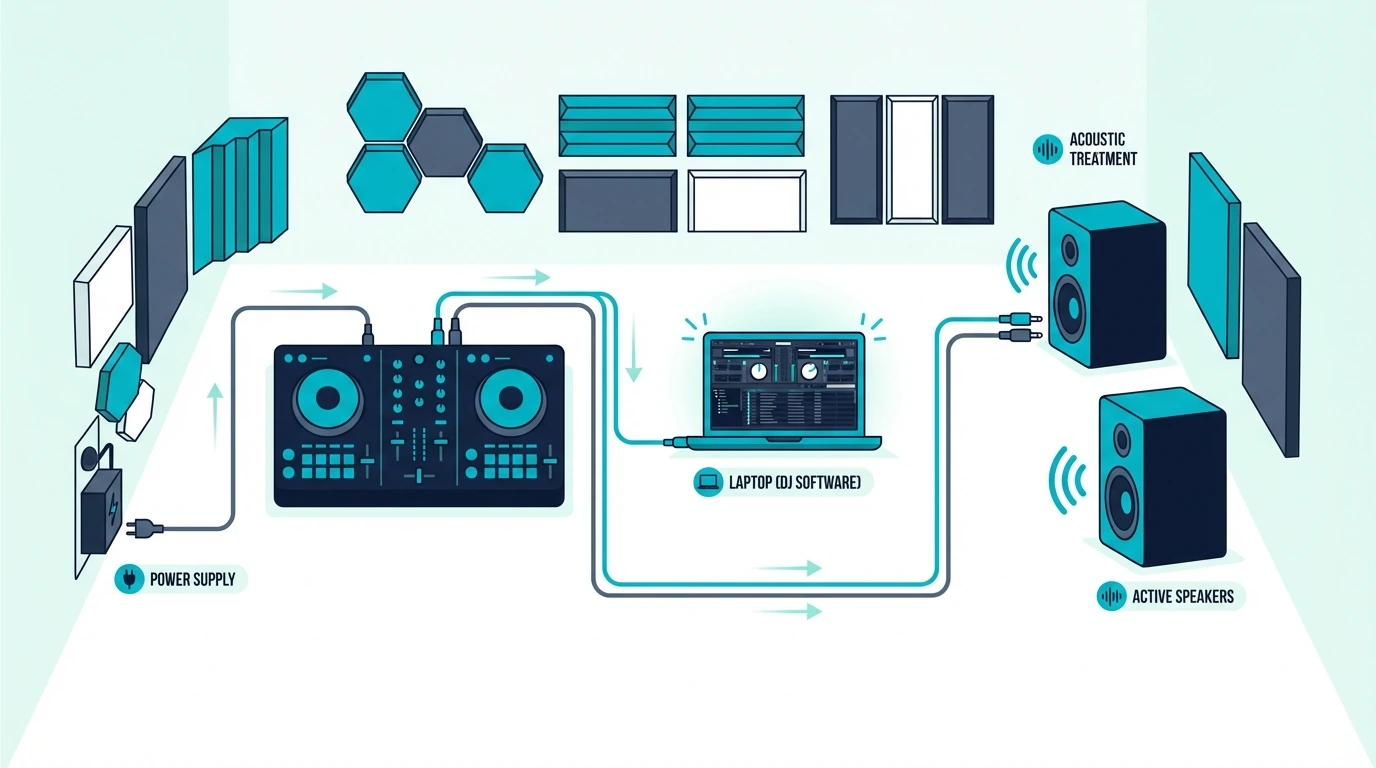
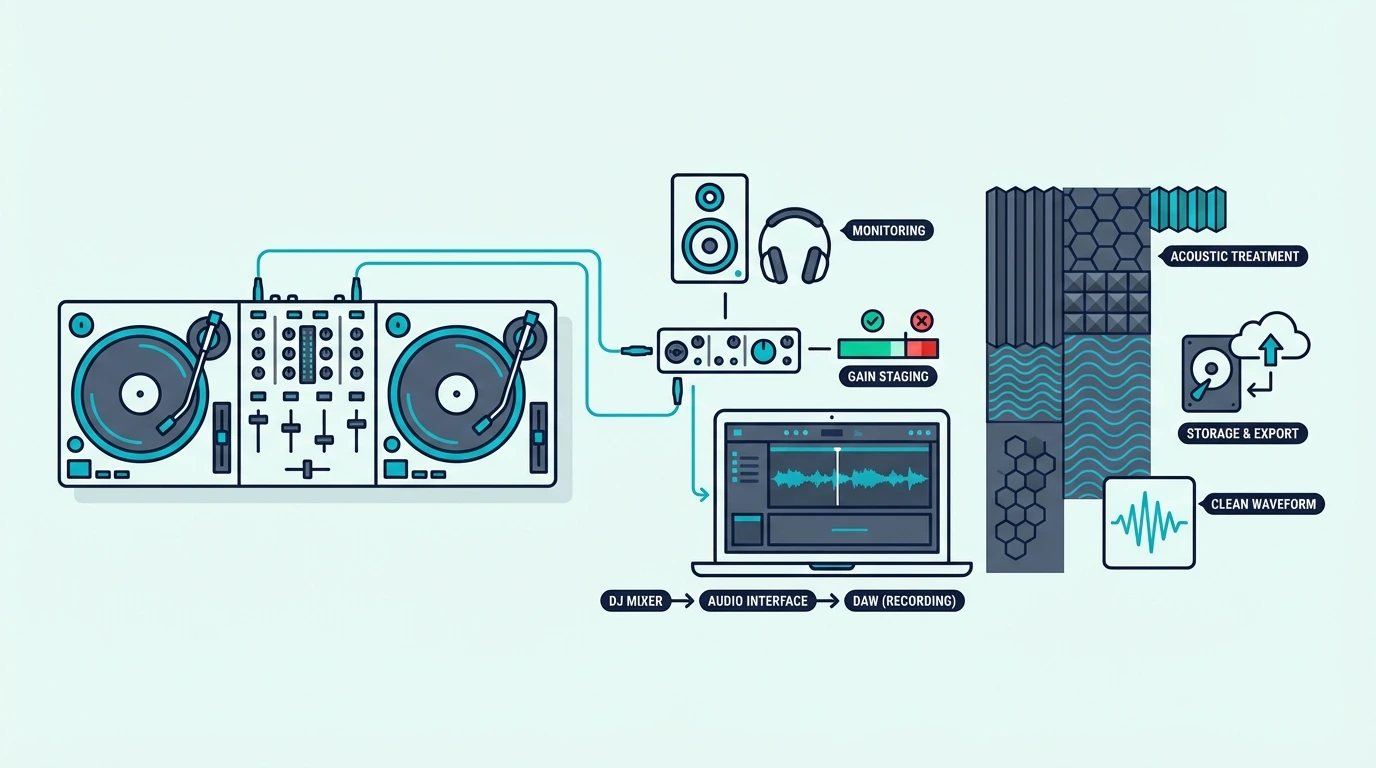
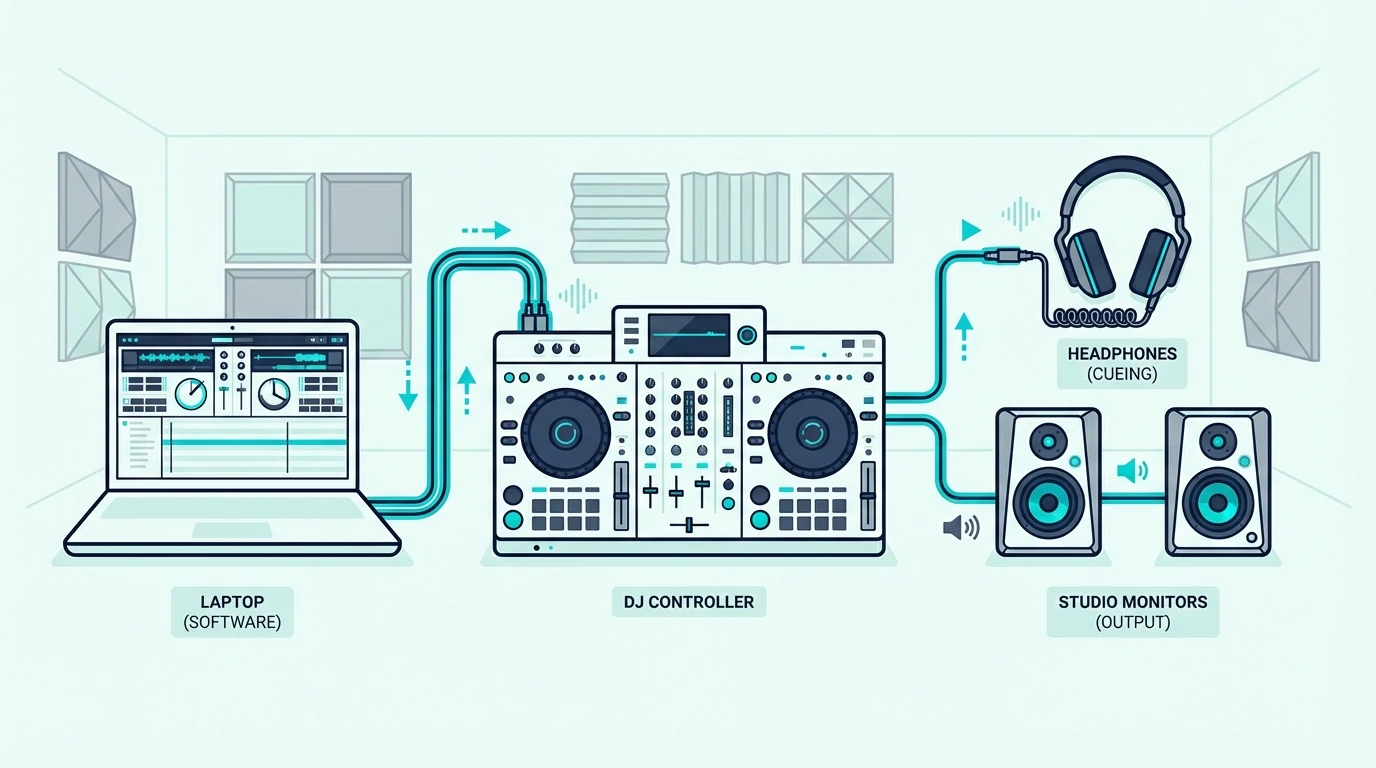
Basic setup diagram for connecting a DJ controller

Step 1 — USB Connection

Plug the USB cable from your controller into your laptop. Most modern controllers use USB-C (like the Pioneer DJ DDJ-FLX4), while older models use USB-A.

The USB cable carries both data (MIDI commands to the software) and power (no external power adapter needed for most controllers).

Your DJ software should detect the controller automatically. If it doesn’t, check the manufacturer’s website for a driver download — some controllers require a dedicated driver on Windows.

If you haven’t chosen a controller yet, our best DJ controllers roundup covers every budget and software ecosystem.

Step 2 — Speaker Connection

Connect your speakers to the controller’s RCA output — not to your laptop’s headphone jack. The controller’s RCA output carries the master mix signal that your audience hears.

Use a standard RCA cable (red and white connectors) from the controller’s main output to your speakers’ RCA input. If your speakers only have TRS (1/4-inch) or XLR inputs, use an RCA-to-TRS or RCA-to-XLR adapter cable.

The PreSonus Eris 3.5 accepts RCA, TRS, and aux — making it the most flexible speaker choice for DJ controller setups.

Step 3 — Headphone Connection

Plug your headphones into the controller’s headphone jack (usually 1/4-inch or 3.5mm on the front panel). This output carries the cue signal — the track you’re previewing before the audience hears it.

The headphone output is separate from the speaker output. That separation is what makes live DJ mixing possible — you hear the next track in your headphones while the current track plays through the speakers.

Step 4 — Software Audio Settings

Open your DJ software and navigate to the audio settings. Set the output device to your controller’s sound card (not “Built-in Output” or “MacBook Speakers”).

The controller appears as a named audio device — “DDJ-FLX4” for Pioneer, “DJControl” for Hercules, etc.

If you skip this step, audio routes through your laptop speakers instead of the controller’s outputs. That means no headphone cueing, no separate speaker output, and no way to mix properly.

Connecting to a Phone via Bluetooth

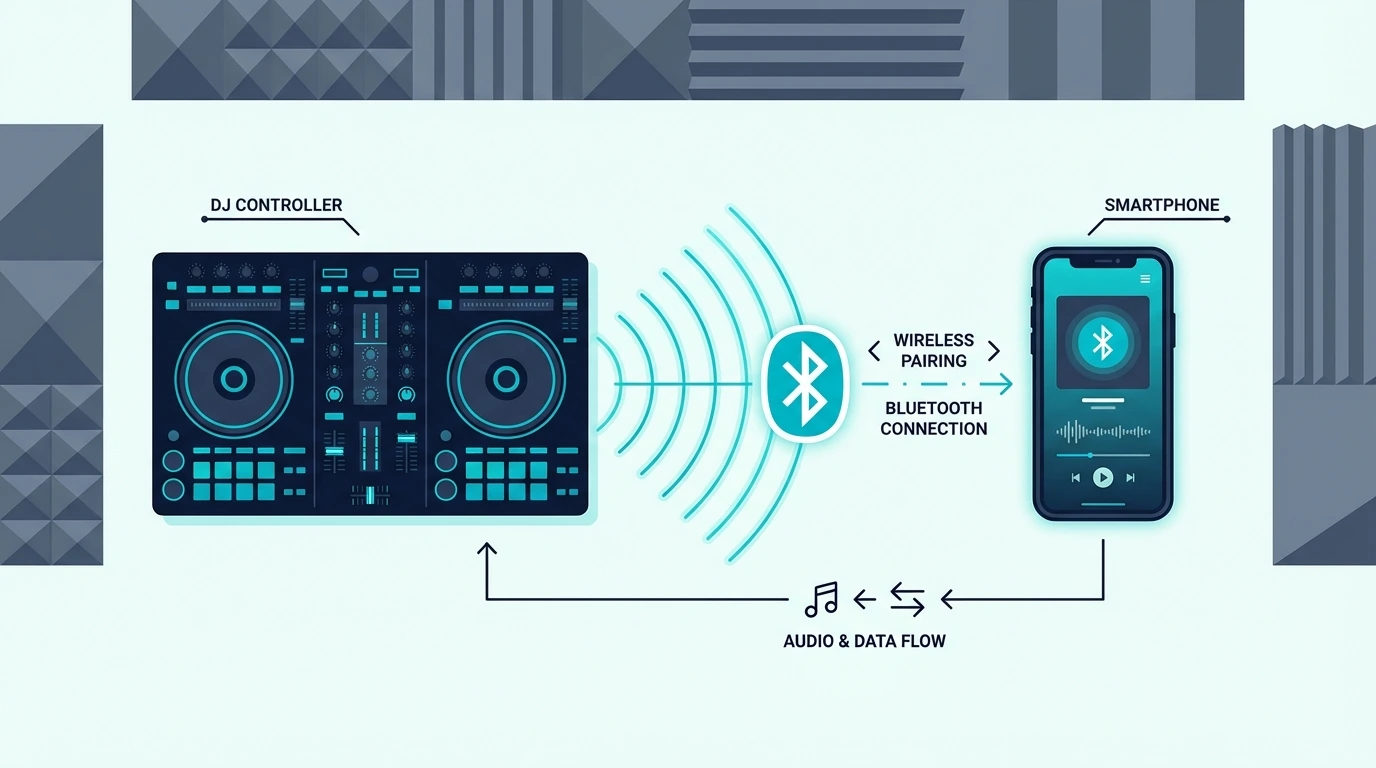
Bluetooth phone connection for a DJ controller

Which Controllers Support Bluetooth

The Pioneer DJ DDJ-FLX2 and Hercules DJControl Mix both support Bluetooth connections to phones and tablets. Pair the controller with your phone’s Bluetooth, open the WeDJ or DJUCED app, and start mixing wirelessly.

Bluetooth Limitations

Bluetooth introduces latency (a small delay between your physical input and the audio response). For casual mixing at parties, the latency is acceptable.

For beatmatching by ear or scratching, the delay makes precise timing difficult.

USB connections have zero perceivable latency. Use Bluetooth for casual sessions and USB for serious practice.

Connecting to a PA System

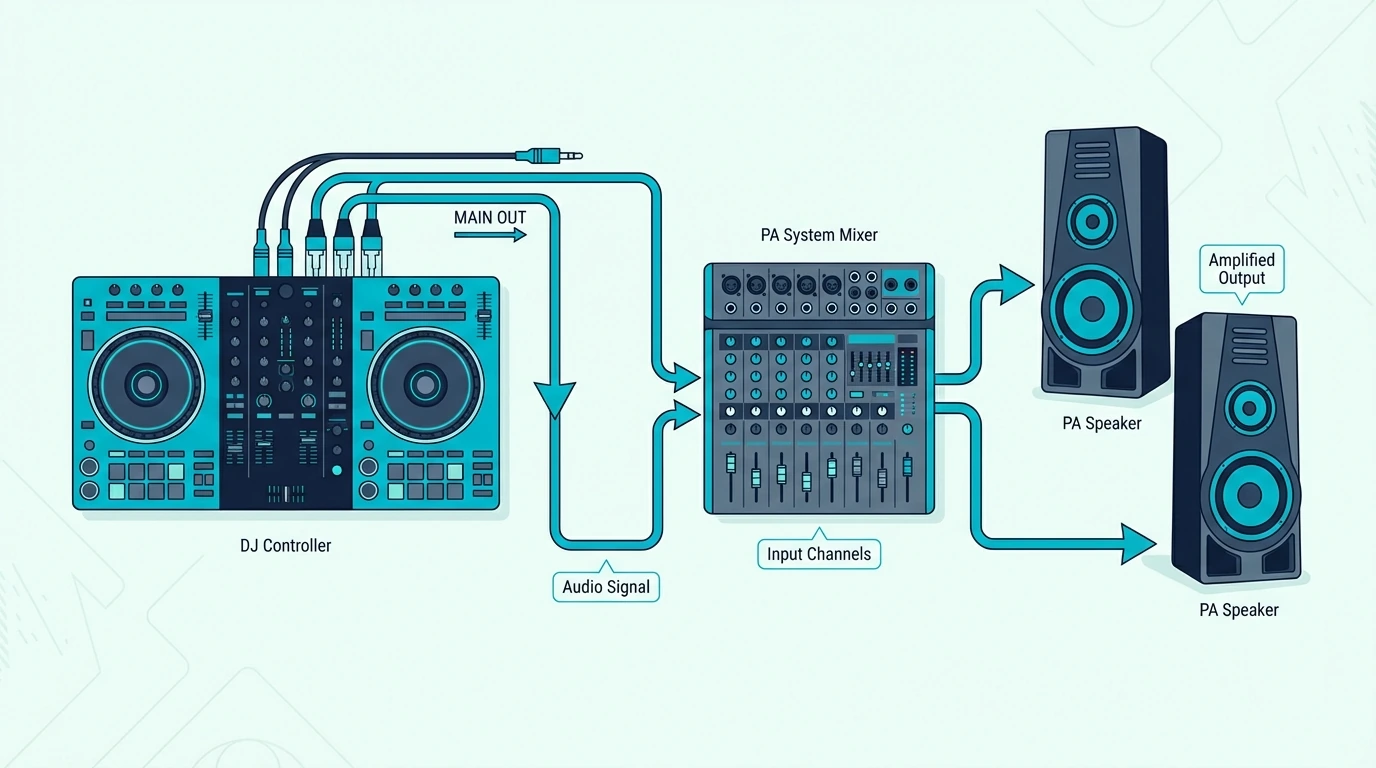
Connecting a DJ controller to a PA system

Venue Setup

At a gig, connect your controller’s RCA output to the venue’s PA system or DJ booth mixer. Most venues have an RCA or XLR input on the booth mixer or amp rack.

Carry an RCA-to-XLR adapter cable as backup — venues vary.

Gain Staging

Match your controller’s output level to the venue’s input sensitivity. Start with your controller’s master volume at 75 percent and adjust up or down based on the venue’s level meters.

Clipping (red lights on the venue mixer) means your output is too hot.

Proper gain staging prevents distortion and ensures your mix sounds clean at any venue volume. This is one of the first things a sound engineer will check when you plug in.

Ground Loop Hum

If you hear a constant low hum through the speakers after connecting, you have a ground loop — caused by your laptop charger and the venue’s audio system sharing an electrical ground. Unplug your laptop charger (run on battery) or use a ground loop isolator inline with your RCA cables.

Ground loop isolators cost under twenty dollars and eliminate the hum instantly. Carry one in your gig bag as standard practice.
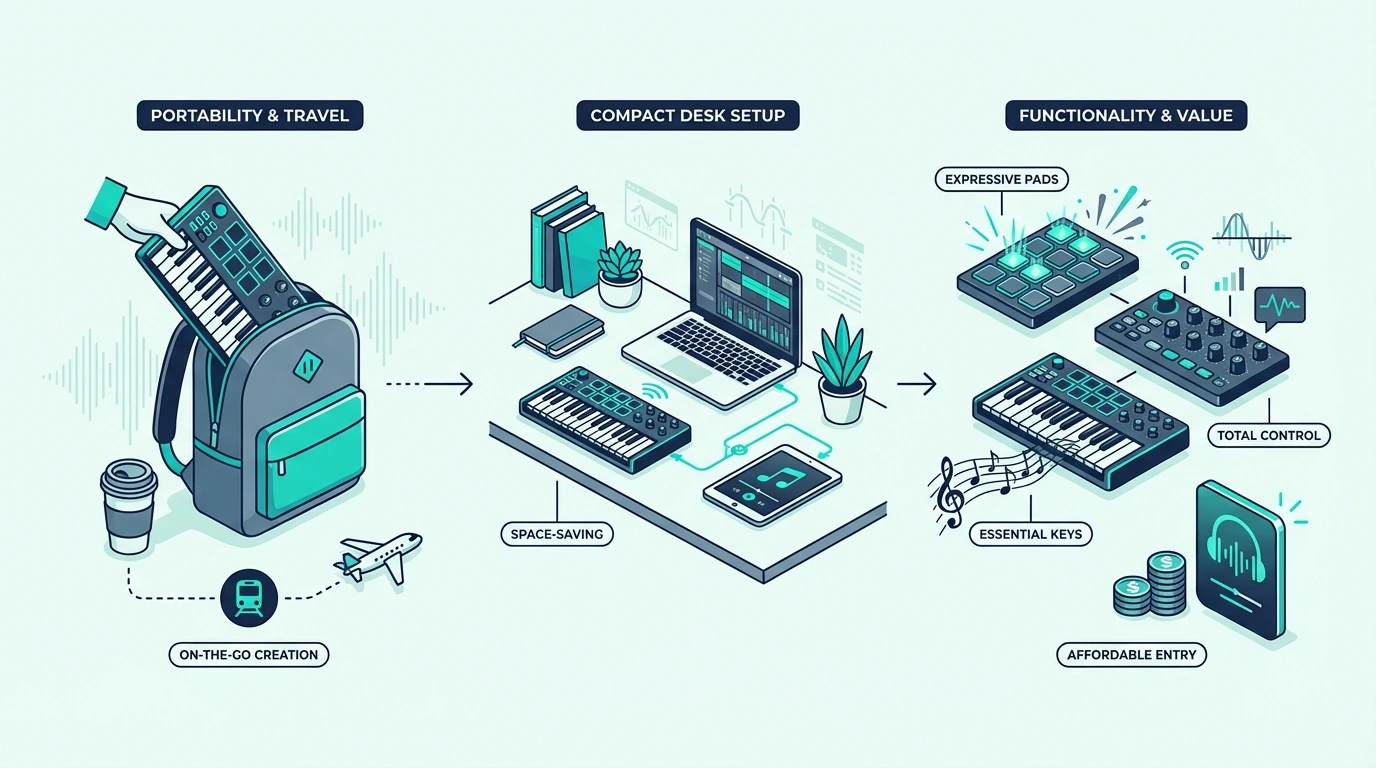
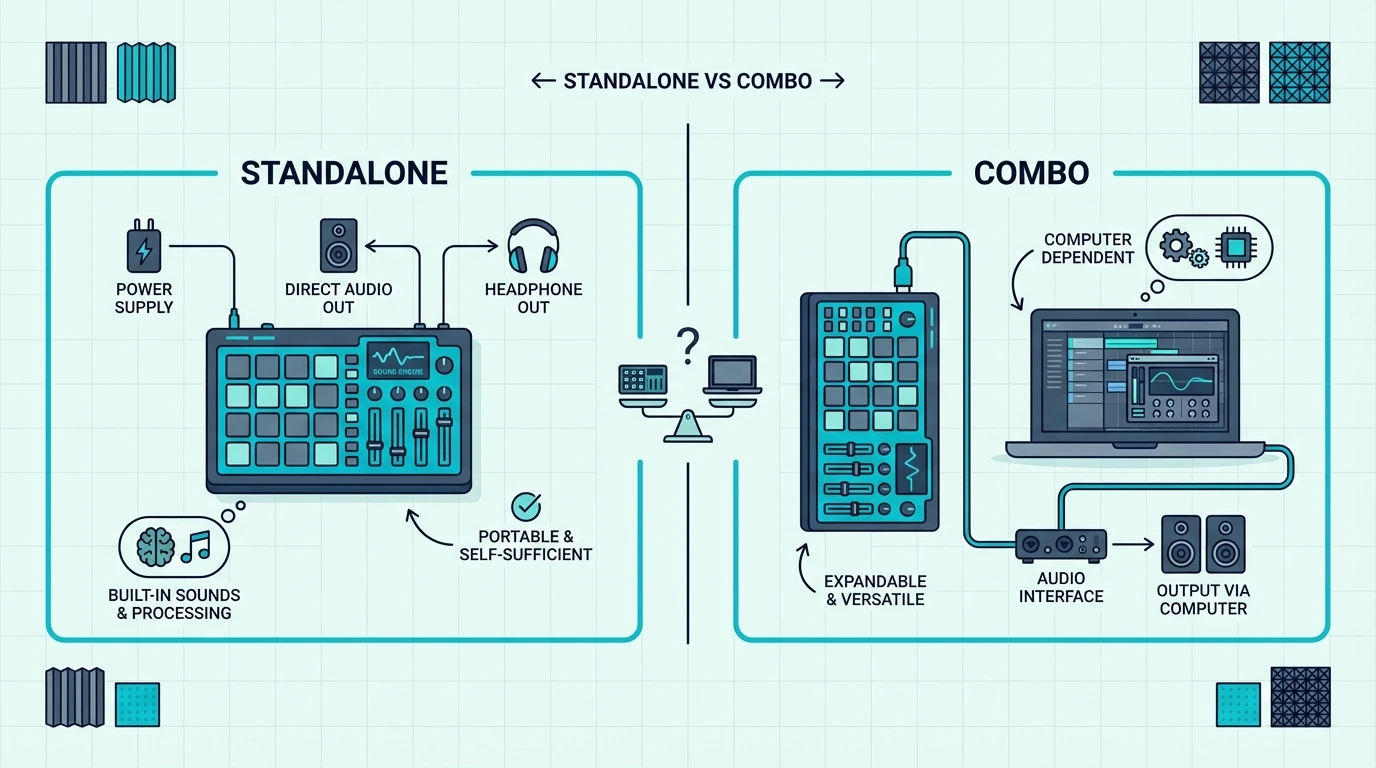
For DJs who want to avoid the laptop-and-cables setup entirely, standalone controllers run without any computer connection — simplifying gig setup dramatically.

Troubleshooting Common Connection Issues

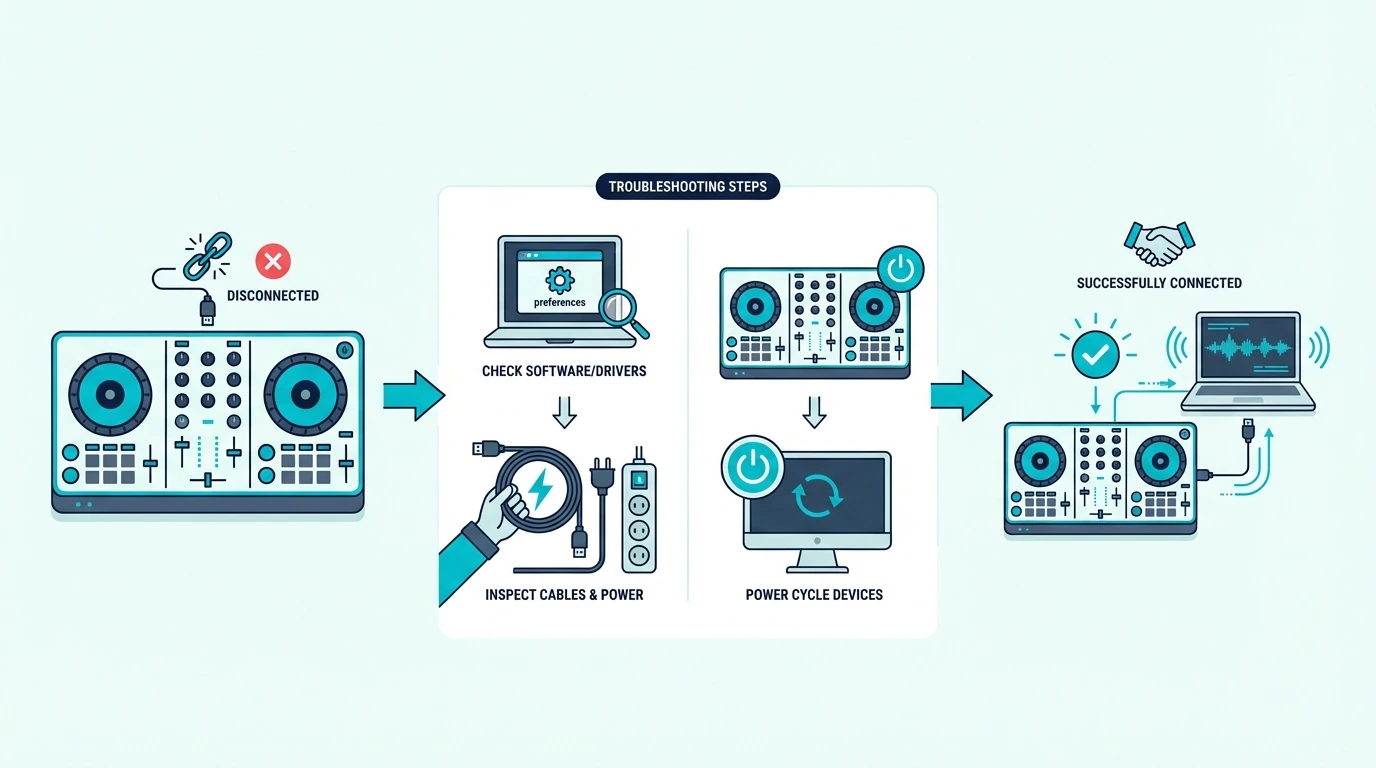
Troubleshooting guide for DJ controller connections

No Sound Through Speakers

Check that your DJ software’s audio output is set to the controller’s sound card, not your laptop’s built-in output. Then verify that a track is loaded and playing, and that the channel volume fader and master volume are both up.

If the software shows audio levels but the speakers are silent, check the RCA cable connection. A loose cable or a cable plugged into the wrong port is the most common hardware cause.

No Sound in Headphones

Verify that the cue button for the active deck is engaged on your controller. The headphone output only plays audio from decks with cue enabled.

Check the headphone volume knob on the controller — it’s a separate control from the master volume. Also verify the cue/master blend knob is set toward the cue side, not the master side.

Audio Plays Through Laptop Speakers Instead of Controller

Your DJ software is using the wrong audio device. Open audio settings and change the output from “Built-in” to your controller’s named device.

Restart the software if the change doesn’t take effect immediately.

On Windows, check that the controller’s driver is installed. Mac typically recognizes controllers automatically, but Windows often requires a dedicated driver from the manufacturer’s website.

Latency and Crackling

Audio crackling usually means the buffer size in your DJ software is too low for your computer’s processing power. Increase the buffer size in audio settings (try 512 or 1024 samples).

Higher buffer sizes add a tiny amount of latency but eliminate crackling.

Close all unnecessary applications running in the background. Web browsers, streaming services, and cloud sync apps compete for CPU resources that your DJ software needs.

The DJ software you use also affects latency performance — Rekordbox and Serato are optimized for low-latency controller communication, while generic audio apps may introduce additional delay.

The Bottom Line

Connecting a DJ controller takes three cables: USB to laptop, RCA to speakers, headphones to controller. Set the DJ software’s audio output to the controller’s sound card, and sound flows correctly through every output.

Most connection problems come from audio routing — the software sending sound to the wrong device. Check that setting first when troubleshooting, and 90 percent of “no sound” issues resolve immediately.

Once your controller is connected and producing clean audio, the next step is learning to mix your first two tracks using the headphone cueing that your setup now supports.

Frequently Asked Questions

How do I connect my DJ controller to speakers?

Use an RCA cable from the controller’s main output to your powered speakers’ RCA input. If your speakers have TRS or XLR inputs only, use an adapter cable.

Connect speakers to the controller — not to your laptop.

Can I connect a DJ controller to my phone?

Controllers with Bluetooth support (like the DDJ-FLX2 and DJControl Mix) connect wirelessly to phones and tablets. Non-Bluetooth controllers require a USB OTG adapter to connect to Android phones or a Lightning/USB-C camera adapter for iPhones.

Do I need an external sound card with a DJ controller?

No — most DJ controllers include a built-in sound card that handles both speaker output and headphone cueing. External sound cards are only needed if your controller lacks one (budget models under a hundred sometimes skip it).

Why is there no sound from my DJ controller?

Check three things: (1) DJ software audio output is set to the controller’s sound card, not laptop speakers. (2) A track is loaded and playing with the channel fader up. (3) The RCA cable is firmly connected from the controller to your speakers. These three checks resolve 90 percent of “no sound” issues.

Best MIDI Foot Controller — Hands-Free MIDI Control for Live Rigs

Best MIDI foot controller is the difference between a clean preset change and an awkward onstage scramble, but the right pick depends less on brand and more on how many commands you actually need underfoot.

The frustration is that many players buy the wrong kind of foot controller for their rig. Too few switches, the wrong connection format, or no expression support is what causes missed patch changes, clumsy scene jumps, and extra tap-dancing during a set.

Match the controller to your setup and the payoff is immediate: faster preset changes, better transport control, and reliable hands-free command over software or hardware without breaking performance flow.

Below you will find our top picks sorted by rig type, followed by a guide to choosing the right switch count, connectivity, and control style for your setup.

Quick Takeaway

The best MIDI foot controller for most live rigs is the Behringer FCB1010 because it gives you 10 switches and 2 built-in expression pedals at a very fair price. If you want stronger DAW integration and more flexible routing, the Nektar Pacer is the better premium choice. Compact setups should look at the PaintAudio MIDI Captain NANO 4 or the BT MIDI Foot Controller Wireless when full-size pedalboards feel excessive.

What A MIDI Foot Controller Actually Does

What a MIDI foot controller does

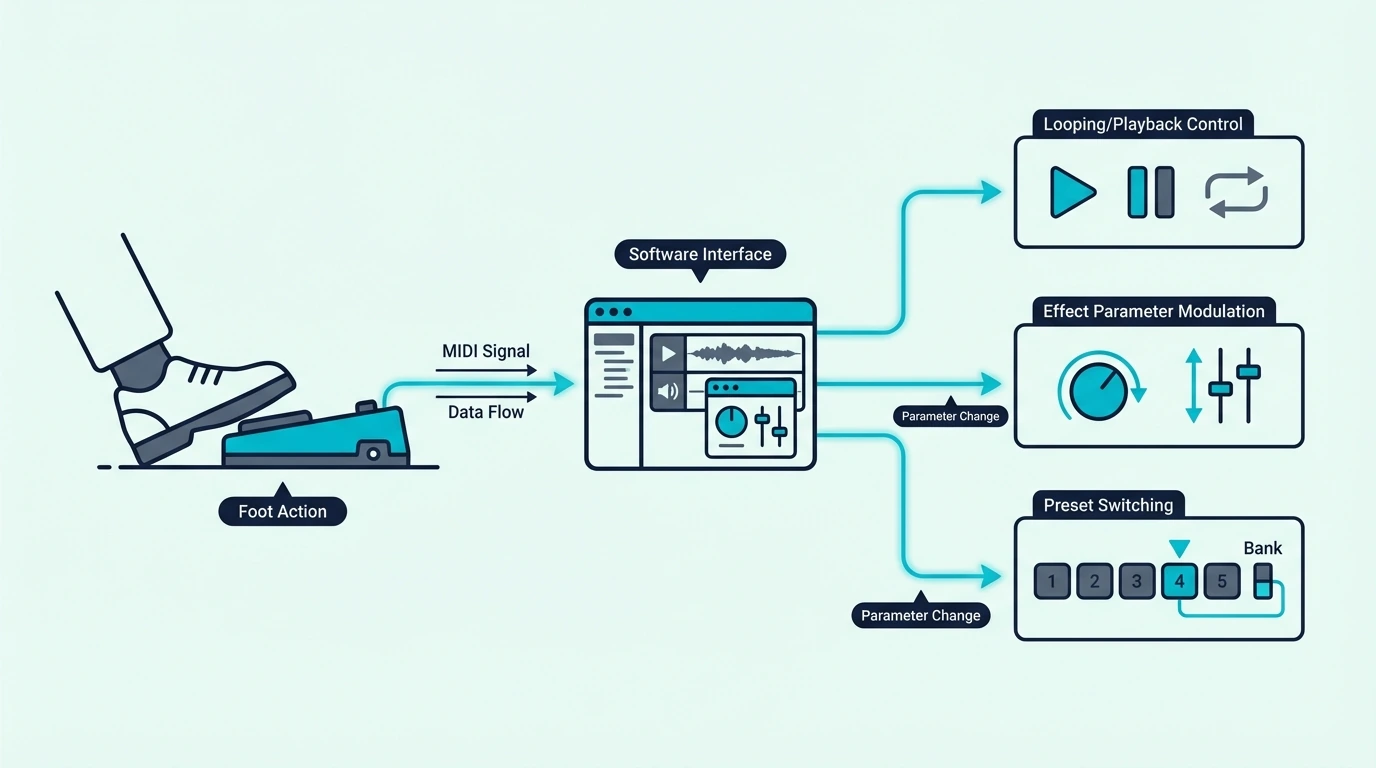
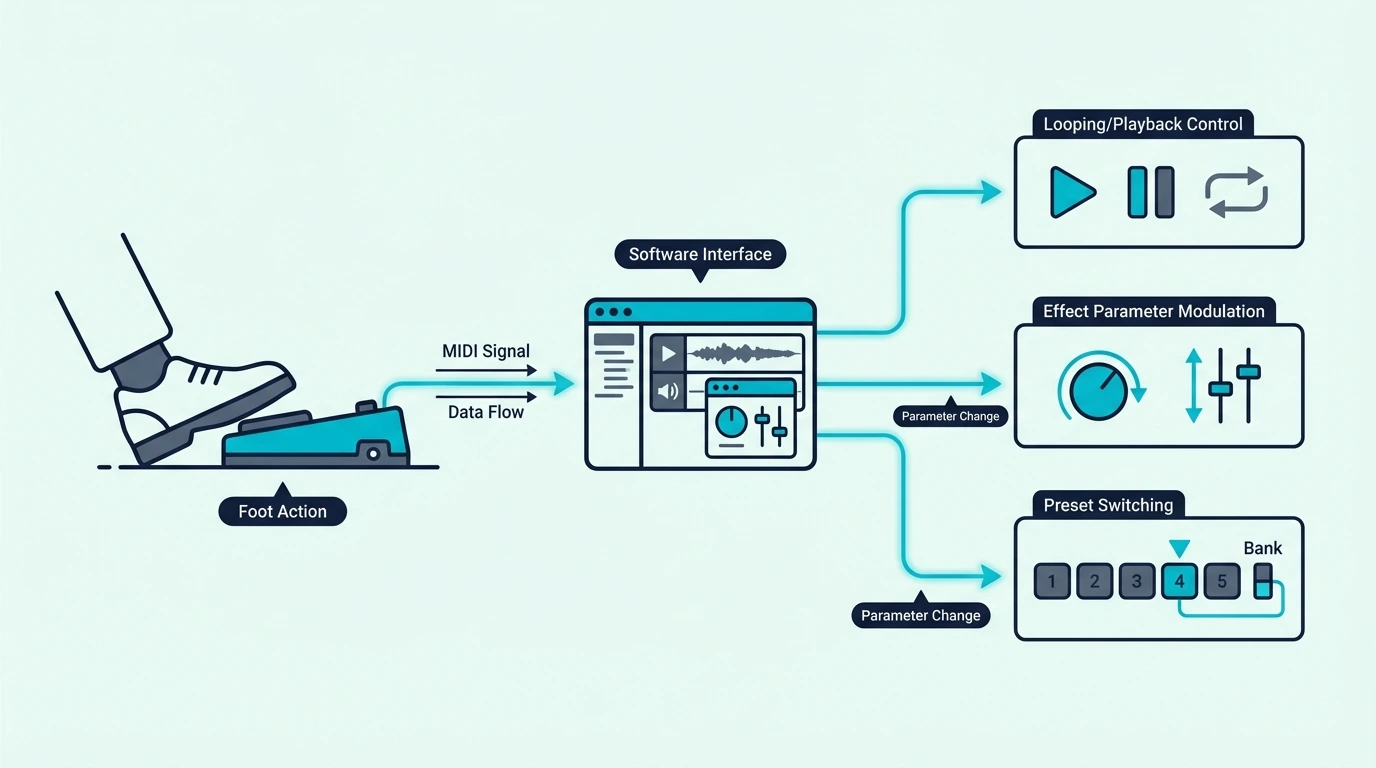
A MIDI foot controller is a floor unit with switches, pedals, or both that sends MIDI messages when you press them with your foot. The messages travel to your DAW, hardware synth, guitar processor, or lighting rig — triggering actions without your hands leaving the instrument.

Program Change Messages For Preset Switching

The most common foot controller function is sending MIDI Program Change messages. Each foot switch sends a different program number, and the receiving device (guitar processor, synth, DAW) loads the corresponding preset instantly.

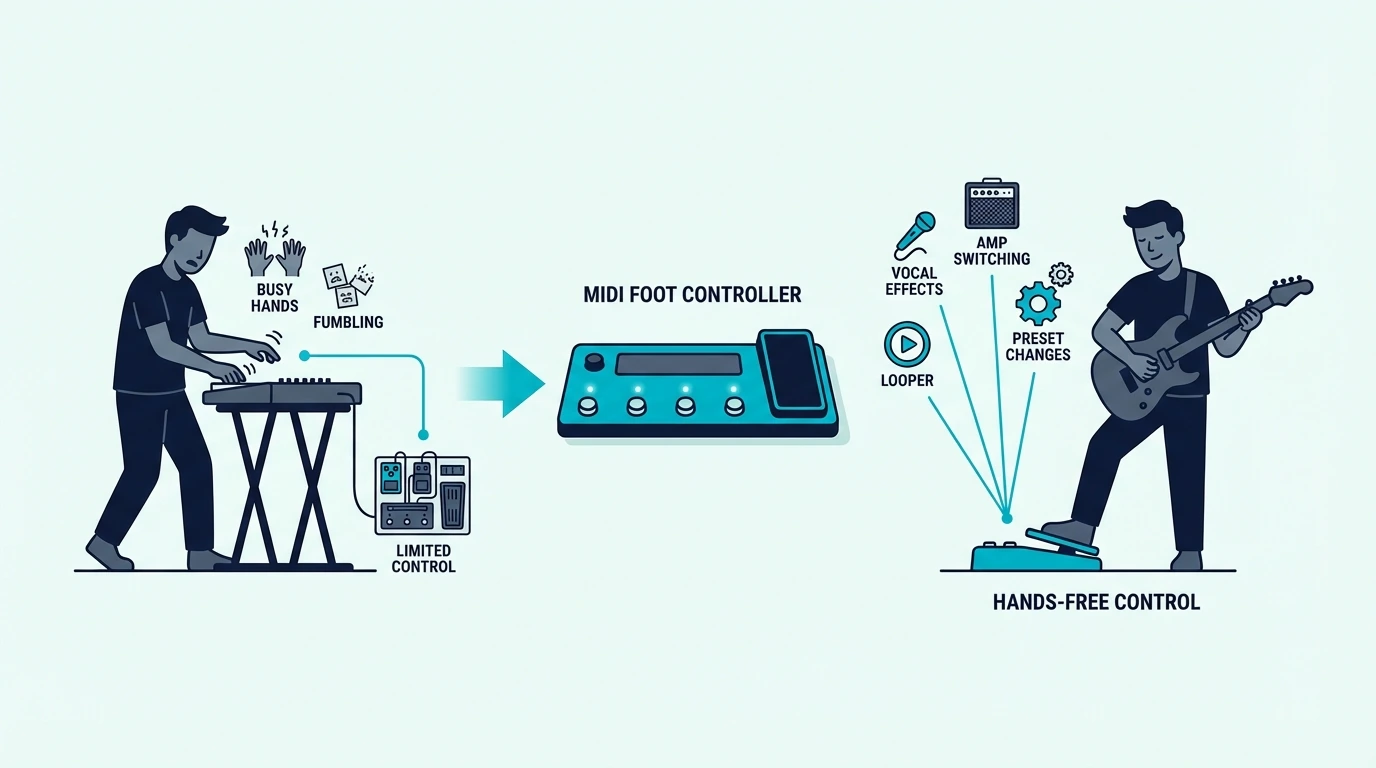
A guitarist with 8 foot switches can jump between 8 different amp and effects presets during a live set without bending down to a pedalboard or touching a screen. That instant switching is what separates a smooth live performance from one interrupted by gear fumbling between songs.

Expression Pedals For Real-Time Control

Expression pedals (the rocking type, like a wah pedal) send continuous MIDI CC data as you rock them forward and back. Map an expression pedal to volume for smooth fade-ins and fade-outs. Map it to a synth filter for foot-controlled sweeps. Map it to reverb depth for ambient swells during a performance.

Units like the Behringer FCB1010 build the expression pedals in, while the Nektar Pacer lets you add external expression pedals only if your rig needs them.

Compact Four-Switch Units For Simple Setups

Not every performer needs a full 10-switch board. Many players only need patch up, patch down, start/stop, and one utility control like tap tempo or loop toggle.

The PaintAudio MIDI Captain NANO 4 and the BT MIDI Foot Controller Wireless cover that smaller job far better than a full pedalboard.

What Are the Best MIDI Foot Controllers

section_uest foot controller picks

Here are 6 dedicated MIDI foot controllers sorted by how much switching power and connectivity you need on stage.

The Behringer FCB1010 wins Best Overall because it solves the biggest live-performance problem in one box: lots of switches plus continuous control. Ten switches and two built-in expression pedals cover most live rigs, rack processors, and software setups without needing extra accessories.

The Nektar Pacer is the best choice for DAW-heavy setups because it goes far beyond simple preset changes. USB MIDI, standard MIDI, relay switching, and Nektar’s DAW templates make it more adaptable than most pedalboards for hybrid software-and-hardware rigs, especially if you run Ableton or Logic Pro on stage.

The MeloAudio MIDI Commander is the best value pick if you want a real multi-switch controller without paying premium money. It is especially attractive for players who need a compact floor unit with both USB and MIDI support.

The Paint Audio MIDI Captain is the best hybrid-rig option for players who jump between software instruments, hardware processors, and layered commands. It is more programmable than entry-level boards and better suited to complex patch-change routines.

The PaintAudio MIDI Captain NANO 4 is the compact pick for minimal rigs. It covers the most common live tasks — program changes, transport, loop control, and utility commands — without forcing you to haul a full-size pedalboard.

And the BT MIDI Foot Controller Wireless is the cheapest good entry point for musicians who want hands-free MIDI without committing to a large pedalboard. It is best for lightweight rigs, mobile setups, and basic app or DAW control, especially for iPad music setups.

Who Needs A MIDI Foot Controller

Who needs a MIDI foot controller

Foot controllers serve specific performer types. Understanding whether your workflow benefits from foot control prevents you from buying hardware that sits unused on the floor.

Guitarists And Bass Players

Guitarists who use amp modeling software (Guitar Rig, Helix Native, BIAS FX) or hardware processors need foot switches to change presets without stopping mid-song. A MIDI foot controller with 4 to 12 switches handles patch changes, effect toggles, and bank navigation during live performance.

Bass players use foot controllers for the same reason — switching between clean, overdriven, and effects-heavy tones during a set requires instant hands-free access that only foot switches provide.

Live Performers With Patch Changes

Live performers running multiple presets, scenes, or backing-track cues need to change sounds between sections without bending over to a laptop or rack unit. A MIDI foot controller sends program change or control change messages instantly, so the next sound or cue is ready the moment you need it.

Units like the Nektar Pacer or Paint Audio MIDI Captain give you that hands-and-feet control without relying on a trackpad mid-song.

Worship Musicians And Theater Performers

Worship teams and theater pit musicians frequently need to change sounds between sections of a song or between songs on a setlist. A foot controller with a display showing the current patch name eliminates the guesswork of remembering which switch loads which sound.

That kind of cue-heavy workflow is exactly where boards like the Nektar Pacer and Behringer FCB1010 earn their keep.

Studio Producers Who Record Live

Producers who record their own performances benefit from hands-free transport control. Pressing a foot switch to start recording, punch in, or trigger a click track keeps your focus on the take instead of pulling you back to the mouse, and it pairs especially well with flexible MIDI software workflows.

Even a compact unit like the PaintAudio MIDI Captain NANO 4 or the BT MIDI Foot Controller Wireless can make recording smoother by taking basic transport actions off the mouse and screen.

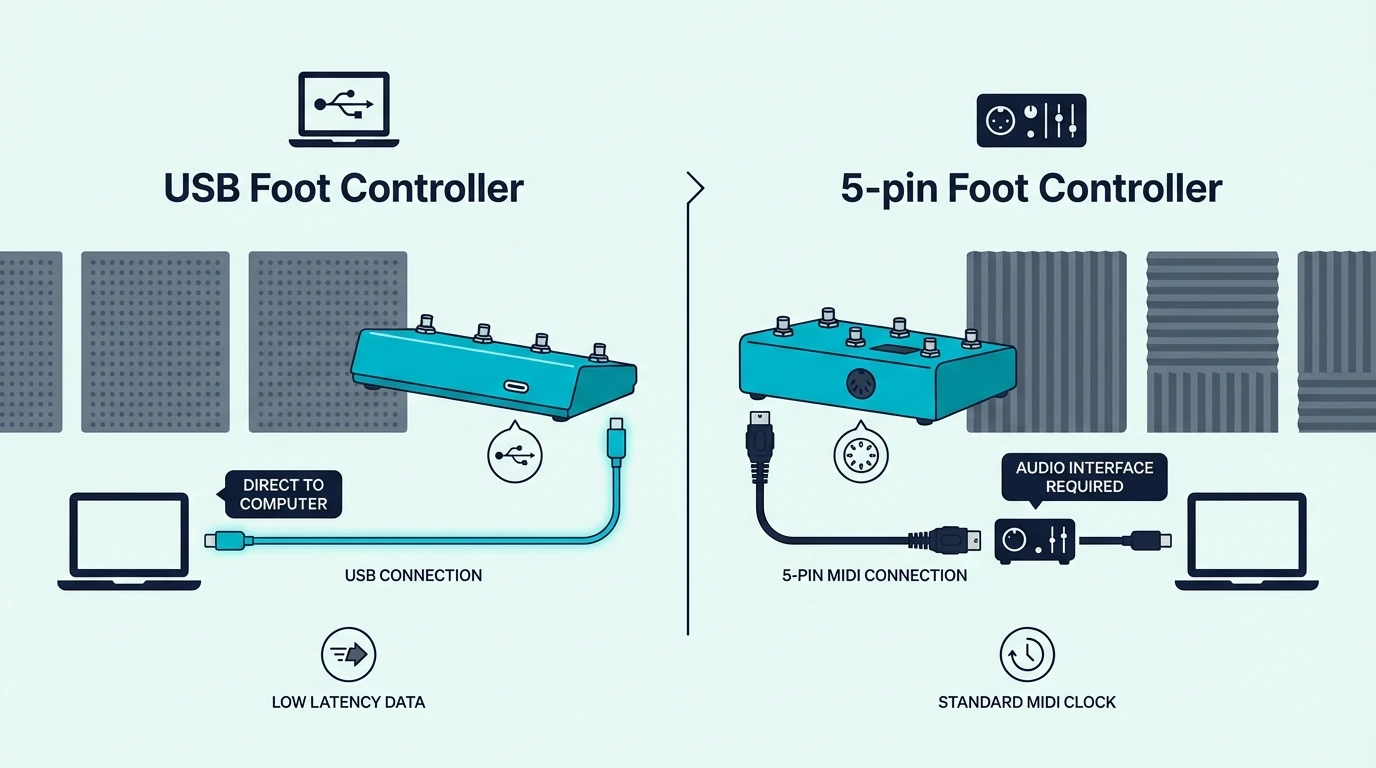
Should You Choose USB or 5-Pin MIDI for a Foot Controller

USB and 5-pin MIDI foot controllers compared

Foot controllers connect through two main interfaces, and the right choice depends on what you are controlling.

USB MIDI Foot Controllers

USB foot controllers connect directly to your computer and appear as MIDI input devices in your DAW. They work with any software that accepts MIDI — Ableton, Logic, FL Studio, MainStage, and every other major platform.

The advantage is simplicity. One USB cable handles both data and power. Your DAW sees the foot controller as a separate MIDI device from the rest of your rig, so everything can stay active simultaneously without routing conflicts.

5-Pin MIDI Foot Controllers

Traditional 5-pin DIN foot controllers connect to hardware devices with MIDI input jacks — synth modules, guitar processors, lighting controllers, and rack-mounted effects. They do not connect directly to a computer without a USB-to-MIDI interface.

The advantage is hardware compatibility. If your live rig includes standalone hardware that predates USB, a 5-pin foot controller communicates directly without a computer in the signal chain. That reliability matters on stage where computer crashes would end a performance.

Hybrid Units

Some foot controllers include both USB and 5-pin outputs, letting you control software and hardware simultaneously. This hybrid approach covers every scenario — USB to your laptop for MainStage patches and 5-pin to your guitar processor for amp presets.

The Paint Audio MIDI Captain and the MeloAudio MIDI Commander are strong examples because they are built to move between computer-based and hardware-based control without changing your whole rig.

Choosing The Right Number Of Switches

Foot controllers range from single-switch sustain pedals to 12-switch units with expression pedals and display screens. The right size depends on how many presets or functions you need instant access to during a performance.

Four switches handle basic preset changes for most live musicians, which is exactly why compact units like the PaintAudio MIDI Captain NANO 4 work so well for simple rigs. Ten-switch boards like the Behringer FCB1010 and Nektar Pacer make more sense once each song in your set needs multiple dedicated commands.

Beginners should start with a compact four-switch unit and upgrade to a larger board only when live performance demands more dedicated commands. Software shortcuts can cover transport at first, but regular live use is where a real foot controller starts paying for itself.

The Bottom Line

MIDI foot controllers solve one specific problem: hands-free control during live performance, cue changes, and transport commands. Guitarists need them for preset switching. Live performers use them for scene changes between songs. Studio producers benefit from them for foot-operated recording control.

The Behringer FCB1010 is the best MIDI foot controller for most players because it gives you enough switches and expression control to handle serious live work at a reasonable price. If your rig is DAW-heavy, buy the Nektar Pacer. If you only need a few commands in a compact format, the PaintAudio MIDI Captain NANO 4 keeps things simple.

Start with the number of switches your set actually needs, not the biggest board you can afford. A compact four-switch unit solves plenty of real-world setups, while full pedalboards only make sense when the extra commands will genuinely get used.

Frequently Asked Questions

What is a MIDI foot controller used for?

A MIDI foot controller sends program change and control change messages via foot switches, freeing your hands for playing. Guitarists use them to switch amp presets. Live performers use them to change scenes or patches between songs. Producers use them for hands-free DAW transport control during recording.

Do I need a MIDI foot controller for studio production?

Not strictly — most studio producers control their DAW with mouse clicks and on-screen shortcuts. A foot controller adds value if you record your own performances and want hands-free transport control while staying focused on the take.

Can I use a sustain pedal as a MIDI foot controller?

A sustain pedal sends only one MIDI message (usually CC 64 on/off) through a pedal input. A dedicated MIDI foot controller sends multiple program change and CC messages through its own USB or MIDI connection. They serve different purposes — sustain pedals hold notes, while foot controllers switch presets and trigger actions.

What is the difference between a MIDI foot controller and a MIDI pedalboard?

The terms are often used interchangeably. “Foot controller” typically refers to a unit with switches that send MIDI messages. “Pedalboard” can mean the same thing or refer to a guitar effects pedalboard that may or may not have MIDI capability. Check whether the unit sends MIDI data — some guitar pedalboards are analog-only with no MIDI output.

How to Record Your DJ Mix — Every Method Explained Step by Step

How to record your DJ mix is the question every DJ asks once their transitions start sounding clean — but most recording guides assume you already know which method fits your setup. The reality is that recording options vary wildly depending on whether you use DJ software, a standalone controller, or a hardware mixer, and picking the wrong method produces either silence or a distorted mess.

The problem is that DJ software buries the recording function under menus most beginners never explore. Rekordbox, Serato, and Virtual DJ all record mixes natively, but each platform handles it differently — and some lock recording behind a paid tier that your bundled license might not include.

That confusion is caused by the gap between “DJ Lite” and “DJ Pro” software tiers. Serato DJ Lite does not record at all.

Rekordbox Performance mode records for free. Virtual DJ Home records with a watermark on video output but clean audio.

Knowing which tier your controller unlocks determines whether recording costs zero or requires an upgrade.

Below, you will find every recording method explained step by step — from one-click software recording to external audio capture — so you can document your mixes without trial and error.

Quick Takeaway

To record a DJ mix, use your DJ software’s built-in recording feature (Rekordbox records for free, Virtual DJ Home records audio for free, Serato requires DJ Pro). Click the record button before you start mixing, and the software captures the master output as a WAV or MP3 file. No external hardware needed.

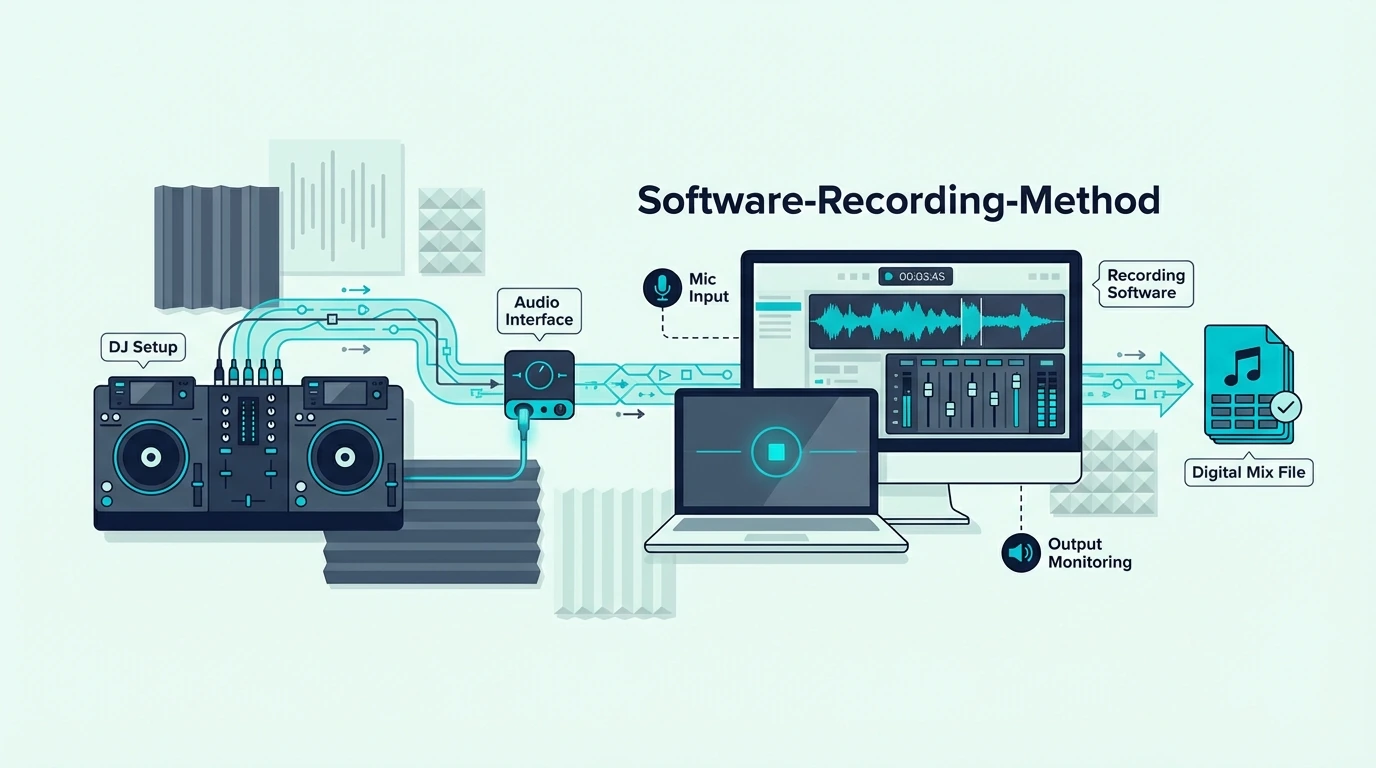
Method 1 — Record Inside DJ Software

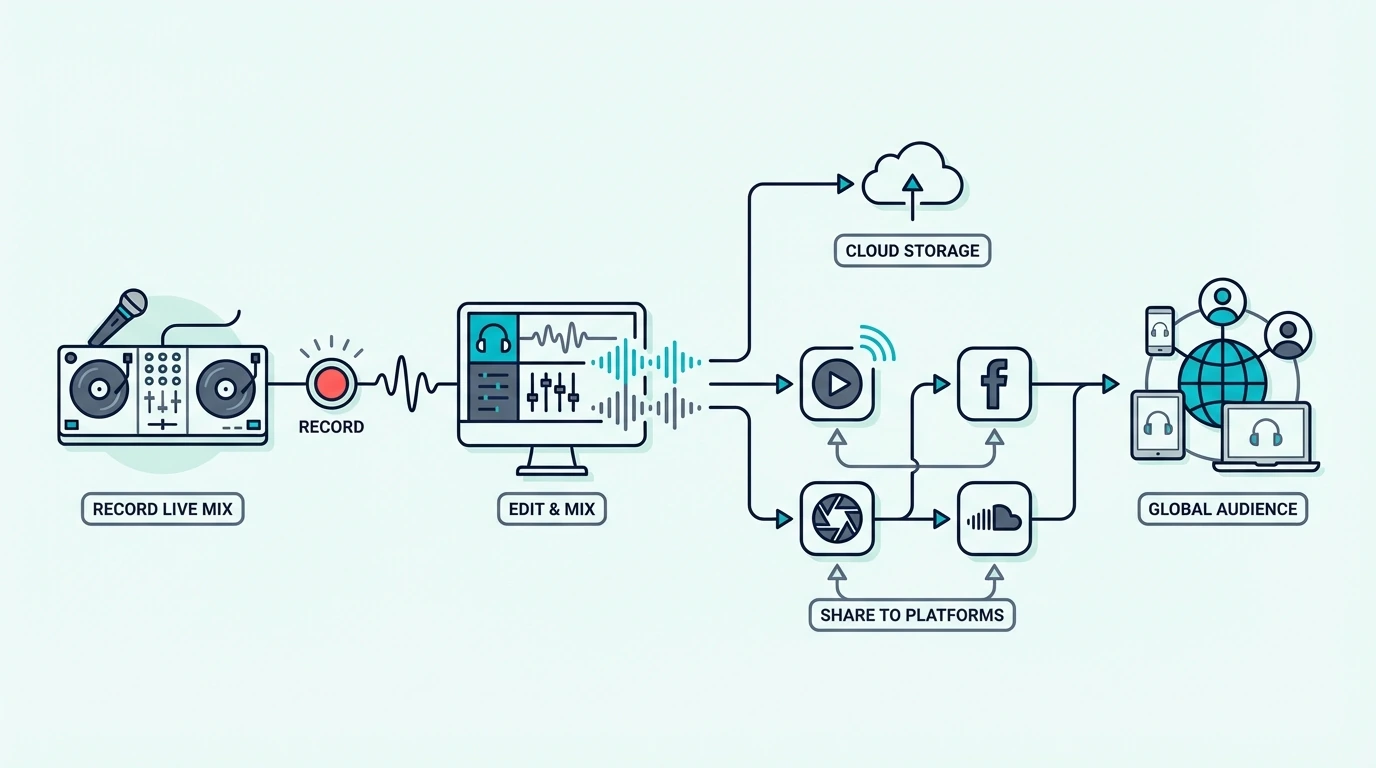
Recording a DJ mix using software

Rekordbox Recording (Free)

Rekordbox includes recording in its free Performance mode — no paid subscription needed. Click the REC button in the top toolbar, start mixing, and Rekordbox captures your master output as a WAV file.

The recording saves to your Rekordbox library under the Recordings section. From there, export it as WAV or convert to MP3 using any audio converter.

The Pioneer DJ DDJ-FLX4 unlocks Rekordbox Performance mode automatically, which means recording is available the moment you plug in.

Virtual DJ Recording (Free Audio)

Virtual DJ Home records audio for free with no time limit. Click the REC button in the interface, and the software captures your master output as a WAV or MP3 file.

Video recording adds a VDJ watermark on the free tier — Virtual DJ Pro removes the watermark for paid users. For audio-only mix recordings (the most common use case), the free tier works perfectly.

Serato Recording (Pro Only)

Serato DJ Lite does not include recording. You need Serato DJ Pro (paid subscription or controller-unlocked) to record mixes.

Once you have Pro, the recording function captures your master output as a WAV file.

If your controller only bundles Serato DJ Lite, you have two options: upgrade to Pro, or use an external recording method (covered below). The Hercules DJControl Inpulse 500 bundles DJUCED alongside Serato Lite — and DJUCED records for free.

DJUCED Recording (Free)

DJUCED includes one-click recording on every Hercules controller. Click the record button, and the software captures your mix as an audio file.

No paid upgrade, no activation code.

This makes Hercules controllers the simplest path to recording for beginners who do not want to deal with software tier limitations.

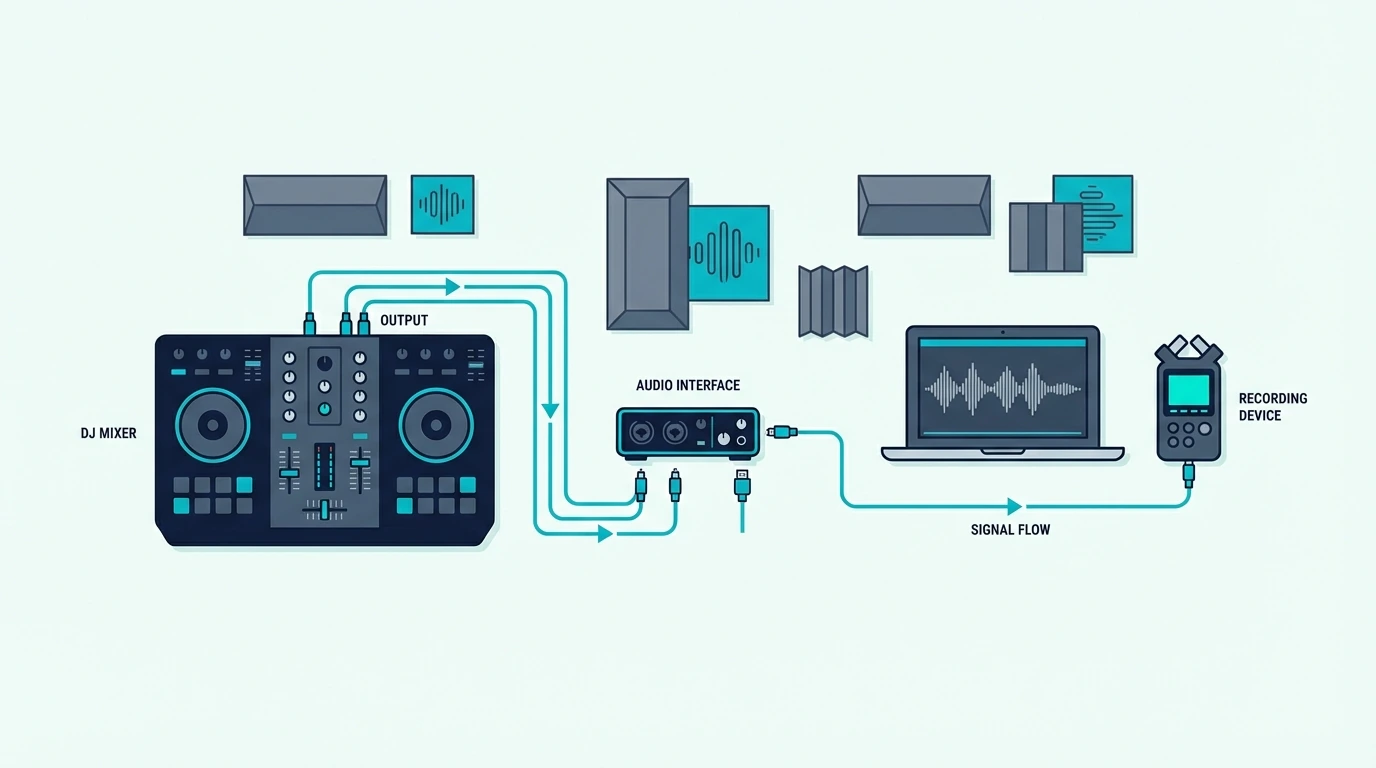
Method 2 — Record With External Software

Recording a DJ mix with an external recorder

Using Audacity (Free)

Audacity is a free audio editor that can record any audio playing through your computer. Set Audacity’s input source to your system audio (or your controller’s sound card), click Record, and it captures everything coming through the master output.

This method works with any DJ software — even Serato DJ Lite, which does not have built-in recording. The tradeoff is that Audacity records everything your computer plays, including notification sounds and system alerts.

Turn on Do Not Disturb mode before recording.

Using OBS Studio (Free Video + Audio)

OBS Studio records your screen with audio — perfect for creating DJ mix videos for YouTube, Twitch, or SoundCloud. Set OBS to capture your DJ software window and the system audio output, then start recording.

The result is a video file showing your waveforms, track transitions, and effects in real time. Many DJs use this method to build an audience by sharing recorded sets on social media.

Audio Interface Recording

If your controller has a dedicated recording output (some pro-level units do), you can route the master audio directly into an audio interface connected to a separate computer or recording device. This captures the cleanest possible signal with zero software interference.

This method is overkill for most home DJs. Software recording produces identical audio quality for 99 percent of use cases.

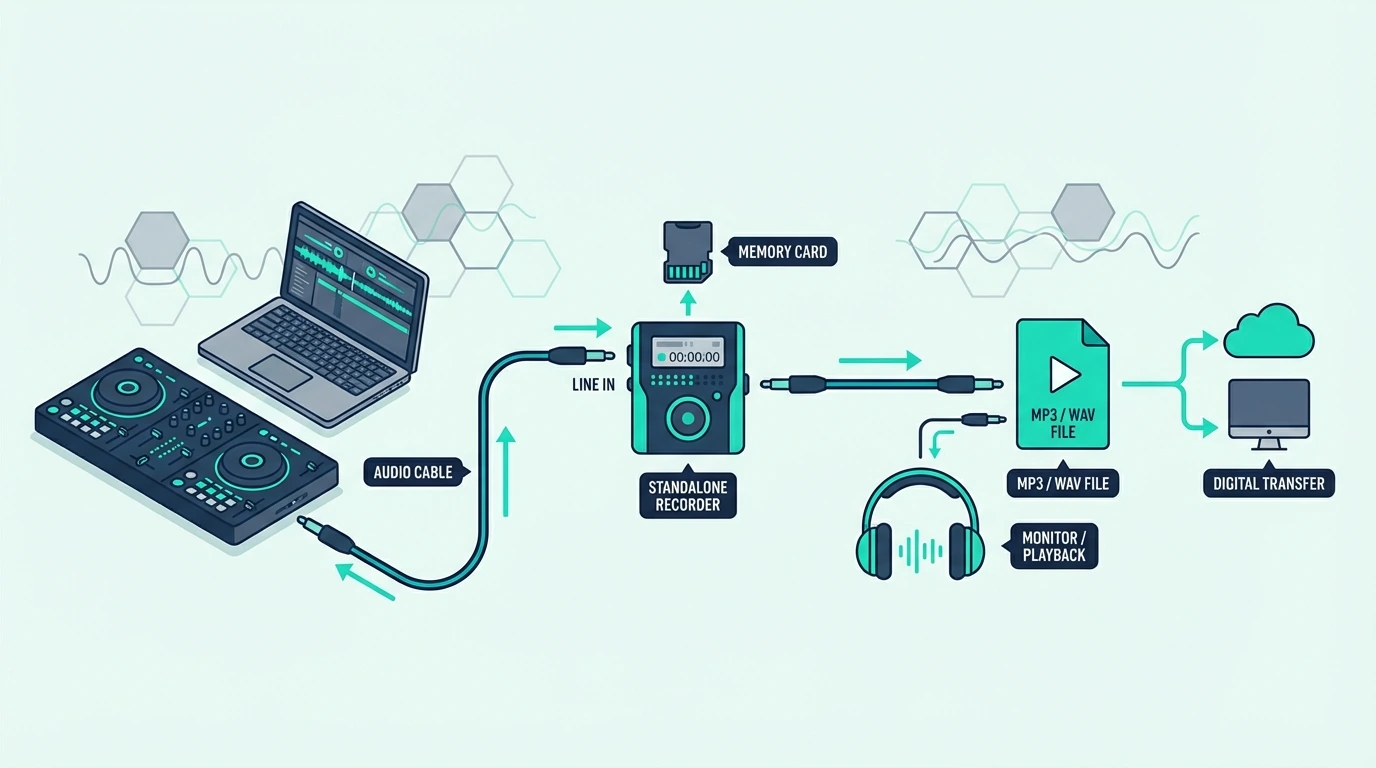
Method 3 — Record on Standalone Controllers

Standalone DJ mix recording method

Engine DJ Recording

Standalone controllers running Engine DJ (Denon SC LIVE series, RANE SYSTEM ONE) record mixes directly to a USB drive. No laptop, no software — the controller handles everything internally.

Press the record button on the unit, and Engine DJ captures the master output as a WAV file on your USB drive. When the set ends, the file is ready to transfer to your computer for editing or sharing.

Phone Recording (Backup Method)

In a pinch, plug a 3.5mm cable from your controller’s headphone output into your phone’s microphone input and use any voice recording app. The audio quality is lower than software recording, but it captures your mix when no other method is available.

This works best as a backup — not a primary recording method. The headphone output may introduce volume peaks that clip on phone recordings.

The Pioneer DJ DDJ-FLX2 with Rekordbox software recording is a cleaner solution at any budget level.

Tips for Better DJ Mix Recordings

Tips for recording a cleaner DJ mix

Set Levels Before Recording

Watch your master level meter in the DJ software. The meter should peak in the yellow zone — never in the red.

Red means clipping, which adds distortion to your recording that cannot be fixed in post.

Lower the master gain until your loudest moments peak just below the red zone. That headroom prevents distortion while keeping the recording loud enough to sound professional.

Record the Full Set

Start recording before your first track and stop after your last transition. Editing out silence at the beginning and end is trivial in any audio editor.

Missing the start of your set because you forgot to hit record is not fixable.

Many DJs develop the habit of clicking Record as the very first action of every practice session. Even throwaway sessions sometimes produce transitions worth keeping.

Edit and Export

After recording, trim the silence from the beginning and end using Audacity or any audio editor. Normalize the audio level to -1 dB for consistent volume across the mix.

Export as MP3 (320 kbps) for sharing on SoundCloud, Mixcloud, or social media. Export as WAV for archival quality.

Most streaming platforms accept both formats.

Tag Your Mix

Add metadata (title, artist name, tracklist) to the exported file before uploading. Platforms like Mixcloud require a tracklist for copyright compliance, and SoundCloud displays metadata in the player.

A well-tagged mix with a tracklist looks professional and helps listeners find specific tracks they discover during your set. That discoverability drives followers and builds your audience over time.

Where to Share Your Recorded Mix

Platforms for sharing a recorded DJ mix

Mixcloud is the primary platform for DJ mixes because it handles licensing automatically — you can upload mixes containing copyrighted tracks without takedown risk. SoundCloud allows DJ mixes but may flag copyrighted content.

YouTube is best for video mixes recorded with OBS.

For DJs building a following, posting a weekly or monthly mix on Mixcloud with a consistent upload schedule attracts subscribers who return for each new set. Your DJ software choice does not affect where you can share — every platform accepts standard audio and video files.

The Bottom Line

Recording a DJ mix takes one click in most DJ software. Rekordbox and DJUCED record for free.

Virtual DJ Home records audio for free. Serato requires DJ Pro.

For any software that lacks recording, Audacity captures system audio at zero cost.

Start recording every practice session. The habit costs nothing, and the recordings become a portfolio that documents your progress, captures your best transitions, and builds an audience when shared on the right platforms.

Frequently Asked Questions

How do I record a DJ mix on my computer?

Use your DJ software’s built-in recording feature (Rekordbox, Virtual DJ, or DJUCED all record for free). Click the record button before you start mixing, and the software captures the master output as a WAV or MP3 file.

If your software does not support recording, use Audacity to capture system audio.

Can I record a DJ mix with Serato DJ Lite?

No — Serato DJ Lite does not include recording. You need Serato DJ Pro (paid) or an external recording tool like Audacity.

Alternatively, switch to Rekordbox or Virtual DJ, which both record for free.

What format should I export my DJ mix in?

Export as MP3 at 320 kbps for sharing on SoundCloud, Mixcloud, or social media. Export as WAV for archival quality.

Most platforms accept both formats.

Where is the best place to upload DJ mixes?

Mixcloud is the safest platform for DJ mixes because it handles music licensing automatically. SoundCloud is popular but may flag copyrighted tracks.

YouTube works best for video mixes recorded with screen capture software.

Best MIDI Pad Controller — Finger Drumming and Sample Triggering Done Right

Best MIDI pad controller is what beat makers and live performers search for when they want hands-on triggering that a keyboard cannot replicate, but the market splits between MPC-style drum pads and large clip-launch grids — and choosing the wrong format leaves you with hardware that fights your workflow.

The problem is caused by “pad controller” covering two fundamentally different product types. MPC-style pad controllers like the Akai MPD series and Maschine Mikro focus on finger drumming, sample chops, and per-hit dynamics. Grid controllers like the Novation Launchpad series focus on clip launching, performance layouts, and visual feedback inside session-based DAWs. Most roundups mash them together without explaining which job each one is built to do.

We sorted the dedicated pad controllers by format and use case so you can match the hardware to how you actually make beats or launch clips. Every pick below was evaluated on pad feel, response, control layout, and whether the design genuinely improves your speed inside a DAW.

Below you will find our top picks sorted by pad layout and workflow, followed by a guide on when MPC-style pads beat grid controllers and vice versa.

Quick Takeaway

The best MIDI pad controller for most producers is the Akai MPD218 because its 16 MPC-style pads feel great for finger drumming and it stays focused on the job. If you work in Ableton and want a larger performance grid, the Novation Launchpad X is the strongest dedicated option in this lineup. Budget and travel-focused producers should look at the Akai LPD8, which keeps real pads and knobs in the smallest footprint here.

Why Pads Change How You Make Beats

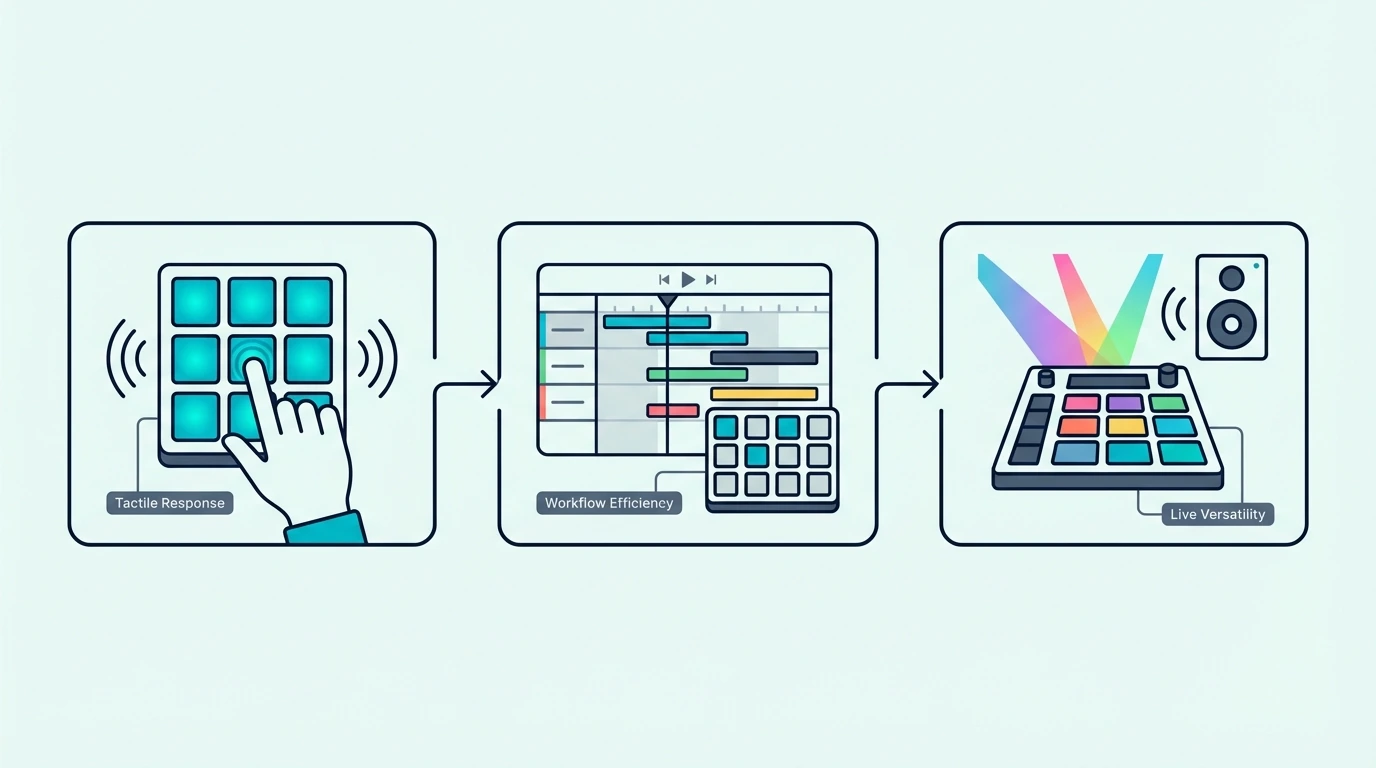
Why pads matter on a MIDI controller

Tapping a velocity-sensitive rubber pad with your fingertip produces a fundamentally different performance than pressing a piano key or clicking a mouse. That physical difference translates directly into how your drums sound in the final mix.

Finger Drumming Captures Natural Groove

When you tap a pad with your finger, the strike naturally varies in timing and velocity from hit to hit. A kick lands slightly ahead of the beat. A snare hits a fraction of a millisecond late. Those micro-variations create groove — the quality that separates a track that makes people nod their heads from one that sounds like a metronome.

Mouse-programmed drums hit at mathematically perfect intervals with identical velocity. Quantized perfection sounds robotic because human rhythm is inherently imperfect. Pads capture that imperfection without you thinking about it.

Sample Triggering In Real Time

Pads let you chop audio samples and trigger slices in real time. Load a vocal sample into your DAW’s sampler, slice it across 8 or 16 pads, and play the slices like an instrument. That real-time manipulation creates rhythmic patterns and arrangements you would never discover by dragging audio regions on a timeline.

The MPC workflow — pioneered by Akai’s hardware samplers — built an entire genre of production around pad-based sample manipulation. Modern MIDI pad controllers bring that same workflow into any DAW through software like MPC Beats, Ableton’s Simpler, and FL Studio’s FPC.

Clip Launching For Live Performance

Pad controllers double as clip launchers in DAWs that support session-based workflows. In Ableton Live, each pad triggers a clip — a drum loop, a bass riff, a vocal chop — and you build arrangements in real time by combining clips on the fly.

The Novation Launchpad series is designed specifically for this workflow. The RGB pad colors mirror Ableton’s Session View, giving you visual feedback on which clips are playing, queued, or stopped.

What Are the Best MIDI Pad Controllers

Top MIDI pad controller picks

Here are 6 dedicated pad controllers sorted by how they handle finger drumming, sampling, and clip launching.

The Akai Professional MPD218 wins Best Overall because it gives you the classic 4×4 pad layout most beat makers actually want, plus enough knobs for basic sound shaping, without bloating the controller with features that slow down the workflow. It is the most balanced pick here for producers who primarily care about finger drumming and sample triggering.

The Akai Professional MPD226 is the best pick if you want your pad controller to do more than just send drum hits. The faders and knobs make it more useful for sample shaping, mixer moves, and hardware control, while the RGB pads keep the classic MPC feel intact.

The Akai Professional LPD8 is the best budget choice because it gives you real pads and real knobs in a footprint small enough to throw in a laptop bag. You sacrifice the full 16-pad layout, but for mobile beat making and quick sample triggering, the tradeoff is worth it.

The Native Instruments Maschine Mikro Mk3 is the best option for producers who want a deeper beat-production environment instead of a generic MIDI pad surface. The hardware makes the most sense if you want sampling, chopping, sequencing, and performance controls tied directly into the Maschine ecosystem.

The Novation Launchpad Mini MK3 is the best portable grid controller for performers who live in Ableton and want maximum clip-launching real estate in minimum space. It is brilliant for triggering clips, scenes, and one-shots on the go, but it is not the pad controller to buy for nuanced finger drumming.

And the Novation Launchpad X is the best dedicated pad controller for Ableton users who want expressive pads rather than simple on/off buttons. It is the controller here that most cleanly bridges clip launching and playable pad performance.

Should You Choose MPC-Style Pads or Grid Controllers

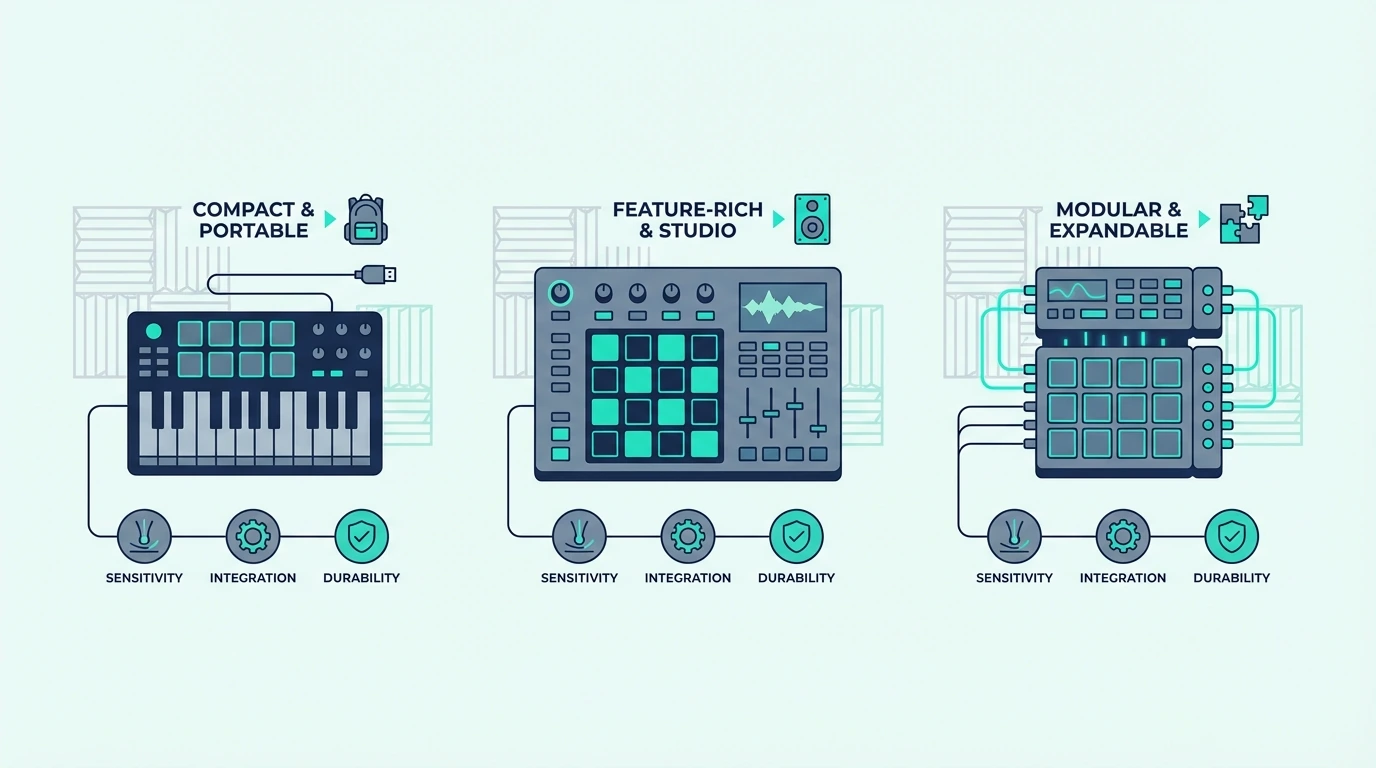
Standalone pad controllers compared with combo controllers

The format decision matters more than any individual spec sheet bullet point. Here is how to choose the pad layout that actually matches your workflow.

When MPC-Style Pads Win

Producers who finger-drum complex patterns usually want a 4×4 layout with thicker pads and familiar spacing. Controllers like the MPD218, MPD226, and Maschine Mikro are built around that feel. They make it easier to play a full kit, use note repeat, and capture natural velocity differences from hit to hit.

MPC-style pads also make more sense when you mostly work with drum racks, samplers, and chopped one-shots instead of large session grids. The layout is optimized for performance drumming first and everything else second.

When Grid Controllers Win

Grid controllers like the Launchpad Mini MK3 and Launchpad X are better if your workflow is centered on Ableton Live, clip launching, and visual performance layouts. The 8×8 grid maps naturally to Session View, and the RGB feedback makes it easier to see what is armed, playing, or queued.

The Launchpad X also works better than most people expect for melodic performance because its pads are velocity-sensitive and support polyphonic aftertouch. The Launchpad Mini is more of a launch-and-trigger surface than a true expressive pad instrument.

Where Maschine Fits

Maschine Mikro sits between a classic MIDI pad controller and a compact groovebox workflow. It is still a dedicated pad controller, but it makes the most sense when you want hardware and software designed around sampling, sequencing, and beat construction as one connected system.

That is why Maschine is brilliant for some producers and too specialized for others. If you want generic MIDI pads for any DAW, Akai or Novation is safer. If you want a beat-production environment, Maschine is stronger.

Pad Sensitivity And Velocity Curves

Not all pads respond the same way to finger strikes. Some pads require heavy hits to register high velocity, while others trigger maximum velocity from a light tap. The best pad controllers let you adjust the velocity curve to match your playing style.

Akai’s MPC-style pads use a proven sensitivity curve refined across decades of hardware sampler development. Launchpad X adds a more performance-oriented take with velocity sensitivity and aftertouch, while Launchpad Mini strips that out in exchange for portability. If expressive finger drumming matters most, prioritize Akai or Maschine. If clip launching matters most, prioritize Launchpad.

The Bottom Line

The Akai MPD218 is the best MIDI pad controller for most producers because it stays locked on the core job: finger drumming, sample triggering, and fast beat entry. If your setup revolves around Ableton Live and clip launching, buy the Novation Launchpad X. If you want the cheapest good entry point, the Akai LPD8 gets you started without wasting money.

If pads are your primary input method and keys are secondary, pair one of these dedicated pad controllers with a separate keyboard controller instead of forcing everything into one cramped device.

Frequently Asked Questions

Do I need a pad controller for beat making?

Not strictly — you can program drums using keyboard keys mapped to drum sounds in your DAW’s sampler. Pads improve the workflow by providing velocity-sensitive surfaces designed for finger drumming, which captures more natural groove than keyboard-based triggering.

How many pads do I need?

Eight pads cover kick, snare, hi-hat, and five additional sounds — enough for most beat-making workflows with pad bank switching. Sixteen pads give you a full kit without switching banks, which speeds up complex finger drumming patterns.

Are grid controllers as good for finger drumming as MPC-style pads?

Not usually. MPC-style controllers like the MPD218 and Maschine Mikro use layouts and pad feel designed for drum performance first. Grid controllers like the Launchpad X can absolutely play drums, but they are optimized for clip launching and multi-purpose performance layouts. The Launchpad Mini is even less drum-focused because its pads are not velocity-sensitive.

Can I use a pad controller with any DAW?

Yes — MIDI pad controllers work with every DAW because they send standard MIDI messages. The difference is integration depth. Akai’s pad controllers behave like straightforward MIDI devices, while Launchpad models feel most at home in Ableton and Logic because their clip-launching and session workflows are more deeply supported there.

How to Mix Music DJ Style — A Step-by-Step Guide for Complete Beginners

How to mix music DJ style sounds intimidating — but the core technique is simpler than most beginners expect. You play one track through the speakers, preview a second track in your headphones, match the tempos, align the beats, and blend the second track in while the first fades out.

That four-step sequence is the foundation of every DJ mix ever performed.

The problem is that most tutorials skip the ear-training step and jump straight to visual waveform matching. You end up watching your laptop screen instead of listening to the music, which creates a dependency that collapses the moment you play on unfamiliar gear without a visual display.

That visual crutch is caused by how DJ software presents information — colorful waveforms make it easy to align beats by eye, which feels faster than training your ears. But ear-based mixing produces smoother transitions and develops the instinct you need to read a crowd and react to the room.

Below, you will find a step-by-step mixing guide that teaches you to mix by ear first, with waveforms as a backup — so you build real skills that transfer to any DJ setup, any venue, and any software platform.

Quick Takeaway

To DJ mix, you need a controller with a sound card (for headphone cueing), DJ software (Rekordbox, Serato, or Virtual DJ), and two tracks with similar tempos. Load Track A on Deck 1 and play it. Preview Track B in your headphones on Deck 2. Match the tempo using the pitch fader. Align the beats by ear. Blend Track B in using the crossfader or volume fader while cutting Track A’s bass.

What You Need to Start Mixing

Essential DJ mixing gear for beginners

Hardware

A DJ controller with a built-in sound card is the minimum requirement. The sound card lets you hear Track B in your headphones while Track A plays through the speakers — that split monitoring is what makes live mixing possible.

The Pioneer DJ DDJ-FLX4 is the most popular mixing controller because it supports both Rekordbox and Serato with a built-in sound card that handles headphone cueing with zero latency.

Software

Rekordbox, Serato DJ Lite, and Virtual DJ Home all support the mixing workflow described in this guide. The software analyzes your tracks, detects BPM (beats per minute), and displays waveforms — but you should learn to mix by ear before relying on these visual aids.

Your controller determines which software you use. Pioneer bundles Rekordbox.

Numark and Hercules bundle Serato DJ Lite. Virtual DJ works with most controllers through native or MIDI mapping.

Headphones

Any over-ear headphones with decent isolation work for mixing practice. You do not need DJ-specific headphones to start — but they should cover your ears fully so you can hear Track B clearly while Track A plays through your speakers at room volume.
Step 1 — Load and Play Track A

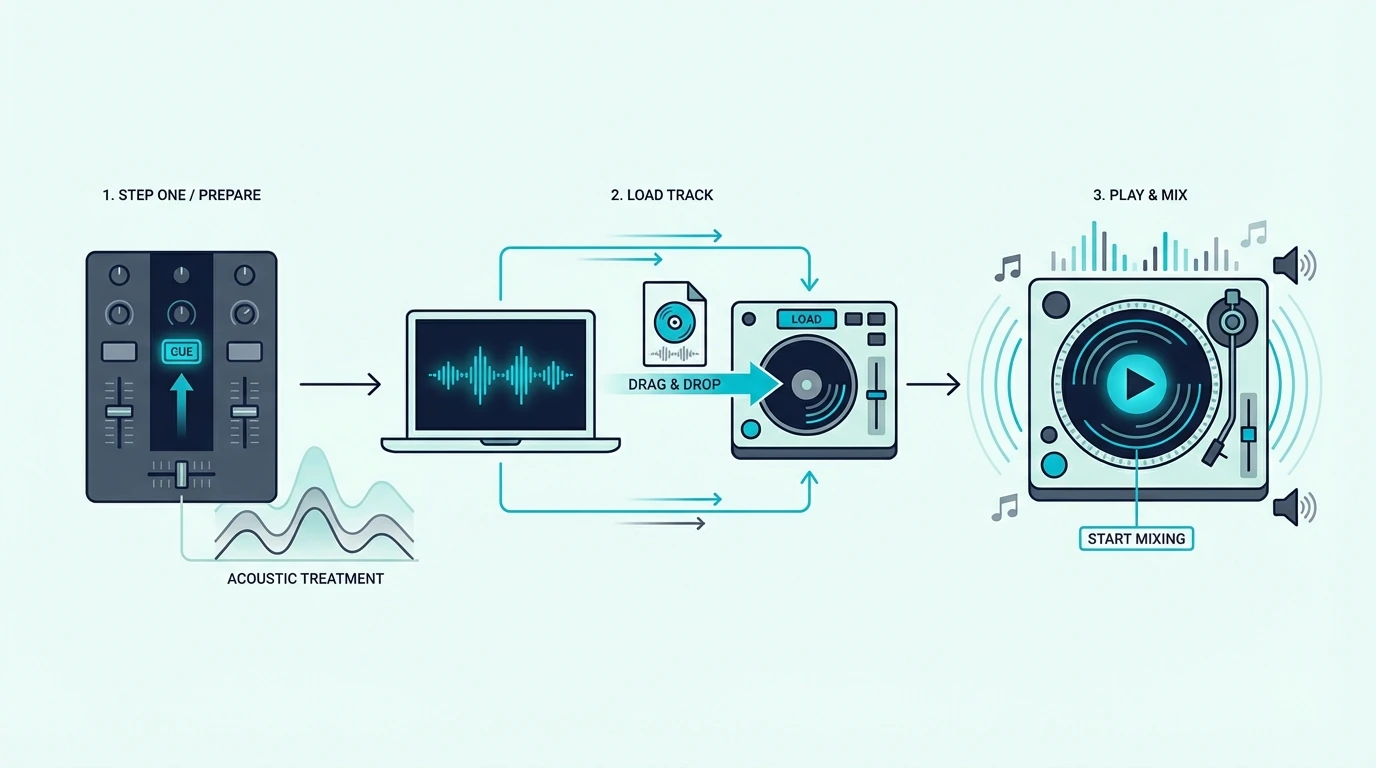
Step one of DJ mixing: loading and playing a track

Choose Your First Track

Pick a track with a clear, steady beat — house, techno, pop, or hip-hop with a consistent 4/4 rhythm. Avoid tracks with tempo changes, long ambient intros, or irregular beat patterns until you master the basics.

Load the track onto Deck 1 in your DJ software. The waveform appears on screen showing the beat structure visually.

Set It Playing

Press play on Deck 1. The track plays through your main speakers.

This is what your audience hears — it stays playing until you blend in the next track.

Adjust the main volume so the track plays at a comfortable listening level. You will match Track B to this level in your headphones.

Step 2 — Cue Track B in Headphones

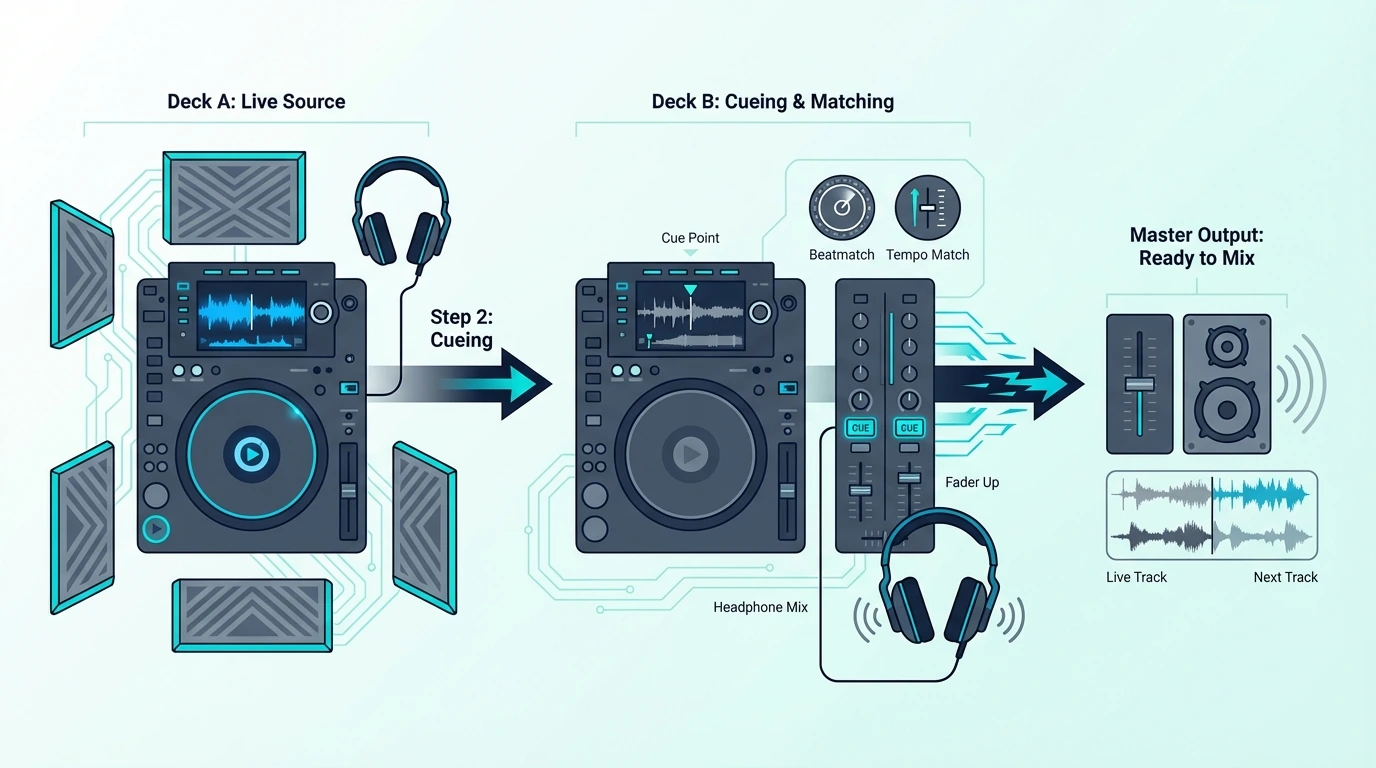
Step two of DJ mixing: cueing the next track

Load the Second Track

Load a second track onto Deck 2. Choose something with a similar BPM — within 5 BPM of Track A for your first attempts.

The software displays the BPM of both tracks, making tempo matching easier.

Preview in Headphones

Press the cue button for Deck 2 on your controller. Track B now plays in your headphones while Track A continues through the speakers.

You hear both — Track A faintly through the room, Track B clearly in your headphones.

Use the cue/master blend knob on your controller to adjust the balance between what you hear in headphones (Track B) and what plays through speakers (Track A). Start with 100 percent cue so you hear only Track B in your headphones.

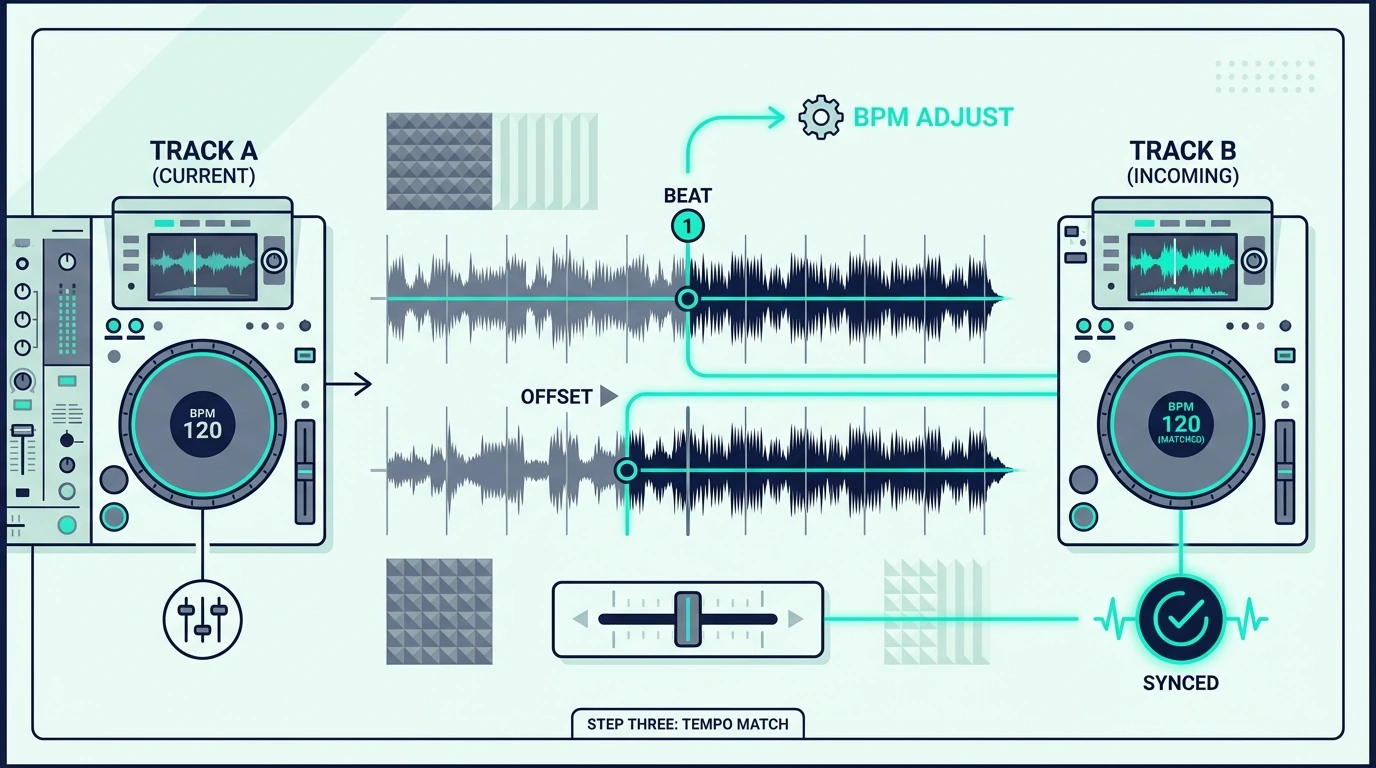
Step 3 — Match the Tempo

Step three of DJ mixing: matching tempo

Use the Pitch Fader

The pitch fader on Deck 2 adjusts the track’s playback speed. If Track B is slower than Track A, push the pitch fader up to speed it.

If Track B is faster, pull the pitch fader down to slow it.

The goal is matching Track B’s tempo exactly to Track A’s tempo. When both tracks play at the same BPM, the beats align naturally.

Listen for the Drift

Even with matched BPMs, the beats may drift out of alignment over time. You hear this as a “flamming” sound — two kick drums hitting slightly apart instead of together.

That flam tells you the tracks are close but not locked.

Nudge the jog wheel on Deck 2 forward (to push the beat earlier) or backward (to pull it later) until the flam disappears and both kicks land as one. The Hercules DJControl Inpulse 500 makes this step easier with LED light guides that pulse in sync with the beat, showing you visually when the beats align.

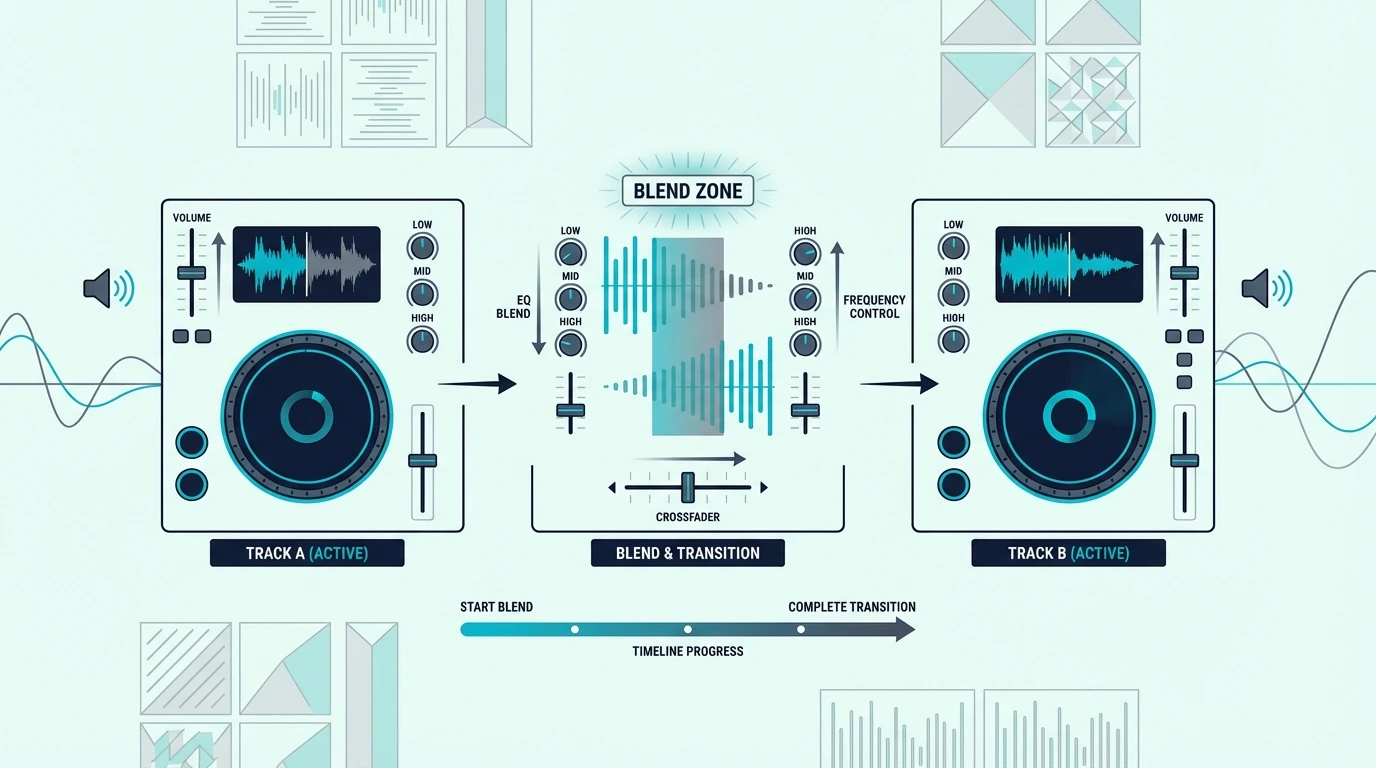
Step 4 — Blend the Tracks Together

Step four of DJ mixing: blending tracks together

The EQ Mixing Technique

Once the beats are aligned, bring Track B into the mix gradually. The cleanest method is EQ mixing: cut the bass (low EQ) on Track B completely, then slowly bring up Track B’s volume fader while simultaneously cutting Track A’s bass.

That bass swap prevents two kick drums from competing for the same frequency space — which would sound muddy and boomy. One track’s bass exits as the other’s enters, creating a smooth handoff that the audience feels rather than hears.

The Crossfader Method

Alternatively, use the crossfader to blend. Start with the crossfader fully on Track A’s side.

Slowly move it toward the center (both tracks play equally) and then fully to Track B’s side (Track A fades out completely).

The crossfader method is simpler but less nuanced than EQ mixing. Most beginner DJs start with the crossfader and graduate to EQ mixing as their ears develop.

For scratch DJs, the crossfader serves a completely different purpose — rapid open-close patterns that create rhythmic effects.

Timing the Transition

Start your blend at a musically logical point — the beginning of a new 8-bar or 16-bar phrase. Most dance music follows the “rule of 32” where major sections change every 32 bars.

Starting your transition at a phrase boundary makes the blend feel intentional and musical.

Counting phrases becomes automatic after a few weeks of practice. Listen for the moments when the track’s energy shifts — that is where transitions sound most natural.
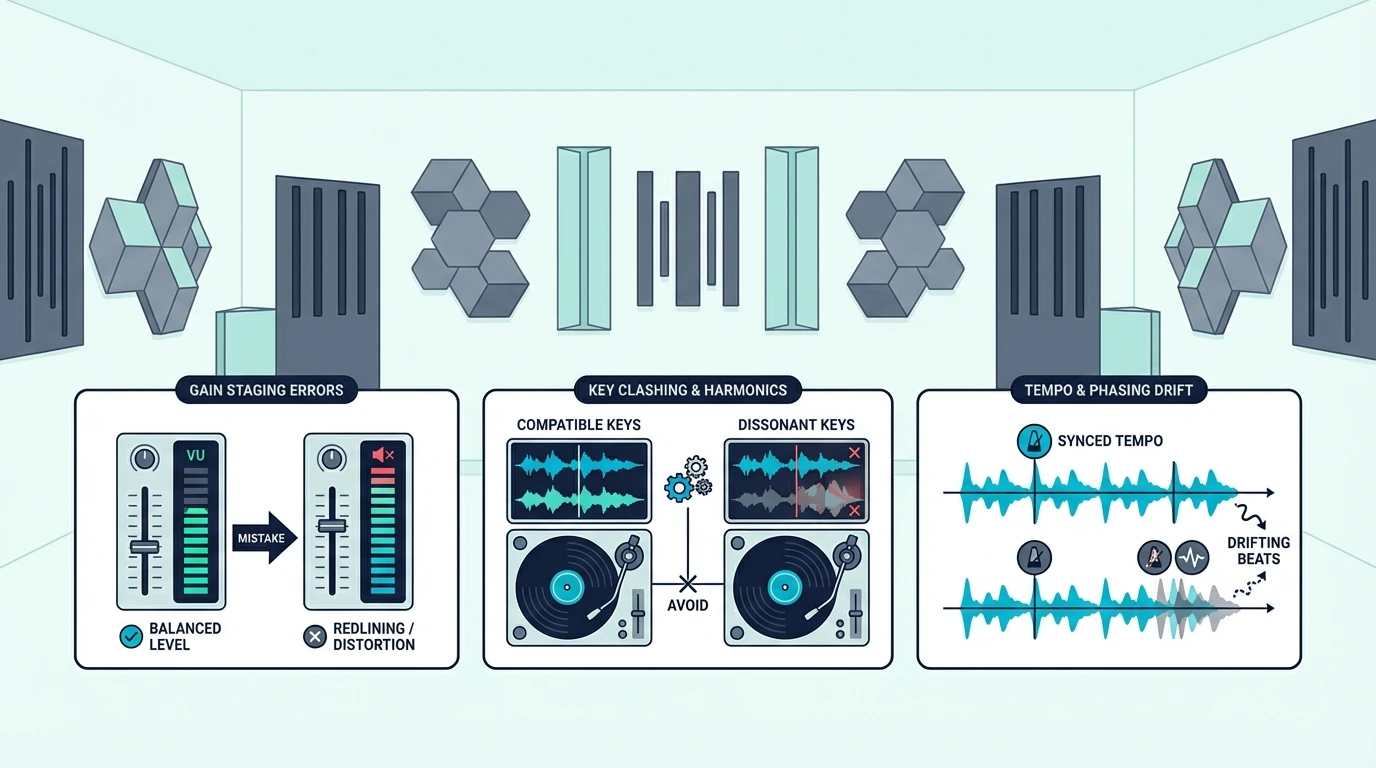
Common Mixing Mistakes

Common beginner DJ mixing mistakes

Mixing Mismatched Tempos

Blending a 128 BPM house track into a 90 BPM hip-hop track sounds terrible because the beat patterns conflict. Stay within 5 BPM for your first transitions, and expand the range as your pitch-matching improves.

The Pioneer DJ DDJ-FLX2 displays BPM for both decks on screen, making tempo matching straightforward even for complete beginners.

Transitioning Too Fast

Rushing the blend is the most common beginner mistake. A smooth transition takes 16 to 32 bars — roughly 30 to 60 seconds at 128 BPM.

Cutting from one track to another in 4 bars sounds abrupt and jolting.

Give the audience time to hear both tracks coexist before fully committing to Track B. That overlap period is where the magic of DJ mixing lives.

Ignoring Key Compatibility

Tracks in clashing musical keys sound dissonant when layered together. DJ software displays the key of each track — match tracks with the same or compatible keys for harmonically pleasing transitions.

Key matching is not mandatory for beginners, but it separates good transitions from great ones. Start by matching tempos, then add key awareness as your library knowledge grows.

The Bottom Line

DJ mixing is a four-step process: load, cue, match, blend. Master those four steps with two tracks, and every mixing technique you learn from that point forward builds on the same foundation.

Practice 15 minutes per day with your controller and headphones. Within two weeks, you will match tempos by ear.

Within a month, your transitions will sound clean enough to play at a house party. Within three months, you will start developing your own mixing style.

Frequently Asked Questions

How long does it take to learn DJ mixing?

Most beginners can beatmatch two tracks manually within two to four weeks of daily 15-minute practice. Clean EQ transitions take one to two months.
Developing a personal mixing style and reading a crowd takes six months to a year.

Do I need to learn to beatmatch manually?

Manual beatmatching trains your ears to hear tempo differences — a skill that transfers to every DJ setup and situation. The sync button handles tempo matching automatically, but relying on it creates a dependency that fails on unfamiliar gear.

What genre is easiest to learn mixing with?

House music (around 124-128 BPM) and techno (128-135 BPM) are the easiest genres to start with because they have consistent 4/4 beats, predictable phrase structures, and minimal tempo variation within tracks.

Can I learn to DJ mix without a controller?

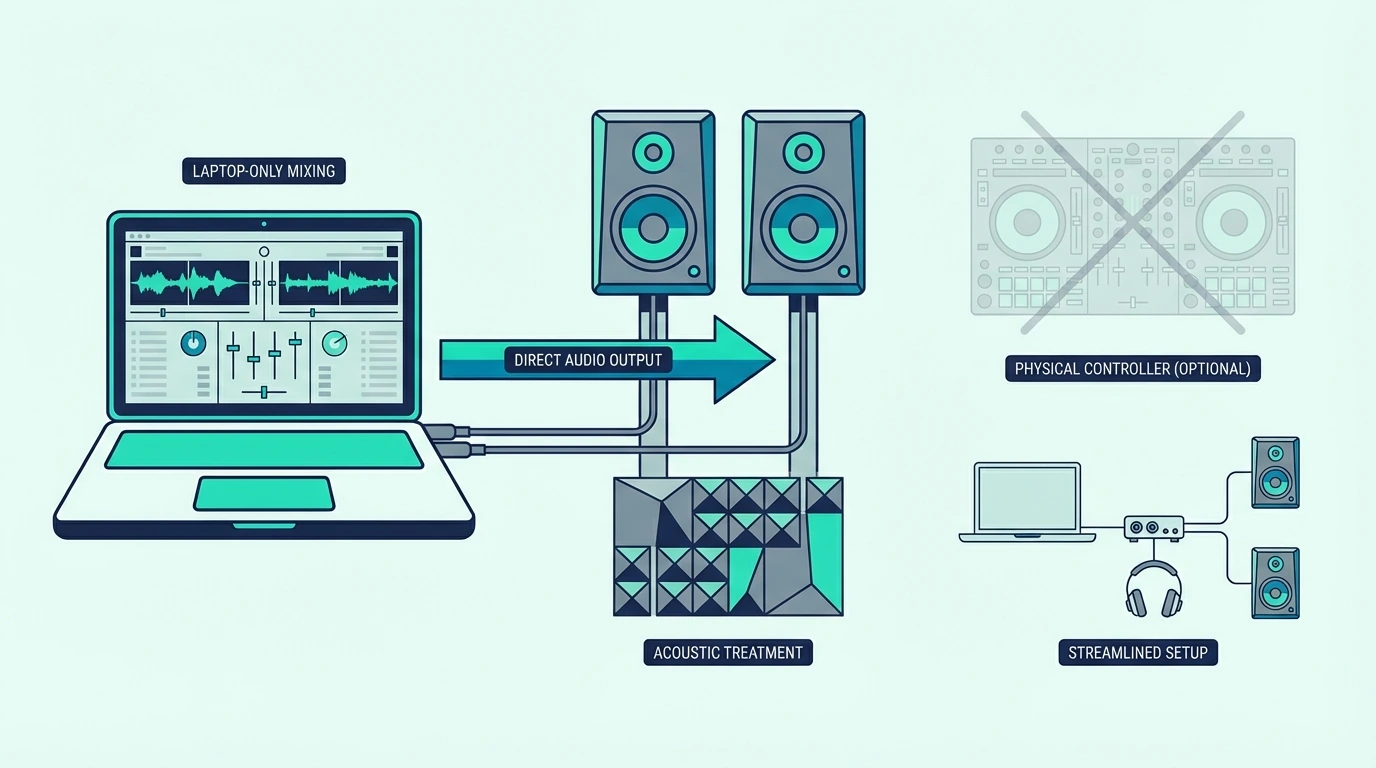
You can practice basic mixing with mouse-and-keyboard using free software like Virtual DJ Home. The limitation is that you cannot cue by ear without a sound card — which means you will rely on visual waveform matching instead of developing real listening skills.

Best Weighted MIDI Keyboard — Controllers That Feel Like a Real Piano

Best weighted MIDI keyboard is what every pianist searches for when they want their MIDI controller to feel like the acoustic instrument they trained on, but most products labeled “weighted” actually deliver semi-weighted action that won’t satisfy a classically trained player.

The problem is caused by manufacturers using “weighted” as a marketing catch-all for any key action heavier than standard synth keys. True weighted hammer action and semi-weighted spring action feel dramatically different under your fingers, and confusing the two leads to expensive disappointment.

We sorted the weighted and semi-weighted MIDI keyboards by actual key mechanism type — not marketing labels — so you can match the action to your playing background. Every pick below specifies exactly what type of weighting it uses and who it serves best.

Below you will find our top picks sorted by key action type, followed by a guide on understanding the real differences between synth-action, semi-weighted, and fully weighted hammer action.

Quick Takeaway

The best weighted MIDI keyboard is the Yamaha P71 for true hammer action that mimics an acoustic piano. For semi-weighted keys at a lower price, the M-AUDIO Keystation 88 MK3 delivers 88 keys with transport controls under three hundred dollars. Producers who want semi-weighted keys with pads and faders should consider the Novation Launchkey 61 MK4.

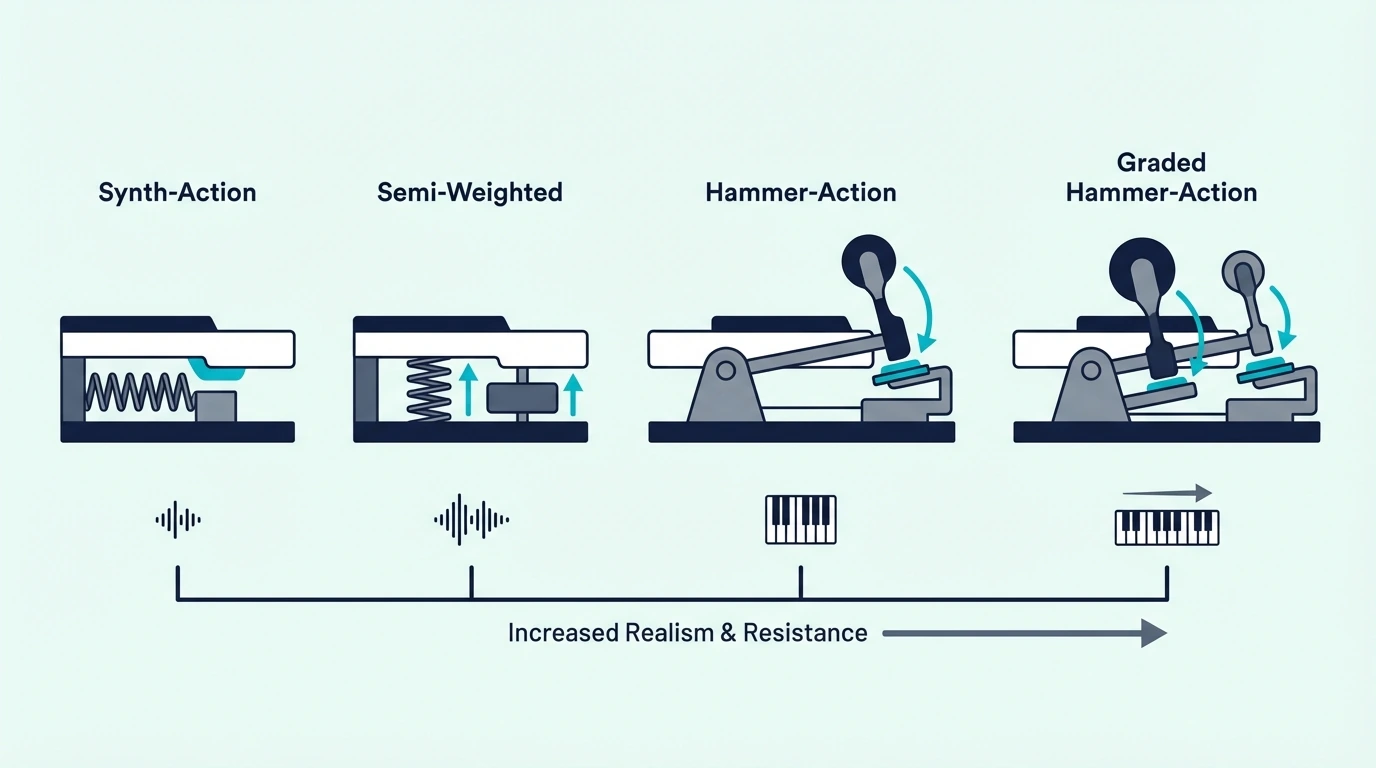
What Are the Different MIDI Key Action Types

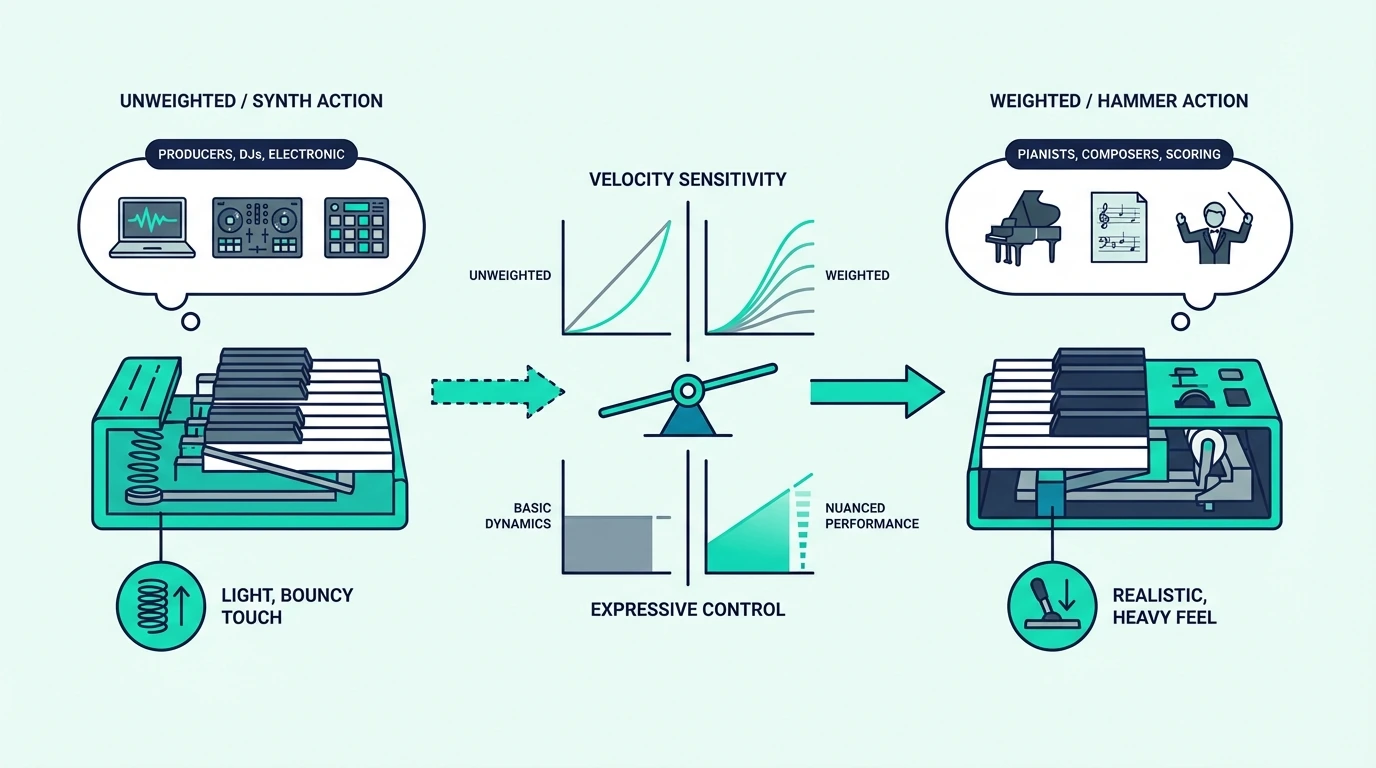
Key action types for weighted MIDI keyboards

The weight of a MIDI keyboard’s keys determines how it feels to play and who it serves best. Three distinct action types exist, and each targets a different musician.

Synth Action (Unweighted)

Synth-action keys use a simple spring mechanism with minimal resistance. The keys feel light and bouncy, returning to rest position almost instantly after release. This action favors speed — fast synth leads, rapid repeated notes, and organ-style playing all benefit from lightweight keys.

Controllers like the M-AUDIO Keystation 49 MK3 and Nektar SE49 use synth action. The feel is nothing like an acoustic piano, which is by design — these controllers are production tools, not practice instruments.

Semi-Weighted Action

Semi-weighted keys add spring resistance that creates a more substantial feel than synth action without simulating real piano hammer weight. The keys push back enough to feel musical but remain light enough for extended production sessions without finger fatigue.

The M-AUDIO Keystation 88 MK3 represents the semi-weighted category well — 88 keys with enough resistance to feel intentional but not enough to simulate a grand piano. Producers, composers, and multi-genre musicians who need a middle ground between speed and substance prefer this action type.

Fully Weighted (Hammer Action)

Fully weighted keys use a mechanical hammer mechanism that physically simulates how an acoustic piano responds. The bass keys feel heavier than the treble keys, matching the graded weight distribution of a real grand piano.

The Yamaha P71 uses Graded Hammer Standard (GHS) action — the same mechanism found in Yamaha’s entry-level acoustic pianos. Pianists who practice classical repertoire, teach lessons, or prepare for performances need this level of key authenticity because anything lighter builds muscle memory that does not transfer to a real piano.

What Are the Best Weighted MIDI Keyboards

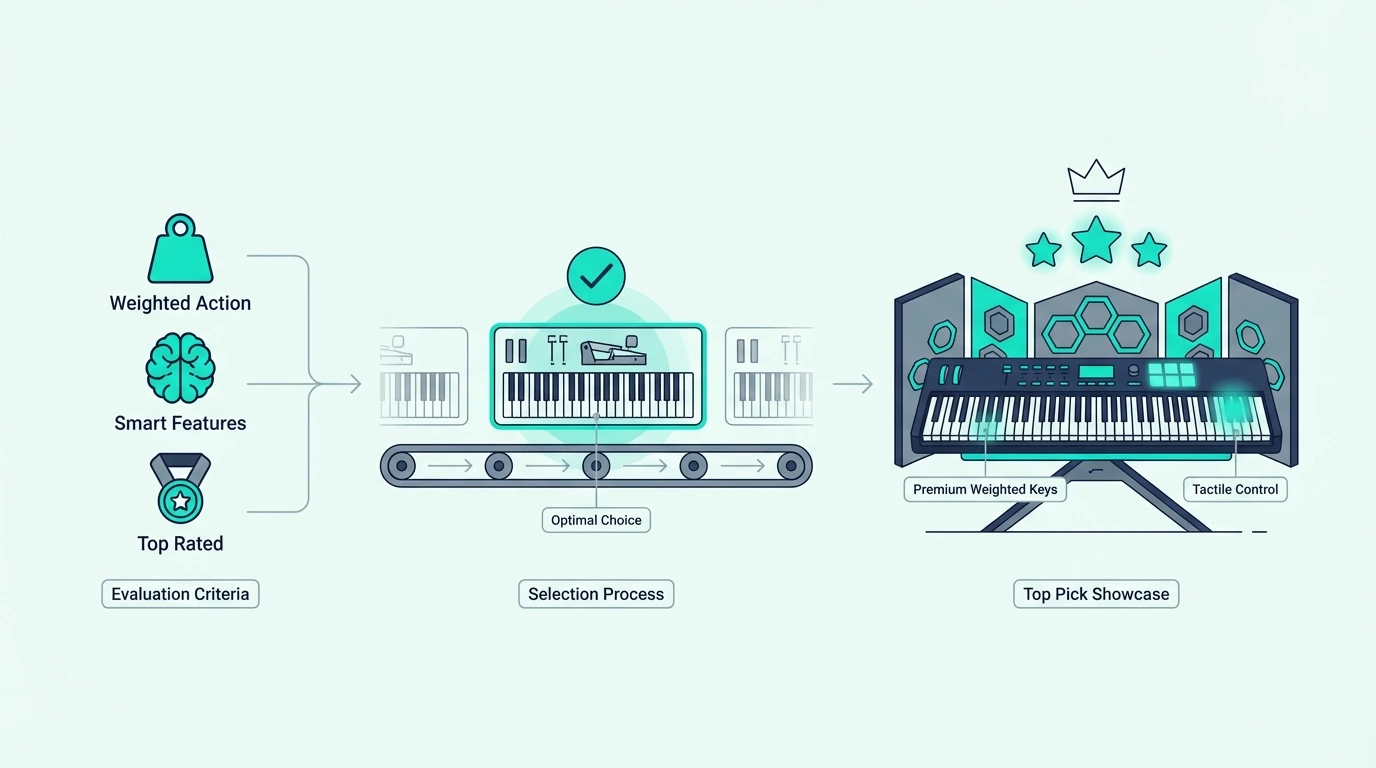
Top weighted MIDI keyboard picks

Here are 6 controllers sorted by key action type, from the heaviest weighted feel to the lightest alternative.

The Yamaha P71 88-Key Weighted Digital Piano wins Best Overall because the GHS hammer action is the closest thing to an acoustic piano feel in this price range. The 88 weighted keys span the full piano range with graded resistance — heavier in the bass, lighter in the treble. Ten built-in sounds let you practice without a computer, and the USB MIDI output sends your performance to any DAW.

The M-AUDIO Keystation 88 MK3 takes Best Semi-Weighted for producers who want the full 88-key range without the weight and cost of hammer action. The semi-weighted keys feel more substantial than synth action while remaining responsive enough for electronic music production.

The Novation Launchkey 61 MK4 earns Best With Extras because its 61 semi-weighted keys come alongside 16 RGB pads, 9 faders, and aftertouch — features no other weighted controller in this price bracket includes. The semi-weighted action with polyphonic aftertouch adds expression that standard weighted keyboards lack.

The M-AUDIO Keystation 49 MK3 represents the Best Synth-Action alternative for producers who decided weighted keys are not necessary for their workflow. Full-size keys at a hundred nine dollars with transport controls — the benchmark for unweighted production keyboards.

The Nektar SE49 delivers the Best Budget Full-Size option — 49 full-size synth-action keys for under eighty dollars. No weighted action exists at this price point, but the full-size key spacing matches standard piano dimensions.

And the Akai Professional MPK Mini MK3 serves as the Best Production Companion for pianists who own a weighted keyboard for playing and need a compact controller with pads and knobs for production work. The two-controller approach (weighted piano + mini production controller) often costs less than a single premium weighted MIDI controller with all the extras.

Who Actually Needs Weighted Keys

Who needs a weighted MIDI keyboard

Weighted keys add cost, weight, and desk footprint to any MIDI controller. Understanding whether your workflow genuinely benefits from that investment prevents you from overspending on a feature you may never appreciate.

Pianists Who Practice And Perform

If you practice piano scales, learn classical pieces, prepare for recitals, or teach piano lessons, weighted hammer action is non-negotiable. The muscle memory you develop on weighted keys transfers directly to an acoustic piano. Practicing on unweighted keys builds technique that falls apart the moment you sit at a real instrument.

The Yamaha P71’s GHS action is the minimum standard for serious piano practice. Cheaper weighted alternatives exist, but they often use inconsistent weighting that creates dead spots across the keyboard — certain keys feel heavier or lighter than their neighbors, disrupting the natural graded response.
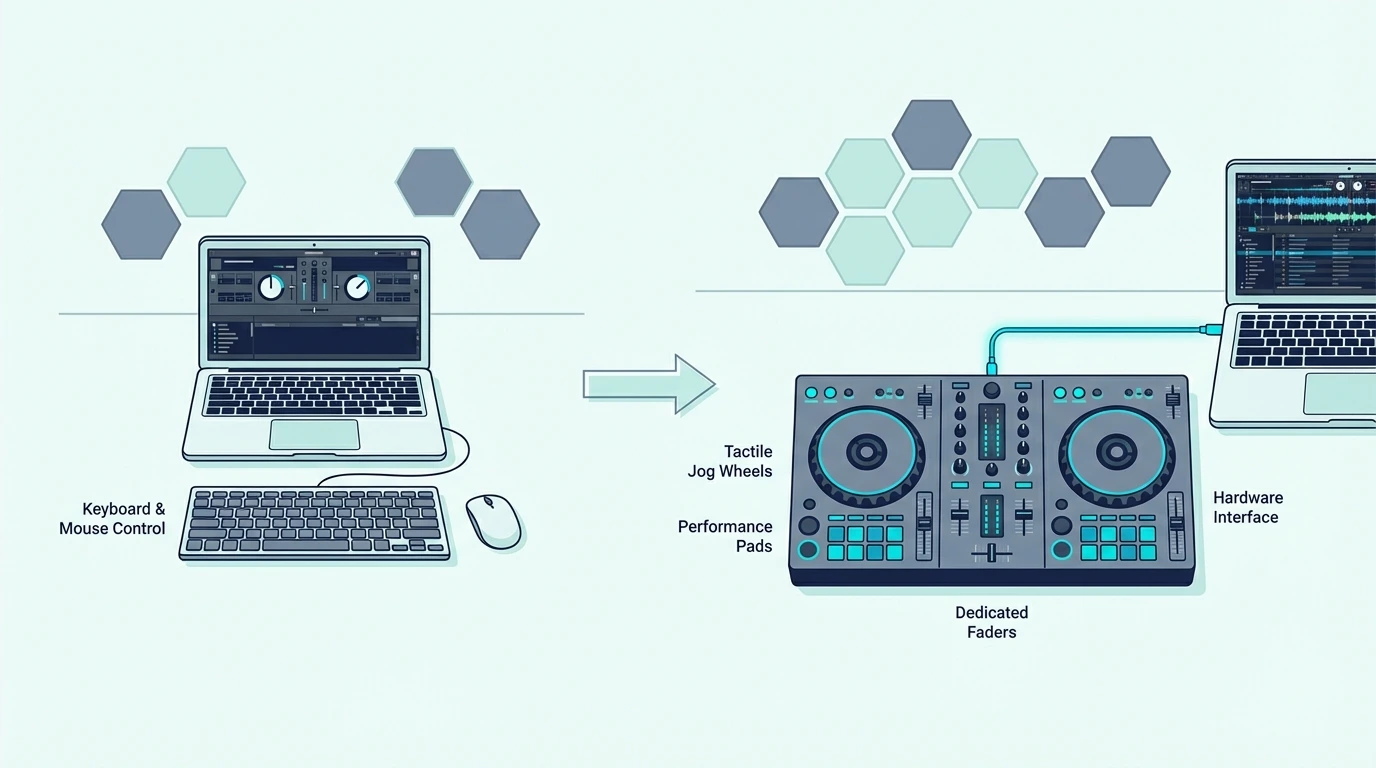
Producers Who Also Play Piano

If you record piano parts in your DAW and want them to sound natural, weighted keys capture the velocity dynamics that make a piano performance expressive. Soft notes come through as whispers. Hard notes come through as powerful strikes. That dynamic range exists in semi-weighted and unweighted controllers too, but the physical feedback of weighted keys helps you instinctively control those dynamics.

Producers who play piano-style parts occasionally but primarily work with synths and beats should consider semi-weighted action instead of fully weighted. The semi-weighted resistance adds feel without the weight penalty, and the lighter action handles non-piano patches more comfortably.

Who Should Skip Weighted Keys

Beat makers, electronic producers who primarily use 25-key controllers with pads, and anyone who programs notes more than performs them should skip weighted keys entirely. The added cost, weight, and desk space provide zero benefit for workflows centered on pad triggering, knob tweaking, and mouse-based MIDI editing.

The Akai MPK Mini MK3 or M-AUDIO Keystation 49 MK3 covers these workflows at a fraction of the cost with a fraction of the desk footprint.

The Weight And Space Reality Check

A fully weighted 88-key controller like the Yamaha P71 weighs 25 pounds and stretches over four feet wide. That footprint demands a dedicated keyboard stand or a very large desk.

Semi-weighted controllers are lighter but still substantially heavier than synth-action equivalents. The M-AUDIO Keystation 88 MK3 weighs roughly 15 pounds — manageable for desk use but not something you toss in a backpack.

If portability matters at all, weighted keys and travel do not mix. Keep the weighted board at home for practice and carry a compact mini controller for mobile production.

The Bottom Line

The Yamaha P71 is the best weighted MIDI keyboard for pianists who need authentic hammer action that transfers to acoustic piano playing. For producers who want weighted feel without the full piano commitment, the M-AUDIO Keystation 88 MK3 delivers semi-weighted 88 keys at under three hundred dollars.

If weighted keys are not essential for your workflow, skip the premium and invest in a quality unweighted controller that matches how you actually produce.

Frequently Asked Questions

What is the difference between weighted and semi-weighted MIDI keyboards?

Weighted (hammer action) keys use a mechanical hammer that simulates acoustic piano feel — heavier in the bass, lighter in the treble. Semi-weighted keys use springs for resistance without simulating hammer mechanics. Weighted feels like a real piano. Semi-weighted feels more substantial than unweighted but lighter than a real piano.

Do I need weighted keys for music production?

Only if you record piano parts that require natural velocity dynamics and you want the physical feedback of piano-like resistance. For synths, beats, and electronic production, semi-weighted or synth-action keys work equally well and cost significantly less.

Are weighted MIDI keyboards heavier?

Yes — fully weighted 88-key controllers weigh 20-30 pounds compared to 5-10 pounds for semi-weighted or synth-action equivalents. The hammer mechanism adds significant physical weight. Factor in desk support and portability when choosing.

Can I practice piano on a semi-weighted MIDI keyboard?

You can learn notes and basic technique, but the muscle memory will not transfer accurately to an acoustic piano. Semi-weighted keys respond differently than hammer-action keys, and the techniques you develop (finger strength, touch control) will feel different on a real instrument. Serious piano students should invest in fully weighted hammer action.

Best Mini MIDI Keyboard — Compact Controllers That Fit Anywhere Without Sacrificing Features

Best mini MIDI keyboard is the search that leads to the most crowded product category in music production hardware, but the controllers hiding behind that label range from bare-bones key strips to full production command centers — and picking the wrong type wastes money on a form factor that does not match how you actually create.

The problem is caused by “mini” meaning two different things depending on the manufacturer. Some mini keyboards shrink only the physical size while keeping feature density high (pads, knobs, arpeggiators). Others strip everything except tiny keys to hit the lowest possible price point. Both get labeled “mini,” but they serve completely different producers.

We sorted the mini MIDI keyboards by what they actually deliver beyond compact size. Every pick below was evaluated on key feel despite the smaller form factor, build quality under travel conditions, and whether the extras justify the price premium over keys-only alternatives.

Below you will find our top picks sorted by feature set and price, followed by a guide on choosing between mini and full-size controllers based on your real workflow needs.

Quick Takeaway

The best mini MIDI keyboard is the Akai MPK Mini MK3 — it packs 25 keys, 8 MPC pads, 8 knobs, an arpeggiator, and bundled software into a backpack-friendly package for ninety-nine dollars. For pure portability at the lowest price, the Nektar SE25 weighs 1.3 pounds and costs under fifty dollars. Bluetooth users should consider the M-VAVE for wireless iPad and phone production.

What Makes A Mini MIDI Keyboard Worth Buying

What makes a mini MIDI controller worth buying

A mini MIDI keyboard earns its place in your setup by solving a specific problem: getting musical input into your DAW when space, portability, or budget eliminates full-size options. The controllers that solve this problem best balance compact size with enough features to be genuinely productive.

Size And Weight Define The Category

Mini MIDI keyboards typically measure 12 to 16 inches wide and weigh between 1 and 2.5 pounds. That footprint fits beside a laptop on an airplane tray table, in a backpack alongside textbooks, or on a crowded desk where a 49-key controller simply will not fit.

The weight matters for mobile producers. The Nektar SE25 at 1.3 pounds adds almost nothing to a bag. The Akai MPK Mini MK3 at roughly 1.6 pounds is barely noticeable. Compare that to a 49-key controller at 4-8 pounds that requires its own carrying case.

Mini Keys Are A Tradeoff, Not A Limitation

Mini keys measure roughly 60 percent the width of full-size piano keys. Trained pianists find them cramped because muscle memory developed on standard keys does not transfer directly to narrower spacing.

For beat makers and electronic producers who tap out one-handed melodies, trigger chord stabs, and program synth lines, mini keys are perfectly functional. The velocity sensitivity captures dynamics just as accurately as full-size keys — the difference is physical comfort during extended playing sessions, not data quality.

Most producers who start on mini keys never feel limited by them because their workflow centers on short melodic phrases and chord stabs rather than full piano performances. The key size only becomes an issue when you try to play classical or jazz repertoire that demands precise finger spacing across multiple octaves.

The Feature Density Advantage

The real selling point of premium mini controllers is not their size — it is how much they pack into that size. The Akai MPK Mini MK3 fits 25 keys, 8 velocity-sensitive drum pads, 8 assignable knobs, a joystick, an arpeggiator, note repeat, and an MPC Beats software bundle into a controller smaller than a laptop.

Buying those features separately — a pad controller, a knob controller, and a keyboard — would cost two to three times as much and take up three times the desk space. The mini all-in-one format eliminates that multi-device setup entirely.

What Are the Best Mini MIDI Keyboards

Top mini MIDI controller picks

Here are 6 controllers sorted from the most feature-complete to the most affordable, plus a full-size alternative for producers who want to compare.

The Akai Professional MPK Mini MK3 wins Best Overall because no other mini controller matches its feature density at ninety-nine dollars. The 8 MPC-style pads respond to velocity for realistic drum programming, the 8 knobs map to any DAW parameter, and the built-in arpeggiator generates patterns from single key presses. Over 30,000 verified reviews make this the most-purchased mini MIDI keyboard on the market.

The M-VAVE 25 Key MIDI Controller takes Best Bluetooth Mini for producers who want wireless connectivity with iPad, phones, and tablets. The Bluetooth MIDI pairs directly without adapters, and USB mode handles latency-critical desktop recording.

The M-AUDIO Keystation Mini 32 MK3 earns Best 32-Key Mini by adding seven extra keys over the standard 25-key layout while bundling Ableton Live Lite. Those seven keys give you nearly three octaves instead of two — a meaningful range upgrade for producers who play wider intervals.

The Nektar SE25 is the Best Ultra-Portable pick at 1.3 pounds — the lightest controller on this list. Twenty-five velocity-sensitive keys with DAW integration for under fifty dollars. If weight and budget are your primary constraints, nothing else comes close.

The midiplus AKM320 at under forty dollars delivers 32 velocity-sensitive mini keys with zero extras. Pure key input at the lowest price point — ideal as a disposable travel controller or a test purchase before investing in a premium mini.

And if you decide mini keys are too small, the M-AUDIO Keystation 49 MK3 is the natural upgrade path — full-size synth-action keys across four octaves for the same price as the MPK Mini MK3. The tradeoff is desk space for key feel and range.

Should You Choose a Mini or Full-Size MIDI Keyboard

Mini MIDI controllers compared with full-size controllers

The choice between mini and full-size keys comes down to three questions that most buyers do not ask before purchasing.

How Do You Actually Input Notes

If you tap out melodies one note at a time, play single-hand bass lines, and trigger chord stabs with three or four fingers, mini keys handle your workflow perfectly. The narrower spacing does not affect one-handed playing because your fingers stay in a confined area regardless of key width.

If you play two-handed piano parts, practice scales, or record performances where both hands move across the keyboard simultaneously, full-size keys are worth the extra desk space. The muscle memory difference between mini and full-size keys causes errors when switching between them.

Where Do You Produce

Desktop studio with a permanent desk setup — full-size wins because the keys are always accessible and desk space is dedicated. Mobile production between locations, coffee shop sessions, or airplane tray table work — mini wins because it actually fits in those environments.

Many producers own both: a full-size controller at home and a mini controller for travel. The home controller handles serious recording sessions while the mini handles idea capture and sketching on the go.

What Is Your Budget Starting Point

Mini controllers start at forty dollars (midiplus AKM320) while full-size 49-key controllers start at eighty dollars (Nektar SE49). That forty-dollar gap matters for beginners testing whether MIDI production fits their creative goals.

Starting with a mini controller carries zero risk — if you outgrow it, the mini becomes your travel backup when you upgrade to a 49-key or 61-key board. Starting with a budget full-size controller skips the mini phase entirely if you already know you need more range.

The Bottom Line

The Akai MPK Mini MK3 is the best mini MIDI keyboard for producers who want a complete production tool in a compact package. For pure portability at the lowest weight and price, the Nektar SE25 delivers at 1.3 pounds for under fifty dollars.

Mini keys work for beat making, synth programming, and portable production. Piano players who need proper technique development should skip mini and go directly to a 49-key full-size controller.

Frequently Asked Questions

Are mini MIDI keyboards good for beginners?

Mini MIDI keyboards are excellent starting points for beginners focused on beat making and electronic production. The Akai MPK Mini MK3 includes everything a beginner needs — keys, pads, knobs, and bundled software — in one affordable package. Piano learners should start with full-size keys instead.

What is the smallest MIDI keyboard available?

The Nektar SE25 and similar 25-key mini controllers are the smallest practical MIDI keyboards, measuring roughly 12 inches wide and weighing around 1.3 pounds. Smaller options exist but sacrifice velocity sensitivity, which makes them impractical for real production work.

Can I use a mini MIDI keyboard for live performance?

Yes — many electronic performers use mini controllers on stage for clip launching, synth triggering, and real-time knob manipulation. The compact size fits on small performance surfaces where full-size keyboards would not. The Akai MPK Mini MK3’s pads and knobs are specifically designed for live performance workflows.

Is a mini keyboard or a pad controller better for beats?

A mini keyboard with built-in pads (like the MPK Mini MK3) covers both melody and beat input in one unit. A dedicated pad controller offers more pads and better pad feel for finger drumming, but requires a separate keyboard for note input. For most producers, the all-in-one mini keyboard is more practical.

Do You Need a DJ Controller? (Honest Answer From a Working DJ)

Do you need a DJ controller to start DJing — or can you get away with just a laptop and software? The short answer is no, you don’t technically need one.

But the longer answer involves understanding why every serious DJ eventually buys one, and why starting without hardware creates habits that are harder to break than they are to build.

DJ software like Virtual DJ, Rekordbox, and Serato all support mouse-and-keyboard mixing. You can load tracks, set cue points, adjust EQ, and crossfade using only your trackpad.

It works — the problem is that it works badly enough to teach you the wrong reflexes.

The cause is the gap between visual mixing (watching waveforms on screen) and audio mixing (training your ears to hear beat alignment). A controller with physical jog wheels and a headphone output forces you to develop ear-based skills from day one.

A laptop-only setup lets you skip that step entirely, which feels easier but creates a ceiling you hit hard once you try to perform live.

Below, you will find the honest breakdown of when a controller is necessary, when you can skip it, and how much you actually need to spend to get started.

Quick Takeaway

You do not technically need a DJ controller to mix music — laptop software handles basic mixing with a mouse. But a controller with physical jog wheels, a crossfader, and a built-in sound card develops real DJ skills (especially ear-based cueing) that laptop-only mixing cannot teach. Budget controllers start under a hundred.

What You Can Do Without a Controller

Laptop-only DJ mixing without a controller

Software-Only Mixing

Every major DJ platform supports mouse-and-keyboard operation. Virtual DJ Home (free) gives you two decks, effects, a sampler, and stem separation — all controllable with your trackpad.

You can build a 30-minute mix without touching any hardware.

Rekordbox and Serato DJ Lite also work without a controller for library management, track analysis, and basic playback. The software runs, the tracks play, and the crossfader moves when you click it.

Phone and Tablet Apps

Apps like djay by Algoriddim turn your phone or iPad into a touchscreen DJ setup. Swipe to scratch, tap to trigger hot cues, and drag to crossfade.

The AI-powered automix even handles transitions for you.

For casual playlist blending at house parties, these apps are surprisingly capable. They remove every barrier to getting started — no hardware, no laptop, no cost beyond the app itself.

The Ceiling You Hit

Laptop and phone mixing works until you need to do two things simultaneously: listen to the next track in your headphones while the audience hears the current one. That split monitoring requires a sound card with separate headphone and main outputs — which is exactly what a controller provides.

Without that split, you cannot cue by ear. You are forced to rely on visual waveform matching, which works in a bedroom but falls apart in a loud venue where you cannot hear the speakers clearly enough to judge your mix.

When You Actually Need a Controller

When a DJ controller is needed for better control

For Headphone Cueing

The single most important reason to buy a controller is the built-in sound card. It lets you preview the next track in your headphones at a different volume and position than what plays through the speakers.

That split monitoring is the foundation of every live DJ performance.

Controllers as cheap as the Numark DJ2GO2 Touch include a sound card that handles headphone cueing. The hardware investment is minimal compared to the skill development it unlocks.

For Muscle Memory

Physical controls develop muscle memory that mouse clicks cannot build. After a few weeks with a real jog wheel, your hands learn where every button sits without looking.

That spatial awareness is what separates a DJ who reacts to the music from one who stares at a screen.

The Pioneer DJ DDJ-FLX4 mirrors the layout of professional CDJ setups, which means the muscle memory you build at home transfers directly to club gear.

For Live Performance

Any gig — house party, wedding, bar, club — requires reliable audio output and headphone monitoring. A controller provides both through a single USB connection.

Laptop-only setups cannot deliver the split monitoring that live mixing demands.

Even casual DJs who play at friends’ parties benefit from a controller. The physical crossfader, volume controls, and jog wheels let you respond to the room in real time instead of clicking through software menus.

When You Can Skip a Controller

Scenarios where you can skip buying a DJ controller

Casual Playlist Curators

If your goal is creating playlists and letting them play in sequence with automated transitions, you do not need a controller. Spotify, Apple Music, and even Virtual DJ’s automix feature handle this without any hardware.

The distinction is between DJing (actively mixing and performing) and playlist curation (selecting songs in sequence). Controllers serve the first use case.

Streaming apps serve the second.

If you discover that you enjoy the active mixing process during your software-only experiments, a controller will amplify that enjoyment by giving you physical controls that respond to your instincts rather than forcing you to click through menus.

Music Producers Using Ableton

DJs who perform in Ableton Live use pad-grid controllers (like the Akai APC Mini or Novation Launchpad) instead of traditional DJ controllers. The session view workflow does not need jog wheels or a crossfader — it needs clip-launching pads and faders.

If your “DJing” happens inside a DAW, a traditional DJ controller is the wrong tool. A MIDI pad controller serves the Ableton workflow better.

Testing the Waters

If you are not sure DJing is for you, start with free software (Virtual DJ Home) and your laptop. Mix a few tracks, try beatmatching by waveform, and see if the process excites you.

If it does, buy a budget controller under two hundred and experience the difference that physical hardware makes.

That try-before-you-buy approach prevents the most common beginner mistake: spending hundreds on gear for a hobby that might not stick.

If the free software hooks you, the Pioneer DJ DDJ-FLX2 is the most affordable Pioneer controller that supports both Rekordbox and Serato — giving you a real hardware upgrade path without switching software.

How Much Do You Need to Spend

Budget breakdown for DJ controller setups

Under 100

The Numark DJ2GO2 Touch and Hercules DJControl Starlight both include built-in sound cards and Serato DJ Lite at prices under 110. These ultra-compact controllers teach every fundamental DJ skill — beatmatching, EQ blending, crossfader technique — without a large investment.

100 to 200

The Hercules DJControl Inpulse 200 MK2 and Pioneer DJ DDJ-FLX2 add larger jog wheels, more performance pads, and multi-software support. This tier is the sweet spot for beginners who plan to practice regularly and want hardware that lasts two or more years.

200 to 350

The Pioneer DJ DDJ-FLX4 and Hercules DJControl Inpulse 500 offer the best balance of features, build quality, and software compatibility. Controllers in this range are used by both beginners and intermediate DJs — you will not outgrow them quickly.

Over 350

Four-channel controllers, scratch-focused units, and standalone systems live above this line. Only buy here if you have specific needs (4-deck mixing, battle-style layout, laptop-free operation) that cheaper controllers cannot address.

The Bottom Line

You do not need a DJ controller to try DJing — free software and a laptop get you started. You need a controller to learn DJing properly, because headphone cueing and physical controls develop skills that laptop-only mixing cannot teach.

The entry cost is lower than most people expect. A controller under a hundred with a built-in sound card teaches every fundamental skill, and the muscle memory you build transfers to any DJ setup you encounter in the future.

Frequently Asked Questions

Can I DJ with just a laptop?

Yes — DJ software supports mouse-and-keyboard mixing. You can load tracks, crossfade, and apply effects without hardware.

The limitation is that you cannot preview tracks in headphones (no split monitoring) and you cannot develop the physical muscle memory that live DJing requires.

What is the cheapest way to start DJing?

Download Virtual DJ Home (free) and mix with your laptop. When you want hardware, the Numark DJ2GO2 Touch at under ninety is the cheapest controller with a built-in sound card and Serato DJ Lite.

Do professional DJs use controllers?

Yes — many professional mobile, wedding, and club-adjacent DJs perform on controllers. The Pioneer DDJ-FLX10 and Rane controllers are professional-grade units used at festivals and residencies.

Club booths typically use CDJs with a standalone mixer, but controllers are equally professional in mobile contexts.

How long before I need to upgrade my first controller?

Most beginners use their first controller for one to two years before feeling genuinely limited. Upgrade when you consistently need four channels, larger jog wheels, or software features your current controller cannot unlock.

The skills you build on any controller — even the cheapest one — transfer directly to every setup you touch in the future. The hardware changes, but the ear training and muscle memory stay with you permanently.