How to Connect a DJ Controller to Serato DJ Pro or Lite
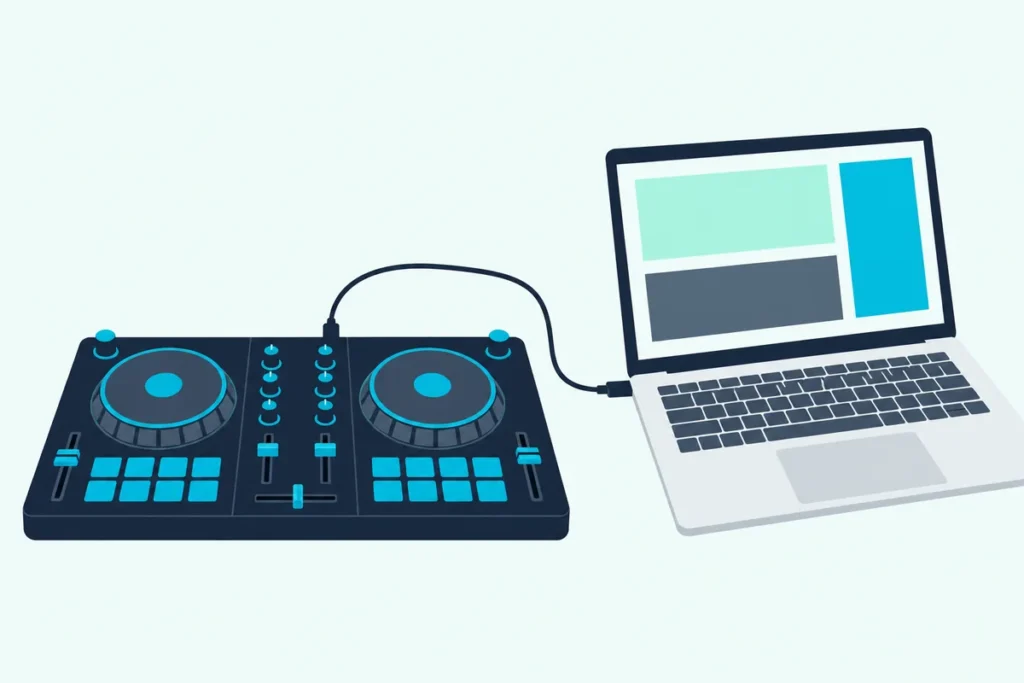
How to connect a DJ controller to Serato DJ Pro: plug the controller into a USB port on your computer, open Serato DJ, and the software detects it on its own, provided any driver the maker asks for is installed.
Serato’s own manual puts the controller first: connect it before you open the software, and the hardware is detected when the software launches.
If Serato still shows no controller, the cause is usually one of a few things Serato lists: the driver, the cable, the USB port or another audio device.
Below are the steps in order, how Serato’s Lite and Pro licenses fit your controller, and the fixes for Windows and Mac.
Here are the steps first.
How Do You Connect a DJ Controller to Serato DJ Pro?
Six steps get most controllers working:
- Check that your controller is supported. Each device’s page on Serato’s hardware list shows a licensing badge, and you need a software version that supports it (Serato).
- Install the latest Serato DJ Lite or Pro. Serato recommends the latest version for the most complete hardware support.
- Install the maker’s driver if your controller needs one. Some don’t, which the driver section below covers.
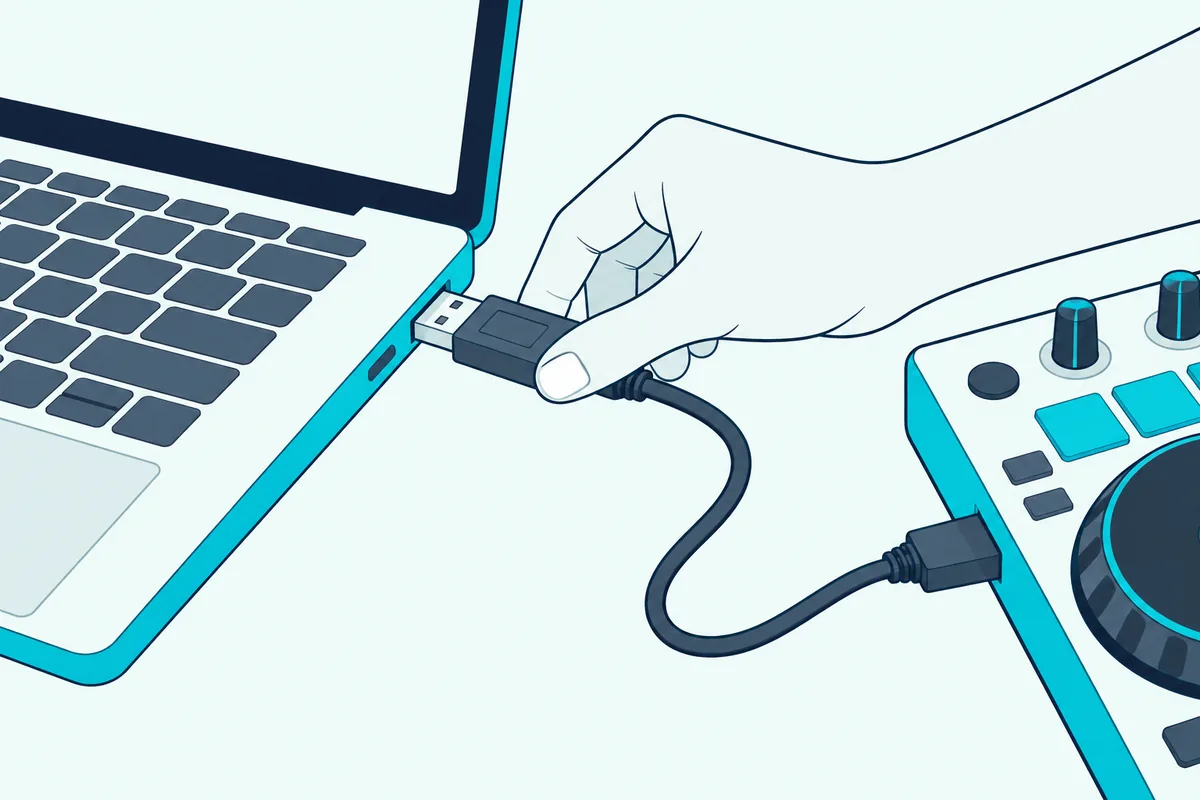
- Plug the controller straight into a USB port on your computer, before you open Serato (Serato).
- Open Serato. It detects supported hardware automatically when it launches.
- Load a track and press play to confirm sound and lights respond. If there’s no sound, our guide to connecting a controller to speakers covers the audio side, and if Serato asks for a license, the next section explains why.
Serato’s advice for a shaky connection is to try a different USB port and a different cable, and to plug into the port closest to the computer’s power supply, which it calls the “best” one (Serato).
Do You Need Serato DJ Pro, or Is Serato DJ Lite Enough?
That license prompt comes from how Serato sorts hardware, and your controller falls into one of three groups. Serato lists them on each device’s page:
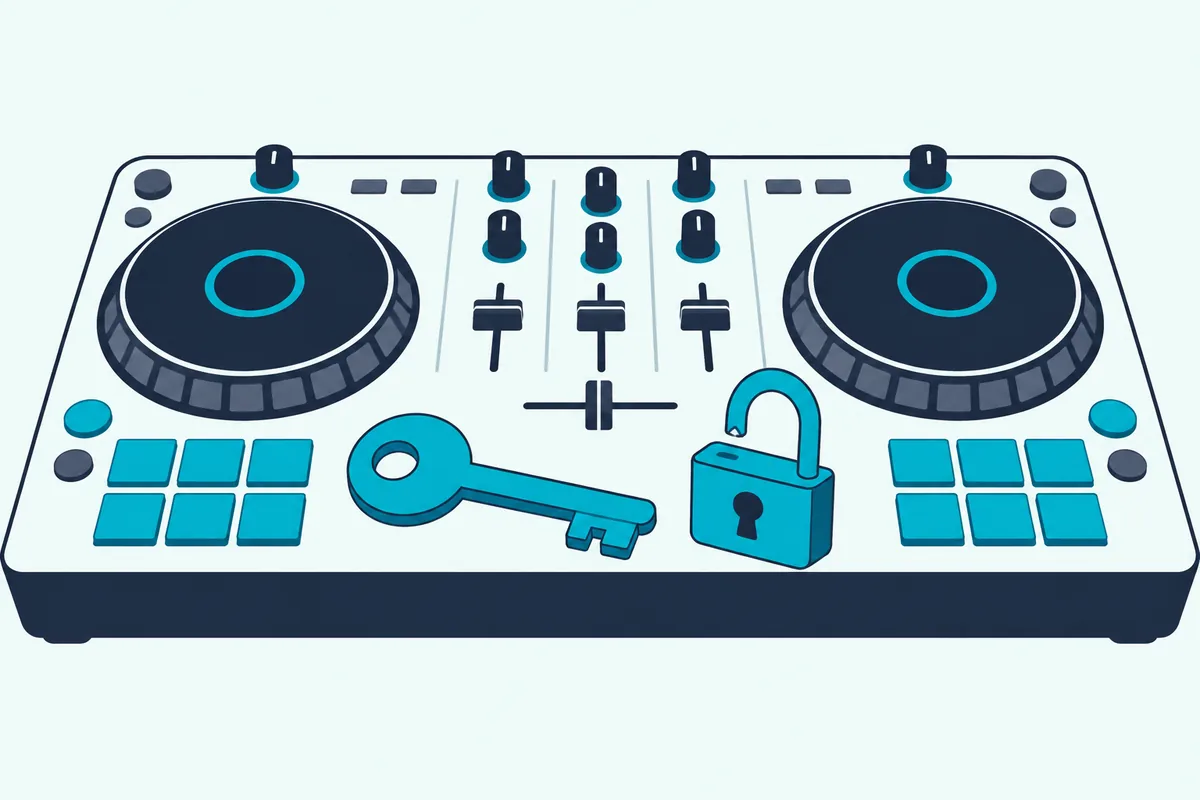
- Serato DJ Pro hardware unlocked. Plug it in and Pro works with no extra license.
- Serato DJ Lite hardware unlocked. It works with the free Serato DJ Lite, and you buy a Pro license only if you want Pro’s features.
- Paid upgrade to Serato DJ Pro. It needs a Pro license before it will work with Pro, and Serato says one license covers every compatible device in this group.
Many entry-level controllers are Lite unlocked. Serato’s page for the Numark Mixtrack Platinum FX says it unlocks Serato DJ Lite for free and is a paid upgrade to Pro.
If you haven’t bought a controller yet, what Serato Practice Mode covers is worth a read first.
For a controller you already own, you can check the group on its Serato hardware page before you spend anything. Our list of the best Serato DJ controllers notes which ones unlock Pro on their own.
Get Studio Tips Weekly
Join 5,000+ creators getting acoustic treatment advice every week.
No spam. Unsubscribe anytime.Does Your Controller Need a Driver?
Some do and some don’t, and the maker’s page decides. Serato’s guide for the Pioneer DJ DDJ-FLX4 says it needs no manufacturer-specific driver on Windows or Mac and is plug-and-play with Serato DJ Lite (Serato).
On Windows, Serato says many controllers need a driver from the maker’s website before they’ll connect, and to restart the computer after installing it. On a Mac, drivers either come from the maker’s site or through a pop-up that appears when Serato is open.
Serato also warns that not every driver is bundled with the software, and that newer macOS versions can need extra steps to approve a driver.
Why Won’t Serato Recognize Your Controller?
Start with the checks that apply to both computers. Serato’s Windows and macOS guides share four:
- Restart the computer. Serato says it clears many driver problems.
- Confirm the driver. Use the one from your controller maker’s site.
- Swap the cable and port. A cable can be faulty without looking damaged.
- Unplug other audio gear. Serato says other sound cards or interfaces can conflict with a controller and cause no connection.
After that, the fixes split by system. The two sections below follow Serato’s own Windows and macOS troubleshooting pages.
What Should You Do If Serato Won’t Connect on Windows?
Windows has two quirks of its own, and the first is the more common. When you connect the controller, Windows may set it as the default sound device, and Serato then can’t reach its sound card (Serato).
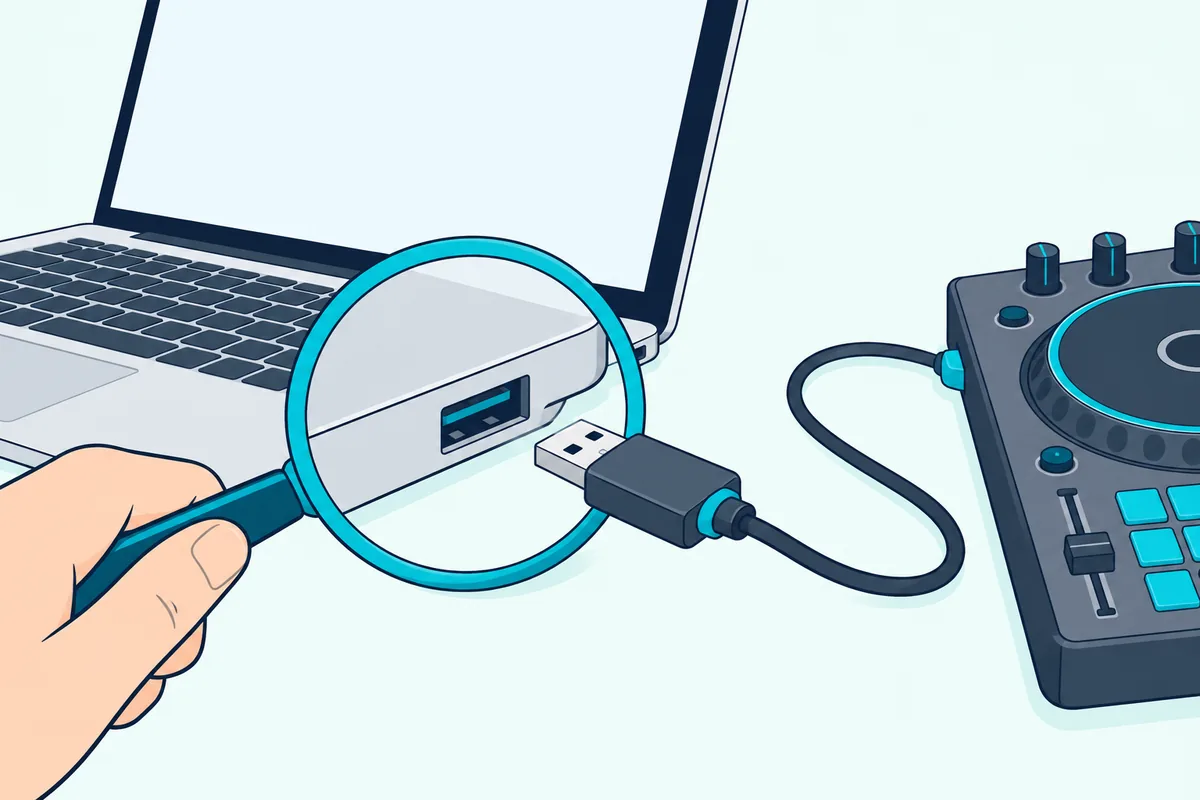
The fix is to set your computer’s own speakers or sound card as the default:
- Close Serato and other audio programs, then connect the controller.
- Open Control Panel, then Sound.
- On the Playback tab, right-click your computer’s internal sound card or speakers and set it as the default playback and communication device. Serato calls this the most crucial step.
- On the Recording tab, do the same with the internal sound card or microphone, then open Serato again.
The second quirk is microphone access. Serato says Windows 10 and 11 can block a connection when the software can’t reach the built-in microphone, and the fix is to turn on both “Allow apps to access your microphone” and “Allow desktop apps to access your microphone” in Microphone privacy settings, then restart Serato (Serato).
If it still fails, Serato’s guide has you uninstall the controller’s driver in Device Manager under Sound, video and game controllers, unplug it for 10 seconds and reconnect it. It also says to check for conflicting audio drivers.
What Should You Do If Serato Won’t Connect on a Mac?
On a Mac, the usual culprit is a stale MIDI configuration, and Serato’s macOS guide gives a reset (Serato):
- Disconnect the controller.
- Open Applications, then Utilities, then Audio MIDI Setup.
- Choose Window, then Show MIDI Studio.
- Click your controller’s icon, then click the minus button to remove it.
- Reconnect the controller and open Serato.
If that doesn’t work, Serato suggests deleting your MIDI configurations and creating a new one in the same window. It also says to check that the audio input and output are set to the Built-in Microphone and Built-in Output in Audio MIDI Setup.
Other steps in the guide are to remove old third-party MIDI drivers from the Library’s Audio folder, to keep macOS updated, and to try another USB-C adapter if your Mac has USB-C ports. As a last test, Serato says to try the controller on another computer, because the hardware itself can be faulty.
Can You Use a USB Hub With a DJ Controller?
Only a powered one, and only for extras. Serato says a non-powered hub, splitter or docking station can cause connection and audio problems, and that your main controller belongs in the computer’s best USB port.
For secondary devices, such as external hard drives or MIDI controllers, Serato recommends an externally powered USB 3.0 hub (Serato).
Which Controller Should You Use With Serato?
Any Serato-supported one will connect the same way, so pick by size and budget, and our list of beginner DJ controllers has more choices. Two dependable starting points are below, and both are Serato DJ Lite hardware unlocked devices.
The Pioneer DJ DDJ-FLX4 needs no driver, per Serato’s quickstart guide, and Serato says one month of Pro comes free with it.
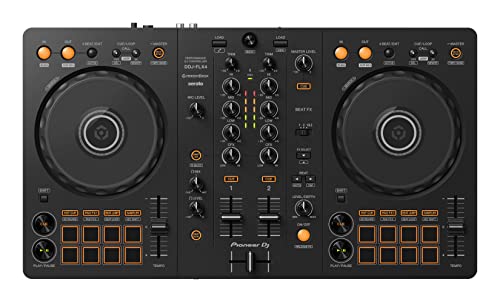
The Pioneer DJ DDJ-FLX4
The Numark Mixtrack Platinum FX is the bigger option, with four decks and 6-inch jog wheels with displays, according to Serato’s hardware page.
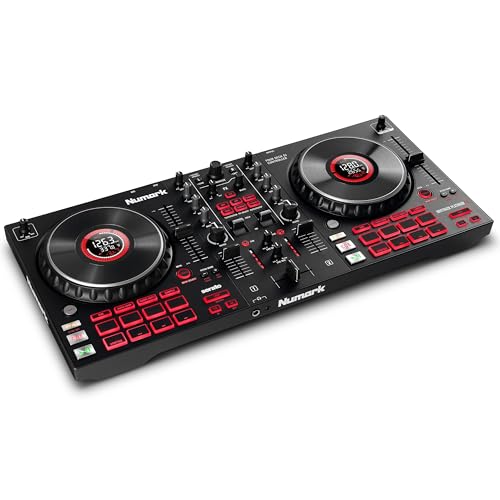
The Numark Mixtrack Platinum FX
Frequently Asked Questions
Do you need to plug the controller in before opening Serato?
Yes, that’s Serato’s instruction. Its manual says to connect the hardware to a USB port before you open the software, which then detects the hardware when it launches.
Does Serato DJ Lite work with any controller?
No. It works with Serato DJ Lite hardware unlocked devices, and Serato’s hardware list shows which those are. Other controllers need a paid Pro license or aren’t supported.
Do you need an audio interface with a DJ controller?
Not usually. Many controllers include one, and Pioneer DJ says the DDJ-FLX4 has a built-in sound card that connects to speakers through a single RCA cable.