Can a Yamaha Keyboard Be Used as a MIDI Controller? Ports by Model
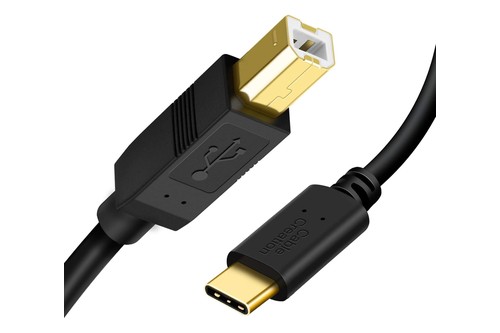
- ✓ Type B plug for the keyboard, Type C plug for the laptop
- ✓ USB 2.0 Type B, per its listing photos
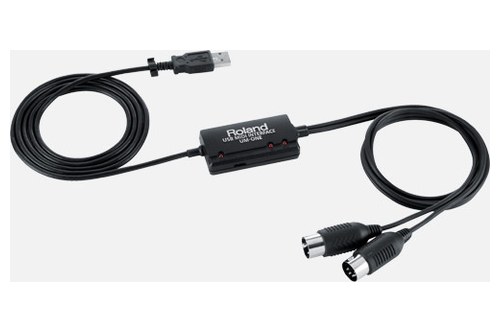
- ✓ One MIDI input and one output over USB
- ✓ USB bus powered, per its listing
- ✓ Named in Yamaha's iPhone/iPad Connection Manual
- ✓ USB-A socket for the keyboard's cable
- ✓ Named in Yamaha's iPhone/iPad Connection Manual
- ✓ USB-A socket for the keyboard's cable
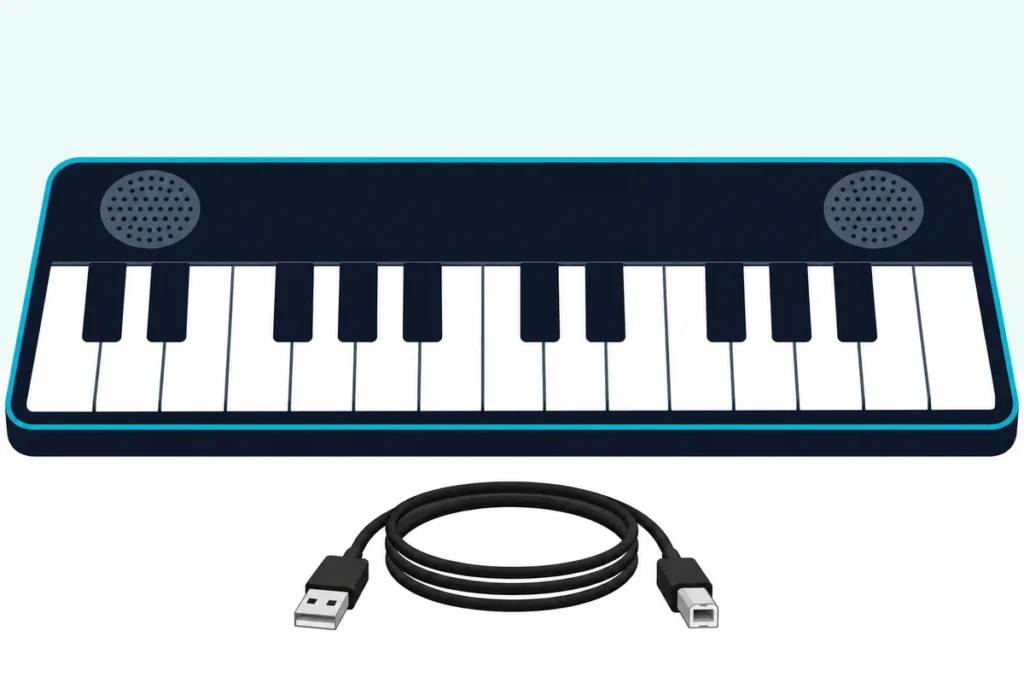
Can a Yamaha keyboard be used as a MIDI controller? Yes, if it has a USB TO HOST port or round MIDI jacks, and most current models do, though the PSR-E283 and PSR-E273 have neither.
The trouble usually starts after you plug in: the software sees the keyboard, every note sounds twice, and the P-45’s manual says the setting behind that echo can’t be changed.
Match the port, the cable and that one setting to your model, and Yamaha’s June 2026 computer guide says MIDI runs on the standard drivers in Windows and macOS.
Below you’ll find the port on each series, the cables Yamaha’s manuals call for, the driver answer and how each model handles Local Control.
After that come the DAW setup, iPads and phones, and what a keyboard built for playing leaves out.
Can a Yamaha Keyboard Be Used as a MIDI Controller?
That yes comes with a condition: the keyboard needs a port that can send MIDI to the computer. Yamaha’s Computer-related Operations manual, written for digital keyboards and pianos released from 2012 to 2026, says your keyboard performance can be recorded as MIDI events to music software on a computer.
MIDI stands for Musical Instrument Digital Interface, and what it carries is performance information. Yamaha’s MIDI Basics guide gives the idea: play middle C hard and MIDI records the key as number 60 and the strength of playing as, for example, 120.
So the keyboard tells your DAW (digital audio workstation) what you played, and a software instrument can make the sound.
The catch sits at the entry level of the range. Yamaha’s PSR-E283 spec page lists DC IN, a headphone jack, a sustain pedal jack and AUX IN under connectivity, with no USB TO HOST and no MIDI, and the PSR-E273’s page reads the same.
A keyboard without either connector has nothing to send MIDI through, whatever software you install. Pianos from other makers follow the same logic, and our guide to whether any digital piano can be a MIDI controller sets Yamaha beside Roland and Kawai.
Which Yamaha Keyboards Have a USB TO HOST Port or MIDI Jacks?
Those two connectors are what to look for on the back or side panel: a USB socket marked USB TO HOST, which Yamaha’s FAQ describes as a square USB port, and round jacks marked MIDI. Either one makes the keyboard usable as a controller, and the table sorts each series by what Yamaha’s spec pages and manuals list.
| Yamaha models | USB TO HOST plug | 5-pin MIDI jacks |
|---|---|---|
| PSR-E273, PSR-E283 | None | None |
| PSS-E30, PSS-F30 | None | None |
| PSS-A50 | Micro B | None |
| PSR-E373, PSR-E383, PSR-E473 | Type B | None |
| PSR-EW310, PSR-EW320, PSR-EW425 | Type B | None |
| PSR-E483, PSR-E583 | Type C | None |
| EZ-310 | Type B | None |
| Piaggero NP-12, NP-15, NP-32, NP-35 | Type B | None |
| P-45, P-121, P-125, P-125a | Type B | None |
| P-143, P-145, P-145BT, P-225 | Type B | None |
| P-S500 | Type B | None |
| P-515 | Type B | IN, OUT |
| P-525 | Type C | IN, OUT |
| DGX-660, DGX-670 | Type B | None |
| Arius YDP-105 | Type B | None |
| Arius YDP-184 | Type B | IN, OUT, THRU |
| Clavinova CLP-725, CLP-825, CLP-835, CLP-885 | Type B | None |
| Clavinova CLP-735, CLP-745, CLP-775, CLP-785 | Type B | IN, OUT, THRU |
| Clavinova CVP-805, CVP-905, CVP-909 | Type B | IN, OUT, THRU |
| Clavinova CSP-255, CSP-275, CSP-295 | USB-C | IN, OUT, THRU |
| PSR-SX600 | Type B | None |
| PSR-SX700, PSR-SX720, PSR-SX900, PSR-SX920, PSR-A3000 | Type B | IN, OUT |
| MX88 | Class compliant USB | IN, OUT |
| MODX6+, MODX7+, MODX8+ | Type B | IN, OUT |
| reface CS, DX, CP, YC | USB | Mini-DIN, with a breakout cable |
If your keyboard isn’t in the table, check its back panel and then its owner’s manual, which is where Yamaha’s own computer guide sends you too. Older keyboards vary, and some have round MIDI jacks with no USB at all.
Some models carry a second USB socket that does a different job. The PSR-E473’s manual uses its USB TO DEVICE terminal for a USB flash drive, so the computer cable goes in USB TO HOST.
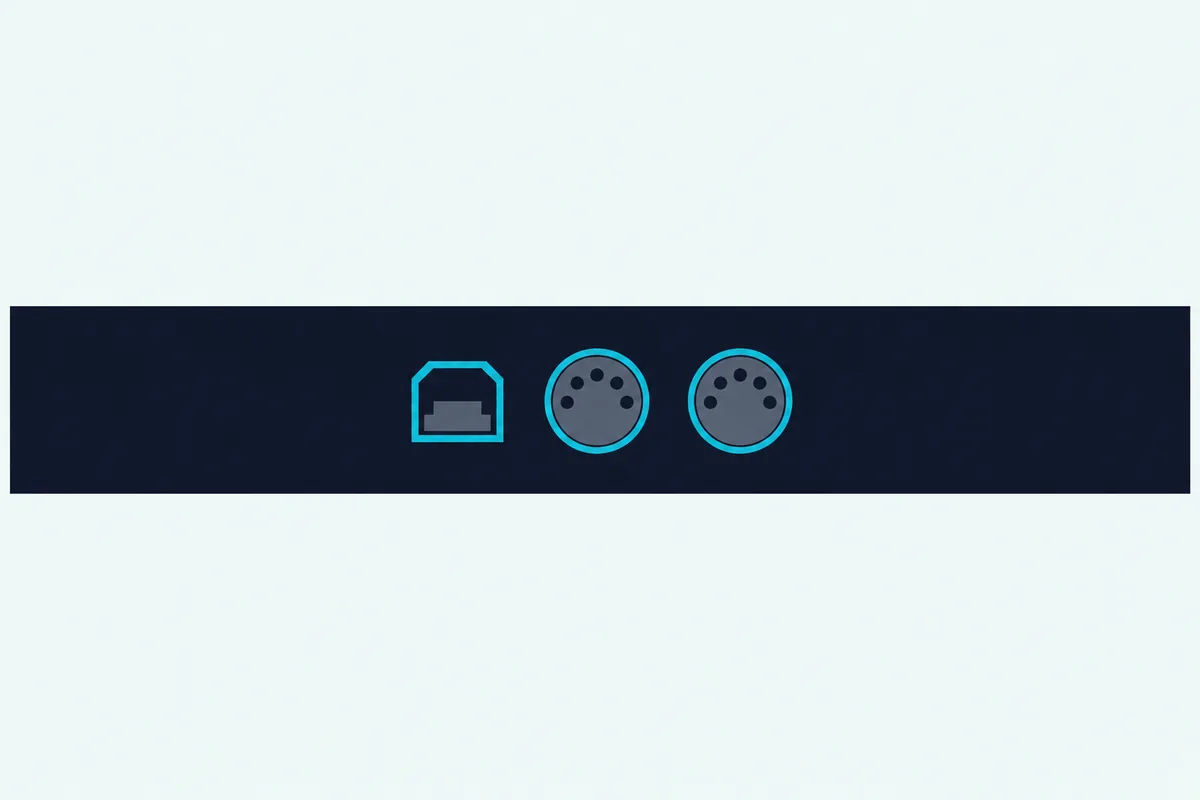
A USB cable in the box doesn’t settle it either. The PSS-E30 comes with a USB cable for power, yet Yamaha’s comparison table puts a dash under USB TO HOST for it and the PSS-F30, while the PSS-A50 shows “Yes (MIDI, USB micro B).”
Which USB Cable Does a Yamaha Keyboard Need?
That plug column decides the cable, and Yamaha’s rules are specific. The Computer-related Operations manual asks for a communication cable under 3 meters, not a charging-only one, with an A-B or B-C cable for a Type B socket and an A-C or C-C cable for a Type C socket.
USB 3.0 is the trap, since the manual says USB 3.0 cables can’t be used in the A-B and B-C types. The P-225, PSR-SX920 and P-515 manuals add one more rule: connect straight to the computer without passing through a USB hub.
For a Type B keyboard and a computer with a USB-A port, Amazon Basics’ USB-A to USB-B printer cable meets those limits. On a USB-C laptop, CableCreation’s USB-B to USB-C cord does the same job.
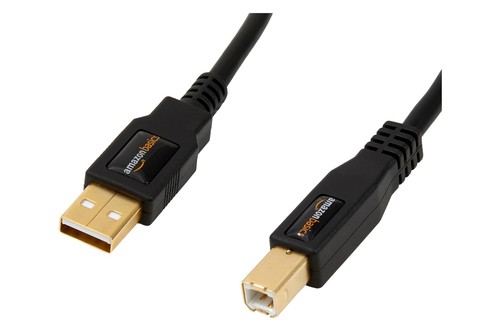
Amazon Basics’ USB-A to USB-B printer cable
The P-S500 lists a Type A to Type B cable among its included accessories, so check the box first. The test for any cable you already own is simple: if it only ever charged a speaker or a lamp, swap it before you blame the keyboard.
Do You Need a Yamaha Driver on Windows or a Mac?
That cable is usually all MIDI needs on a keyboard or piano from 2012 onward. Yamaha’s Computer-related Operations manual says standard drivers on either operating system can be used for MIDI transfer, with no other driver to install, and the MX88’s spec page lists its USB TO HOST terminal as class compliant.
Audio is the exception on Windows. The same manual says to install the Yamaha Steinberg USB Driver for audio transfer on a Windows computer, while a Mac uses its standard driver for audio as well.
| What you’re sending | Windows | Mac |
|---|---|---|
| MIDI, keyboards and pianos from 2012 to 2026 | Standard driver | Standard driver |
| Audio over USB | Yamaha Steinberg USB Driver | Standard driver |
| MIDI, older keyboards and pianos | Yamaha USB-MIDI Driver | Yamaha USB-MIDI Driver |
Some owner’s manuals put it more strictly than that table. The P-225’s reference manual says a Windows computer needs the Yamaha Steinberg USB Driver and points to the computer guide for details, while the PSR-E373’s spells out the split: the computer recognizes the keyboard over USB, and the dedicated driver is for audio data.
Older keyboards are the other case. A Yamaha FAQ last updated in 2014 told owners of an instrument with a USB TO HOST port to install its USB-MIDI Driver, and Yamaha’s download list still offers V3.1.5 for 64-bit Windows 10 and 11 and V1.5.1 for macOS.
If your keyboard predates 2012, or the computer doesn’t see it, that’s the driver to try. The reface manual gives the same advice: install the Yamaha USB-MIDI driver if the computer is having difficulty communicating with the instrument.
Synthesizers can follow their own rules, since that computer guide covers digital keyboards and pianos. The MODX+ manual says a USB cable and the Yamaha Steinberg USB Driver are necessary to connect it to a computer, so go by your synth’s own manual.
How Do You Connect a Yamaha Keyboard to a Computer?
With the driver question settled, the order of the steps matters. Yamaha’s Computer-related Operations manual gives four:
- Turn off the keyboard’s power.
- Start the computer and quit any running applications.
- Connect the USB cable to the keyboard’s USB TO HOST terminal first, then to the computer.
- Turn the keyboard on, and the computer sets itself up for MIDI automatically.
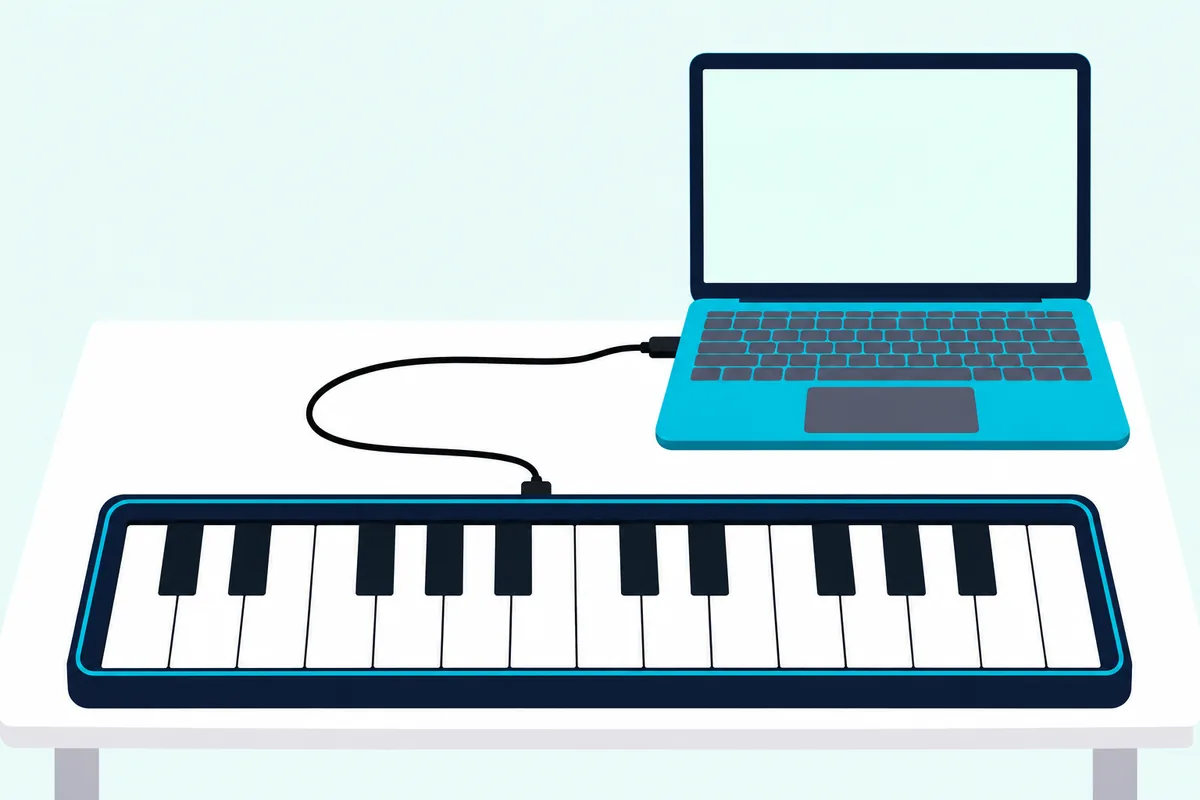
Give it time between attempts, too. The manual says to wait six seconds or more between turning the keyboard off and on, or between unplugging and replugging the cable, and to quit your software before you do either.
PSR-E keyboards add one setting to check. On the PSR-E373, Storage Mode (Function 056) makes the computer see the keyboard as a storage drive and locks the keyboard so it makes no sound, and it has to be off for the computer to see a MIDI device.
The PSR-E473 and PSR-E583 manuals warn about the same mode, which you only need when moving files. If Windows still won’t list the keyboard, the guide to hooking a MIDI keyboard up to a Windows PC goes through the rest of the checks.
Why Does a Yamaha Keyboard Play Every Note Twice?
That working connection brings the next problem, and Yamaha’s own word for it is a “double” sound. The notes you play go to the computer and come back to the keyboard, so its tone generator receives them from both directions, and the fix Yamaha gives is setting Local Control to Off.
With Local Control off, the keys stop playing the keyboard’s internal voices while MIDI still goes out of USB TO HOST. The table shows where each series keeps the setting, and it’s the one thing on this page that changes most from model to model.
| Yamaha models | How Local Control works |
|---|---|
| P-45, P-143, P-145, P-145BT, YDP-105 | Fixed On; the manuals say it can’t be changed |
| P-121, P-125, P-125a | Hold Metronome and Rhythm, press C5 |
| P-225 | Hold Metronome and Rhythm, press B3 |
| CLP-825 | Hold Demo/Song and Piano/Voice, press B3 |
| NP-15, NP-35 | Hold Demo, hold Metronome, press B3 for Off or A#3 for On |
| NP-12, NP-32 | Hold Demo, hold Metronome, press A#5 |
| PSS-A50 | Hold Shift and press the Local Control key in its Keyboard Settings |
| PSR-E373, PSR-EW310 | Function 037 |
| PSR-E383, PSR-EW320 | Function 041 |
| PSR-E473, PSR-EW425 | Function 062 |
| PSR-E483, PSR-E583 | Function 062 on the E483, 063 on the E583 |
| P-515, P-525, CLP-785 | System menu, MIDI, Local Control |
| PSR-SX600, PSR-SX920, DGX-670 | Menu, MIDI, System page, Local Control |
| MODX+ | Utility, Settings, MIDI I/O, Local Control |
If your model isn’t listed, check the MIDI Reference or Reference Manual on its Yamaha download page. The P-45 owner’s manual lists Local Control as On and says it can’t be changed, and the same goes for the rest of that first row.
On those pianos, the piano’s own sound plays along with the software. The practical answer is the volume control, the same choice the MX88’s manual offers when you want to hear only an external sound source: master volume at 0 or Local Control off.
The P-45’s MIDI Implementation Chart does mark Local ON/OFF as a message the piano recognizes, so software that can send control change 122 could try it. Its owner’s manual doesn’t describe that route, so treat it as an experiment.
Two more settings cause surprises in a DAW. The computer guide says to stop the software sending received MIDI back to the keyboard when a software synthesizer makes the sound, and the P-225 reference manual says to set Audio Loopback off, or a loud sound may occur.
Turn Local Control back on when you’re done. The PSR-E373’s troubleshooting table lists that setting among the checks for a keyboard that makes no sound.
What Does a Yamaha Keyboard Send Over MIDI?
That setting changes what you hear, not what leaves the keyboard, and the MIDI Implementation Chart in each model’s documents lists the rest. On the P-45, the chart marks note on with velocity 1 to 127 and sustain (control change 64) as transmitted, while aftertouch isn’t, and pitch bend and modulation can’t be sent from the panel.
So a Yamaha like that plays a DAW’s instruments with your dynamics and your sustain pedal, and that’s the core of what a controller does. The PSR-E583 and PSR-E483 chart goes further, marking pitch bend and modulation as transmitted, though it doesn’t mark aftertouch either.
Channels need to match, as Yamaha’s manuals put it, though a keyboard on its default rarely needs touching. The P-45 transmits on channel 1 by default, with a range of 1 to 16, and in Dual mode the second voice goes out on the next channel up.
Voice buttons send data too. The P-225 sends a program change number whenever you pick a voice, which can switch the sound in your software, and its pedal sends control change data; hold Metronome and Rhythm and press C4 or C#4 to cancel each.
Keyboards with auto-accompaniment have more to manage, since Style and Song playback can go out too. The PSR-E473 has separate Keyboard Out, Style Out and Song Out settings, and the PSR-SX and DGX-670 have a master keyboard template for playing and controlling a computer or sequencer.
One limit applies across the pianos. The P-45, P-145 and YDP-105 references say no MIDI messages are output during playback of the Demo Song or Preset Song, so those won’t record into your software.
How Do You Set Up a Yamaha Keyboard in FL Studio or GarageBand?
Those messages only reach a DAW once it knows about the keyboard, and each maker’s manual says where that happens. A Yamaha takes the same route as any other USB keyboard here:
| DAW | Where to turn the keyboard on |
|---|---|
| FL Studio | Options, MIDI settings (F10): select it in the Input list, then click Enable |
| GarageBand | Connect the USB cable, then use the Audio/MIDI settings for input devices and MIDI drivers |
| Logic Pro | Connect the USB cable, then check the Inputs settings under MIDI settings |
| Ableton Live | Settings, Link, Tempo & MIDI: activate Track for the input port, then pick it in a MIDI track’s Input Type chooser |
| Reaper | Options, Preferences, MIDI Inputs under Audio: right-click the device, then choose Enable Input |
FL Studio gives a practical test: the MIDI activity light on its Main Panel blinks each time data comes in. For the full routine, including instruments and channels, see the FL Studio keyboard walkthrough.
Apple’s GarageBand and Logic guides both tell you to follow the keyboard’s own instructions, which may include installing a driver. That’s the table from the driver section again: on a 2012-or-later Yamaha, MIDI doesn’t need one.
What If a Yamaha Keyboard Has Only 5-Pin MIDI Jacks?
That software side stays the same on a keyboard with round MIDI jacks and no USB, but the computer needs a box between them. Yamaha’s FAQ for its hybrid pianos spells out the method: use a USB-MIDI interface between the computer’s USB terminal and the MIDI IN and OUT terminals, and install a driver that’s compatible with the interface.
Its own UX-16 interface is listed as discontinued, and the FAQ says to use a commercially available one. A separate Yamaha FAQ says to contact the interface’s maker for connectivity support with 5-pin instruments, so that maker’s manual is the one to follow.
Apple’s GarageBand guide gives the wiring: the keyboard’s MIDI OUT goes to the interface’s MIDI IN, and the keyboard’s MIDI IN goes to the interface’s MIDI OUT. If the keyboard only plays the software, Image-Line says one cable does it, and two are for when FL Studio should also play the keyboard.
Roland’s UM-ONE mk2 interface is one of those boxes, listed as a one-in, one-out interface powered over USB. When a keyboard has both connectors, start with USB, since Yamaha’s computer guide calls USB TO HOST one of the most convenient and easy-to-use connections.
Roland’s UM-ONE mk2 interface
Round jacks still earn their place without a computer. The PSR-SX920 manual says MIDI OUT transmits messages to another MIDI device, and the MX88’s manual describes playing an external tone generator from the keyboard.
Can You Use a Yamaha Keyboard With an iPad, iPhone or Android Phone?
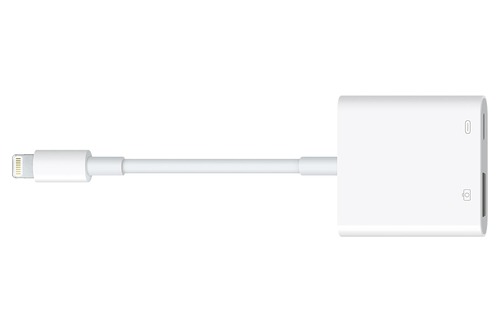
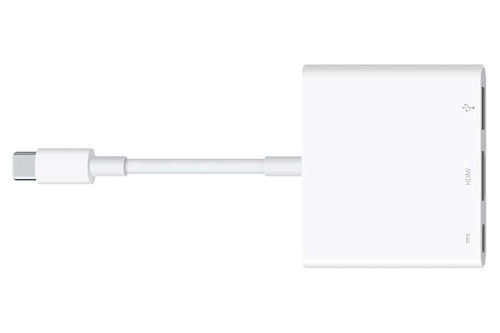
That same USB TO HOST port works with a tablet or phone, with one extra part for most combinations. Yamaha’s iPhone/iPad Connection Manual says a Type B keyboard needs a USB cable plus a camera adapter on a Lightning device or a multiport adapter on a USB-C device.
For a Lightning iPad or iPhone, the manual names Apple’s Lightning to USB 3 Camera Adapter or the Lightning to USB Camera Adapter. For a USB-C iPad, it names Apple’s USB-C Digital AV Multiport Adapter or the VGA version.
Apple’s Lightning to USB 3 Camera Adapter
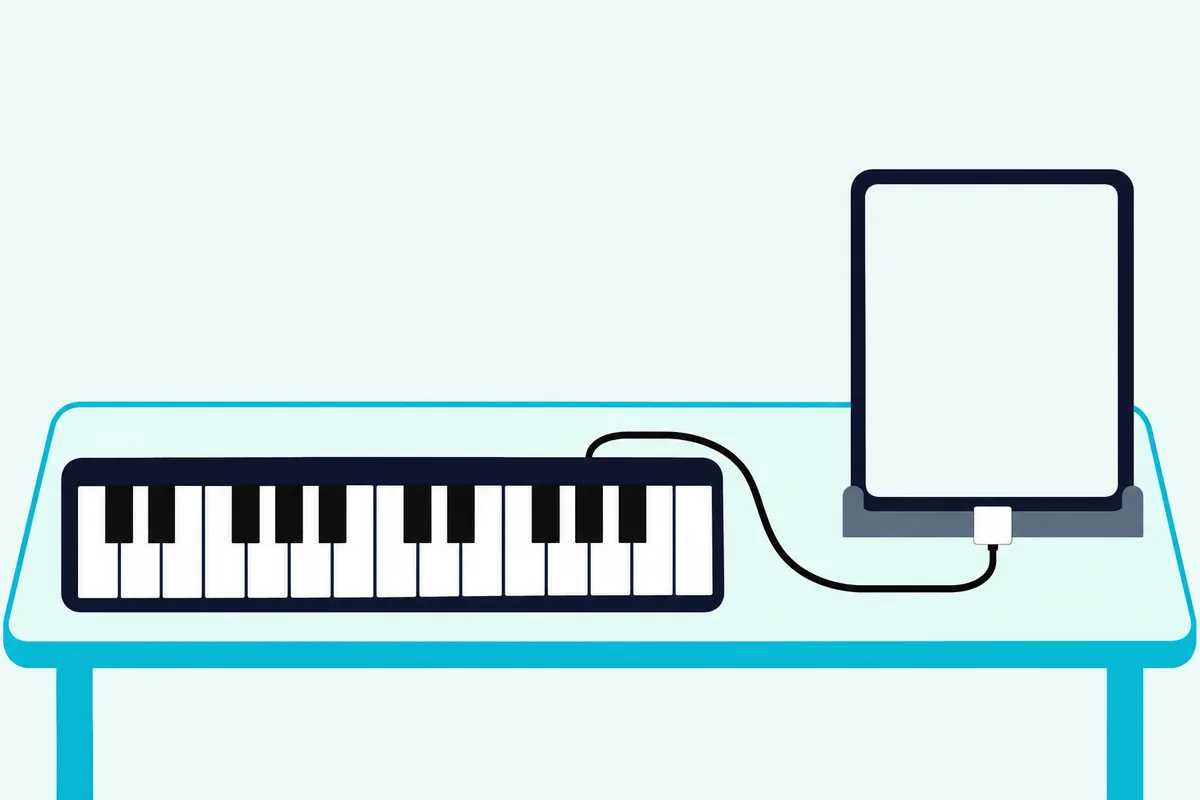
A Type C keyboard is simpler, since the manual has a USB-C iPad or iPhone connect by one C-to-C cable. Android follows the same pattern: Yamaha’s Android manual lists a Type A to Type B cable and a conversion adaptor from a Type A socket to the phone’s Micro B or Type C plug.
The order matches the computer’s: turn the keyboard off, quit open apps, connect, and turn the keyboard on. Yamaha also recommends Airplane Mode during use, to avoid noise from the device’s communications.
Bluetooth depends on the model, and a Bluetooth logo alone doesn’t mean MIDI. Yamaha lists the P-225 and P-145BT as Bluetooth audio only, while the P-525 and CLP-825 list audio and MIDI, varying by area.
For other models, Yamaha’s UD-BT01 plugs into USB TO HOST and its MD-BT01 into MIDI jacks, and the connection manual says both carry MIDI data only. Burton Acoustix’s Bluetooth MIDI adapter comparison sets those two beside the other makers’ adapters.
Yamaha’s own apps are a separate thing from a DAW. Smart Pianist controls the instrument’s settings from a screen, and the P-225’s manual warns that opening it overwrites the instrument’s settings with the app’s, while Rec’n’Share records video and your instrument’s audio on a connected phone or tablet.
What Can’t a Yamaha Keyboard Do as a MIDI Controller?
All those routes carry notes well, but a home keyboard isn’t laid out for controlling a DAW. The spec pages for the P-45, P-225 and PSR-E383 list no drum pads, faders, knobs or transport buttons, so starting a recording or launching a clip stays on the computer.
Some models go part of the way. Yamaha lists pitch bend on the PSR-E473, PSR-E483, PSR-E583, DGX-670 and PSR-SX600, and a joystick on the PSR-SX720 and PSR-SX920.
Its synthesizers go furthest. The MX88 lists pitch bend and modulation wheels and four assignable knobs, and its DAW REMOTE button lets you control DAW software from the panel, while the MODX+ lists control sliders and knobs as well.
Yamaha’s US site lists a MIDI Controllers category under Synthesizers & Music Production Tools with archived products only, so it sells no dedicated controller of its own today.
What a home keyboard does give you is the keys. The P-45 has 88 of them with a Graded Hammer Standard action, so it can make sense to play on it and add a small pad unit only if you need one, and our MIDI controller vs keyboard comparison weighs that choice.
The descriptions come from the makers’ manuals and spec pages. Every pick met Burton Acoustix’s rating, review and stock checks on 5 November 2026.
Frequently Asked Questions
Can I use a Yamaha P-45 as a MIDI controller?
Yes. Connect its USB TO HOST terminal to the computer with an AB type USB cable under 3 meters, and the manual lets you set the transmit channel from 1 to 16. Its Local Control stays On and can’t be changed, so turn the piano’s volume down if you want to hear only the software.
Can you use a Yamaha P-125 as a MIDI controller?
Yes, by the same USB TO HOST terminal and an AB type cable. Unlike the P-45, the P-125 can turn Local Control off: hold Metronome and Rhythm and press C5, as its MIDI Reference describes.
Can a Yamaha PSR keyboard be used as a MIDI controller?
Most can. The PSR-E373, E383, E473, E483 and E583 and the PSR-SX series all have USB TO HOST, and the SX700, SX720, SX900 and SX920 add MIDI jacks. The PSR-E273 and PSR-E283 list neither, and for an older PSR model, check your owner’s manual.
Can a Yamaha keyboard work as a MIDI controller without a computer?
Yes, if it has MIDI OUT and the other device has MIDI IN. The MX88’s manual describes playing an external tone generator from its keyboard, and the PSR-SX920’s says MIDI OUT transmits to another MIDI device. A USB TO HOST port is meant for a computer or smart device, so it doesn’t replace that.
Does a Yamaha keyboard need a special MIDI cable?
Not if it has USB TO HOST. An ordinary USB communication cable under 3 meters does it, as long as an A-B or B-C cable isn’t USB 3.0. You only need MIDI cables for round 5-pin jacks, along with a USB-MIDI interface to reach a computer.