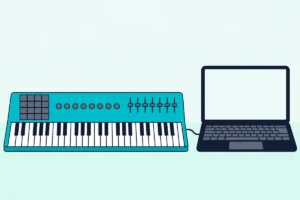
Here’s how to connect a MIDI keyboard to a PC: plug its USB cable into the computer, let the PC set it up with its built-in driver, then switch the keyboard on in your music software.
Skip that last step and nothing happens, because a MIDI keyboard sends notes rather than sound, so the cable can be fine while the speakers stay silent.
Get the order right and most USB keyboards need no extra driver, your DAW plays every key, and the lag can drop to the 5 to 10 ms FL Studio’s manual calls excellent.
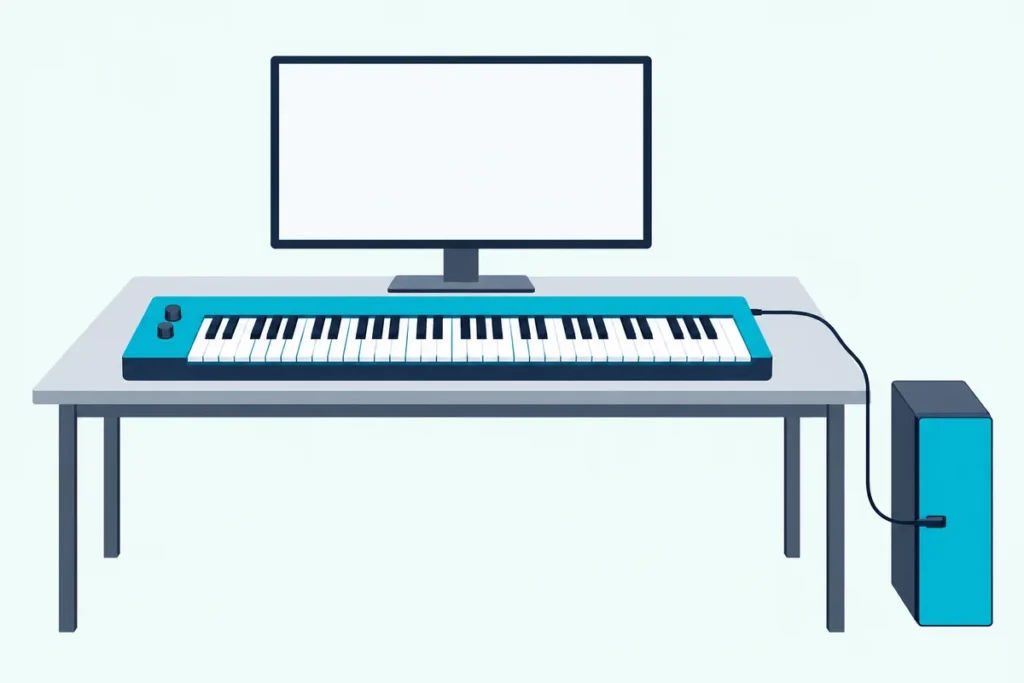
The steps below cover USB keyboards first, then models with only round 5-pin MIDI sockets, Bluetooth, and the drivers some makers still publish.
After that come the switches in four popular DAWs and the fixes for silent keys, a keyboard the PC can’t see and late notes.
How to Connect a MIDI Keyboard to a PC in Five Steps
These steps work for any keyboard with a USB port, while one with only round 5-pin sockets needs an interface, covered further down.
- Plug the keyboard’s USB cable into a port on the PC itself, not an unpowered hub.
- Right-click Start, open Device Manager and find the keyboard under Sound, video and game controllers.
- Install a driver only if the keyboard’s maker says your model needs one.
- Open your DAW and switch the keyboard on in its MIDI settings.
- Put a virtual instrument on a track, select the track and play.
Which Cable Connects a MIDI Keyboard to a Computer?
That first step depends on the socket on the back of your keyboard. Yamaha calls the square USB socket on its instruments the USB TO HOST port, which takes an ordinary USB cable with a type A plug for the computer and a type B plug for the instrument.
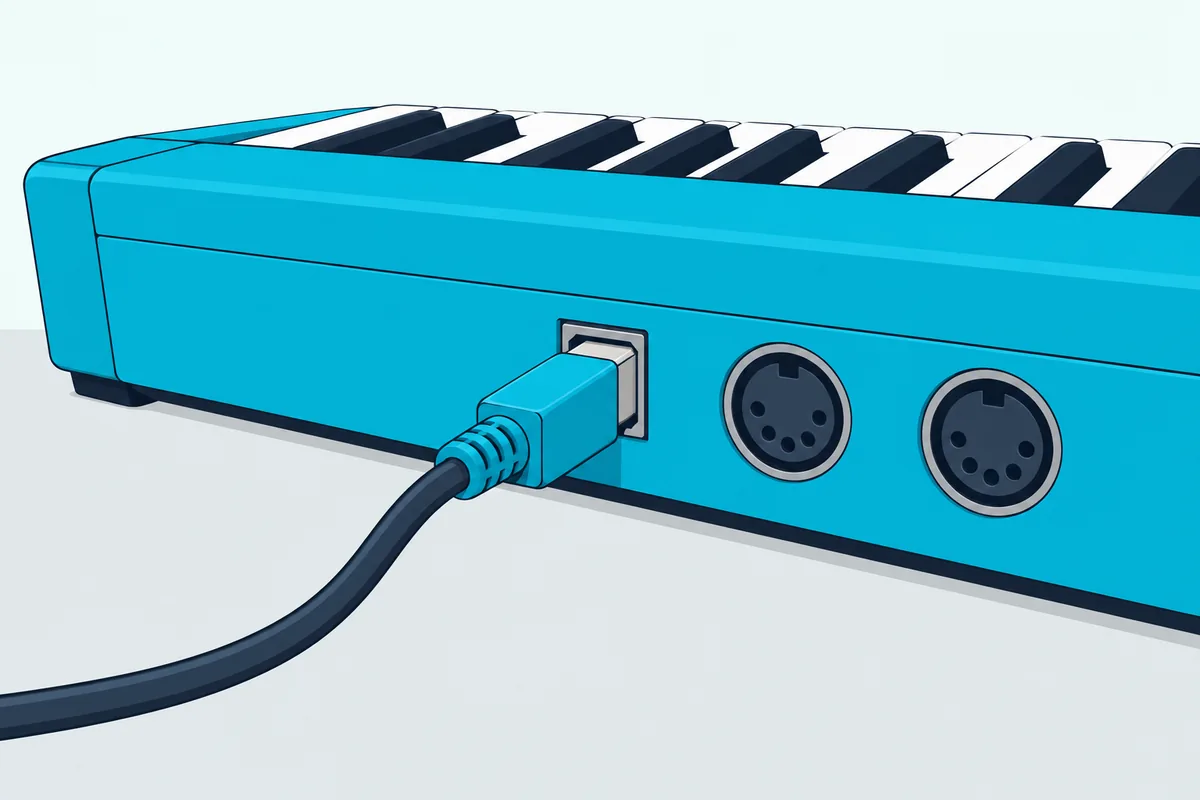
Newer controllers use USB-C: Arturia’s KeyLab Essential mk3 and Novation’s Launchkey MK4 come with a USB-C to USB-A cable, while Akai’s MPK mini IV ships with a USB-C to USB-C one. For a USB-A port, Akai’s FAQ suggests a USB-C to USB-A cable or adapter.
The cable often carries power too, as Arturia and Akai say of the KeyLab and the 25-key MPK Mini MK3. That’s why M-Audio tells you to plug the M-AUDIO Keystation 49 MK3 into a port on the computer or a powered hub.
M-Audio’s troubleshooting guide lists USB hubs, long or extended cables and too many USB devices among the causes of a poor connection. It says about 95% of such inquiries are solved by trying other cables, ports or a different computer.
Does Windows Need a Driver for Your MIDI Keyboard?
Once it’s plugged in, most keyboards need nothing more: M-Audio defines a class-compliant device as one that uses the drivers built into the operating system.
Microsoft goes further for Windows 11: from version 25H2, with updates on, Windows MIDI Services is built in, and Microsoft says not to install third-party drivers unless they’re absolutely necessary. It also lets several programs share one keyboard, which Microsoft says used to take a maker’s own driver.
Some makers still publish drivers, so read your maker’s own page first:
| Maker | What its own page says |
|---|---|
| Yamaha | Its USB-MIDI Driver, V3.1.5 for Windows 10 and 11, is for instruments with a USB TO HOST port |
| Korg | Don’t install the KORG USB-MIDI Driver on Windows 11 24H2 or later, and uninstall it if it’s there |
| Arturia | Its MIDI Control Center driver lets the KeyLab Essential mk3 work in more than one program at once |
| Roland | The UM-ONE mk2 interface needs Roland’s driver in its COMP mode |
For Casio, which Casio models are class compliant and which need a driver has its own guide.
How Do You Connect a Keyboard That Only Has 5-Pin MIDI?
That driver question comes back here, because a keyboard with only round 5-pin sockets needs a USB MIDI interface. Yamaha’s FAQ for its hybrid pianos with MIDI sockets says the same, plus a driver that suits the interface.
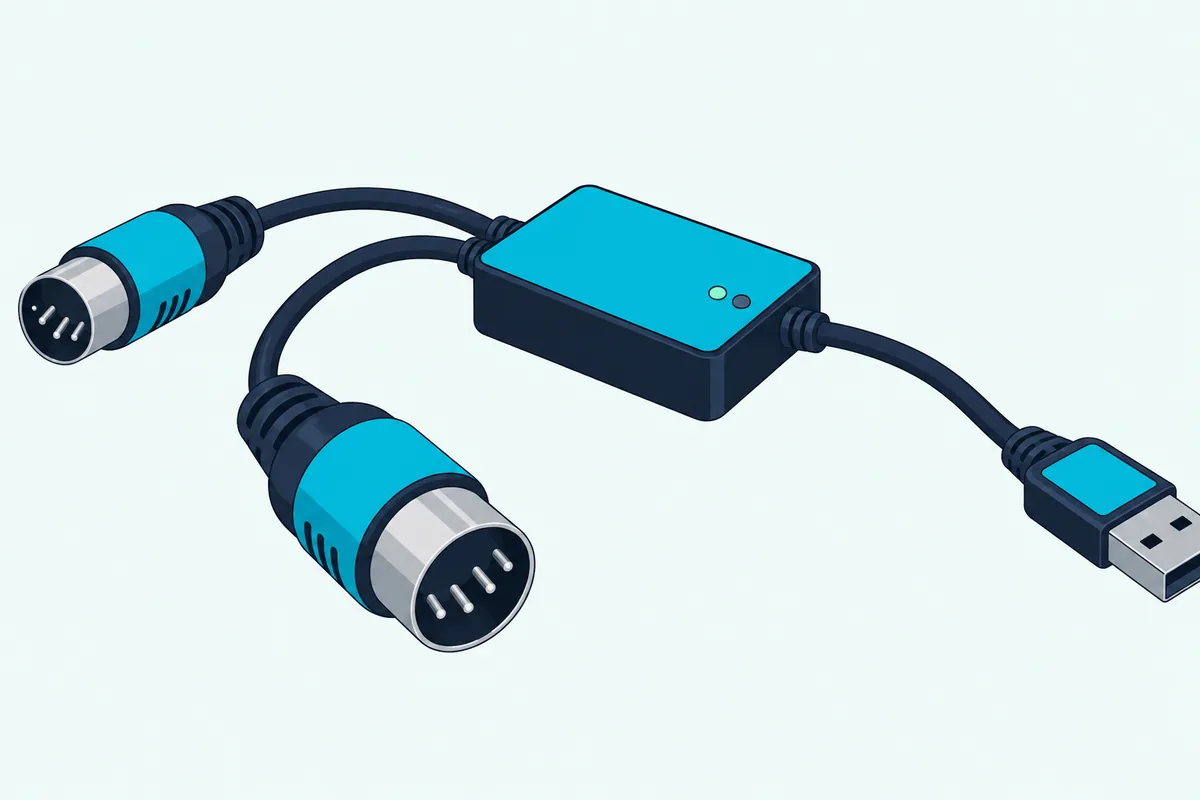
Roland’s UM-ONE mk2 is one such interface, with its USB and MIDI cables built in. Plug its MIDI IN cable, labeled CONNECT TO MIDI OUT, into the keyboard’s MIDI OUT socket.
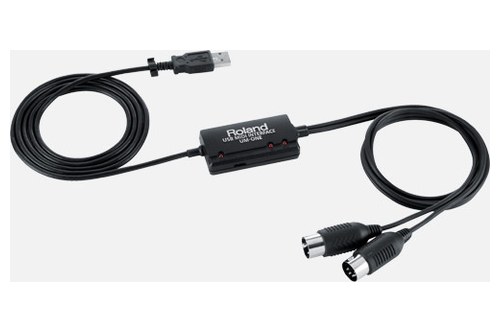
Roland’s UM-ONE mk2
Its MIDI OUT cable only matters if the PC should play the keyboard’s own sounds. Roland’s manual says to set the COMP/TAB switch to COMP for a computer and to install Roland’s driver before plugging it in.
After that, its MIDI IN light comes on as you play, which Roland says means MIDI is arriving from the keyboard. The UM-ONE mk2 met Burton Acoustix’s rating, review and stock checks on 30 October 2026.
Can You Connect a MIDI Keyboard to a PC Over Bluetooth?
Yes, Bluetooth MIDI skips the cable, but it takes more setup on a PC. Microsoft says the built-in Bluetooth MIDI support lists a device only once it’s paired, and that these devices sleep so readily that a paired one often can’t connect at that moment.
Turn Bluetooth on under Settings > Bluetooth & devices and pair the keyboard. If it doesn’t appear, Microsoft and Korg both say to set Bluetooth device discovery to Advanced.
Korg’s microKEY Air keyboards then connect through the KORG BLE-MIDI Driver, which needs Bluetooth 4.0 on the PC. On Windows 11 24H2 or later, Korg says to use its latest version, because the January 2026 updates changed the MIDI system.
Microsoft’s own Bluetooth MIDI for that new system is still a preview you install separately, with its setup app due for everyone in 2027. So if your keyboard also has a USB port, the cable is the simpler route.
Where Do You Switch the Keyboard On in Your DAW?
Whichever route you took, the keyboard still has to be switched on in your DAW, and four popular programs keep that switch here:
| DAW | Where to switch the keyboard on |
|---|---|
| FL Studio | Options > MIDI settings (F10): select the keyboard, then click Enable |
| Ableton Live 12 | Settings (Ctrl+,), Link, Tempo & MIDI tab: turn on Track for its input |
| REAPER | Options > Preferences, MIDI Inputs under Audio: right-click it, Enable Input |
| Pro Tools | Setup > MIDI > Input Devices: tick the keyboard |
In FL Studio, Image-Line says the MIDI activity light then blinks as you play, and our steps to connect a MIDI keyboard to FL Studio cover its connection fixes too. Ableton says Track is what lets Live receive notes from a keyboard, and our guide to using a MIDI keyboard in Ableton Live 12 covers the rest.
For the other two, see how to add a MIDI keyboard to REAPER and how to add a MIDI keyboard to Pro Tools, while how to use a MIDI controller shows a working setup. If you haven’t picked a DAW, our MIDI setup guide compares them.
Why Does the Keyboard Play No Sound?
Even with that switch on, a keyboard alone makes no sound. M-Audio’s Keystation guide explains that a key press sends MIDI data, instructions for how a sound should play, so you hear nothing until software plays a sound from them.
If that’s new, the name MIDI itself explains most of what it does.
So load a virtual instrument on the selected track, and many MIDI keyboards include one, such as the Studio Instrument Collection that comes with Akai’s MPK mini IV. For more pianos, synths and drums, you can add sounds to a MIDI keyboard with other virtual instruments.
Why Isn’t Your Computer Recognizing the MIDI Keyboard?
If no instrument plays at all, the PC may not see the keyboard, and M-Audio’s causes include drivers that didn’t install properly and a bad cable or port. Device Manager is the place to look: a working keyboard appears under Sound, video and game controllers.
Can’t spot it? Watch Device Manager as you unplug the keyboard: if the list flashes, the PC sees it, and if nothing changes, M-Audio points to the cable, the port or the keyboard.
M-Audio says a yellow triangle on its entry can mean the drivers didn’t install properly or are out of date. Microsoft’s fix is to right-click the device, choose Uninstall device and restart, so the PC can reinstall the driver.
M-Audio also suggests View > Show hidden devices, with the keyboard unplugged, and uninstalling faded duplicates under Sound, video and game controllers and Universal Serial Bus controllers.
When Device Manager lists the keyboard but your DAW doesn’t, connect it before opening the DAW and close other music programs. Microsoft says that before its new MIDI system, which Windows 10 doesn’t get, a device belonged to one app at a time.
To prove notes leave the keyboard, M-Audio’s test is a MIDI monitor, MIDI-OX or the midimonitor.com page, with other audio and MIDI programs closed. If notes show up there, the PC is receiving them and the DAW’s settings are the likely problem.
One newer cause: M-Audio says Windows updates since January 2026 can leave keyboards that use a maker’s driver detected but dead in a DAW, while class-compliant ones aren’t expected to be affected; one workaround is removing that driver.
How Do You Stop the Notes Sounding Late?
Once the notes play, lag is usually an audio problem, not a keyboard one. Samson’s support team says the delay generally comes from the audio playback driver and recommends an audio interface with ASIO drivers where possible.
FL Studio’s manual puts numbers on it: 20 to 50 ms is a good buffer target on the standard Primary Sound Driver, 5 to 10 ms is excellent through ASIO, and the delay from key to sound is at least the buffer length.
Without a native ASIO driver, Image-Line ranks ASIO4ALL ahead of FL Studio ASIO, both included with FL Studio, and our guide to a MIDI keyboard without an interface covers those fallbacks. For buffers, plug-ins and monitoring, see every cause of MIDI keyboard delay.
The Bottom Line
So connecting a MIDI keyboard to a PC comes down to the right cable or interface, the PC seeing the device, and the keyboard switched on in a DAW with an instrument loaded. On Windows 11 25H2 that takes no driver in most cases, so read the maker’s page before installing one.
If you’re still choosing a keyboard, our guides cover FL Studio-specific controller setup, Ableton-specific integration and low-cost MIDI keyboards. The descriptions come from the makers’ manuals and support pages and from Microsoft’s documentation.
Frequently Asked Questions
Can you connect a MIDI keyboard to a laptop?
Yes, the same way as a desktop. If the laptop has only USB-C ports and your keyboard came with a USB-A cable, as Arturia’s and Novation’s do, use a USB-C cable or an adapter.
Can two programs use a MIDI keyboard at the same time?
On Windows 11 25H2 or later with updates on, yes: Microsoft says any MIDI device, older MIDI 1.0 keyboards included, can be used by several apps at once. On Windows 10 a device belongs to one app at a time, which is the gap Arturia’s KeyLab Essential mk3 driver fills.
Does a MIDI keyboard still work on Windows 10?
Yes. Class-compliant keyboards use its built-in driver, Akai lists the 64-bit version as the MPK mini IV’s minimum, and Yamaha’s latest USB-MIDI driver covers it and Windows 11. It doesn’t get Windows MIDI Services, though, and Microsoft ended its support on October 14, 2025.