How to Add a MIDI Keyboard to Pro Tools on Mac or Windows
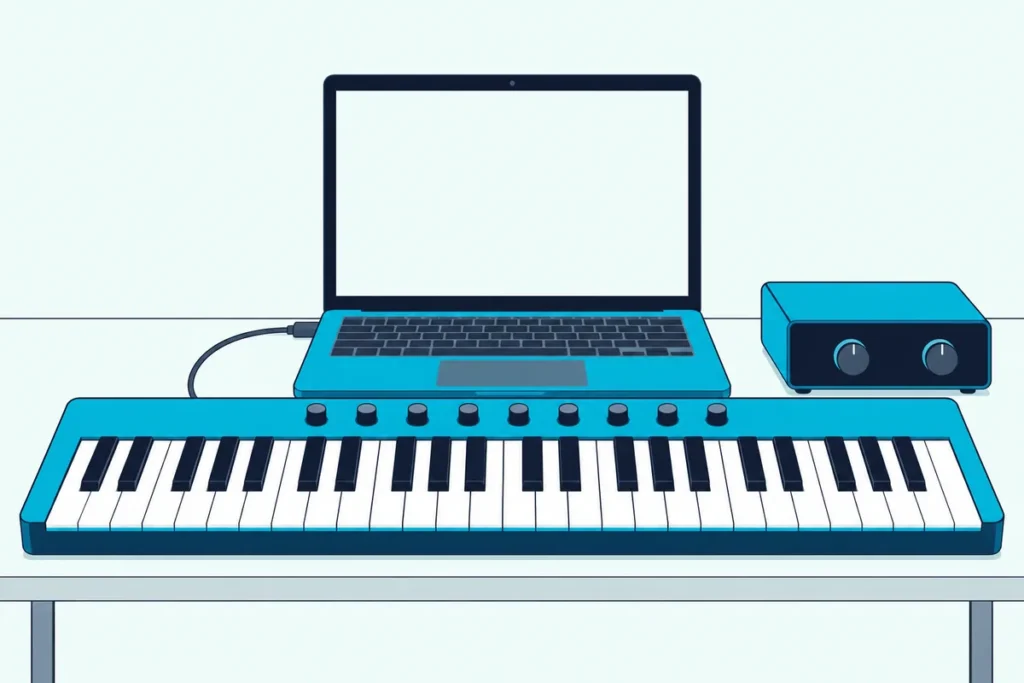
Learning how to add a MIDI keyboard to Pro Tools takes a few minutes, but one unticked box in a Setup menu can make a working keyboard look broken.
The keys light up and the cable is fine, yet nothing records, because Pro Tools only listens to keyboards switched on in its MIDI Input Devices window.
Set things up in the order Avid’s Pro Tools Reference Guide describes and the same keyboard plays instruments, records takes and, on keyboards with DAW controls, runs the transport.
The steps below cover the Mac and Windows checks, the Input Devices window, an Instrument track with Xpand!2, and the HUI setting for knobs and faders.
Start with the five-step setup, then use the fixes section if a key still makes no sound.
How to Add a MIDI Keyboard to Pro Tools in Five Steps
That five-step order follows Avid’s Pro Tools Reference Guide for version 2026.4. You connect the keyboard before Pro Tools opens, tick it in Input Devices, then play it through an Instrument track that has an instrument plugin on it.
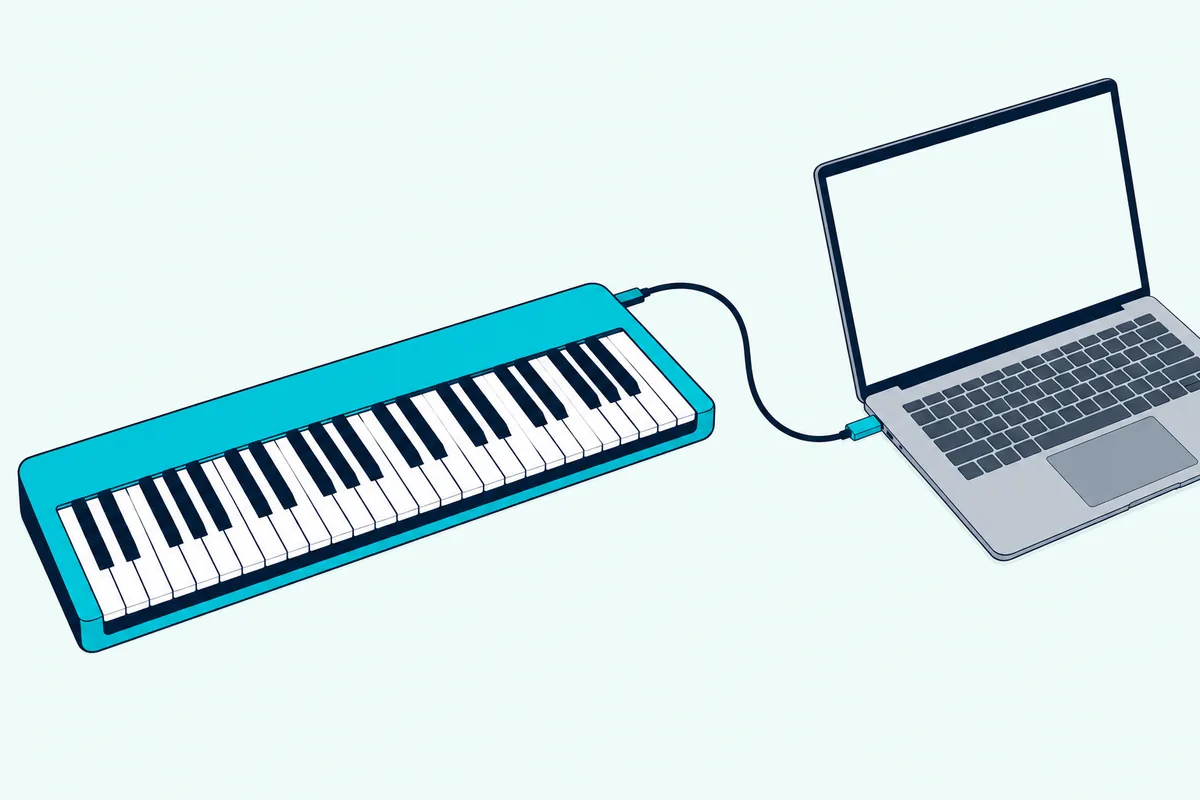
- Connect the keyboard by USB and switch it on, then launch Pro Tools.
- Choose Setup > MIDI > Input Devices, tick the keyboard and click OK.
- In Setup > Playback Engine, choose your audio interface or the computer’s built-in audio.
- Choose Track > New, create a stereo Instrument track, and pick an instrument such as Xpand!2 from its first Insert selector.
- Record-enable the track, check that Options > MIDI Thru is ticked, and play.
Each step gets its own section below, from the computer’s side of the connection to the Pro Tools menus and the fixes when nothing sounds.
Which Pro Tools Version Are You Running?
Those five steps are the same in every edition, since Avid’s 2026.4 release notes say one installer serves them all and only the iLok authorization differs. Avid’s comparison page lists four editions, Pro Tools Intro, Artist, Studio and Ultimate, and the number of instrument tracks is where a keyboard player feels the difference.
| Edition | Instrument tracks | MIDI tracks |
|---|---|---|
| Pro Tools Intro (free) | 8 | 8 |
| Pro Tools Artist | 32 | 64 |
| Pro Tools Studio | 512 | 1,024 |
| Pro Tools Ultimate | 512 | 1,024 |
Even the free edition has something for the keys to play. Avid’s Intro FAQ says Intro comes with Xpand!2, a multitimbral instrument with over 1,200 presets, and the comparison page lists Native Instruments’ Kontakt 8 Player with all four editions.
The newest release on Avid’s support table is Pro Tools 2026.4.1, from July 9, 2026. Its release notes list macOS Sonoma 14.8, Sequoia 15.7 and Tahoe 26.3 and Windows 11 24H2 or 25H2, and they say the virtual instruments come from a separate AIR Instruments Bundle installer.
Does Your Computer See the Keyboard First?
Whichever edition you run, Pro Tools can only use a keyboard the computer already lists. On a Mac, open Audio MIDI Setup, choose Window > Show MIDI Studio and look for the keyboard; on Windows, Avid’s checklist points to the Sound, video and game controllers list in Device Manager.
If a Mac doesn’t show it, Apple says to click Rescan MIDI in that window, check that the keyboard is on and install any software its maker requires (Apple). Pro Tools opens the same tools for you: Setup > MIDI > MIDI Studio launches Audio MIDI Setup on a Mac and Avid’s MIDI Studio Setup window on Windows.
Most keyboards need no driver on Windows. Microsoft says most USB MIDI 1.0 devices are class-compliant and advises against third-party drivers unless absolutely necessary, and Windows 11 25H2 and later with updates on let several apps share one keyboard (Microsoft).
The order you plug things in matters too. Avid’s 2026.4 Read Me for Windows lists a known issue where Pro Tools doesn’t recognize a MIDI device connected or switched on while it’s running, and Avid’s workaround is to quit and relaunch.
Avid’s checklist also suggests trying a different USB port and avoiding USB hubs, especially unpowered ones. Our Mac guide covers the right adapter for a MacBook’s USB-C ports, and a keyboard with only 5-pin MIDI ports needs a MIDI interface the computer can see, as the Windows guide to USB and 5-pin keyboards explains.
Where Do You Switch the Keyboard On Inside Pro Tools?
Once the computer lists the keyboard, Pro Tools still has to be told to listen. Choose Setup > MIDI > Input Devices, tick the keyboard in the MIDI Input Enable window and click OK, because Avid’s guide says a device must be enabled there before Pro Tools records or plays it.
The same window filters what you don’t want: untick a drum machine or an arpeggiator and its notes stay out of your takes. A sound module that only receives MIDI from Pro Tools doesn’t need a tick at all.
Avid’s knowledge base article on keyboards that don’t trigger notes, updated February 23, 2026, adds one habit: click OK and restart Pro Tools to be safe (Avid). That restart also covers the connection order from the section above.
Leave Setup > Peripherals > MIDI Controllers alone for a plain keyboard. Avid’s guide says devices assigned there are ignored when MIDI tracks record, and Avid’s support article says to set something there only if your keyboard’s user guide asks for it.
What Turns the Keyboard’s Notes Into Sound?
With the box ticked, notes reach Pro Tools, and an Instrument track is what turns them into sound. Avid’s guide calls Instrument tracks the primary way to route MIDI to an instrument plugin, with MIDI and audio in a single channel strip.
Create one with Track > New (Command+Shift+N on a Mac, Control+Shift+N on Windows), choosing Stereo and Instrument Track. Pick an instrument plugin such as Xpand!2 from the track’s first Insert selector, and Pro Tools should select the plugin’s MIDI port as the track’s MIDI Output on its own.
To see the track’s MIDI Input selector, choose View > Mix Window > Instruments. Set it to your keyboard or to All, which Avid says routes every channel from every device to the track.
You hear the keys once the track is record-enabled with Options > MIDI Thru ticked. The Instrument track’s Input Monitoring button does the same job without record-enabling, and the MIDI Input Monitoring Follows Selected Track option in Setup > Preferences > MIDI switches monitoring to whichever Instrument track you select.
Avid’s 2026.4 guide says that option replaced the Default Thru Instrument preference of earlier versions, which Avid’s 2019 support article still recommends. If your keyboard has its own sounds, the guide also says to turn its Local Control off when using MIDI Thru, since double notes can lead to stuck notes.
How Do You Record What You Play?
Once the instrument sounds, recording follows the same Transport you’d use for audio. Record-enable the Instrument track, click Record in the Transport, then Play; turn on Wait for Note in the Transport’s MIDI controls and recording starts with your first note.
Wait for Note and Countoff can’t both be on, so pick one. With MIDI Merge on, a new take merges with what’s already on the track, and with it off the new take replaces the old part.
Command+Period (Control+Period on Windows) throws away a take before you stop, and Edit > Undo MIDI Recording removes it afterward. Pro Tools can record up to 32 MIDI and Instrument tracks at once, so a split keyboard or two players each get a track.
That record-enable button pays off a second way. If you played along with the session without recording, keep the track armed with its MIDI Input on your keyboard or All, and Events > Retrospective Record (Option+Shift+Z, or Alt+Shift+Z on Windows) writes the performance at the time you played it.
Can the Keyboard’s Knobs and Transport Run Pro Tools?
Those Transport buttons can sit on the keyboard too, through a separate setting. Avid’s guide says Pro Tools supports some MIDI control surfaces that use HUI controller personalities, plus certain M-Audio keyboards and Native Instruments’ Komplete Kontrol, under Setup > Peripherals > MIDI Controllers.
There you choose the surface in the Type menu, its source port in Receive From and its destination in Send To, and set # Ch’s if it has more than eight channel strips. Avid also asks you to tick that same source port in Input Devices, and allows up to four surfaces.
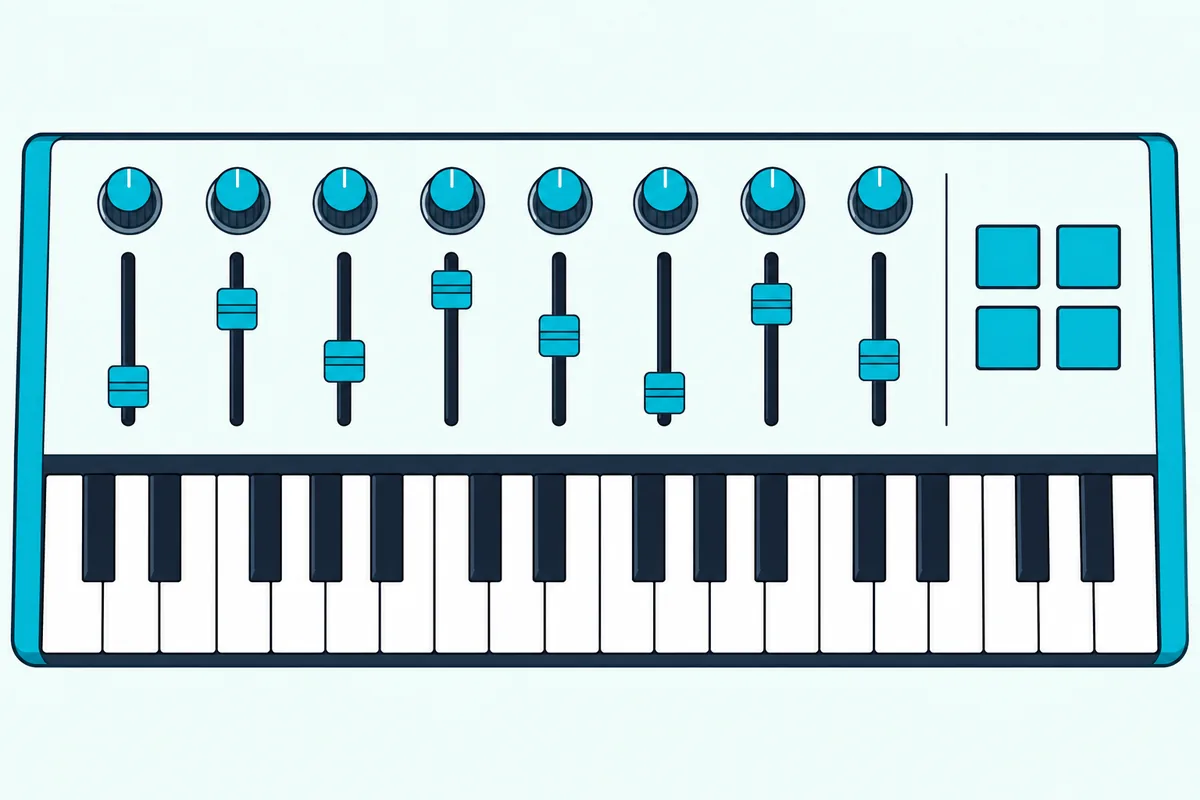
Keyboard makers publish their own notes on that route, and the four below show how differently they handle it. Check your own model’s guide before you copy one.
| Keyboard maker | What its Pro Tools note says |
|---|---|
| M-Audio, Oxygen Pro setup in Pro Tools | Choose the P.T. DAW preset on the keyboard, tick both its USB MIDI and Mackie/HUI ports in MIDI Input Devices, then set Peripherals to HUI with 8 channels |
| Novation, Launchkey 49 MK4 user guide | Type HUI; on a Mac, receive from Launchkey 49 DAW Out and send to Launchkey 49 DAW In; on Windows, the emulated MIDIIN2 and MIDIOUT2 ports; 8 channels |
| Arturia, KeyLab Essential mk3 manual | Pro Tools isn’t on its list of custom-script DAWs, so control runs over MCU or HUI, which stays off until you turn it on in Arturia’s MIDI Control Center |
| Nektar, Impact LX Mini page | Its DAW integration list leaves Pro Tools out but includes a template setup for Pro Tools |
The M-Audio, Novation and Arturia routes each use a separate DAW or MCU/HUI port, which matters because Avid ignores the devices assigned in Peripherals when MIDI records. Those knobs and faders then mix and navigate while the keys keep playing notes, the split that how DAW controllers talk to your software explains in more depth.
Why Isn’t Pro Tools Getting MIDI From Your Keyboard?
When nothing sounds after all that, Pro Tools can show you whether notes arrive at all. Avid’s guide says the MIDI In indicator, above the MIDI Input display in the Edit window toolbar, lights whenever a MIDI or Instrument track receives MIDI input, which splits the problem into notes that never arrive and notes that arrive but stay silent.
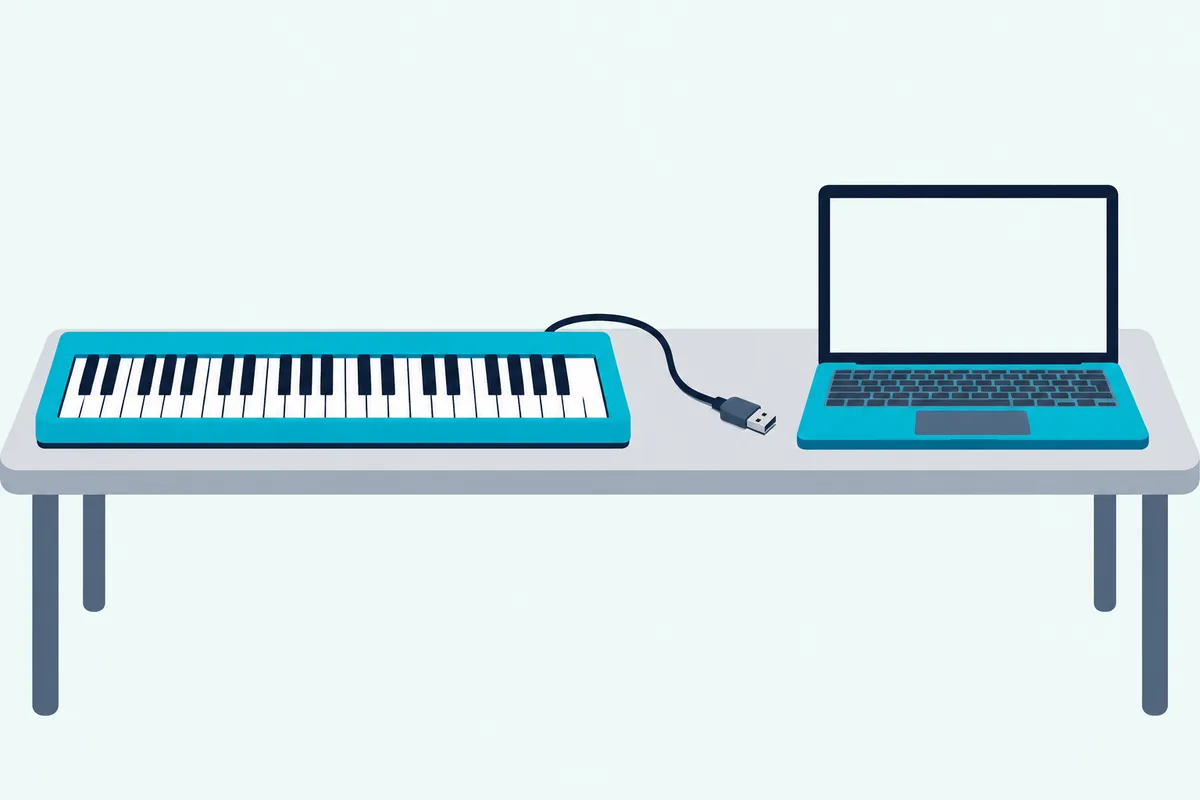
If it stays dark while you play (View > Other Displays > MIDI Input Display shows it), check these in order:
- The keyboard isn’t ticked in Setup > MIDI > Input Devices, or it was plugged in after Pro Tools opened.
- Its port sits in Setup > Peripherals > MIDI Controllers, which Avid says should stay at none unless your keyboard’s guide asks for it.
- The track’s MIDI Input points at another device instead of your keyboard or All.
- The computer doesn’t see the keyboard at all, which a test outside Pro Tools will show.
That outside test is quick on a Mac: Apple’s Test MIDI Setup button in Audio MIDI Setup highlights a device’s In arrow when you play a note (Apple). Avid’s checklist names the free apps MIDI Monitor for a Mac and MIDI-OX for Windows, and on Windows Avid’s support article also suggests running Pro Tools as an administrator so it can reach device drivers.
If the indicator lights but you hear nothing, check the instrument side instead. An instrument plugin should sit on the track’s first insert, the track should be record-enabled or monitoring, and the Playback Engine should be the interface or built-in audio you’re listening through.
If Xpand!2 and the other instruments are missing from the plugin menu, run the AIR Instruments Bundle installer, which Avid’s 2026.4 release notes list separately from Pro Tools itself. Trashing Pro Tools’ preferences is the last, advanced step on Avid’s checklist.
Why Do Your Notes Sound Late in Pro Tools?
If the keyboard plays but lags, start with the audio buffer rather than the cable. Avid’s guide says virtual instruments can add MIDI-to-audio latency that grows with the H/W Buffer Size in Setup > Playback Engine, and recommends the smallest buffer you can run while recording.
A smaller buffer limits how many tracks you can record without errors, so raise it again for big sessions with many plugins. Avid also recommends turning off Options > MIDI Live Mode when you need a low buffer size, or MIDI plays late depending on that buffer.
Watch the Instrument track’s Input Monitoring button too. Blue means MIDI Delay Compensation is on, which Avid says keeps the audio aligned but adds latency to live MIDI and isn’t recommended for live playing, while green turns compensation off.
Command-Control-click (Control-Start-click on Windows) switches the button between the two. If the lag survives all of that, other causes of MIDI keyboard lag are worth ruling out next.
The Bottom Line
The whole setup rests on three switches: the keyboard ticked in Input Devices, an instrument plugin on an Instrument track, and that track record-enabled or monitoring. Add the HUI setting once notes play, and if you also work in Live, the Ableton side of the same keyboard uses its own switches for the same job.
Frequently Asked Questions
Does a MIDI keyboard work with Pro Tools Intro?
Yes. Pro Tools Intro is Avid’s free edition, and Avid’s Intro FAQ gives it eight audio, eight instrument and eight MIDI tracks, with Xpand!2 to play. A session with more than eight tracks opens cut down to the first eight.
Can you use your computer keyboard as a MIDI keyboard in Pro Tools?
Yes. Window > MIDI Keyboard, or the Shift+K shortcut, opens a one-octave keyboard you play from the computer’s keys: A plays C and T plays F#, Z and X move the octave anywhere from C-2 to C8, and C and V set velocity from 1 to 127. Turn on MIDI Thru, set the track’s MIDI Input to All and record-enable the track, as you would for a real keyboard.
How do you import a MIDI file into Pro Tools?
Choose File > Import > MIDI, pick the file and set the MIDI Import Options. Avid’s guide says a Type 1 file puts each of its tracks on a new MIDI track, after which you assign each track’s MIDI Output to an instrument; files from other sequencers must be saved as Standard MIDI Files first.