How to Use a MIDI Keyboard in Ableton Live 12
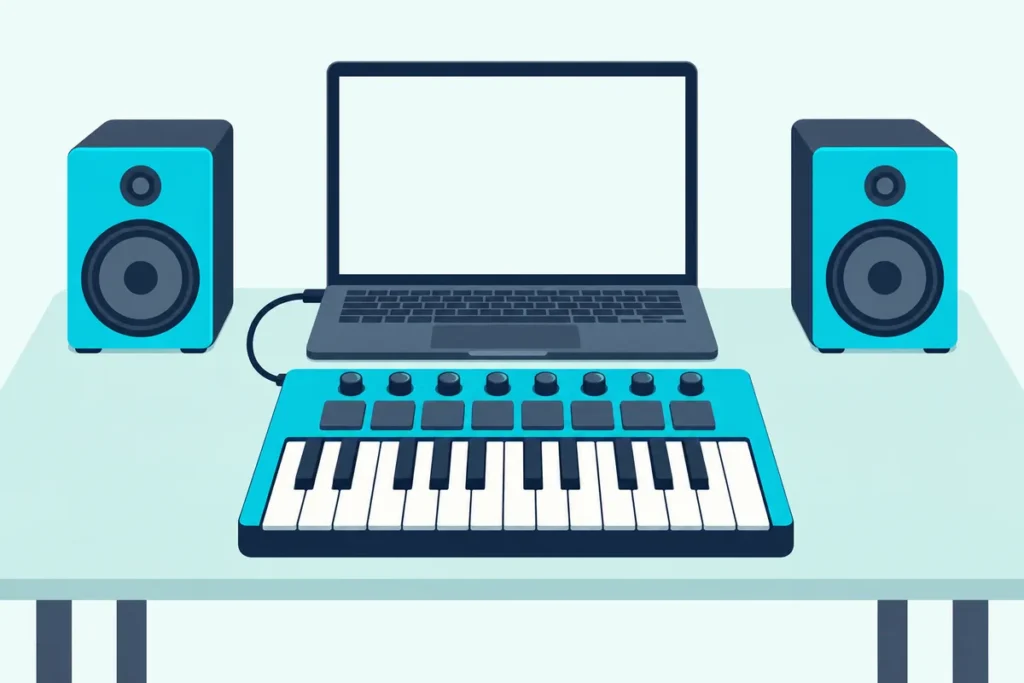
Learning how to use a MIDI keyboard in Ableton comes down to one Settings tab and one armed track, but a single switch left off keeps every key silent.
The keys light up and Live’s MIDI indicator may even flash, yet nothing plays, because the keyboard only sends notes and Ableton says it takes an instrument to turn them into sound.
Set things up in the order Ableton’s Live 12 manual describes and the same keyboard plays instruments, records clips and turns Live’s knobs.
The steps below cover drivers, the Tempo & MIDI switches, mapping, velocity and MPE.
Start with the five-step setup, then use the fixes section if a key still makes no sound.
How to Use a MIDI Keyboard in Ableton Live 12 in Five Steps
That order follows the manual for Live 12.4.6, the current version since September 15, 2026. You switch the keyboard’s port on in Settings, put an instrument on a MIDI track, arm the track and play.
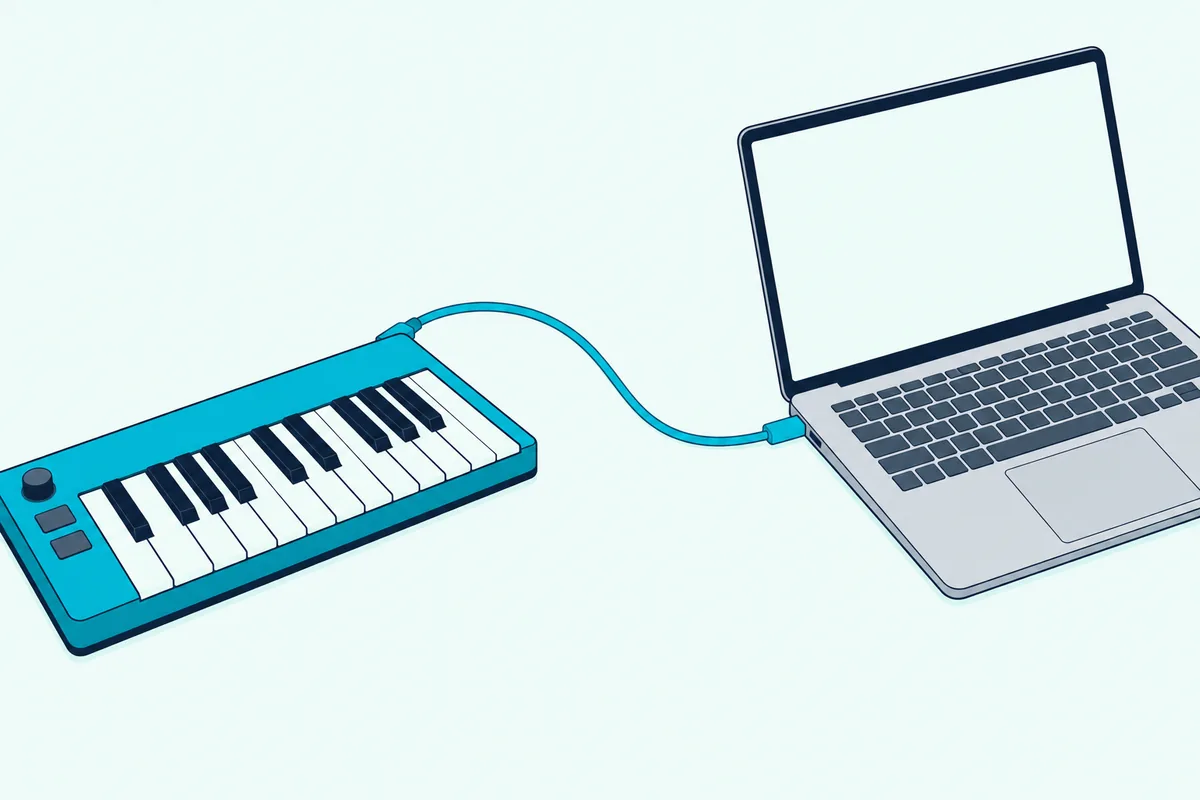
- Connect the keyboard by USB; Ableton says Live detects MIDI devices and many need no further setup.
- Open Settings with Ctrl+, (Cmd+, on a Mac) and choose the Tempo & MIDI tab, called Link, Tempo & MIDI before Live 12.4.
- Pick your keyboard in a Control Surface menu if it’s listed; if not, turn on Track for its input port.
- Insert a MIDI track with Ctrl+Shift+T (Cmd+Shift+T) and drag an instrument such as Simpler onto it.
- Click the track’s Arm button and play; armed tracks are monitored by default.
Those steps are the Ableton side of using a MIDI controller in any program.
Does Your Keyboard Need a Driver First?
That first step is where Mac and Windows differ. Most keyboards need no driver: Microsoft says most USB MIDI 1.0 devices are class-compliant and advises against third-party drivers unless absolutely necessary (Microsoft).
Windows 11 25H2 and later, with updates on, lets several programs share one keyboard. On a Mac, Apple says to install any software the maker provides and, if the keyboard doesn’t show, open Audio MIDI Setup, choose Window, Show MIDI Studio, and click Rescan MIDI (Apple).
To connect piano models with only 5-pin MIDI ports, you need a MIDI interface; our digital piano setup guide covers the cables.
Get Studio Tips Weekly
Join 5,000+ creators getting acoustic treatment advice every week.
No spam. Unsubscribe anytime.Which Switches Should You Turn On in Tempo & MIDI?
Once the computer sees the keyboard, Live’s Settings decide what it does. Track on its input port plays and records notes, and Remote lets its knobs control Live (Ableton).
| Switch on the input port | Turn it on when |
|---|---|
| Track | You play instruments or record notes |
| Remote | You map controls or launch clips from the keyboard |
| Sync | The keyboard has its own sequencer or arpeggiator |
| MPE Mode | The keyboard sends MIDI Polyphonic Expression |
That table matters less for keyboards Ableton sets up on its own. Choose one in a Control Surface menu and Live maps its knobs to the selected device; up to six can run at once (Ableton).
How Do You Map Knobs and Keys in Ableton?
With Remote on, mapping takes four moves. Press the MIDI switch at the top right or Ctrl+M (Cmd+M), click a control, move the knob you want and press the switch again.
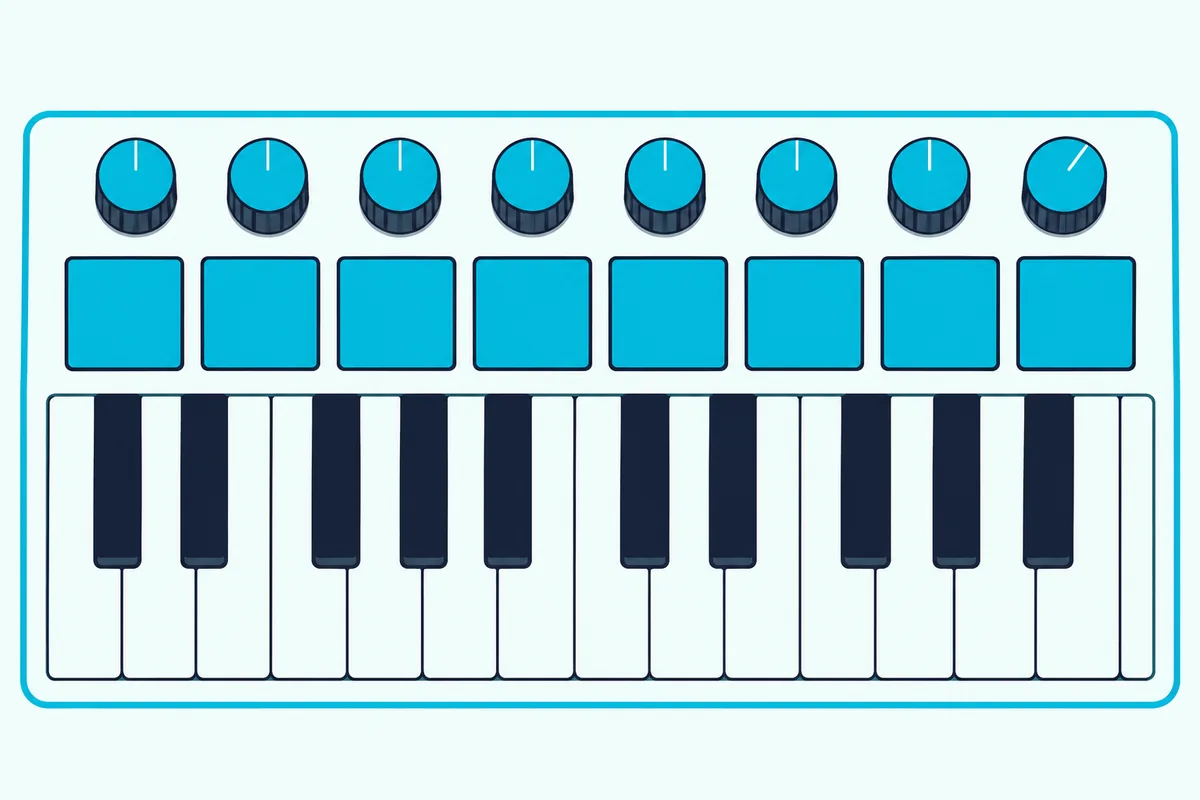
Map knobs and pads rather than piano keys, since Ableton warns that a mapped key stops playing notes. Set Takeover Mode to Pick-Up or Value Scaling so faders don’t make values jump after a bank change.
Ctrl+K (Cmd+K) maps the computer keyboard the same way. Pressing M turns those keys into a virtual MIDI keyboard starting at C3, with Z and X changing the octave and C and V the velocity.
Can Ableton Use Your Keyboard’s Velocity and MPE?
Those mappings cover knobs, while touch is shaped on the track. Ableton’s Velocity effect set to Out Low 80 and Out Hi 127 keeps soft playing in the upper range (Ableton).
An MPE keyboard needs MPE Mode on for its port. The Clip View’s Note Expression tab then shows each note’s Pitch, Slide, Pressure, Velocity and Release Velocity.
Why Does Your MIDI Keyboard Make No Sound in Ableton?
If those steps still leave silence, the Control Bar’s MIDI indicators show where notes stop. The rightmost pair flashes for notes reaching tracks, the pair beside it for notes a mapping took.
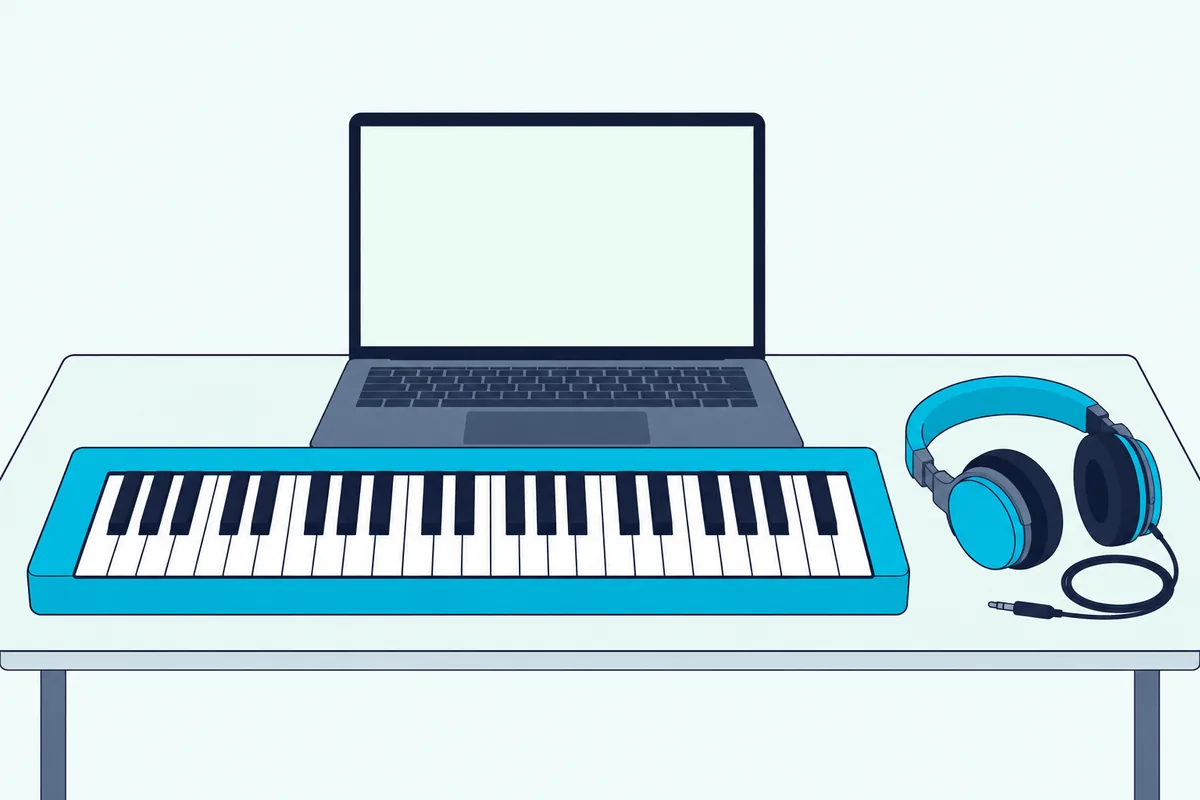
- No instrument on the track, so it outputs only MIDI.
- The track isn’t armed, or Monitor is set to Off.
- Track is off for the port, or the track’s input points at another port.
- A key is mapped: delete it in the Mapping Browser.
A digital piano used as keyboard and sound source needs Local Off, which Ableton says separates the keys from the sound generator. For late notes, use the lowest buffer size your audio hardware allows and, on Windows, an ASIO driver.
The Bottom Line
That silent keyboard is usually one switch away: Track on, an instrument loaded, the track armed. Add mapping once notes play; running two controllers in one Live Set uses the same switches.
Frequently Asked Questions
Does a MIDI keyboard work with Ableton Live Lite?
Yes. Live 12 Lite is an edition of Live 12, and Ableton’s table gives it 8 audio and MIDI tracks and 5 software instruments.
What does Ctrl+K do in Ableton?
Ctrl+K on Windows, or Cmd+K on a Mac, toggles Key Map Mode. Assignable controls turn red, and clicking one and pressing a computer key binds them.
Can you use any MIDI keyboard with Ableton?
Any keyboard that sends MIDI to the computer can play Live. One missing from the Control Surface menu still works once Track is on for its port, with Remote for manual mapping.