How to Add a MIDI Keyboard to Reaper on Windows or Mac

If you’re working out how to add a MIDI keyboard to Reaper, the cable is the easy part, since Reaper only uses MIDI devices you’ve enabled in its preferences.
The keys light up and nothing happens, or notes land on the track and play back in silence, because MIDI carries instructions rather than sound.
Turn on the input, point a track at it and give that track an instrument, and the same keyboard plays ReaSynth, records takes and can even start and stop the transport.
The steps below follow the REAPER User Guide for version 7.84, with the Windows and Mac checks, the track’s input menu, and what M-Audio, Novation, Arturia, Nektar and Akai say about their keyboards in Reaper.
Run the five steps first, and if a key still stays silent, the checklist further down shows which switch is off.
How to Add a MIDI Keyboard to Reaper in Five Steps
Those five steps come from the setup and recording chapters of the REAPER User Guide. You enable the keyboard once in Preferences, then give each track you play an instrument, the keyboard as its input and monitoring turned on.
- Plug the keyboard in by USB, switch it on and open Reaper.
- Choose Options > Preferences (Ctrl+P), open MIDI Inputs under Audio, right-click the keyboard and choose Enable input for track record input.
- Choose Insert > Virtual instrument on new track and double-click ReaSynth.
- Right-click the new track’s record arm button, pick Input: MIDI, your keyboard and All Channels, and tick Monitor Input.
- Play a few notes, then press Ctrl+R to record and Ctrl+R again to stop.
Each step gets its own section below, starting with the computer’s side of the cable and ending with the fixes when a key stays silent.
Which Version of Reaper Do These Steps Cover?
Those menu names come from the current release. Reaper 7.84, out on October 28, 2026, is the version on reaper.fm’s download page, and the user guide by Geoffrey Francis is updated for it.
The same page offers a free, fully functional 60-day evaluation, so a trial install sets up exactly like a licensed one. Cockos lists Windows XP through Windows 11, macOS 10.5 through macOS 26 (some features need 10.7 or later), and Linux on Intel and ARM.
Older documents use older names for two pages you’ll need. Cockos’s Quick Start sheet and several makers’ guides say MIDI Devices and Control Surfaces, where the 7.84 guide’s setup section says MIDI Inputs and its control surface section says Control/OSC/web.
Does Your Computer See the Keyboard Before Reaper Does?
Whichever version you run, Reaper can only list a keyboard the computer has already found. On a Mac, open Audio MIDI Setup and choose Window > Show MIDI Studio, and if the keyboard isn’t there, Apple says to click Rescan MIDI and check that it’s connected, switched on and has any software its maker requires (Apple).
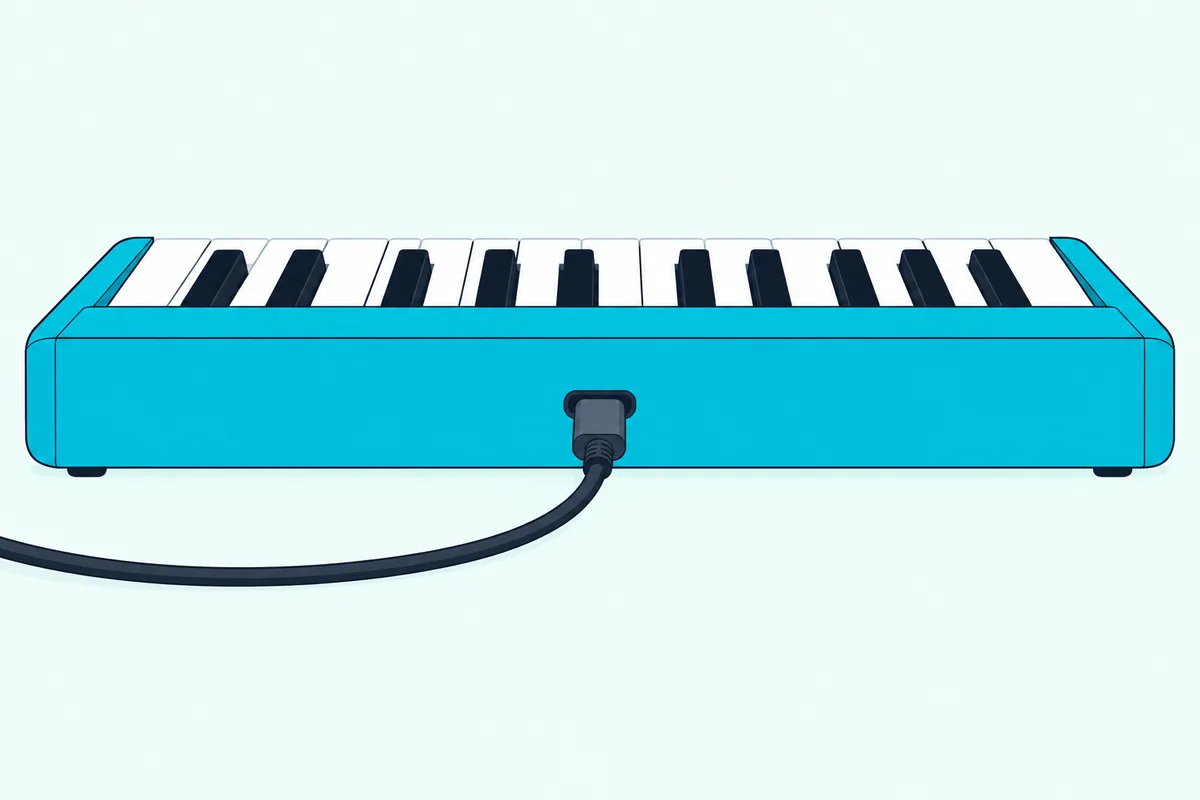
Windows rarely needs a driver for this. Microsoft says most USB MIDI 1.0 devices are class-compliant and advises against third-party drivers unless they’re absolutely necessary, and Windows 11 25H2 and later, with updates on, let several apps use one MIDI device at once (Microsoft).
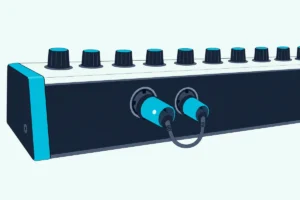
A keyboard with only round 5-pin MIDI ports needs one more box, a MIDI interface or an audio interface with MIDI In, which the REAPER guide calls the MIDI input of your sound card or audio device. That interface goes between the keyboard and the computer, and connecting a 5-pin keyboard to a Windows PC walks through the route.
Where Do You Enable the Keyboard in Reaper’s Preferences?
Once the computer lists the keyboard, Reaper needs its own switch. Choose Options > Preferences (Ctrl+P), open the MIDI Inputs page under Audio, right-click the keyboard’s name and choose Enable input for track record input, because the guide says MIDI devices have to be enabled before Reaper uses them.
On a Mac the same window opens from Reaper > Settings, the path Novation’s Launchkey guide gives. The right-click menu also holds Enable input for control messages, which lets the keyboard’s knobs and buttons act as a controller, a switch the knobs section below comes back to.
Double-click the device to open Configure MIDI Input, where you can give it a shorter name. If the list shows devices that are no longer connected, the guide says to use Ignore device, and Reset all MIDI devices sits near the foot of the window.
Reaper accepts up to 62 MIDI input ports, and MIDI carries 16 channels per device. A second keyboard or a pad controller is enabled the same way, one right-click each.
Which Input Should a Reaper Track Listen To?
With the keyboard enabled, each track still has to be pointed at it. Right-click the track’s red record arm button and choose Input: MIDI, then your keyboard, then All Channels or one channel, and tick Monitor Input in the same menu, since the guide says input monitoring has to be on for you to hear what you play.
All Channels is the safe pick. Most keyboards let you choose which of the 16 channels they send on, and the guide says many use channel 1 by default, so a track set to channel 2 hears nothing from a keyboard on channel 1.
Leave the record mode on Record Input (audio or MIDI), which keeps what’s already on the track and records each pass as a new take. The guide’s checklist treats the arm button and Monitor Input as separate switches, so both need to be on.
To play without recording, choose Record disable (input monitoring only) from that menu. The track stays armed and you hear exactly what would be recorded, which is handy while you pick a sound.
What Turns the Keyboard’s Notes Into Sound?
Monitor Input passes the notes along, but something on the track still has to play them. The guide explains that MIDI is a series of instructions with no sound of its own, so the track needs an instrument plugin, such as ReaSynth, in its FX chain.
ReaSynth is one of the Cockos plugins among the 200-plus that come with Reaper. Insert > Virtual instrument on new track lists every instrument you’ve installed, and double-clicking one makes Reaper create, arm and name the track with the instrument open.
On a track you already have, open its FX window and add ReaSynth or any VST instrument there instead. Either way, the track’s output should go to the master, and the master to the outputs your headphones or speakers use.
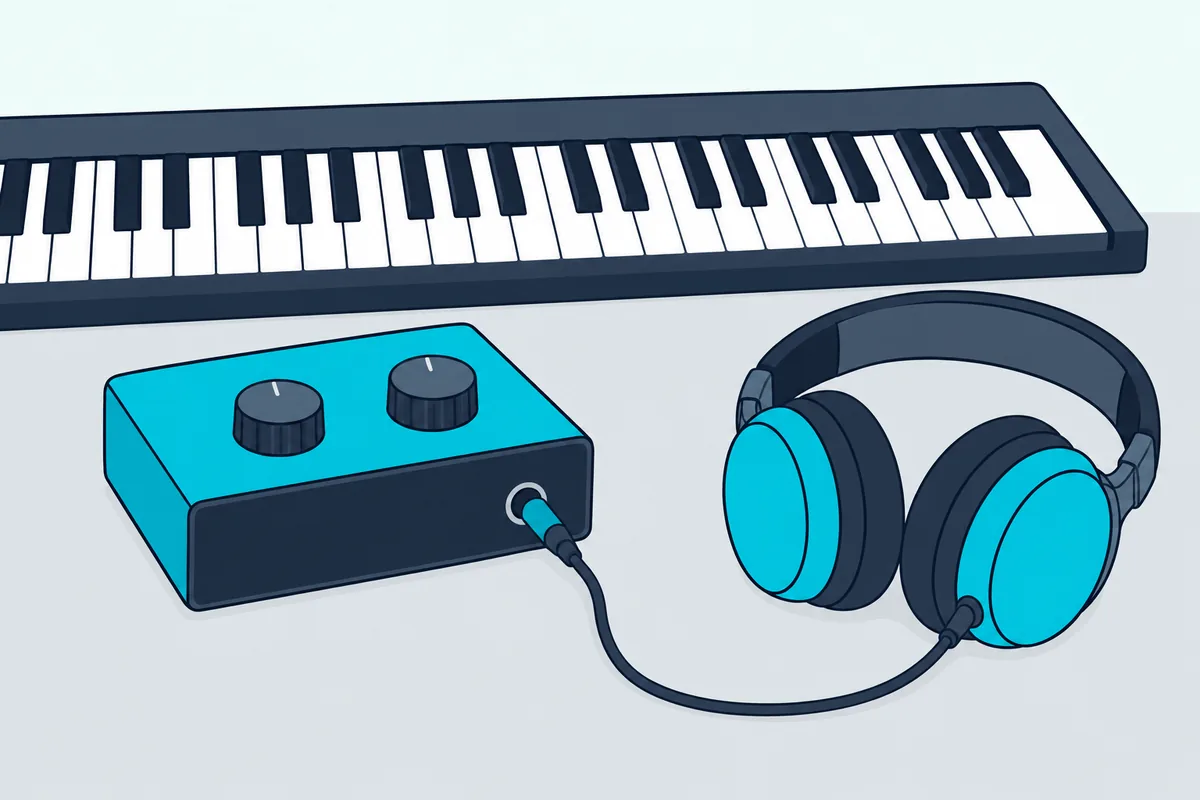
Audio has to work too, even for MIDI-only sessions, because the guide says synths need an audio device to play back. In Options > Preferences > Audio > Device, Windows users should pick ASIO if the interface has an ASIO driver, otherwise WASAPI or WaveOut, and start at 44,100 Hz with a block size of 512 if unsure.
On a Mac, audio devices are set up in Audio MIDI Setup and chosen on that same Device page. If you use the Mac’s built-in input and output, the guide suggests joining them into an aggregate device in Audio MIDI Setup first.
How Do You Record and Edit What You Play?
Once ReaSynth sounds, recording works like any audio take. Press Ctrl+R to start and Ctrl+R again to stop, and Reaper writes a MIDI item onto the armed track.
The record arm menu also holds the overdub modes. Record MIDI overdub adds new notes inside an existing item, while the replace, touch-replace and latch-replace modes swap old notes for new ones in different ways.
Double-click the MIDI item to open the MIDI editor. It opens in piano roll view by default, with Named note, Event list and Musical notation views a click away.
If you played something good before pressing Record, Reaper’s action list has five retroactive MIDI recording actions. With the track armed and Monitor Input on, MIDI: Insert all available retroactively recorded for armed tracks drops that passage onto the track.
Can the Keyboard’s Knobs and Buttons Control Reaper?
Notes are only half of what many keyboards send. The guide says a MIDI keyboard’s controls may be able to run Reaper actions such as volume, pan, mute, solo, arming and the transport, either as a recognized control surface or as a generic device.
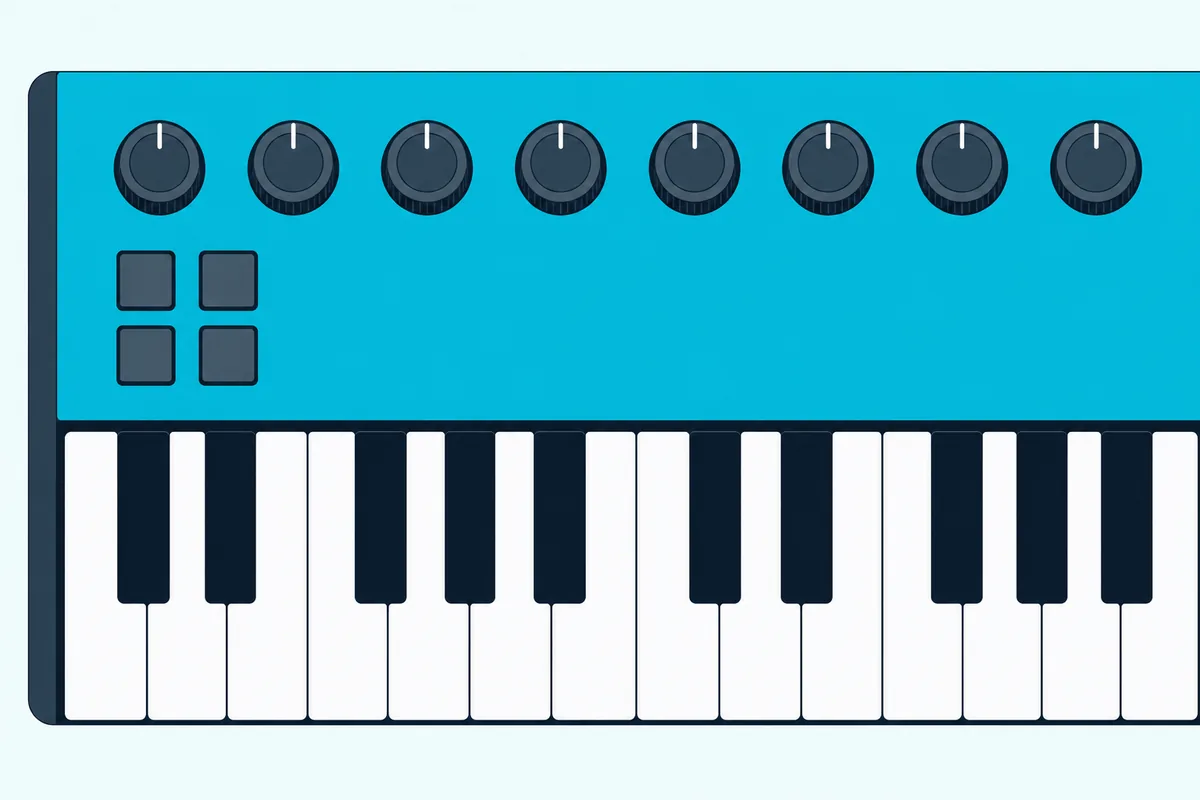
Reaper’s controller mapping works two ways. A keyboard that emulates Mackie Control or HUI is added under Options > Preferences > Control/OSC/web > Add, while a generic one is enabled for control messages, then mapped in the Actions list: select an action, click Add and move the knob instead of pressing a key.
Plugin knobs follow the same idea. Click the control in the plugin window, click Param, choose Learn and move the knob, and the guide suggests absolute mode with soft takeover in many cases, so a setting doesn’t jump until the knob reaches it.
The guide also warns that not every control surface can control every action, so each maker’s own notes matter. Here’s what their documents say about Reaper.
| Keyboard maker | What its Reaper note says |
|---|---|
| M-Audio, Oxygen MKV FAQ | Press DAW, then hold Shift and DAW/Preset to pick a mode; Mackie 1 suits Reaper, and Mackie 2 gives finer pan control if the pan can’t sweep fully |
| Novation, Launchkey 49 MK4 user guide | Reaper gets partial HUI: in Control/OSC/web, add HUI (partial), with MIDI IN 2 and MIDI OUT 2 on Windows or the Launchkey 49 DAW Out and DAW In ports on a Mac |
| Arturia, KeyLab Essential mk3 manual | Reaper isn’t one of its five scripted DAWs, so turn on MCU or HUI in Arturia’s MIDI Control Center, enable the keyboard’s MCU/HUI port and add Mackie Control |
| Nektar, Reaper setup for Impact keyboards | Open Reaper once before running Nektar’s installer, add your Impact model in Control/OSC/Web, and enable only its first port, in Enable+Control mode |
| Akai, MPK mini IV FAQ | Its mapping scripts cover Logic Pro, GarageBand, FL Studio, Cubase and Ableton, not Reaper, so the knobs get mapped by hand in Reaper |
Port names change between models, so check your own model’s document before you copy a row. For a side-by-side look at which models do the most in Reaper, see the keyboards that map themselves to Reaper’s controls.
Why Isn’t Reaper Getting MIDI From Your Keyboard?
When a key still makes no sound after all that, the cause is usually one of a few switches. The guide’s list for a silent keyboard is a device that isn’t enabled in Reaper, a channel mismatch between keyboard and track, a track that isn’t armed, or input monitoring that’s off.
A quick test splits the problem in two. Set the track’s input to the Virtual MIDI Keyboard (View > Virtual MIDI Keyboard, or Alt+B) and click a few keys, and if ReaSynth plays, the instrument and audio side work and the fault sits between the keyboard and Reaper.
From there, run down the guide’s own recording checklist:
- The keyboard is enabled in Preferences for input, and for control too if you use its knobs.
- The track’s input is the keyboard, on All Channels or the channel the keyboard sends on.
- The track is armed and Monitor Input is on.
- The instrument listens on that channel, which matters for multi-channel instruments such as Kontakt.
If Reaper says a MIDI device can’t be opened, its troubleshooting guide says the keyboard may be disconnected or unpowered, in use by another program, or Reaper may be open twice. Two options in Preferences under Audio, Warn when unable to open audio/MIDI devices and Warn when enabled MIDI devices are not present, help with exactly this kind of hardware problem, the guide says.
After replugging, Actions > Reset all MIDI devices resets the MIDI hardware, and F3 sends all notes off if a note hangs. On a Mac, Apple’s Test MIDI Setup button highlights the keyboard’s In arrow when you play, which shows whether notes reach the computer at all (Apple).
Nektar adds one Mac case: on M1-based Macs its controllers act as generic MIDI devices when Reaper runs natively. Its fix is to tick Open in Rosetta in Reaper’s Get Info window.
Why Do the Notes Sound Late in Reaper?
If the notes arrive but trail your fingers, the buffer from the audio section is the setting to change. The guide says an echo-like delay in your headphones means latency is too high, and that lowering the block size to 256 or 128 can fix it, though consumer built-in sound cards may then pop and click.
On Windows, the guide ranks drivers ASIO, WDM, DirectX and MME, in that order, for latency. A smaller buffer also works the CPU harder, so check Reaper’s Performance Meter after each change, and the rest of the causes of MIDI keyboard lag are covered one by one.
The Bottom Line
Reaper needs three things before a key makes a sound: the keyboard enabled under MIDI Inputs, a track armed with the keyboard as its input and Monitor Input on, and an instrument such as ReaSynth on that track. Get the notes playing first and the knobs second, and if you also record in Avid’s DAW, the same keyboard in Pro Tools follows a similar order with its own menus.
Frequently Asked Questions
Can you play Reaper without a MIDI keyboard?
Yes. View > Virtual MIDI Keyboard, or Alt+B, opens an on-screen keyboard you play with the mouse or the computer’s keys, and the guide’s example plays half a scale up and down on Z, X, C, V and B.
Set a track’s input to the Virtual MIDI Keyboard as you would a real one. A laptop keyboard as a MIDI controller goes further, DAW by DAW.
Does a MIDI keyboard need a driver to work with Reaper?
Usually not. Microsoft says most USB MIDI 1.0 devices work on Windows without third-party drivers, and M-Audio’s Oxygen MKV FAQ calls that series class-compliant, with no drivers to install.
What some keyboards do need is the maker’s integration software for the knobs and transport, such as Nektar’s Reaper installer. The keys themselves need only the MIDI Inputs switch and a track set up as above.
How do you connect a digital piano to Reaper?
The same way as any MIDI keyboard. You connect pianos that have a USB port for a computer straight to it and enable them under MIDI Inputs, while models with only 5-pin MIDI Out need a MIDI interface first.
After that, the piano needs a track with an instrument on it, ReaSynth or a piano plugin, plus Monitor Input.