How to Connect a MIDI Keyboard to FL Studio, Play and Record
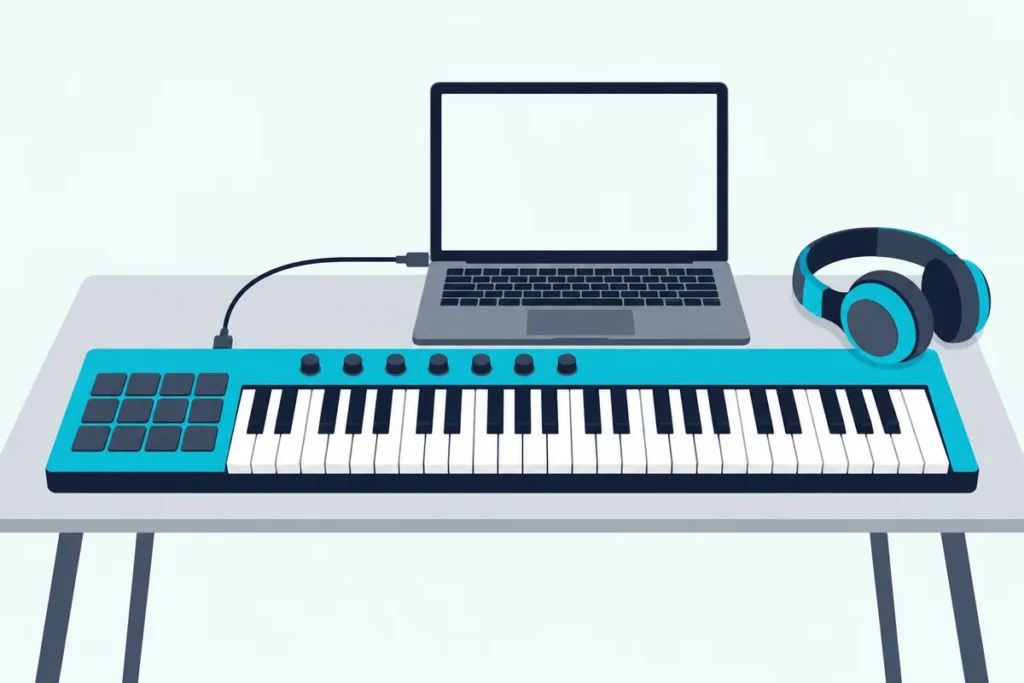
Here’s how to connect a MIDI keyboard to FL Studio: plug it in before you open the program, press F10, select the keyboard in the Input list and click Enable.
Miss one of those and the keys stay silent, because FL Studio takes notes only from a controller you’ve enabled, and one connected after launch may not be listed at all.
Get them right and the MIDI activity light blinks with each note, the instrument you’ve selected in the Channel Rack plays, and the Record button keeps your take.
The steps follow Image-Line’s own manual for FL Studio 2026, from the controller type to choose to the computer keyboard stand-in.
Then come drums with FPC, recording, the makers’ own FL Studio steps, and fixes for a keyboard that’s missing from the list or won’t play.
How to Connect a MIDI Keyboard to FL Studio in Six Steps
Those steps follow Image-Line’s MIDI Setup page, which says your computer has to detect the keyboard before FL Studio opens.
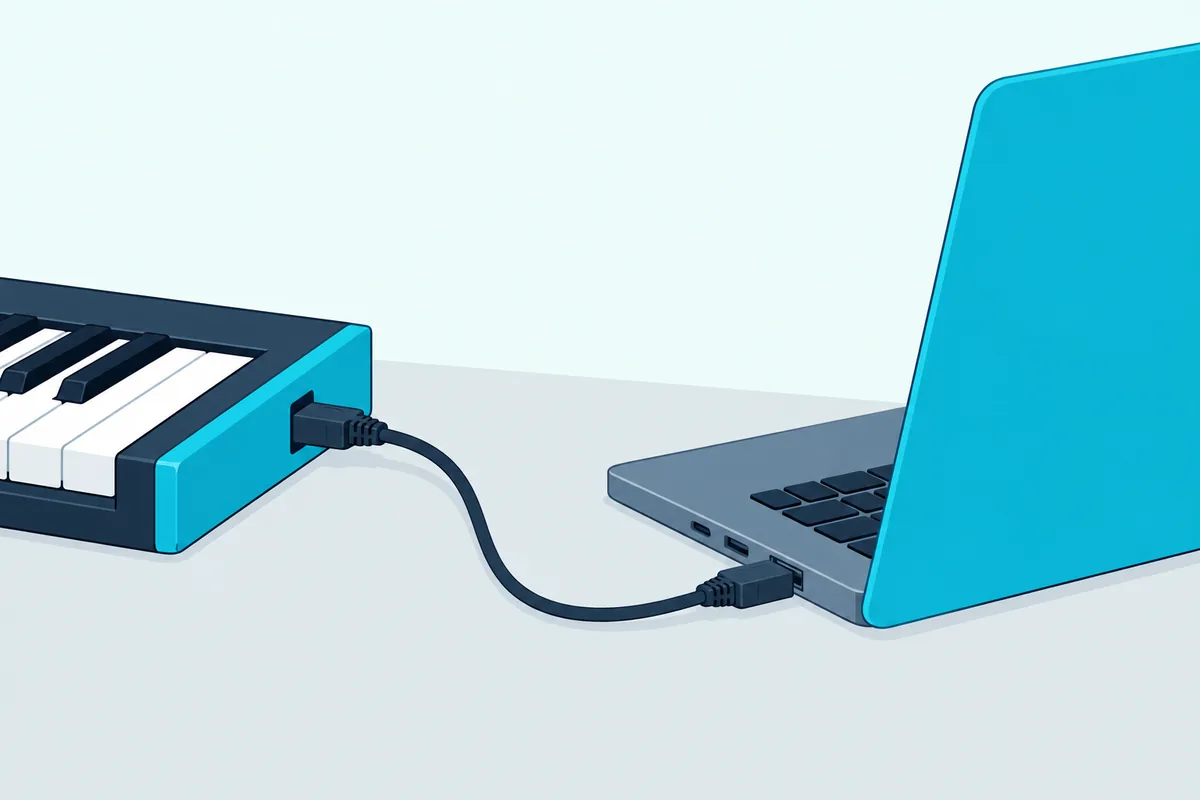
- Install any driver or FL Studio script your keyboard’s maker provides, then connect the keyboard by USB to a port on the computer itself.
- Open FL Studio and check that Enable MIDI remote control is ticked in the Options menu, since MIDI input is off without it.
- Press F10 to access the MIDI settings, or choose Options > MIDI settings, and click your keyboard in the Input list.
- Choose its name in the Controller type menu if FL Studio lists it, or USB Audio Device (generic controller) if it doesn’t.
- Click Enable, play a few keys and watch the MIDI activity light on the Main Panel blink.
- Select an instrument in the Channel Rack and play, because the selected channel receives the notes.
FL Studio can now start that process for you. Image-Line’s notes for the 2026.1.6 update (7 September 2026) say FL Studio shows a notification when a new controller is connected, with the option to enable it.
The MIDI Settings page is still where you check the result. Image-Line also suggests a free port on the computer rather than a USB hub, to avoid connection and power problems.
What Does Each Option on the MIDI Settings Page Do?
That Input list sits on a page with more switches than most first setups need, and Image-Line’s MIDI Settings page names each one. These are the ones that matter for a keyboard:
| Option | What the manual says it does |
|---|---|
| Input list | Shows the controllers your operating system has detected |
| Enable | Lets FL Studio receive MIDI from the selected MIDI device; each device is enabled separately |
| Controller type | A named entry or MIDI script for specially supported controllers, otherwise the generic controller entry |
| Port | A number from 0 to 255; supported controllers may need the same one in the Input and Output lists |
| Auto accept controller | Closes the link pop-up as soon as you move the control on your keyboard, and the link is made |
| Send master sync | Sends FL Studio’s start and stop commands to an output device |
| Refresh device list | Rescans for a controller connected after FL Studio started, or one that stopped responding |
| Update MIDI Scripts | Downloads updated scripts for supported controllers, which FL Studio normally does by itself |
The controller type matters less than it looks. The manual says FL Studio supports all generic MIDI controllers, adds that it picks the type automatically for some devices but not most, and says not to worry about a generic entry if the keyboard works.
A named type or script adds the controller’s special functions, which on the keyboards further down means pads and knobs that control FL Studio’s mixer and Channel Rack. Ports matter once two devices are connected: the manual warns that two devices sharing a port number will conflict.
The Output list runs the other way, sending notes from FL Studio to hardware such as a synth through the MIDI Out plugin set to the same port, with Enable MIDI output ticked in the Options menu. Leave Send master sync off unless that device uses transport commands, because the manual says it can otherwise cause unpredictable behavior or crashes in the device.
Two more options shape how the keys feel. Link note on velocity to [none] gives every note a fixed velocity of 100, while the Curve editor reshapes how hard presses translate into the velocity FL Studio receives, showing each note’s velocity as you play.
Can You Use Your Computer Keyboard Instead of a MIDI Keyboard?
Yes, and it’s a handy way to check that sound works before you blame the MIDI keyboard. Turn on Typing to piano keyboard (Ctrl+T) in the Options menu, and Image-Line says you can record notes with your typing keyboard as you would with a real MIDI keyboard.
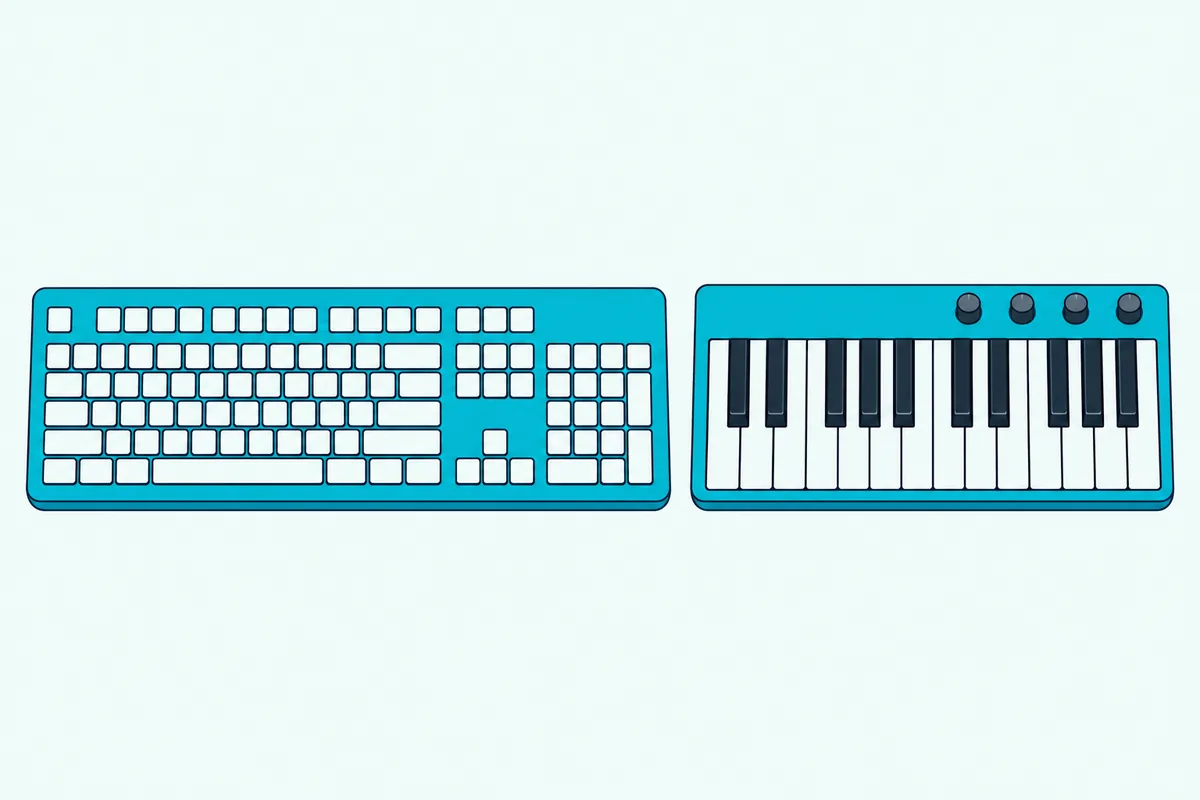
The same switch sits on the toolbar, and right-clicking it changes the octave range. Image-Line’s toolbar page calls it MIDI input, and its recording page says to follow the same steps with it, so the notes go to the selected instrument.
A mouse or touchscreen gives you a second stand-in. View > Touch controller (Alt+F7, or Option+F7 on a Mac) opens an on-screen keyboard or pad controller that plays the selected channel and can be recorded to the piano roll.
That gives you a practical test. If the typing keyboard plays sound and the MIDI keyboard doesn’t, the problem is on the MIDI side, so go back to the Input list and the Enable switch.
What If Your Keyboard Isn’t in FL Studio’s Input List?
That Input list stays empty when FL Studio isn’t detecting the keyboard, and Image-Line’s first question is whether it was connected after FL Studio opened, since the operating system has to detect it first. The fix is to close FL Studio, switch the keyboard off and on (or unplug and reconnect its USB cable), wait for the computer to detect it, then start FL Studio again.
If you see no options to choose, the setup page says to reinstall the keyboard’s drivers. A controller you connect after launch can also be found with Refresh device list, without restarting.
The rest is the operating system’s side. On Windows, the guide to getting a Windows PC to recognize a MIDI keyboard covers Device Manager, drivers and 5-pin keyboards, and on a Mac, start with checking the keyboard in Audio MIDI Setup.
On a Mac, Akai’s FL Studio guide for the MPK mini IV adds one more fix. Close FL Studio, disconnect the keyboard, remove the MIDI device from the MIDI Studio window in Audio MIDI Setup, then reconnect it and reopen FL Studio.
A keyboard with only round 5-pin MIDI sockets needs an adapter first. Image-Line says you’ll probably need a USB-to-MIDI cable adapter, or the MIDI sockets most external audio devices have, with two MIDI cables if FL Studio should also play the keyboard and one if the keyboard only plays FL Studio.
Digital pianos with what Yamaha calls a USB TO HOST port, the square USB socket, connect like any USB keyboard. Yamaha’s FAQ says its instruments with that port need Yamaha’s USB-MIDI driver on the computer, which the Windows guide above covers.
Which Instrument Does the Keyboard Play?
Once the keyboard is listed and enabled, its notes go to whichever instrument is selected in the Channel Rack. The manual says FL Studio listens to all MIDI channels by default, so any enabled controller plays the selected channel.
To add an instrument, open the Channel Rack’s Channel options menu and choose Add one, which lists your favorites, or More plugins for the full list. Click another channel’s selector and the keys switch to that instrument.
You can also lock a keyboard to one instrument. Right-click the Channel button and choose Receive notes from, then your keyboard, then No input port set (click to auto assign).
A locked channel shows a lock icon and an orange selector, and it plays that keyboard’s notes whichever channel is selected. That’s one way to have two keyboards play two instruments at once, and if your keyboard can send different MIDI channels across its range, the manual says your left and right hands can play different instruments.
FL Studio’s own instruments are only the start. The guide to loading new sounds onto a MIDI keyboard covers adding virtual instruments for the keys to play.
How Do You Play Drums on FPC From a MIDI Keyboard?
That selected-channel rule covers drums too. FPC, short for Fruity Pad Controller, is an instrument you add to the Channel Rack like any other, with 16 multi-layered pads in each of its two banks.
Its default note layout matches the Akai MPC series, so pads that send that layout’s notes line up with FPC’s pads. For any other layout, Learn, in a pad’s Play Key menu, assigns the next key you play to that pad.
Map notes for entire bank does all 16 in one pass. Starting from the lower-left pad, each note you play is linked to the next pad in order.
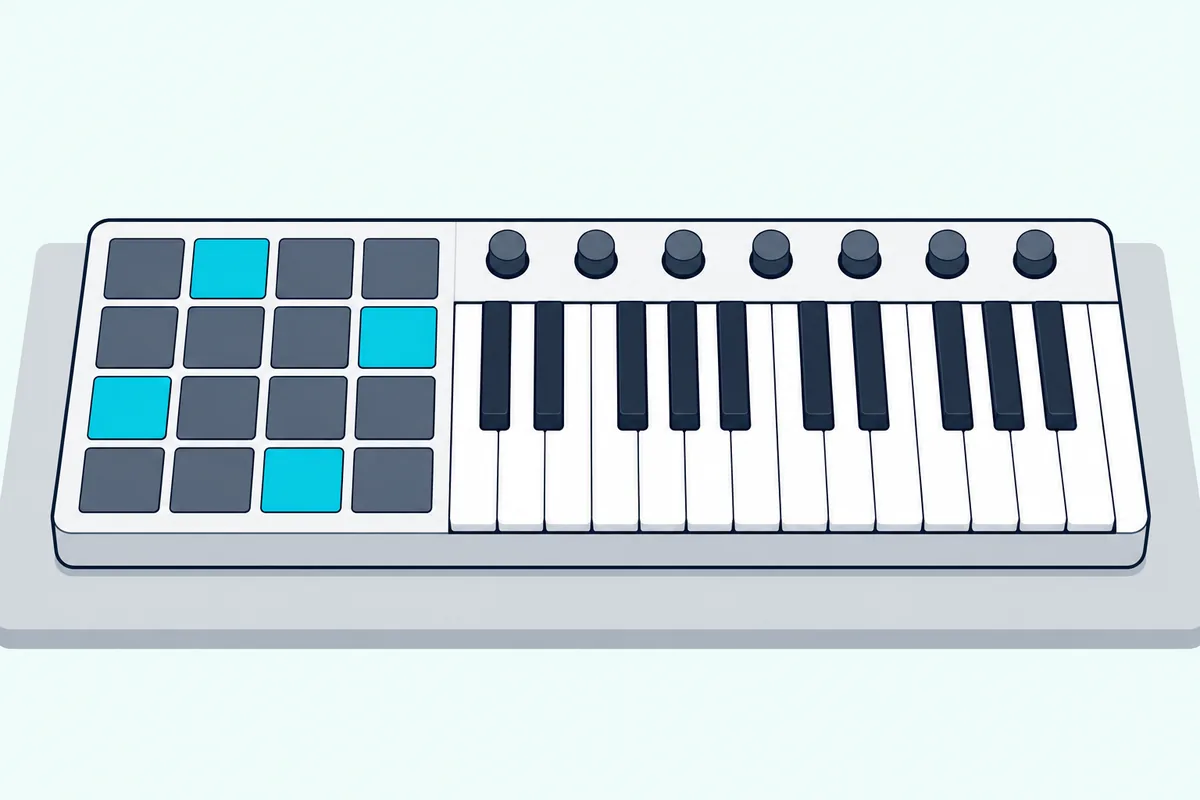
Keyboards made for FL Studio go further. Novation says the 16 pads on the Novation FLkey series suit step sequencing in the Channel Rack and finger drumming with FPC, Slicex or Fruity Slicer.
How Do You Record a Take From the Keyboard?
Recording uses the same selected channel plus the Record button on the transport panel. Image-Line’s Note / MIDI Recording page lists every option, and these four steps cover a first take:
- Right-click the Record button and make sure Notes is ticked, and untick Automation if you don’t want knob moves recorded.
- Turn on Recording Count-in (Ctrl+P), called Recording precount in the Options menu, so you hear metronome ticks before the take, and right-click it on the toolbar to choose how many bars.
- Click Record so it turns red, select the instrument’s channel and press Play.
- Play, then press Stop, and click the channel’s piano roll preview in the Channel Rack to see the notes.
The manual suggests at least one bar of count-in, and the metronome (Ctrl+M) keeps you on tempo once the take starts. Start on input (Ctrl+I) is another option: Play then waits until you press a key.
In Song mode, the recorded pattern also appears in the Playlist when you stop. To scrap a take, choose Cancel current recording from the Help menu before you press Stop, or use Undo from the Edit menu afterward.
Those notes then play the channel’s instrument from the piano roll. Its Snap to scale menu also has a Snap incoming MIDI option, which moves out-of-scale notes you play or record to the nearest note in the chosen scale, from all devices or just the typing keyboard.
FL Studio also keeps the last three minutes of notes from external controllers and the typing keyboard, even when Record is off. Choose Dump score log to selected pattern from the Tools menu, and an unrecorded idea lands in the piano roll.
Image-Line says FL Studio 2026 should record incoming MIDI more accurately, with much less jitter. If notes sound late as you play, the guide to cutting the lag between key and sound covers the buffer and driver settings behind it.
Which Keyboards Have Their Own FL Studio Setup?
Several makers publish FL Studio steps for their keyboards, and they’re worth following before the generic route above. Here’s what each maker’s own document says:
| Keyboard | What the maker’s FL Studio instructions say |
|---|---|
| Novation FLkey Mini 25 | Made for FL Studio and officially supported by Image-Line; its custom DAW scripts need FL Studio 26.1.1 or later |
| Novation Launchkey 49 MK4 | Works with FL Studio through its own encoder, pad and fader modes, but can’t use the FLkey 2 script |
| Akai MPK mini IV | Install the FL Studio control script from the inMusic Software Center, press PLUGIN/DAW so it’s lit red, then open FL Studio |
| Arturia KeyLab Essential mk3 | FL Studio is one of five DAWs with Arturia scripts, which may have to be installed manually |
| M-Audio Oxygen MKV | Keys on generic controller; the MIDIIN2 port on Mackie Control Universal, its input and output on port 0; DAW mode with the Mc1 preset |
Two entries for one keyboard aren’t a fault on models like these. Akai’s FL Studio Setup Guide says the installed script should assign and enable the MPK mini IV’s ports by itself, and otherwise gives its MIDI port and DAW port each their own number, shared by input and output, such as 236 and 237.
It then sets the Controller type to AKAI MPK Mini IV MIDI and AKAI MPK Mini IV DAW. For the older Akai MPK Mini MK3, look up that model’s own instructions, since this guide is written for the IV.
M-Audio’s Oxygen MKV setup article shows the same pattern with different names. Its steps put the keys on generic controller and the MIDIIN2 port on Mackie Control Universal, after which the transport, faders, mute, solo and pan controls should respond in DAW mode.
Novation’s FLkey Mini 25 page says its eight encoders control FL Studio’s mixer, Channel Rack and plugins without setup. Arturia’s KeyLab Essential mk3 manual says that if the keyboard doesn’t recognize your DAW, check the DAW’s MIDI settings and make sure it’s up to date.
Why Isn’t Your MIDI Keyboard Working in FL Studio?
Even with the keyboard listed, a few settings can still leave it silent or half working, and Image-Line’s notes cover most of them.
If the keyboard is listed but doesn’t respond, the setup page’s fix is to rescan the MIDI devices (Refresh device list) and enable the keyboard again. If that fails, close FL Studio, switch the keyboard off and on, wait for the computer to detect it and start FL Studio.
If the activity light blinks but nothing sounds, select a channel that holds an instrument, and check that no other channel is locked to that keyboard with Receive notes from. If the typing keyboard is silent too, look at FL Studio’s audio side, which the page on using a MIDI keyboard without an audio interface covers, down to a keyboard that won’t make a sound.
If the keys play but the pitch bend and mod wheel don’t, Image-Line’s knowledge base says the project template normally hasn’t been set up for them. After FL Studio 21, it says, the default templates under File > New from template come set up for both wheels.
If a plugin ignores your sustain pedal, turn off Foot pedal controls note off in the MIDI settings. The manual says that option captures the pedal’s messages for the piano roll, so they never reach the plugin.
Knobs and faders are a separate job from the keys. A script maps some of them for you, and the guide to how to assign MIDI controls in FL Studio covers linking the rest.
The Bottom Line
So connecting a MIDI keyboard to FL Studio comes down to the computer seeing the keyboard first, then Enable MIDI remote control, the keyboard enabled in the Input list with the right controller type, and an instrument selected in the Channel Rack. A maker’s FL Studio script, where there is one, adds the pads and knobs.
If you’re still choosing a first MIDI keyboard, the makers’ setup steps above are worth reading before you buy. The descriptions come from Image-Line’s FL Studio manual and the makers’ own manuals and support pages.
Frequently Asked Questions
Are all MIDI keyboards compatible with FL Studio?
Image-Line’s manual says FL Studio supports all generic MIDI controllers, so a USB keyboard without its own FL Studio support still plays notes through the USB Audio Device (generic controller) entry. Models FL Studio lists by name, or that come with a script, add control of FL Studio’s windows from their pads and knobs. A keyboard with only 5-pin MIDI sockets will probably need a USB-to-MIDI adapter, Image-Line says, unless your audio interface has MIDI sockets.
Can you connect a MIDI keyboard to FL Studio Mobile?
Yes. Image-Line’s FL Studio Mobile controllers page says the app can connect to wired or Bluetooth MIDI controllers. Many Android and iOS devices need an OTG adapter for a wired keyboard, and not every phone or tablet can power one. For Bluetooth, switch on Enable MIDI over Bluetooth in the app, and the selected Playlist track decides which instrument plays.
Do you need a driver to use a MIDI keyboard with FL Studio?
Often not. Image-Line’s setup page says many controllers use the operating system’s standard drivers and appear as USB Audio Device (generic controller), and it says to install any USB drivers that came with your controller before starting FL Studio. A maker’s FL Studio script is a separate download, as Akai’s MPK mini IV guide shows.
Does FL Studio work with a MIDI keyboard on a Mac?
Yes. Image-Line’s download page lists macOS 10.15.7 or newer for FL Studio 26.1.7, and Akai’s guide gives separate Windows and macOS sections that both start at Options > MIDI Settings. Port names can differ, though: M-Audio notes that the Oxygen’s MIDIIN2 port may be labeled DAW on a Mac.