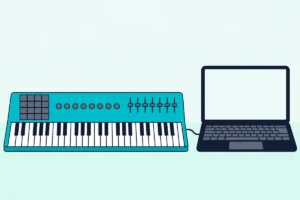
To add sounds to a MIDI keyboard, install virtual instrument plugins (VSTs or AUs) in your DAW.
How to add sounds to a MIDI keyboard comes down to one fact about how the keyboard works: your MIDI keyboard does not store sounds — your computer does, and the keyboard just tells the computer which notes to play.
That follows from the fundamental nature of MIDI controllers. Unlike a digital piano with built-in speakers and preset sounds, a MIDI keyboard sends performance data (which key, how hard, when released) to software on your computer that generates the actual audio. Adding sounds means installing virtual instrument plugins that respond to your keyboard input.
Those sounds come from the instruments bundled with your keyboard and DAW, from free third-party plugins, and from commercial sound libraries.
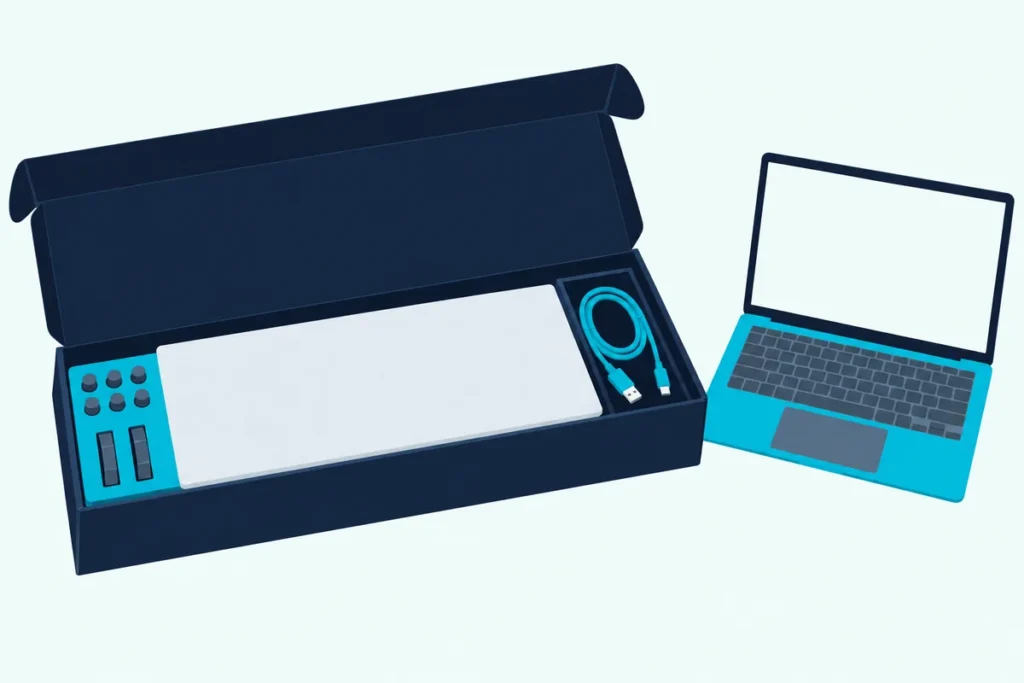
Free options include the instruments bundled with your DAW (GarageBand, Ableton Live Lite, MPC Beats) and third-party free plugins like Vital, Spitfire LABS, and Dexed. Load a plugin on a software instrument track in your DAW, and your MIDI keyboard plays that sound instantly.
Why Your MIDI Keyboard Has No Sounds
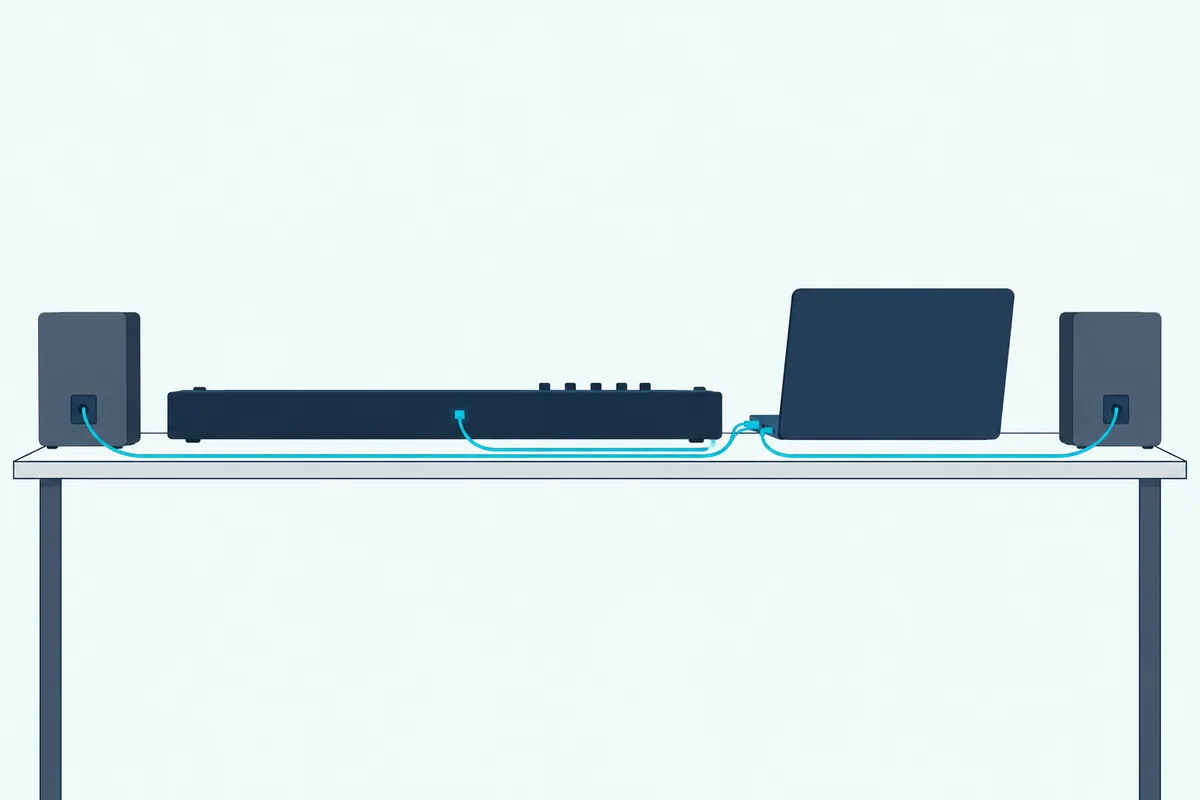
A MIDI controller produces no audio on its own by design. That design choice gives you unlimited sound options instead of locking you into whatever a manufacturer loaded at the factory.
The Sound Lives In Software, Not Hardware
When you press a key on your MIDI keyboard, it sends a digital message to your computer: “Note C4 was pressed at velocity 95.” Your DAW receives that message and routes it to whatever virtual instrument plugin is loaded on the active track. The plugin generates the audio — a grand piano, a synthesizer, a string section, a drum kit — and sends it to your speakers.
The other route is a hardware synth with its own sound engine, and the page on what a synthesizer does that a MIDI keyboard doesn’t covers the difference.
Changing which plugin responds to your keyboard changes the sound instantly. Load a piano plugin and your keyboard plays a piano sound. Load a synth plugin and the same keyboard produces sweeping electronic textures. That flexibility is what sets a MIDI controller apart from a keyboard with built-in sounds.
Bundled Software Gets You Started Immediately
Most MIDI keyboards ship with free software that includes virtual instruments.
These bundled packages give you pianos, synths, drums, and orchestral sounds on day one. Install the bundled software, open your DAW, load a virtual instrument, and your MIDI keyboard plays sounds immediately.
What Are the Best Free Virtual Instruments for a MIDI Keyboard
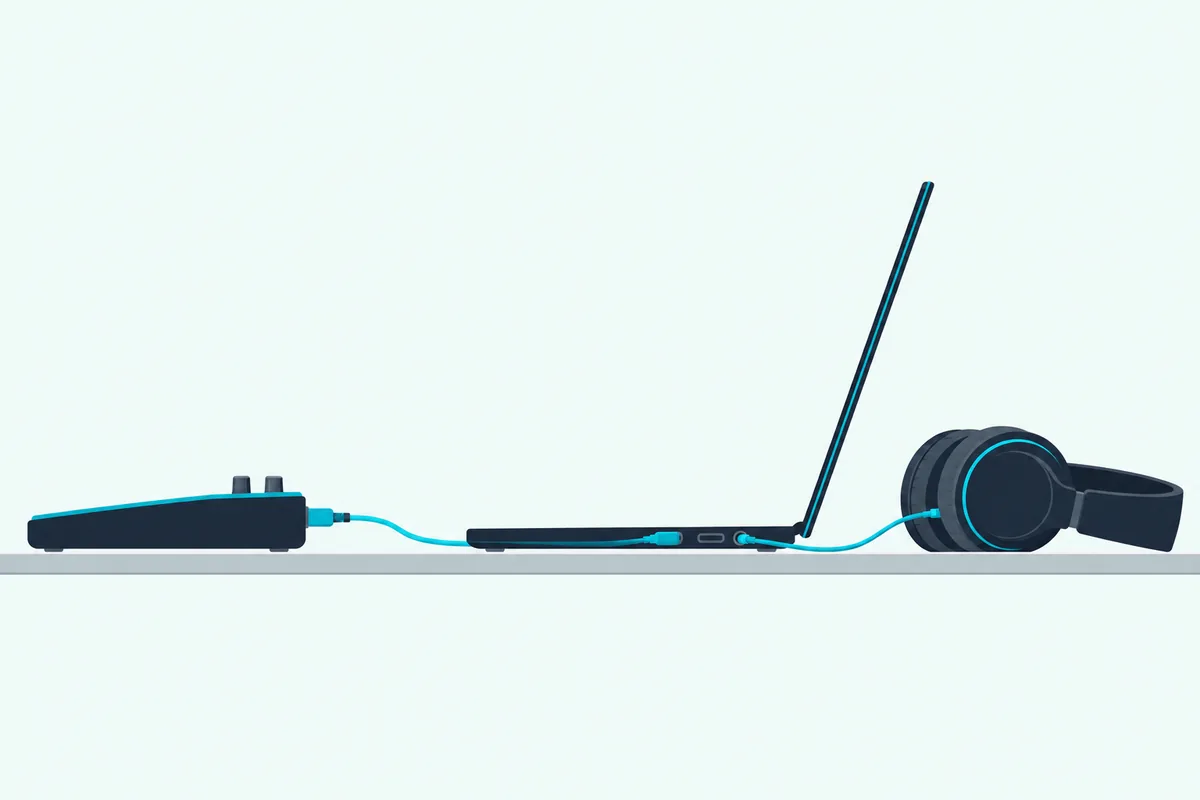
Free instruments come from your DAW and from third-party makers.
DAW Built-In Instruments
Every major DAW ships with virtual instruments that respond to MIDI keyboard input. GarageBand includes pianos, synths, drums, and orchestral patches. Ableton Live includes Drift, Wavetable, and Simpler. FL Studio includes Flex, Sytrus, and Harmor.
Spitfire LABS (Free Orchestral And Texture Sounds)
Spitfire Audio’s LABS collection offers professionally recorded instruments — strings, pianos, choirs, textural pads, and experimental sounds — completely free. Each LABS instrument is a focused sample library that installs through the Spitfire app and loads as a plugin in any DAW.
LABS Soft Piano, LABS Strings, and LABS Choir are among the collection’s instruments.
Vital (Free Wavetable Synthesizer)
Vital is a wavetable synthesizer. The free version includes the full synthesis engine with unlimited polyphony, three oscillators, and a visual modulation system.
Dexed (Free FM Synthesizer)
Dexed recreates the Yamaha DX7 synthesizer. Electric pianos, metallic bells, glassy pads, and punchy basses from the DX7 era are all available for free through this plugin.
Dexed loads thousands of DX7 preset patches from the internet.
Piano One And Other Free Pianos
Piano One by Sound Magic provides a free sampled concert grand piano that responds to MIDI velocity.
Other free piano options include the Salamander Grand Piano (for the sforzando sampler) and the Iowa Piano (bundled with several DAWs).
How To Load Sounds In Your DAW
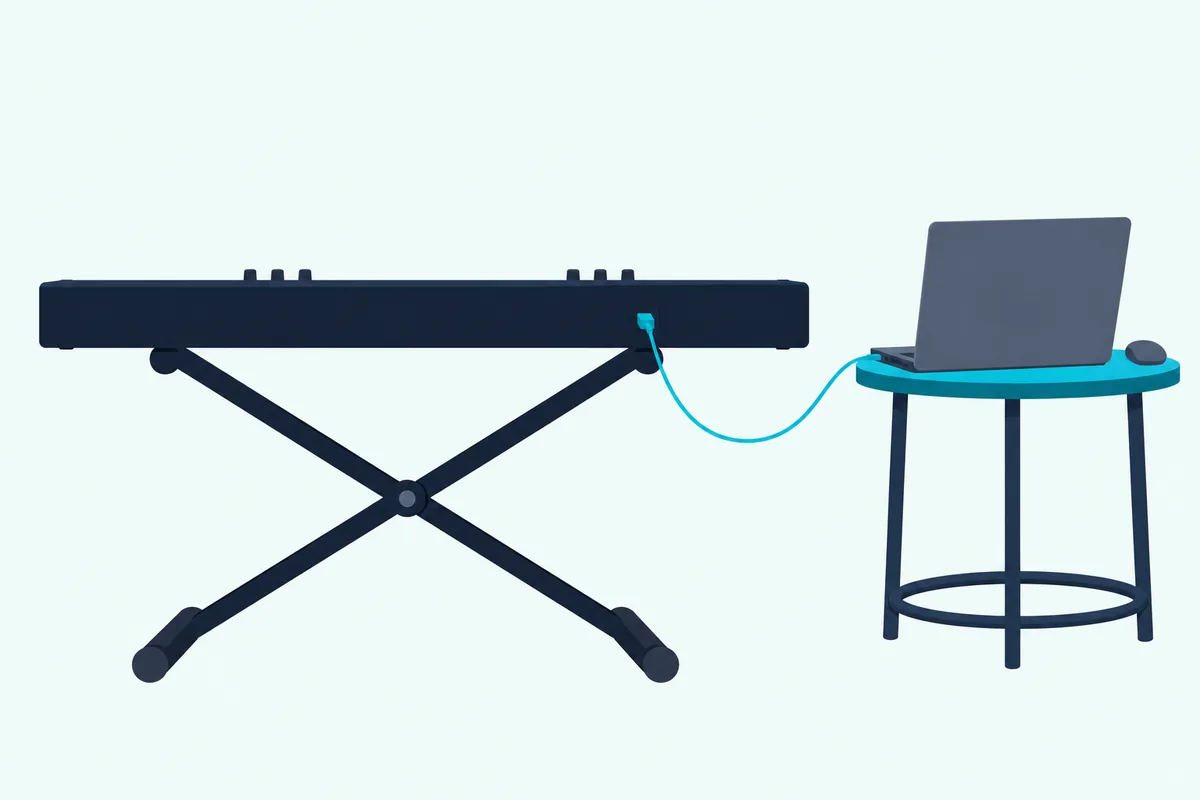
Once you have installed virtual instruments, loading them in your DAW follows the same basic pattern regardless of which software you use.
Create A Software Instrument Track
In your DAW, create a new track and select “Software Instrument” (Logic/GarageBand), “MIDI Track” (Ableton), or “Channel” (FL Studio) as the track type. This tells the DAW to route MIDI input from your keyboard to a virtual instrument on that track.
Load A Virtual Instrument Plugin
Click the instrument slot on the new track and browse the available plugins. Your DAW shows both built-in instruments and any third-party plugins you have installed. Select the instrument you want and the plugin interface opens.
Select A Preset And Play
Most virtual instruments include preset sounds organized by category — pianos, strings, pads, leads, basses, drums. Browse the presets, click one that interests you, and press a key on your MIDI keyboard. The sound plays through your speakers immediately.
If no sound plays, verify that the track is selected (highlighted) in your DAW. MIDI input routes to whichever track is active. Also check that your DAW’s MIDI input is enabled for your controller in the preferences or settings panel.
Saving Favorite Sounds
Create a favorites list or template in your DAW that pre-loads your most-used instruments on separate tracks. A typical template might include a piano track, a synth pad track, a bass track, and a drum track — all loaded and ready to play the moment you open a new project.
That template approach means your MIDI keyboard produces sound within seconds of opening your DAW instead of requiring plugin loading every session.
What Do Commercial Sound Libraries Add for a MIDI Keyboard
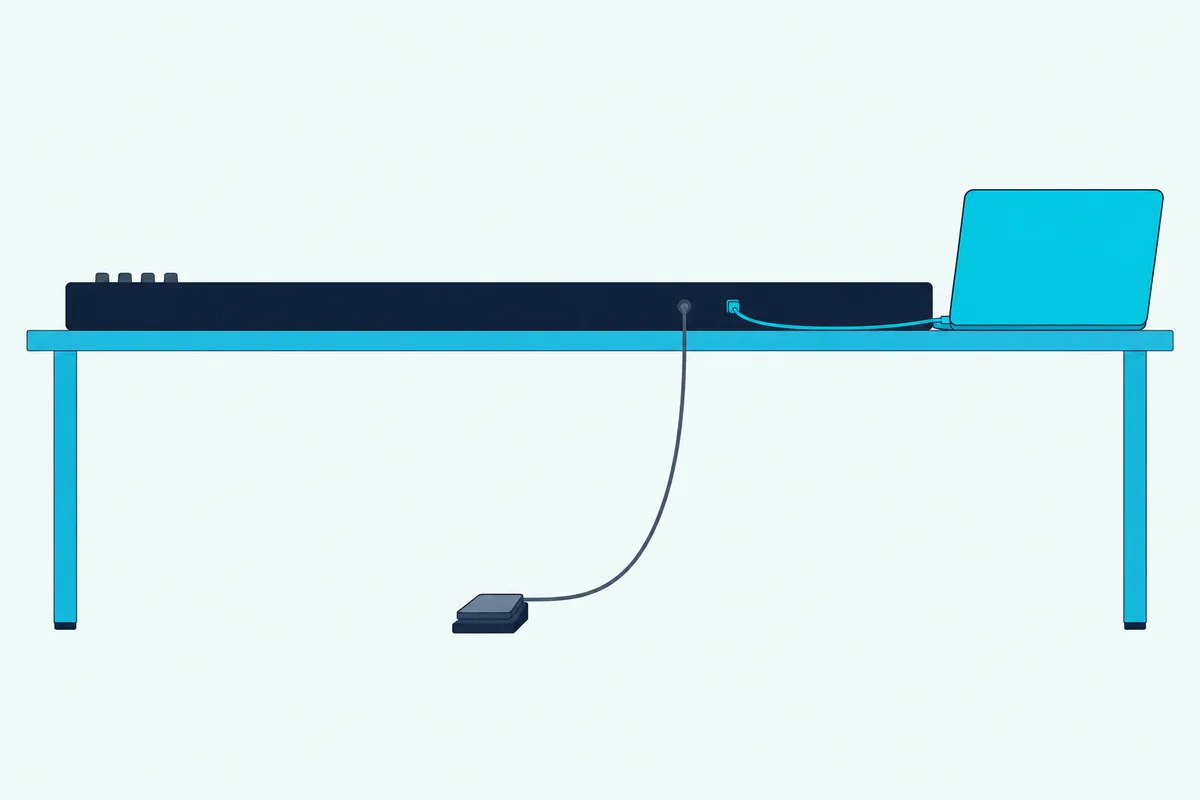
Commercial libraries range from single sampled instruments to full suites like the ones below.
When Free Is Not Enough
Scoring a film cue with separate string articulations (legato, spiccato, tremolo, pizzicato) calls for an orchestral library that samples each articulation separately.
Native Instruments Komplete
Komplete is Native Instruments’ collection of instruments, effects, and samples. The Komplete Start version is free and includes a starter set. The full Komplete suite adds the rest of the collection.
Arturia V Collection
Arturia’s V Collection recreates classic analog synthesizers in software — Minimoog, Prophet-5, Jupiter-8, CS-80, and dozens more. Each plugin models the original hardware circuitry.
Kontakt Libraries
Native Instruments’ Kontakt platform hosts thousands of third-party sample libraries — pianos, orchestras, ethnic instruments, sound effects, and experimental textures. Kontakt Player (free) runs many libraries without the full version of Kontakt.
The Bottom Line
Adding sounds to a MIDI keyboard means installing virtual instrument plugins in your DAW and loading them on software instrument tracks. Start with the free instruments bundled with your controller and DAW — GarageBand’s library, MPC Beats plugins, and Ableton Live Lite instruments.
Expand with free third-party plugins (Vital, Spitfire LABS, Dexed, Piano One) when you want specific sounds the bundled instruments do not cover.
For beginners, the free instruments above are the place to start; turn to commercial libraries only when they limit your creative output.
Frequently Asked Questions
Why does my MIDI keyboard not make any sound?
A MIDI keyboard does not contain sounds — it sends control data to software on your computer. You need a DAW (digital audio workstation) with virtual instrument plugins loaded on a software instrument track. Open the DAW, load an instrument, select the track, and the keyboard plays that instrument.
What free software gives sounds to a MIDI keyboard?
GarageBand (free on Mac), Cakewalk Next (free on Windows and Mac), and the DAW lite versions bundled with most MIDI keyboards all include virtual instruments. Third-party free plugins like Vital, Spitfire LABS, and Dexed add thousands more sounds.
Can I add sounds directly to a MIDI keyboard?
No — MIDI keyboards do not store sounds internally. All sounds come from software on your connected computer. The keyboard sends performance data, and the software generates audio. This design gives you unlimited sound options through plugin installation rather than limiting you to built-in factory presets.
How many virtual instruments can I install?
There is no practical limit. Your computer can run dozens of virtual instruments simultaneously, limited only by CPU power and RAM. Free instruments take up minimal disk space, so install everything that interests you and keep what you use.