How to Put a Sonos Soundbar Into Pairing Mode, Model by Model
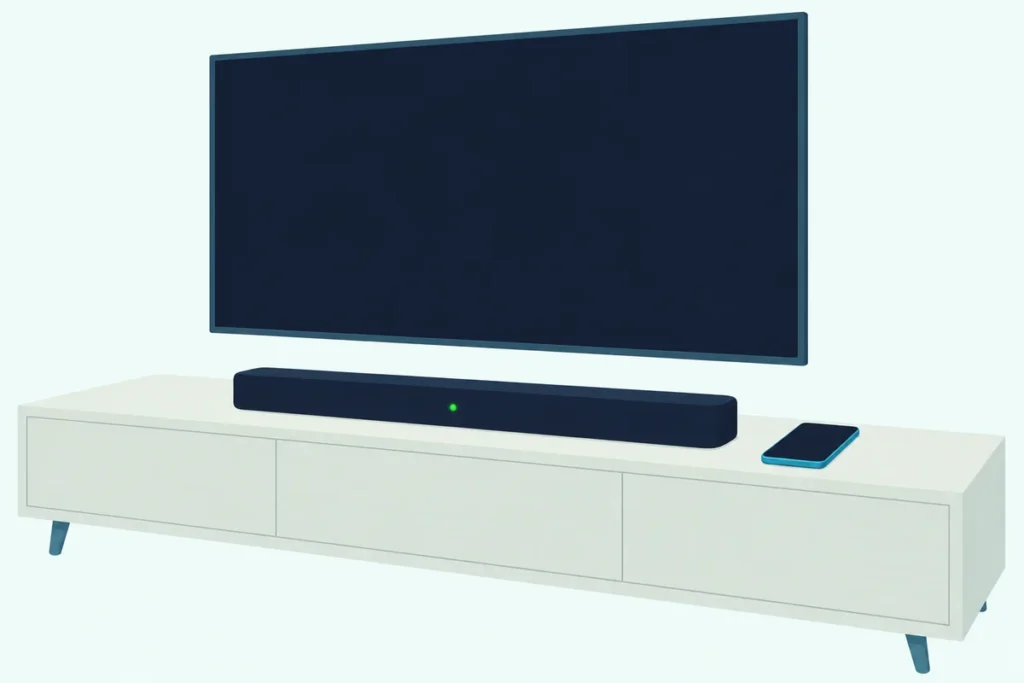
Here’s how to put a Sonos soundbar into pairing mode: plug it in, wait for the status light to flash green and add it in the Sonos app, or, on an Arc Ultra or Beam Ultra only, hold the Bluetooth button for about 2 seconds.
Hold a button on a Ray, Arc or Beam (Gen 2) and no blue light comes, which makes a factory reset look like the answer even though Sonos says it doesn’t recommend one for troubleshooting.
Read the light first and you’ll know whether the bar is waiting for the app, already in a system or stuck trying to reach your WiFi.
Check that light and your phone’s WiFi network first, then use the table below for each bar’s button and Bluetooth.
What comes next is what pairing mode means on a Sonos bar, because the phrase covers two separate jobs.
What Does Pairing Mode Mean on a Sonos Soundbar?
Those two jobs use two different lights, and the steps for one won’t work for the other. On a Sonos soundbar, pairing mode means either flashing green, which Sonos’s LED lights article calls “ready to be set up,” or flashing blue, which it calls Bluetooth pairing mode.
Flashing green is for the Sonos app, which adds the bar to your WiFi and your Sonos system. Flashing blue is for a phone, tablet or computer connecting to the bar directly, and Sonos says the two Ultras must be set up in the app on WiFi before they can do that.
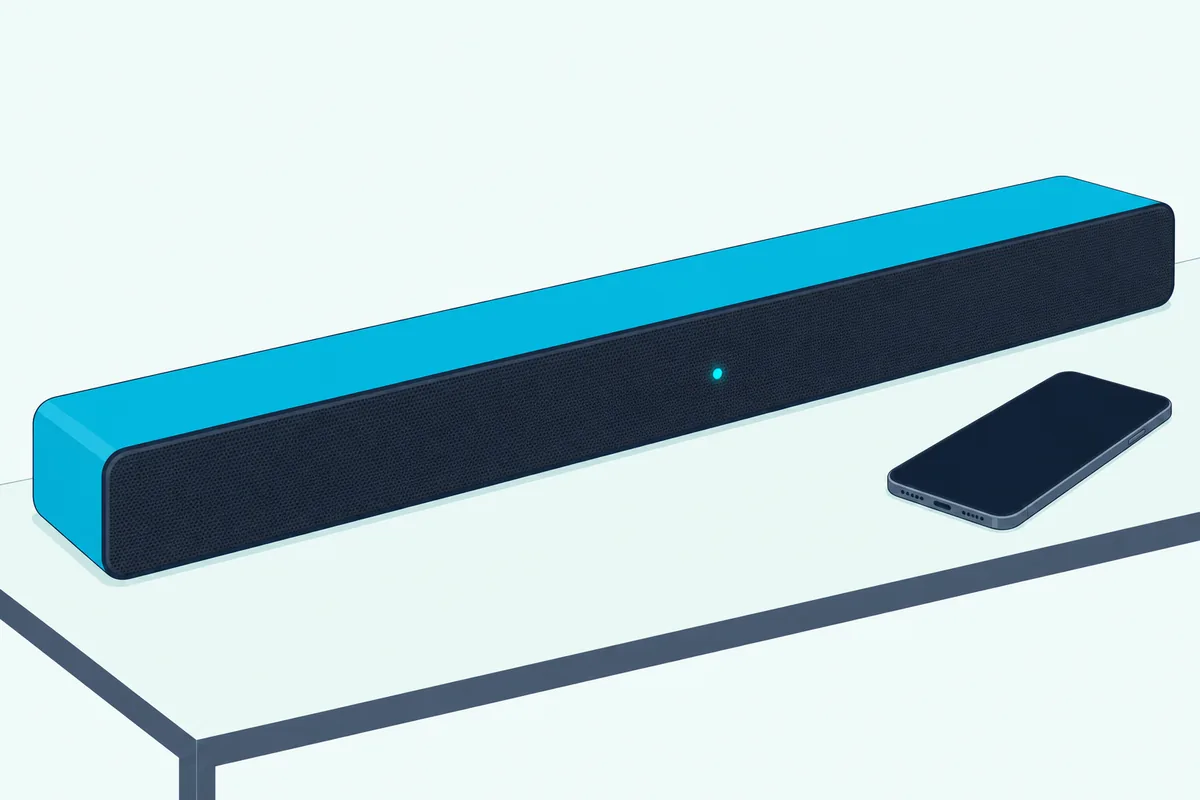
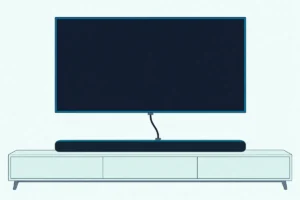
The TV is a third job, done with a cable rather than a pairing mode, and how to connect a Sonos soundbar to a TV shows which TV port each bar’s cable goes in.
How to Put a Sonos Soundbar Into Pairing Mode, Bar by Bar
Flashing green and flashing blue sit behind different controls on each bar. Every Sonos soundbar sets up through the app at flashing green, and this table adds the button its guide lists and its Bluetooth answer.
| Bar | Button in Sonos’s guide | Bluetooth | Light |
|---|---|---|---|
| Arc Ultra | Bluetooth button, on the back | Yes: hold about 2 seconds | Flashing green, then blue to pair |
| Beam Ultra | Bluetooth button | Yes: hold about 2 seconds | Flashing green, then blue to pair |
| Arc, Arc SL | Join, on the connector panel | Not on Sonos’s list | Flashing green |
| Beam (Gen 2), Beam (Gen 1) | Join, on the connector panel | Not on Sonos’s list | Flashing green |
| Ray | Join, on the connector panel | No | Flashing green |
| Playbase | Join, on the connector panel | No | Flashing green |
| Playbar | No Join button listed | No | Flashing green |
That Bluetooth column starts from Use Bluetooth on Sonos, which names the Arc Ultra and Beam Ultra as its only soundbars. Sonos’s Ray page says the Ray doesn’t have Bluetooth, and its legacy product notice says the same of the Playbar and Playbase.
The Arc, Arc SL and Beam (Gen 1 and Gen 2) simply aren’t on that list, so check your bar’s own guide if you think yours is different.
What Do the Sonos Status Lights Mean?
The last column of that table shows just two of the patterns Sonos documents. Sonos’s LED lights article says the status light sits on the front or top of the product, and each color or pattern below means one specific state.
| Light | What Sonos says it means | What to do |
|---|---|---|
| Flashing green | Ready to be set up, either new or factory reset | Add it in the Sonos app |
| Flashing blue | In Bluetooth pairing mode | Select it in your device’s Bluetooth settings |
| Solid blue | Connected to a Bluetooth device | Play your audio |
| Solid white | Powered up and working properly | If it’s missing from the app, see below |
| Flashing white | Booting up, or waiting to connect to WiFi | Wait for it to finish |
| No light | Not powered on, or the light is off in the app’s settings | Check both ends of the power cable |
| Solid green | Muted | Raise the volume |
| Slowly flashing green | Home theater surrounds disabled in the app | Re-enable them under Surround Audio |
| Flashing orange | Connecting during setup | Wait for it to finish |
| Solid orange | Setup didn’t finish, or the bar is overheating | Reboot it, or turn it off to cool |
| Flashing orange and white | Updating, or a factory reset in progress | Leave it powered and wait |
| Flashing red | Not set up within 30 minutes of powering on | Reboot it |
| Flashing red and white | An update failed | Reboot it and update again |
| Red, white, orange and green pattern | Hardware diagnostic mode | Press Join, or Play/Pause or Mute on a bar without Join |
Solid green means muted, so raise the volume before you troubleshoot the connection.
No light doesn’t always mean no power either, since Sonos says some home theater speakers have the status light disabled by default. If the bar plays and shows up in the app, it’s working.
How Do You Set Up a Sonos Soundbar for the First Time?
Flashing green at the top of that table is where setting up a Sonos soundbar begins. You do it in the Sonos app on an iOS or Android device, and Sonos’s setup articles for each bar, from the Arc Ultra to the Playbar, run the same way.
- Plug it in. Connect the bar to power. A Playbar or Playbase also takes its optical cable from the TV at this point, into the bar’s audio input.
- Get your phone ready. Download the Sonos app and join the WiFi network you want, since Sonos says the bar and the phone need to be on the same one.
- Start setup. Open the app, select Speaker or component under Get started with setup, then create or sign in to your Sonos account.
- Add the bar. Select Add on the pop-up showing your bar and follow the steps.
Sonos says each bar must finish this before it can play TV audio, so the TV cable alone won’t produce sound.
On the S1 Controller app, which a Playbar, Playbase or Beam (Gen 1) can still use, select Continue and then Set up products. The Arc, Beam (Gen 2) and Ray aren’t compatible with that app.
Once the bar is running, getting your TV remote to run the bar’s volume has its own steps. Trueplay tuning comes last, under your bar’s Sound settings, and Sonos says most products need an iOS device for it, while the Arc Ultra and Beam Ultra also offer quick tuning on Android.
How Do You Add a Sonos Soundbar to Your System?
Those steps build a new system, and adding a bar to your existing one takes fewer. Connect the bar to power, wait for the light to flash green, then open the Sonos app, go to Settings and select Add Speaker or Component.
Sonos’s article on adding a product says the on-screen prompts handle the rest, and one system holds up to 32 products. On the S1 Controller app, the route is the Settings tab, then System, then Add Product.
A bar that was in your system and dropped off is a different case, so follow Sonos’s “Products missing from the Sonos app” steps instead. You only add it again if it comes back flashing green after a reboot.
Where Is the Join Button on a Sonos Soundbar?
The bar table’s second column points to a button that’s easy to miss. On the Arc, Arc SL, Beam (Gen 1 and Gen 2), Ray and Playbase, Sonos’s guides put the Join button on the connector panel, with the power and TV cables, and describe it in one line: “Press to connect during setup.”
Sonos’s step-by-step setup articles never ask for it, so press it only if the app tells you to.
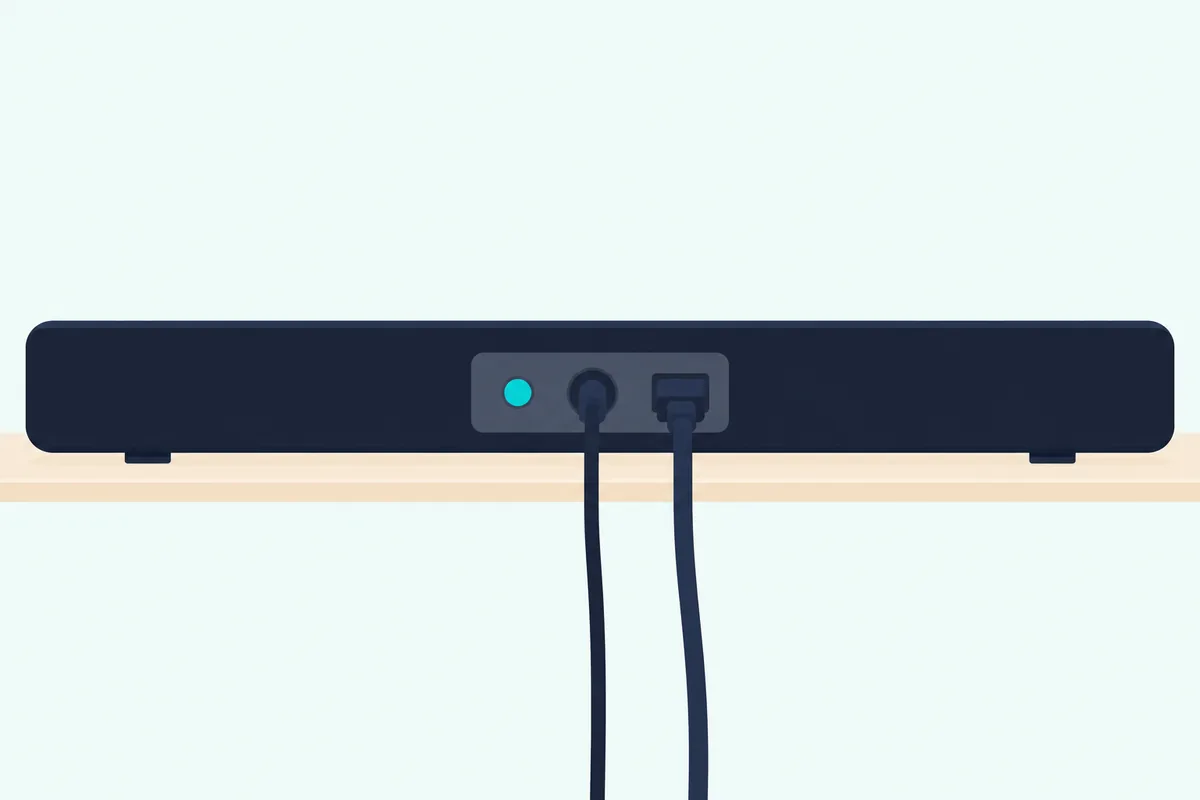
The Arc Ultra and Beam Ultra guides list no Join button, and neither does the Playbar’s connector panel in Sonos’s user guide. Sonos names Play/Pause or Mute as the stand-in on a bar without Join, but only for a factory reset and for clearing a diagnostic light, and its setup articles don’t mention them.
Which Sonos Soundbars Have Bluetooth?
Join gets a bar onto your system, and Bluetooth is a separate question with a short answer. Among Sonos’s soundbars, only the Arc Ultra and Beam Ultra are on its Bluetooth list, both at Bluetooth 5.3, which Sonos says “supports audio streaming from any Bluetooth-enabled device.”
The current Sonos range differs on this point model by model, so find yours in the table first. If Bluetooth is why you’re looking past an Arc, what the Arc Ultra adds over the Arc lays out the rest.
The other bars play from a phone over WiFi instead. AirPlay 2 works from an iPhone, iPad or Mac on the Arc, Arc SL, Beam (Gen 1 and Gen 2), Ray and Playbase, and the Sonos app or a music app like Spotify can send audio from an Android phone too.
How Does Bluetooth Pairing Work on an Arc Ultra or Beam Ultra?
Those two Ultras reach flashing blue the same way. Sonos’s guides for both bars time the pairing hold at about 2 seconds, once the bar is set up in the Sonos app on WiFi, and its Arc Ultra pairing article gives the same steps as its Beam Ultra one.
- Turn on Bluetooth in your device’s settings.
- Press and hold the Bluetooth button until you hear a tone and the status light blinks blue, or go to Settings in the Sonos app, select your bar and, under Bluetooth, select Pair New Device.
- Select the bar in your device’s Bluetooth settings.
- Listen for a second chime as the light turns solid blue for a few seconds.
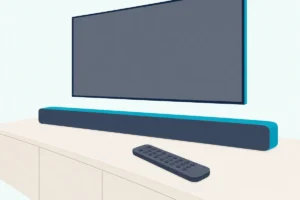
The Arc Ultra’s button is on the back. Sonos’s pairing article puts the Beam Ultra’s on top, while the Beam Ultra guide lists it with the connector panel, so check both spots.
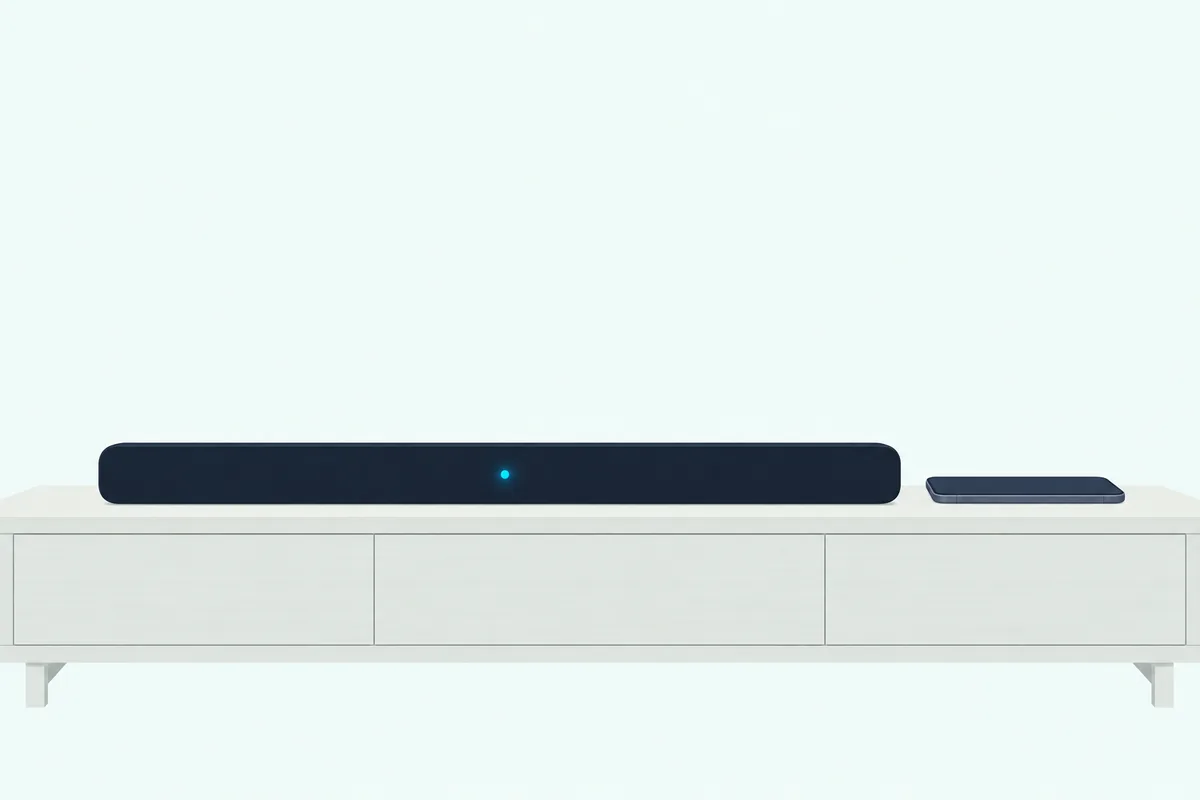
Repeat the hold to add another device. A short press switches a paired bar out of Bluetooth mode, and another sends it searching for its most recent connection.
If a phone won’t connect, Sonos’s “Unable to pair a Bluetooth device with Sonos” article says to move the two closer, try another room and forget the old listing in the phone’s Bluetooth settings. If the button does nothing, the touch controls may be disabled in the bar’s Hardware settings in the app.
What If the Light Isn’t Flashing Green?
All of that assumes flashing green, so the other colors need their own answers. A Sonos bar that isn’t flashing green is already set up, still starting or stuck, and Sonos gives a different fix for each.
Solid white means it’s powered up and working. If it was set up on another system, Sonos’s fix is a factory reset; if it’s your own bar missing from the app, check the power, reboot the bar, then reboot the router.
Flashing red means a new or reset bar wasn’t set up within 30 minutes of powering on. A reboot clears it: unplug the power cord, wait 10 seconds, reconnect it and allow one minute.
Solid orange during setup clears with the same reboot. It can also mean overheating, so turn the bar off to cool, and contact Sonos Support if it stays orange.
Why Won’t My Sonos Soundbar Show Up in the App?
A bar can flash green and still not appear, which is the problem Sonos calls Product not found. The app sits on the Searching for nearby products screen, and Sonos’s Product not found article works through these fixes.
Reboot the bar. Once it’s back on, select Try Again in the app.
Move it for now. Put the bar closer to your router, with your phone within 10 feet of the bar.
Try another phone or tablet. Use a different device that has the Sonos app.
Wire it. If the bar has an Ethernet port, connect it to the router with an Ethernet cable and try again.
App permissions are next, because Sonos says that with location access disabled, you won’t be able to set up your products. It also lists Bluetooth access and, on iOS, Local Network access as needed to find the bar, so allow them in your phone’s settings.
Sonos’s system requirements come after that: they want the app and every product on the same subnet, and rule out guest networks, portal login pages, mobile hotspots, range extenders and routers that only provide 5 GHz WiFi.
That 5 GHz line is about the router, and the list doesn’t mention a phone on 5 GHz. Turn off any VPN on your phone too, and note that a bar in Recycle Mode can’t be set up at all.
Do You Need a Reset to Move a Sonos Soundbar to New WiFi?
A new router or password can look like that same search problem, but the fix is different. You don’t need a factory reset, because Sonos’s new router article has the app update each product’s WiFi details one by one.
Open the Sonos app and wait while it searches, then when it shows “No products found,” go to Settings, select Visit Help Center, then Update Network. On a wired setup, Sonos’s user guide says you don’t have to do anything as long as a Sonos product is connected to the new router.
When Should You Factory Reset a Sonos Soundbar?
That leaves the one job a reset is for. Factory reset a Sonos soundbar when it’s changing owners or was set up on another system, since Sonos says, “We do not recommend resetting your Sonos product as a troubleshooting step.”
The reset deletes registration information, content saved to My Sonos and content services from the bar. The light flashes orange and white while it runs, then flashes green when the bar is ready to be set up again.
The button depends on the bar, Join on most and Bluetooth on the Arc Ultra and Beam Ultra, and Burton Acoustix’s Sonos reset guide lists each one. For a bar from another brand, the general reset guidance applies instead.
The Bottom Line
Flashing green means the Sonos app, flashing blue means Bluetooth, and only the Arc Ultra and Beam Ultra do both. Read the light, check your WiFi and the app’s permissions, reboot, and save the factory reset for a bar changing systems.
The descriptions come from Sonos’s support articles and user guides.
Frequently Asked Questions
How do you make a Sonos soundbar discoverable?
Plug it in and wait for flashing green, then open the Sonos app. For a phone’s Bluetooth list, an Arc Ultra or Beam Ultra that’s already set up needs its Bluetooth button held until the light blinks blue, a state Sonos also calls Bluetooth discovery mode.
Can you pair a Sonos soundbar with a phone without WiFi?
Not at first. Sonos says the Arc Ultra and Beam Ultra must be set up with the app on WiFi before they can connect over Bluetooth, and it says the Ray streams over your WiFi network.
How do you put a Sonos speaker like a Roam or Era 100 into pairing mode?
Sonos’s Use Bluetooth article links separate steps for each one, including the Era 100, Era 300, Move, Play and Roam. The signal is the same one a soundbar uses: flashing blue means Bluetooth pairing mode.
Does the Sonos Playbar have Bluetooth?
No. Sonos’s legacy product notice says the Playbar and Playbase have no Bluetooth, and its AirPlay list leaves out the Playbar too. Play from the Sonos app, or group the Playbar with another Sonos product that’s playing Bluetooth or AirPlay audio.