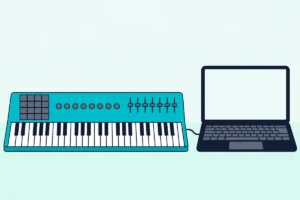
To connect a MIDI keyboard to GarageBand on iPad: use a USB connection via Camera Connection Kit (Lightning) or direct USB-C, or pair a Bluetooth MIDI controller wirelessly.
If you’re working out how to connect a MIDI keyboard to an iPad for GarageBand, the first thing to settle is the connection: the iPad needs either the right USB cable or adapter for its port, or a Bluetooth MIDI controller.
The problem is caused by iPad’s port situation. Lightning iPads need Apple’s Camera Connection Kit adapter to accept USB devices. USB-C iPads accept USB controllers directly or through a hub. Bluetooth MIDI controllers skip both adapters entirely.
A Casio keyboard with a class-compliant USB port follows the same adapter rules, as connecting a Casio keyboard to an iPad or phone explains.
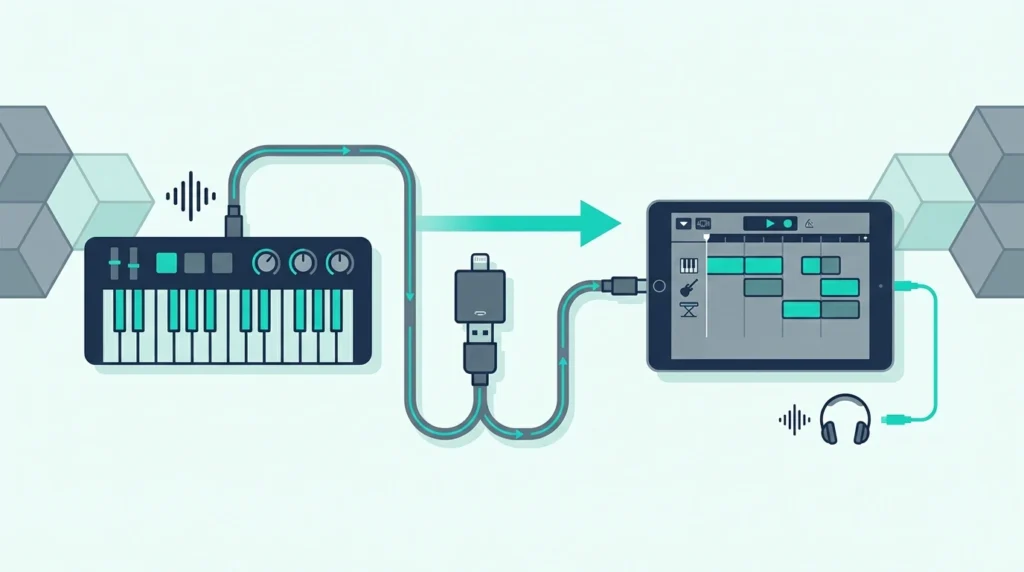
This guide walks through both USB and Bluetooth connection methods for GarageBand on iPad, with specific steps for Lightning and USB-C models. You will also learn how to troubleshoot the most common connection failures and get the best performance from your controller in GarageBand’s touch-optimized interface.
Below you will find step-by-step instructions for each connection type, followed by tips for maximizing your MIDI keyboard experience in GarageBand on iPad.
GarageBand detects the keyboard automatically — no settings configuration needed. Open any instrument in GarageBand and the keyboard plays it immediately.
How Do You Connect a MIDI Keyboard to iPad via USB
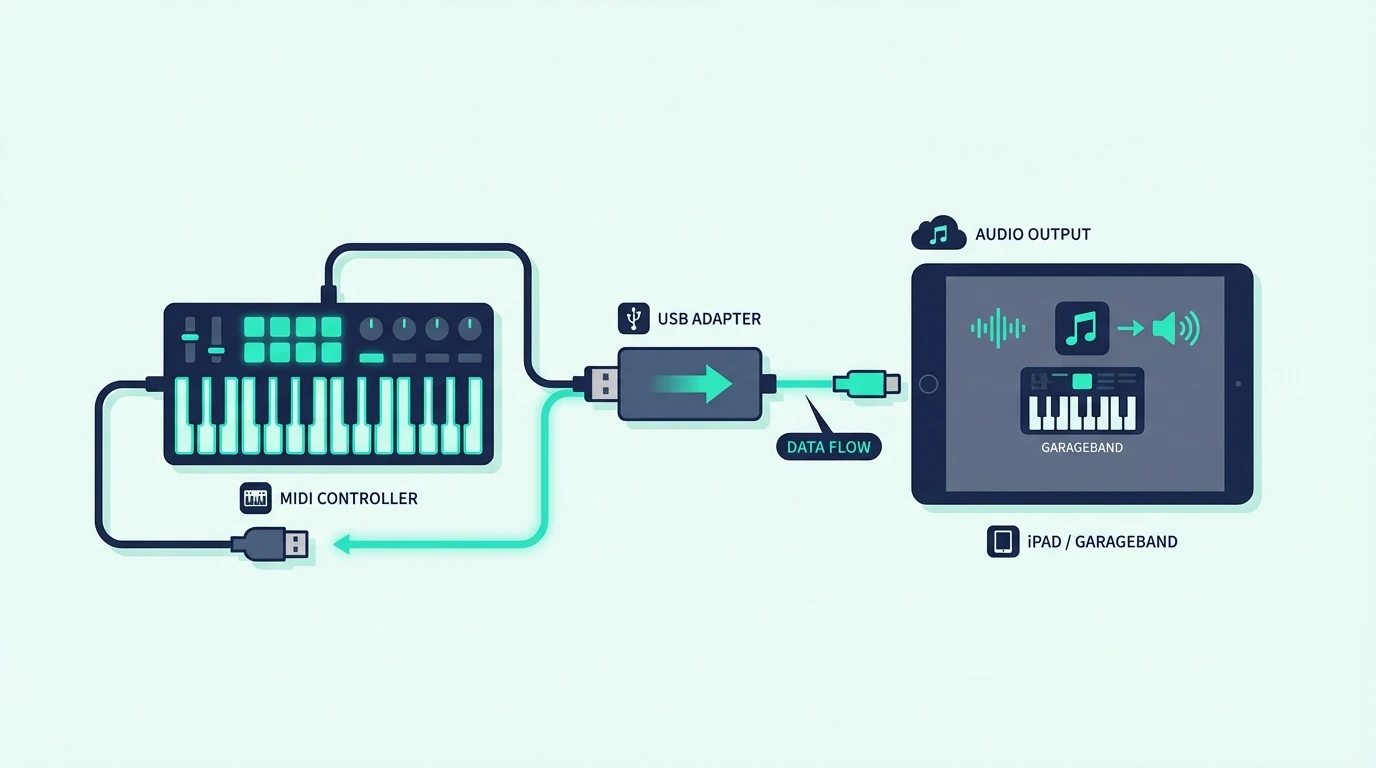
USB is the wired route between a MIDI keyboard and GarageBand on iPad. The exact setup depends on which iPad model you own.
Lightning iPads (Older Models)
iPads with Lightning ports (iPad 9th gen and earlier, iPad Mini 5th gen and earlier) need Apple’s Lightning to USB Camera Adapter to accept USB MIDI keyboards. The adapter plugs into the iPad’s Lightning port and provides a USB-A jack for your controller’s cable.
Plug the adapter into the iPad first, then connect your MIDI keyboard.
Apple sells the Camera Connection Kit adapter separately.
USB-C iPads (Newer Models)
iPads with USB-C ports (iPad Pro all generations, iPad Air M1+, iPad Mini 6th gen+, iPad 10th gen) accept USB MIDI keyboards directly. Use a USB-C to USB-A cable or plug your controller into a USB-C hub.
No adapter purchase needed — just a cable type that matches your controller’s USB output to the iPad’s USB-C input.
An iPhone follows the same port split, and our guide to how you connect a MIDI keyboard to an iPhone lists which iPhones have each port.
GarageBand on a Mac adds a few checks of its own, from the Mac’s accessory prompt to Audio MIDI Setup, and our guide to adding a MIDI keyboard to GarageBand on a Mac walks through each one.
Power Considerations
USB bus-powered MIDI keyboards draw electricity from the iPad through the USB connection.
Apple says some devices need more power than an iPad can provide, and the iPad may then show an alert that the attached accessory uses too much power. Its fixes are a powered USB hub or another power source, or its Lightning to USB 3 Camera Adapter, which has a built-in Lightning port for power.
How Do You Connect a Bluetooth MIDI Keyboard to iPad
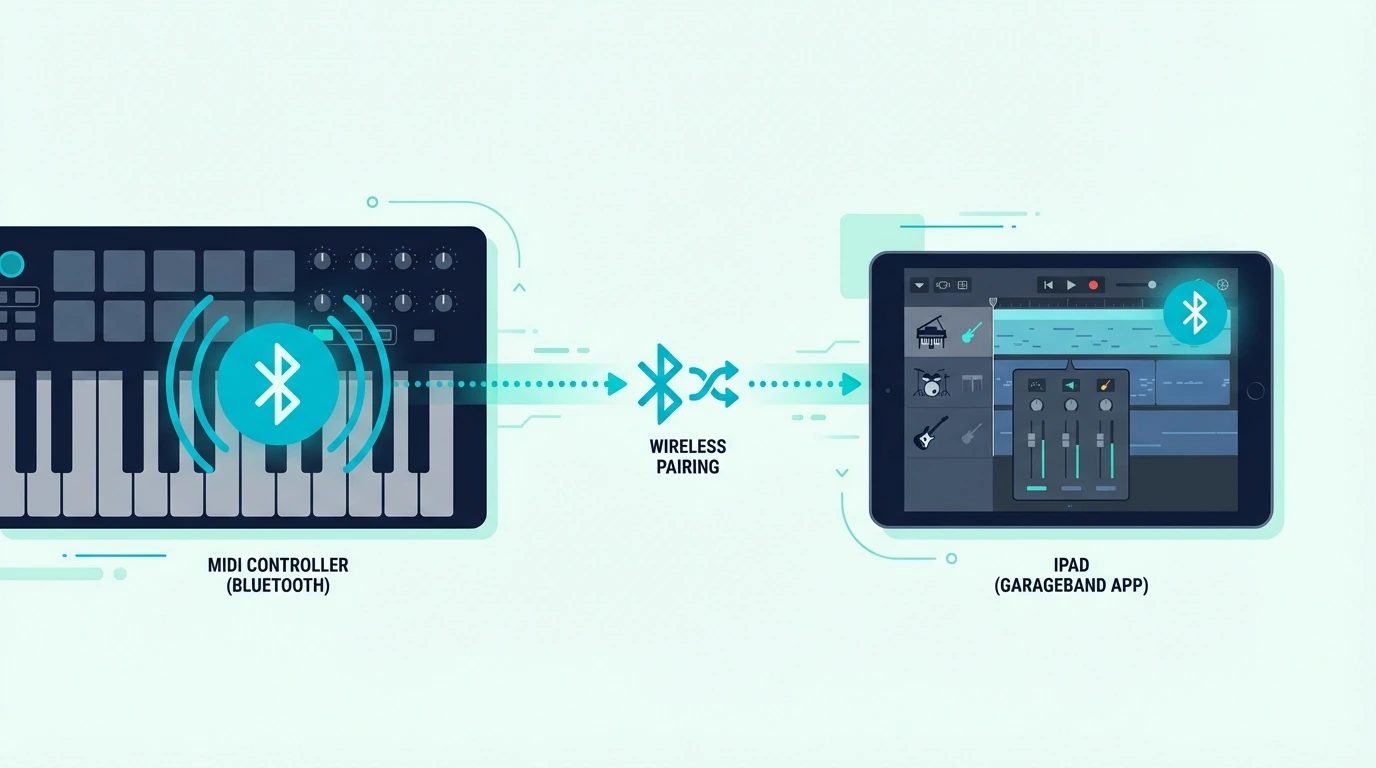
Bluetooth MIDI eliminates cables and adapters entirely. The controller pairs with iPad wirelessly, and GarageBand detects it as a MIDI input device automatically.
Pairing Process
Put your Bluetooth MIDI controller into pairing mode (check the manufacturer’s instructions — usually a button hold). Then connect it inside GarageBand rather than in the iPad’s Bluetooth settings: Apple’s guide says to tap the Settings button in the control bar, tap Advanced, then Bluetooth MIDI Devices, then tap the controller’s name and turn its Connect switch on (Apple).
Once its Connect switch is on, the controller plays GarageBand’s Touch Instruments.
Bluetooth or USB?
Bluetooth saves a cable and any adapter. If you hear a delay between pressing a key and hearing the note, try the same keyboard over USB before changing anything else in GarageBand.
Bluetooth Range And Stability
Keep the controller close to the iPad for the most stable connection.
Walls and other Bluetooth devices (headphones, speakers) can interfere with the MIDI signal. If you experience dropped notes or intermittent connections, move other Bluetooth devices further from the iPad or switch to USB.
How Do You Use a MIDI Keyboard in GarageBand on iPad
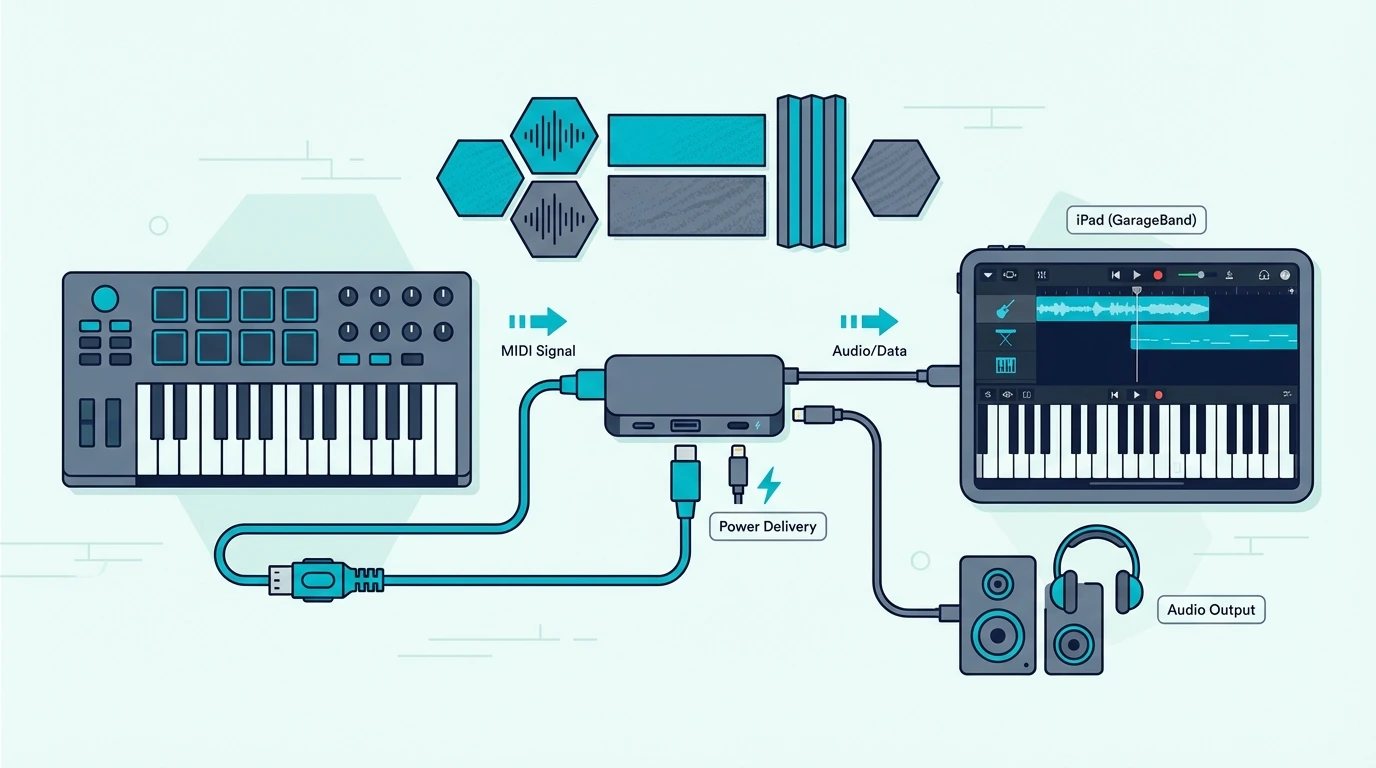
GarageBand on iPad is designed for touch input, and a MIDI keyboard plays its instruments from physical keys. Here is how to get the most from the combination.
Instrument Selection And Playing
Open GarageBand and select any instrument — Keyboard, Drums, Strings, Guitar, or any Audio Unit plugin. Your MIDI keyboard automatically controls whichever instrument is active. Switch instruments by tapping a different one in the instrument browser, and the keyboard responds instantly.
Velocity sensitivity works across all GarageBand instruments. Play softly for quiet notes, play hard for loud notes.
Recording MIDI Performances
Tap the red record button in GarageBand’s transport bar, then play your MIDI keyboard. GarageBand captures your performance as a MIDI region on the current track. The recording includes note timing, velocity, and any sustain pedal data your controller sends.
After recording, tap the MIDI region to edit individual notes, adjust timing, and change velocities. In GarageBand’s piano roll editor on iPad, you can pinch to zoom, drag notes to change pitch or timing, and use the velocity slider to adjust dynamics per note.
Drummer Integration
GarageBand’s Drummer on iPad adds a virtual drummer that plays realistic drum grooves, and you shape its playing with presets, an XY pad and fill settings. A MIDI keyboard with pads (like the MPK Mini MK3) can play your own snare fills, cymbal crashes, or hi-hat variations through GarageBand’s Drums Touch Instrument on a track of its own.
Smart Instruments With MIDI
GarageBand’s Smart Instruments (Smart Guitar, Smart Bass, Smart Strings) respond to MIDI keyboard input alongside touch input. Play chords on the Smart Guitar section while adding bass notes from your MIDI keyboard for layered arrangements.
The MIDI keyboard gives you chromatic note access that Smart Instruments restrict by default. Combine both input methods for arrangements that would not be possible with either one alone.
Audio Unit Plugins With MIDI
GarageBand on iPad supports Audio Unit (AU) plugins from third-party developers. Install synth plugins like Moog Model D or Korg Module from the App Store, and your MIDI keyboard controls them inside GarageBand with full velocity sensitivity and CC data.
That makes a quality MIDI keyboard the controller for GarageBand’s own instruments and its plugins alike.
Upgrading To Logic Pro For iPad
Every GarageBand project opens directly in Logic Pro for iPad without conversion. Your MIDI keyboard works identically in Logic — same plug-and-play connection, same instrument control, same recording workflow.
Your iPad MIDI controller carries forward to Logic Pro without any hardware changes. The same USB or Bluetooth connection works in both apps.
If the Logic Pro you move to is the Mac version, Apple’s Logic Remote lets the iPad control it, and our guide to turning an iPad into a MIDI controller shows how.
The Bottom Line
Connecting a MIDI keyboard to GarageBand on iPad requires either a USB adapter (Camera Connection Kit for Lightning, direct USB-C for newer iPads) or a Bluetooth MIDI controller. GarageBand detects connected controllers automatically with zero configuration — open any instrument and play.
Bluetooth eliminates cables and adapters, and for iPad GarageBand users who hear a delay, the same keyboard over USB is the first check.
Frequently Asked Questions
Does GarageBand on iPad work with any MIDI keyboard?
Most do: GarageBand on iPad works with class-compliant USB MIDI keyboards (through Camera Connection Kit or USB-C) and with Bluetooth MIDI controllers, so no specific brand or model is required. If you’re still choosing one, our guide to picking a MIDI keyboard for GarageBand sorts boards by size and controls.
Do I need an adapter for MIDI keyboard on iPad?
Lightning iPads need Apple’s Camera Connection Kit adapter for USB connection. USB-C iPads connect USB controllers directly. Bluetooth MIDI controllers need no adapter on any iPad model.
Why is there a delay when playing MIDI keyboard in GarageBand iPad?
If using Bluetooth, try the same keyboard over USB to see whether the wireless link is the cause. If using USB and experiencing delay, close other audio apps running in the background — they can increase audio processing latency. Restarting GarageBand also resets the audio engine.
Can I record MIDI in GarageBand on iPad?
Yes — tap the red record button and play your MIDI keyboard. GarageBand captures timing, velocity, and sustain data. Edit the recording by tapping the MIDI region and opening the piano roll editor to adjust notes, timing, and dynamics.