How to Put a Bose Soundbar in Pairing Mode (Every Model)
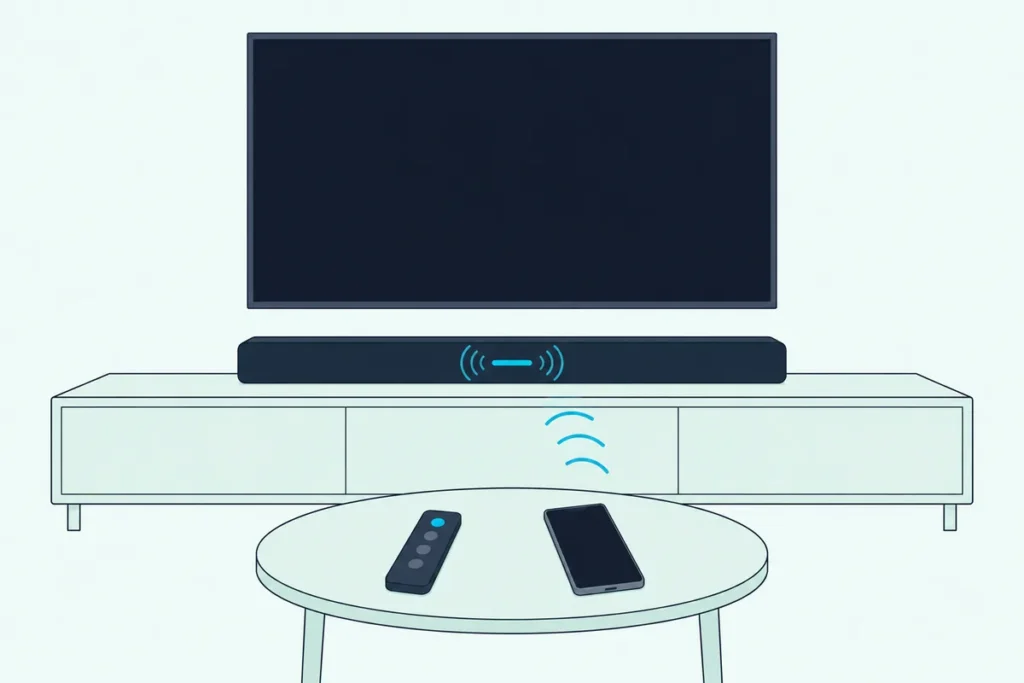
Here’s how to put a Bose soundbar in pairing mode on most models: hold the Bluetooth button on the remote until the light on the bar pulses or blinks blue, then pick the soundbar in your phone’s Bluetooth list.
A quick tap on a bar that already knows a phone tells it to reconnect that phone instead, which can leave a new tablet scanning without ever listing the soundbar.
Once you know which button your model uses and which light means ready, pairing a phone, a laptop or a TV is the same short routine.
The steps below come from Bose’s own owner’s guides for twelve soundbars, from the Lifestyle Ultra, whose Bluetooth button sits on top of the bar, to the older Solo 5.
Find your model in the table first, then work down to the fixes if the soundbar still won’t show up.
How to Put a Bose Soundbar in Pairing Mode, Model by Model
That Bluetooth button lives on the remote for every bar below except the Lifestyle Ultra, which has a touch button on top. Press or hold it as the table says and let go once the light turns blue, because holding it for 10 seconds clears the bar’s saved devices instead.
| Bose soundbar | What to press (on the remote unless noted) | The light that means pairing mode |
|---|---|---|
| Lifestyle Ultra Soundbar | Tap the Bluetooth button on top of the bar; touch and hold it for 5 seconds to add another device | Status light slowly pulses blue, with a tone |
| Smart Ultra Soundbar, Smart Soundbar, Smart Soundbar 600, 900, 700 and 300, Soundbar 500 | Press the Bluetooth button; press and hold it to add another device | Light bar pulses blue |
| TV Speaker | Press the Bluetooth button, for the first device and for more | Bluetooth light slowly pulses blue |
| Solo Soundbar Series II and Solo 5 | Press and hold the Bluetooth button | Bluetooth light blinks blue |
| SoundTouch 300 | Press and hold the Bluetooth button, or tap an NFC phone on top of the bar behind the Bose logo | Bluetooth indicator blinks blue |
Bose’s Bluetooth help article for the Smart Soundbar calls this state Discoverable mode and simply says to press and hold until the light bar blinks blue. From there, the phone side takes four steps:
- Keep the phone or tablet powered on and within 30 feet (9 meters) of the soundbar.
- Turn on Bluetooth in the device’s settings.
- Pick the soundbar by the name you gave it in the Bose app, or by its default, such as Bose Smart Soundbar 600 or Bose Solo 5 system.
- Wait for the tone and the confirming light.
On most bars that confirming light is white, but the Lifestyle Ultra is the odd one out. Its owner’s guide says the status light glows solid blue for 5 seconds once a device connects.
Why Does One Press Only Reconnect Your Last Phone?
That press-or-hold split in the table matters more than it looks. On every model except the TV Speaker, one press of the Bluetooth button (a tap on the Lifestyle Ultra) tells a bar with saved devices to reconnect the most recently connected one, or the last two on the Solo models, while pressing and holding puts it back in pairing mode for a new one.
The TV Speaker is the exception, since its guide uses a single press both to reconnect and to add a device. Every one of these bars stores up to eight devices, and the Smart Soundbar 700, Soundbar 500, TV Speaker and both Solo models can stay connected to two at a time, though only one plays audio at once.
So if a phone in another room grabs the bar first, switch Bluetooth off on that phone, then hold the button to add yours. On the Solo 5 and Solo Series II, the guides make the hand-off simpler still: pause the first device, then press play on the second.
Get Studio Tips Weekly
Join 5,000+ creators getting acoustic treatment advice every week.
No spam. Unsubscribe anytime.What Do the Blue and White Lights Mean?
Those blue pulses are the bar saying it’s discoverable, and the color that follows tells you how pairing went. On the light-bar models, Bose’s Smart Soundbar owner’s guide lists pulsing blue as ready to connect, pulsing white as connecting, and solid white that fades to black as connected.
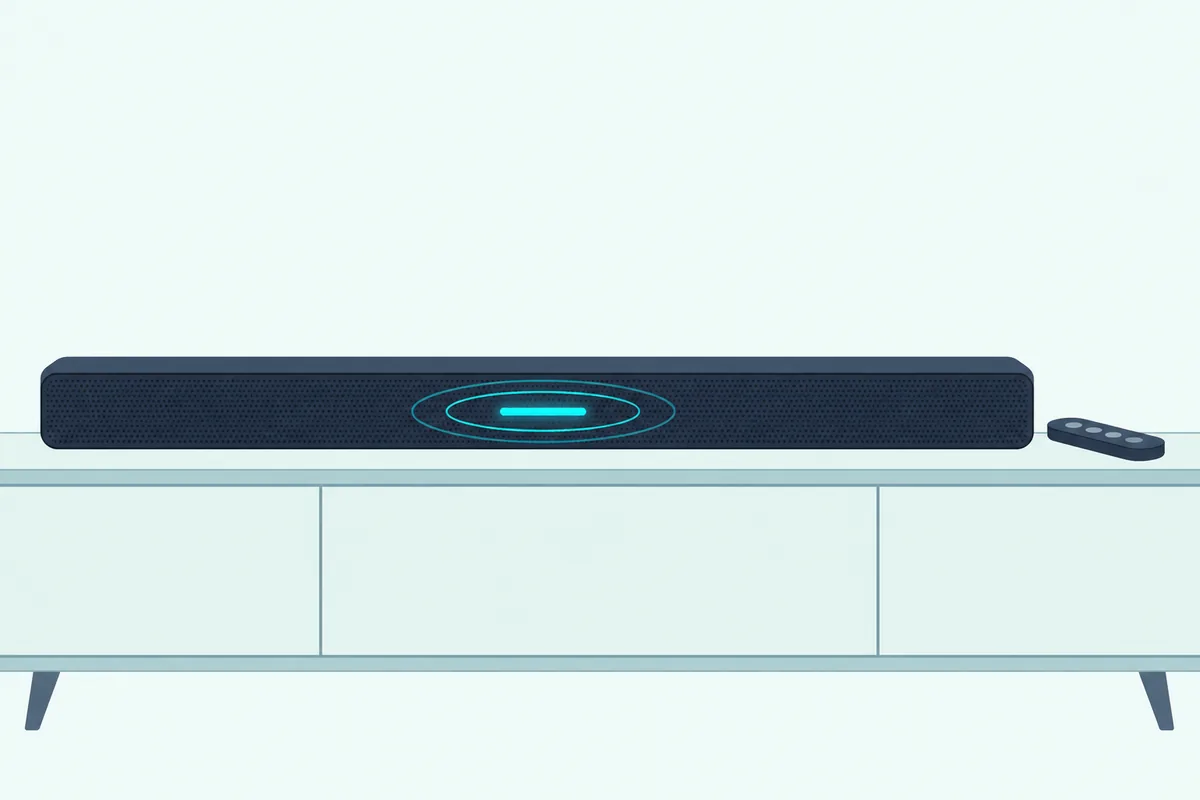
The models without a light bar have a dedicated Bluetooth light, and the Lifestyle Ultra has its own status light:
| What’s happening | Light-bar models (Smart Soundbar, Smart Ultra, 600, 900, 700, 500, 300) | TV Speaker, Solo Series II, Solo 5 | Lifestyle Ultra |
|---|---|---|---|
| Ready to pair | Pulsing blue | Slowly pulses blue (TV Speaker), blinks blue (Solo models) | Slowly pulses blue |
| Connecting | Pulsing white | Blinks white | Quickly blinks blue |
| Connected | Solid white, then fades to black | Solid white | Solid blue for 5 seconds |
| Device list cleared | White pulses twice, then fades to black | A tone (TV Speaker), blinks blue (Solo models) | Blinks white 2 times, with a tone |
Amber isn’t part of any of those Bluetooth rows. On the Smart Soundbar, a solid amber light bar means Wi-Fi setup is in progress, a different mode covered further down.
Can You Pair It Without the Remote?
Every remote step above has a stand-in on the newer bars, though not on all of them. Yes, the Smart Soundbar, Smart Ultra and Smart Soundbar 600 guides say Bluetooth can be switched on with the Bose app as well as the remote, and the Lifestyle Ultra pairs from the Bluetooth button on top of the bar itself.
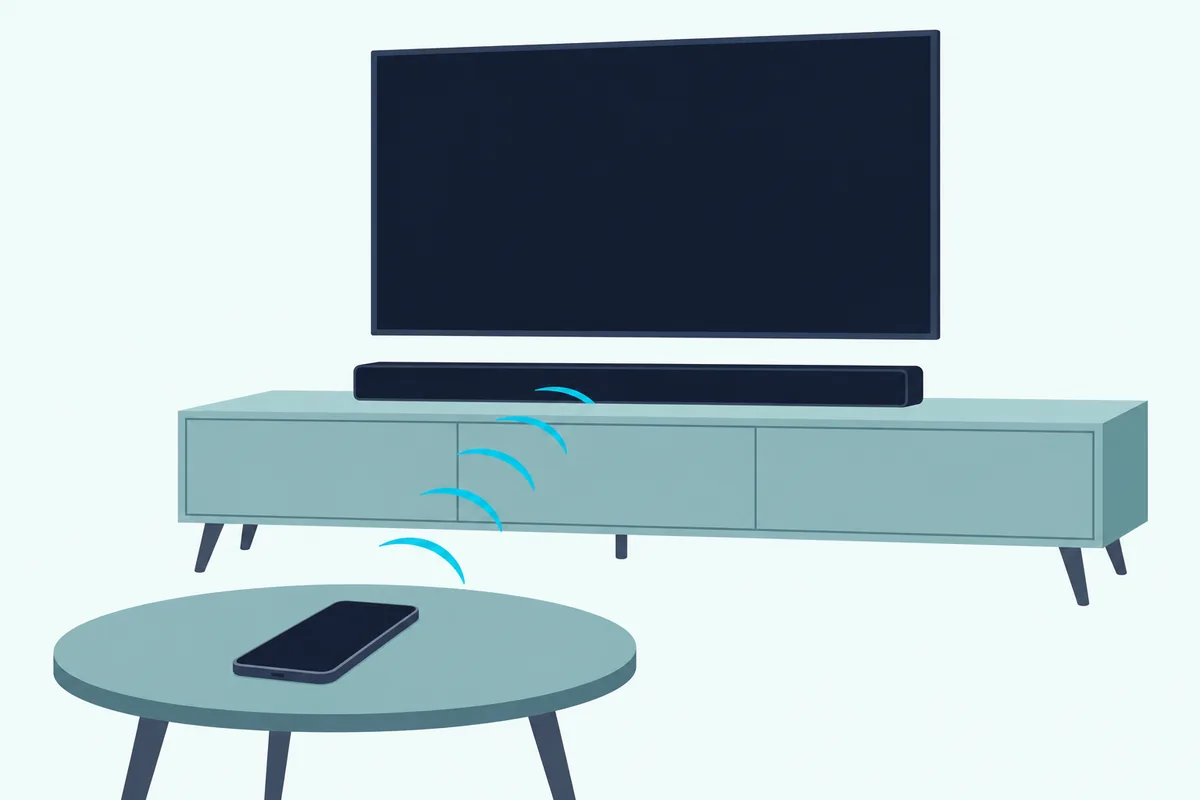
The Smart Soundbar can also select its Bluetooth source by voice, using Alexa with Bose Voice4Video. The SoundTouch 300 accepts an NFC tap from a phone that supports it, held to the top of the bar behind the Bose logo.
The TV Speaker, Solo Series II and Solo 5 guides describe pairing only from the remote’s Bluetooth button. If that remote is gone, these remote-free ways to run a Bose bar cover the other remotes that can take over.
Can a TV or Laptop Pair the Same Way?
That same blue-light routine works for any Bluetooth source, with one catch for TVs. A TV or laptop pairs the same way from its own Bluetooth or audio settings, but Bose warns that some TVs can only receive sound over Bluetooth, from a phone for example, and can’t send their own audio to a speaker.
On a Windows PC, Bose flags one trap: if the soundbar appears twice in the list, pick the entry with the headphones or speaker icon, not the one with LE- in its name. On a Mac, Bose’s steps run through the Bluetooth icon in the menu bar and the Pair button next to the soundbar.
For everyday viewing, the Smart Soundbar’s guide calls an HDMI cable to the eARC or ARC port the preferred connection and treats optical as the fallback. If that’s the route you need, here’s how to connect a Bose soundbar to the TV with HDMI or optical.
Why Won’t the Soundbar Show Up on Your Phone?
If the light is pulsing blue and your phone still can’t see the bar, start with the phone’s side of that handshake. When a Bose soundbar won’t show up, Bose’s troubleshooting table for the Smart Soundbar has you work through these steps in order:
- Turn Bluetooth off and on again on the phone.
- Delete the soundbar from the phone’s Bluetooth list, then connect again.
- Try a different phone or tablet, to see which side is stuck.
- Clear the soundbar’s own device list and connect again.
Range comes into it too, since the guides want the device powered on and within 30 feet (9 meters) of the bar. Pair from the same room, and walk away only after the tone.
How Do You Clear the Pairing List?
That last fix wipes every phone and tablet the bar remembers, so you’ll pair each one again afterward. On the light-bar models, press and hold the remote’s Bluetooth button for 10 seconds until the light bar pulses white twice and fades to black, then delete the soundbar from the Bluetooth list on each device.
The other models finish the same 10-second hold with their own signal. The TV Speaker plays a tone, the Solo models blink blue, the SoundTouch 300 double-blinks white with a tone, and the Lifestyle Ultra blinks white twice with a tone after a 10-second touch on its own button.
If pairing still fails on a clean list, a full Bose soundbar reset is the bigger hammer. The Smart Soundbar 700 owner’s guide says a factory reset clears all source, volume, network and ADAPTiQ settings, so save it for last.
Is Setup Mode the Same as Pairing Mode?
That factory reset ends with the light bar glowing solid amber, which brings up Bose’s other “mode.” No: setup mode is the amber state a smart soundbar waits in while the Bose app puts it on your Wi-Fi, and Bose’s help page for the 700 says a powered bar that isn’t glowing amber has to be put into setup mode before the app can find it.
On the Smart Soundbar, holding the remote’s Mute and Bose app buttons until the light bar glows amber starts the Wi-Fi side again, and the next step is picking the bar in your phone’s Wi-Fi settings, not its Bluetooth list. Burton Acoustix’s Bose Wi-Fi setup guide covers the app side.
How Do You Pair Bose Headphones or a SoundLink Speaker?
Everything so far sends sound into the bar, but Bose headphones and SoundLink speakers go the other way and take sound from it. You connect them in the Bose app with what Bose calls SimpleSync, or on the Smart Ultra by holding the remote’s Bluetooth button until the light bar pulses blue and then putting the headphones or speaker in pairing mode.
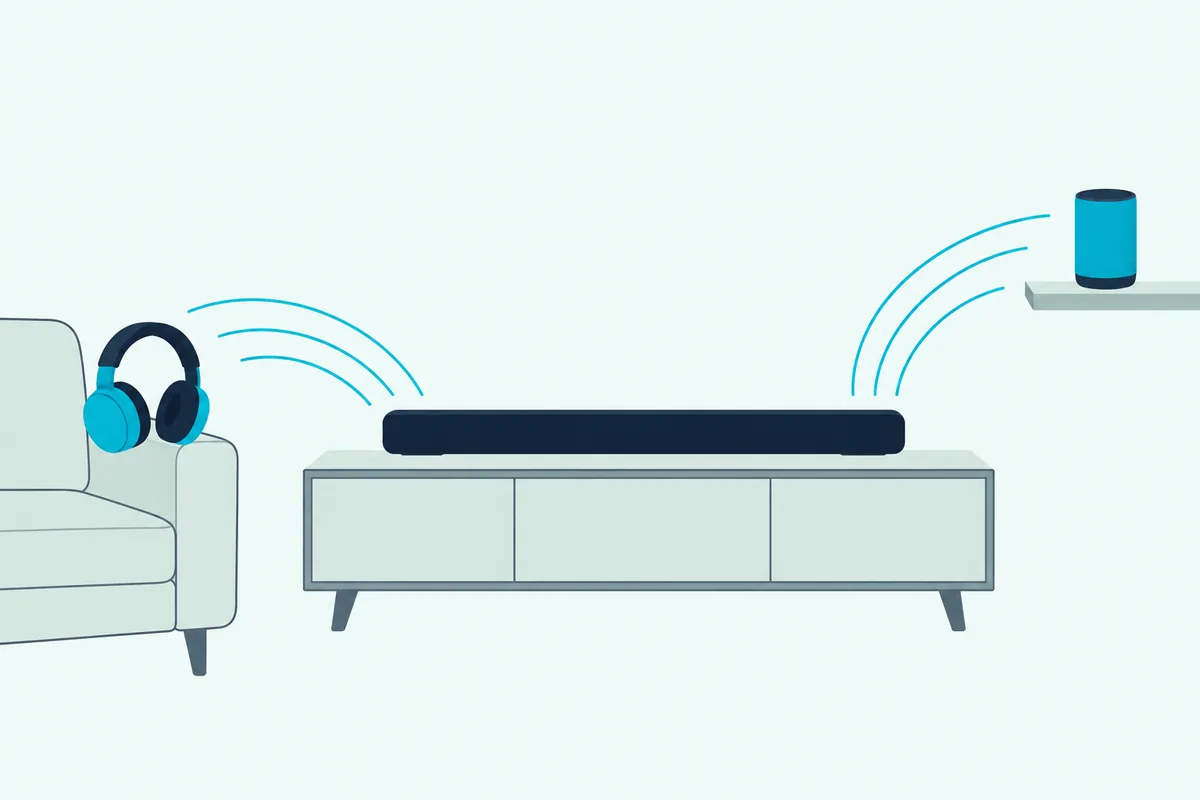
Bose’s Smart Ultra guide says the link can take up to 30 seconds, needs the product within 30 feet (9 meters), and works with one product at a time. A Bose TV Speaker can join a Bose smart soundbar too: hold its remote’s Bluetooth button until its Bluetooth light blinks blue, then connect it in the Bose app, as the TV Speaker owner’s guide describes.
Ordinary headphones are a different story. In their Bluetooth troubleshooting, the Smart Soundbar 700 and Soundbar 500 guides note that you can’t connect Bluetooth headphones to the soundbar, and the headphones the 700’s guide does support are Bose models connected through SimpleSync.
What If the Remote Itself Has Lost Its Pairing?
Headphones aren’t the last thing that pairs with a Bose bar, because the Smart Soundbar 700’s remote pairs with it too. If that remote stops working, one of Bose’s fixes is to tap and hold the Action button on the soundbar for 5 seconds, then put the batteries back in the remote, which turns on with its source buttons glowing.
Bose’s note says that fix applies only if a voice assistant hasn’t been set up, there’s no Ethernet connection, or there’s no other network connection. Check the batteries first, and stay within the remote’s 20-foot (6-meter) range with nothing blocking the bar.
Frequently Asked Questions
How do I put my Bose Smart Soundbar 900 in pairing mode?
Press the Bluetooth button on the remote, and the light bar pulses blue; then select Bose Smart Soundbar 900, or the name you gave it in the Bose Music app, in your phone’s Bluetooth list. If the 900 already has a device saved, press and hold the button until the light bar pulses blue, since a single press makes it reconnect the most recently connected devices.
Is pairing mode the same as discoverable mode?
Yes. Bose’s Smart Soundbar help article uses “Discoverable mode” for the same state, when the bar shows up in your device’s Bluetooth menu, and has you press and hold the Bluetooth button until the light bar blinks blue, which the owner’s guide calls pulsing blue.
Can an iPhone and an Android phone both stay paired?
Yes, both can be saved, because Bose’s guides store up to eight devices per bar, and several models stay connected to two at once. Only one plays audio at a time, though, so pause one phone before you press play on the other.
Do I need the Bose app to pair Bluetooth?
No. Every model in the table pairs from its Bluetooth button and your phone’s own Bluetooth settings. The app is an alternative on the Smart Soundbar, Smart Ultra and 600, and it’s the way to connect Bose headphones or a SoundLink speaker to the bar.
How far from the soundbar can my phone be?
Bose’s guides say within 30 feet (9 meters), with the phone powered on and its Bluetooth turned on. If the bar drops the connection when you walk away, move back within that range and press the Bluetooth button once to reconnect.