How to Connect a Bose Soundbar to Wi-Fi
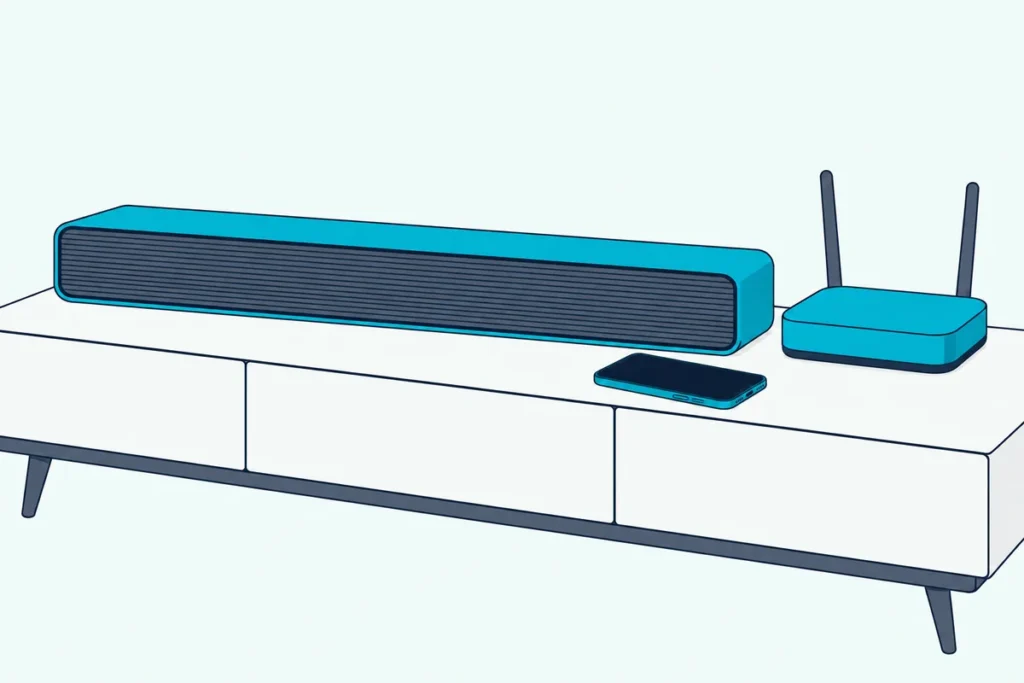
Struggling with getting your new Bose soundbar to connect to your home Wi-Fi network? Don’t sweat it
With the right guidance, you can have that speaker streaming wireless audio in no time.
Getting a Bose soundbar hooked up to Wi-Fi is a straightforward process using the Bose app, as long as your soundbar has built-in Wi-Fi.
We’ll outline the complete procedure step-by-step.
Let’s dive right in to the specifics of networking your soundbar…
How to Connect a Bose Soundbar to Wi-Fi
The key to getting your Bose soundbar onto your Wi-Fi network is the Bose app, which older Bose guides call the Bose Music app.
If the bar won’t join your network at all, a Bose soundbar reset often clears the stuck setup.
This app allows you to configure the wireless settings on compatible Bose speakers and complete the networking process in just a few steps.
To start, you’ll want to download the Bose app on your smartphone or tablet, create a Bose account if you don’t have one, and make sure your soundbar is powered on.
Turn on Bluetooth on your phone or tablet, and plug in the soundbar; on a Bose smart soundbar, the light bar glows amber when it’s ready for setup.
Open the Bose app, sign in or create an account, allow the Location Service, Local Access Network and Bluetooth permissions it asks for, and tap Add when your soundbar appears.
Select your Wi-Fi network, enter its password and tap Connect. The app then sends these settings to your soundbar to connect it.
The networking process may take a few minutes, but the Bose app guides you through each part of getting your speaker online.
As long as your soundbar supports Wi-Fi connectivity, connecting it wirelessly is quick and seamless using the mobile app.
We dive deeper into each specific step below.
But in a nutshell, the Bose app handles getting your compatible soundbar hooked up to your home Wi-Fi.
Check Soundbar Compatibility
You’ll want to verify that your specific Bose soundbar model has built-in Wi-Fi capability before attempting to connect it to Wi-Fi.
This allows the soundbar to connect directly to your wireless network in order to stream music and access online services.
Most newer Bose soundbar models have Wi-Fi connectivity, but some older units may lack this feature.
You can check the specifications for your soundbar either on the Bose website or in your soundbar manual to confirm wireless compatibility.
If your sound bar does not list Wi-Fi as one of its connection options, it likely cannot connect directly to your home network.
In that case, you would need to connect a separate streaming device like a Roku or Amazon Fire TV Stick to your soundbar via HDMI.
Then that streaming device would connect to Wi-Fi and allow you to access music streaming services, but the soundbar itself would not join the wireless network.
So verifying Wi-Fi capability is an important first step before trying to get your Bose soundbar online.
As long as your user manual or the product details online indicate Wi-Fi is supported, you can move forward connecting it wirelessly.
Download the Bose App
The app to use is the Bose app, not the separate Bose Connect app. Older SoundTouch soundbars, such as the SoundTouch 300, set up in the SoundTouch app instead.
This app is available for download on both iOS and Android devices and serves as your primary tool for getting your soundbar onto your wireless network.
When you launch the Bose app for the first time, you’ll need to sign in or create a free Bose account.
This allows the app to keep track of your registered Bose products and tailor the experience specifically to the devices you own.
Once you log into the app with your Bose account, you’ll be prompted to start adding products.
Make sure to download the Bose app on the smartphone or tablet you plan to use for setting up the Wi-Fi connection initially.
While you can use multiple mobile devices with your Bose account, getting the network configured is easiest when done directly from your soundbar to start.
The mobile device essentially facilitates the connection between the soundbar itself and your Wi-Fi router.
So just one smartphone or tablet will be necessary during the setup process.
Connect Soundbar to Power Source
You first need to connect your soundbar to a power source and turn on the device before using the Bose app to join a wireless network.
This ensures that all of the soundbar’s connection and streaming capabilities are operational during the Wi-Fi setup.
Plug your Bose soundbar directly into a wall outlet or power strip using the included power cable.
Make sure that the outlet is working and that your soundbar powers on properly once connected.
You should see indicator lights illuminate on the front of the soundbar to denote that it is getting electrical power.
Other connected Bose components like a wireless subwoofer or surround speakers may also automatically power on when you turn on the main soundbar itself.
Just confirm that all linked audio components are active so that the Bose app can find every part of your Bose system during installation.
The soundbar needs to remain powered on throughout the networking process in the app as well.
Connect Mobile Device to Soundbar
In order for your mobile device to facilitate connecting the Bose soundbar to Wi-Fi, it will need to establish its own temporary link directly to the speaker itself.
The Bose app makes that link itself, as long as you allow its Bluetooth, Location Service and Local Access Network permissions. Bose says the app won’t find your soundbar without them.
Bose’s setup steps also ask you to turn on Bluetooth connectivity on your phone or tablet before you begin.
The app looks for products in setup mode, which a Bose smart soundbar shows with an amber light bar. If yours isn’t amber, put it into setup mode first.
The steps for setup mode vary by model; for the Bose Smart Soundbar, Bose’s guide has you hold the remote’s Mute and Bose app buttons until the light bar glows amber.
This will allow your mobile device to find the soundbar and connect them directly during the Wi-Fi setup.
That’s all the app needs to find the soundbar and send it your Wi-Fi details.
Open the Bose App and Select Soundbar
With Bluetooth on and the soundbar in setup mode, you can proceed with the Wi-Fi setup in the Bose app.
Open the app on your smartphone or tablet and select the option to add or set up a new product. The app then searches for Bose products in setup mode; if the Set Up New Product screen doesn’t appear, tap the My Bose icon in the upper-left corner, then the +.
The app shows a picture of the product it found; if it isn’t your soundbar, swipe left to see the other products.
Tap Add on your soundbar to start the Wi-Fi connection process.
Keep in mind you may see other Bose products like headphones or Bluetooth speakers show up here as well.
Make sure to identify your soundbar model name and choose that one specifically.
The app only allows you to connect one device at a time to Wi-Fi.
After you tap Add, the Bose app asks you to choose your wireless network.
Follow Onscreen Instructions
Once your soundbar is added, the Bose app gives onscreen instructions for getting it onto your home wireless network.
The app will have you confirm which Wi-Fi network you want your soundbar to join from a list it finds in your area.
Simply choose the correct network name for your router connection at home.
Also enter the Wi-Fi password associated with your wireless network when prompted by the app.
Precision is important here, so double check that the password is typed correctly before you tap Connect.
Once the network name and password are verified, the app may indicate it is sending Wi-Fi settings to your Bose soundbar and that the process could take a few minutes.
Follow any other cues provided on your mobile device as the speaker attempts to join the network.
The app generally guides you each step of the way until the soundbar finally connects.
Don’t close the Bose app or turn off Bluetooth before the Wi-Fi setup completes.
You may need to retry certain steps along the way or reboot your speaker and router if issues arise.
But ideally the onscreen instructions lead to a successful network connection on the first try without any hiccups.
Just realize the process could take a few attempts depending on your Wi-Fi signal strength and overall network configuration at home.
Connect Soundbar to Wi-Fi Network
If all goes smoothly following the step-by-step directions within the Bose app, your compatible soundbar should now join the designated home Wi-Fi network.
The app will give confirmation once the speaker successfully connects and will indicate that setup is complete.
You may also notice indicator lights on the front of the soundbar itself to denote an active Wi-Fi connection after finishing setup.
This means the device can now directly access streaming music services, internet radio stations, software updates, and everything else your wireless network provides.
Feel free to reconnect Bluetooth headphones or mobile devices directly to your Bose sound platform again now that Wi-Fi configuration is done.
The important aspect is that whenever the speaker itself powers on, it will automatically join your pre-programmed Wi-Fi network without any manual intervention necessary.
Revisit the Bose app at any time to manage your soundbar’s settings and stream music to it.
But that initial networking process only needs to be completed once typically.
Enjoy Streaming Music Wirelessly
Now situated securely on your home Wi-Fi connection, internet-enabled Bose soundbars grant wireless access to practically limitless music, entertainment, and customization features.
Stream songs or playlists directly from your smartphone, tablet, or computer over the network to your speaker without ever leaving the couch.
Or tap into streaming music services like Spotify, Apple Music, Pandora, Deezer, and Amazon Music, all which typically come pre-installed on connected Bose speakers.
Once online, you can also enable voice assistants like Amazon Alexa or Google Assistant to play music via voice commands as well as check weather, control smart home devices, and more using the same sound system.
Your Wi-Fi-equipped Bose soundbar essentially serves as the central hub for an entire home audio experience.
Get whole-home audio by pairing compatible wireless rear speakers and even upgrade to real surround sound with additions like Bass Modules and rear surrounds.
You can manage audio for a TV, turntable, computer, or anything else while using the Bose app to adjust settings from your phone or tablet.
So enjoy full wireless streaming freedom courtesy of your high-tech, Wi-Fi-compatible Bose soundbar now joined to your home network.
Conclusion
Connecting your Bose soundbar to Wi-Fi opens up a whole new world of wireless music and entertainment options.
Following the step-by-step process in the Bose app lets a compatible soundbar join your home network.
So tap into unlimited music streaming and customization features for an immersive listening experience throughout your living space.