Does a Soundbar Work With Any TV? What You Actually Need [2026]

Does a soundbar work with any tv? Yes — but most people buy one without checking their TV’s ports and end up with the wrong cable, no remote volume control, or a connection that can’t pass surround sound.

The reason this happens so often is that soundbar boxes list every possible connection without telling you which one your specific TV actually supports.

Samsung soundbar on an LG TV, Bose on TCL, Sony on Hisense — brand matching is completely unnecessary.

The only thing that matters is having at least one shared connection type, and virtually every TV made in the last 15 years has HDMI ARC, optical, or both.

Once you identify that one port correctly, you can avoid compatibility mistakes and get the cleanest, simplest setup your TV supports.

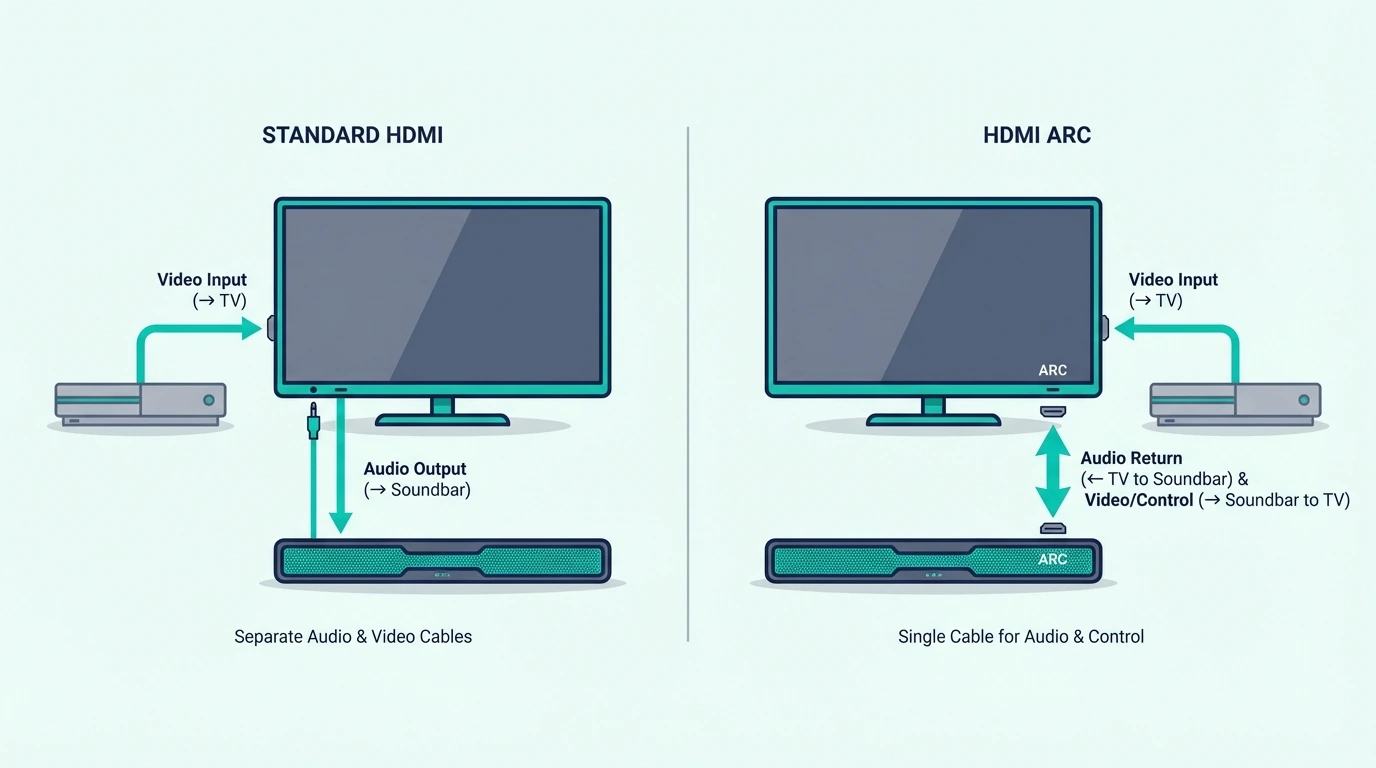
HDMI ARC gives you surround sound and TV remote volume control with a single cable. Optical gives you Dolby Digital but no remote integration.

AUX and Bluetooth still work in older or trickier setups, but they come with compromises you should know before you buy.

Below, we cover every connection type, explain which one your TV likely has, and help you match the right soundbar to your specific setup.

Quick Takeaway

Yes, a soundbar works with any TV as long as both devices share at least one audio connection. HDMI ARC or eARC is the best option because it combines better audio support with simple remote-volume control.

Optical is the reliable fallback for older TVs, while AUX and Bluetooth are workable but more limited.

Every Connection Type and What It Supports
Checking whether a soundbar will work with any TV

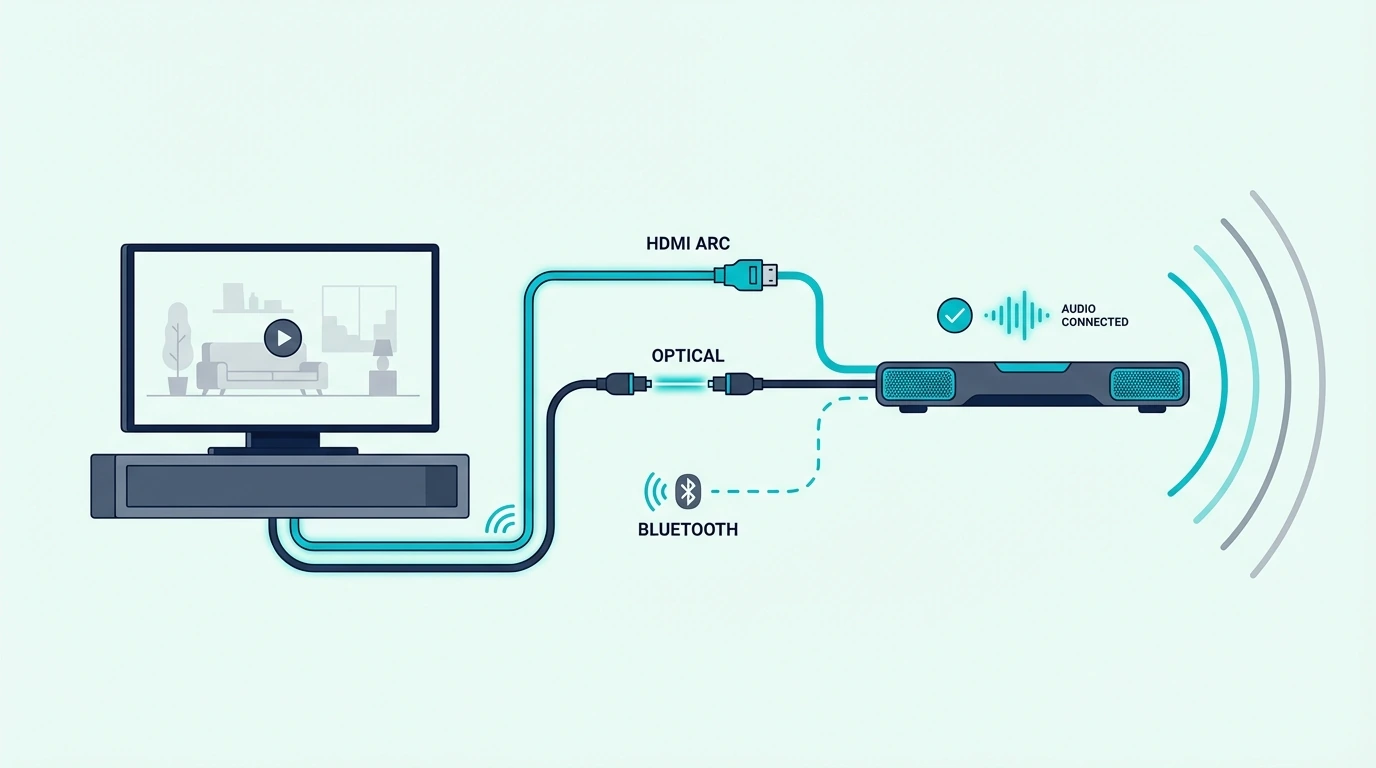
Every soundbar connects through one of four standard methods, and your TV almost certainly supports at least two of them regardless of brand or age.

The one you pick determines whether you get surround sound passthrough, remote control integration, and lag-free synchronized audio.

HDMI ARC / eARC: The Best Connection

HDMI ARC (Audio Return Channel) is the preferred connection on any TV made after 2015.

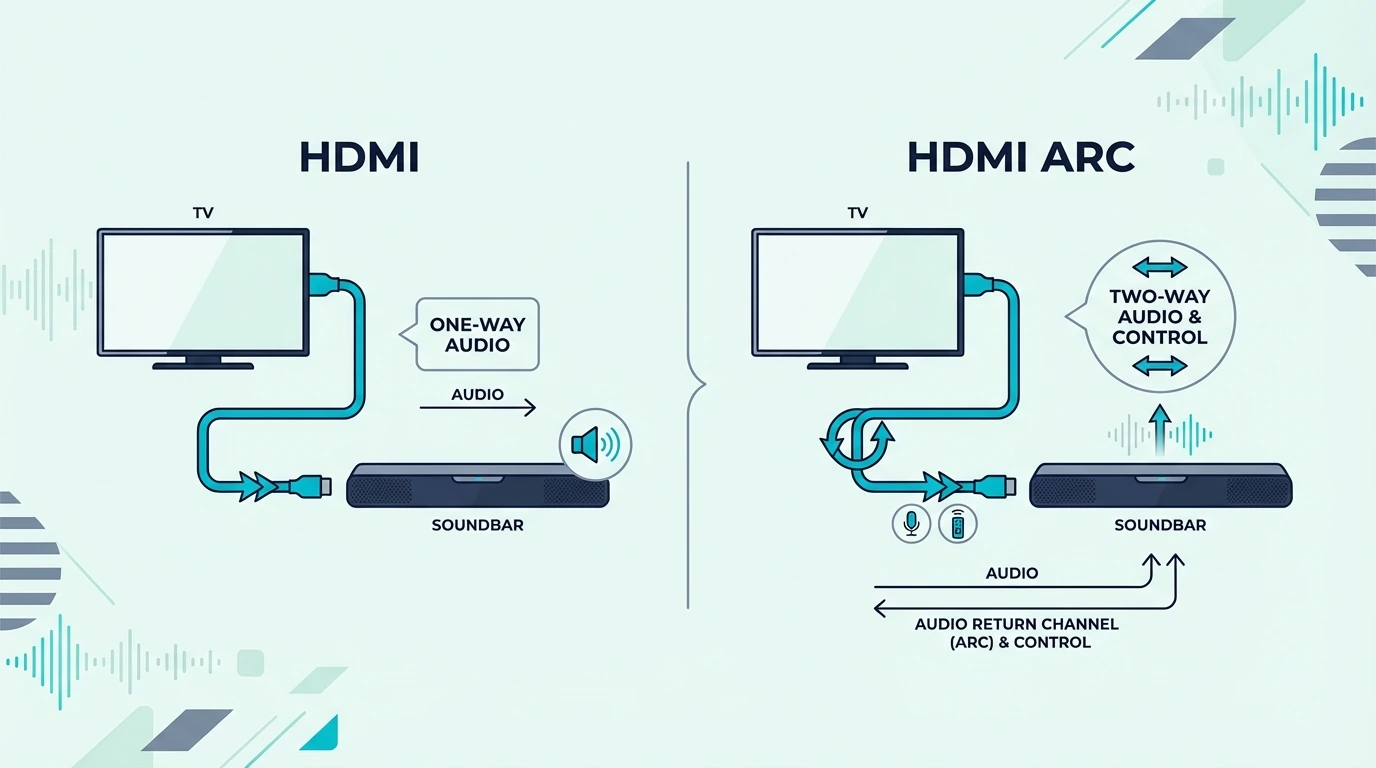
A single HDMI cable carries audio from the TV to the soundbar while CEC integration lets your existing TV remote control the soundbar’s volume automatically — no second remote cluttering the coffee table.

ARC supports stereo PCM, Dolby Digital, and DTS. eARC (Enhanced ARC) on TVs from 2019+ adds lossless Dolby Atmos and DTS:X — the full quality of what Netflix and Disney+ can deliver.

Our HDMI vs optical guide explains the detailed differences between these connections, and our how to use HDMI ARC guide covers the setup process.

Look for “ARC” or “eARC” printed next to one of your TV’s HDMI ports — this is the port to use for your soundbar connection.

Most TVs have this label printed directly on the back panel near the HDMI inputs.

Optical (also called TOSLINK or digital audio out) is found on virtually every TV manufactured in the last 20 years, making it the most universally available digital audio connection.

A fiber optic cable with distinctive square-shaped connectors transmits digital audio to your soundbar.

Optical supports stereo PCM and compressed Dolby Digital 5.1 — covering streaming, cable, and Blu-ray audio.

The limitation is no lossless Atmos or DTS:X and no CEC remote control, so you’ll need the soundbar’s own remote for volume — our Bluetooth vs optical guide compares wireless and wired connection options in detail.

A current example is Amazon Fire TV Soundbar, which is a strong fit for Balanced TV and movie upgrade.

AUX and RCA: For Older TVs

If your TV only has a 3.5mm headphone jack or RCA outputs, you can still connect a soundbar via a standard analog cable. Many budget soundbars include a 3.5mm AUX input specifically for this backward-compatible scenario.

The trade-off: analog carries stereo only, no surround, and no CEC volume control. Our soundbar fundamentals guide covers how soundbars process different input types.

Bluetooth: Wireless but Imperfect

Most modern soundbars include Bluetooth connectivity, which works with any TV that has Bluetooth audio output — no cables required at all.

This is particularly useful for wall-mounted TVs where running visible cables down the wall is difficult or aesthetically unacceptable.

The downside is latency — wireless transmission introduces 100–200ms of delay between video and audio, enough to notice lips moving before words arrive.

Low-latency codecs like aptX LL reduce this but don’t eliminate it entirely, so our soundbar to TV connection guide covers all wiring options, and our Bluetooth soundbar connection guide explains the wireless setup process.

How to Check Your TV’s Compatibility

TV connection types that determine soundbar compatibility

Checking compatibility takes 30 seconds and saves you from buying the wrong soundbar or cable. Grab a flashlight, look at the back or side panel of your TV, and identify which audio output ports are available.

If your TV is wall-mounted, taking one photo of the port panel with your phone usually makes the buying decision much easier later.

Modern TVs (2015 and Newer)

Most TVs from 2015 onward have at least one HDMI ARC port and one optical output — the two best connection options for a soundbar.

Look for “ARC” or “eARC” printed next to one of the HDMI ports on the back panel.

If you only see standard HDMI labels with no ARC note, optical is usually the safer fallback.

A current premium example is Polk Audio Signa S2 Sound Bar for Smart TV with Subwoofer, which is a strong fit for TV and movies when you want fuller bass.

Our soundbar setup guide walks through the complete configuration process for each connection type.

Older TVs (Pre-2015)

TVs before 2015 may lack HDMI ARC but almost always have optical output. If your TV has the square-shaped port (labeled “Digital Audio Out” or “Optical”), any soundbar with optical input connects directly.

For very old TVs with only RCA or headphone outputs, use a soundbar with 3.5mm AUX input or a DAC to bridge the gap.

This matters most with bedroom TVs, garage TVs, and older hand-me-down sets where replacing the screen is not worth the cost yet but better audio still matters every day.

Our is a soundbar worth it guide helps evaluate whether upgrading the TV and soundbar together makes more financial sense than adapting an old TV, and our do you need a soundbar for a smart TV guide covers the decision for newer models.

Brand Doesn’t Matter

Compatibility is entirely based on connection type, not brand name — a Samsung soundbar connected via HDMI ARC to an LG TV works identically to the same soundbar connected to a Samsung TV.

HDMI, optical, and Bluetooth are universal standards with no brand lock-in, and our soundbar vs speakers comparison covers other audio options, and our what soundbar channels mean guide explains which channel configurations match different TV setups.

The only brand-specific feature is Samsung’s Q-Symphony, which lets certain Samsung soundbars play alongside Samsung TV speakers. Even Samsung soundbars work normally with other brands via standard connections.

Universal ports are what matter.

The Bottom Line

A soundbar works with any TV sharing at least one compatible connection — HDMI ARC (best), optical (great), AUX (basic), or Bluetooth (wireless).

Check the back of your TV before purchasing, prioritize HDMI ARC, and don’t worry about matching brands.

If your TV only has optical or 3.5mm, you still have strong options. Most modern soundbars include both as standard inputs.

Our soundbar vs home theater comparison covers when a full speaker system makes more sense, and our soundbar vs surround sound guide explains the audio quality spectrum.

Frequently Asked Questions

How do I know if a soundbar is compatible with my TV?

Look at the back of your TV for any HDMI port labeled “ARC,” any square-shaped optical port, a 3.5mm headphone jack, or RCA outputs — a soundbar with matching input will connect.

Nearly every soundbar includes both HDMI and optical, so compatibility with any TV from the last 15–20 years is essentially guaranteed.

Can older TVs use a soundbar?

Yes — even TVs from the early 2000s connect via optical or 3.5mm headphone jack without any issues.

You won’t get HDMI ARC features like TV remote volume control or surround sound passthrough, but dialogue clarity and bass response still improve dramatically over the TV’s built-in speakers.

Is it worth buying a soundbar for TV?

It’s the single most impactful upgrade you can make to your overall TV experience.

A $120 soundbar with a wireless subwoofer delivers dramatically clearer dialogue, real bass you can feel, and wider sound than any TV’s built-in speakers — setup takes five minutes with a single cable.

For this kind of small-room, dialogue-first setup, a current example is Saiyin Sound Bar for Smart TV, which is a strong fit for Budget TV speaker upgrade.

What is needed to connect a soundbar to a TV?

One cable matching a shared port — HDMI for ARC (best), optical for digital audio, or 3.5mm for analog.

Most soundbars include the HDMI or optical cable in the box, so you typically don’t need to buy anything extra beyond the soundbar itself.

Check the box first.
Why Does My Soundbar Say PCM? Here’s the Real Fix [2026]

Why does my soundbar say pcm? It looks like a soundbar bug, but it’s actually your TV quietly converting surround sound into basic stereo before sending it out.

Most people don’t realize this is happening until they notice movies sound flat and dialogue gets buried.

That Dolby Digital 5.1 movie soundtrack?

Your TV decodes it internally, strips the surround channels, and sends your soundbar a flat 2-channel signal — your 5.1 soundbar sits there playing stereo while its center channel and surround processing hardware does absolutely nothing.

The frustrating part is that this is the single most common soundbar setup mistake, and the cause is a single TV setting that ships with the wrong default.

One change — PCM to Passthrough or Bitstream — and your soundbar immediately receives the full surround signal it was designed to decode.

Once you understand what triggers the PCM display, the fix becomes obvious.

Below, we explain what PCM means, why your TV defaults to it, and exactly how to fix it for Samsung, LG, Sony, and other TV brands.

Quick Takeaway

Your soundbar says PCM because your TV is sending it a basic stereo signal instead of passing through the original surround format.

The fix is usually one TV setting. Change Digital Audio Output from PCM to Passthrough, Bitstream, or Auto.

Once that happens, compatible content should show Dolby Digital, DTS, or Atmos instead of PCM.

What PCM Actually Means on Your Soundbar

Why a soundbar display may show PCM audio

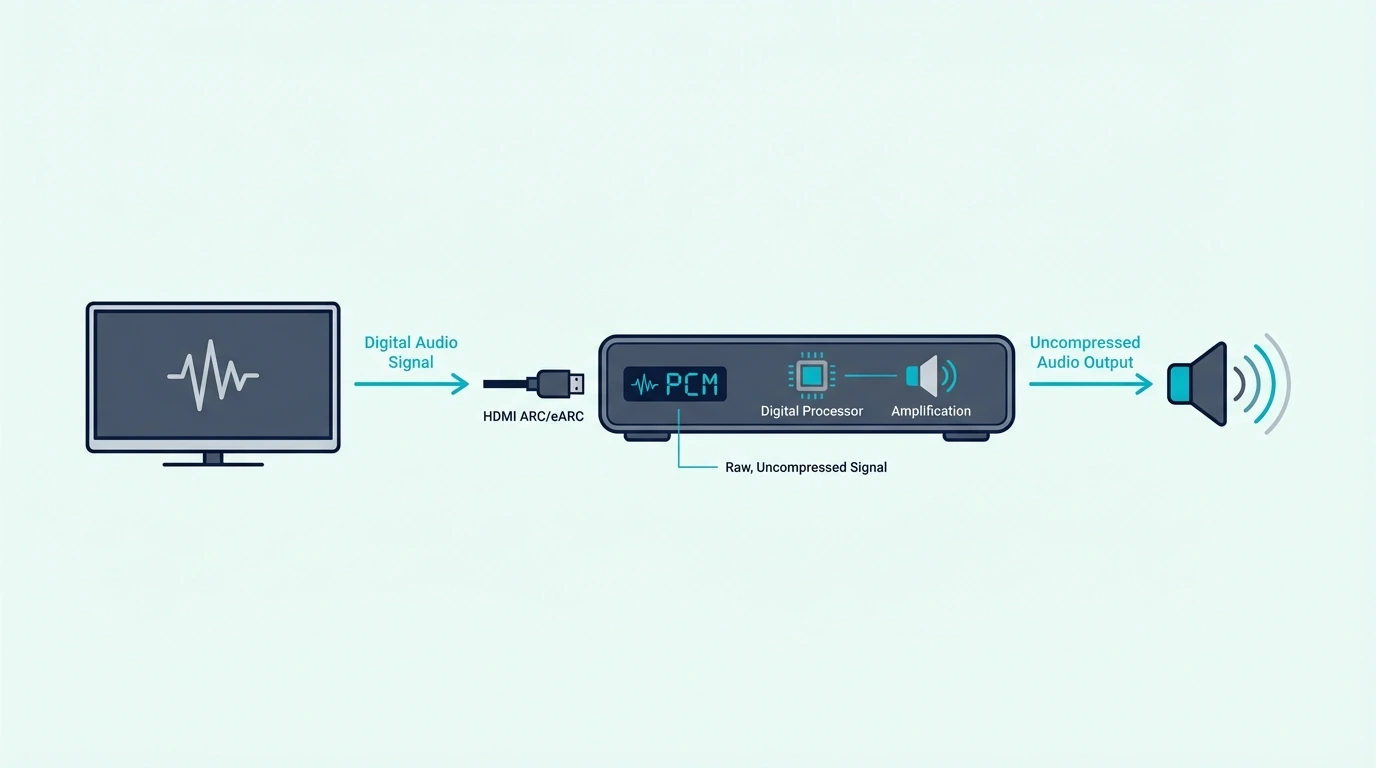
PCM stands for Pulse Code Modulation — the most basic digital audio format used in consumer electronics.

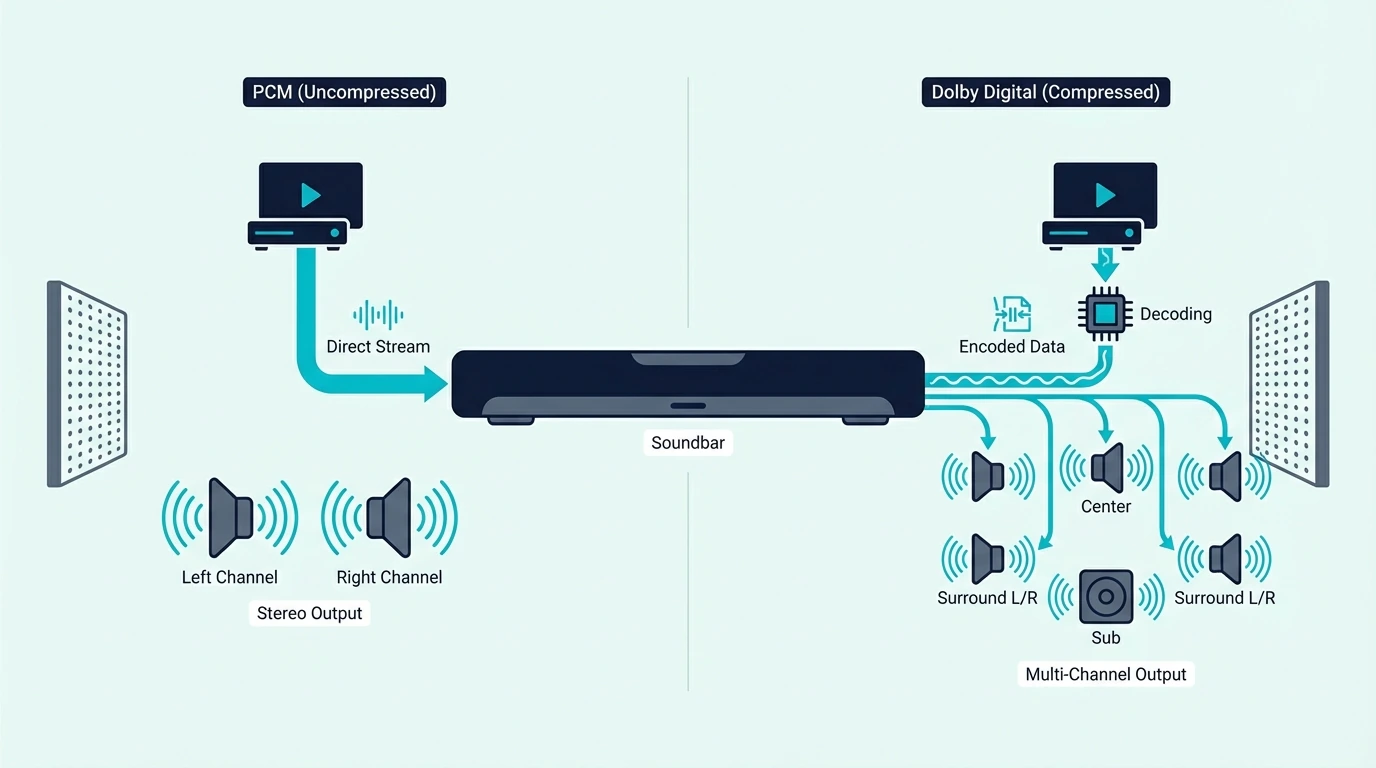
When your soundbar displays “PCM” on its front panel, it’s telling you exactly what type of audio signal it’s receiving: uncompressed stereo — not Dolby Digital, not DTS, not Atmos.

PCM Is Stereo, Not Surround

PCM on a soundbar means 2-channel stereo — left and right only. No center channel dialogue separation, no surround data, and no height metadata whatsoever.

Your soundbar’s dedicated Dolby Digital decoder, its DTS processor, its Atmos engine — all sitting completely idle because there’s nothing for them to work with.

This is exactly why movies sound flat and dialogue gets lost in the background mix — the content was originally mixed in 5.1 or Atmos, but your TV stripped it down to stereo before your soundbar ever saw the original signal.

Our what soundbar channels mean guide explains how different channel configurations use surround data, and our soundbar fundamentals guide covers how soundbars decode different audio formats.

Why Your TV Defaults to PCM

TVs default to PCM because it’s the safest, most universally compatible audio setting. Every audio device on earth can play 2-channel stereo without any issues.

Your TV doesn’t know if you connected a high-end soundbar, a pair of headphones, or a 1990s boombox — so it plays it safe and sends the simplest format that everything can handle.

The irony is that your TV is doing extra processing work to make the audio actively worse. It decodes Dolby Digital or Atmos internally, downmixes six channels to two, and sends that stripped-down signal to your soundbar.

The original surround data is permanently lost in this conversion process — your soundbar can’t reconstruct what the TV already threw away.

That is why a bar with five drivers and a center channel can still sound oddly flat if the source arriving at it has already been collapsed to stereo upstream.

Some TVs even revert to PCM after updates, which makes the issue come back unexpectedly. That detail matters greatly.

It changes the diagnosis completely. Our PCM vs Dolby Digital soundbar guide covers the detailed differences between these two formats.

How to Fix It: PCM vs Passthrough vs Bitstream

TV audio settings that change PCM and surround output

The fix takes 30 seconds and requires no technical knowledge: change your TV’s audio output from PCM to a setting that passes the original surround signal through to your soundbar completely untouched.

The exact setting name varies by TV brand and model, but the underlying concept is identical across all manufacturers.

Passthrough / Bitstream: Let Your Soundbar Do the Decoding

Change from PCM to Passthrough (LG, Sony) or Bitstream (Samsung).

This tells the TV to stop decoding audio internally and instead send the original encoded surround signal directly to your soundbar — your soundbar then decodes Dolby Digital, DTS, or Atmos using its own dedicated hardware processors.

Samsung: Settings → Sound → Expert Settings → Digital Output Format → Bitstream LG: Settings → Sound → Additional Settings → Digital Sound Out → Pass Through Sony: Settings → Display & Sound → Audio Output → Digital Audio Out → Auto/Pass through

After changing this setting, play a Netflix movie that you know has 5.1 audio — most Netflix Originals and major studio films include Dolby Digital 5.1 or Atmos tracks. Your soundbar should now display “Dolby Digital,” “DTS,” or “Atmos” instead of “PCM.”

If you are not sure whether the content is actually multichannel, check the title page first, because guessing with stereo content can make a correct setup look broken.

If it still shows PCM, the content itself may be natively stereo — try a different title that is confirmed to have 5.1 surround sound.

This is especially common on YouTube clips, older TV episodes, and some menu screens that never carried surround audio in the first place.

Our HDMI vs optical guide explains how your connection type limits which formats can pass through, and our soundbar to TV connection guide covers the full setup process.

Connection Type Matters

What audio formats your soundbar can actually receive depends entirely on the cable connection between your TV and soundbar. Optical supports PCM stereo and compressed Dolby Digital/DTS (5.1 max) but cannot carry Atmos or any lossless formats.

HDMI ARC adds significantly more bandwidth beyond what optical can handle. HDMI eARC supports everything including full lossless Dolby Atmos and uncompressed multichannel audio.

If your soundbar supports Atmos but you’re connected via optical, you’ll never see “Atmos” on the display regardless of TV settings — optical physically can’t carry the Atmos signal due to bandwidth limitations.

For large-room movie use, a current example is Polk Audio Signa S2 Sound Bar for Smart TV with Subwoofer, which is a strong fit for TV and movies when you want fuller bass.

Our Bluetooth vs optical guide covers wireless connection limitations, and our how to use HDMI ARC with a soundbar guide explains the ARC/eARC setup process in detail.

When PCM Is Actually Fine

PCM isn’t always wrong.

For stereo music, podcasts, YouTube, and video calls, PCM delivers full uncompressed quality — it’s actually the ideal format for natively stereo content.

Seeing “PCM” while playing Spotify is perfectly normal and correct.

The problem only arises when surround content — movies, shows, and games mixed in 5.1 or Atmos — gets downmixed to stereo PCM, stripping the surround data your soundbar needs to create immersive audio.

In other words, PCM is not automatically bad; it is bad only when it appears in situations where you expected the bar to receive a multichannel soundtrack.

For large-room movie use, a current example is Amazon Fire TV Soundbar, which is a strong fit for Balanced TV and movie upgrade.

Our is a soundbar worth it guide covers value at each price tier, and our soundbar setup guide covers the complete configuration process.

The Bottom Line

Your soundbar says PCM because your TV converts surround audio to stereo before sending it out.

Change your TV’s digital audio output setting to Passthrough or Bitstream, and your soundbar immediately receives the full surround signal it was designed to decode.

Our soundbar vs surround sound guide explains the full spectrum of audio format capabilities, and our soundbar vs receiver guide covers when a receiver-based system offers more format flexibility.

Frequently Asked Questions

Is PCM good sound quality?

For stereo content — music, podcasts, YouTube — PCM is technically perfect: uncompressed, full quality.

The problem is entirely about context.

PCM on a soundbar during a movie means your TV stripped the 5.1 surround down to 2 channels before sending it.

You’re hearing an uncompressed version of a downmixed signal, which is actually worse than the compressed Dolby Digital original that preserved all six discrete channels.

Should I use PCM with my soundbar?

Only if your soundbar is a basic 2.0 or 2.1 model (stereo only with no surround decoding) or you exclusively listen to stereo content like music and podcasts.

For any soundbar with 3 or more channels and any content mixed in surround sound, you should always switch to Passthrough or Bitstream so your soundbar receives and properly decodes the full surround signal itself using its built-in hardware.

For large-room movie use, a current example is Amazon Fire TV Soundbar Plus (newest model) with built-in subwoofer, which is a strong fit for Atmos movies and TV with stronger bass.

How do I change PCM settings on my TV?

Go to your TV’s Sound Settings → Digital Audio Output. Samsung: Expert Settings → Digital Output Format → Bitstream.

LG: Additional Settings → Digital Sound Out → Pass Through. Sony: Audio Output → Digital Audio Out → Auto.

JBL vs Polk Soundbar: Which Brand Fits Your Listening Style? [2026]

The JBL vs Polk soundbar debate looks simple but comes down to two fundamentally different design philosophies. JBL builds around bass impact and immersive sound while Polk builds around dialogue clarity and value at every price tier.

Most comparison articles treat the two brands as interchangeable mid-range options. They rarely explain what each brand actually prioritizes in its hardware design.

JBL uses MultiBeam DSP and large bass radiators to create a wide and punchy soundstage that favors movies and music. Polk uses patented VoiceAdjust with dedicated center channel drivers that prioritize clear speech.

The problem is picking the wrong brand means optimizing for the wrong thing. JBL and Polk engineer their soundbars for different primary use cases.

Choosing a JBL when you mostly need dialogue leaves you with a soundbar that is good but not great at the thing you care about most. The same applies to picking Polk when you want maximum bass impact.

Understanding what each brand’s engineering philosophy actually delivers helps you match the right soundbar to your primary listening habits, so you can avoid spending $200-400 on a soundbar that excels at something you rarely use while underperforming at what you need daily.

Below, we’ll compare JBL and Polk soundbars across sound quality priorities, feature sets, price tiers, and specific use cases to help you decide which brand fits your setup.

Quick Takeaway

Choose Polk if dialogue clarity is your top priority — their VoiceAdjust technology and dedicated center-channel approach keep voices crisp during loud scenes, and they often undercut JBL at comparable feature tiers. Choose JBL if bass impact and immersive soundstage matter most — their MultiBeam tuning and larger driver arrays create a wider, more cinematic presentation that favors movies and music over pure dialogue focus.

Sound Quality: Different Engineering Priorities

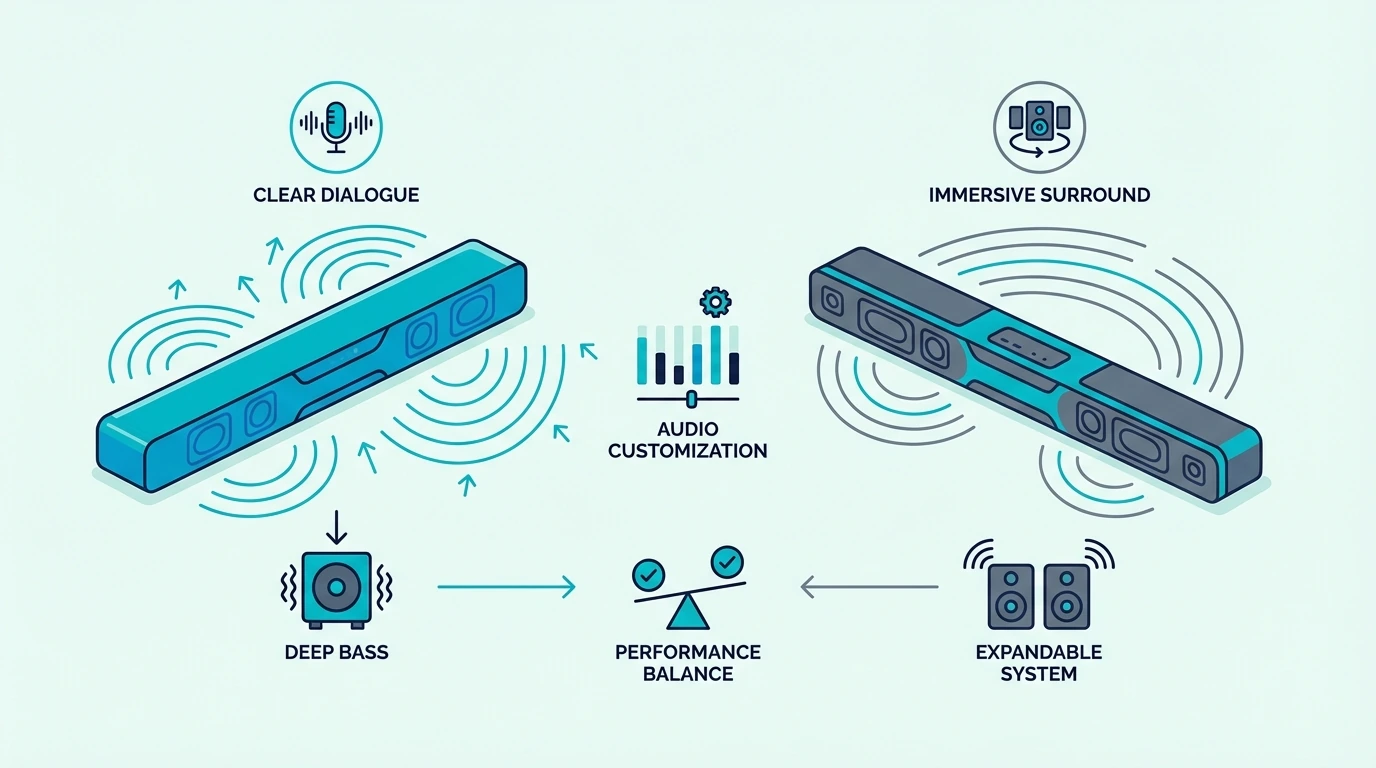
JBL and Polk soundbars compared side by side

JBL and Polk both make good soundbars. They simply engineer them to excel at different aspects of audio reproduction.

Understanding these priorities makes the choice straightforward based on what you listen to most. The difference isn’t about one brand being objectively better — it’s about which design philosophy aligns with your use case.

JBL: Bass-Forward and Immersive

JBL soundbars are engineered for impact. Their Bar series uses large oval racetrack drivers and dedicated bass radiators.

Those drivers produce deep room-filling low-frequency output from the main bar even before you add a subwoofer. That alone separates JBL from most flat-response competitors.

MultiBeam technology uses side-firing and angled drivers to bounce sound off walls. The result is a wider perceived soundstage than the physical bar width suggests.

A current JBL example is the JBL Bar 300. It’s a strong fit for Atmos streaming and immersive TV audio.

JBL’s approach delivers a more exciting experience for movies with big soundtracks or music listening.

However, JBL relies on DSP processing for dialogue enhancement. Voices can get slightly buried during complex audio mixes.

Soundbars with dedicated center channel hardware keep voices more intelligible. Our best soundbar for dialogue guide explains how channel configurations affect dialogue separation.

Polk: Dialogue-First and Value-Oriented

Polk soundbars are engineered for voice clarity. Their patented VoiceAdjust is a hardware-level dialogue enhancement system.

VoiceAdjust works with physically dedicated center channel drivers instead of just DSP applied to shared drivers. Speech lives on its own speaker from the start.

Dialogue stays clear regardless of what is happening on the left and right channels. That consistency is the whole point of Polk’s engineering choice.

A current Polk example is the Polk MagniFi Mini AX. It’s a strong fit for Atmos movies and TV with stronger bass.

Polk consistently prices soundbars $50-150 below JBL equivalents with similar feature sets.

However, Polk’s bass output is controlled and accurate rather than room-shaking. JBL’s larger drivers and bass radiator design deliver more visceral impact.

Polk’s sound signature is tighter and more neutral, which audiophiles often prefer. Our soundbar fundamentals guide covers how different driver types affect bass response.

Features, Price, and Practical Differences

Choosing between JBL and Polk soundbars for home TV audio

Beyond sound quality philosophy, JBL and Polk differ in pricing strategy, app ecosystem, and feature availability at each price tier — and these practical differences can matter as much as the audio performance when you’re living with a soundbar daily.

Price Tiers: Polk Wins on Value

At the budget tier ($100-200), the Polk Audio Signa S2 shows Polk’s value approach with a wireless subwoofer and TV-first tuning. JBL often asks more money for a bigger but less dialogue-focused presentation.

This pattern repeats up the lineup. Polk consistently includes features like a center channel and Atmos and a wireless sub at a lower price point than JBL.

At the mid tier ($200-400), Polk’s Signa S4 delivers 3.1.2 Dolby Atmos with a wireless subwoofer for $299.

JBL’s equivalent Atmos model (Bar 300) costs $350 and uses a 5.0 all-in-one configuration without a separate sub.

Our guide to choosing a soundbar covers value calculations at each price tier. Our Sonos vs Bose soundbar comparison covers the premium brand alternatives.

At the premium tier ($400+), JBL’s Bar 1000 with detachable surround speakers competes with Polk’s MagniFi Max AX SR. JBL has the edge in immersive surround with physically detachable wireless rear speakers.

Polk still maintains its dialogue clarity advantage at this tier. Our soundbar vs surround sound guide explains when stepping up to premium multi-speaker configurations is worth it.

Connectivity and App Ecosystem

Both brands support HDMI eARC plus optical and Bluetooth and WiFi across their mid and premium tiers. JBL’s One app offers detailed EQ customization alongside firmware updates and multi-room speaker grouping with other JBL products.

Polk’s Sound app provides EQ adjustment and VoiceAdjust level control. It has a simpler interface with fewer features.

Both apps also support basic night mode and voice enhancement toggles on the go. Neither matches the depth of a standalone receiver app.

If you already own JBL portable speakers or headphones, the JBL ecosystem integration adds value through multi-room audio grouping. Polk does not offer comparable ecosystem integration and each Polk soundbar is more of a standalone purchase.

Our soundbar to TV connection guide covers HDMI eARC setup for both brands. Our HDMI vs optical guide explains connection options.

Use Case Recommendations

For movie-focused setups where bass impact and spatial immersion matter most, JBL’s MultiBeam technology and larger driver arrays create the more cinematic experience. You get deeper low-end and a wider perceived soundstage.

For TV drama and news viewing, Polk’s VoiceAdjust and center channel hardware make dialogue effortless at any volume. That is particularly valuable for households where family members have different hearing sensitivities.

For music listening, JBL’s wider soundstage and bass emphasis favor genres like hip-hop / electronic / orchestral scores. Polk’s balanced approach works better for vocal-heavy genres like folk / jazz / podcasts.

For gaming setups, JBL’s wider soundstage helps you locate enemy footsteps and ambient sound effects in first-person shooters. Polk’s cleaner dialogue keeps in-game voice chat and tutorial audio crisp during chaotic action.

Competitive gamers often pair either bar with a headset so this difference matters less than it does for casual TV viewing.

Our soundbar vs speakers guide covers how soundbars compare to dedicated speakers for music. Our soundbar vs bookshelf speakers comparison explains when separate speakers might be better than either brand’s soundbar.

The Bottom Line

Choose Polk if dialogue clarity and value are your priorities. You will get better speech intelligibility and more features per dollar at every price tier.

The VoiceAdjust technology is genuinely best-in-class for keeping voices clear during loud content.

Choose JBL if bass impact and spatial immersion and ecosystem integration matter most. MultiBeam technology and larger drivers create a more cinematic experience than Polk’s more controlled profile.

The JBL One app ecosystem adds value if you already own other JBL audio products.

Our soundbar vs receiver guide covers when stepping beyond soundbar brands to a receiver-based system makes sense, and our soundbar setup guide covers configuration for whichever brand you choose.

Frequently Asked Questions

Is Polk soundbar good?

Polk soundbars are excellent for dialogue clarity and value. Their VoiceAdjust technology and dedicated center channel drivers make them among the best options for TV viewing where hearing voices clearly is the top priority.

They consistently price $50-150 below comparable JBL and Samsung models while including similar feature sets. Most Polk bars also ship with a wireless sub at a price point where JBL still sells bar-only models.

Is JBL or Polk better for movies?

JBL is generally better for movies if you prioritize bass impact and immersive surround effects. Their MultiBeam technology and larger driver arrays create a more cinematic soundstage.

Polk is better for movies if dialogue clarity matters more than bass punch. Their center channel hardware keeps voices intelligible during complex action scenes.

Are JBL soundbars worth the premium over Polk?

The JBL premium is worth it if you value bass impact plus wider soundstage and JBL ecosystem integration with other JBL speakers. Dialogue-first buyers get a different answer.

If dialogue clarity and value are your priorities, Polk delivers comparable or better performance for $50-150 less at each tier. That makes the JBL premium harder to justify purely on audio quality.

Soundbar vs Speakers for PC: Which Desktop Audio Setup Wins?

The soundbar vs speakers for pc decision seems straightforward — but pick the wrong one for your desk setup and you’ll either sacrifice gaming precision or deal with unnecessary clutter.

If you play competitive shooters where hearing footsteps from the left means the difference between a kill and a death, desktop speakers win — two separate units create real directional audio at arm’s length.

If you watch movies at your desk, want bass without clutter, or simply don’t have room for two speakers beside a 27-inch monitor, a soundbar makes more sense.

The problem is that most people don’t realize how much desk distance changes the equation.

At the typical 2–3 foot listening distance, the stereo imaging advantage of separated speakers is far more pronounced than in a living room.

Your ears are close enough to tell exactly where sound originates, which makes a soundbar’s simulated width noticeably more obvious.

Once you know how each option performs at arm’s length, the right choice becomes clear.

Below, we compare sound quality at desk distance, space impact, gaming performance, and which setup fits different budgets.

Quick Takeaway: Desktop speakers are the better choice for PC gaming, music production, and any use where stereo imaging and positional audio matter. The physical separation between left and right channels creates a natural soundstage that a soundbar cannot replicate at desk distance.

A PC soundbar is the better choice if desk space is limited, you primarily watch movies and videos, or you want a single unit with built-in bass that doesn’t require positioning two separate speakers.

For casual use including video calls, YouTube, and background music, either option works well and the choice comes down to desk layout preference.

Sound Quality at Desk Distance

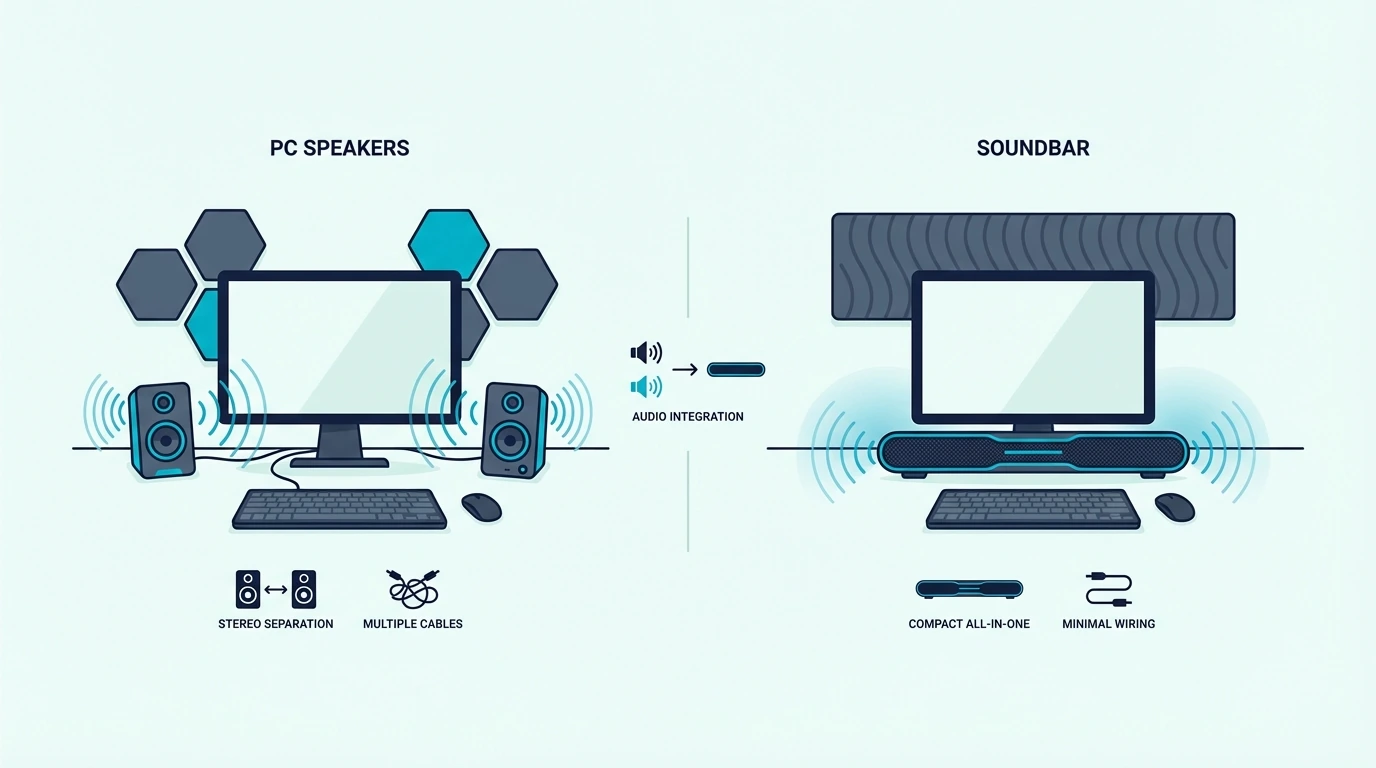
Soundbar compared with desktop speakers for a PC setup

At 2–3 feet — arm’s length — your ears are close enough to pinpoint exactly where sound originates.

This proximity makes the physical separation of desktop speakers significantly more valuable than it is in a living room setting, and a soundbar’s DSP-simulated width noticeably less convincing at this close range.

Desktop Speakers: Natural Stereo at Arm’s Length

Desktop speakers placed on either side of your monitor create genuine stereo separation with channels positioned 2–4 feet apart.

At arm’s length, this physical distance produces a detailed and precise soundstage where you can point to where a guitar sits in a mix, where an enemy is moving in a game, or which direction a car is approaching from in a movie.

For competitive gaming, this matters tactically — footsteps from the left come from the left speaker, and a grenade thrown from the right comes from the right speaker.

Desktop speakers reproduce these directional cues naturally because the channels are physically separated — no DSP processing or psychoacoustic tricks required.

Powered desktop speakers in the $100–200 range typically include dedicated tweeters and woofers in each separate enclosure, delivering detailed highs and solid midrange reproduction for music listening and audio production work.

Even a compact pair like the Creative Pebble V3 provides real stereo separation at $40 with USB-C power and Bluetooth — no external power supply needed.

Our soundbar vs speakers guide covers the broader comparison between these two categories, and our soundbar vs bookshelf speakers guide explains how larger bookshelf speakers compare.

PC Soundbar: Consolidated Audio with Simulated Width

A PC soundbar sits under your monitor as a single unit, using DSP and angled drivers to simulate stereo width from a 20–30 inch enclosure.

At desk distance, the simulation is noticeably less convincing than at living room range — your ears are close enough to tell that all sound originates from a single point below the screen rather than from distinct positions around you.

Where a PC soundbar wins is bass and volume density — the larger single enclosure houses bigger drivers with significantly more low-end extension than compact desktop speakers.

Add a wireless subwoofer and you get desk-shaking bass that no compact desktop speaker pair under $200 can come close to touching.

A soundbar like the Polk Audio Signa S4 delivers Dolby Atmos processing and a wireless subwoofer that creates a more immersive movie and gaming experience than most desktop speakers.

But the stereo imaging at desk distance is narrower than a $150 pair of powered desktop speakers placed properly on either side of the monitor.

Our soundbar fundamentals guide explains how soundbar driver configurations affect audio performance, and our how to use a soundbar with PC guide covers the specific setup process for desktop use.

Desk Space, Setup, and Practical Considerations

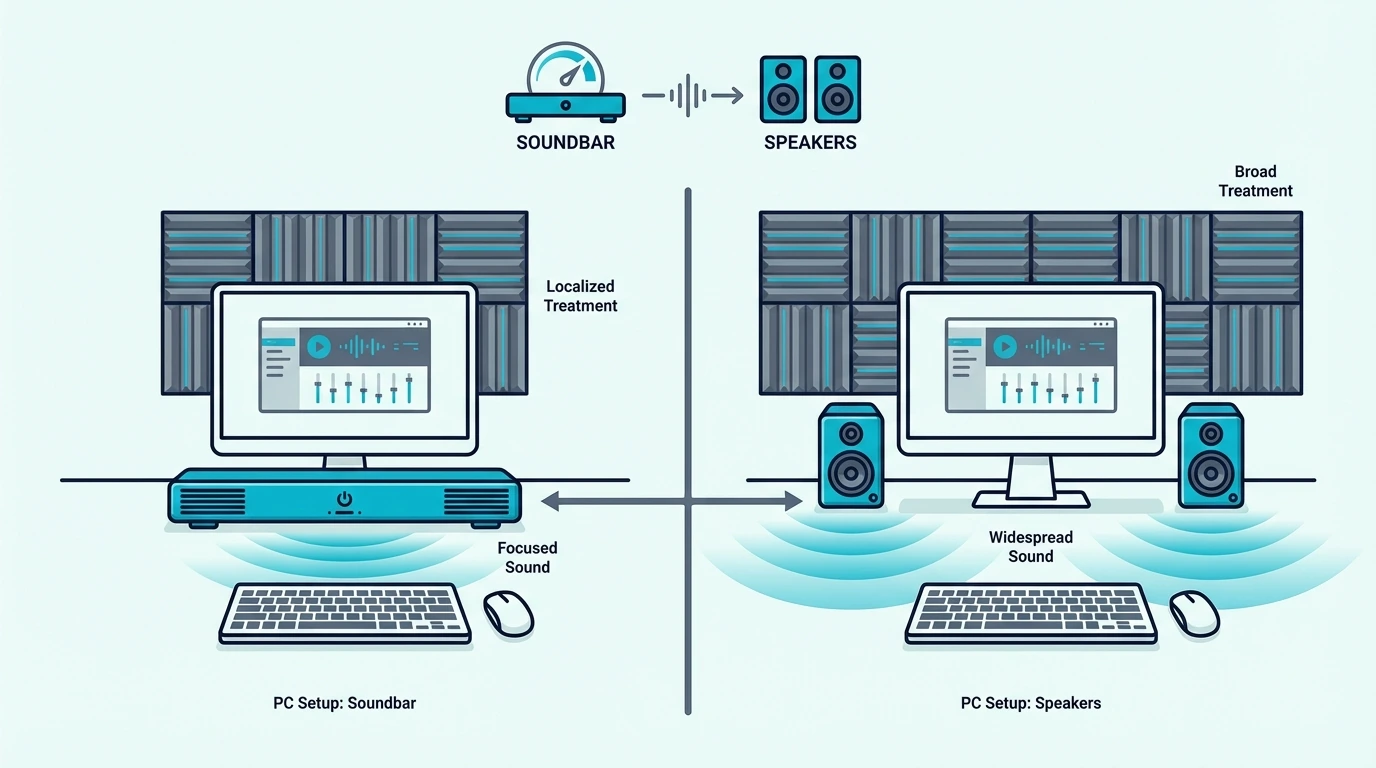
Space and stereo imaging differences between PC soundbars and speakers

Beyond sound quality, footprint and setup complexity matter significantly on a desk already occupied by monitors, keyboards, mice, and peripherals.

Desk real estate is finite, and audio equipment competes directly with your workspace.

Soundbar: One Unit, Minimal Footprint

A PC soundbar sits in a single strip under your monitor — 2–3 inches deep, 20–30 inches wide.

One cable (USB, 3.5mm, or Bluetooth), slide it into place, and you’re done.

Wireless subwoofer goes on the floor under the desk, completely out of sight and out of the way.

A current value example is Polk Audio Signa S4 3.1.2ch Soundbar with Wireless Subwoofer and Dolb…, which is a stronger fit for more immersive movie playback.

Our soundbar setup guide covers the full configuration process, and our connection guide explains the different input options available on most soundbars.

Desktop Speakers: Two Units, More Cables, Better Positioning

Desktop speakers need two positions — one per side of your monitor — plus cables from each speaker to your PC or to each other, and each occupies a 4×6 inch footprint with cable routing adding visual clutter.

A 2.1 system like the Logitech Z313 adds a separate subwoofer on the floor, giving you real bass from compact satellite speakers — but that’s three units total plus additional cabling.

Positioning flexibility is both a benefit and a burden — you can angle speakers inward for optimal stereo imaging, but you need at least 3–4 feet of desk width for adequate channel separation.

On a compact 48-inch desk with a 27-inch monitor, fitting two speakers plus a keyboard, mouse, and a drink gets genuinely tight.

For understanding how different audio setups compare in value across use cases, our is a soundbar worth it guide covers the cost-benefit analysis.

Our soundbar vs surround sound comparison explains the broader audio quality spectrum from soundbars up to full discrete speaker systems.

Gaming: Where the Choice Matters Most

For competitive gaming where hearing an enemy’s position wins rounds, desktop speakers outperform a soundbar. You physically perceive directional cues from separated channels.

A footstep from the left speaker means left, not “somewhere in front of you.” A soundbar’s simulated width works for casual and single-player games but falls short in ranked matches where millisecond directional reactions matter.

For single-player gaming, movies, and media consumption, a soundbar with subwoofer delivers more cinematic impact — explosions have physical weight, soundtracks fill the space, and Dolby processing creates a more enveloping experience.

Our HDMI vs optical guide covers connection options, and our Bluetooth vs optical guide explains wireless connectivity for flexible PC audio setups.

The Bottom Line

Desktop speakers win for gaming, music, and any task where stereo imaging matters — physical separation at desk distance creates a soundstage a soundbar can’t match.

A PC soundbar wins for desk space, movies, and casual use where bass and convenience matter more than precise stereo positioning.

Our best soundbar for PC guide ranks the current picks that work well at desk distance.

For most people who use their PC for a mix of gaming, streaming, and video calls, the choice comes down to whether desk space or audio precision matters more to their daily workflow.

If you’re considering a shared TV-and-desktop setup, our best soundbar guide covers universal picks that span both use cases.

Our soundbar vs receiver guide covers more advanced desktop audio setups, and our 2.1 vs 5.1 soundbar guide explains the channel configurations available if you decide a soundbar is the right fit for your PC desk.

Frequently Asked Questions

Are sound bars better than speakers for PC?

For desk space, bass output, and single-unit convenience — yes, soundbars are the better option.

For competitive gaming positional audio, music production, or any use where precise left-right separation at arm’s length matters, desktop speakers at $100–200 outperform soundbars at the same price.

Can I use a soundbar as a PC speaker?

Absolutely — connect via USB, 3.5mm, Bluetooth, or HDMI depending on the model and your PC’s available outputs.

Audio quality is dramatically better than laptop speakers or monitor built-in speakers, with the only meaningful trade-off being narrower stereo imaging at the typical 2–3 foot desk distance.

What are the benefits of using a PC soundbar?

One unit instead of two, built-in bass from larger drivers, significantly simpler cable management, and a much cleaner desk aesthetic overall.

Many include Bluetooth for wireless phone streaming alongside USB or 3.5mm for your PC — so you can switch between computer audio and phone calls without unplugging anything.

Soundbar vs No Soundbar: Is the Upgrade Actually Worth It? [2026]

The soundbar vs no soundbar question answers itself the first time you turn on subtitles just to follow a conversation — but most people assume they just need a better TV, not realizing the audio problem only gets worse with every upgrade.

If you’re adjusting volume every few minutes — up for dialogue, down for explosions, up again when someone whispers — your TV speakers are the problem, not the content.

The frustrating reality is that modern TVs are physically too thin for decent audio. Manufacturers spend their entire budget on display technology while speakers get whatever space remains in a half-inch-deep enclosure.

Even a $2,000 TV fires its tiny speakers downward or backward into a wall. A $120 soundbar with front-facing drivers and a wireless subwoofer immediately fixes everything wrong with that equation.

Once you understand why TV speakers fail and what a soundbar actually changes, the decision becomes obvious.

Below, we break down what improves when you add a soundbar, the differences you’ll hear, and whether it’s worth it for your setup.

Quick Takeaway

A soundbar is the single biggest audio upgrade you can make for your TV.

Even a modest budget model produces clearer dialogue, more usable volume, and deeper bass than the built-in speakers on an expensive flat-screen.

If you rely on subtitles because speech gets buried under music or effects, a soundbar fixes the core problem immediately.

Why TV Speakers Sound Bad (And Keep Getting Worse)

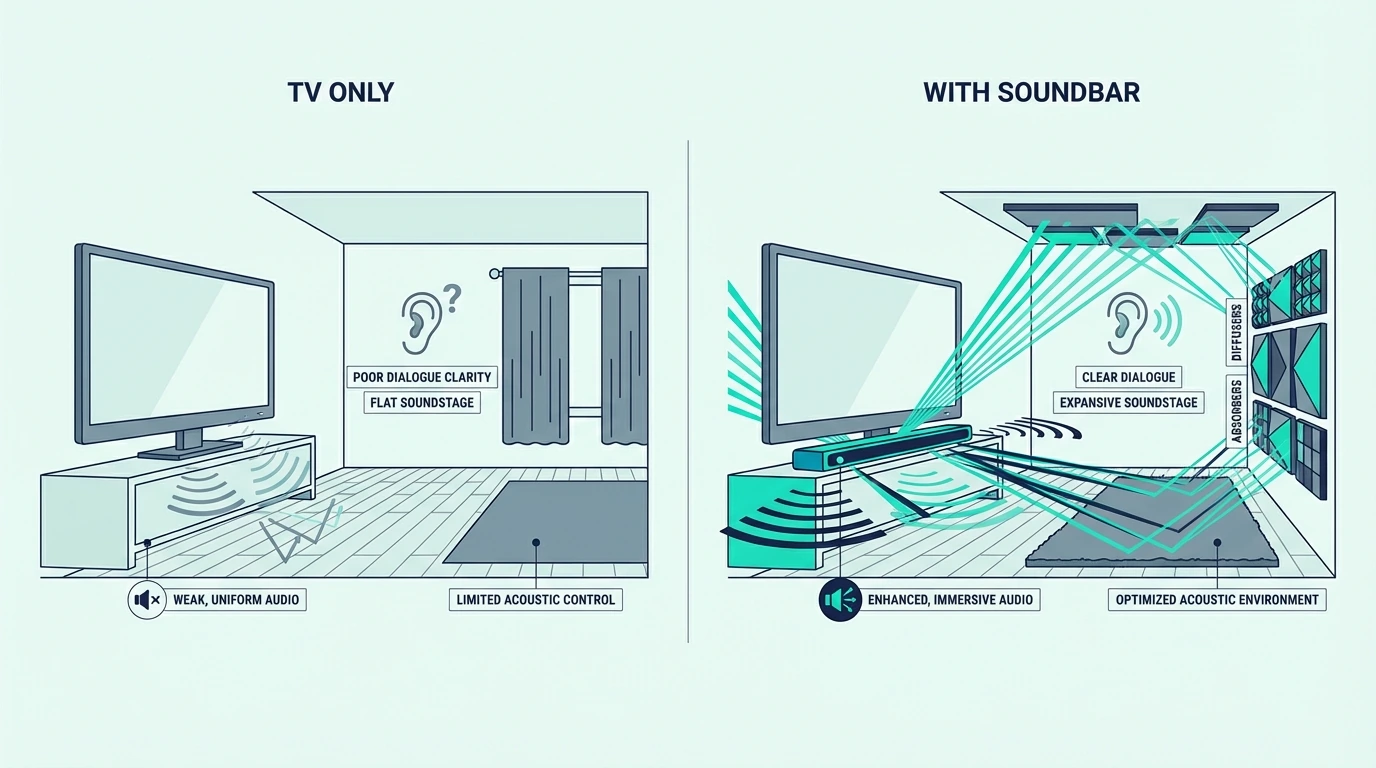
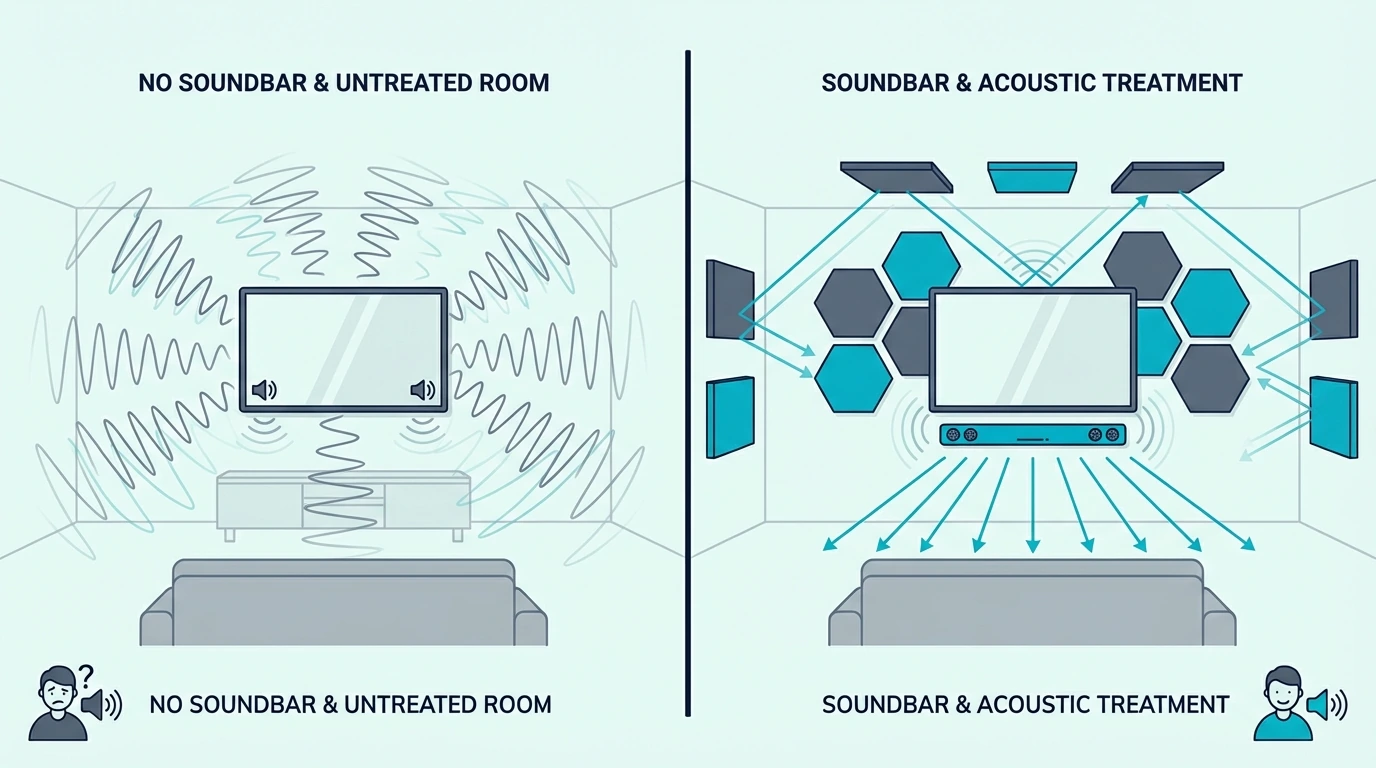
TV audio compared with and without a soundbar

The Physics Problem: Thinner TVs Mean Worse Audio

Modern TVs are 0.5–1.5 inches deep at their thinnest point. A TV speaker enclosure has roughly 2–5 cubic inches of air space.

Even a compact soundbar has 50–150 cubic inches of internal volume. That’s not a marginal difference — it’s an order of magnitude more room for drivers to move air and produce actual bass.

TV speakers fire downward or backward rather than toward you. Sound bounces off the TV stand or wall before reaching your ears, adding delay and frequency smearing that makes dialogue muddy.

What You’re Actually Missing Without a Soundbar

Without a soundbar, you’re missing three specific things that TV speakers can’t physically deliver regardless of brand or price point.

First, bass below roughly 150Hz is completely absent.

TV speakers are simply too small to move enough air. Explosions land with a click, music sounds thin, and deep male voices lose their weight.

Second, dialogue separation suffers.

TV speakers push everything through the same tiny drivers, so speech and effects compete for the same narrow frequency range.

A soundbar with a center channel or dialogue enhancement mode isolates and boosts vocal frequencies so you hear every word clearly over background noise.

Third, volume headroom runs out fast. TV speakers distort at moderate volumes because the drivers hit their physical limits.

Turning up the volume makes dialogue harsher, not clearer. That is why so many people think streaming apps are mixed badly when the real issue is their TV running out of clean output.

A decent soundbar gives the soundtrack room to breathe, so voices stay intelligible even when the scene gets busy.

Our is a soundbar worth it guide covers the full value proposition and helps you decide if the upgrade makes sense for your specific situation.

What Changes When You Add a Soundbar

When adding a soundbar makes the biggest difference

The difference isn’t subtle. People consistently describe it as hearing their TV properly for the first time — like removing a blanket that was draped over their speakers.

What surprises most people is not just that movies sound bigger, but that normal everyday viewing becomes less tiring because you stop straining to decode speech scene after scene.

Dialogue Clarity: The Most Noticeable Improvement

The biggest improvement is dialogue clarity. TV speakers compress all audio into the same narrow frequency band, making everything compete for the same tiny drivers.

A soundbar separates frequencies across multiple dedicated drivers and applies DSP to keep dialogue intelligible even during loud action sequences. The volume roller coaster stops — you set a comfortable level and leave it there.

That matters even more for late-night viewing when you want speech clarity without waking everyone else up.

For this kind of small-room, dialogue-first setup, a current example is Polk Audio Signa S2 Sound Bar for Smart TV with Subwoofer, which is a strong fit for TV and movies when you want fuller bass.

This single feature eliminates the most common complaint about TV audio. You stop constantly adjusting volume between quiet dialogue scenes and loud action sequences.

Bass Response: Sound You Can Feel

TV speakers produce essentially zero bass below 150Hz.

A soundbar with a subwoofer extends down to 40 to 60Hz. Those are frequencies you feel in your chest during explosions, in a car engine’s rumble, and in low movie-soundtrack notes.

This is an entire range of sound your TV speakers literally cannot produce regardless of any settings you adjust or sound modes you enable.

For large-room movie use, a current example is Amazon Fire TV Soundbar Plus (newest model) with built-in subwoofer, which is a strong fit for Atmos movies and TV with stronger bass.

That is the difference between hearing an action scene and feeling the pressure, rumble, and scale that make movies sound exciting instead of flat.

Our soundbar setup guide covers the complete installation process, and our soundbar to TV connection guide explains how to connect via HDMI ARC for one-cable setup with TV remote volume control.

Surround Sound and Spatial Audio

Higher-end soundbars add Dolby Atmos and simulated surround that creates convincing spatial audio from around and above you.

TV speakers can’t attempt any of that regardless of virtual surround settings. Even without discrete rear speakers, an Atmos soundbar bounces sound off your ceiling and walls for realistic height and width effects.

This spatial dimension turns movie watching from a flat, front-facing experience into something that fills the room.

Overhead rain, passing aircraft, and crowd ambience gain directionality that TV speakers physically cannot create.

Even if you never care about perfect Atmos demos, that added width makes everyday Netflix viewing feel less cramped and less tiring because the sound is no longer trapped inside the screen.

Our soundbar vs surround sound guide covers how simulated surround compares to discrete speaker systems, and our soundbar vs home theater comparison explains when upgrading beyond a soundbar makes sense.

Small Rooms and Apartments

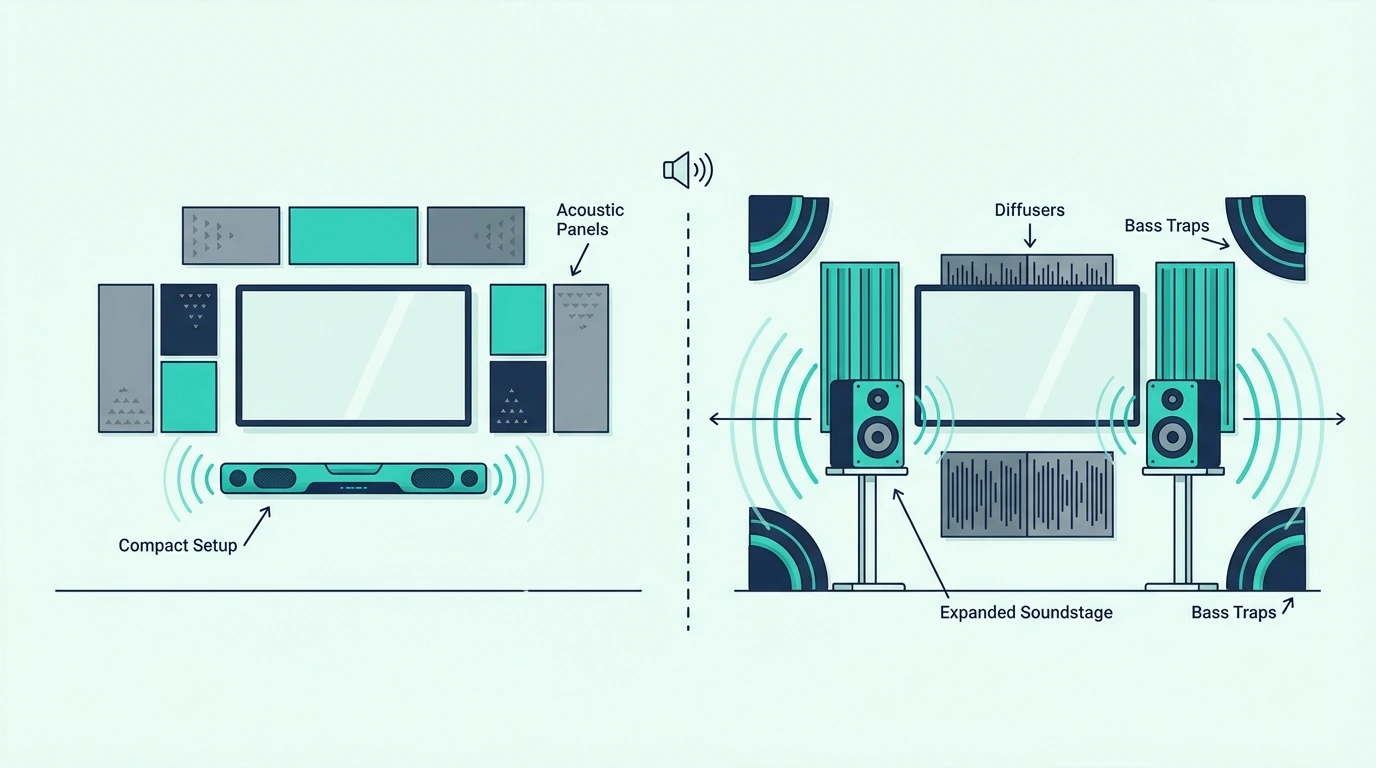
A soundbar improves audio just as dramatically in small rooms and apartments. Dialogue clarity and bass improvements are completely room-size independent — the physics advantage over TV speakers exists regardless of square footage.

In fact, smaller rooms often benefit more because listeners sit closer to the TV and notice harsh, thin built-in speakers faster than they would in a larger family room.

Even a compact 2.0 or 2.1 soundbar fills a small space with clear, full-range audio without overwhelming it.

Our 2.1 vs 5.1 soundbar guide helps you choose the right channel configuration for your room size.

For connecting your soundbar regardless of your TV’s available ports, our HDMI vs optical guide explains both connection methods and when each is appropriate, and our Bluetooth vs optical guide covers wireless alternatives.

The Bottom Line

A soundbar is the single most impactful audio upgrade for any TV. It fixes muffled dialogue, adds real bass, and increases clean volume headroom.

Even a $120 soundbar with a wireless sub delivers improvements no TV setting or EQ can replicate. The limitation is physical speaker size, not software.

No amount of processing can make a half-inch driver produce bass.

Our best soundbar guide ranks the top picks at every budget. If dialogue clarity is the main reason you’re shopping, our best soundbar for dialogue guide covers the bars tuned specifically for speech.

Our do you need a soundbar for smart TV guide covers the specific case for smart TVs, and our soundbar vs speakers comparison explains alternatives if you want to explore beyond soundbars.

Frequently Asked Questions

Do you really need a soundbar?

If you use subtitles because you can’t hear dialogue or constantly adjust volume between quiet and loud scenes, yes, you need a soundbar.

It fixes all three of those complaints immediately. You don’t have to listen carefully to notice.

Does a TV sound better with a soundbar?

Dramatically and immediately better.

Dialogue becomes clear without subtitles from the moment you connect it. Bass adds physical weight to music and action scenes.

Audio fills the room instead of sounding thin and flat. People routinely describe it as the single best upgrade they’ve made to their TV setup.

What are the disadvantages of a soundbar?

The main disadvantage is cost. A budget model with a wireless subwoofer runs $100 to $150, plus a nearby power outlet and shelf space or wall mounting.

You also need to choose the right size and feature set. An oversized soundbar looks awkward under a small bedroom TV, and a barebones mini bar may not satisfy a large living room.

But HDMI ARC with CEC means your TV remote controls volume automatically, so in daily use it adds zero complexity.

For this kind of small-room, dialogue-first setup, a current example is Amazon Fire TV Soundbar Plus with subwoofer (newest model), which is a strong fit for Atmos movies and TV with stronger bass.

Sound Bar vs Home Cinema: Which Setup Fits Your Living Room?

The sound bar vs home cinema question sounds like a quality comparison, but the wrong pick costs you a weekend or a missing surround field.

You’ll either waste a weekend installing speakers you didn’t need. Or you’ll spend $300 on a soundbar that leaves you wondering where the surround sound went during every movie night.

The real issue is that most people underestimate how different these two categories are. A soundbar is one device, one HDMI cable, five minutes to set up.

A home cinema is 5 to 7 speakers plus an AV receiver and subwoofer.

It is a weekend installation project costing 3 to 5x more.

The gap in effort and commitment is enormous.

Once you understand what each setup delivers and what it demands from your room and budget, the right choice becomes clear.

Below, we compare sound quality, setup reality, and total cost so you can pick the approach that fits your living room.

Quick Takeaway: A soundbar is the right choice for most living rooms — it delivers clear dialogue, simulated surround sound, and Dolby Atmos support in a single unit with zero speaker wire and 5-minute setup. A home cinema system (5.1 or 7.1 channel) produces genuinely immersive surround sound with discrete speakers placed around the room.

It costs 3-5x more and requires an AV receiver, speaker wire runs, and a room layout that accommodates speaker placement.

Choose a soundbar for shared living spaces, apartments, and casual TV watching.

Choose a home cinema system only if you have a dedicated media room, a $1,000+ budget, and the willingness to run speaker wire to multiple positions.

For large-room movie use, a current example is Polk Audio Signa S2 Sound Bar for Smart TV with Subwoofer, which is a strong fit for TV and movies when you want fuller bass.

How Sound Quality Compares in Your Living Room

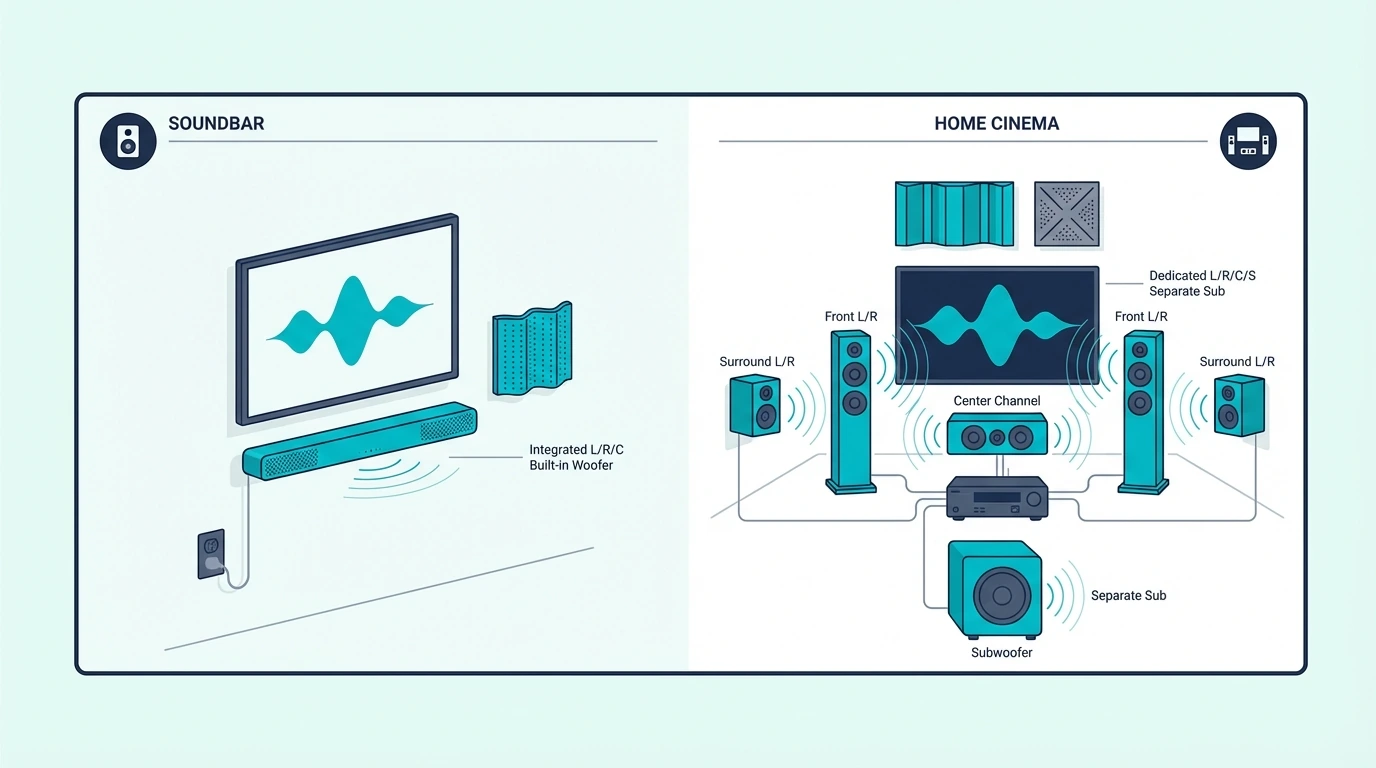
Soundbar compared with a home cinema speaker system

The sound quality gap is real but narrower than it used to be. Modern Atmos soundbars deliver convincing surround simulation for TV shows and casual movies.

The question is whether you need sound physically coming from behind you — or whether a well-executed illusion of surround is good enough for how you actually watch TV most nights.

Home Cinema: True Discrete Surround Sound

A home cinema system places individual speakers at specific positions around your listening area.

A standard 5.1 layout uses five positional speakers plus a subwoofer.

Each speaker handles its own dedicated channel.

Sound effects physically come from different directions rather than being simulated from a single point. This discrete separation is what creates genuine immersion.

No soundbar, regardless of price or processing power, can fully replicate this experience.

Watch a battle scene in a war movie and gunfire physically moves from front speakers through surrounds behind you.

Rain on a rooftop comes from above. Crowd noise in a stadium scene surrounds you because actual speakers exist in those positions.

Adding Atmos height channels with ceiling-mounted or dedicated upward-firing speakers gives you a new vertical dimension.

Overhead effects like thunder, aircraft, and rain feel like they originate from above.

Our soundbar vs surround sound comparison explains the technical differences between simulated and discrete surround.

Soundbar: Simulated Surround from One Unit

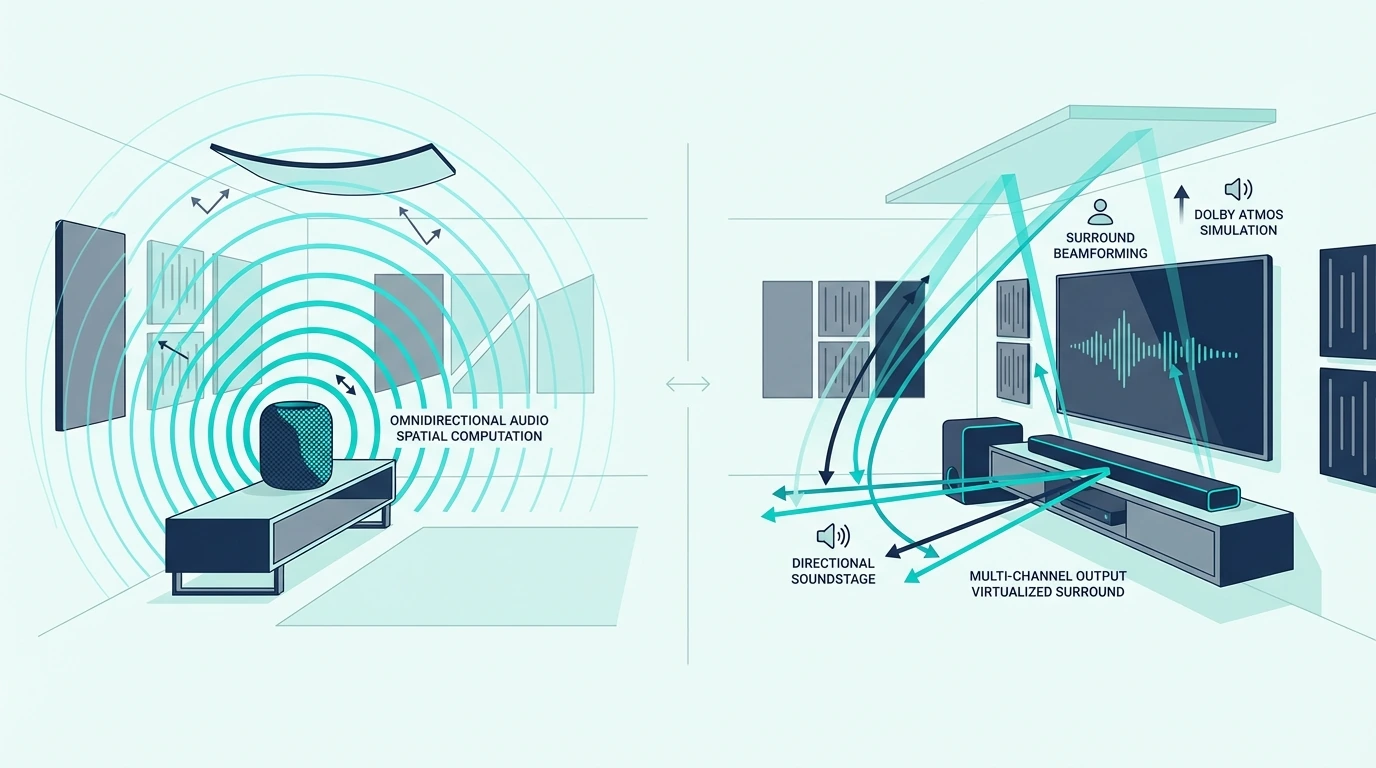
A soundbar uses DSP to simulate surround from a single enclosure in front of you.

Higher-end models angle drivers sideways and upward to bounce sound off your room’s walls and ceiling.

Models with Dolby Atmos add height simulation via upward-firing drivers that reflect off the ceiling, creating the perception of overhead audio from a device sitting on your TV stand.

A soundbar like the Polk Audio Signa S4 delivers 3.1.2-channel Dolby Atmos with a wireless subwoofer for $299.

A comparable 3.1.2-channel home cinema setup costs $800 to $1,200.

It also demands extensive wiring and calibration.

The simulated surround works well for TV shows, casual movies, and gaming. Most people watching Netflix on a Tuesday night won’t miss discrete rear channels.

But for dedicated movie nights with Atmos content, a home cinema puts sound where a soundbar can only suggest it.

For understanding how soundbars work and what different channel configurations deliver, start with our fundamentals guide.

Setup, Cost, and Living Room Impact

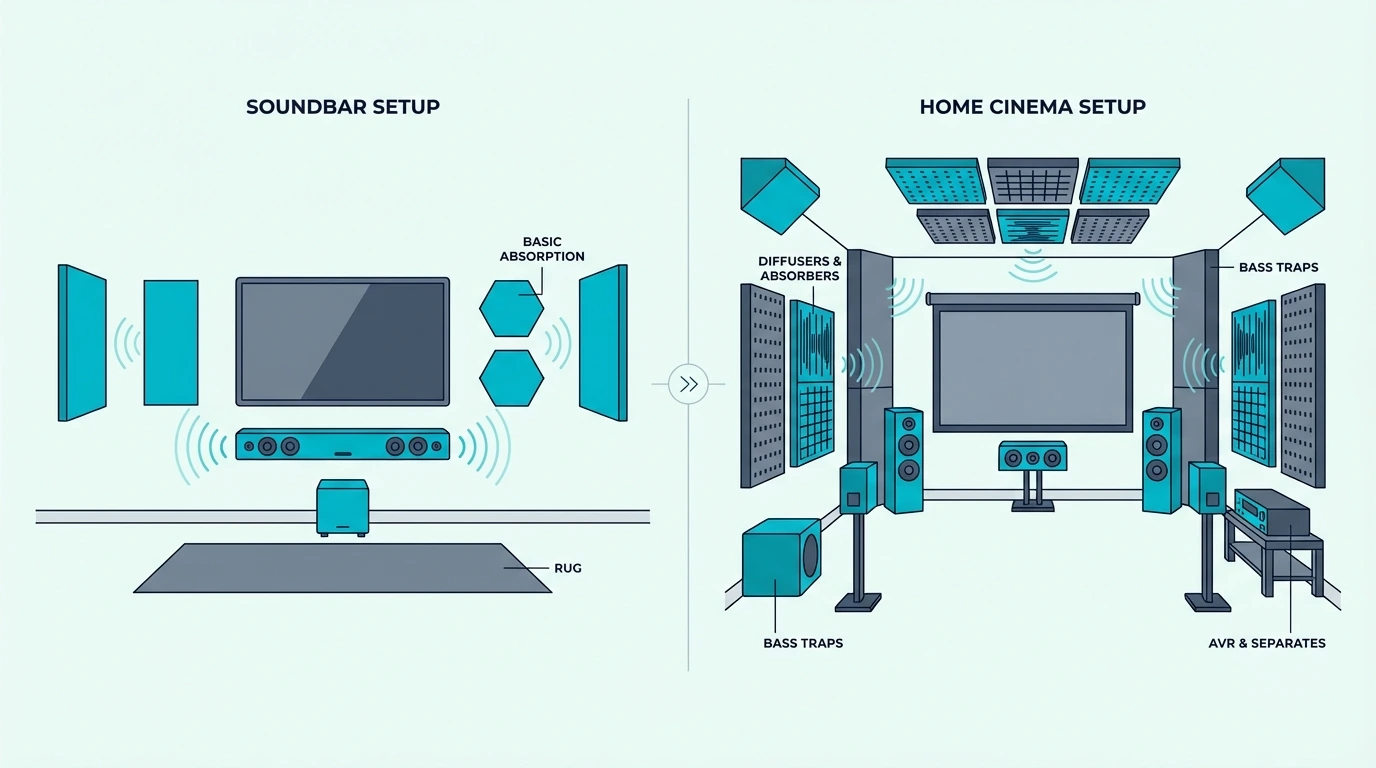
Setup and surround sound differences between soundbar and home cinema

The practical differences extend far beyond sound quality.

Setup time and total cost diverge most dramatically.

That is where most people make their final decision.

Soundbar: 5-Minute Setup, Zero Wire Runs

One HDMI ARC cable, CEC for TV remote volume control, and audio plays immediately.

Five minutes, no tools, no furniture rearrangement, no visible wires running across your floor.

This simplicity is the single biggest reason soundbars outsell home cinema systems by a wide margin.

A current value example is Polk Audio Signa S4 3.1.2ch Soundbar with Wireless Subwoofer and Dolb…, which is a stronger fit for more immersive movie playback.

Our soundbar setup guide covers the complete process, and our soundbar to TV connection guide explains all available connection methods including HDMI ARC, optical, and Bluetooth.

Home Cinema: Multi-Hour Installation Project

A home cinema requires multiple components.

You need an AV receiver at $200 to $500 and front speakers at $200 to $600.

You also need surround speakers at $100 to $300, a subwoofer at $150 to $400, and speaker wire.

Even an entry-level receiver like the Denon AVR-S570BT costs $449 before you buy a single speaker.

A quality 5.1 system runs $700 to $1,800 before installation.

Installation means running wire from receiver to each speaker, often 15 to 50 feet per surround run.

You also mount surrounds at ear height on walls or stands, position the sub for optimal bass response, and calibrate the receiver’s auto-EQ with a measurement mic.

Budget 2 to 4 hours for physical installation and another hour for calibration.

If you’re hiding wire inside walls, add a full day and potentially an electrician.

Ongoing management is higher too.

An AV receiver adds its own remote, its own menus, and its own firmware updates.

Speaker wire shows whenever furniture moves. Troubleshooting involves checking five different speakers, the receiver, and the subwoofer instead of one device.

Our soundbar vs receiver guide explains when the receiver-based approach makes sense despite the added complexity.

Which Living Room Layout Works for Each?

Home cinema needs a room where surround speakers can go behind or beside the listening position. Those speakers must sit at ear height and at least 2 feet behind the couch.

That rules out open-plan rooms with the couch against a kitchen island, rooms with floor-to-ceiling windows behind seating, and apartments that don’t allow wall mounting.

A soundbar works in any room because all audio comes from in front of you.

No rear speaker placement requirements. No symmetry constraints.

That flexibility is why soundbars also work well in apartments and rentals where wall drilling is off limits.

For evaluating whether your specific room and budget justify a soundbar, our is a soundbar worth it guide covers the value proposition across different price points, and our HDMI vs optical guide explains the connection types your TV supports.

The Bottom Line

A soundbar is right for most living rooms. You get dramatically better audio than TV speakers with a 5-minute setup and zero room modification.

Our best soundbar guide ranks the top picks at every budget.

A home cinema system is right only if you have a dedicated media room, $700 or more for components, and the willingness to run speaker wire and manage multiple devices.

If you care most about movies specifically, our best soundbar for movies guide covers bars that still deliver cinema-grade Atmos in a single unit.

If your room has the couch against a wall with no space for rear speakers, the decision is already made.

A soundbar is your best option regardless of budget.

Our 2.1 vs 5.1 soundbar guide covers the channel options within the soundbar category, and our Bluetooth vs optical guide explains the connection alternatives for different room setups.

Frequently Asked Questions

Should I buy a soundbar or home theater system?

For most people, a soundbar is the better choice.

A $200 to $400 model delivers clear dialogue and real bass. Setup still takes five minutes.

A home theater system only makes sense with a dedicated room, $700 or more for components, and the willingness to run speaker wire and manage an AV receiver.

Can a soundbar replace a home cinema system?

For 90% of everyday TV watching, yes.

That covers shows, sports, and casual streaming.

A good Atmos soundbar at normal living-room volumes is close enough that most listeners can’t distinguish it from a mid-range 5.1 system.

It falls short during dedicated movie nights where discrete rear channels create genuinely immersive surround that a single bar cannot replicate.

Is a home cinema system worth the extra cost?

Only if you watch movies as a primary hobby, have a room that supports proper speaker placement, and are comfortable managing multiple components long-term.

The extra $500 to $1,500 over a soundbar buys genuinely immersive surround. That only pays off if speakers can actually go behind and beside your seating position.

Soundbar vs Bookshelf Speakers: Which Setup Actually Sounds Better?

The soundbar vs bookshelf speakers debate sounds like a simple quality comparison, but the wrong pick can cost months of annoyance.

You’ll either overspend on complexity you never use, or underspend on audio that disappoints every time you sit down to listen. Neither mistake is obvious until you’ve already committed.

The real problem is that these two products solve different problems entirely. A soundbar connects with one HDMI cable and plays TV audio in five minutes.

Bookshelf speakers need an amplifier, speaker wire, stands, and careful positioning before they produce any sound at all — and the total cost runs $300–600 for a setup that still lacks HDMI ARC, CEC remote control, and dialogue processing.

Once you understand which use case each serves, the right choice becomes straightforward.

Below, we compare sound quality, setup reality, and total cost so you can pick the approach that fits your room and priorities.

Quick Takeaway: A soundbar is the better choice for TV and movie audio — it connects via HDMI ARC with CEC remote control, includes built-in amplification and often a wireless subwoofer, and requires zero additional equipment.

Bookshelf speakers produce better stereo imaging and music quality due to physical channel separation, but they require a separate amplifier ($100-200+), speaker wire runs, and careful placement.

For pure TV watching, a soundbar at any budget outperforms a bookshelf setup in convenience and dialogue clarity.

For dedicated music listening where sound quality beats convenience, bookshelf speakers deliver a wider soundstage and more detailed reproduction.

How Sound Quality Actually Compares

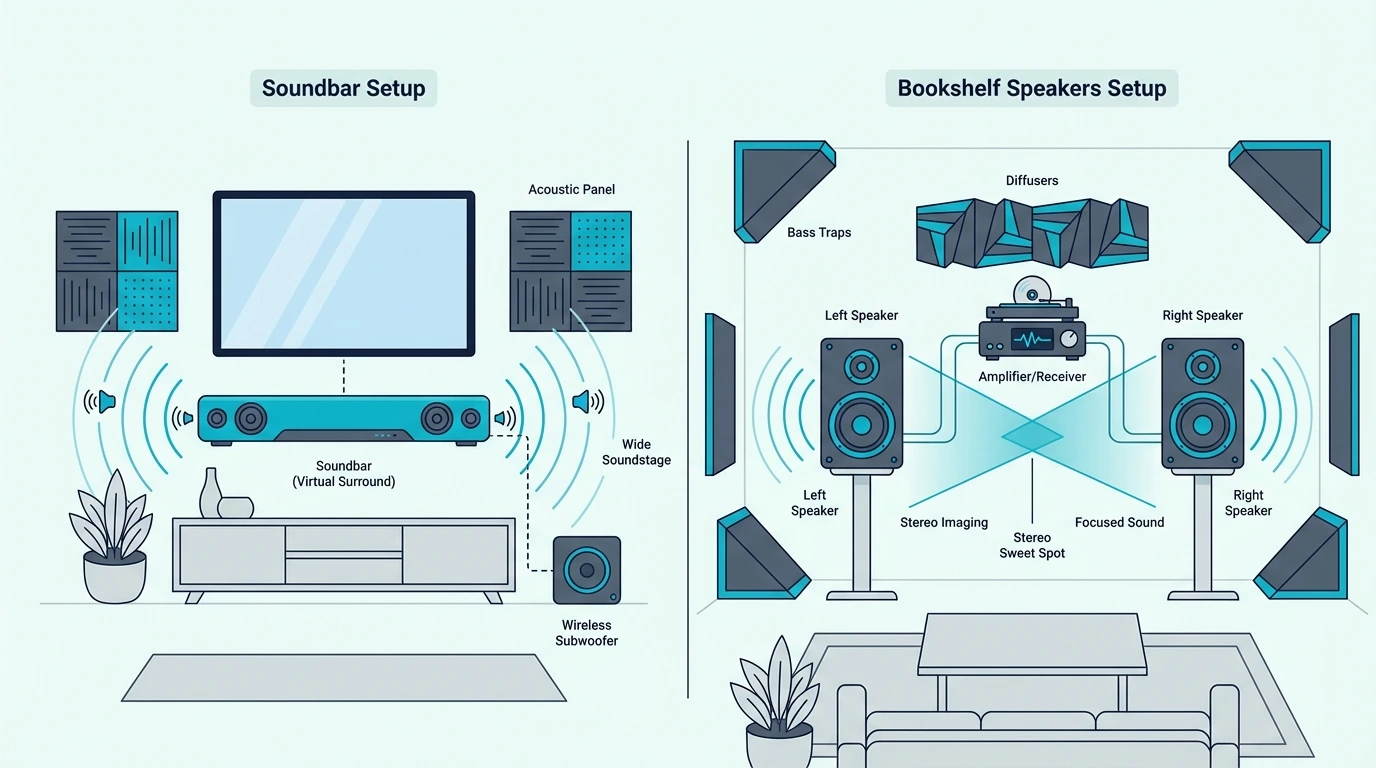
Soundbar compared with bookshelf speakers for TV audio

The sound quality difference comes down to physics. Two separate speaker enclosures placed feet apart will always image more naturally than drivers packed into a single 30–40 inch bar.

The question is whether that difference matters for what you actually listen to. For TV dialogue and movie soundtracks, the gap is smaller than most people expect — but for music, it’s significant.

Bookshelf Speakers: Physical Separation Creates Real Stereo

Bookshelf speakers produce a wider, more natural stereo soundstage because left and right channels are physically separated by 4 to 8 feet.

Play a Miles Davis record on separated bookshelves and you can point to where the trumpet sits. You can hear where the piano is and where the bass walks across the left side of the stage.

That spatial precision is real, not processed. No amount of DSP can replicate what physical distance between two speaker enclosures creates naturally.

Each speaker has its own dedicated woofer and tweeter housed in a tuned enclosure with more internal volume than a soundbar’s narrow cabinet allows.

The result is cleaner midrange, better transient attack on drums and guitar, and more natural highs at any volume level.

For pure music listening, a $200 to $300 pair of bookshelf speakers with a $100 to $150 amplifier outperforms most soundbars under $500 in stereo imaging and tonal accuracy.

Active models like the Edifier R1280DBs include a built-in amplifier, Bluetooth, and an optical input.

That’s the closest a bookshelf setup gets to soundbar convenience, connecting directly to your TV without a separate receiver.

Our soundbar vs speakers guide covers the broader comparison between soundbars and traditional speaker setups.

Soundbar: DSP Simulates What Physical Separation Creates Naturally

A soundbar uses DSP to simulate stereo separation from a single enclosure — angling drivers outward and applying timing delays to widen the perceived image. Modern soundbars do this surprisingly well for TV content.

But watch the same movie on both setups and you’ll hear the difference: the soundbar’s soundstage stops at the edges of the bar, while bookshelves spread effects across the room.

Where soundbars win is dialogue clarity. Most include a dedicated center channel or virtual center processing tuned for speech intelligibility.

Bookshelf speakers produce a phantom center image between the two units. That works for music vocals but can make TV dialogue sound diffuse if you’re sitting off-center.

A soundbar like the Polk Audio Signa S4 has a dedicated center channel driver and Dolby Atmos height processing in a single unit — capabilities that would require a 3.1.2 channel bookshelf/receiver setup costing significantly more.

Our soundbar vs surround sound guide explains how multi-channel soundbars compare to full speaker systems, and our soundbar vs home theater comparison covers the broader system-level differences.

Setup, Cost, and Practical Considerations

Space and sound quality differences between soundbars and bookshelf speakers

Sound quality is only one factor. Total cost, setup complexity, and room impact differ dramatically between these two approaches.

What looks like a simple audio choice actually involves trade-offs in convenience, aesthetics, and long-term flexibility.

Soundbar: Plug In and Play

Connect one HDMI cable to your TV’s ARC port and enable CEC.

TV audio plays through the soundbar. Your existing TV remote controls it.

The entire setup takes under five minutes.

No tools or wire routing. No extra equipment.

This simplicity is why soundbars dominate the TV audio upgrade market.

A current value example is Polk Audio Signa S4 3.1.2ch Soundbar with Wireless Subwoofer and Dolb…, which is a stronger fit for more immersive movie playback.

Our soundbar setup guide covers the complete process, and our soundbar to TV connection guide explains all available connection methods.

Bookshelf Speakers: More Components, More Complexity

A bookshelf setup requires speakers at $150 to $300 for a quality pair. You also need a stereo amplifier or receiver at $100 to $300.

You need speaker wire at $10 to $20, and possibly stands at $30 to $80. A passive pair like the Polk Audio T15 costs $125 — but produces zero sound without an amplifier.

Position speakers on stands or shelves at ear height, run wire from the amplifier (6–15 feet per run), and connect the amp to your TV via optical or HDMI.

The amplifier adds another remote, occupies shelf space, and draws extra power. Speaker wire needs routing along baseboards or behind furniture.

If there’s no adjacent surface for speakers at ear height, add stands at $30 to $80 per pair.

The visual footprint of two speakers on stands plus an amplifier on a shelf is much larger than a single soundbar below your TV.

Total cost for a bookshelf setup runs $300 to $600 for a quality system once you add speakers, amplifier, wire, and stands.

A soundbar runs $120 to $300 and includes everything you need in a single purchase.

For understanding how soundbars work and what they include, start with our fundamentals guide.

Which Is Better for Your Desk or PC?

For desktop and PC use, bookshelf speakers often make more sense. Listening distance is short (2–3 feet), and speakers sit naturally on either side of the monitor creating real stereo separation even just a foot apart.

Powered models eliminate the need for a separate amp entirely. A soundbar works on a desk too, but at arm’s length the stereo imaging advantage of separated speakers is most pronounced.

Our is a soundbar worth it guide covers value considerations across different use cases, and our soundbar vs receiver comparison explains when a receiver-based system (which bookshelf speakers require) makes more sense than a self-contained soundbar.

The Bottom Line

A soundbar is better for TV and movie audio. You get direct HDMI ARC, a self-contained unit, and better dialogue clarity than a stereo bookshelf setup.

Our best soundbar guide ranks the top current picks at every budget.

Bookshelf speakers are better for dedicated music listening where stereo imaging and tonal accuracy matter more than convenience.

For desktop audio specifically, our best soundbar for PC guide covers bars that double as computer speakers.

Most people watching TV should get a soundbar, and most people building a music listening setup should get bookshelf speakers. The overlap where both work equally well is surprisingly narrow.

For evaluating specific soundbar options, our HDMI vs optical guide covers the connection types you’ll encounter, and our Bluetooth vs optical guide explains wireless connectivity for music streaming to your soundbar.

Frequently Asked Questions

Why do audiophiles prefer bookshelf speakers?

Physical separation between left and right channels creates a natural stereo soundstage no single enclosure can replicate.

No amount of DSP changes that. Each speaker also has a larger cabinet and a dedicated crossover network.

That produces cleaner bass extension and more accurate midrange than drivers packed into a narrow soundbar housing.

For critical music listening, this difference is immediately audible. The soundstage width and instrument placement precision of separated speakers is something even premium soundbars cannot match.

What are the disadvantages of a soundbar?

Stereo imaging is narrower because all drivers share one enclosure. DSP widening helps but cannot exceed the bar’s physical width.

Soundbars also cannot be upgraded piecemeal. Drivers, amplification, and processing are sealed into one unit.

If you outgrow a soundbar, you replace the whole thing.

With bookshelf speakers, you can upgrade the amp, swap speakers, or add a subwoofer independently.

Can you use bookshelf speakers with a soundbar?

Not well, and it’s generally not recommended. Running both simultaneously creates timing conflicts between two completely different audio sources processing the same signal.

Some AV receivers technically allow a soundbar as a center channel with bookshelves as left/right, but it requires specific compatibility and produces inconsistent tonal matching. Pick one approach and fully commit to it for the best results.

PCM vs Dolby Digital for Soundbar: Which TV Setting Is Right? [2026]

PCM vs Dolby Digital soundbar settings look like a small menu choice, but the wrong one can quietly cut a surround mix down to stereo.

That pain usually sounds like flatter movies, weaker center dialogue, and surround effects that never seem to leave the front of the room.

The cause is bandwidth.

Standard HDMI ARC cannot carry multi-channel PCM, so the TV may downmix a 5.1 track before it ever reaches the bar.

Switch the TV to Dolby Digital, bitstream, or passthrough and the encoded surround mix can stay intact for the soundbar’s own decoder.

The first move is to check whether your TV-to-soundbar link is optical, standard ARC, or eARC, then match the output format to that connection and to your bar’s channel count.

Once that is clear, the PCM versus Dolby Digital choice gets much easier.

Quick Takeaway

For most 3.1, 5.1, and Atmos soundbars on standard HDMI ARC or optical, Dolby Digital, bitstream, or passthrough is the right TV setting.

PCM often forces ARC down to two-channel stereo before the bar ever sees the surround mix.

The main exception is eARC, which can carry multi-channel PCM. On basic 2.0 or 2.1 bars, the audible difference is much smaller because the final output is still effectively stereo plus optional bass.

What Do PCM and Dolby Digital Mean on a Soundbar?

PCM and Dolby Digital soundbar settings compared

Both are digital audio formats your TV can send to the soundbar.

The practical difference is compression, channel capacity, and where the decoding happens.

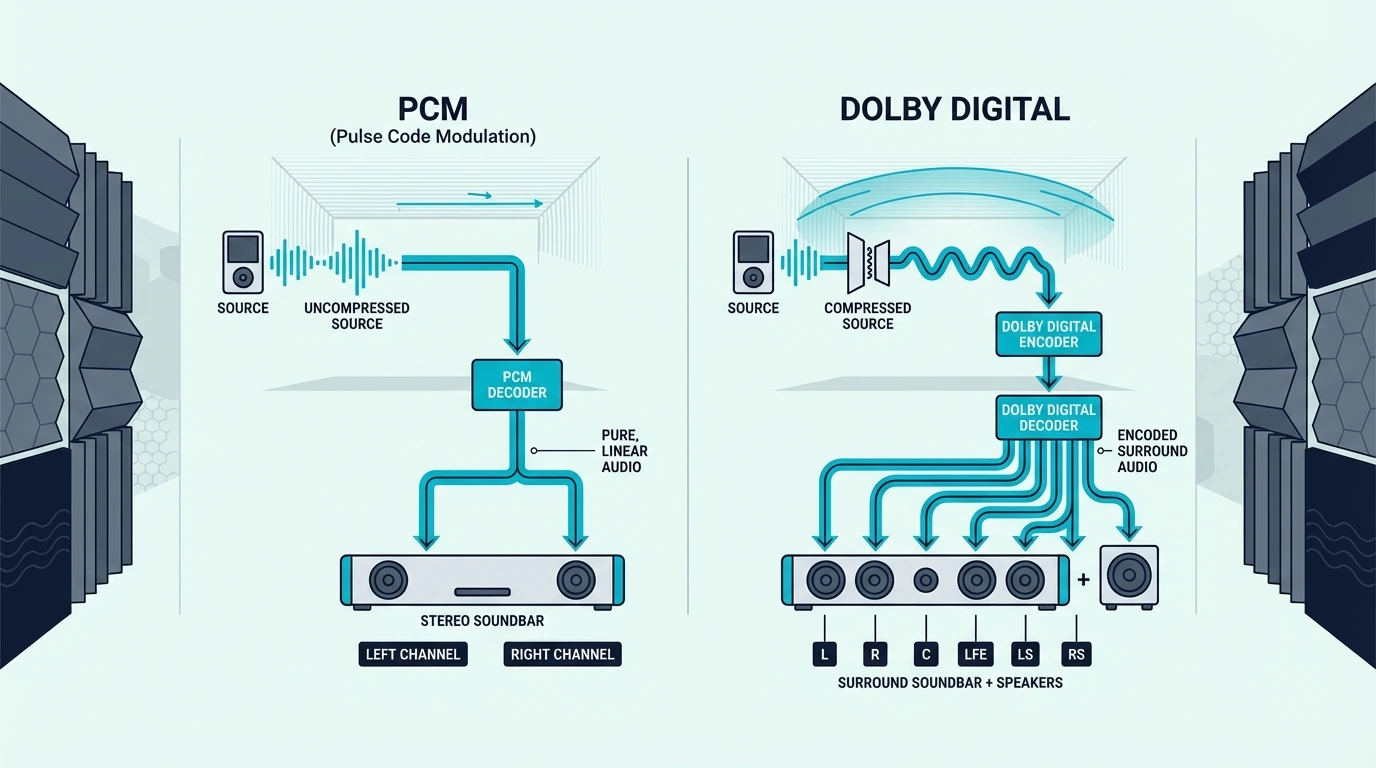
PCM: Uncompressed Raw Digital Audio

PCM stands for Pulse Code Modulation.

It is raw digital audio that sits underneath CDs, lossless movie tracks, and much of the TV’s internal audio processing.

When the TV is set to PCM, it decodes the incoming soundtrack first.

Then it sends the result to the soundbar as raw audio data.

That sounds ideal until connection limits enter the picture.

Standard HDMI ARC can only carry two PCM channels.

If the source is a 5.1 movie, the TV may decode it correctly and then still downmix it to stereo before it leaves the TV.

Your soundbar receives two channels, not the full surround layout you paid for.

That is why a surround bar can sound clear and still be wrong.

You may hear left and right audio plus some bass, but the system feels flatter because the bar never received discrete center and surround information in the first place.

Our bitstream vs PCM guide breaks down that signal path in more detail.

Dolby Digital: Compressed Surround Sound

Dolby Digital is a compressed format designed to carry up to 5.1 channels through consumer connections.

That includes the left, center, right, surround, and subwoofer channels in one encoded stream.

When the TV is set to Dolby Digital, bitstream, or passthrough, it usually sends that encoded stream onward without decoding it first.

The soundbar then does the decoding itself.

That is why Dolby Digital is still the safer setting for many soundbar setups.

It preserves surround information within the bandwidth limits of optical and standard ARC.

In real use, that is why movies and streaming apps often sound fuller on bitstream than on PCM when the bar supports more than two channels.

The point is not that Dolby Digital is magically higher fidelity. The point is that it keeps the surround layout intact for the hardware you actually own.

That is also why so many TV menus feel misleading: PCM sounds like the premium option until ARC bandwidth quietly strips the extra channels away.

Our HDMI vs optical guide explains why both connections can still carry Dolby Digital 5.1 even when they cannot carry multi-channel PCM.

Where Dolby Digital Plus, Atmos, and eARC Fit

Dolby Digital Plus is the higher-capacity successor to basic Dolby Digital.

Streaming apps often use it because it carries more data efficiently and can act as the base layer for Atmos.

Optical cannot carry Dolby Digital Plus or Atmos.

Standard ARC can carry Dolby Digital Plus in many cases, while full Atmos and uncompressed multi-channel PCM are where eARC becomes important.

Our HDMI vs HDMI ARC guide and the broader soundbar guide explain why the connection method changes the answer as much as the format label itself.

Which TV Audio Setting Should You Use for Your Soundbar?

When to use PCM or Dolby Digital with a soundbar

The right setting depends on the bar’s channel count and on whether you are using optical, HDMI ARC, or eARC.

A 3.1 soundbar and a simple 2.0 bar do not benefit from the same TV output choice.

For 3.1, 5.1, and Atmos Soundbars: Use Dolby Digital or Passthrough

If your soundbar has three or more channels, use Dolby Digital, bitstream, or passthrough.

That is the safest way to keep the surround mix intact on standard ARC or optical.

A 3.1 bar like the Amazon Fire TV Soundbar Plus makes that difference easy to understand in practice.

If the TV sends stereo PCM over standard ARC, the bar cannot rebuild missing center-channel information that never arrived.

That is why the idea that PCM always sounds better can be misleading in a real living-room setup.

More channels with the right format usually beat cleaner stereo on a multi-channel bar.

For 2.0 and 2.1 Soundbars: Either Works

On a 2.0 or 2.1 soundbar, the practical difference is smaller.

The final playback is still front-left and front-right, plus a subwoofer on 2.1 models.

A 2.1 bar like the Polk Audio Signa S2 soundbar system can still sound fuller than TV speakers, but it is not relying on discrete surround channels the way a 3.1 or 5.1 bar does.

Dolby Digital is still a sensible default.

The soundbar’s own downmixing can handle dialogue more intelligently than the TV in some cases.

Still, this is the category where many people will not hear a dramatic difference.

If your bar only outputs stereo plus bass, the connection path matters less than it does on a true surround model.

For channel-count context, our 2.1 vs 5.1 soundbar guide and our choose a soundbar guide help explain what those channel numbers mean in daily use.

The eARC Exception

If both the TV and soundbar support eARC, PCM stops being the obvious problem.

eARC has enough bandwidth for uncompressed multi-channel PCM, Dolby Digital Plus, and higher-end Atmos delivery.

In that setup, PCM can carry full surround without the ARC downmix penalty.

That is the one common case where PCM can genuinely match the quality promise people expect from it.

Even then, bitstream is still often the easier default.

It leaves the original encoded format intact and lets the soundbar handle decoding the way it was designed to.

Our soundbar setup guide and soundbar to TV connection guide walk through how to verify the connection path before you judge the sound.

What setting names should you look for in the TV menu?

TV menus do not always say the same thing.

One brand may offer PCM, Dolby Digital, and Auto.

Another may use Bitstream, Passthrough, or Digital Output Audio Format.

If you have a 3.1, 5.1, or Atmos soundbar on standard ARC or optical, Bitstream, Passthrough, Dolby Digital, or sometimes Auto is usually safer than forcing PCM.

If the TV only gives you Auto and PCM, start with Auto, then confirm the soundbar is actually receiving a surround format instead of stereo.

Some TVs also hide the best option until HDMI-CEC, ARC, or eARC is enabled.

Others only expose Dolby Digital or passthrough after the app or source device starts playing a compatible soundtrack.

That means it is worth reopening the audio menu after playback begins instead of assuming the first menu view showed every real option.

How can you tell if the change actually worked?

Use content that you know carries a 5.1 or Atmos track.

Dialogue should lock more firmly to the center of the screen, and the mix should feel wider or more enveloping than the stereo fallback.

Many bars also show Dolby Digital, DD+, or Atmos on the front panel or in the companion app.

If the bar keeps showing PCM or stereo, double-check the app’s audio track, the TV’s output menu, and whether ARC or eARC is actually enabled on both devices.

It also helps to test an internal streaming app and then an external HDMI source like a console or streaming box.

Some TVs pass 5.1 differently from internal apps than they do from external devices.

That split behavior explains why one source may sound correct while another still collapses to stereo.

The Bottom Line

For most soundbars on standard HDMI ARC or optical, Dolby Digital, bitstream, or passthrough is the correct TV setting.

That keeps surround information intact for bars with three or more channels.

PCM is still fine on eARC and usually harmless on basic 2.0 or 2.1 bars.

The real mistake is assuming PCM always sounds better when the connection cannot carry the channels your soundbar needs.

If you are still deciding whether your current bar is even the right fit for the room, our best soundbar guide and best budget soundbar guide are good next steps.

Frequently Asked Questions

Which is better, PCM or Dolby Digital?

On standard HDMI ARC or optical, Dolby Digital is usually better for multi-channel soundbars because it preserves 5.1 surround channels.

PCM is uncompressed, but that does not help if the TV has to collapse the mix to stereo first.

Should I use PCM with my soundbar?

Use PCM mainly if both devices support eARC or if your soundbar is a basic 2.0 or 2.1 model where stereo output is the end result anyway.

For 3.1, 5.1, and Atmos bars on standard ARC, Dolby Digital or passthrough is usually the safer choice.

What are the disadvantages of PCM audio?

The biggest drawback on standard ARC is channel loss.

A 5.1 soundtrack may leave the TV as stereo PCM, which means your center and surround information never reach the soundbar intact.

Is PCM still used today?

Yes.

PCM is still the base format behind digital audio on TVs, discs, streaming devices, and internal device processing.

HomePod vs Soundbar: Which Is Actually Better for TV Audio? [2026]

The homepod vs soundbar comparison trips people up because HomePod sounds great — but not for the job most buyers actually need it for.

It has no HDMI port, no optical input, and no standard Bluetooth. The only way to use it as a TV speaker is through an Apple TV 4K streaming audio wirelessly via AirPlay.

The result is a relatively expensive TV audio setup where dialogue still disappears behind explosions, mumbled lines stay mumbled, and you’re constantly reaching for the volume remote during quiet conversations. A soundbar plugs directly into your TV’s HDMI ARC port, has drivers tuned for speech intelligibility, and works with any TV brand — solving the exact problem HomePod can’t.

Below, we break down how each handles TV audio, which scenarios favor each device, and why most people need one or the other — not both.

Quick Takeaway

A soundbar is the better choice for TV audio — it connects directly via HDMI ARC or optical, has dialogue-optimized drivers, and works with any TV brand. A HomePod excels at room-filling music and Siri integration but requires an Apple TV 4K to function as a TV speaker, lacks HDMI or optical inputs, and does not prioritize dialogue clarity the way soundbars do.

A stereo HomePod pair still cannot match a mid-range soundbar for movie dialogue and surround effects. Choose HomePod for music and smart home control; choose a soundbar for TV and movie audio.

How Does Each Device Handle TV Audio?

Apple HomePod compared with a soundbar for TV audio

Soundbars are engineered for TV audio from the ground up, while HomePod is engineered for omnidirectional music playback and smart home control. That fundamental design difference shows up in every aspect of the viewing experience.

Soundbar: Purpose-Built for TV Content

A soundbar uses horizontally arranged drivers positioned to project sound directly at the viewer. Most include a dedicated center channel or dialogue mode that isolates voice frequencies from background noise.

Watch a Marvel movie on a soundbar and you hear every quip during a fight scene. Watch the same scene through a HomePod and the dialogue blends into the 360-degree sound field.

Soundbars connect directly to your TV through HDMI ARC, optical, or Bluetooth — no intermediary device needed, and HDMI ARC enables CEC so your TV remote controls soundbar volume automatically. Our soundbar to TV connection guide explains the main wired paths, and our HDMI ARC setup guide covers why the ARC port specifically matters for TV audio.

For large-room movie use, a current example is JBL Bar 700MK2-7.1 Channel soundbar System with Detachable Speakers a…, which is a strong fit for Atmos movies and TV with stronger bass.

HomePod: Smart Speaker First, TV Speaker Second

Apple HomePod uses a high-excursion woofer and a ring of tweeters arranged in a circle to project sound in all directions. Play a song and it genuinely fills the room — Apple’s computational audio analyzes room acoustics and adjusts in real time.

For Apple Music and Spotify, it sounds excellent. The problem is that omnidirectional sound design works against TV audio, where you need dialogue projected at your listening position.

The problem for TV use is connectivity — HomePod has no HDMI, no optical, and no standard Bluetooth audio input, only receiving audio through AirPlay 2 from Apple devices.

A better TV-audio alternative is Amazon Fire TV Soundbar Plus (newest model) with built-in subwoofer, which is a stronger fit when the goal is clear TV dialogue and simpler daily use. HomePod still means two devices, two power cables, and a wireless audio chain where any Wi-Fi hiccup can cause dropouts.

That is premium-speaker money for a TV audio setup that still lacks dialogue processing and surround separation. Apple TV does apply lip-sync correction to compensate for the wireless latency, but you are still paying for a workaround that an entry-level soundbar handles natively through a single HDMI cable.

The lip-sync correction works well in practice, but it adds another layer of complexity that shouldn’t exist for basic TV audio.

HomePod Mini: Even Less Suitable for TV

HomePod Mini is even less suited for TV. Its single driver sounds thin and bass-light — fine for kitchen background music and Siri commands, but noticeably hollow for movies.

A stereo HomePod Mini pair plus Apple TV 4K still ends up costing more than many mid-range 3.1 soundbars with Dolby Atmos, a wireless subwoofer, a dedicated center channel for dialogue, and a direct HDMI connection to any TV. The value gap is enormous.

When Does Each Device Make Sense?

When to choose HomePod speakers or a soundbar

The right choice depends on your primary use case — music and smart home versus TV and movie audio — and which ecosystem you’re already invested in. Neither device truly replaces the other because they solve fundamentally different audio problems.

Choose a Soundbar for TV and Movie Audio

If your main goal is hearing dialogue clearly during movies and shows, a soundbar is the only sensible choice. It connects to any TV brand (Samsung, LG, Sony, TCL — doesn’t matter), works with your existing TV remote via CEC, and is specifically engineered to make speech cut through background noise.

That direct wired signal path also removes the extra wireless hop and ecosystem dependency that make HomePod TV setups feel more fragile than they should.

It also means anyone in the house can turn on the TV and get sound immediately instead of troubleshooting AirPlay handoffs.

For large-room movie use, a current example is JBL Bar 300MK2-5.0 Channel All-in-one soundbar with Dolby Atmos, which is a strong fit for Atmos streaming and immersive TV audio.

For understanding how soundbars work and what to look for, start with our fundamentals guide. Our choose a soundbar guide covers the full value proposition across different budgets, and our soundbar vs speakers comparison covers the broader speaker landscape beyond HomePod specifically.

Choose HomePod for Music and Smart Home

If music and smart home are your priorities and TV audio is secondary, HomePod is genuinely excellent. The 360-degree sound fills a room in a way no soundbar can — play a song from the kitchen and it sounds great from every angle.

Siri integration, Apple Music lossless streaming, and computational room analysis make it one of the best smart speakers available.

HomePod also doubles as a Thread border router and HomeKit hub — capabilities no soundbar offers. If you’re deep in the Apple ecosystem with an Apple TV 4K already, a stereo HomePod pair for casual TV watching is a usable bonus.

Just know you’re trading dialogue clarity and surround separation for ecosystem convenience. For most viewers, that trade-off isn’t worth it.

Skip HomePod If You Own an Android Phone

HomePod has no standard Bluetooth audio input and doesn’t work with Android devices at all. If anyone in your household uses an Android phone, they can’t stream music to the HomePod — period.

A soundbar with Bluetooth accepts audio from any phone regardless of platform, making soundbars far more versatile in mixed-device households. Our soundbar Bluetooth guide covers how wireless connectivity works with soundbars.

For comparing soundbar options across different price points, our soundbar vs home theater guide discusses when a full system makes more sense, and our best Dolby Atmos soundbar guide shows the surround-focused options that neither HomePod option can match.

The Bottom Line

A soundbar is better for TV audio in almost every measurable way — it connects via HDMI ARC, has dialogue-optimized drivers, and works with any TV brand without extra Apple hardware. HomePod excels at music and smart home control but makes a poor TV speaker due to AirPlay-only connectivity, no dialogue processing, and the requirement of an Apple TV 4K just to receive TV audio.

Our soundbar vs receiver guide covers the next step up from soundbars if you want even better TV audio quality, and our soundbar setup guide walks through the complete installation and configuration process for connecting a soundbar to your TV.

Frequently Asked Questions

Why has HomePod been discontinued?

Apple discontinued the original full-size HomePod in March 2021 due to slow sales, then brought it back as a second-generation model in January 2023 at the same $299 price with updated internals and a temperature/humidity sensor.

The HomePod Mini ($99) remained available throughout. Both are currently sold, so “discontinued” only applied to the first-gen model.

Is HomePod better than Bose?

Depends on the job. For music in an Apple ecosystem, HomePod matches or beats Bose smart speakers like the Home Speaker 500 with Siri and HomeKit hub benefits added.

For TV audio, any Bose soundbar (Smart Soundbar 600, Soundbar 900) dramatically outperforms HomePod — HDMI ARC, dedicated dialogue modes, and drivers engineered for speech.

Can you use a HomePod as a soundbar?

Only with an Apple TV 4K acting as the bridge — the Apple TV streams audio to HomePod via AirPlay 2 wirelessly, but HomePod has no HDMI, no optical, and no Bluetooth input so it physically cannot connect directly to a TV. The experience works for casual watching but dialogue sounds noticeably less clear than a dedicated soundbar because HomePod’s 360-degree drivers scatter speech around the room.

HDMI vs HDMI ARC for Soundbar: Which Port Do You Actually Need? [2026]

HDMI vs HDMI ARC for soundbar looks like a small port-label question, but plug into the wrong port and your TV apps stay silent while the soundbar never gets audio back from the screen.

The frustrating part is that standard HDMI and HDMI ARC use the same connector, so it is easy to plug into the wrong port and assume the soundbar or TV settings are broken.

Once you separate the one-way HDMI inputs from the ARC or eARC return port, the setup becomes much easier to diagnose, wire, and control with a single remote.

Below, we break down what standard HDMI does, what HDMI ARC changes, and when you actually need eARC instead of a normal ARC connection.

Quick Takeaway

For soundbar TV audio, you need the HDMI port labeled ARC or eARC, not just any standard HDMI input. Standard HDMI sends audio and video into the TV, while ARC sends TV audio back out to the soundbar.

Any working HDMI cable handles ARC, but eARC is the connection to use when both devices support higher-bandwidth formats like Dolby Atmos and uncompressed surround. Turn on CEC as well if you want TV-remote volume control through the same cable.

How Are Standard HDMI and HDMI ARC Different?

HDMI and HDMI ARC soundbar connections compared

The confusion exists because the ports look identical. The real difference is what the port firmware lets audio do after it reaches the TV.

Standard HDMI: Audio Goes TO the TV Only

A standard HDMI connection is a one-way street for audio. It carries audio and video from a source device (PlayStation, Blu-ray player, Fire Stick) to the TV.

The TV receives that signal and plays it. But the audio has no path back out to a soundbar connected to that same port.

This is why people get confused: you plug a soundbar into HDMI 1, the TV recognizes something is connected, but Netflix audio still comes from the TV’s built-in speakers. The port physically can’t send audio in the return direction.

It’s the single most common soundbar setup mistake — and the fix is simply moving the cable to the correct port.

Some soundbars have HDMI input ports for passthrough — connect a game console to the soundbar, and it passes video to the TV while playing the audio itself. Useful, but it only handles devices plugged directly into the soundbar.

It won’t carry audio from your TV’s built-in apps or cable box. For that, you need the ARC port.

HDMI ARC: Audio Goes FROM the TV to the Soundbar

HDMI ARC (Audio Return Channel) adds a reverse audio path. The “return” means audio travels back from the TV to the soundbar — the opposite direction from standard HDMI.

Connect your soundbar to the ARC port and suddenly everything plays through the soundbar: Netflix, YouTube, cable, game consoles on other HDMI ports, antenna TV — all of it.

ARC supports compressed Dolby Digital 5.1 and stereo PCM, which is enough for most TV apps, streaming services, and cable broadcasts. It also enables CEC, so your TV remote automatically controls the soundbar’s volume and power through the same connection.

If you are replacing a suspect TV-to-soundbar lead, a practical option like Silkland 4K HDMI ARC Cable 6.6FT fits standard ARC setups where you just want stable return audio without paying for full eARC bandwidth.

One remote for everything. Our HDMI vs optical guide covers how ARC compares to the older optical connection, and our how to use HDMI ARC with a soundbar guide walks through the setup menus step by step.

HDMI eARC: The Enhanced Version for Atmos

HDMI eARC (enhanced Audio Return Channel) is the upgraded version found on TVs and soundbars from roughly 2019 onward. It adds support for Dolby Atmos, DTS:X, Dolby TrueHD, and uncompressed multi-channel PCM that standard ARC cannot carry reliably.

That extra headroom matters most with newer Atmos soundbars, game consoles, and TVs that are passing higher-bandwidth audio formats. Our bitstream vs PCM guide explains the audio-output settings that determine what ARC and eARC actually deliver in real use.

Which HDMI Port and Cable Do You Need?

When HDMI ARC is needed for TV-to-soundbar audio

The right setup depends on what your TV and soundbar both support. ARC and eARC require support on both ends to function.

Finding the ARC Port on Your TV

Look at the HDMI ports on the back or side of your TV. One will be labeled “HDMI (ARC)” or “HDMI (eARC/ARC)” — the label is physically printed next to the port.

Only this port supports audio return. Plug your soundbar into any other HDMI port and you get a standard connection with no audio return — silence from the soundbar.

Quick reference by brand: Samsung TVs typically put ARC on HDMI 3, LG uses HDMI 2, and Sony usually designates HDMI 3 as eARC. But always verify by reading the tiny print next to each port — manufacturers occasionally change port assignments between model years.

If the labels are too small to read, check your TV’s user manual or search your model number online. The ARC port assignment is always listed in the specifications.

Which HDMI Cable to Use

For standard HDMI ARC, any working HDMI cable is fine, even an older cable that already passes a stable signal from the TV to the soundbar. ARC uses far less bandwidth than the newer eARC spec.

Do not let anyone sell you a special ARC cable, because there is no separate ARC-only connector standard. The real reason to upgrade is reliability or certification, not the word ARC on the box.

For eARC with Dolby Atmos or uncompressed multi-channel audio, use a certified Ultra High Speed HDMI cable labeled HDMI 2.1 or 48 Gbps. Use an older cable with an eARC setup and the connection can fall back to regular ARC or become harder to troubleshoot.

A cable like Silkland HDMI eARC/ARC Cable 3.3FT makes sense when both devices support eARC and you want a short certified lead for that higher-bandwidth path.

Do You Need HDMI ARC for a Soundbar?

You don’t strictly need HDMI ARC — optical and Bluetooth also work. But ARC is the best option for most setups because it combines surround sound, TV remote volume control via CEC, and a single cable into one connection.

If your TV lacks an ARC port (rare on TVs made after 2015, but possible), optical is the next best alternative — it carries Dolby Digital 5.1 with near-zero latency but doesn’t support CEC remote control or Dolby Atmos. A fallback cable like KabelDirekt TOSLINK Optical Audio Cable 6ft is handy when the goal is to confirm whether the ARC path is the problem or the soundbar itself is failing.

Our soundbar to TV connection guide walks through all connection options, and our Bluetooth vs optical guide covers the non-HDMI alternatives.

For understanding how soundbars work with different connection types, start with our fundamentals guide. Our soundbar setup guide covers the complete initial configuration process including HDMI ARC activation in your TV’s settings menu.

The Bottom Line

HDMI ARC is the connection you need for soundbar TV audio. It sends audio from the TV to the soundbar through the HDMI cable, while standard HDMI only sends audio the other way.

Use your TV’s port labeled “ARC” or “eARC.” Any standard HDMI cable works for ARC; use Ultra High Speed for eARC with Dolby Atmos.

Enable CEC in both devices for automatic remote control. If you are evaluating whether a soundbar is still the right fit for your room, our soundbar vs home theater guide covers the bigger system tradeoffs.

If you plan to expand beyond a basic TV-and-bar setup, our adding surround speakers guide explains when it makes more sense to move past a simple ARC connection.

Frequently Asked Questions

What is the downside of HDMI ARC?

Standard ARC tops out at compressed Dolby Digital 5.1 — no Dolby Atmos, DTS:X, or lossless formats (you need eARC for those).

The other minor annoyance: ARC requires CEC enabled in your TV settings, and CEC can occasionally cause devices to turn on or off unexpectedly when you power other HDMI devices. If that happens, you can usually fix it by disabling CEC on the problem device while keeping it enabled on the TV and soundbar.

Are HDMI ARC and HDMI the same?

Same physical cable and connector, but they work differently. Standard HDMI sends audio one direction — from a source device to the TV.

HDMI ARC adds a reverse channel that sends TV audio back to a soundbar — only the port labeled “ARC” or “eARC” supports this return path. If your soundbar is connected but you hear no TV audio, you’re probably plugged into a standard HDMI port.

Does it matter which HDMI port I use for a soundbar?

Absolutely. You must use the port labeled “ARC” or “eARC.”

Any other HDMI port creates a standard connection with no audio return path.

The frustrating part: the TV may show the soundbar as connected, and HDMI passthrough sources might even work, but TV apps like Netflix and YouTube will play through the TV’s built-in speakers instead. Always check the tiny label printed next to each HDMI port.