How to Connect a MIDI Keyboard to an Audio Interface, USB or 5-Pin
Working out how to connect a MIDI keyboard to an audio interface starts at the back of the keyboard, because its sockets decide whether the interface touches the keyboard at all.
Plenty of setups stall right there, with a USB plug that has no matching socket on the interface, or a 5-pin cable run from OUT to OUT and a keyboard that plays nothing.
Get the route right and the keyboard drives your software instruments while the sound comes out of the interface’s headphone and speaker outputs.
Apple’s and Steinberg’s guides describe the two routes: a USB cable straight to the computer, or a 5-pin cable from the keyboard’s MIDI OUT to the interface’s MIDI IN.
Find your keyboard’s sockets below, then follow that route through the interface table and the setup steps for your DAW.
How to Connect a MIDI Keyboard to an Audio Interface, Route by Route
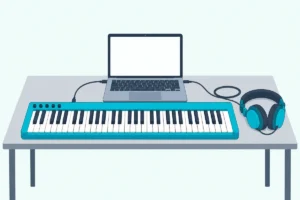
Those sockets leave you two routes, and only one of them involves the interface. A USB keyboard’s cable goes straight to the computer while the interface handles audio only, and a keyboard with 5-pin MIDI runs a MIDI cable from its MIDI OUT to the interface’s MIDI IN.
Route 1, USB: plug the keyboard into one USB port on the computer and the interface into another. Apple’s Logic Pro guide tells you to connect the keyboard’s USB cable to your computer, and it only sends you to its MIDI steps if the keyboard has MIDI ports instead of a USB port.
The two boxes never touch, because your music software joins them: the keyboard hands it notes, and it hands the interface sound. That split matches Steinberg’s Cubase guide, which says MIDI keyboards send MIDI data rather than sound.
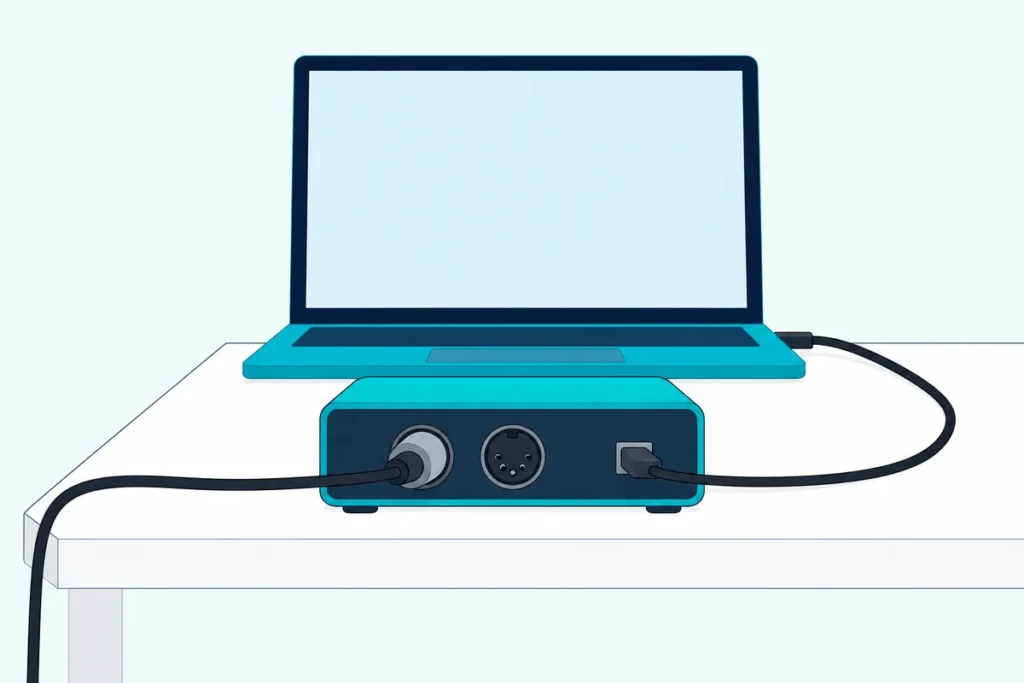
Route 2, 5-pin: run a MIDI cable from the keyboard’s MIDI OUT to the interface’s MIDI IN, then connect the interface to the computer by USB. Steinberg’s Cubase manual wires it that way, and M-Audio’s AIR 192|6 guide calls for a standard five-pin MIDI cable between the interface’s MIDI In and the other device’s MIDI Out.
On this route the notes reach your software through the interface’s own MIDI port. RME’s Babyface Pro FS manual says its ports appear under the name Babyface Pro Midi, so look for the interface’s name, not the keyboard’s, in your software’s MIDI list.
The computer end of either route is plain plug-in work, and our steps to connect a MIDI keyboard to your PC or hook a MIDI keyboard up to a MacBook cover the adapters and drivers. If you’re still deciding whether a MIDI keyboard needs an interface at all, start there.
Does Your Keyboard Have USB, 5-Pin MIDI or Both?
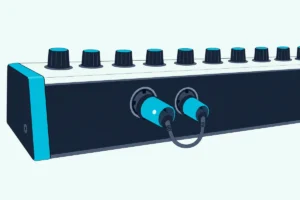
Picking between those routes takes about ten seconds with the keyboard turned around. A rectangular or oval USB socket means route 1 will work, and a round socket labeled MIDI OUT means route 2 will.
Some keyboards stop at USB. Alesis’s V49 MKII guide names one USB port on its rear panel for both power and MIDI data, with no MIDI output beside it.
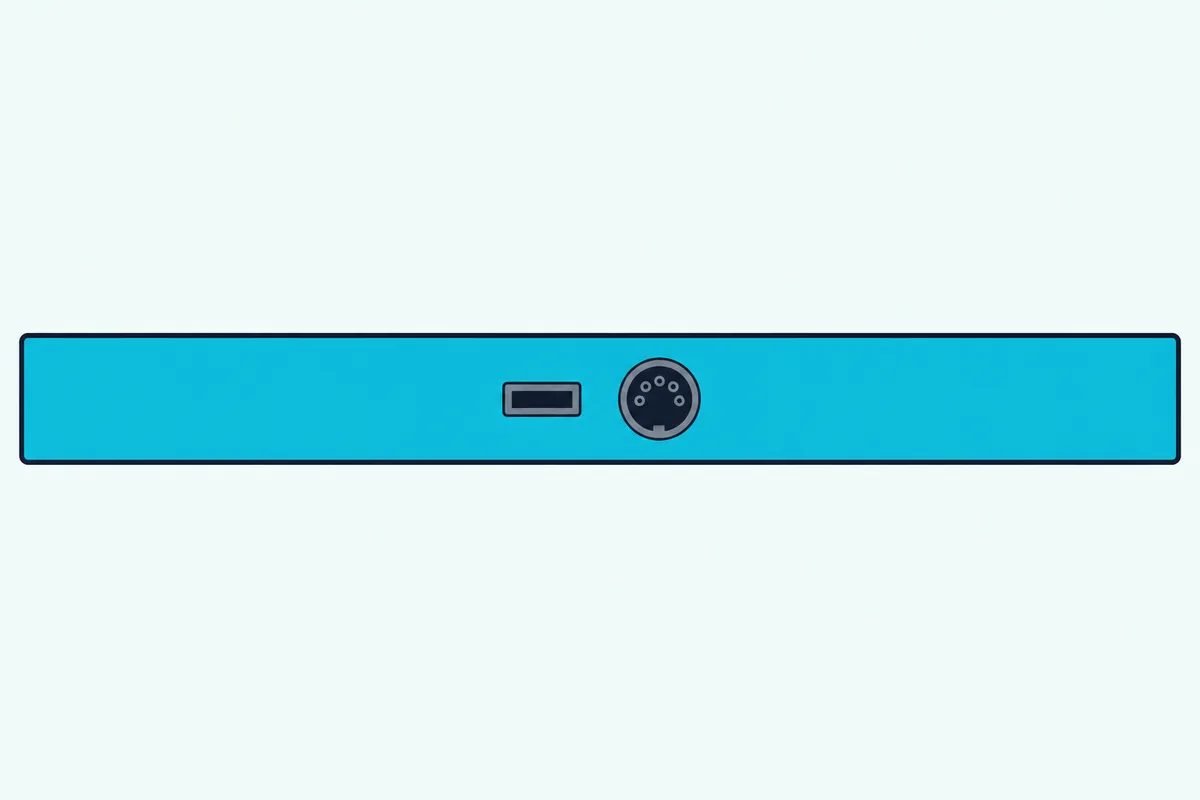
Others carry both. M-Audio’s Keystation 88 MK3, Alesis’s Q88 MKII, Arturia’s KeyLab Essential mk3, Novation’s Launchkey 49 MK4 and Korg’s Keystage all list a MIDI output socket beside USB.
A third group has no USB at all. Apple’s GarageBand guide calls this a standard MIDI keyboard and sends it through MIDI cables to a MIDI interface, a job your audio interface’s jacks can do.
With both on board, start with USB, since one cable carries the notes and the power. Novation’s Launchkey guide says its USB port sends and receives data and powers the keyboard, and Alesis says much the same of the Q88 MKII’s.
That power is the catch on route 2. Alesis’s Q88 MKII guide lists a DC 9 V, 500 mA adapter, sold separately, for using the MIDI connector without USB power, and M-Audio gives the same rating for the Keystation 88 MK3.
Arturia says a power supply on KeyLab Essential’s USB-C port does that job when the MIDI connector is in use. So add a power supply to your list if USB comes out.
Which Audio Interfaces Have MIDI Jacks?
Route 2 only works if the interface has the other half of the connection, and not every model does. Current interfaces with MIDI in and out come from MOTU, Universal Audio, Steinberg, Behringer, M-Audio, TASCAM, SSL, Focusrite, Zoom and RME, among others.
| Interface | MIDI jacks | Inputs | Power |
|---|---|---|---|
| MOTU M4 | 1 in, 1 out | 4 (2 combo, 2 line) | USB bus |
| MOTU M6 | 1 in, 1 out | 6 (4 combo, 2 line) | USB-C bus, or included adapter |
| Universal Audio Volt 2 | 1 in, 1 out, 5-pin | 2 | USB bus |
| Universal Audio Volt 4 | 1 in, 1 out | 4 | USB bus |
| Steinberg UR22C | 1 in, 1 out | 2 | USB bus, or 5 V adapter (not included) |
| Steinberg UR44C | 1 in, 1 out | 6 | USB-C bus, or 12 V adapter |
| Behringer UMC204HD | 1 in, 1 out, 5-pin | 2 | USB bus |
| Behringer UMC404HD | 1 in, 1 out | 4 | Included adapter |
| M-Audio AIR 192|6 | 1 in, 1 out, 5-pin | 2 | USB bus |
| M-Audio AIR 192|14 | 1 in, 1 out, 3.5 mm | 8 | Included adapter |
| TASCAM US-2x2HR | 1 in, 1 out, 5-pin | 2 | USB bus |
| SSL 2+ MKII | 1 in, 1 out, 5-pin | 2 | USB bus |
| Focusrite Scarlett 4i4 4th Gen | 1 in, 1 out, 5-pin | 4 | USB bus |
| Focusrite Scarlett 16i16 4th Gen | 1 in, 1 out | 6, plus digital | USB bus |
| Zoom UAC-232 | 1 in, 1 out, 5-pin | 2 | USB bus |
| RME Babyface Pro FS | 1 in, 1 out, 5-pin on a breakout cable | 4 | USB bus, or external supply |
M-Audio’s AIR 192|14 uses 3.5 mm MIDI jacks with two adapters in the box, and RME’s Babyface Pro FS hangs its 5-pin jacks off an included breakout cable.
Plenty of interfaces skip the jacks altogether. Behringer’s U-PHORIA guide marks MIDI IN/OUT for the UMC204HD and UMC404HD only, and Focusrite’s Scarlett 2i2 4th Gen guide, SSL’s SSL 2 MKII page and Audient’s iD14 tech specs list no MIDI.
With one of those and a keyboard that has only 5-pin MIDI, you need a separate USB MIDI interface, the setup that PC guide walks through. The descriptions come from the makers’ manuals and spec pages.
If you’re buying for route 2, the MOTU M4 has MIDI in and out plus USB bus power on an interface with four inputs.
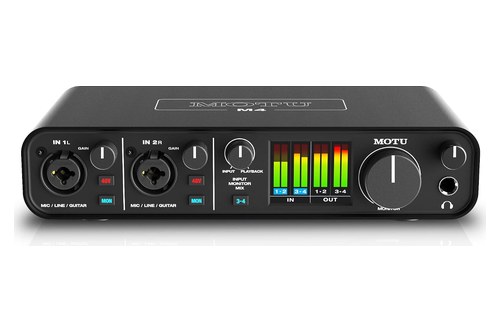
the MOTU M4
Focusrite’s Scarlett 4i4 4th Gen adds one setup step, since Focusrite’s guide says MIDI stays off in Easy Start mode until you install and open Focusrite Control 2. Every pick on this page met Burton Acoustix’s rating, review and stock checks on 1 November 2026.
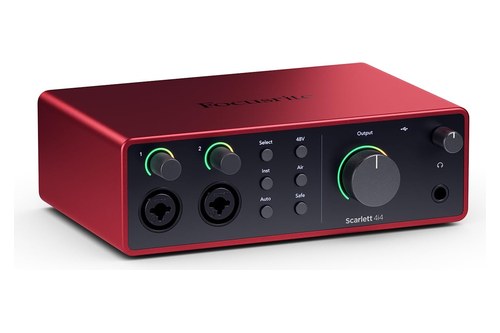
Focusrite’s Scarlett 4i4 4th Gen
Is One MIDI Cable Enough, and Which Way Does It Go?
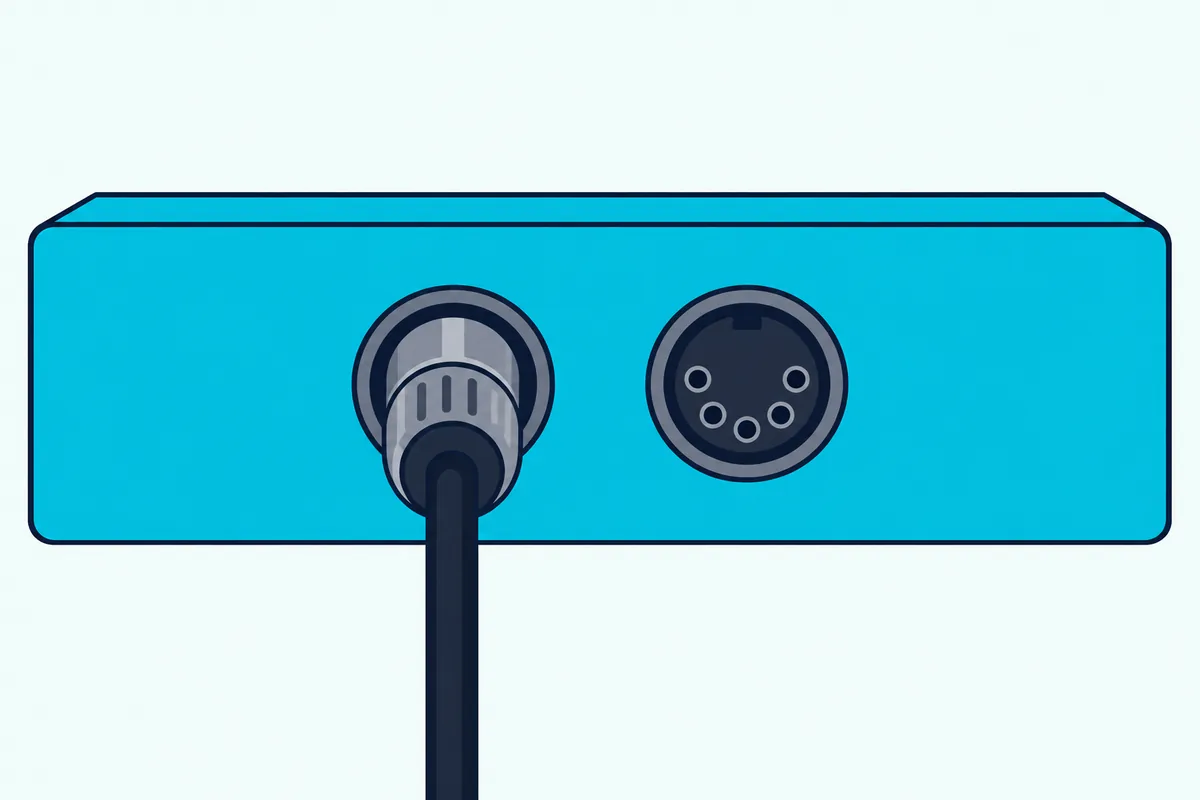
Those jacks each work in one direction, which settles both the way the cable runs and how many you need. One cable is enough for a keyboard with no sounds of its own, running from the keyboard’s MIDI OUT to the interface’s MIDI IN.
Apple’s guide to connecting MIDI devices says exactly that for a keyboard controller without tone generators. Think of each cable as a one-way street, with the label telling you which way traffic moves at that socket.
A keyboard with its own sounds takes a second cable, from the interface’s MIDI OUT back to the keyboard’s MIDI IN. Apple says keyboards with tone generators should have it, and Steinberg’s manual gives the reason: you can record your playing, edit it in Cubase and play it back on the keyboard.
With that loop in place, look for the keyboard’s Local Off setting. Ableton’s manual says it separates the keys from the sound generator, so the software sits between them when a keyboard synthesizer both plays into Live and makes the sound.
Neither cable carries sound. TASCAM’s US-2x2HR manual says that to hear a MIDI device, you connect its audio outputs to the interface’s inputs or an external mixer.
Any standard 5-pin MIDI cable does this job, and Cable Matters’ 2-pack covers the second connection if your keyboard needs one.
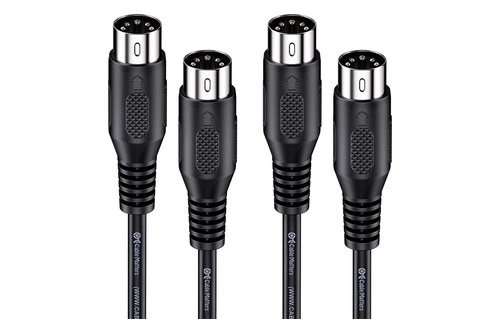
Cable Matters’ 2-pack
What If Your Computer Is Short of USB Ports?
That leaves route 1, which wants two USB ports, and a laptop can run short of them. You have three ways out: a USB hub for the keyboard, an interface with a USB socket of its own, or route 2 if the keyboard has a MIDI OUT.
Put any hub on the keyboard’s side. Apple’s Logic Pro guide says to attach the interface directly to the computer, since a hub can add an unacceptable amount of latency, while Alesis’s V49 MKII guide and M-Audio’s Keystation 49 MK3 guide both say a hub for the keyboard should be a powered one.
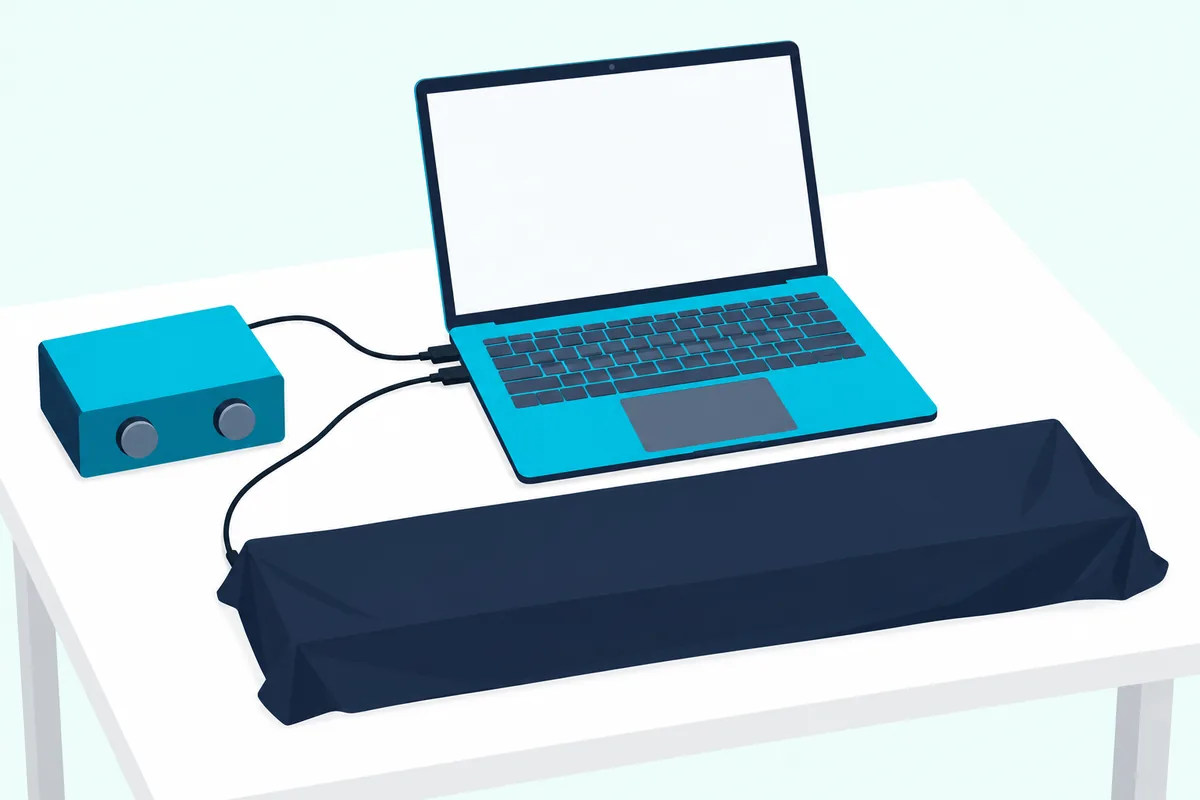
A few interfaces take the keyboard themselves. Arturia’s MiniFuse 4 has a USB-A port that Arturia says takes any standard USB device up to 250 mA, MIDI controllers included, and M-Audio’s AIR Hub has three USB inputs beside its two balanced outputs.
Route 2 frees a port on any keyboard with a MIDI OUT, given the power catch from earlier. A USB-only keyboard can’t use those 5-pin jacks by itself, since the MIDI Association describes USB as a host-controlled bus that needs a computer, phone or tablet in the system, so the bridge there is a USB MIDI host box.
How Do You Set Up the Keyboard and Interface in Your DAW?
Once it’s all plugged in, every DAW asks for the same three things in different menus. Set the interface as the audio device, switch on the keyboard or the interface’s MIDI port as an input, and put an instrument on a track.
That audio choice is what sends the instrument out through the interface’s headphone and speaker outputs.
Logic Pro
In Logic Pro > Settings > Audio, click Devices and choose the interface as the Output Device; Apple says the Input Device menu follows if that device has inputs. In the MIDI settings, open Inputs and keep the On box ticked for the keyboard or interface, because Apple says unticked devices don’t show in a software instrument track’s MIDI Input menu.
Logic’s MIDI Activity display shows incoming messages from every port, ticked or not. Press a key and watch it, which tells you the connection works before you load a sound.
GarageBand
Choose GarageBand > Settings, click Audio/MIDI, and pick the interface under Output Device and Input Device. Apple says the MIDI Controller line shows the last controller connected, and Reset MIDI Drivers reloads devices if you’ve lost the connection.
Add a track with Track > New Track, select MIDI, click Create and choose a patch in the Library. Our guide to add a MIDI keyboard to GarageBand covers the rest.
Ableton Live
Open Settings with Ctrl+comma or Cmd+comma and choose the interface in the Audio tab; Ableton recommends an ASIO driver on Windows. Its Routing and I/O chapter then has you turn on Track for the MIDI input in the Tempo & MIDI tab, which some chapters call Link, Tempo & MIDI.
On a MIDI track, pick that port or All Ins in the input chooser, drag in an instrument and arm the track. Ableton says armed tracks are monitored by default, so your notes pass through the instrument to the output.
FL Studio
Under Options > Audio settings, pick the interface in the Device menu; Image-Line says to use the interface’s own ASIO or Core Audio driver if it has one. Then in Options > MIDI settings, select the keyboard or port in the Input list and click Enable, and the MIDI activity light on the Main Panel blinks as you play.
Our FL Studio keyboard setup covers the controller types and fixes from there.
Cubase
Choose Studio > Studio Setup, select Audio System, pick your interface’s driver in the ASIO Driver menu and click Switch. Still in Studio Setup, activating In ‘All MIDI Inputs’ on the MIDI Port Setup page lets a MIDI track set to All MIDI Inputs hear your keyboard.
Load a VST instrument such as HALion Sonic SE to get sound. Steinberg’s guide says the keyboard and the track should ideally both be on channel 1, or try setting the track to any channel if you have problems.
What Do the Makers Say About USB Against 5-Pin MIDI?
Those steps barely change between the routes, so the real difference is what each connection is meant for. Keyboard makers describe USB as the link to a computer and the 5-pin jack as the link to hardware, while interface makers describe MIDI IN as a place for keyboards and controllers.
Alesis says the Q88 MKII’s USB port transmits MIDI data to a computer to trigger a software synth or sequencer, and its MIDI Out goes to the MIDI In of a sound module or synthesizer. M-Audio’s Keystation 88 MK3 page, Arturia’s KeyLab Essential mk3 manual and Novation’s Launchkey guide describe their 5-pin outputs in the same hardware terms.
On the interface side, Focusrite says the Scarlett 4i4’s MIDI IN receives signals from keyboards or controllers, and Behringer says the UMC204HD’s 5-pin jacks are for keyboards, controllers and sound modules. So route 2 is a documented setup, not a workaround.
On speed, the numbers come from outside those manuals. Microsoft describes the original 5-pin MIDI cable as running at about one millisecond per message, so a five-note chord takes about 5 ms to send, and the MIDI Association says data moves much faster on USB than on 5-pin DIN.
Apple’s MIDI page warns about chains instead: running too many devices through MIDI Thru can cause timing problems. Neither figure tells you what you’d hear on your own setup, so pick the route your keyboard’s sockets and your USB ports allow.
Why Doesn’t the Keyboard Play After You Connect It?
Whichever route you took, a silent keyboard leaves a trail you can follow in order. Press a key and watch for a MIDI light, because that tells you whether notes are arriving at all.
On route 2, M-Audio’s AIR 192|6 guide says the MIDI In LED flashes when data arrives from an external controller, and Behringer’s UMC204HD has MIDI LEDs too. No flash means the OUT-to-IN rule from earlier is the first thing to recheck, then the keyboard’s power.
If the interface is missing from your software’s MIDI list, it may be the reason. Focusrite’s Easy Start catch applies here, and RME says removing a grayed-out device in Audio MIDI Setup’s MIDI window and searching again solves it in most cases.
On a Mac, choose Window > Show MIDI Studio in Audio MIDI Setup. Apple says a device that isn’t connected shows dimmed, which makes a quick test of the connection.
If the light flashes and the list looks right but you hear nothing, look at the sound side. Steinberg says you need a software instrument loaded to generate sound, and the audio device choice from those DAW steps decides which outputs it leaves by.
When Does a Keyboard With a Built-In Interface Cover Both?
All of that assumes two boxes, but some keyboards carry an interface of their own. A built-in interface covers both jobs when you want one USB cable and sound out, and you don’t need mic or guitar inputs.
Korg’s Keystage specs list its USB port as a MIDI and audio interface with 1 MIDI in, 1 MIDI out and 2 channels of audio out at 44.1 kHz, 16-bit. Korg says it takes audio from your music apps and sends it to your speakers through its stereo output.
Yamaha’s P-225 digital piano lists a USB Audio Interface at 44.1 kHz, 24-bit stereo, with a USB TO HOST port. Neither maker’s spec sheet lists an input for a microphone or guitar, so recording a voice still takes a separate interface.
Frequently Asked Questions
Can you connect a keyboard to an interface with one MIDI cable?
Yes, if the keyboard makes no sound of its own. Apple’s Logic Pro guide says a controller without tone generators only needs its MIDI Out connected to a MIDI In on the interface. A keyboard with its own sounds should also have a second cable, from the interface’s MIDI Out to its MIDI In, so your software can play it. Once USB is out of the picture, remember the keyboard still needs power from somewhere.
Can you plug a USB MIDI keyboard into an audio interface?
Not into its MIDI jacks, which are round 5-pin sockets on most models. The USB cable goes to the computer, and your software links the keyboard and the interface. The exceptions are interfaces with a USB socket for accessories, such as the USB-A port on Arturia’s MiniFuse 4 or the three USB inputs on M-Audio’s AIR Hub.
Should you connect a MIDI controller to your audio interface?
Only if it has no USB port, or your computer is short of ports. A USB controller plugged into the computer already reaches your software, as Apple’s and Steinberg’s guides show. The interface’s MIDI jacks earn their place with 5-pin keyboards and hardware synths.
How do you connect a MIDI keyboard to a sound card?
Treat the sound card as an audio interface, since Image-Line’s FL Studio manual says the word soundcard is used loosely and audio interface is the better term. Connect a USB keyboard to the computer and pick the card as your audio device. If the card has MIDI jacks, run a cable from the keyboard’s MIDI OUT to its MIDI IN.
Can you use a MIDI controller through an interface with no MIDI jacks?
Yes for the audio side, since a USB controller connects to the computer and never needs the interface’s jacks. A keyboard with only 5-pin MIDI can’t connect to that interface, so Apple’s GarageBand guide has you use a separate MIDI interface between the keyboard and the computer.