How to Connect a Samsung Soundbar to WiFi, Model by Model

Here’s how to connect a Samsung soundbar to WiFi: put your phone on your home network, open the SmartThings app, and add the bar when its pop-up appears or by tapping the + button.
The catch is that plenty of Samsung bars, such as the B550, B650 and Q600C, have no Wi-Fi section in their manuals, and on the rest one router setting can block the TV link.
Once it’s online, the bar can take a Samsung TV’s sound without a cable, play AirPlay and Spotify, and fetch its own firmware updates.
Start by checking your model, since the table below sorts Samsung’s Q, S and B series by what their manuals say.
After that come the older bars’ buttons, the TV menu, AirPlay, Spotify and Alexa, the router settings and the fixes for a bar that won’t connect or keeps dropping off.
How to Connect a Samsung Soundbar to WiFi With SmartThings
That pop-up and the + button both live in one app on your phone. Samsung’s manuals for its Wi-Fi bars send you through the SmartThings app, and Samsung’s help page adds that the phone and the bar must use the same Wi-Fi network and the same Samsung account.
- Connect your phone to the home Wi-Fi the bar should join, install SmartThings and sign in to your Samsung account.
- Turn the soundbar on and open SmartThings; when the pop-up offers the soundbar, tap Add Now, then Start.
- No pop-up? Tap Add (the + icon), then Device, By device, AV, Samsung, Agree and Start.
- Choose a location and a room, then wait while the app finishes registering the bar.
Samsung’s help page lists Android 8.0 or later for the app, and the SmartThings listing on Apple’s App Store asks for iOS 17.0 or later as of 24 October 2026. Samsung’s 2025 HW-Q990F guide adds a shortcut: you can also register the bar by scanning the QR code on the soundbar.
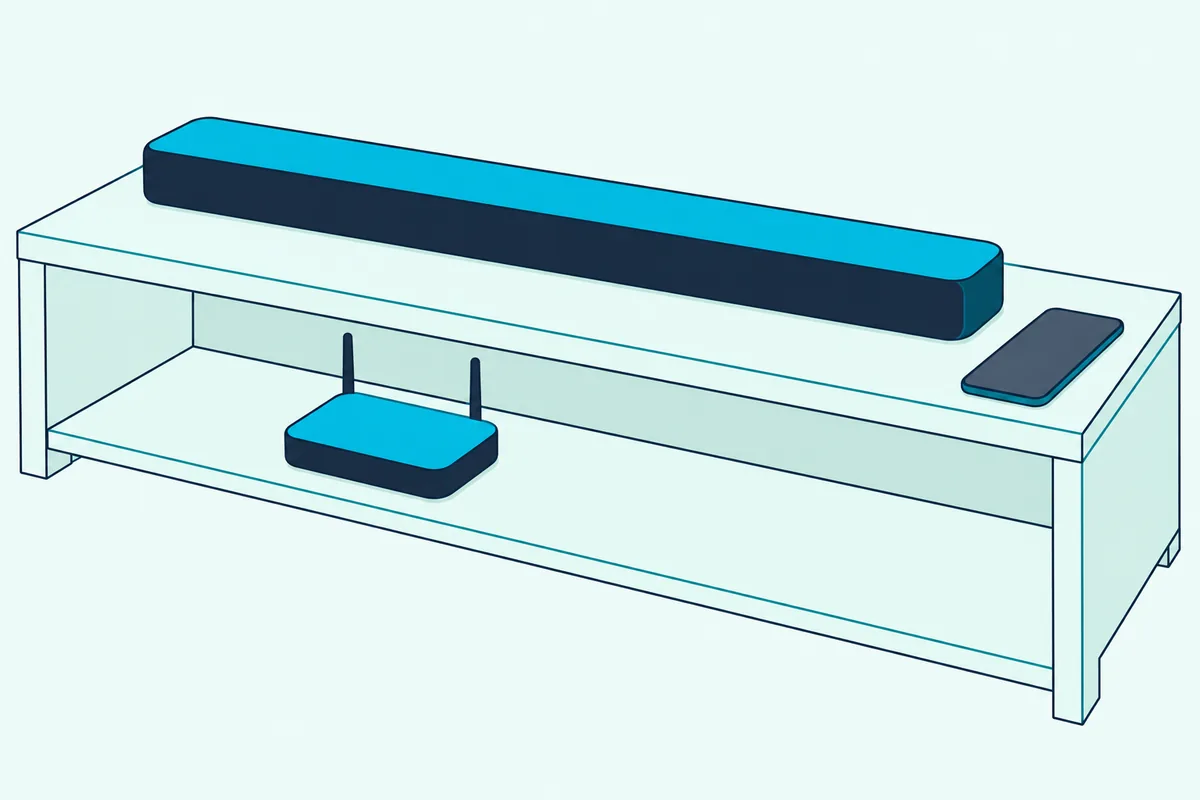
Samsung’s US setup page starts one step earlier, with the bar switched to its Wi-Fi mode by pressing Source on the remote or on the soundbar. Think of SmartThings as the bar’s keyboard: the soundbar has nowhere to type your Wi-Fi password, so the phone hands it over.
Which Samsung Soundbars Have Wi-Fi?
That app route only works on a bar with a Wi-Fi radio, and Samsung’s manuals split the range cleanly. The higher Q-series bars (the Q700 and up in the C and D years, the Q800F and up in 2025, plus the Q990B, Q950A and Q70R) and the S60D and S800D lifestyle bars have Wi-Fi sections; the manuals for the Q600C, Q600B, Q60C, Q60T, B650, B550, B400F and C450 have none.
| Model (year on Samsung’s page) | Wi-Fi in the manual | Hold to switch Wi-Fi off or on (30 seconds) | Name on a Samsung TV’s Sound Output list |
|---|---|---|---|
| HW-Q990F, Q930F, Q800F (2025) | Yes | CH LEVEL on the remote | Soundbar Q-series (Wi-Fi) |
| HW-Q990D (2024), Q930D, Q800D, Q700D | Yes | CH LEVEL on the remote | Soundbar Q-Series (Wi-Fi) |
| HW-S60D, S61D (2024) | Yes | CH LEVEL on the remote | S-Series Soundbar (Wi-Fi) |
| HW-S800D (2024), S700D | Yes | CH LEVEL on the remote | Ultra Slim Soundbar (Wi-Fi) |
| HW-Q990C (2023), Q930C, Q800C, Q700C | Yes | CH LEVEL on the remote | Soundbar Q***C (Wi-Fi) |
| HW-Q990B | Yes | CH LEVEL on the remote | Soundbar Q***B (Wi-Fi) |
| HW-Q950A (2021) | Yes | ID SET on the bar’s bottom panel | [AV] Samsung Soundbar Q950A (Wi-Fi) |
| HW-Q70R | Yes | Center of the WOOFER (or BASS) button on the remote | [AV] Samsung Soundbar Q70R (Wi-Fi) |
| HW-Q600C (2023), Q600B, Q60C, Q60T, B650, B550, B400F (2025), C450 | No Wi-Fi section | Not applicable | Not applicable |
If your model isn’t listed, look in its manual for a section called Connecting via Wi-Fi, which every Wi-Fi model above has. For the series differences beyond Wi-Fi, see Burton Acoustix’s Samsung series comparison.
Here’s a quick test at the bar itself: press Source and watch the display, because on the Wi-Fi models Wi-Fi is one of the stops. On the HW-Q990D the loop runs TV ARC or eARC, HDMI 1, HDMI 2, Wi-Fi, BT and D.IN.
A bar without Wi-Fi still reaches a TV by cable, and hooking a Samsung soundbar up to any TV by cable walks through the HDMI and optical routes.
Get Studio Tips Weekly
Join 5,000+ creators getting acoustic treatment advice every week.
No spam. Unsubscribe anytime.Does Your Model Need a Button Press or Wi-Fi Mode First?
The switch column in that table matters more than it looks. On the B, C, D and F generation bars in the table, the app does the setup, and the only Wi-Fi button is a hidden switch: holding CH LEVEL on the remote for 30 seconds turns Wi-Fi off or on, and Samsung warns the bar restarts each time.
So if a bar that used to connect has vanished from the app, rule that switch out first. Hold CH LEVEL for 30 seconds once, wait for the restart, then look for the bar in SmartThings again.
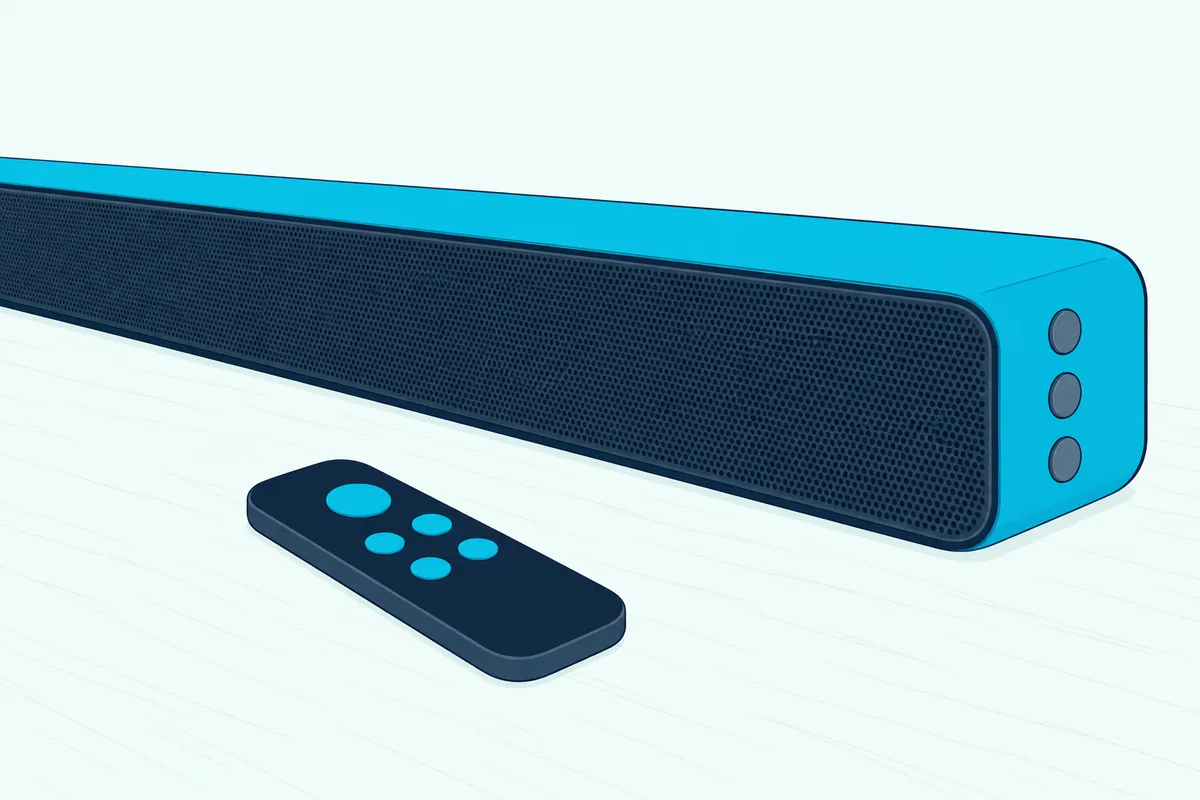
The older bars ask for more. On the HW-Q70R you press Source on the right side of the bar or on the remote until the display reads WIFI, then add the bar in SmartThings.
The Q70R and the HW-Q950A also have a NETWORK button on the bottom panel, which their manuals describe as the button for connecting to Wi-Fi through the SmartThings app. Don’t hold it down, though: on both bars, holding NETWORK for 30 seconds turns Bluetooth off or on instead.
The S60D shows its modes with an LED rather than words, and its Multi Function button on top steps through TV ARC, Wi-Fi, Bluetooth and Digital Audio In, with the LED lighting white at each change.
How Do You Connect the Soundbar to a Samsung TV Over Wi-Fi?
Once the bar is on the network, a Samsung TV can use it as a wireless speaker. Put the TV and the bar on the same Wi-Fi network, then on a 2017 or later Samsung TV go to Settings, All Settings, Sound, Sound Output and pick the entry ending in (Wi-Fi), such as Soundbar Q-Series (Wi-Fi).
Samsung’s manuals say the bar must join your router first, and that this Wi-Fi link works only with a Samsung TV. An LG or Sony TV needs one of the cable routes instead.
The Q70R’s manual covers older Samsung TVs too:
| Samsung TV year | Where the Wi-Fi soundbar appears |
|---|---|
| 2017, 2018 and 2019 | Settings > Sound > Sound Output |
| 2016 | Settings > Sound > Select Speaker |
| 2015 | Menu > Sound > Speaker List |
| 2014 | Menu > Sound > Speaker Settings > Multiroom Link – Settings |
The Q70R’s manual says the feature works only with Samsung Smart TVs released after 2013. It adds that on some 2016 to 2018 Samsung TVs with Bluetooth, switching the bar to WIFI mode while the TV is on brings up a pop-up that walks you through putting the bar on your router.
Samsung’s US page warns that the TV itself may drop off Wi-Fi when you send its sound to the bar. If that happens, reconnect the TV from its own network menu.
The HW-Q990D manual adds that Dolby Atmos over this Wi-Fi link works only with some Samsung TVs and some soundbar models.
Can You Use AirPlay, Spotify Connect and Alexa Once It’s Online?
The TV link is one use of the network, and streaming from your phone is the other. Yes, on the bars whose manuals list them: AirPlay needs the bar registered in SmartThings first, Spotify Connect needs the phone and bar on the same Wi-Fi the first time, and Alexa runs either built in or through the Alexa app.
For AirPlay, the HW-Q990D, Q990C and S60D manuals say you must register the bar in SmartThings and agree to the app’s terms, then keep the bar on the same Wi-Fi network as your Apple device. From there, Apple’s AirPlay steps are the usual ones: open Control Center, tap AirPlay and tap the soundbar.
The Q990C and S60D manuals ask for iOS 13.4 or later, the Q990B and Q950A manuals for iOS 11.4 or later, and Samsung warns that deleting the bar from SmartThings switches AirPlay off.
So leave the bar’s card in the app even if you only ever use AirPlay. If you’re still choosing a bar for an iPhone, Burton’s list of soundbars that stream over AirPlay compares the field.
Spotify Connect is listed in the Q990D, S60D and Q990F manuals, which tell you to use your phone, tablet or computer as a remote for Spotify. Spotify’s own steps are to play something, open the device list at the bottom of the screen and pick the speaker, with every device on the same Wi-Fi for the first connection; a pause of more than 10 minutes may mean reconnecting.
Alexa comes two ways. The HW-Q950A has Alexa built in: link your Amazon account in SmartThings, then say “Alexa” or hold the bar’s Multi Function button for 3 seconds, and Samsung’s UK page lists the Q990B with Alexa built in too.
The Q70R and Q950A also work with an Echo speaker. The Q70R’s manual has you rename the bar in SmartThings to something Alexa can recognize, such as Living Room, enable the Samsung Wireless Audio skill in the Alexa app, then say “Alexa, discover devices”.
The S60D, S800D and Q990F manuals add Chromecast and Tidal to the network services, with support subject to software updates.
Which Router Settings Stop a Samsung Soundbar Joining Wi-Fi?
Every one of those services leans on your home network, so the router is next. Samsung’s manuals name three settings: a DFS channel blocks the TV-to-soundbar Wi-Fi link, the 2024 and 2025 manuals say the bar doesn’t support Wi-Fi 6, and the Q70R’s manual says to use 2.4 GHz if the 5 GHz connection isn’t smooth.
| Router setting | What Samsung’s manuals say | What to check |
|---|---|---|
| DFS channel | A router on a DFS channel can’t carry the TV-to-soundbar Wi-Fi link | The 5 GHz channel in the router’s settings, or ask your internet provider, as Samsung suggests |
| Wi-Fi 6 | The HW-Q990D, Q930D, S60D, S800D and Q990F don’t support Wi-Fi 6 | Any Wi-Fi 6-only mode on the router |
| 2.4 GHz vs 5 GHz | The Q70R: use 2.4 GHz if 5 GHz isn’t smooth; Group Play needs 5 GHz | Which band the phone, TV and bar each joined |
| One network for everything | The TV, bar and phone must share one network; Q-Symphony wants the same router and frequency | Guest networks and separate band names |
DFS is the radar-avoidance rule for 5 GHz Wi-Fi. Cisco Meraki’s DFS guide explains that a radio on a DFS channel must move when it detects radar, and that non-DFS channels sit outside the UNII-2, UNII-2 Extended and weather radar ranges (Meraki’s example radar hit is on channel 100).
Wi-Fi 6 arrived in 2018, and the Wi-Fi Alliance says most Wi-Fi 5 products work on both 2.4 GHz and 5 GHz. Samsung’s checklist says no more than that about Wi-Fi 6, so a router setting that admits only Wi-Fi 6 devices is the one to look for.
Why Won’t SmartThings Find Your Samsung Soundbar?
Router settings explain a bar that joins and then misbehaves; a bar the app can’t see at all is a different problem. Samsung’s US troubleshooting page starts with Bluetooth, because it says a stable Bluetooth connection is essential for registration.
- On your phone, open Settings and check that Bluetooth is switched on.
- Unplug the soundbar for 30 seconds, then plug it back in to clear temporary errors.
- Remove the bar from your phone’s Bluetooth list: on Android, Settings > Connections > Bluetooth, the Settings icon next to the bar, then Unpair; on an iPhone, Settings > Bluetooth, the info button, then Forget This Device.
- Open SmartThings and add the soundbar again.
The 2025 Q990F guide has its own route for a bar the app can’t find. Pair the phone with the soundbar over Bluetooth, tap Connected Devices in SmartThings, slide left to the soundbar’s card and tap Register device to Samsung account.
If neither works, recheck the basics from the first section: the phone on the Wi-Fi network you want, one Samsung account, and a Wi-Fi model from the table with its Wi-Fi switched on.
Samsung’s US page covers its newer Samsung Sound app too, which it says supports 2026 products and the HW-LS60D Music Frame so far. Samsung’s four steps cover either app.
Why Does the Soundbar Keep Dropping Off Wi-Fi?
Registering the bar is half the job, and keeping it online is the other half. Samsung’s manuals point to four things: a weak signal, a router that needs restarting, a new router that needs the bar’s network set up again, and a power cut, which ends the bar’s Wi-Fi connection until you turn it on and reconnect it.
Samsung’s checklist starts with the router: check it’s on, then turn it off and back on. For a weak signal, it says to move the router closer to the bar or clear obstacles between them.
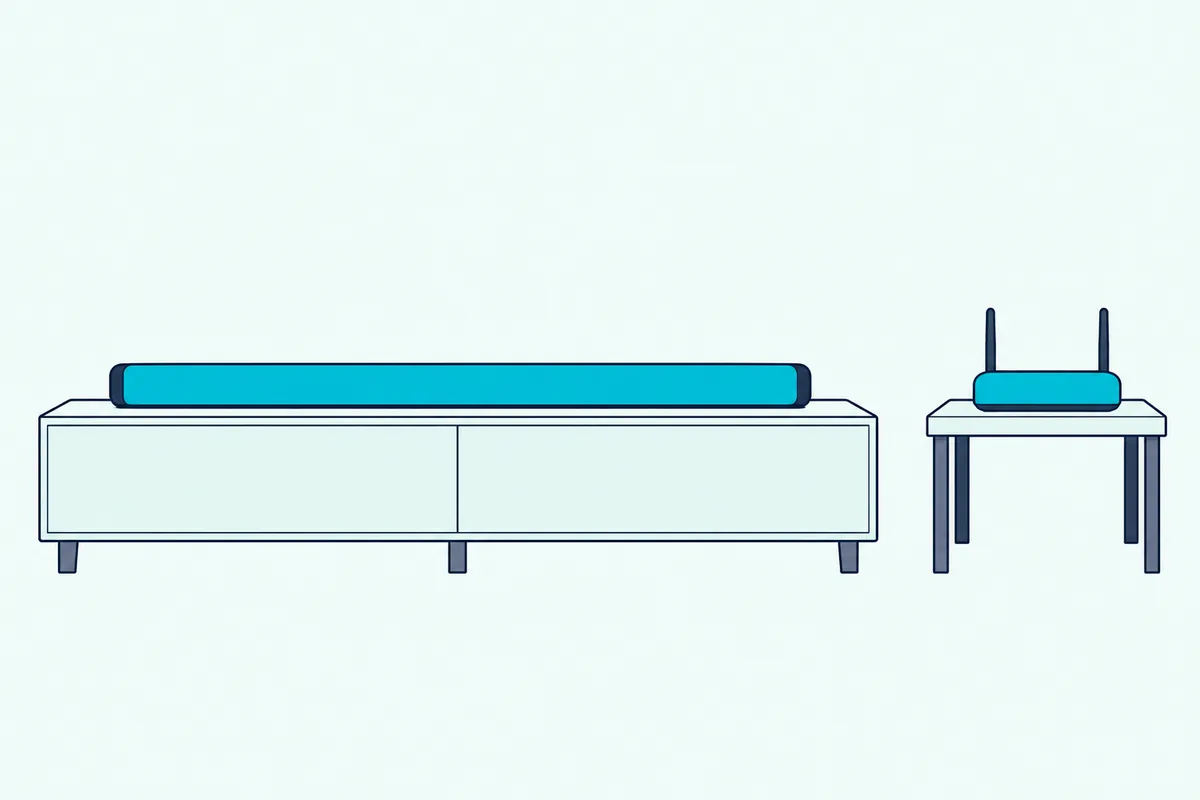
The power-cut rule explains a bar that shows as disconnected after an outage. The HW-Q990D manual says unplugging the bar or losing power ends its Wi-Fi connection, so after an outage you turn the bar on and reconnect it to the internet.
A DFS channel can play a part here too. Meraki says a 5 GHz radio that detects radar disconnects its clients and changes channel, while 2.4 GHz clients aren’t disturbed; Samsung’s manuals don’t tie drop-outs to DFS, so treat it as one suspect, not a diagnosis.
For a new router or a new password, move the bar with the Change Wi-Fi network steps in the FAQ below instead of starting over.
Does the Soundbar Update Its Firmware Over Wi-Fi?
A bar that stays online keeps itself current. Yes: Samsung’s manuals say a soundbar connected to the internet updates its software automatically, even while it’s turned off, and Samsung’s US page adds a manual check in SmartThings under the three-dot menu, Information, Firmware Update and Update Now.
Samsung’s US page asks you to unplug the soundbar, subwoofer and rear speakers for 30 seconds before that manual update. It also warns that some soundbars, including 2023 Q-series models, may not work because of an automatic firmware update issue, and the fix is to unplug and replug the bar, then update to version 1004.0 or later through SmartThings or a USB drive.
The USB route skips Wi-Fi: download your model’s firmware from Samsung’s support site, unzip it, copy the files to the top level of a USB drive, plug it into the powered-off bar, turn the bar on and switch to the USB source.
The display flashes UPDATE while it works, and the HW-Q990D manual says the update finishes within 3 minutes.
When Should You Reset the Soundbar?
Firmware is the last fix before a reset, and the reset is the last step of all. Reset only after the Bluetooth, router and app fixes above have failed, because Samsung warns it returns every setting to its default; on the HW-Q990D, Q990F and S60D you hold both volume buttons on the bar for 5 seconds while it’s on.
The Q990D and Q990F show INIT on the display. The S60D signals with its LED instead, in a sequence of cyan blinks, red blinks and a white sweep from side to side.
Because every setting goes, plan on adding the bar to SmartThings again with the four steps from the first section. Models that reset differently, including bars with no display, are covered in the Samsung soundbar reset steps by model.
Frequently Asked Questions
Can you set up a Samsung soundbar’s Wi-Fi without the remote?
Yes, on most Wi-Fi models. The SmartThings app does the whole setup from your phone, and the pop-up or the + button finds the bar without any button presses on the B, C, D and F generation models.
The older Q70R needs Source set to WIFI, and that button is also on the side of the bar. The remote matters for the hidden 30-second CH LEVEL switch, which the manuals give as the way to turn Wi-Fi back on.
Where is the network or pairing button on a Samsung soundbar?
The HW-Q70R and HW-Q950A have a NETWORK button on the bottom panel for Wi-Fi setup through SmartThings.
The pairing button is for Bluetooth, not Wi-Fi. On the HW-Q990D, press PAIR on the remote, or hold the Mic On/Off button on the bar for at least 5 seconds, to enter BT PAIRING mode.
How do I move my Samsung soundbar to a new WiFi network?
Use the app instead of resetting. On the HW-Q990D and Q990F, tap the soundbar’s card in SmartThings, then the menu icon, then Device Settings, Network Status and Change Wi-Fi network, and follow the prompts.
The S60D and S800D manuals take a blunter route: delete the soundbar from the app, then add it again with your phone on the new network. Samsung’s checklists say a new router means setting up the bar’s network again.
Will the SmartThings app work with a Q600B or other bar without Wi-Fi?
Not as a Wi-Fi speaker. The Q600B and Q600C manuals have no Wi-Fi section and mention SmartThings only for switching on Tap View, Tap Sound, a phone feature that connects to the bar over Bluetooth.
None of the Wi-Fi features on this page apply to those bars, so Bluetooth and the cable routes are what they have.