How to Connect a Philips Soundbar to a TV
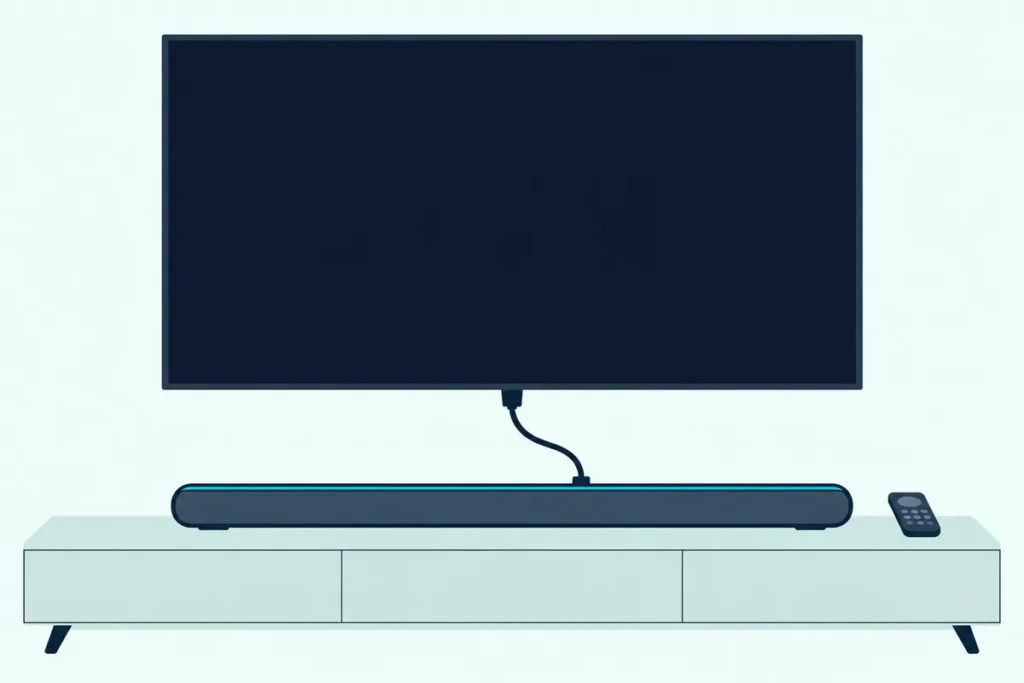
Here’s how to connect a Philips soundbar to a TV: run an HDMI cable from the bar’s HDMI ARC port to the TV’s ARC port, then turn on HDMI-CEC, which Philips TVs call EasyLink.
Philips’s own ARC article names the two things that trip setups up: an ordinary HDMI port isn’t enough, and the TV’s HDMI-CEC setting has to be on as well.
Get both right and the TV remote can run the bar’s volume, while the bar’s light or display confirms the input.
Below are the ports on Philips’s seven current US models, the cable most boxes leave out, and the EasyLink, Anynet+, SIMPLINK, BRAVIA and Roku TV menus.
After that come the optical, AUX and Bluetooth routes, what the lights mean, and the checks that bring a silent bar back.
How to Connect a Philips Soundbar to a TV
That ARC port is where Philips’s manuals start. The TAB7568 and TAB4208 manuals both say that if your TV is HDMI ARC compliant, you can hear the TV’s audio through the bar with a single HDMI cable.
Here’s the order those manuals give:
- On the TV, turn on HDMI-CEC (EasyLink on a Philips TV; the sections below give each brand’s menu).
- With a High Speed HDMI cable, connect the bar’s HDMI out (ARC) socket to the TV’s HDMI ARC connector, which the manuals warn may carry a different label.
- Plug in the power cords last, since both manuals ask you to finish every other connection first.
- Select HDMI ARC on the bar, which is already the default source on the TAB4208 and TAB7568, then play something with sound.
Philips’s ARC setup article adds the cable rule: version 1.4 or above. If setup still fails, it suggests updating the TV’s and the bar’s software, then powering both off, unplugging the HDMI cable, reconnecting everything and trying again.
Think of the ARC cable as a return lane: the picture travels into the TV as usual, and the TV’s own sound comes back out along the same HDMI cable to the bar. Philips’s TV support adds that this single-cable link is the preferred connection, ahead of optical, coaxial and the headphone jack.
HDMI-CEC is one industry standard sold under several brand names, and Philips’s EasyLink article says Philips markets its version as EasyLink. If your TV isn’t a Philips, the switch has another name, and HDMI ARC switches on every major TV brand lists them side by side.
Ports on Each Current Philips Soundbar
Those steps assume an HDMI ARC socket, and every bar in Philips’s current US range has exactly one. Each spec list shows a single HDMI out (ARC), labeled eARC/ARC on the TAB6200, and here’s how the rest of the back panel compares:
| Model | Channels | Optical in | Audio in (3.5mm) | HDMI cable in the box | Roku TV Ready |
|---|---|---|---|---|---|
| TAB4000 | 2.0 | None listed | None listed | No | Yes |
| TAB4208 | 2.0 | Yes | Yes | No | Not listed |
| TAB4500 | 2.1, wireless subwoofer | None listed | None listed | No | Yes |
| TAB5109 | 2.0 | Yes | Yes | No | Yes |
| TAB5309 | 2.1, wireless subwoofer | Yes | Yes | No | Yes |
| TAB6200 | 2.1 | Yes | Yes | Yes | Yes |
| TAB7568 | 5.1, wireless subwoofer | Yes | In the manual only | Yes | Yes |
The table shows why a TAB4000 or TAB4500 reaches the TV by HDMI ARC or not at all by wire: their spec lists show HDMI ARC, Bluetooth and USB, with no optical or AUX input. Every one of the seven also lists Bluetooth as a receiver and USB playback.
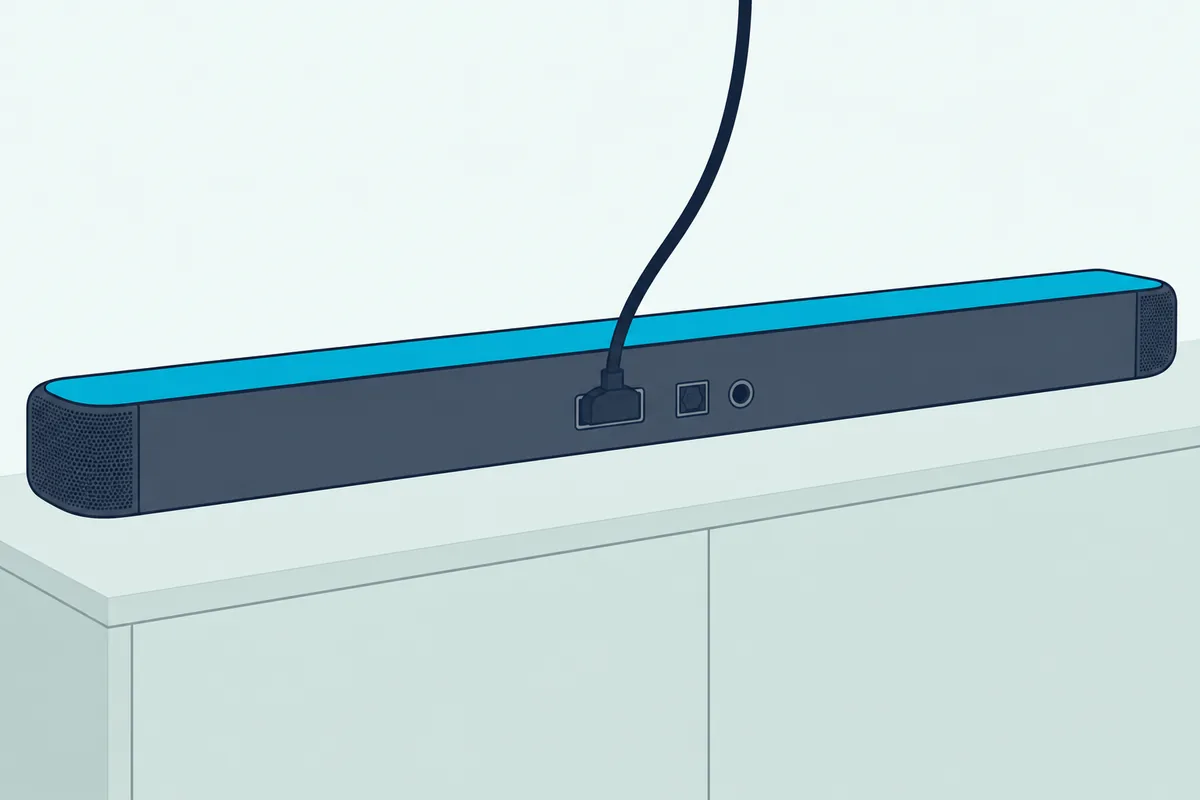
The TAB7568 is the odd one: its manual shows an Audio in (3.5mm) jack that its US spec list leaves out, so look at the back panel before buying an AUX cable for it. Older Philips bars follow the same pattern, and Philips’s US FAQ for the HTL2160, HTL2161B and HTL2163B says to press the ARC button on the bar’s remote to select the ARC input.
What the HDMI port carries differs by model. The TAB4000 and TAB4500 list LPCM 2ch, the TAB4208 PCM 2ch, the TAB5109 and TAB5309 add Dolby Digital, Dolby Digital Plus and DTS, and the TAB6200’s eARC port adds Dolby Atmos, Dolby TrueHD and Dolby MAT.
Get Studio Tips Weekly
Join 5,000+ creators getting acoustic treatment advice every week.
No spam. Unsubscribe anytime.Do You Need to Buy an HDMI Cable for a Philips Soundbar?
That box column answers it for most of the range. Only the TAB6200 and TAB7568 list an HDMI cable among their included accessories, and the other five list a remote, batteries, power and a wall-mount bracket but no audio cable at all.
Philips’s manuals ask for a High Speed HDMI cable, and the TAB7568 manual adds that its Dolby Digital Plus experience needs the HDMI-ARC link with an HDMI cable above 1.4. If the bar is an eARC model such as the TAB6200 on a Roku TV, Roku asks for a Premium High Speed HDMI Cable with Ethernet or an Ultra High Speed HDMI cable, which includes Ethernet support.
If you’re buying one, Highwings’ 6.6 ft Certified Ultra High Speed HDMI cable is sold as that certified type. Measure from the TV’s ARC port to the bar’s HDMI socket first, so the cable reaches without pulling on either end.
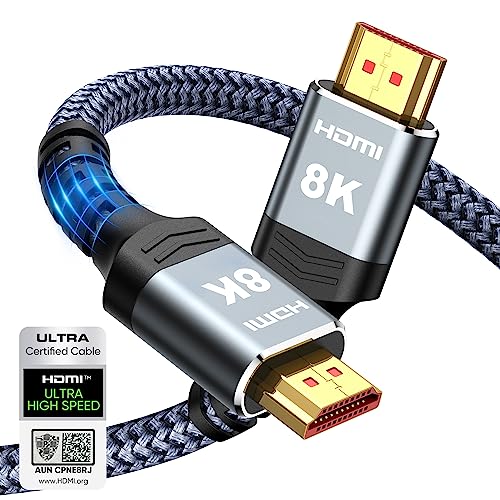
Highwings’ 6.6 ft Certified Ultra High Speed HDMI cable
Where Is EasyLink on a Philips TV?
With the cable in, the TV still has to hand its sound over, and on a Philips TV that switch is EasyLink. On a Philips Google TV it sits under Settings > Channels & Input > Inputs > EasyLink, and on a Philips Android TV under Settings > General Settings > EasyLink.
Philips’s TV and sound support site, run by TP Vision’s parent group TPV, says EasyLink uses the standard HDMI cable to carry system commands between devices that have HDMI-CEC. On a Philips Google TV, Philips’s EasyLink steps are:
- Press Home on the remote.
- Open the Dashboard tab, the cogwheel icon at the top right of the screen.
- Select Settings > Channels & Input > Inputs > EasyLink > EasyLink > On.
- In the same Inputs menu, turn on EasyLink auto ARC on, so the TV can wake the bar from standby.
On a Philips Android TV, the path is Settings > General Settings > EasyLink > EasyLink > On, reached from the Home button or the Settings button depending on the model. The same menu holds EasyLink remote control, EasyLink auto device off, EasyLink auto TV on and EasyLink auto ARC on.
Older Philips TVs use a different tree. Philips’s Ireland support page gives Setup > TV settings > General settings > EasyLink > EasyLink > On, then Setup > TV settings > Sound > Advanced > HDMI ARC > On, with an EasyLink autostart option that switches the TV to the external speakers whenever the sound system is on.
That support site’s TV articles add one caveat: they don’t cover TV models sold in the United States, Canada or Mexico. On a Philips-branded TV bought there, follow the menu for the system it runs, such as the Roku TV and Google TV paths in the next two sections.
Which Setting Turns On ARC on Samsung, LG and Sony TVs?
Other brands sell that same HDMI-CEC switch under their own names, which is why Philips’s manuals simply say to see the TV’s user manual. On Samsung it’s Anynet+ (HDMI-CEC) under External Device Manager, on LG it’s SIMPLINK (HDMI-CEC) under HDMI Settings, and on Sony it’s BRAVIA Sync.
Here are the full paths, from the makers’ guides and Roku’s HDMI-CEC and ARC guide:
| TV | Name for HDMI-CEC | Where to turn it on |
|---|---|---|
| Samsung (2023-2024) | Anynet+ (HDMI-CEC) | Settings > All Settings > Connection > External Device Manager |
| Samsung (2025-2026) | Anynet+ (HDMI-CEC) | Settings > All Settings > General & Privacy > External Device Manager |
| LG (webOS 24) | SIMPLINK (HDMI-CEC) | Settings > All Settings > General > External Devices > HDMI Settings |
| Sony BRAVIA | BRAVIA Sync | Settings > Watching TV > External Inputs > BRAVIA Sync settings (Roku’s path) |
| Google TV or Android TV, any brand | Control Other Devices (CEC) | Settings > Inputs or External devices control |
| Roku TV | Control other devices (CEC) | Settings > System > Control other devices (CEC) > 1-touch play |
Samsung’s Anynet+ page adds that the TV can take up to 2 minutes to finish connecting a device, and that it controls only one home theater system. LG’s webOS guide has a shortcut: choosing Sound Out > Use Wired Speaker > HDMI(ARC) Device turns SIMPLINK on by itself.
Sony’s 2024 BRAVIA Help Guide sets the sound side under Settings > Display & Sound > Audio output: Speakers > Audio system, then Audio system settings > eARC setting > Auto. On Google TV and Android TV sets from other brands, Roku’s guide gives Settings > Sound or Audio > Audio Output, then HDMI ARC or eARC.
Mixed brands can still trip up. Philips’s EasyLink article warns that devices from other brands might not work with a Philips TV over HDMI-CEC, because makers interpret the standard differently, so keep the bar’s own remote handy on a mixed setup.
What Happens When You Plug a Philips Soundbar Into a Roku TV?
That Roku TV row gets easier with six of the seven bars in the ports table. Plug one of them into the Roku TV’s HDMI ARC port (HDMI eARC on some models), turn both on, and Roku’s setup article says the TV starts an on-screen setup by itself once it detects the bar.
Philips’s product pages call the TAB4000, TAB4500, TAB5109, TAB5309, TAB6200 and TAB7568 Roku TV Ready certified. Philips says that means a simple setup, one remote and quick settings with a Roku TV.
If the TV says the soundbar is plugged into the wrong port, Roku’s answer is that only the ARC or eARC port lets the two talk back and forth over HDMI. Roku wireless speakers have to be removed first under Settings > Remotes & devices > Audio devices & Speakers, then About and Forget device.
Roku also notes that a bundled wireless subwoofer pairs with the bar, not the TV. For the TV’s own audio menus, including the eARC option under Settings > Audio > Audio Output, see Roku TV audio settings for any soundbar.
Can the TV Remote Control a Philips Soundbar?
That one-remote promise rides on EasyLink. Yes, over HDMI ARC with HDMI-CEC on, Philips’s TAB5309 page says you can adjust the bar’s volume with your TV remote, and with a Philips Ambilight TV the remote can also switch the bar’s preset EQ modes and adjust bass and treble.
Each spec list says what the bar does over EasyLink. The TAB4000 and TAB4500 list one touch play, system audio control and system standby; the TAB5109 and TAB5309 list Audio Return Channel, automatic audio input mapping, one touch play and system standby.
The TAB4208 page makes the same volume promise over HDMI ARC, though its spec list doesn’t name EasyLink. Over optical, AUX or Bluetooth, none of this applies, because EasyLink’s commands travel over the HDMI cable itself.
For everything else there’s the bar’s own remote. The TAB4208 and TAB7568 manuals give it a range of 19.7 feet (6 m), warn that obstacles or other infrared remotes nearby can stop it working, and say to aim it straight at the sensor on the front of the bar.
How Do You Connect a Philips Soundbar With an Optical Cable?
That remote trade-off is the main cost of optical, which five of the seven current bars still offer. The TAB7568 and TAB4208 manuals use one cable from the bar’s Optical connector to the TV’s Optical out connector, which they say may be labeled SPDIF or SPDIF OUT.
Then select optical on the bar: the TAB4208’s remote has its own Optical button, and on other models the Source button cycles to it. Philips’s TV support says the TV needs no extra settings, because its optical port always sends audio while connected, but the TV speakers won’t switch off on their own.
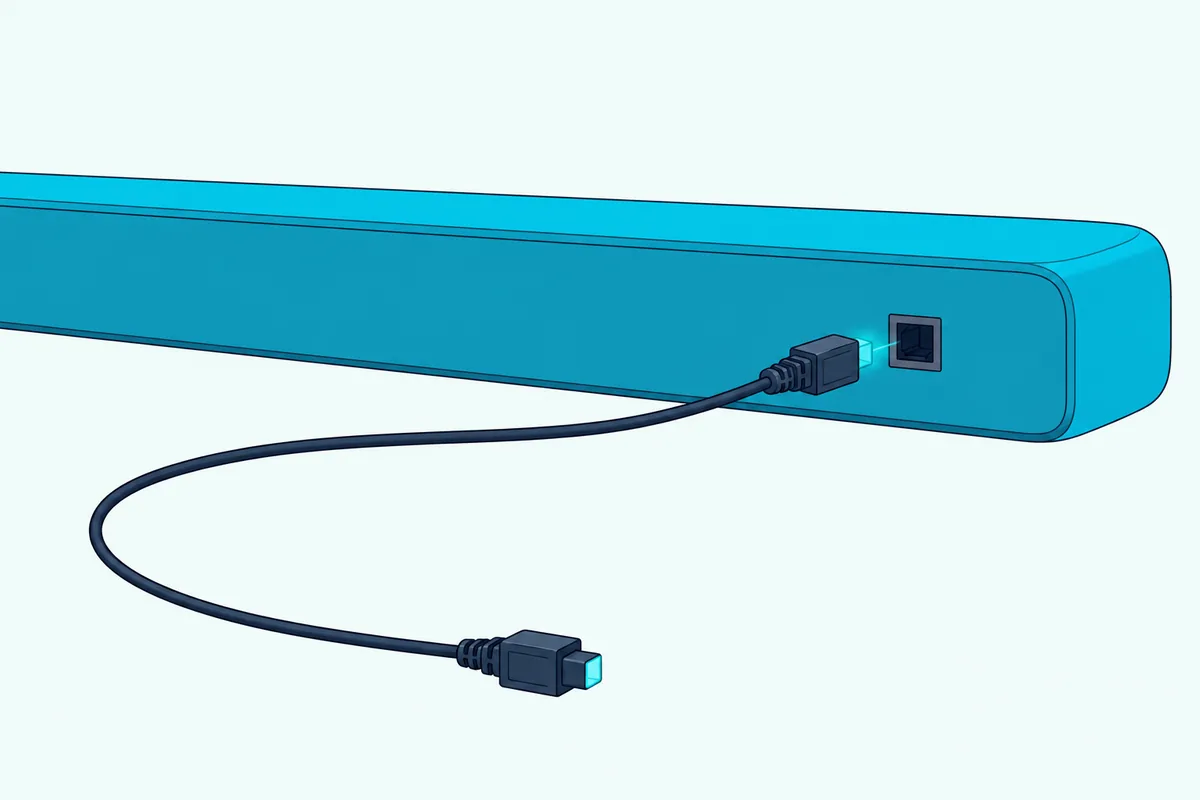
That same support article asks for a cable with no major knots, bent no more than 90 degrees. If the bar stays silent and its light flashes, the TAB4208 manual says to switch the TV’s digital output to PCM, and the TAB7568 manual names PCM, DTS or Dolby Digital.
Optical also carries less. The TAB5109, TAB5309 and TAB6200 list Dolby Digital and LPCM 2ch over optical, and the TAB7568 manual says other connections such as a digital optical cable can’t support all of Dolby Digital Plus’s features, so Philips recommends HDMI.
None of the seven boxes includes an optical cable. If you need one, Amazon Basics’ 6 ft TOSLINK optical cable is sold for sound bars, and what an optical cable can and can’t carry explains the format limits.
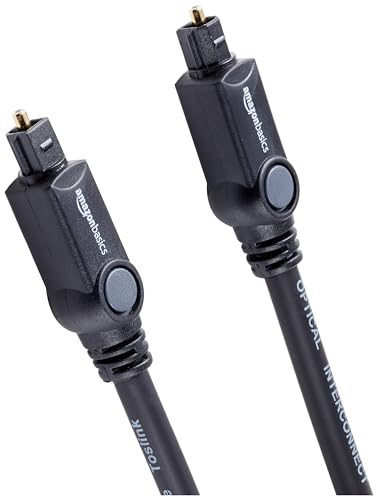
Amazon Basics’ 6 ft TOSLINK optical cable
Some Philips TVs have a digital coaxial output instead of optical, according to Philips’s TV support. None of the seven current US spec lists shows a coaxial input, so on those TVs HDMI ARC or the headphone jack is the way in.
Can You Use AUX or Bluetooth Instead?
That headphone jack is the AUX route. Yes, AUX works on the four bars that list a 3.5mm Audio in, and Bluetooth on all seven, though both give up the EasyLink control from earlier.
For AUX, the TAB4208 and TAB7568 manuals use a 3.5mm-to-3.5mm cable from the TV’s headphone socket to the bar’s AUX socket, or an RCA-to-3.5mm cable from the TV’s L and R audio output sockets.
Philips’s TV support warns that the headphone jack’s analog signal travels slower than digital, which can leave picture and sound out of sync. Philips’s no-sound steps also say to check that the TV’s audio output isn’t set to variable for a 3.5mm connection, and AUX cable steps for any soundbar covers the TV side in more detail.
Bluetooth is the only way to connect a Philips soundbar to a TV wirelessly, since every current US spec list shows a Bluetooth receiver and none lists Wi-Fi. The pairing steps from Philips’s support article for all its soundbars and the manuals run like this:
- Press the BT or Pair button on the remote, or the Source button on the bar until it shows Bluetooth.
- On the other device, turn on Bluetooth and pick the bar’s name, such as Philips TAB4208, from the list.
- Wait for the bar’s voice prompt, which confirms the connection.
- To drop every paired device and pair a new one, press and hold the BT button for 3 seconds.
The manuals give a range of about 10 meters (30 feet) in open space, while Philips’s general support article asks for 4 meters or less and Bluetooth 4.2 or newer. Philips writes these steps for phones, tablets and laptops and gives none for a TV, so check your TV’s manual for a Bluetooth audio output before you count on it.
What Does the Soundbar’s Light or Display Tell You?
Those source choices are easy to lose track of, so each bar shows which one is live. On the TAB4208 the lights also say whether the signal on HDMI ARC or optical is one the bar supports, and its manual reads them like this:
| TAB4208 light | Solid | Blinking |
|---|---|---|
| HDMI ARC (white) | Signal supported | Signal not supported |
| OPT (white) | Signal supported | Signal not supported |
| BT (white) | Connected | Not connected (it also blinks while pairing) |
| AUX/USB (white) | AUX | USB |
| Standby (red) | Standby |
So a blinking HDMI ARC light with no sound points straight back to the PCM setting from the optical section. The TAB4000’s guide uses the same idea with four lights, BT, Standby, USB and HDMI ARC, showing solid red for standby and solid white on HDMI ARC.
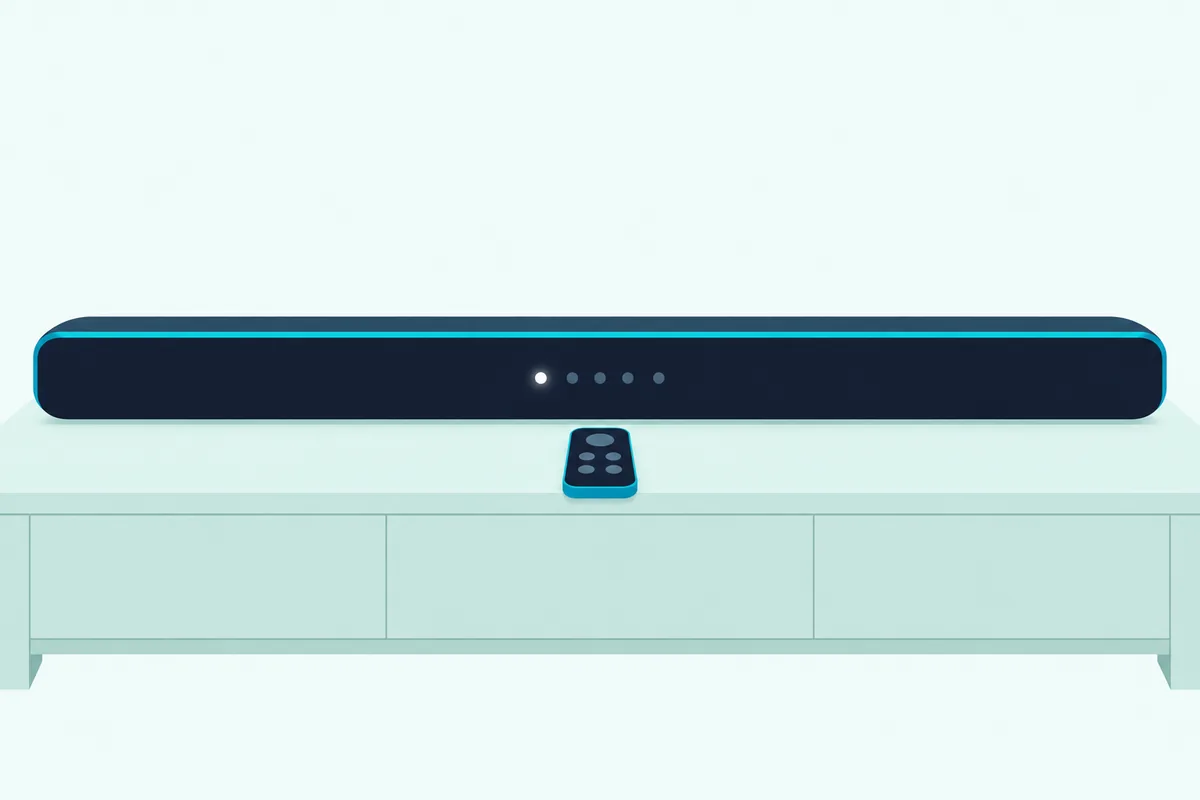
The TAB7568 spells it out instead. Its display names the source, HDMI ARC, OPTICAL, AUX, BT or USB, shows Pairing while Bluetooth waits for a device, and shows the volume level as you change it.
Why Is a Philips Soundbar Not Playing Sound From the TV?
That light or display check is the first of several. Philips’s manuals and support articles trace a silent bar to the wrong source on the bar, a cable in a plain HDMI port, HDMI-CEC left off, or a TV output format the bar can’t play.
Work down this table, built from Philips’s manuals and support articles:
| What you notice | What to check | Source |
|---|---|---|
| No sound over HDMI | The bar is on HDMI ARC; the cable is in the TV’s ARC port; HDMI-CEC and ARC are on | TAB7568 and TAB4208 manuals |
| HDMI ARC or optical light flashing | The TV’s digital output set to PCM | TAB4208 and TAB7568 manuals |
| A Philips Android TV says it failed to switch to the external audio device | Update the TV’s software | Philips TV support |
| Echo or distorted sound | Mute the TV or turn off its speakers | TAB7568 manual, Philips TV support |
| No sound over AUX | TV audio output set to fixed, not variable | TAB7568 manual, Philips support |
| The bar switches itself off after 15 minutes | Turn up the source, since a weak input signal triggers it | TAB4208 and TAB7568 manuals |
| No bass from a TAB7568 subwoofer | Pair it again by hand (below) | TAB7568 manual |
On older Philips TVs, Philips’s Ireland page turns the TV’s own speakers off under Setup > TV settings > Sound > Advanced > TV speakers. For Dolby Digital Plus over HDMI, the TAB7568 manual also asks for “No Encoding” in the TV’s digital audio output setting.
The TAB7568’s subwoofer pairs itself on first power-up, and its manual gives a manual pairing for when it doesn’t. Unplug the bar and the subwoofer for 3 minutes, plug them back in, hold the Pair button on the subwoofer’s back for 3 seconds until its light blinks fast, then switch the bar on; a solid light means it worked.
If nothing on the list helps, Philips’s no-sound steps end with a restart: power the bar off, wait a couple of minutes, and power it on again. The last resort on the TAB4208 and TAB7568 is a factory reset, holding the bar’s + and – buttons together for 8 seconds.
Frequently Asked Questions
How do I pair my Philips soundbar to my TV?
Pair it over HDMI rather than Bluetooth when you can: connect the bar’s HDMI ARC socket to the TV’s ARC port and turn on HDMI-CEC, which is EasyLink on a Philips TV. On a Roku TV, the six Roku TV Ready Philips bars start their setup on their own once the TV detects them on the ARC port.
How do you connect a Philips soundbar to a TV without HDMI?
Use the optical input on the TAB4208, TAB5109, TAB5309, TAB6200 or TAB7568, or the 3.5mm Audio in where the bar has one. The TAB4000 and TAB4500 list neither, so without HDMI they’re down to Bluetooth, and only if the TV can send its sound that way.
Does it matter which HDMI port you use for a soundbar?
Yes, on the TV’s side. Philips says an ordinary HDMI port isn’t enough and the port has to be HDMI ARC, Sony says to use the HDMI terminal labeled ARC or eARC/ARC, and a Roku TV shows a wrong-port message if the bar is anywhere else.
Can a Philips soundbar connect to a Samsung TV?
Yes, the same way as any TV: HDMI from the bar’s ARC socket to the Samsung’s ARC port, then Anynet+ (HDMI-CEC) turned on under External Device Manager. Philips’s EasyLink article warns that HDMI-CEC between brands might not work, since makers interpret the standard differently, so keep the bar’s own remote nearby.