How to Connect a Samsung Soundbar to Your TV

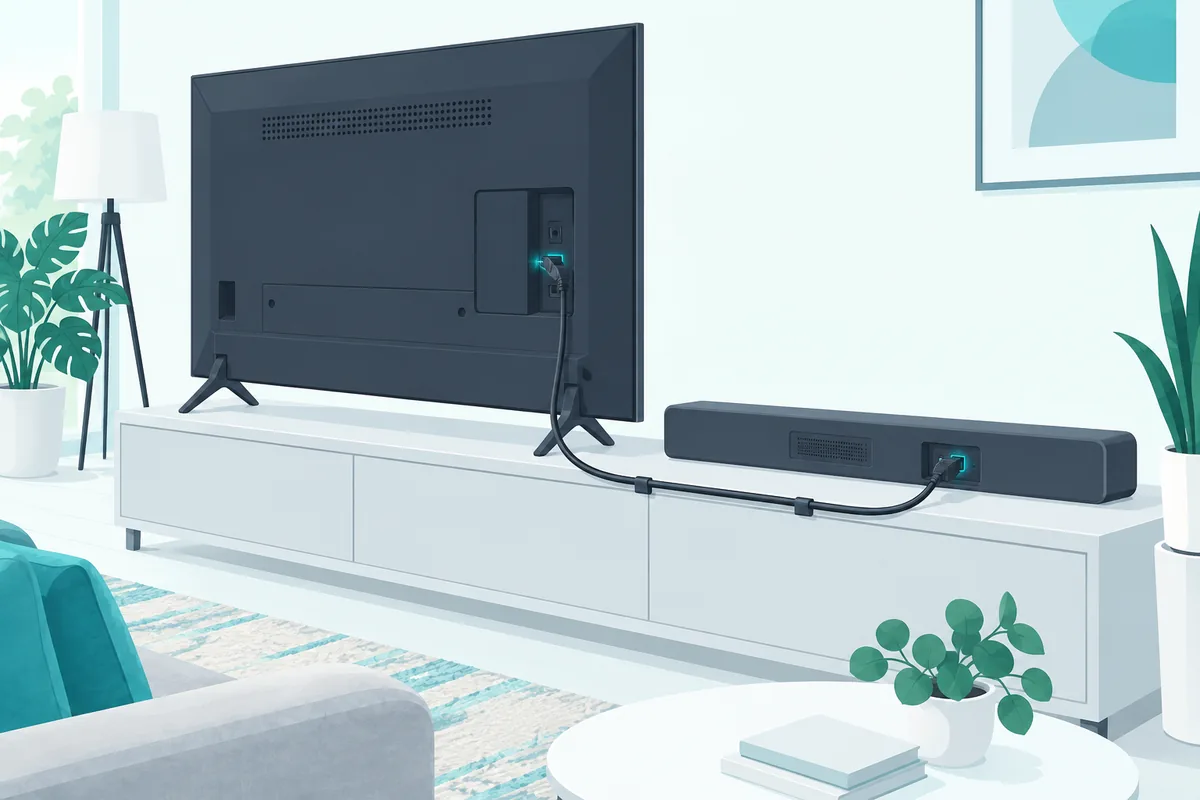
How to connect a Samsung soundbar to a TV: run an HDMI cable from the TV’s HDMI (ARC/eARC) port to the bar’s HDMI TO TV (eARC/ARC) port, then press Source until the bar shows D.IN.
A few seconds later the display reads TV ARC, and the TV’s sound moves to the bar.
When it doesn’t, the show plays on while every word still comes out of the TV’s own thin speakers.
Samsung supports four links, HDMI, optical, Bluetooth and Wi-Fi, and they don’t carry the same sound, so the choice matters more than the steps.
Here’s each one in Samsung’s own steps, the TV settings that make it work, and what to check when the bar stays silent.
Which Connection Should You Use for a Samsung Soundbar?
Those four methods trade convenience against sound quality. HDMI eARC is the best way to connect a Samsung soundbar to a TV, because Samsung says its extra bandwidth carries advanced formats such as Dolby Atmos and DTS:X (Samsung).
| Connection | What it carries | Use it when |
|---|---|---|
| HDMI eARC | Dolby Atmos and DTS:X, plus TV remote control of the bar | Your TV has a port marked eARC |
| HDMI ARC | Compressed surround sound, plus TV remote control | Your TV’s HDMI port says ARC, not eARC |
| Optical | Stereo and basic surround; Samsung says it can’t match HDMI’s bandwidth | Your TV has no ARC port |
| Bluetooth | Stereo, with no cable | Cables won’t reach, or you want a quick setup |
| Wi-Fi | Wireless sound; some bars even carry Dolby Atmos this way | Your bar and TV both support it |
If your TV has no HDMI port labeled ARC or eARC, optical is the next best wired choice. For a different brand of bar, the same ports and settings appear in our guide to connecting a soundbar to any TV.
How to Connect a Samsung Soundbar to a TV With HDMI
Start with the eARC link from that table, since it’s the one worth getting right. You connect a Samsung soundbar to a TV over HDMI with one cable between the TV’s ARC or eARC port and the bar’s HDMI TO TV port, using these steps from Samsung Canada:

- Turn on the TV and the soundbar.
- Plug one end of the HDMI cable into the TV’s HDMI (ARC/eARC) port.
- Plug the other end into the soundbar’s HDMI TO TV (eARC/ARC) port.
- Press Source on the soundbar until the display shows D.IN.
- Wait a few seconds for TV ARC to appear on the soundbar’s display.
On most TVs only one HDMI port carries the ARC or eARC label, and no other port sends the TV’s sound out to the bar.
Turn On eARC and Anynet+ on the TV
Once the cable is in, two TV settings finish the job. For eARC, Samsung’s path is Settings > All Settings > Sound > Expert Settings > HDMI-eARC Mode, set to Auto.
Then turn on Anynet+ (HDMI-CEC), so the TV remote controls the bar’s power and volume. Samsung lists it under Settings > All Settings > Connection > External Device Manager > Anynet+ (HDMI-CEC); older menus put it under Settings > General > External Device Manager (Samsung US).
If the sound drops out now and then, the cable is the next suspect. A cable made for eARC, such as the Silkland 8K HDMI eARC cable, rules out a worn one, and our HDMI cable guide for soundbars covers longer runs.
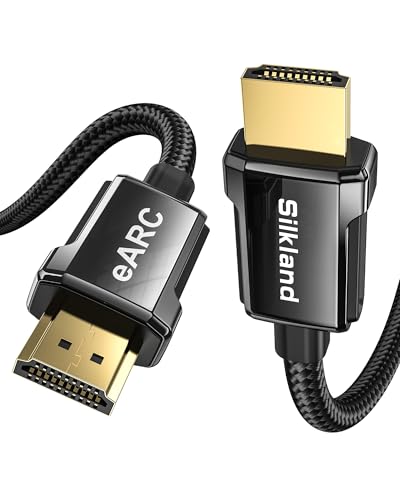
Silkland 8K HDMI eARC cable
Get Studio Tips Weekly
Join 5,000+ creators getting acoustic treatment advice every week.
No spam. Unsubscribe anytime.How Do You Connect a Samsung Soundbar With an Optical Cable?
That HDMI setup needs an ARC port, and optical is the fallback when your TV doesn’t have one. Connect a Samsung soundbar to a TV with an optical cable by running it from the TV’s OPTICAL OUT port to the bar’s DIGITAL AUDIO IN (OPTICAL) port, then setting the bar to D.IN.
On the TV, Samsung’s path is Settings > Quick settings > Sound Output > Receiver (Optical). On 2022 and newer TVs, Samsung also points to Settings > All Settings > Sound > Expert Settings > Simultaneous Optical Output, so check it if the bar stays silent.
Optical can’t carry Dolby Atmos, so it’s the wrong choice for an Atmos bar. For everything else, a plain cable like the KabelDirekt 6 ft optical cable does the job.
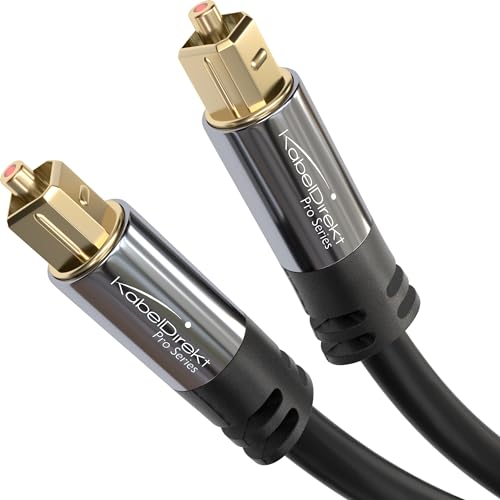
KabelDirekt 6 ft optical cable
Can You Pair a Samsung Soundbar to the TV Over Bluetooth?
Yes, and when neither cable fits, Bluetooth takes over with no wire at all. Pair a Samsung soundbar to the TV over Bluetooth by putting the bar in pairing mode first, then choosing it from the TV’s speaker list:

- Press Pair on the soundbar remote, or hold Source (or Mic On/Off on some models) for more than 5 seconds until the display shows BT PAIRING.
- On the TV, go to Settings > All Settings > Sound > Sound Output > Bluetooth Speaker List.
- Select your soundbar from the list.
Bluetooth sends stereo sound only, and it can lag slightly behind the picture on some setups. It’s fine for everyday TV, but a wired connection is better for movies with surround sound.
Can You Connect a Samsung Soundbar to the TV Over Wi-Fi?
Yes, and Wi-Fi is the other wireless route, the only one that can carry Dolby Atmos on some models. You connect a Samsung soundbar to the TV over Wi-Fi through the SmartThings app, with the bar and TV on the same network.
Press Source on the bar until it shows Wi-Fi mode. In SmartThings, tap the plus icon, then Device, then AV, and follow the prompts to add the soundbar to a room.
Then pick the bar on the TV under Settings > All Settings > Sound > Sound Output. Samsung notes the TV can drop off Wi-Fi during setup, so reconnect it from the TV menu if that happens.
Does a Polk or Other Soundbar Connect to a Samsung TV the Same Way?
Yes, because those ports and menus belong to the Samsung TV, not the bar. Connect a Polk soundbar to a Samsung TV the same way: plug its HDMI ARC input into the TV’s HDMI (ARC/eARC) port.
Then turn on Anynet+ (HDMI-CEC), which is Samsung’s name for the HDMI-CEC standard most soundbars use to follow the TV remote. A Bluetooth bar from any brand shows up in the same Bluetooth Speaker List.
Why Is There No Sound After You Connect the Soundbar?
Silence after setup almost always traces back to one of the steps above. Check these in order:
- The port. The cable must be in the TV’s ARC or eARC port, not an ordinary HDMI input.
- The bar’s source. For HDMI ARC or optical, the soundbar must be on D.IN.
- The TV’s sound output. It should name the soundbar or the receiver, not the TV speaker.
- Anynet+ and eARC. Both should be on, as shown in the HDMI section.
- A fresh start. Turn both off, unplug them for a minute, then power on the TV first.
If it’s still silent, our Samsung soundbar troubleshooting guide walks through resets and firmware updates. Once the sound works, pairing the Samsung subwoofer is the usual next step.
Frequently Asked Questions
Which HDMI port on a Samsung TV do I use for a soundbar?
Use the port labeled ARC or eARC. It’s usually the only HDMI port that can send the TV’s sound out to a soundbar.
Can I connect a Samsung soundbar to a Samsung TV without a cable?
Yes. You can pair it over Bluetooth from the TV’s Bluetooth Speaker List, or connect it over Wi-Fi with the SmartThings app.
Why won’t my Samsung soundbar show TV ARC?
The cable may be in an ordinary HDMI port, or Anynet+ (HDMI-CEC) may be off on the TV. Move the cable to the ARC or eARC port, switch the bar to D.IN and turn Anynet+ on.
Does an optical cable work with Dolby Atmos?
No. Samsung says optical can’t match HDMI’s bandwidth, so Dolby Atmos needs HDMI eARC or, on some models, Wi-Fi.